Blog

Learn About Our Meetup

5000+ Members

MEETUPS

LEARN, CONNECT, SHARE

Join our meetup, learn, connect, share, and get to know your Toronto AI community. 

JOB POSTINGS

INDEED POSTINGS

Browse through the latest deep learning, ai, machine learning postings from Indeed for the GTA.

CONTACT

CONNECT WITH US

Are you looking to sponsor space, be a speaker, or volunteer, feel free to give us a shout.

Category: Amazon

K-means clustering with Amazon SageMaker

Amazon SageMaker provides several built-in machine learning (ML) algorithms that you can use for a variety of problem types. These algorithms provide high-performance, scalable machine learning and are optimized for speed, scale, and accuracy. Using these algorithms you can train on petabyte-scale data. They are designed to provide up to 10x the performance of the other available implementations. In this blog post, we will explore k-means, which is an unsupervised learning problem. In addition, we’ll walk through the details of the Amazon SageMaker built-in k-means algorithm.

What is k-means?

The k-means algorithm attempts to find discrete groupings within data, where members of a group are as similar as possible to one another and as different as possible from members of other groups (see the following figure). You define the attributes that you want the algorithm to use to determine similarity.  Another way you can define k-means is that it is a clustering problem that finds k cluster centroids for a given set of records, such that all points within a cluster are closer in distance to their centroid than they are to any other centroid.
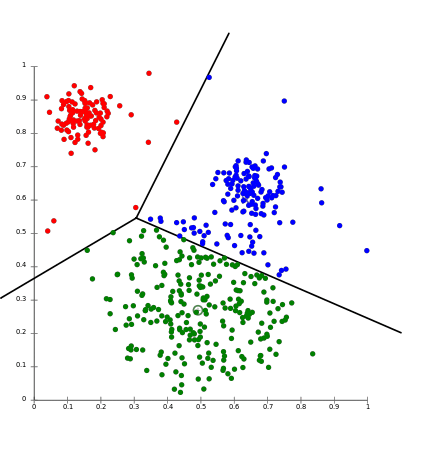
The diagram demonstrates that in the given dataset, there are three obvious clusters marked red, blue, and green. Each cluster has a cluster center. Note that the points in each cluster are spatially closer to the cluster center they are assigned to than the other cluster centers. 

Mathematically, it can be interpreted as follows:

Given: S={x1…xn}, a set S of n vectors of dimension d and an integer k

Goal: Find C={µ1µk }, a set of k cluster centers, that minimize the expression:

Where can you use k-means?

 The k-means algorithm can be a good fit for finding patterns or groups in large datasets that have not been explicitly labeled. Here are some example use cases in different domains:

  • E-commerce
    • Classifying customers by purchase history or clickstream activity.
  • Healthcare
    • Detecting patterns for diseases or success treatment scenarios.
    • Grouping similar images for image detection.
  • Finance
    • Detecting fraud by detecting anomalies in the dataset. For example, detecting credit card frauds by abnormal purchase patterns.
  • Technology
    • Building a network intrusion detection system that aims to identify attacks or malicious activity.
  • Meteorology
    • Detecting anomalies in sensor data collection such as storm forecasting.

We’ll provide a step-by-step tutorial for k-means using the Amazon SageMaker built-in k-means algorithm and the technique to select an optimal k for a given dataset.

The Amazon SageMaker k-means algorithm

The Amazon SageMaker implementation of k-means combines several independent approaches. The first, is the stochastic variant of Lloyds iteration, given by [Scully’ 10 https://www.eecs.tufts.edu/~dsculley/papers/fastkmeans.pdf]. The second is a more theoretical approach based on facility location [Mayerson’ 01 http://web.cs.ucla.edu/~awm/papers/ofl.pdf and subsequent works]. The third is the divide and conquer, or core-set approach [Guha et al.’ 03 http://theory.stanford.edu/~nmishra/Papers/clusteringDataStreamsTheoryPractice.pdf].

The high-level idea is to implement the stochastic Lloyd variant of [Scully’ 10], yet with more centers than required. During the data processing phase we keep track of the cluster sizes, disregard centers with small clusters, and open new centers using techniques inspired by facility location algorithms. To handle the state having more centers than needed we use a technique inspired by core-sets, and we represent the dataset as the larger set of centers, meaning that each center represents the data points in its cluster. Given this view, after we finish processing the stream, we finalize the state into a model of k centers by running a local version of k-means, clustering the larger set of centers, with k-means++ initialization and Lloyds iteration.

Highlights

Single pass. Amazon SageMaker k-means is able to obtain a good clustering with only a single pass over the data. This property translates into a blazing fast runtime. Additionally, it allows for incremental updates. For example, imagine we have a dataset that keeps growing every day. If we require a clustering of the entire set, we don’t need to retrain over the entire collection every day. Instead, we can update the model in time proportional only to the new amount of data.

Speed and GPU support. Other than having a single pass implementation, our algorithm can be run on a GPU machine achieving blazing-fast speed. For example, processing a 400-dimensional dataset of 23 M entries (~37 GB of data), with k=500 clusters can be done in 7 minutes. The cost is a little over one dollar. For comparison, a popular and fast alternative of Spark-streaming k-means would require 26 minutes to run and cost about $ 8.50.

To explain the advantage of using GPUs, notice that the time it takes to process each data point of dimension d is O(kd) with k being the number of clusters. For a large number of clusters, GPU machines provide a much faster (and cheaper) solution than CPU implementations.

Accuracy. Although we require a single pass, our algorithm achieves the same mean square distance cost as the state-of-the-art multiple pass implementation of k-means++ (or k-means||) initialization coupled with Lloyds iteration. For comparison, in our experiments current implementations of a single pass solution, based on minor modifications of the paper [Scully ‘10] achieve a clustering with a mean square distance of 1.5-2 times larger than that of the multi-pass solutions.

Getting started

In our example, we’ll use k-means on the GDELT dataset, which monitors world news across the world, and the data is stored for every second of every day. This information is freely available on Amazon S3 as part of the AWS Public Datasets program.

The data are stored as multiple files on Amazon S3, with two different formats: historical, which covers the years from 1979 to 2013, and daily updates, which cover the years from 2013 on.  For this example, we’ll stick to the historical format. Let’s bring in 1979 data for the purpose of interactive exploration. We’ll import the required libraries and write a simple function so that later we can use it to download multiple files. Replace user-data-bucket with your Amazon S3 bucket.

import boto3
import pandas as pd
import numpy as np
import matplotlib.pyplot as plt
from IPython.display import display
import io
import time
import copy
import json
import sys
import sagemaker.amazon.common as smac
import os
import mxnet as mx
from scipy.spatial.distance import cdist
import numpy as np
from numpy import array
import urllib.request
import gzip
import pickle
import sklearn.cluster
import sklearn
import re
from sagemaker import get_execution_role

# S3 bucket and prefix
bucket = '<user-data-bucket>' # '<user-data-bucket>' # replace with your bucket name'
prefix = 'sagemaker/DEMO-kmeans'

role = get_execution_role()

def get_gdelt(filename):
    s3 = boto3.resource('s3')
    s3.Bucket('gdelt-open-data').download_file('events/' + filename, '.gdelt.csv')
    df = pd.read_csv('.gdelt.csv', sep='t')
    header = pd.read_csv('https://www.gdeltproject.org/data/lookups/CSV.header.historical.txt', sep='t')
    df.columns = header.columns
    return df

data = get_gdelt('1979.csv')
data

As we can see, there are 57 columns, some of which are sparsely populated, cryptically named, and in a format that’s not particularly friendly for machine learning. So, for our use case, we’ll strip down to a few core attributes. We’ll use the following:

  • EventCode: This is the raw CAMEO action code describing the action that Actor1 performed upon Actor2.  More detail can be found at (https://www.gdeltproject.org/data/documentation/CAMEO.Manual.1.1b3.pdf)
  • NumArticles: This is the total number of source documents containing one or more mentions of this event. This can be used as a method of assessing the “importance” of an event. The more discussion of that event, the more likely it is to be significant.
  • AvgTone: This is the average “tone” of all documents containing one or more mentions of this event. The score ranges from -100 (extremely negative) to +100 (extremely positive). Common values range between -10 and +10, with 0 indicating neutral.
  • Actor1Geo_Lat: This is the centroid latitude of the Actor1 landmark for mapping.
  • Actor1Geo_Long: This is the centroid longitude of the Actor1 landmark for mapping.
  • Actor2Geo_Lat: This is the centroid latitude of the Actor2 landmark for mapping.
  • Actor2Geo_Long: This is the centroid longitude of the Actor2 landmark for mapping.

We will now prepare our data for machine learning. We will also use a few functions to help us scale this to GDELT datasets from other years.

data = data[['EventCode', 'NumArticles', 'AvgTone', 'Actor1Geo_Lat', 'Actor1Geo_Long', 'Actor2Geo_Lat', 'Actor2Geo_Long']]
data['EventCode'] = data['EventCode'].astype(object)

events = pd.crosstab(index=data['EventCode'], columns='count').sort_values(by='count', ascending=False).index[:20]

#routine that converts the training data into protobuf format required for Sagemaker K-means.
def write_to_s3(bucket, prefix, channel, file_prefix, X):
    buf = io.BytesIO()
    smac.write_numpy_to_dense_tensor(buf, X.astype('float32'))
    buf.seek(0)
    boto3.Session().resource('s3').Bucket(bucket).Object(os.path.join(prefix, channel, file_prefix + '.data')).upload_fileobj(buf)

#filter data based on actor locations and events as described above
def transform_gdelt(df, events=None):
    df = df[['AvgTone', 'EventCode', 'NumArticles', 'Actor1Geo_Lat', 'Actor1Geo_Long', 'Actor2Geo_Lat', 'Actor2Geo_Long']]
    df['EventCode'] = df['EventCode'].astype(object)
    if events is not None:
        df = df[np.in1d(df['EventCode'], events)]
    return pd.get_dummies(df[((df['Actor1Geo_Lat'] == 0) & (df['Actor1Geo_Long'] == 0) != True) &
                                   ((df['Actor2Geo_Lat'] == 0) & (df['Actor2Geo_Long'] == 0) != True)])

#prepare training training and save to S3.
def prepare_gdelt(bucket, prefix, file_prefix, events=None, random_state=1729, save_to_s3=True):
    df = get_gdelt(file_prefix + '.csv')
    model_data = transform_gdelt(df, events)
    train_data = model_data.sample(frac=1, random_state=random_state).as_matrix()
    if save_to_s3:
        write_to_s3(bucket, prefix, 'train', file_prefix, train_data)
    return train_data

# using the dataset for 1979
train_79 = prepare_gdelt(bucket, prefix, '1979', events, save_to_s3=False

We will now use the training data and visualize using t-Distributed Stochastic Neighbor Embedding (TSNE).  TSNE is a non-linear dimensionality reduction algorithm used for exploring high-dimensional data.

# using TSNE for visualizing first 10000 data points from 1979 dataset
from sklearn import manifold
tsne = manifold.TSNE(n_components=2, init='pca', random_state=1200)
X_tsne = tsne.fit_transform(train_79[:10000])

plt.figure(figsize=(6, 5))
X_tsne_1000 = X_tsne[:1000]
plt.scatter(X_tsne_1000[:, 0], X_tsne_1000[:, 1])
plt.show()

After we have explored our data and we are ready for modeling, we can begin training. For this example, we are using data for years 1979 to 1980.

BEGIN_YEAR = 1979
END_YEAR = 1980

for year in range(BEGIN_YEAR, END_YEAR):
    train_data = prepare_gdelt(bucket, prefix, str(year), events)

# SageMaker k-means ECR images ARNs 
images = {'us-west-2': '174872318107.dkr.ecr.us-west-2.amazonaws.com/kmeans:latest',
          'us-east-1': '382416733822.dkr.ecr.us-east-1.amazonaws.com/kmeans:latest',
          'us-east-2': '404615174143.dkr.ecr.us-east-2.amazonaws.com/kmeans:latest',
          'eu-west-1': '438346466558.dkr.ecr.eu-west-1.amazonaws.com/kmeans:latest'}
image = images[boto3.Session().region_name]

We’ll run the training algorithm from values of k from 2 to 12 to determine the right number of clusters. If you are running training jobs in parallel, ensure that you have Amazon EC2 limits in your account to create the instances that are required for parallel training. To request a limit increase see the AWS service limits documentation. In our case, we are using 24 ml.c4.8xlarge in parallel. You can run jobs sequentially by setting the variable run_parallel_jobs to false. Our training job ran for approximately 8 minutes. For pricing details please refer the Amazon SageMaker pricing page.

from time import gmtime, strftime
output_time = strftime("%Y-%m-%d-%H-%M-%S", gmtime())
output_folder = 'kmeans-lowlevel-' + output_time
K = range(2, 12) # change the range to be used for k
INSTANCE_COUNT = 2
run_parallel_jobs = True #make this false to run jobs one at a time, especially if you do not want 
#create too many EC2 instances at once to avoid hitting into limits.
job_names = []


# launching jobs for all k
for k in K:
    print('starting train job:' + str(k))
    output_location = 's3://{}/kmeans_example/output/'.format(bucket) + output_folder
    print('training artifacts will be uploaded to: {}'.format(output_location))
    job_name = output_folder + str(k)

    create_training_params = 
    {
        "AlgorithmSpecification": {
            "TrainingImage": image,
            "TrainingInputMode": "File"
        },
        "RoleArn": role,
        "OutputDataConfig": {
            "S3OutputPath": output_location
        },
        "ResourceConfig": {
            "InstanceCount": INSTANCE_COUNT,
            "InstanceType": "ml.c4.8xlarge",
            "VolumeSizeInGB": 50
        },
        "TrainingJobName": job_name,
        "HyperParameters": {
            "k": str(k),
            "feature_dim": "26",
            "mini_batch_size": "1000"
        },
        "StoppingCondition": {
            "MaxRuntimeInSeconds": 60 * 60
        },
            "InputDataConfig": [
            {
                "ChannelName": "train",
                "DataSource": {
                    "S3DataSource": {
                        "S3DataType": "S3Prefix",
                        "S3Uri": "s3://{}/{}/train/".format(bucket, prefix),
                        "S3DataDistributionType": "FullyReplicated"
                    }
                },

                "CompressionType": "None",
                "RecordWrapperType": "None"
            }
        ]
    }

    sagemaker = boto3.client('sagemaker')

    sagemaker.create_training_job(**create_training_params)

    status = sagemaker.describe_training_job(TrainingJobName=job_name)['TrainingJobStatus']
    print(status)
    if not run_parallel_jobs:
        try:
            sagemaker.get_waiter('training_job_completed_or_stopped').wait(TrainingJobName=job_name)
        finally:
            status = sagemaker.describe_training_job(TrainingJobName=job_name)['TrainingJobStatus']
            print("Training job ended with status: " + status)
            if status == 'Failed':
                message = sagemaker.describe_training_job(TrainingJobName=job_name)['FailureReason']
                print('Training failed with the following error: {}'.format(message))
                raise Exception('Training job failed')
    
    job_names.append(job_name)

Now that we have started the training jobs, let’s poll for the jobs to ensure that all the jobs are complete. This is only used when training jobs run in parallel.

while len(job_names):
    try:
        sagemaker.get_waiter('training_job_completed_or_stopped').wait(TrainingJobName=job_names[0])
    finally:
        status = sagemaker.describe_training_job(TrainingJobName=job_name)['TrainingJobStatus']
        print("Training job ended with status: " + status)
        if status == 'Failed':
            message = sagemaker.describe_training_job(TrainingJobName=job_name)['FailureReason']
            print('Training failed with the following error: {}'.format(message))
            raise Exception('Training job failed')

    print(job_name)

    info = sagemaker.describe_training_job(TrainingJobName=job_name)
    job_names.pop(0)

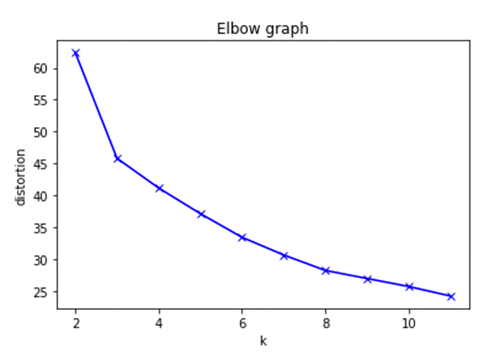
We will now identify the optimal k for k-means using the elbow method.
plt.plot()
colors = ['b', 'g', 'r']
markers = ['o', 'v', 's']
models = {}
distortions = []
for k in K:
    s3_client = boto3.client('s3')
    key = 'kmeans_example/output/' + output_folder +'/' + output_folder + str(k) + '/output/model.tar.gz'
    s3_client.download_file(bucket, key, 'model.tar.gz')
    print("Model for k={} ({})".format(k, key))
    !tar -xvf model.tar.gz                       
    kmeans_model=mx.ndarray.load('model_algo-1')
    kmeans_numpy = kmeans_model[0].asnumpy()
    distortions.append(sum(np.min(cdist(train_data, kmeans_numpy, 'euclidean'), axis=1)) / train_data.shape[0])
    models[k] = kmeans_numpy
 
# Plot the elbow
plt.plot(K, distortions, 'bx-')
plt.xlabel('k')
plt.ylabel('distortion')
plt.title('Elbow graph')
plt.show()

In the graph we plot the Euclidean distance to the cluster centroid. You can see that the error decreases as k gets larger. This is because when the number of clusters increases, they should be smaller, so distortion is also smaller. This produces an “elbow effect” in the graph. The idea of the elbow method is to choose the k at which the rate of decrease sharply shifts. Based on the graph above, k=7 would be a good cluster size for this dataset. Once completed, make sure to stop the notebook instance to avoid additional charges.

Conclusion

In this post, we showed you how to use k-means to evaluate common clustering problems. Using k-means on Amazon SageMaker provides additional benefits like distributed training and managed model hosting without having to set up and manage any infrastructure. You can refer to Amazon SageMaker sample notebooks to get started.


About the Authors

Gitansh Chadha is a Solutions Architect at AWS. He lives in the San Francisco bay area and helps customers architect and optimize applications on AWS. In his spare time, he enjoys the outdoors and spending time with his twin daughters.



Piali Das is a Software Development Engineer on the AWS AI Algorithms team, which is responsible for building the Amazon SageMaker’s built-in algorithms. She enjoys programming for scientific applications in general and has developed an interest in machine learning and distributed systems.



Zohar Karnin is a Principal Scientist in Amazon AI. His research interests are in the area of large scale and online machine learning algorithms. He develops infinitely scalable machine learning algorithms for Amazon SageMaker.



AWS expands HIPAA eligible machine learning services for healthcare customers

Today, AWS announced that Amazon Translate, Amazon Comprehend, and Amazon Transcribe are now U.S. Health Insurance Portability and Accountability Act of 1996 (HIPAA) eligible services. This announcement adds to the number of AWS artificial intelligence services that are already HIPAA eligible– Amazon Polly, Amazon SageMaker, and Amazon Rekognition. By using these services, AWS customers in the healthcare industry can leverage data insights to deliver better outcomes for providers and patients using the power of machine learning (ML).

To support our healthcare customers, AWS HIPAA eligible services enable covered entities and their business associates subject to HIPAA to use the secure AWS environment to process, maintain, and store protected health information. Healthcare companies like NextGen Healthcare, Omada Health, Verge Health, and Orion Health are already running HIPAA workloads on AWS to analyze numerous patient records.

The addition of Amazon Translate, Amazon Transcribe, and Amazon Comprehend to the list of HIPAA eligible services will allow customers to leverage these AWS ML services to better streamline customer support and improve patient engagement. Customers can use these three services to leverage the following ML capabilities:

  • Amazon Transcribe: A speech-to-text service that automatically creates text transcripts from audio files will allow healthcare organizations to create text transcripts calls with patients.
  • Amazon Translate: A neural machine translation service that delivers fast, high-quality, and affordable language translation. This service can be employed to easily translate large volumes of text efficiently and enable patients to chat with their healthcare provider in their preferred language.
  • Amazon Comprehend: A natural language processing (NLP) service that can find insights and relationships in unstructured text. It can analyze sentiment (e.g., negative, positive, and neutral), and extract key phrases from patient interactions to better understand and improve engagement.

Many healthcare customers are exploring new ways use the power of ML to advance their current workloads and transform how they provide care to patients, all while meeting the requirements of HIPAA.

Zocdoc, a company that provides medical care search for consumers, uses Amazon SageMaker, a platform that enables developers and data scientists to quickly and easily build, train, and deploy ML models, to expedite the amount of time it takes to match patients and doctors.

“At Zocdoc, our focus has been making it easier for patients to find the right doctor and book an appointment at the most convenient time and location. You can imagine the ML use cases. There is a lot of excitement among Zocdoc engineers around how easy it is to quickly build and deploy a model using Amazon SageMaker. As a matter of fact, one of our mobile engineers was able to train and deploy a doctor specialty recommendation model from scratch in less than a day during a recent Zocdoc Hackathon, which we ended up rolling out to production. Previously, our data science team had to contribute to the development of any model work, which slowed down product teams given that the data science team is a shared resource. With Amazon SageMaker, we could get this from concept to a quick production test much faster, due to the ease of streamlined end-to-end build/deploy/test capabilities of Amazon SageMaker. HIPAA eligibility is a welcome improvement and will allow us to expand its use to improve healthcare experience for our patients.”

Aculab has been providing deployment-proven telecom products to the global communication market for nearly 40 years. They are leveraging Amazon Polly, a service that turns text into lifelike speech using deep-learning, to provide telecom solutions for their major healthcare customers.

“One of the key decision points that led Aculab to choose Amazon Polly for our Text-to-Speech (TTS) on the Aculab Cloud platform was the HIPAA support. We have major customers using our system for services such as medical appointment reminders, and we needed a TTS solution that we could use with HIPAA workloads to complement the rest of our HIPAA-compliant architecture. Amazon Polly was able to provide not only a world-class TTS service, but one that could safely handle protected health information,” said David Samuel, CEO of Aculab.

For additional information on Amazon ML services and how healthcare and life sciences companies can run sensitive workloads on AWS refer, to the following materials:


About the author

Vasi Philomin is the GM for Machine Learning & AI at AWS, responsible for Amazon Lex, Polly, Transcribe, Translate and Comprehend.



Now easily perform incremental learning on Amazon SageMaker

Data scientists and developers can now easily perform incremental learning on Amazon SageMaker. Incremental learning is a machine learning (ML) technique for extending the knowledge of an existing model by training it further on new data. Starting today both of the Amazon SageMaker built-in visual recognition algorithms – Image Classification and Object Detection – will provide out of the box support for incremental learning. So now you can easily load an existing Amazon SageMaker visual recognition model using the AWS Management Console or Amazon SageMaker Python SDK APIs, prior to starting the model training on new data.

Overview

Incremental learning is the technique of continuously extending the knowledge of an existing machine learning model by training it further on new data. So at the beginning of a training run, you first load the model weights from a prior training run instead of randomly initializing them, and then continue training the model on new data. In this way you preserve the knowledge that the model gained from prior training runs and extend it further. This is useful when you don’t have access to all of the training data at the same time and your data arrives continuously in batches over time. You can also use this learning technique to save some time and compute resources when re-training your model on new training data.

In this blog post we’ll also demonstrate how to use Amazon SageMaker incremental learning features to perform transfer learning. For this demonstration we’ll use an existing model off the shelf. We’ll choose an image classification model from a model zoo, and then use it as a starting point to train the model for performing a new classification task. Transfer learning enables building new models on top of state-of-the-art reference implementations for specific machine learning tasks. This is also useful when you don’t have enough data to train a deep and complex network from scratch.

Now let’s dive into the examples.

Incrementally train visual recognition models using Amazon SageMaker built-in algorithms

We have provided sample notebooks for both of the Amazon SageMaker built-in visual recognition algorithms – Image Classification, and Object Detection – that now support incremental learning. Following are the code snippets from the Image Classification notebook. If you are training an Amazon SageMaker Image Classification model for the first time, the notebook has step-by-step instructions for it. In this example we are assuming you already have an existing Image Classification model that was trained before on Amazon SageMaker.

Step 1: Define an input channel for consuming the existing Amazon SageMaker Image Classification model.

An Amazon SageMaker channel is a named input data source that training algorithms can consume. This input channel has to be named “model” and it specifies the Amazon S3 URI of the existing model. Note that the existing model artifacts is a single gzip compressed tar archive (.tar.gz suffix) created by Amazon SageMaker Training.

s3model = 's3://{}/model/'.format(bucket)
model_data = sagemaker.session.s3_input(s3model, distribution= 'FullyReplicated',s3_data_type='S3Prefix',content_type='application/x-sagemaker-model')
data_channels = {'train': train_data, 'validation': validation_data, 'model': model_data}

Step 2: Now continue training on new batch of training data.
The hyperparameters that define the network, such as num_layers, image_shape, num_classes, etc., should be the same as those used for training the existing model. Since the algorithm starts with an existing, pre-trained model, the accuracy would be higher right from the first epoch, thereby leading to faster convergence.

incr_ic = sagemaker.estimator.Estimator(training_image, role, train_instance_count=1, train_instance_type='ml.p2.xlarge', train_volume_size = 50, train_max_run= 360000, input_mode= 'File', output_path=s3_output_location, sagemaker_session=sess)

incr_ic.set_hyperparameters(num_layers=18, image_shape= "3,224,224", num_classes=257, num_training_samples=15420, mini_batch_size=128, epochs=10, learning_rate=0.01, top_k=2)

incr_ic.fit(inputs=data_channels, logs=True)

You can repeat these steps as many time as you need to train your model further on new data.

Use a pre-trained Caffe model from ONNX model zoo to perform your image classification task

We’ll now show you an example of how to pick a model off the shelf, in this case a Caffe BVLC GoogleNet model that was trained using the ImageNet dataset and available on the ONNX Model Zoo. We’ll use this model as a starting point and then fine-tune it for a new image classification task on the Caltech 101 Dataset using Amazon SageMaker. We’re using the same model training script as shown in the MXNet/Gluon tutorial for transfer learning.

We’ll use the Amazon SageMaker MXNet framework container to train the model. Also note that this example uses the Amazon SageMaker Python SDK , similar to our existing Gluon notebooks.

Step 1: Download the pre-trained GoogleNet model from the ONNX model zoo and upload the model.onnx file to Amazon S3.

The ONNX model zoo hosts pre-trained models in Amazon S3 buckets in the us-east-1 AWS Region. You can use the Amazon S3 URI of pre-trained model as-it-is. However, if you are using Amazon SageMaker training in a different AWS Region (such as us-west-2), here is sample code for moving the file across Regions.

# first download model from https://github.com/onnx/models/tree/master/bvlc_googlenet
wget –quiet -P data/ https://s3.amazonaws.com/download.onnx/models/opset_3/bvlc_googlenet.tar.gz

tar -xzf data/bvlc_googlenet.tar.gz -C data/ && rm data/bvlc_googlenet.tar.gz
...
#now upload the model to a bucket in Region where you are using Amazon SageMaker
sagemaker_session.upload_data(path='data/bvlc_googlenet/model.onnx', key_prefix='data/pretrained')

Step 2: Define Amazon SageMaker channels for the input data – one for the Caltech 101 training dataset and another for the pre-trained GoogleNet model.

In this example we define a ‘training’ channel for the Caltech 101 training dataset, and a ‘pretrained’ channel for the pre-trained GoogleNet model (from Step 1).

s3train = 's3://{}/{}/'.format(bucket, 'data/ONNX-incremental')
s3pretrained = 's3://{}/{}/'.format(bucket, 'data/pretrained')

training_data = sagemaker.session.s3_input(s3train, distribution= 'FullyReplicated', s3_data_type='S3Prefix', input_mode='File')

pretrained_model = sagemaker.session.s3_input(s3pretrained, distribution='FullyReplicated', s3_data_type='S3Prefix', input_mode='File')

As you can see we are defining the input mode as ‘File’ at each channel level. File mode enables fetching the pre-trained model from Amazon S3 to local storage attached to the Amazon SageMaker training instances before the model training starts.

Now before we show you the code for starting Amazon SageMaker training using our pre-built MXNet container, we will first show you how you can make small, one-line code changes to the model training script from the Gluon tutorial for transfer learning for easily accessing your pre-trained GoogleNet model.

Step 3: Easily access the channel information inside the MXNet container using environment variables.

You can use the default environment variables of the MXNet container that are automatically initialized by Amazon SageMaker with all the information about the input channels you defined in Step 2.

parser.add_argument('--training_channel', type=str, default=os.environ['SM_CHANNEL_TRAINING'])

parser.add_argument('--pretrained_model_channel', type=str, default=os.environ['SM_CHANNEL_PRETRAINED'])

Now you are ready to call the call the train function in the model training script, passing it the Caltech 101 training dataset and pre-trained GoogleNet model.

model = train(num_cpus, num_gpus, args.training_channel, args.model_dir, args.pretrained_model_channel, args.batch_size, args.epochs, args.learning_rate, args.weight_decay, args.momentum, args.log_interval)

You can save this updated script as transfer_learning_example.py.

Following is a short code snippet from the train function for illustration purposes. As you can see, the function loads the pre-trained GoogleNet model before tuning it further on Caltech 101 training dataset.

def train(num_cpus, num_gpus, training_dir, model_dir, pretrained_model_dir, batch_size, epochs, learning_rate, weight_decay, momentum, log_interval): dataset_name = "101_ObjectCategories"
    
    # Location of the pre-trained model on local disk
    onnx_path = os.path.join(pretrained_model_dir, 'model.onnx')
    ...
    # Load the ONNX Model
    sym, arg_params, aux_params = onnx_mxnet.import_model(onnx_path)
 
    new_sym, new_arg_params, new_aux_params = get_layer_output(sym, arg_params, aux_params, 'flatten0')
    ... 

Step 4: Train the model on Amazon SageMaker using a pre-built MXNet container.

You are now ready to run the training script from Step 3 using a pre-built Amazon SageMaker MXNet container. We recommend using a GPU instance for faster training. In this example, we use a p3.2xlarge instance.

m = MXNet('transfer_learning_example.py',
          role=role,
          train_instance_count=1,
          train_instance_type='ml.p3.2xlarge',
          framework_version='1.3.0',
          py_version='py2',
          hyperparameters={'batch-size': 32,
                           'epochs': 5,
                           'learning-rate': 0.0005,
                           'weight-decay': 0.00001, 
                           'momentum': 0.9})

m.fit(inputs=channels, logs=True)

Step 5: Observe the improvement in training accuracy from the training logs.

Our training script prints out the untrained network accuracy on the new data set and the accuracy after fine-tuning on the new dataset.

Train dataset: 6996 images, Test dataset: 1681 images
...
Untrained network Test Accuracy: 0.0120...
...
Epoch [0] Test Accuracy 0.7025
...
Epoch [1] Test Accuracy 0.8558
...
Epoch [2] Test Accuracy 0.8876
...
Epoch [4] Test Accuracy 0.9183

As you can see, we were able to improve our accuracy on the Caltech 101 Dataset substantially with just few minutes of fine-tuning on a GPU!

Get started with more examples and developer support

In this blog post we showed you  examples of how to easily perform incremental learning and transfer learning using input channels on Amazon SageMaker. You can refer our developer guide for more developer resources or post your questions on our developer forum. Happy modeling!


About the authors

Gurumurthy Swaminathan is a Senior Applied Scientist in the Amazon AI Platforms group and is working on building computer vision algorithms for Sagemaker. His current area of research includes Neural Network compression and Computer Vision algorithms.


Jeffrey Geevarghese is a Senior Engineer in Amazon AI where he’s passionate about building scalable infrastructure for deep learning. Prior to this he was working on machine learning algorithms and platforms and was part of the launch teams for both Amazon SageMaker and Amazon Machine Learning.



Sumit Thakur is a Senior Product Manager for AWS Machine Learning Platforms where he loves working on products that make it easy for customers to get started with machine learning on cloud. He is product manager for Amazon SageMaker and AWS Deep Learning AMI. In his spare time, he likes connecting with nature and watching sci-fi TV series.


Direct access to Amazon SageMaker notebooks from Amazon VPC by using an AWS PrivateLink endpoint

Amazon SageMaker now supports AWS PrivateLink for notebook instances. In this post, I will show you how to set up AWS PrivateLink to secure your connection to Amazon SageMaker notebooks.

Maintaining compliance with regulations such as HIPAA or PCI may require preventing information from traversing the internet. Additionally, preventing exposure of data to the public internet reduces the likelihood of threat vectors such as brute force and distributed denial-of-service attacks.

AWS PrivateLink simplifies the security of data shared with cloud-based applications by eliminating the exposure of data to the public internet. It enables private connectivity between VPCs, AWS services, and on-premises applications. With AWS PrivateLink your services function as though they were hosted directly on your private network.

To secure your Amazon SageMaker API and prediction calls using AWS PrivateLink, we previously introduced PrivateLink support for API operations and runtime. Now it’s possible to use AWS PrivateLink to secure your connection to notebook instances as well.

To use Amazon SageMaker notebooks via AWS PrivateLink, you need to set up Amazon Virtual Private Cloud (VPC) endpoints. AWS PrivateLink enables you to privately access all Amazon SageMaker API operations from your VPC in a scalable manner by using interface VPC endpoints. A VPC endpoint is an elastic network interface in your subnet with private IP addresses. It serves as an entry point for all Amazon SageMaker API calls.

To limit access to the VPC endpoints you created, you also need to configure AWS Identity and Access Management (IAM) roles to allow traffic only from your VPC.

Note: Keep in mind that the AWS Management Console is accessed through the public internet, and since your connection will be avoiding the internet with AWS PrivateLink, you’ll need to use Amazon SageMaker only through the CLI and APIs. In other words, you won’t be able to use Amazon SageMaker through the console after you activate AWS PrivateLink with the following configuration.

Creating VPC endpoints

We will go through AWS Management Console steps to create VPC endpoints, but you can do the same operations using AWS Command Line Interface (AWS CLI) commands as well.

Here, we will create 2 VPC endpoints, where one is used to create a notebook instance by using SageMaker APIs, and the other one is used to access the notebook instance you created (CreatePresignedNotebookInstanceUrl). To create VPC endpoints from the console, open the Amazon VPC console, open the Endpoints page, and create a new endpoint, as shown in the following image.

Let’s start with creating the VPC endpoint for our notebook first. Here, you’ll need to define three attributes:

  1. The Amazon SageMaker API service name. For Service category, select AWS services; and for Service Name, select aws.sagemaker.us-west-2.notebook. (The Region information – us-west-2- in the URL may differ depending on the Region you select.)
  2. The VPC and Availability Zones that you want to use:
  3. The security group to be associated with the interface VPC endpoint: If you don’t specify a security group, the default security group for your VPC is associated.

Here, a private hosted zone enables you to access the resources in your VPC using custom DNS domain names, such as example.com, instead of using private IPv4 addresses or private DNS hostnames provided by AWS. The Amazon SageMaker DNS hostname that the AWS CLI and Amazon SageMaker SDKs use by default (https://api.sagemaker.Region.amazonaws.com) resolves to your VPC endpoint.

Repeat the same steps to create a second VPC endpoint for Amazon SageMaker APIs. This time you’ll select com.amazonaws.us-west-2.sagemaker.api while selecting the service name. You can begin using the VPC endpoint when its status is available.

Connecting your private network to your VPC

After you create VPC endpoints, make sure that you are either trying to access your notebook instances from within the same VPC or that you have a configuration in place, such as Amazon Virtual Private Network (VPN) or AWS Direct Connect, to connect to your notebooks. This is not necessary for other Amazon SageMaker API operations, but it’s essential to access your notebooks via a web browser from outside of your VPC since VPN needs to replace the internet gateway while connecting to your VPC. Here is a tutorial that you can refer to while connecting your private network to your VPC by using a VPN: https://aws.amazon.com/premiumsupport/knowledge-center/create-connection-vpc/

Configuring IAM roles

Once you have created VPC endpoints to the API services, you need to update IAM roles with conditional operator policies for all users or groups that will be accessing Amazon SageMaker notebooks. IAM is a web service that helps you securely control access to AWS resources. A policy is an entity that, when attached to an identity or resource, defines their permissions.

To grant or restrict access to Amazon SageMaker notebooks based on the VPC endpoints used, we will employ a aws:sourceVpce condition in the IAM policy. Since IAM denies all access requests by default, attaching an Allow policy with a condition ensures that requests will be successful only if they meet the required condition. For example, the following example policy allows a user to perform API operations only when the request comes through the specified two VPC endpoints (replace the placeholder AWS account ID with your own account ID, and the placeholder VPC endpoint IDs with your own endpoint IDs). Don’t forget to include both VPC endpoints you created.

Note: The actions covered in the following policy exemplifies notebook access cases specifically. You need to update the “Action” section for other Amazon SageMaker APIs you want to cover. Alternatively, you can use “sagemaker:*” to cover all Amazon SageMaker APIs in your policy.

{
    "Id": "notebook-example-with-sourcevpce",
    "Version": "2012-10-17",
    "Statement": [
        {
            "Sid": "Enable Notebook Access",
            "Effect": "Allow",
            "Action": [
                "sagemaker:CreatePresignedNotebookInstanceUrl",
                "sagemaker:DescribeNotebookInstance"
            ],
            "Resource": "*",
            "Condition": {
                "StringEquals": {
                    "aws:sourceVpce": [
                        "vpce-111bbccc",
                        "vpce-111bbddd"
                    ]
                }
            }
        }
    ]
}

This policy works by including an Allow statement with a StringEquals condition. When a user makes a request to Amazon SageMaker through a VPC endpoint, the endpoint’s ID is compared to the aws:sourceVpce values specified in the policy. If the values do not match, the request is denied.

Another way to configure the policy is by using the aws:sourceVpc condition instead of a aws:sourceVpce condition. The difference is that you will be using the VPC information in general instead of a specific endpoint within that VPC. This is useful when you don’t want to limit access by specific endpoints, but rather by the whole VPC. This way you’ll keep VPC information generic and won’t need to update IAM roles in case you update endpoints within that VPC. Here is an example:

{
    "Id": "notebook-example-with-sourcevpc",
    "Version": "2012-10-17",
    "Statement": [
        {
            "Sid": "Enable Notebook Access",
            "Effect": "Allow",
            "Action": [
                "sagemaker:CreatePresignedNotebookInstanceUrl",
                "sagemaker:DescribeNotebookInstance"
            ],
            "Resource": "*",
            "Condition": {
                "StringEquals": {
                    "aws:SourceVpc": "vpc-111bbaaa"
                }
            }
        }
    ]
}

You can also consider using Service Control Policies to orchestrate restrictions, at the account level of granularity, on what services and actions the users, groups, and roles in your organization can do.

Using Amazon SageMaker Notebooks via AWS PrivateLink

Use the following example AWS CLI command to list notebook instances from inside your VPC using the configured VPC endpoint.

aws sagemaker list-notebook-instances --endpoint-url VPC_Endpoint_ID.api.sagemaker.Region.vpce.amazonaws.com

If you enabled private DNS hostnames for your VPC endpoint, as shown in the following image, you don’t need to specify the endpoint URL.

If you enabled a private hosted zone or if you’re using an SDK released before August 13, 2018, you have to specify the endpoint when using the SDK or AWS CLI. For example:

aws --endpoint https://VPC_Endpoint_ID.api.sagemaker.Region.vpce.amazonaws.com sagemaker create-presigned-notebook-instance-url --notebook-instance-name NotebookInstanceName

For the VPC endpoint in the preceding example, this would be:

aws --endpoint https://vpce-08e906a63733a8aa1.api.sagemaker.us-west-2.vpce.amazonaws.com sagemaker create-presigned-notebook-instance-url --notebook-instance-name NotebookInstanceName

If you enabled a private hosted zone and you’re using the SDK released on August 13, 2018, this would be:

aws sagemaker create-presigned-notebook-instance-url --notebook-instance-name NotebookInstanceName

Conclusion

AWS PrivateLink support is available in all Regions where Amazon SageMaker and AWS Private Link are available. To learn more about using security features in Amazon SageMaker, see the Amazon SageMaker Developer Guide.


About the Author

Erkan Tas is a Senior Product Manager for Amazon SageMaker. He is on a mission to make Artificial Intelligence easy, accessible, and scalable through AWS platforms. He is also a sailor, science and nature admirer, Go and Stratocaster player.


Customize your notebook volume size, up to 16 TB, with Amazon SageMaker

Amazon SageMaker now allows you to customize the notebook storage volume when you need to store larger amounts of data.

Allocating the right storage volume for your notebook instance is important while you develop machine learning models. You can use the storage volume to locally process a large dataset or to temporarily store other data to work with.

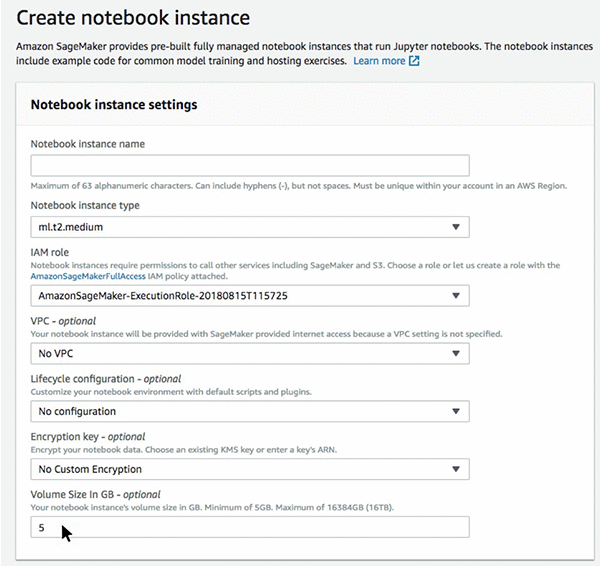
Every notebook instance you create with Amazon SageMaker comes with a default storage volume of 5 GB. You can choose any size between 5 GB and 16384 GB, in 1 GB increments.

When you create notebook instances using the Amazon SageMaker console, you can define the storage volume:

Here, you need to edit the volume size in GB depending on your needs:

Conclusion

Customize the storage volume for your notebook instances depending on your needs. You can refer to Amazon SageMaker documentation to learn more about how to create and use notebook instances.


About the Author

Erkan Tas is a Senior Product Manager for Amazon SageMaker. He is on a mission to make Artificial Intelligence easy, accessible, and scalable through AWS platforms. He is also a sailor, science and nature admirer, Go and Stratocaster player.


Lifecycle configuration update for Amazon SageMaker notebook instances

Amazon SageMaker now allows customers to update or disassociate lifecycle configurations for notebook instances with the renewed APIs. You can associate, switch between, or disable lifecycle configurations as necessary by stopping your notebook instance and using the UpdateNotebookInstance API at any point of the notebook instance’s lifespan.

Lifecycle configurations are handy when you want to organize and automate the setup that is necessary to build your data science workspace on notebook instances. They can execute a list of tasks every time a notebook instance starts. You can use a lifecycle configuration to install packages or sample notebooks on your notebook instance, preload data, configure networking and security, or use a shell script to customize it. After you create a lifecycle configuration, you can use it with multiple instances or save it for future use.

Previously, using a lifecycle configuration was only possible if you assigned one to a notebook instance when you were first creating it. Also, the only way to disable a lifecycle configuration was to delete the notebook instance. It’s now possible to use the UpdateNotebookInstance API to update or disassociate these lifecycle configurations for notebook instances.

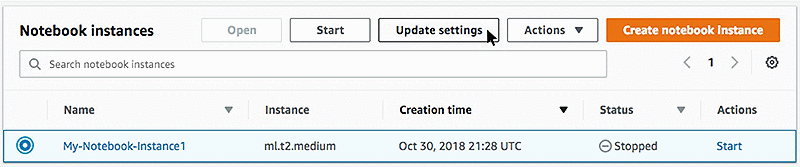
Here’s how to update the lifecycle configuration on the AWS console:

First, we need to stop the running instance to update the settings. After it’s stopped, you’ll see that Update setting is enabled.

Click Update setting and use the menu to go to the Lifecycle configuration to detach the existing configuration or replace it with a different one:

Here is an example to demonstrate API request parameters:

{
   "DisassociateLifecycleConfig": boolean,
   "InstanceType": "string",
   "LifecycleConfigName": "string",
   "NotebookInstanceName": "string",
   "RoleArn": "string"
}

For more detailed explanations for the parameters, you can visit the Amazon SageMaker API documentation page here: https://docs.aws.amazon.com/sagemaker/latest/dg/API_UpdateNotebookInstance.html.


About the Author

Erkan Tas is a Senior Product Manager for Amazon SageMaker. He is on a mission to make Artificial Intelligence easy, accessible, and scalable through AWS platforms. He is also a sailor, science and nature admirer, Go and Stratocaster player.


Now use Pipe mode with CSV datasets for faster training on Amazon SageMaker built-in algorithms

Amazon SageMaker built-in algorithms now support Pipe mode for fetching datasets in CSV format from Amazon Simple Storage Service (S3) into Amazon SageMaker while training machine learning (ML) models.

With Pipe input mode, the data is streamed directly to the algorithm container while model training is in progress. This is unlike File mode, which downloads data to the local Amazon Elastic Block Store (EBS) volume prior to starting the training. Using Pipe mode your training jobs start faster, use significantly less disk space and finish sooner. This reduces your overall cost to train machine learning models. In some of our internal benchmarks that trained a regression model with the Amazon SageMaker Linear Learner algorithm on a 3.9 GB CSV dataset, the overall time to train the model was reduced by up to 40 percent by using Pipe mode instead of File mode. You can read more about Pipe mode and its benefits in this blog post.

Using Pipe mode with Amazon SageMaker Built-in Algorithms

Earlier this year when we first released the Pipe input mode for the built-in Amazon SageMaker algorithms, it supported data only in protobuf recordIO format. This is a special format designed specifically for high-throughput training jobs. With today’s release we are extending the performance benefits of the Pipe input mode to your training datasets in CSV format as well. The following Amazon SageMaker built-in algorithms now have full support for training with datasets in CSV format using Pipe input mode:

  • Principal Component Analysis (PCA)
  • K-Means Clustering
  • K-Nearest Neighbors
  • Linear Learner (Classification and Regression)
  • Neural Topic Modelling
  • Random Cut Forest

To start benefiting from this new feature in your training jobs just specify the Amazon S3 location of your CSV dataset as usual and pick “Pipe” instead of “File” as your input mode. Your CSV datasets will be streamed seamlessly with no data formatting or code changes required at your end.

Faster Training using CSV optimized Pipe Mode

The new Pipe mode implementation for datasets in CSV format is a highly optimized, high throughput process. To demonstrate performance gains from using Pipe input mode, we trained the Amazon SageMaker Linear Learner algorithms over two synthetic CSV datasets.

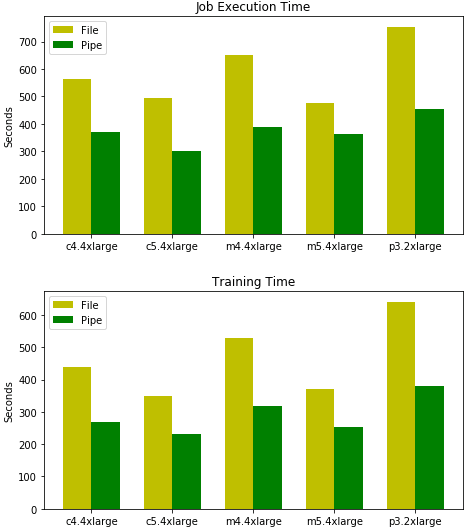
The first dataset – a 3.9 GB CSV file– contained 2 million records, each record having 100 comma-separated, single-precision floating-point values. The following is a comparison of the overall training job execution time and model training times between Pipe mode and File mode while training the Amazon SageMaker Linear Learner algorithm with a batch size of 1000.

As you can see, using Pipe input mode with CSV datasets reduces the total time-to-train the model by up to 40 percent across few of the instance types supported by Amazon SageMaker.

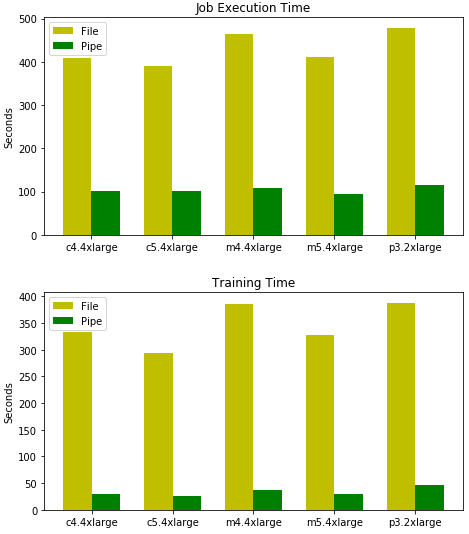
Our second dataset – a 1 GB CSV file–had only 400 records, however each record had 100,000 comma-separated single-precision floating-point values. We repeated the earlier training benchmarks with a batch size of 10.

This time the performance gain from using Pipe mode is even more significant, to an order of 75 percent reduction in total-time-to-train the model.

Both experiments clearly show that using Pipe input mode brings a dramatic performance improvement. Your training jobs can avoid any startup delays caused by downloading datasets to the training instances, and they can have a much higher data read throughput.

Get started with Amazon SageMaker

You can easily get started with Amazon SageMaker using our sample notebooks. You can also look at our developer guide for more resources and subscribe to our discussion forum for new launch announcements.


About the Authors

Can Balioglu is a Software Development Engineer on the AWS AI Algorithms team where he is specialized in high-performance computing. In his spare time he loves to play with his homemade GPU cluster.


Sumit Thakur is a Senior Product Manager for AWS Machine Learning Platforms where he loves working on products that make it easy for customers to get started with machine learning on cloud. He is product manager for Amazon SageMaker and AWS Deep Learning AMI. In his spare time, he likes connecting with nature and watching sci-fi TV series.


Model Server for Apache MXNet v1.0 released

AWS recently released Model Server for Apache MXNet (MMS) v1.0, featuring a new API for managing the state of the service, which includes the ability to dynamically load models during runtime, to lower latency, and to have higher throughput. In this post, we will explore the new features and showcase the performance gains of the MMS v1.0.

What is Model Server for Apache MXNet (MMS)?

MMS is an open-source model serving framework, designed to simplify the task of serving deep learning models for inference at scale. The following is an architectural diagram of the MMS scalable deployment.

Here are some key features of MMS v1.0:

  • Designed to serve MXNet, Gluon, and ONNX neural network models.
  • Gives you the ability to customize every step in the inference execution pipeline using custom code packaged into the model archive.
  • Comes with a preconfigured stack of services that is light and scalable, including REST API endpoints.
  • Exposes a management API that allows model loading, unloading, and scaling at runtime.
  • Provides prebuilt and optimized container images for serving inference at scale.
  • Includes real-time operational metrics to monitor health, performance, and load of the system and APIs.

Quick start with MMS

MMS 1.0 requires Java 8 or higher. Here’s how to install it on the supported platforms:

# Ubuntu/Debian based distributions
sudo apt-get install openjdk-8-jre
# Fedora, Redhat based distributions
sudo yum install java-1.8.0-openjdk
# On Mac devices
brew tap caskroom/versions
brew cask install java8

MMS is currently not supported on Windows.

To install MMS v1.0 package:

pip install mxnet-model-server==1.0

MMS v1.0 doesn’t depend on any specific deep learning engine, but in this blog post we will focus doing inference using the MXNet engine.

# Install mxnet
pip install mxnet

To verify the installation:

mxnet-model-server

This should produce the output:

[INFO ] main com.amazonaws.ml.mms.ModelServer -
MMS Home: pip_directory/mxnet-model-server
Current directory: <your-current-directory>
Temp directory: /temp/directory
Log dir: cur_dir/logs
Metrics dir: cur_dir/logs
[INFO ] main com.amazonaws.ml.mms.ModelServer — Initialize servers with: KQueueServerSocketChannel.
[INFO ] main com.amazonaws.ml.mms.ModelServer — Inference API listening on port: 8080
[INFO ] main com.amazonaws.ml.mms.ModelServer — Management API listening on port: 8081
Model server started.

The previous step will fail if no Java runtime is found, or if MMS is not properly installed by pip.

To stop the server, run:

mxnet-model-server --stop

Now that we have verified the MMS installation, let’s go infer some cat breeds.

Running inference

To allow you to get started quickly, we’ll show how you can start MMS, load a pre-trained model for inference, and scale the model at runtime.

We’ll start by running a model server serving SqueezeNet, a light-weight image classification model:

# Start and load squeezenet while doing so
mxnet-model-server --models squeezenet=https://s3.amazonaws.com/model-server/model_archive_1.0/squeezenet_v1.1.mar

Let’s download a cat image and send it to MMS to get an inference result that identifies the cat breed.

# Download the cat image
curl -O https://s3.amazonaws.com/model-server/inputs/kitten.jpg

To send requests to the prediction API we use port 8080.

# Predict on squeezenet
$ curl -X POST http://127.0.0.1:8080/predictions/squeezenet_v1.1 -T kitten.jpg

# Response
[
   {
      "probability":0.8515270352363586,
      "class":"n02124075 Egyptian cat"
   },
   {
      "probability":0.09674196690320969,
      "class":"n02123045 tabby, tabby cat"
   },
   {
      "probability":0.03909175843000412,
      "class":"n02123159 tiger cat"
   },
   {
      "probability":0.006105952896177769,
      "class":"n02128385 leopard, Panthera pardus"
   },
   {
      "probability":0.003104336792603135,
      "class":"n02127052 lynx, catamount"
   }
]

As you can see, the model has identified the little Egyptian cat rightly, and MMS has delivered the result. Now the SqueezeNet worker is up, running, and able to predict.

Model Management API

MMS v1.0 features a new management API enabling registration, loading, and unloading of models at runtime. This is especially useful in production environments where deep learning (DL)/machine learning (ML) models are often consumed from external model-building pipelines. The MMS model management API provides a convenient REST interface to ensure that inference is served without downtime that otherwise would be necessary to populate new models into the running model server. This API consists of resources to register the new model, load it into running MMS instance (scale the model up) and unload it from the MMS instance when it’s no longer needed (scale the model down). All of these resources are available at runtime and don’t cause MMS downtime because they don’t perform bounce of MMS instance.

For security reasons, there is a separate port to access the management API that can only be accessed from the local host. By default, port 8081 is for the management API and port 8080 is for the prediction API. Let’s register and load the Network in Network (NIN) image classification model at runtime.

# To register and load a model, NiN
$ curl -X POST "http://127.0.0.1:8081/models?url=https://s3.amazonaws.com/model-server/model_archive_1.0/nin.mar&initial_workers=1&synchronous=true"
# Response
{
    "status": "Workers scaled"
}

This makes MMS aware of a model and where to load it from. Then it starts a single worker process, in a synchronous fashion. In order to spawn more workers for a registered model:

# To spawn more workers
$ curl -X PUT "http://127.0.0.1:8081/models/nin?min_workers=2&synchronous=true"
# Response
{
    "status": "Workers scaled"
}

We now have two workers for the NIN model. The min_workers parameter defines the minimum number of workers that should be up for the model. If this is set to 0 existing workers will be killed. In general, if it is set to ‘N’ (where N >= 0), ‘N – current_workers’ indicates that more additional workers will be spawned (or deleted if result is a negative number). The synchronous parameter ensures the request-response cycle is synchronous. For details on parameters see the MMS REST API specification.

Now MMS is ready to take inference requests for the NIN model as well. We’ll download an image of a tabby cat.

# Download tabby cat image
curl -O https://s3.amazonaws.com/model-server/inputs/tabby.jpg

# Prediction on tabby cat
curl -X POST http://127.0.0.1:8080/predictions/nin -T tabby.jpg
# Response
[
  {
    "probability": 0.8571610450744629,
    "class": "n02123045 tabby, tabby cat"
  },
  {
    "probability": 0.1162034347653389,
    "class": "n02123159 tiger cat"
  },
  {
    "probability": 0.025708956643939018,
    "class": "n02124075 Egyptian cat"
  },
  {
    "probability": 0.0009223946835845709,
    "class": "n02127052 lynx, catamount"
  },
  {
    "probability": 3.3365624858561205e-06,
    "class": "n03958227 plastic bag"
  }
]

The NIN identified the tabby cat with 85% probability.

For more details on available APIs for management and prediction see the API documentation.

In the following section we’ll cover performance gains with MMS v1.0.

Performance improvements

MMS 1.0 introduces improved scalability and performance, the output of a newly designed architecture. To measure performance we use a CPU machine (EC2 c5.4xlarge instance, mxnet-mkl 1.3.0 package installed), to run inference on CPU. We use a GPU machine (EC2 p3.16xlarge, mxnet-cu90mkl 1.3.0 package installed) to run inference on GPU.

In addition to considering time spent in inference, you should also be aware of the overhead that is incurred from request handling. This overhead affects latency as the number of concurrent requests increases. Two addends comprise inference latency. There is the latency of running a forward pass on the model, and there is the latency of infra steps. The latency of infra steps consists of preparing data and handling results for/of forward pass, collecting metrics, passing data between frontend and backend, and switching between contexts while dealing with a greater number of concurrent users. To measure the latency of infra steps we run a test on a CPU machine using a specially devised no operation (no-op) model. This model doesn’t include running a forward pass, which means that the inference latency that is captured includes only the cost of the infra steps. This test demonstrated that MMS v1.0 has 4x better latency overhead with 100 concurrent requests and 7x better latency overhead with 200 concurrent requests. Latency on bigger models like Resnet-18 (where the actual inference on the engine is the hotspot) showed improvement as well. The inference latency with single concurrent request has improved 1.15x running resnet-18 on a GPU machine with a 128×128 image. With an increase to 100 concurrent requests GPU tests show up to 2.2x improvement in MMS v1.0 performance.

For throughput there is a 1.11x gain on a CPU machine, while running on GPU machine results in a 1.35x gain.

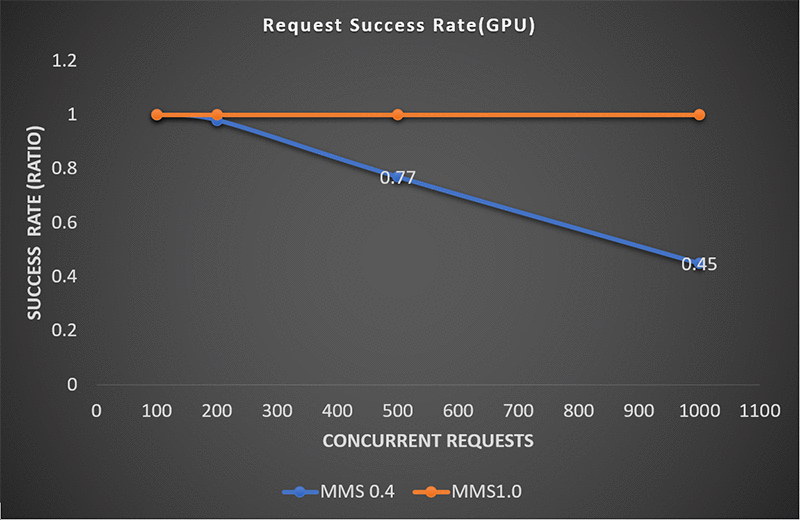
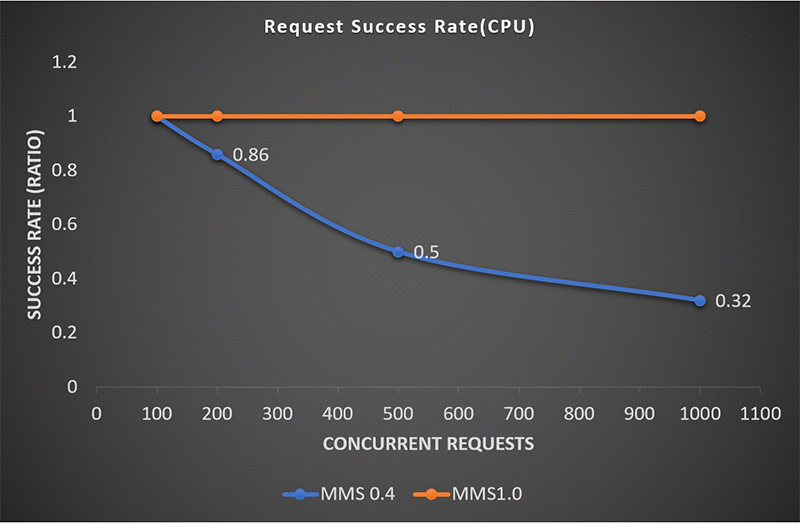
Another important performance metric is success rate, as the number of concurrent requests increases. As load increases and pushes towards hardware limits, the service starts to error on requests. The following graph shows that MMS v1.0 makes improvements in the request success rate:

On a GPU machine, the load is shared with CPU. Here MMS v0.4 holds up until 200 concurrent requests, but starts showing errors as it moves towards more concurrent requests. On a CPU machine, the success rate of MMS v0.4 drops on fewer concurrent requests.

The tests for success rates of requests show that the load handling capacity on a single node has significantly improved.

Learn more and contribute

This is a preview of improvements and updates introduced in MMS v1.0. To learn more about MMS v1.0, start with our examples and documentation in the repository’s model zoo and documentation folder.

We welcome community participation including questions, requests, and contributions, as we continue to improve MMS. If you are using MMS already, we welcome your feedback via the repository’s GitHub issues. Head over to awslabs/mxnet-model-server to get started!


About the Authors

Denis Davydenko is an Engineering Manager with AWS Deep Learning. He focuses on building Deep Learning tools that enable developers and scientists to build intelligent applications. In his spare time he enjoys spending time with his family, playing poker and video games.


Frank Liu is a Software Engineer for AWS Deep Learning. He focuses on building innovative deep learning tools for software engineers and scientists. In his spare time, he enjoys hiking with friends and family.



Vamshidhar Dantu is a Software Developer with AWS Deep Learning. He focuses on building scalable and easily deployable deep learning systems. In his spare time, he enjoy spending time with family and playing badminton.



Rakesh Vasudevan is a Software Development Engineer with AWS Deep Learning. He is passionate about  building scalable deep learning systems. In spare time, he enjoys gaming, cricket and hanging out with friends and family.




Using deep learning on AWS to lower property damage losses from natural disasters

Natural disasters like the 2017 Santa Rosa fires and Hurricane Harvey cost hundreds of billions of dollars in property damages every year, wreaking economic havoc in the lives of homeowners. Insurance companies do their best to evaluate affected homes, but it could take weeks before assessments are available and salvaging and protecting the homes can begin. EagleView, a property data analytics company, is tackling this challenge with deep learning on AWS.

“Traditionally, the insurance companies would send out adjusters for property damage evaluation, but that could take several weeks because the area is flooded or otherwise not accessible,” explains Shay Strong, director of data science and machine learning at EagleView. “Using satellite, aerial, and drone images, EagleView runs deep learning models on the AWS Cloud to make accurate assessments of property damage within 24 hours. We provide this data to both large national insurance carriers and small regional carriers alike, to inform the homeowners and prepare next steps much more rapidly.”

Often, this quick turnaround can save millions of dollars in property damages. “During the flooding in Florida from Hurricane Irma, our clients used this timely data to learn where to deploy tarps so they could cover some of the homes to prevent additional water damage,” elaborates Strong.

Matching the accuracy of human adjusters in property assessments requires EagleView to use a rich set of images covering the entire multi-dimensional space (spatial, temporal, and spectral) of a storm-affected region. To solve this challenge, EagleView captures ultra-high resolution aerial images across the U.S. at sub-1” pixel resolution using a fleet of 120+ aircraft. The imagery is then broken down into small image tiles—often parcel-specific tiles or generic 256×256 TMS tiles—to run through deep learning image classifiers, object detectors, and semantic segmentation architectures. Each image tile can be associated with the corresponding geospatial and time coordinates, which are kept as additional metadata and maintained throughout the learning and inference processes. Post-inference, tiles can be stitched together using the geospatial data to form a geo-registered map of information of the area of interest, including the neural network predictions. The predictions can also be aggregated to a property-level database for persistent storage, maintained in the AWS Cloud.

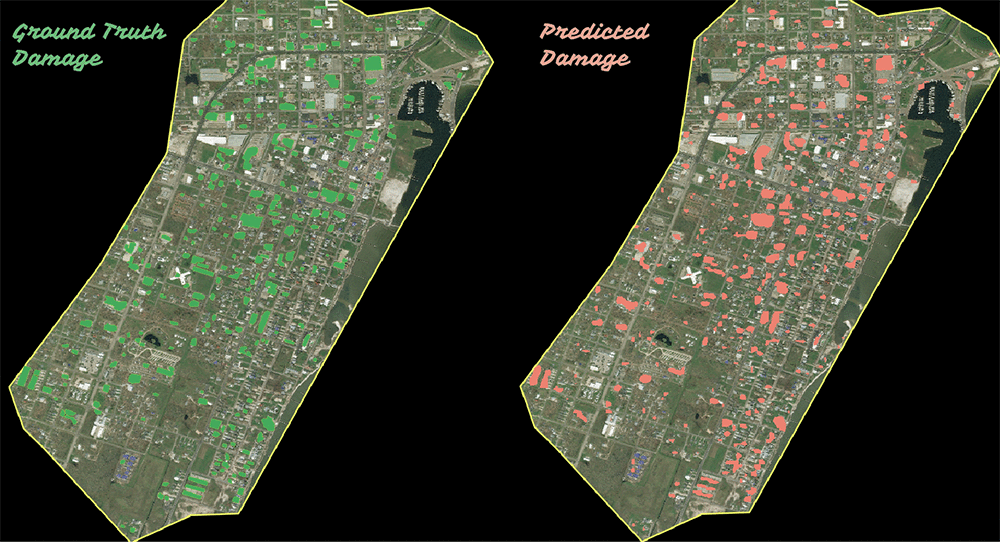
The following image demonstrates the accuracy of damage predictions by EagleView’s deep learning model for a portion of Rockport, Texas, after Hurricane Harvey in 2017. The green blobs in the image on the left are the properties where catastrophic structural damage occurred, based on human analysis. The pink blobs in the image on the right are segmented damage predictions that the model made. For this data, the model has a per-address accuracy of 96% compared to human analysis.

“We also use deep learning for interim pre-processing capabilities to determine such things as whether the image is of good quality (e.g., not cloudy or blurry) prior to generating address-level attributes and whether the image even contains the correct property of interest. We daisy-chain together intermediate neural nets to pre-process the imagery to improve the efficiency and accuracy of the neural nets generating the property attributes,” adds Strong.

EagleView built its deep learning models using the Apache MXNet framework. The models are trained using Amazon EC2 P2, P3, and G3 GPU instances on AWS.  Once ready, the models are deployed onto a massive fleet of Amazon ECS containers to process the terabytes of aerial imagery that EagleView collects daily. The company has accumulated petabytes of property-focused aerial imagery in total, all of which is stored on Amazon S3, which the deep learning models process. The results are stored in a combination of Amazon RedshiftAmazon Aurora, and Amazon S3, based on data type. For example, deep learning imagery products like segmented raster maps are stored on S3 and referenced as a function of street address in Amazon Redshift databases. The resulting information is served to EagleView’s clients using APIs or custom user interfaces.

As to why EagleView chose MXNet over other deep learning frameworks, Strong says, “It’s the flexibility, scalability, and the pace of innovation that led us to adopt MXNet. With MXNet, we can train the models on the powerful P3 GPU instances, allowing us to quickly iterate and build the model. We can then deploy them to low-cost CPU instances for inference. MXNet can also handle the kind of scale that we require for operation, which includes petabytes of image storage and associated data. Lastly, the pace of innovation around MXNet makes it easy for us to keep up with the advances in the deep learning space.”

One of EagleView’s next steps is to use Gluon, an open-source deep learning interface, to translate R&D models developed natively in TensorFlow, PyTorch, or other frameworks into MXNet. Then EagleView can bring machine learning models developed by either its data scientists or other open-source authors in these other frameworks into MXNet for running inference in production at a large scale.

“The affordability and scalability of AWS makes it possible these days to run deep learning models to the level of accuracy that humans can achieve for many tasks, such as insurance assessments, but with a level of consistency never seen before. For EagleView’s insurance clients, consistency, accuracy, and scale is imperative,” concludes Strong. “This has the potential to disrupt traditional industries like insurance, adding tremendous value.”

To get started with deep learning, you can try MXNet as a fully managed experience in the Amazon SageMaker ML service.


About the Author

Chander Matrubhutam is a principal product marketing manager at AWS, helping customers understand and adopt deep learning.



Amazon Translate now offers 113 new language pairs

Amazon Translate is a neural machine translation service that delivers fast, high-quality, and affordable language translation. Today, we are launching 113 new language pairs. Customers can now translate between currently supported languages, such as French to Spanish for example, with a single API request. With this update, we are expanding the number of supported language pairs from 24 to 137. All supported language pairs are based on state-of-the-art neural machine translation algorithms. See the full list of supported language pairs on this documentation page.

Previously, if you had been translating between X<>Y pairs (where neither X nor Y are English) you had to perform two subsequent translation calls. You had to translate from X to English and then you had to translate the English output into Y. This meant you had to perform two translations to receive the one you actually needed. With this launch, we are removing this extra step, effectively reducing the cost of X<>Y translations by 50 percent and making them faster.

Clevy, a Paris-based startup, offers a platform that enables organizations to create, deploy, and maintain chatbots that automatically answer their employees’ most frequently asked questions. These questions are often about internal subjects like HR, IT support, and change management. Through its bots, Clevy serves over 1 million employees worldwide. Clevy has been using Amazon Translate behind the scenes to make its chatbots multilingual. Bots are created in a single language, but users can ask questions in as many as ten other languages currently. When a question comes in, Clevy detects the source language with Amazon Comprehend. Next, Clevy uses Amazon Translate to translate the question to the bot’s language for handling by its proprietary Natural Language Processing (NLP) algorithms. Finally, the answer is returned to the user in their original language. For example, a customer that creates a bot in English can still enable their employees worldwide to ask questions and receive answers in ten other languages.

Adding multilingual processing to its bots has been a game changer for Clevy. It opens opportunities to automatically manage requests from more people in more places using more languages, at a very low cost and with no human effort involved. Many of Clevy’s customers are large, global companies, and this was by far the feature that they requested most.

For example, one of Clevy’s customers is headquartered in Portugal, with additional offices in Italy, France, and Spain. Their knowledge base is in Portuguese, but many employees search for answers in French, Italian, or Spanish. For this customer, using X <> Y language translations will have two main benefits: It cuts the cost of the feature in half, and it provides a better user experience by reducing latency. Without X <> Y language translations, all requests need to be translated from the source language (e.g., Italian) to English first, then from English to the target language (in this case Portuguese). This implies extra networking time with two round-trips between the application and Amazon Translate, twice the cost with two API calls instead of one, and extra code for handling those cases.

Clevy expects to rely more and more on this feature to expand its customer base in non-English speaking countries, especially in Europe and South America. In 2019, Clevy plans to expand to new countries and expects over 30 percent of its bots to be multilingual. Half of these bots will have a base language other than English and directly benefit from the X <> Y language translations. “These companies represent a very important customer base for us because we do not primarily target the North American market,” said François Falala-Sechet, Clevy’s CTO. “Combined with the growing number of languages available in Amazon Translate, this new feature helps us grow and serve more customers in more countries.”

To use new language pairs, simply select any supported language pair in your API request or on the AWS Management Console Try Amazon Translate page. To get started with Amazon Translate go to Getting Started with Amazon Translate or check out this 10 minute video tutorial.


About the Author

Yoni Friedman is a Sr. Technical Product Manager in the AWS Artificial Intelligence team where he leads product management for Amazon Translate. He spends his free time reading, running, playing ball, and doing other stuff his two toddlers ask him to.