Blog

Learn About Our Meetup

5000+ Members

MEETUPS

LEARN, CONNECT, SHARE

Join our meetup, learn, connect, share, and get to know your Toronto AI community. 

JOB POSTINGS

INDEED POSTINGS

Browse through the latest deep learning, ai, machine learning postings from Indeed for the GTA.

CONTACT

CONNECT WITH US

Are you looking to sponsor space, be a speaker, or volunteer, feel free to give us a shout.

Category: Amazon

New Features For Amazon SageMaker: Workflows, Algorithms, and Accreditation

We’ve seen a ton of progress in machine learning during the past 12 months, with customers using Amazon SageMaker – a fully-managed service which has put ML into the hands of tens of thousands of developers and data scientists – to find fraud, predict pitches, and tune engines. We’ve added nearly 100 new features and capabilities since we introduced SageMaker at re:Invent last year, with the vast majority based on customer feedback (keep it coming). We continue that drum beat today, with major new announcements for Amazon SageMaker.

Introducing SageMaker Workflows

Today, we’re announcing new automation, orchestration, and collaboration features for Amazon SageMaker to make it easier to build, manage, and share machine learning workflows.

Machine learning is a highly collaborative process – combining domain experience with technical skills is the bedrock of success, and often requires multiple iterations and experimentation with different datasets and features. Developers often need to share progress and gather feedback from many collaborators. Training a successful model is almost never a hole-in-one, and so it’s important to be able to keep track of the important decisions, replay the successful parts, reuse what worked, and get help on what didn’t. We’re introducing new capabilities to make these iterations easier to manage, repeat, and share.

Experiment Management with SageMaker Search

Developing a successful ML model requires continuous experimentation, trying new algorithms and model hyperparameters, all the while observing the impact of potentially small changes on performance and accuracy. This iterative exercise means it can be hard to track which unique combination of datasets, algorithms, and parameters brewed the “winning” model.

Data scientists and developers can now organize, track, and evaluate their machine learning model training experiments with Amazon SageMaker Search. SageMaker Search lets you quickly find and evaluate the most relevant model training runs from the potentially thousands of Amazon SageMaker model training runs, right from the AWS console.

Collaboration with Version Control

Data scientists, developers, data engineers, analysts, and business leaders often need to share ideas, tasks, and collaborate to make progress with machine learning. The de-facto standard for this type of collaboration with traditional software development has been version control. It plays an important role in ML too, and we’re making it easier by adding Git integration and visualization to Amazon SageMaker.

Customers can now link GitHub, AWS CodeCommit, or self-hosted Git repositories with SageMaker notebooks, clone public and private repositories, and store repository information in Amazon SageMaker securely using IAM, LDAP, and AWS Secrets Manager. You can review your branches, merges, and versions directly in SageMaker, using a new open source notebook app.

Automation with Step Functions & Apache Airflow

ML often requires multiple steps in a complete workflow to be run in a coordinated sequence. For example, you may want to perform a query in Amazon Athena or aggregate and prepare data in AWS Glue, before training a model in SageMaker, and deploying it to production. Automating these steps and orchestrating them across multiple services helps build reusable, reproducible ML workflows which can be shared between engineers and scientists.

You can now use Step Functions to automate and orchestrate SageMaker steps in an end-to-end workflow. You can automate publishing datasets to Amazon S3, training an ML model on your data with SageMaker, and deploying your model for prediction. AWS Step Functions will monitor SageMaker (and Glue) jobs until they succeed or fail, and either transition to the next step of the workflow or retry the job. It includes built-in error handling, parameter passing, state management, and a visual console that lets you monitor your ML workflows as they run.

In addition to Step Functions, many developers currently use Apache Airflow, a popular open source framework to author, schedule, and monitor multi-stage workflows. Amazon SageMaker now also integrates with Airflow, so you can use the same orchestration tool you’re used to to drive SageMaker tasks such as data preparation, training, and tuning. If you’re new to Airflow, you can spin up a new instance and start orchestrating workflows on AWS in just a few clicks, using CloudFormation.

These new features will be available to customers to take for a test drive, starting early next month.

New Algorithms and Frameworks

Not that long ago, part of the ‘cost of doing business’ with machine learning was significant investment in research and development of new algorithms; both in achieving the right levels of accuracy, and in bringing those algorithms out of the lab and into the real world where they could run across large, complex training datasets. Customers can run algorithms for training models in three ways in SageMaker; by bringing their own in a custom container, by using built-in SageMaker Algorithms, or by running fully-managed MXNet, TensorFlow, PyTorch, and Chainer algorithms with just 20 lines of code. We’ve been adding new algorithms through the year too, including BlazingText for text classification, and Object Detection in images.

We’re pleased to announce new built-in algorithms for detecting suspicious IP addresses (IP Insights), low dimensional embeddings for high dimensional objects (Object2Vec), and – an oldie but a goodie – unsupervised grouping (K-means clustering), all designed to support petabyte scale datasets, at 10x better performance than you would expect to see with traditional methods. Without needing an entire R&D department, any developer can access these algorithms as they would any other API in SageMaker, and get the benefit of fast, low cost training, even at scale.

We’ve also been adding new framework support through the year (including PyTorch 1.0 and Chainer) and keeping others up to date (such as the latest MXNet 1.3), and we’re pleased to announce that customers will soon also be able to run fully-managed Horovod jobs for high scale distributed training, and scikit-learn and Spark MLeap for inference.

New Compliance Standards and Accreditation

Security, encryption, compliance, and accreditation are all critical areas for machine learning; ensuring you can meet the regulatory and organizational requirements on your data (and data dependent assets such as models and notebooks) is job zero for everyone using ML.

We’re pleased to add SageMaker to our System and Organizational Controls (SOC) Level 1, Level 2, and Level 3 audits. The SOC reports are available now in the AWS Management Console, and you can download the SOC3 report as a PDF. These controls complement SageMaker’s existing accreditations; the service is in scope for ISO 9001:2015, 27001:2013, 27017:2015, 27018:2014, PCI DSS 3.2 Level 1, and is eligible for HIPAA and BAA coverage on AWS. ITAR workloads can be run on SageMaker in the AWS GovCloud (US) region.

Real World Machine Learning with Amazon SageMaker

 These new capabilities, algorithms, and accreditation will help bring more machine learning workloads to more developers. By focusing almost exclusively on what customers are asking for, we’re making real strides in making machine learning useful and usable in the real world through Amazon SageMaker. Accreditation, experimentation, and automation aren’t always the first thing you may think of when it comes to artificial intelligence, but our customers tell us that these features can further shorten the time it takes to build, train, and deploy their models. No R&D department required.


Dr. Matt Wood, General Manager of Artificial Intelligence, AWS


Amazon Transcribe now supports real-time transcriptions

Amazon Transcribe is an automatic speech recognition (ASR) service that makes it easy for developers to add speech-to-text capability to applications. We’re excited to announce a new feature called Streaming Transcription, which enables users to pass a live audio stream to our service and receive text transcripts in real time.

Real-time transcriptions benefit use cases across diverse verticals, including contact centers, media and entertainment, courtroom record keeping, finance, and insurance. For example, contact centers can detect keywords in real-time transcriptions to trigger downstream actions, like automatically summoning a supervisor. In media, live broadcasting of news or shows can benefit from live subtitling. Video game companies can use streaming transcription to meet accessibility requirements for in-game chat, helping players who have hearing impairments. In the legal domain, courtrooms can leverage real-time transcriptions to enable stenography, while lawyers can also make legal annotations on top of live transcripts for deposition purposes. In business productivity, companies can leverage real-time transcription to capture meeting notes on the fly.

Streaming Transcription utilizes HTTP 2’s implementation of bidirectional streams to handle streaming audio and transcripts between your application and the Amazon Transcribe service. Bidirectional streams allow your application to handle sending and receiving data at the same time, resulting in quicker, more reactive results.

To demonstrate how to use the AWS SDK to take advantage of Streaming Transcription within your own applications, we’ve created an example application. This application creates a basic user interface that allows you to stream audio from your microphone or an audio file to Amazon Transcribe and receive transcripts in real time.

The example application can be found on the AWS GitHub account (https://github.com/aws-samples). Download the example app by choosing the green Clone or download button and selecting the Download ZIP link. Alternatively, you can clone the repository to your desktop using Git or SVN.

Build the application with Apache Maven (https://maven.apache.org/index.html) and then execute the resulting jar with the following commands:

export AWS_ACCESS_KEY_ID=<your key id>
export AWS_SECRET_ACCESS_KEY=<your secret access key>
export AWS_REGION=<desired region endpoint to use, such as us-east-1>
mvn clean package
java -jar target/aws-transcribe-sample-application-1.0-SNAPSHOT-jar-with-dependencies.jar

You should be off and transcribing! Live!

To explore the code, start with the startTranscription method in the TranscribeStreamingClientWrapper class:

return client.startStreamTranscription(
        //Request parameters. Refer to API documentation for details.
        getRequest(sampleRate),
        //AudioEvent publisher containing "chunks" of audio data to transcribe
        requestStream,
        //Defines what to do with transcripts as they arrive from the service
        responseHandler);

All the code necessary to set up an audio stream and a response handler can be found in the repository. We recommend using this example as a starting point for your application.

Good luck and happy transcribing!


About the authors

Paul Zhao is a Sr. Product Manager at AWS Machine Learning. He manages the Amazon Transcribe service. Outside of work, Paul is a motorcycle enthusiast and avid woodworker.


Paul Kohan is a Sr. Software Engineer at Amazon Transcribe. Outside of work Paul enjoys hanging out with his dog, Toby, and playing video and board games.


Easily monitor and visualize metrics while training models on Amazon SageMaker

Data scientists and developers can now quickly and easily access, monitor, and visualize metrics that are computed while training machine learning models on Amazon SageMaker. You can now specify the metrics you want to track by using the AWS Management Console for Amazon SageMaker or by using the Amazon SageMaker Python SDK APIs. After the model training starts, Amazon SageMaker will automatically monitor and stream the specified metrics in real time to the Amazon CloudWatch console for visualizing time-series curves, such as loss curves and accuracy curves. You can also access the metrics programmatically using Amazon SageMaker Python SDK APIs.

Model training is an iterative process of teaching a model to make predictions by presenting examples from a training dataset. Typically a training algorithm computes several metrics such as training loss and prediction accuracy that help diagnose whether the model is learning well and will generalize well for making predictions on unseen data. This diagnosis is especially helpful when you are tuning your model’s hyperparameters or evaluating whether your model has the potential for deploying to production.

Now let’s dive into few examples so you can see how you can monitor and visualize these metrics on Amazon SageMaker.

Amazon SageMaker algorithms provide built-in support for metrics

All Amazon SageMaker built-in algorithms automatically compute and emit a variety of model training, evaluation, and validation metrics. For example, the Amazon SageMaker Object2Vec algorithm emits the validation:cross_entropy metric. Object2Vec is a supervised learning algorithm that can learn low dimensional dense embeddings of high dimensional objects such as words, phrases, and sentences. It also learns how similar two embeddings are in vector space. This is a technique that has applications in assessing whether a given pair of sentences in a text are similar. The validation:cross_entropy metric emitted by the algorithm measures the extent to which the prediction made by the model diverges from the actual label in the validation data set. If the model is learning well, the cross_entropy should decrease over the progression of model training.

Now let’s walk through the AWS Management Console step by step. We’ll also show you how to use the code snippets from the sample notebook for training an Amazon SageMaker Object2Vec model.

Step 1: Start the training job on Amazon SageMaker

The sample notebook has step-by-step instructions for creating the training job. You can find all the metrics emitted by the training algorithm on the AWS Management Console. In the console, open the Amazon SageMaker console and choose Training Jobs in the left navigation pane.  Then, choose the training job name to open the details page for the training job.

On the training job details page, scroll down to the Metrics section to find all the metrics published by the training algorithm to your Amazon CloudWatch Logs and Amazon CloudWatch Metrics streams. You can use the regex patterns that you see next to each metric to quickly parse and filter the metric values from your Amazon CloudWatch Log files created by Amazon SageMaker.

In the next step we’ll show you how you can avoid doing the manual parsing from log files, and monitor the metric directly on your Amazon CloudWatch metrics dashboard.

Step 2: Visit the Amazon CloudWatch metrics dashboard to monitor and visualize the metrics

The training jobs details page now has a direct link to the Amazon CloudWatch metrics dashboard for the metrics emitted by the training algorithm.

Choose the link to go to your Amazon CloudWatch metrics dashboard. Use this dashboard to select the validation:cross_entropy metric for graphing and visualization.

Step 3: Using Amazon SageMaker Python SDK APIs to visualize metrics

You can also visualize the metrics inline in your Amazon SageMaker Jupyter notebooks using the Amazon SageMaker Python SDK APIs. Here is a sample code snippet.

%matplotlib inline
from sagemaker.analytics import TrainingJobAnalytics

training_job_name = '<insert job name>'
metric_name = 'validation:cross_entropy'

metrics_dataframe = TrainingJobAnalytics(training_job_name=training_job_name,metric_names=[metric_name]).dataframe()
plt = metrics_dataframe.plot(kind='line', figsize=(12,5), x='timestamp', y='value', style='b.', legend=False)
plt.set_ylabel(metric_name);

Step 4: Using the DescribeTrainingJob API action

In addition to visualizing the running value of the metric, you can also access the final value of the metric using the DescribeTrainingJob API action.

Monitoring and visualizing metrics for your own training algorithm

If you are performing model training on Amazon SageMaker using either one of the built-in deep learning framework containers such as the TensorFlow or PyTorch containers, or running your own algorithm container, you can now easily specify the metrics you want Amazon SageMaker to monitor and publish to your Amazon CloudWatch metrics dashboard.

Using the Amazon SageMaker console

While you are creating your model training job on the console, you can now specify the regex pattern for the metrics that your algorithm or model training script publishes to logs. Amazon SageMaker will automatically parse the metrics from logs and publish them to your Amazon CloudWatch metrics dashboard for graphing and visualization.

Using the AWS SDK

You can also add the MetricsDefinition for the metrics you want to track while creating a training job using the CreateTrainingJob API action.

trainingJobParams = {
   "AlgorithmSpecification": { 
      "TrainingImage": "string",
      "TrainingInputMode": "string"
   }, 
...............
...............
MetricDefinitions: [
  {
   "Name": "validation:rmse",
   "Regex": ".*\[[0-9]+\].*#011validation-rmse:(\S+)"
  },
  {
   "Name": "validation:auc",
   "Regex": ".*\[[0-9]+\].*#011validation-auc:(\S+)"
  },
  {
   "Name": "train:auc",
   "Regex": ".*\[[0-9]+\]#011train-auc:(\S+).*"
  }
 ]
...............
...............
}

Get started with more examples and developer support

Now that you have seen examples of how to monitor and visualize metrics on Amazon SageMaker, you can try out the sample notebooks that we mentioned earlier or add metrics visualization to your own training algorithm. You can refer our developer guide for a complete listing of metrics computed by our built-in Amazon SageMaker algorithms or post your questions on our developer forum. Happy modeling!


About the Authors

Sifei Li is a Software Engineer in Amazon AI where she’s working on building Amazon Machine Learning Platforms and was part of the launch team for Amazon SageMaker.


Sumit Thakur is a Senior Product Manager for AWS Machine Learning Platforms where he loves working on products that make it easy for customers to get started with machine learning on cloud. He is product manager for Amazon SageMaker and AWS Deep Learning AMI. In his spare time, he likes connecting with nature and watching sci-fi TV series.


Andrew Packer is a Software Engineer in Amazon AI where he is excited about building scalable, distributed machine learning infrastructure for the masses. In his spare time, he likes playing guitar and exploring the PNW.

Detect suspicious IP addresses with the Amazon SageMaker IP Insights algorithm

Today, we are announcing the new IP Insights algorithm for Amazon SageMaker. IP Insights is an unsupervised learning algorithm for detecting anomalous behavior and usage patterns of IP addresses. In this blog post, we introduce the problem of identifying fraudulent behavior using IP addresses, describe the Amazon SageMaker IP Insights algorithm, demonstrate how you can use it in a real-world application, and share some of our results using it internally.

Fighting malicious activity

Malicious activities often involve an account takeover — unauthorized access to online resources, such as access to online banking accounts, admin consoles, and social networking or webmail accounts. Takeover attempts typically use stolen, lost, or leaked credentials, and unauthorized access is likely to originate from an IP address that is not typical to the account (for example, from the hacker’s computer rather than from the user’s).

A common defense for preventing account takeovers is to flag cases when online resources are accessed by an IP address that hasn’t been seen before. Flagged interactions can be blocked, or users can be challenged to provide additional forms of authentication (such as responding to an SMS). However, most users regularly access online resources from IP addresses they have never used before. Therefore, the “flag new IPs” method yields unreasonably high false positive rates and results in a poor customer experience.

While users regularly access online resources from new IP addresses, choosing a new IP address is not completely random. Several latent factors influence the allocation, such as traveling habits of users and IP assignment strategies of internet service providers. Explicitly enumerating all of these latent factors is generally intractable. However, by looking at access patterns of an online resource, it’s possible to predict whether a new IP address is an expected event or an anomaly. The Amazon SageMaker IP Insights algorithm is designed precisely to do that.

The Amazon SageMaker IP Insights algorithm

The Amazon SageMaker IP Insights algorithm uses statistical modeling and neural networks to capture associations between online resources (for example, online bank accounts) and IPv4 addresses. Under the hood, the algorithm learns vector representations for the online resources and IP addresses where each point is close together if they have been used together. The algorithm itself can learn and incorporate many of the latent factors without requiring us to explicitly model them.

The training procedure starts by randomly assigning each possible IP address and resource to a random point. An online resource is any opaque string identifier (such as a user ID, UUID, etc.). At its core, the algorithm iteratively pushes the points representing IP addresses and resources together if they are associated with each other in the training data, and it pulls them away from each other if they are not associated.

Due to the special neural network architecture, which uses the structure of IPv4 addresses, the algorithm models the behavior of IP addresses. It can compute accurate vector representations, even if they were not seen before in the training data.

The Amazon SageMaker IP Insights Algorithm can be used to analyze access logs and make predictions about whether an access attempt (such as a login event or an online transaction) is suspicious based on the IP address and a user’s access history. This is even the case when an IP address has not been seen before.

Hands-on example: Detecting suspicious login attempts to a web application

In this section, we’ll show you how the Amazon SageMaker IP Insights algorithm can be used to identify suspicious login events to a web application. For more information or to try it out yourself, try the example notebook here.

We are going to focus on an account takeover scenario where an attacker tries to log in to a user’s account with stolen credentials. Such malicious login attempts often originate from unusual IP addresses. Therefore, we can identify them by using the Amazon SageMaker IP Insights algorithm. First, we’ll show you how to prepare your dataset and train the model, then we’ll show how you can call the trained model from your application to act on insights.

Preparing the dataset

The Amazon SageMaker IP Insights algorithm can be applied to any situation where you have data linking a resource (such as user account) and an IP address. In many cases this might come directly from your application or web server logs, application database, or data warehouse. The first step is exporting your data to Amazon S3 in headerless CSV files that contain two fields (EntityId, IpAddress). The <EntityID> can be any string identifier for a resource, and the <IpAddress> should be in IPv4 dot notation. For example, your dataset should look like this:

Entity1,10.0.0.1
Entity2,192.168.0.100
.
.
.
Entity2,10.0.0.1

To see how our model performs, we split the dataset into a training and test set. The algorithm makes predictions using the test set to evaluate how accurately it can identify valid and invalid access attempts. Typically you will want to use several consecutive days of the dataset for training, and then the subsequent days for the test set.

It’s a best practice to use data over a longer period of time (at least days to weeks) and to regularly refresh your model by retraining with new data. Similarly, the algorithm performs better if the training dataset is shuffled when you create it.

Training the model

We train the model on Amazon SageMaker using the IP Insights algorithm. There are a few hyperparameters (configuration for the algorithm) that we can tweak to improve performance: vector_dim is the dimension of the latent space that both IP addresses and accounts are represented; num_entity_vectors is the number of distinct vector representations that the algorithm maintains for accounts. The mapping from an account to a vector is determined by a hash function, so num_entity_vectors should be set larger than the total number of unique accounts to minimize the adverse effects of hash collisions. Finally, shuffled_negative_sampling_rate and random_negative_sampling_rate specify how many negative samples are generated for each record of the training data by randomly picking an IP address from the current mini batch and by randomly generating IP address, respectively. A detailed explanation of the model hyperparameters is provided here.

After we set the training job parameters and the model hyperparameters, we start training the Amazon SageMaker IP Insights model as follows:

role = get_execution_role()
sess = sage.Session()
image = 'xxxxxxx.dkr.ecr.yyyy.amazonaws.com/ipinsights:latest'

input_data = {
    'train': sage.session.s3_input('s3://my_train_data', content_type='text/csv'),
}

model = sage.estimator.Estimator(image, 
                                 role, 
                                 train_instance_count=1, 
                                 train_instance_type='ml.p3.2xlarge',
                                 output_path='s3://{}/output'.format(sess.default_bucket()),
                                 sagemaker_session=sess)
                                 
model.set_hyperparameters(epochs='25', 
                          mini_batch_size='1000', 
                          learning_rate='0.001', 
                          vector_dim='128', 
                          num_entity_vectors='1000000',
                          shuffled_negative_sampling_rate='2',
                          random_negative_sampling_rate='1',
                          num_ip_encoder_layers='1')
model.fit(input_data)          

Identifying suspicious logins

After the training is completed, we deploy the model to an endpoint for online inference:

from sagemaker.predictor import csv_serializer, json_deserializer

predictor = model.deploy(
    initial_instance_count=1,
    instance_type='ml.m4.xlarge'
)

From your application code, you can now invoke the model. Since Amazon SageMaker is a managed service this can be done from many different languages including Java, Python, etc.

Python

predictor.serializer = csv_serializer
predictor.accept = 'application/json'
predictor.deserializer = json_deserializer

predictor.predict(dataset)

Java 8

String dataCSV = String.join(",", entityId, ipv4Address);
ByteBuffer buf = ByteBuffer.wrap(dataCSV.getBytes());

InvokeEndpointRequest invokeEndpointRequest = new InvokeEndpointRequest();
invokeEndpointRequest.setBody(buf);
invokeEndpointRequest.setEndpointName(endpointName);
invokeEndpointRequest.setContentType("text/csv");
invokeEndpointRequest.setAccept("application/json");

AmazonSageMakerRuntime amazonSageMaker = AmazonSageMakerRuntimeClientBuilder.defaultClient();
InvokeEndpointResult invokeEndpointResult = amazonSageMaker.invokeEndpoint(invokeEndpointRequest);

Evaluating model performance

Now that we have the model deployed, we want to validate that it can distinguish between authorized login events and suspicious or fraudulent attempts. We do that by comparing the scores the model gives for legitimate login events in the test dataset with those of the negatively sampled random events. To generate negative events, we pick a login event from test dataset, keep the account the same and replace the IP address with a randomly generated IP address. This way, a negative event somewhat represents a malicious login attempt, since it is a record of a known account being accessed from an unknown IP address.

As we can see, the Amazon SageMaker IP Insights model gives much higher scores to malicious events, and there is a clear separation between the two distributions.

Tweaking model performance and threshold

Now that we can see the range of scores for legitimate and malicious events, we can make a better choice about the threshold we chose and the actions we should take. If we used the model’s score to trigger an additional authentication challenge, such as sending one-time code to a mobile phone or displaying security questions, a good choice of threshold value would be around 0. This allows for most malicious login attempts to face additional authentication challenges. More legitimate traffic will be flagged, but only a small fraction of legitimate users would be bothered by that. On the other hand, if we triggered a manual investigation based on these scores, then we would choose a threshold value around 10. This would correspond to an operating point with a much lower false positive rate. That is, although some malicious events would be missed, the ones selected for manual investigation would be much more likely to be malicious.

Results and baseline comparison

When designing the algorithm, we evaluated its performance on an internal dataset of user logins. In this section, we compare its performance to existing methods that are used to detect suspicious logins. First we compare it to two variations of the “flag new IP” method mentioned earlier:

  1. IP Table Method: In this method, a login event is considered malicious if the account has never used the IP address during training period.
  2. Subnet Table Method: This method is a more relaxed version of the previous method. Here, a login event is considered malicious if the account has never used an IP address from the same /24 subnet during the training period.

While being simple, these methods are quite effective and often achieve close to 100% true positive rate because an attacker’s IP address is highly likely to be different than the IP addresses that the victim uses. However, as we will see, they suffer from high false positive rates because legitimate users sometime log in from IP addresses that they have not used during the training period. One of the main contributions of the Amazon SageMaker IP Insights algorithm is to reduce the high false positive rate by associating accounts with more likely IP addresses, even if they have never been used before.

To compare Amazon SageMaker IP Insights with the baselines, we created a labelled test case where we artificially inject 1% malicious traffic into a dataset of legitimate traffic. We then score each event in the dataset using both methods.

We observe in these Receiver Operating Characteristics (ROC) curves  that both baseline methods reach 100% true positive rate (TPR) with around 20% false positive rate (FPR). The Amazon SageMaker IP Insights model, on the other hand, achieves 100% true positive rate at a much lower false positive rate, around 10%. In addition, the baseline models are rigid and their only operating point is TPR=100% and FPR~20%. On the other hand, the Amazon SageMaker IP Insights model can be configured to operate at lower FPR values by adjusting the threshold. As we discussed earlier, lower FPR is especially useful when high-scoring events trigger a manual investigation.

Conclusion

In this post, we introduced the problem of malicious login attempts. We demonstrated how the Amazon SageMaker IP Insights model can be used to identify suspicious login events, and we showed that the Amazon SageMaker IP Insights model performs significantly better than baseline methods. Furthermore, now that the IP Insights model is on Amazon SageMaker, it can be used with Amazon SageMaker Automatic Model Tuning for you to achieve even better performance.


About the authors

Jared Katzman is a Software Engineer in the AWS AI Labs organization. They are interested in researching ways we can use machine learning and technology for social good. In their spare time, they run a mentorship program for LGBTQ+ students interested in technology.


Baris Coskun is a Senior Applied Scientist in the AWS External Security Services, where he leads a team of scientists working on machine learning and information security.


Acknowledgements

We would like to thank Jakub Zablocki, Jianbo Liu, and Zak Jost from AWS Payments & Fraud Team for their valuable inputs on the research of this project, as well as Eric Kim and Pranav Garg from Amazon AI, for their early contributions.


Analyze live video at scale in real time using Amazon Kinesis Video Streams and Amazon SageMaker

We are excited to announce the launch of the Amazon Kinesis Video Streams Inference Template (KIT) for Amazon SageMaker. This capability enables customers to attach Kinesis Video streams to Amazon SageMaker endpoints in minutes. This drives real-time inferences without having to use any other libraries or write custom software to integrate the services. The KIT comprises of the Kinesis Video Client Library software packaged as a Docker container and an AWS CloudFormation template that automates the deployment of all required AWS resources. Amazon Kinesis Video Streams makes it easy to securely stream audio, video, and related metadata from connected devices to AWS for analytics, machine learning (ML), playback, and other processing. Amazon SageMaker is the managed platform for developers and data scientists to build, train, and deploy ML models quickly and easily.

Customers ingest audio and video feeds from sources like home security cameras, enterprise IP cameras, traffic cameras, AWS DeepLens, cellphones, and more into Kinesis Video Streams. Developers and data scientists across industry verticals ranging from smart homes to smart cities, from intelligent manufacturing to retail, want to deploy their own machine learning algorithms to analyze these video feeds on the AWS Cloud. These customers want a reliable way to connect Kinesis Video Streams to their Amazon SageMaker endpoints, so that they can build scalable, real-time, ML-driven video analytics pipelines with minimal operating overhead.

In this blog post, we’ll introduce this new capability and explain the functionality of both the Kinesis Video Streams Client Library and the CloudFormation template. We’ll also provide a step-by-step working example of integrating Kinesis Video Streams to Amazon SageMaker using KIT.

Kinesis Video Streams and Machine-Learning driven analytics

Amazon Kinesis Video Streams launched at re:Invent 2017. At launch it was already integrated with Amazon Rekognition Video, enabling an easy way to perform real-time face recognition using a private database of face metadata. This earlier blog post details how to use facial recognition to deliver high-end consumer experience with Amazon Kinesis Video Streams and Amazon Rekognition Video.

As customers ingest a variety of video feeds using Kinesis Video Streams their use cases, training data sets, and types of inferences being performed are also diversifying. For example, a leading home security provider wants to ingest audio and video from their home security cameras using Kinesis Video Streams. After which, they want to attach their own custom ML-models running in Amazon SageMaker to detect and analyze pets and objects to build richer user experiences. An in-store physical retail intelligence provider, wants to stream videos from cameras placed inside stores to train a custom person-counting model using Amazon SageMaker. This will enable them to make real-time inferences to estimate the number of shoppers in the store to inform store operations. 

Kinesis Video Streams integration with Amazon SageMaker using KIT

We’ll now discuss the two components that constitute KIT for Amazon SageMaker.

The Kinesis Video Streams client library enables scalable, a- least-once-processing of the media across a distributed set of workers, manages the reliable invocation of Amazon SageMaker endpoints, and publishing of inference results into a Kinesis data stream for subsequent processing. Specifically, the library determines the Kinesis Video streams that have to be processed, connects to the streams, and refreshes them periodically to include/ exclude streams for processing. The software instantiates a worker that runs consumers which are responsible for processing a Kinesis Video stream at any given time. As part of this, it also maintains leases for every consumer running in (and across) workers to coordinate among themselves the ability to process the various streams. It also ensures reliable, at-least-once-processing of the media fragments by managing checkpoints on a per lease-stream basis.

The software pulls media fragments from the streams using the real-time Kinesis Video Streams GetMedia API operation, parses the media fragments to extract the H264 chunk, samples the frames that need decoding, then decodes the I-frames and converts them into image formats such as JPEG/PNG format, before invoking the Amazon SageMaker endpoint. As the Amazon SageMaker-hosted model returns inferences, KIT captures and publishes those results into a Kinesis data stream. Customers can then consume those results using their favorite service, such as AWS Lambda. Finally, the library publishes a variety of metrics into Amazon CloudWatch so that customers can build dashboards, monitor, and alarm on thresholds as they deploy into production.

The AWS CloudFormation template automates the deployment of all relevant AWS infrastructure in the customer’s own account, to read media from Kinesis Video Streams and invoke the Amazon SageMaker endpoint for ML-based analytics. This saves time to build, operate, and scale the integrated capability.

The CloudFormation template first creates an Amazon Elastic Container Services (ECS) cluster using AWS Fargate compute engine that runs the library software hosted in a Docker container.

It also spins up an Amazon DynamoDB table for maintaining checkpoints and related state across workers that run on Fargate Tasks and Amazon Kinesis Data Streams to capture the inference outputs generated from Amazon SageMaker.  The template also creates the requisite AWS Identity and Access Management (IAM) policies and Amazon CloudWatch resources to monitor the entire infrastructure. KIT for Amazon SageMaker is compatible with any Amazon SageMaker endpoint that accepts image data. Customer can modify the template as needed to fit their specific use case.

How to set up KIT

Prerequisites

Step-by-step instructions for KIT deployment

  • You’ll deploy a website by means of a CloudFormation
  • CloudFormation is a powerful tool that facilitates the creation of an infrastructure-as-code template for repeatable infrastructure resource deployments.
    1. Log into your AWS account if you haven’t already. If you have already logged in go to step 2 by means of the following URL: https://xxxxxxxxxxxx.signin.aws.amazon.com/console replacing the Xs with your account number.
    2. On the AWS Services search bar choose CloudFormation.
    3. Select the CloudFormation Template for your target region from this location
    4. Name the Stack and fill out the parameters then choose Next.
      • AppName – A unique application name that is used for creating all resources
      • DockerImageRepository – Docker Image for Kinesis Video Streams and SageMaker Driver
      • EndPointAcceptContentType – image/jPEG or image/png image formats are currently supported to invoke the SageMaker endpoint
      • LambdaFunctionBucket – Amazon S3 bucket location for your custom Lambda function
      • LambdaFunctionKey – Amazon S3 Object Key  for your custom Lambda function code zip file
      • SageMaker Endpoint – Amazon SageMaker endpoint that hosts your custom Machine Learning model
      • StreamNames – CSV list of strings specifying stream names
      • TagFilters – JSON string of Tag filters
    5. Leave the parameters on the Options page as default and choose Next.
    6. Review the configuration information on the Review Acknowledge the creation of IAM Roles check box, and choose Create.

Extending the Solution

Depending on your use case, this solution can be extended by updating the Lambda function and integrating with other AWS services.

In this example, we’ll retrieve the Kinesis Video fragment and store it in an Amazon S3 bucket along with detection data.

  1. Create an Amazon S3 bucket.
  2. Add the following additional permissions to the AWS Lambda Execution role – replacing with correct bucket name and Kinesis Video Stream ARNs. These additional permissions enable AWS Lambda to retrieve the fragment from the Kinesis Video Stream and write to an S3 bucket.
    {
        "Effect": "Allow",
        "Action": [
            "s3:PutObject",
        ],
        "Resource": [
            "arn:aws:s3:::<<YOUR BUCKET>>/*",
        ]
    },
    {
        "Effect": "Allow",
        "Action": [
            "kinesisvideo:GetMediaForFragmentList",
            "kinesisvideo:GetDataEndpoint",
        ],
        "Resource": [
            "<< YOUR KINESIS VIDEO STREAM ARNs>>",
        ]
    }
    

  3. Replace <<YOUR BUCKET>> in the following code and replace the Lambda function code.
    from __future__ import print_function
    import base64
    import json
    import boto3
    import os
    import datetime
    import time
    from botocore.exceptions import ClientError
    
    bucket='<<YOUR BUCKET>>'
    
    #Lambda function is written based on output from an Amazon SageMaker example: 
    #https://github.com/awslabs/amazon-sagemaker-examples/blob/master/introduction_to_amazon_algorithms/object_detection_pascalvoc_coco/object_detection_image_json_format.ipynb
    object_categories = ['person', 'bicycle', 'car',  'motorbike', 'aeroplane', 'bus', 'train', 'truck', 'boat', 
                         'traffic light', 'fire hydrant', 'stop sign', 'parking meter', 'bench', 'bird', 'cat', 'dog',
                         'horse', 'sheep', 'cow', 'elephant', 'bear', 'zebra', 'giraffe', 'backpack', 'umbrella', 'handbag',
                         'tie', 'suitcase', 'frisbee', 'skis', 'snowboard', 'sports ball', 'kite', 'baseball bat',
                         'baseball glove', 'skateboard', 'surfboard', 'tennis racket', 'bottle', 'wine glass', 'cup',
                         'fork', 'knife', 'spoon', 'bowl', 'banana', 'apple', 'sandwich', 'orange', 'broccoli', 'carrot',
                         'hot dog', 'pizza', 'donut', 'cake', 'chair', 'sofa', 'pottedplant', 'bed', 'diningtable',
                         'toilet', 'tvmonitor', 'laptop', 'mouse', 'remote', 'keyboard', 'cell phone', 'microwave', 'oven',
                         'toaster', 'sink', 'refrigerator', 'book', 'clock', 'vase', 'scissors', 'teddy bear', 'hair drier',
                         'toothbrush']
    
    def lambda_handler(event, context):
      for record in event['Records']:
        payload = base64.b64decode(record['kinesis']['data'])
        #Get Json format of Kinesis Data Stream Output
        result = json.loads(payload)
        #Get FragmentMetaData
        fragment = result['fragmentMetaData']
        
        # Extract Fragment ID and Timestamp
        frag_id = fragment[17:-1].split(",")[0].split("=")[1]
        srv_ts = datetime.datetime.fromtimestamp(float(fragment[17:-1].split(",")[1].split("=")[1])/1000)
        srv_ts1 = srv_ts.strftime("%A, %d %B %Y %H:%M:%S")
        
        #Get FrameMetaData
        frame = result['frameMetaData']
        #Get StreamName
        streamName = result['streamName']
       
        #Get SageMaker response in Json format
        sageMakerOutput = json.loads(base64.b64decode(result['sageMakerOutput']))
        #Print 5 detected object with highest probability
        for i in range(5):
          print("detected object: " + object_categories[int(sageMakerOutput['prediction'][i][0])] + ", with probability: " + str(sageMakerOutput['prediction'][i][1]))
        
        detections={}
        detections['StreamName']=streamName
        detections['fragmentMetaData']=fragment
        detections['frameMetaData']=frame
        detections['sageMakerOutput']=sageMakerOutput
    
        #Get KVS fragment and write .webm file and detection details to S3
        s3 = boto3.client('s3')
        kv = boto3.client('kinesisvideo')
        get_ep = kv.get_data_endpoint(StreamName=streamName, APIName='GET_MEDIA_FOR_FRAGMENT_LIST')
        kvam_ep = get_ep['DataEndpoint']
        kvam = boto3.client('kinesis-video-archived-media', endpoint_url=kvam_ep)
        getmedia = kvam.get_media_for_fragment_list(
                                StreamName=streamName,
                                Fragments=[frag_id])
        base_key=streamName+"_"+time.strftime("%Y%m%d-%H%M%S")
        webm_key=base_key+'.webm'
        text_key=base_key+'.txt'
        s3.put_object(Bucket=bucket, Key=webm_key, Body=getmedia['Payload'].read())
        s3.put_object(Bucket=bucket, Key=text_key, Body=json.dumps(detections))
        print("Detection details and fragment stored in the S3 bucket "+bucket+" with object names : "+webm_key+" & "+text_key)
      return 'Successfully processed {} records.'.format(len(event['Records']))
    

S3 Bucket with video fragments and detection details

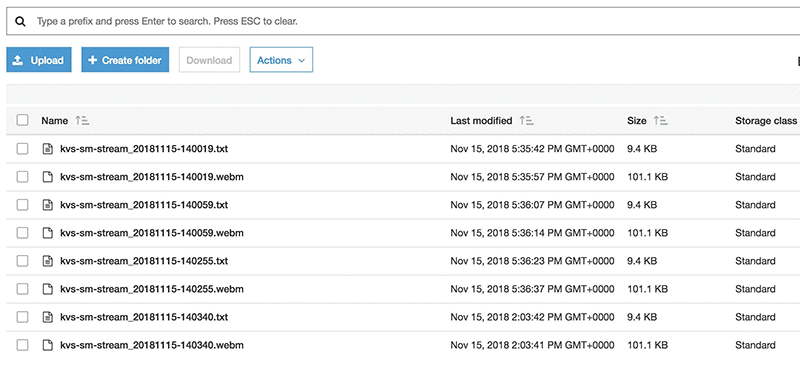
The following screenshot shows that KIT for Amazon SageMaker is emitting detected video fragments and corresponding inferences into the Amazon S3 bucket.

AWS Lambda function logs showing processed output

This solution can be extended for various use cases. For example, by combining the Computer Vision OpenCV library and the Amazon SageMaker prediction details, bounding boxes can added to the detected objects in the video frames and fed in to a real time alerting portal.

Monitoring the KIT-managed infrastructure

The library software vends a variety of CloudWatch metrics by default that customers can use to monitor the progress being made to process individual streams. These include metrics that determine the resource consumption of the workers in their cluster, the rates at which the Amazon SageMaker endpoint is being invoked, and how the inference results are published into their Kinesis Data Stream. The CloudFormation template, creates a ready-to-use CloudWatch dashboard that customers can further extend for their purposes. By default the dashboard captures the key metrics for the underlying services that power KIT and custom metrics specific to the latency, reliability, and scaling characteristics of the software.

CloudWatch dashboard – KIT metrics

Conclusion

Through KIT for Amazon SageMaker, we have simplified the real-time, ML-driven processing of media streams in a reliable and scalable manner. Customers can attach all of their Kinesis Video streams to their Amazon SageMaker endpoints to power their ML-driven use cases with minimal operational overhead. You can read more about this capability in our documentation. We look forward to iterating on the underlying Kinesis Video Client Library software, based on customer feedback so that all developers can further customize for their use cases.


About the Authors

Aditya Krishnan is the head of Amazon Kinesis Video Streams. In this role he has the good fortune of working with customers, hardware and software partners, and a phenomenal engineering team to deliver on the vision of making it ridiculously easy to stream video from internet-enabled camera devices at massive scale.


Jagadeesh Pusapadi is a Solutions Architect with AWS working with customers on their strategic initiatives. He helps customers build innovative solutions on AWS Cloud by providing architectural guidance to achieve desired business outcomes.


Amazon SageMaker Automatic Model Tuning becomes more efficient with warm start of hyperparameter tuning jobs

Earlier this year, we launched Amazon SageMaker Automatic Model Tuning, which allows developers and data scientists to save significant time and effort in training and tuning their machine learning models. Today, we are launching warm start of hyperparameter tuning jobs in Automatic Model Tuning. Data scientists and developers can now create a new hyperparameter tuning job based on selected parent jobs, so that training jobs conducted in those parent jobs can be reused as prior knowledge. Warm start of hyperparameter tuning jobs will accelerate the hyperparameter tuning process and reduce the cost for tuning models.

While data scientists and developers could already efficiently tune their models through Automatic Model Tuning, there are still places where they need more help. For example, they might start a hyperparameter tuning job with a small budget, and, after analyzing the results, decide that they want to continue tuning the model with a larger budget. Potentially they might use different hyperparameter configurations (e.g., by adding more hyperparameters to tune or trying different search ranges for some hyperparameters). Another example is when data scientists or developers might want to re-tune a model after they have collected new data subsequent to a previous model tuning. In both cases, starting a hyperparameter tuning job with prior knowledge collected from previous tuning jobs on this model can help get to the best model faster, and end up saving cost for customers. However, previously every tuning job would start from scratch. Even if the same model was already tuned with a similar tuning configuration, no information was reused.

Warm start of hyperparameter tuning jobs addresses these needs. Now we’ll show you how to iteratively tune your model leveraging warm start.

Tuning an image classification model leveraging warm start

In this example, we’ll build an image classifier and iteratively tune it by running multiple hyperparameter tuning jobs leveraging warm start. We’ll use the Amazon SageMaker built-in image classification algorithm and train the model against the Caltech-256 dataset. You can find the full sample notebook here.

Set up and launch the hyperparameter tuning job

We’ll skip the steps of creating a notebook instance, preparing the dataset, and pushing it to Amazon S3, and directly start from launching a hyperparameter tuning job. The sample notebook has all the details so we won’t go through the process here.

We’ll run this first tuning job to learn about the search space and evaluate the impact of tuning tunable hyperparameters in image classification. This job will assess if tuning the model is promising, and if we want to continue the tuning by creating a subsequent tuning job.

To create a tuning job, we first need to create a training estimator for the built-in image classification algorithm, and specify values for every hyperparameter of this algorithm, except for those we plan to tune. To learn more about hyperparameters of the built-in image classification algorithm, you can explore our documentation.

s3_output_location = 's3://{}/{}/output'.format(bucket, prefix)
s3_input_train = sagemaker.s3_input(s3_data='s3://{}/{}/train'.format(bucket, prefix), content_type='application/x-recordio')
s3_input_validation = sagemaker.s3_input(s3_data='s3://{}/{}/validation/'.format(bucket, prefix), content_type='application/x-recordio')
sess = sagemaker.Session()

imageclassification = sagemaker.estimator.Estimator(training_image,
                                    role, 
                                    train_instance_count=1, 
                                    train_instance_type='ml.p3.8xlarge',
                                    output_path=s3_output_location,
                                    sagemaker_session=sess)

imageclassification.set_hyperparameters(num_layers=18,
                                        image_shape='3,224,224',
                                        num_classes=257,
                                        num_training_samples=15420,
                                        mini_batch_size=128,
                                        epochs=50,
                                        optimizer='sgd',
                                        top_k='2',
                                        precision_dtype='float32',
                                        augmentation_type='crop')

Now that we have the estimator, we can create a hyperparameter tuning job with the estimator and specify the search ranges for hyperparameters we want to tune and the number of total training jobs we want to run.

We selected the three hyperparameters that we believe are most likely to affect the model quality, and thus our objective metric. Since we don’t know yet the values that lead to the best model, we chose the full range of search for momentum and weight_decay as specified in image classification documentation, and a smaller range of search for learning rate (0.0001, 0.05):

  • learning_rate: controls how fast the training algorithm will try to optimize your model. Lower learning rates can achieve better accuracy but will take more time to train your model. Higher learning rates can fail to improve your model accuracy. You need to find a good balance for this attribute.
  • momentum: uses information from the direction of our previous update to inform our current update. The default value of 0 means weight updates are based only on the information in the current batch.
  • weight_decay: penalizes weights when they grow too large. The

default value of 0 means no penalty.

In this case we don’t need to specify the regular expressions for the objective metric because we are using one of the Amazon SageMaker built-in algorithms.

from sagemaker.tuner import IntegerParameter, CategoricalParameter, ContinuousParameter, HyperparameterTuner

hyperparameter_ranges = {'learning_rate': ContinuousParameter(0.0001, 0.05),
                         'momentum': ContinuousParameter(0.0, 0.99),
                         'weight_decay': ContinuousParameter(0.0, 0.99)}

objective_metric_name = 'validation:accuracy'

tuner = HyperparameterTuner(imageclassification,
                            objective_metric_name,
                            hyperparameter_ranges,
                            objective_type='Maximize',
                            max_jobs=10,
                            max_parallel_jobs=2) 

After the hyperparameter tuning job finishes, we can bring in a table of metrics using the HyperparameterTuningJobAnalytics API action from the Amazon SageMaker Python SDK.

tuner_parent = sagemaker.HyperparameterTuningJobAnalytics(tuning_job_name)
tuner_parent.dataframe().sort_values(['FinalObjectiveValue'], ascending=False)

This table shows a subset of the training jobs that have been run. You can look at all of the results by running the notebook. Observe that the hyperparameters we are tuning have a significant impact on the objective metric values for the image classification algorithm. Choosing different values gives very different results.

Using the HPO_Analyze_TuningJob_Results.ipynb notebook, we can plot how the objective metric changes over time as the tuning job progresses.

You can see that the objective metric values improve over time as Automatic Model Tuning is learning through the search space. We might get further improvement beyond the 0.33 validation accuracy by running a few more training jobs. To validate the hypothesis, we‘ll run a second tuning job with another 10 training jobs. This time we‘ll use warm start to reuse the learning we gathered from the first tuning job.

Don‘t worry if youdon‘t get a trend as clear as the one we just discussed, given the nature of randomness in a tuning process. Even running the same experiment won‘t give you the same result, but typically you should see an overall trend of model quality improvement.

Set up and launch a hyperparameter tuning job using a warm start configuration

To use warm start in the new tuning job, we need to specify two parameters:

  • The list of parent tuning jobs the new tuning job should use as a starting point. (The maximum number of parents can be 5 but we will use 1 in this example.)
  • The type of warm start configuration:
    • IDENTICAL_DATA_AND_ALGORITHM warm starts a tuning job with previous evaluations essentially with the same task, allowing for slight changes in the search space. This option should be used when the data set and the algorithm container haven’t changed.
    • TRANSFER_LEARNING warm starts a tuning job with the evaluations from similar tasks, allowing both search space, algorithm image, and dataset change.

In this example we’ll use IDENTICAL_DATA_AND_ALGORITHM because we are not changing the data set or algorithm, we are just running more training jobs.

We will use the Amazon SageMaker console to launch our second tuning job with warm start. Open the Amazon SageMaker console, and in the left navigation pane choose Training.-Then choose Hyperparameter tuning jobs and Create hyperparameter tuning job. At the top of the page, enable Warm start with identical data and algorithm Warm start type. The next step is to select the parent jobs of the new tuning job:

The console allows us to easily populate the values of the new tuning job by using Copy settings from the parent tuning job. After choosing Copy settings, the form gets populated. Choose Next and validate that the static and tunable hyperparameters look good:

In this case, we are not changing any hyperparameter values, so we just need to choose Next again and create the new tuning job using warm start. Really simple!

After the warm start hyperparameter tuning job has completed, we can go back to the notebook to use tuner.analytics() to visualize how the objective metric changes over time for the parent tuning job (black data points) and the new tuning job we launched using warm start (red data points).

You can see that the new tuning job managed to find good hyperparameter configurations very early on, thanks to the prior knowledge from the parent tuning job. As the optimization continues, the objective metric continues improving and it reaches 0.47, which is significantly higher than the metric we had gotten (0.33) when we ran the first tuning job from scratch.

Lastly, to demonstrate how you could apply transfer learning to a tuning job using warm start, we’ll run a third tuning job using more data augmentations in the data set to see if those drive our validation accuracy further up. To apply more data augmentations we can use augmentation_type hyperparameter exposed by the Amazon SageMaker pre-built image classification algorithm. We’ll apply crop_color_transform transformation to the data set during training. With this transformation, in addition to crop and color transformations, random transformations (including rotation, shear, and aspect ratio variations) are applied to the image.

To create our last hyperparameter tuning job, we will use Transfer learning WarmStartType since our data set is going to change as a result of applying new data augmentations. We’ll use both of the two previous tuning jobs that we ran as parent tuning jobs and run 10 more training jobs. Let’s go back to the notebook to launch this last hyperparameter tuning job:

from sagemaker.tuner import WarmStartConfig, WarmStartTypes

parent_tuning_job_name_2 = warmstart_tuning_job_name
transfer_learning_config = WarmStartConfig(WarmStartTypes.TRANSFER_LEARNING, 
                                    parents={parent_tuning_job_name,parent_tuning_job_name_2})

imageclassification.set_hyperparameters(num_layers=18,
                                        image_shape='3,224,224',
                                        num_classes=257,
                                        num_training_samples=15420,
                                        mini_batch_size=128,
                                        epochs=50,
                                        optimizer='sgd',
                                        top_k='2',
                                        precision_dtype='float32',
                                        augmentation_type='crop_color_transform')

tuner_transfer_learning = HyperparameterTuner(imageclassification,
                            objective_metric_name,
                            hyperparameter_ranges,
                            objective_type='Maximize',
                            max_jobs=10,
                            max_parallel_jobs=2,
                            base_tuning_job_name='transferlearning',
                            warm_start_config=transfer_learning_config)

tuner_transfer_learning.fit({'train': s3_input_train, 'validation': s3_input_validation},include_cls_metadata=False)

One last time, after the new hyperparameter tuning job has been completed, we can go use tuner.analytics() to visualize how the objective metric changed over time for the parent tuning jobs (black and red data points) and the new tuning job we launched using warm start transfer learning (blue data points).

After the tuning job has been completed, the objective metric has improved again and has reached 0.52.

If you are satisfied with the results, you can find the training job that generated the best model by getting BestTrainingJob in the Automatic Model Tuning describe API or by going to the console. From the console you can deploy the model to an Amazon SageMaker hosting endpoint.

Conclusion

To recap, we explored one use case that showed how using warm start can help explore the search space iteratively without losing the learning gathered in previous iterations. We also demonstrated how you can use warm start to transfer the learning of previous tuning jobs even if your dataset or algorithm has been changed, but you believe they are close enough to datasets or algorithms used in previous hyperparameter tuning jobs.

Warm start of hyperparameter tuning jobs is now available in all the AWS Regions where Amazon SageMaker is available today. For more information on Amazon SageMaker Automatic Model Tuning, visit Amazon SageMaker documentation.


About the Authors

Patricia Grao is a Software Development Manager in Amazon AI. She became passionate about machine learning while working in search ranking and query understanding in Amazon Search. She was part of the team that launched Amazon SageMaker Automatic Model Tuning.


Fela Winkelmolen works as an applied scientists for Amazon AI and was part of the team that launched the Automatic Model Tuning feature of Amazon SageMaker


Fan Li is a Product Manager of Amazon SageMaker. He used to be a big fan of ballroom dance but now loves whatever his 8-year-old son likes.


Build Your Own Natural Language Models on AWS (no ML experience required)

At AWS re:Invent last year we announced Amazon Comprehend, a natural language processing service which extracts key phrases, places, peoples’ names, brands, events, and sentiment from unstructured text. Comprehend – which is powered by sophisticated deep learning models trained by AWS – allows any developer to add natural language processing to their applications without requiring any machine learning skills.

Today we are excited to bring new customization features to Comprehend, which allow developers to extend Comprehend to identify natural language terms and classify text which is specialized to their team, business, or industry.

Many customers tell us they have a surplus of data – specifically – data comprising unstructured, natural language. You likely won’t have to look far inside your own organization before you find a treasure trove of potential information, hiding inside reams of customer emails, support tickets, financial reports, product reviews, social media, or advertising copy. Helping find the needle inside this proverbial haystack is something machine learning is particularly good at; machine learning models can be extremely accurate at picking up specific items of interest inside vast swathes of text (such as finding company names in analyst reports), and are sensitive to the sentiment hidden inside language (identifying negative reviews, or positive customer interactions with customer service agents).

While Comprehend has highly accurate models for finding generic terms (such as places and things), customers often want to extend this capability to identify more specific language, such as policy numbers or part codes. This usually involves starting from scratch, and building new, specialized machine learning language models – annotating data, selecting algorithms, tuning parameters, optimizing models, and running them in production. Not only do these steps all require deep machine learning expertise, but they also represent “undifferentiated heavy lifting”; effort which many application developers would rather spend on building new features of their own.

Customize Amazon Comprehend (No ML Experience Required)

Today, we’re helping customers find more needles in more haystacks; no machine learning skills required. Under the hood, Comprehend will do the heavy lifting to build, train, and host the customized machine learning models, and make those models available through a private API.

Custom Entities allows developers to customize Comprehend to identify terms that are specific to their domain. Comprehend will learn from a small private index of examples (a list of policy numbers, and text in which they are used, for example), and train a private, custom model to recognize these in any other block of text. There are no servers to manage, and no algorithms to master.

Custom Classification allows developers to group documents into named categories. Through as few as 50 examples, Comprehend will automatically train a custom classification model that can be used to categorize all your documents. You could group support emails by department, social media posts by product, or analyst reports by business unit. If you don’t have any examples, or your categories change frequently (which is common in social media), Comprehend can also classify based on just the content of the documents, using Topic Modeling.

Customer Success with Amazon Comprehend

When it comes to understanding unstructured text in a specific domain, natural language doesn’t come much more specialized than in the legal profession. The “legalese” used in most legal documents is famous for its complex syntax, nomenclature and structure. It’s a great example of where Comprehend Custom Entitites can help; we worked with LexisNexis while developing these new capabilities, to extract legal entities from hundreds of millions of documents, with very high accuracy.

“We provide legal professionals with insightful research and analytics to help them make informed decisions,” said Rick McFarland, Chief Data Officer of LexisNexis. “Therefore, we are always looking for better ways to discover insights from legal documents. Thanks to Amazon Comprehend’s automatic machine learning, we can now build accurate custom entity recognition models without getting into the complexities associated with ML. The entities that we care about the most, such as judge and attorney, can be identified quickly from more than 200 million documents at greater than 92 percent accuracy.”

New Amazon Comprehend features are now Generally Available

Since the earliest days of AWS, our goal has been to take technology which is traditionally only within reach of large, well-funded organizations, and to put it in the hands of all developers. And just like with services such as EC2 and RDS, to do this for machine learning we need to continue to invent and simplify on behalf of our customers, across the machine learning stack. These new capabilities for Comprehend are a perfect reflection of this spirit; we’re excited to see what you build with them.


Dr. Matt Wood, General Manager of Artificial Intelligence, AWS


Getting Started with Amazon Comprehend custom entities

Amazon Comprehend is a natural language processing (NLP) service that uses machine learning to find insights and relationships in text. We released an update to Amazon Comprehend enabling support for private, custom entity types. Customers can now train state-of-the-art entity recognition models to extract their specific terms, completely automatically. No machine learning experience required. For example, financial companies can analyze market reports for terms and language related to bankruptcy activity. Manufacturing companies can now analyze logistics documents looking for specific parts IDs and route numbers. Combining custom entities with Comprehend’s pre-trained entities enables a complete picture of what is contained within text data. Use this data to look for trends, anomalies, or specific conditions within text.

Training the service to learn custom entity types is as easy as providing a set of those entities and a set of real-world documents that contain them. To get started, put together a list of entities. Gather these from a product database, or an Excel file that your company uses for business planning. For this blog post, we are going to train a custom entity type to extract key financial terms from financial documents.

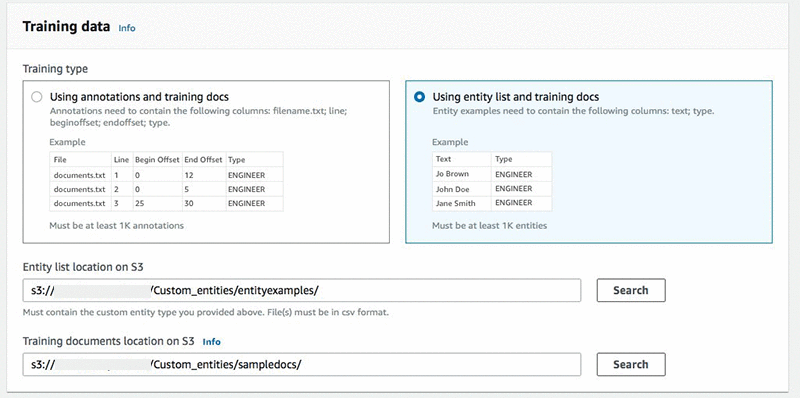
The CSV format requires “Text” and “Type” as column headers. The text contains the entities and the type is the name of the entity type we are about to create.

Next, collect a set of documents that contain those entities in the context of how they are used. The service needs a minimum of 1,000 documents containing at least one or more of the entities from our list.

Next, configure the training job to read the entity list CSV from one folder, and the text file containing all of the documents (one per line) from another folder.

After both sets of training data are prepared, train the model. This process can take a few minutes, or multiple hours depending on the size and complexity of the training data. Using automatic machine learning, Amazon Comprehend selects the right algorithm, sampling and tuning the models to find the right combination that works best for the data.

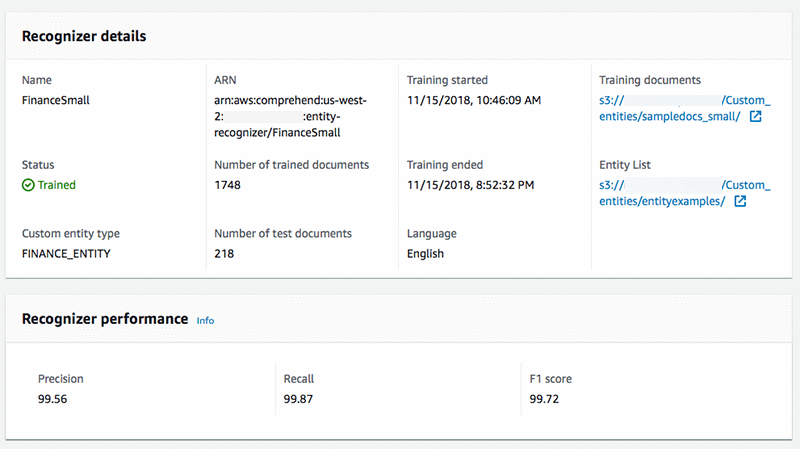
When the training is completed the custom model is ready to go. Below, view the trained model along with some helpful metadata.

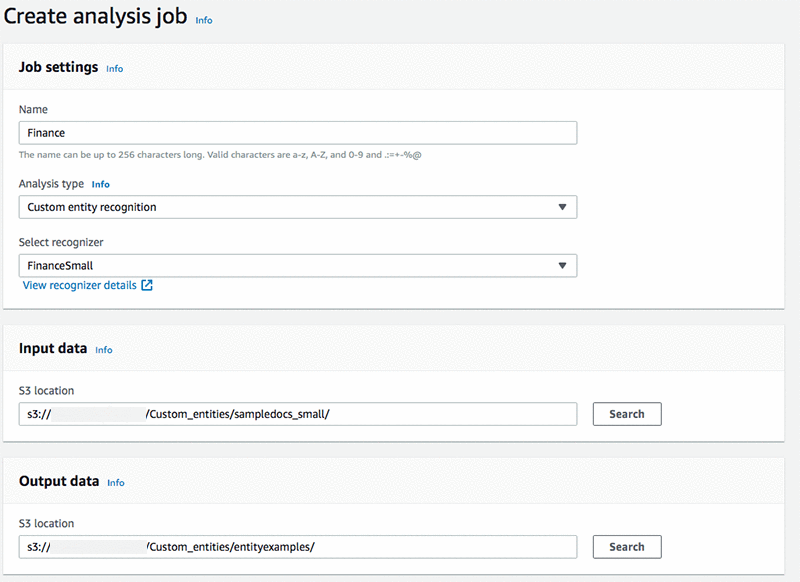
To start analyzing documents looking for custom entities, either use the portal or APIs via the AWS SDK. In this example, create an analysis job in the portal to analyze financial documents using the custom entity type:

This is how the same job submission would look using our CLI:

aws comprehend start-entities-detection-job 
--entity-recognizer-arn "arn:aws:comprehend:us-east-1:1234567890:entity-recognizer/person-recognizer“ 
--job-name person-job 
--data-access-role-arn "arn:aws:iam::1234567890:role/service-role/AmazonComprehendServiceRole-role" 
--language-code en 
--input-data-config "S3Uri=s3://data/input/” 
--output-data-config "S3Uri=s3://data/output/“ 
--region us-east-1

Take a look at the job output by opening the JSON response object and look at our custom entities. For each entity, the service also returns a confidence score metric. If there are lower confidence scores, fix them by adding more documents that contain that specific entity.

Below, view the custom model extracted financial terms.

{
  "Entities": [
    {
      "BeginOffset": 10,
      "EndOffset": 16,
      "Score": 0.999985933303833,
      "Text": "stocks",
      "Type": "FINANCE_ENTITY"
    },
    {
      "BeginOffset": 24,
      "EndOffset": 36,
      "Score": 0.9998899698257446,
      "Text": "modest gains",
      "Type": "FINANCE_ENTITY"
    },
    {
      "BeginOffset": 55,
      "EndOffset": 62,
      "Score": 0.9999994039535522,
      "Text": "trading",
      "Type": "FINANCE_ENTITY"
    },

Please visit the product forum to provide feedback or get some help.


About the author

Nino Bice is a Sr. Product Manager leading product for Amazon Comprehend, AWS’s natural language processing service.


Amazon Polly adds Italian and Castilian Spanish voices, and Mexican Spanish language support

Amazon Polly is an AWS service that turns text into lifelike speech. This pre-trained service requires no machine learning skills to easily integrate AI into your applications.

In addition to the previously available Italian voices Carla and Giorgio, we have now added a second female Italian voice. Listen to the introduction by Bianca.

Listen now

Voiced by Amazon Polly

We have also added Lucia, a second female Castilian Spanish voice. Listen to the introduction by Lucia.

Listen now

Voiced by Amazon Polly

In addition, we are introducing Mia, our first Mexican Spanish voice, which expands our portfolio of Spanish options beyond Castilian and US Spanish.

Listen now

Voiced by Amazon Polly

With these additions, the Amazon Polly portfolio now includes 57 voices across 28 languages. Visit the Amazon Polly documentation for the full list of text-to-speech voices, and log in to the Amazon Polly console to try them out!


About the Author

Robin Dautricourt is a Principle Product Manager for Amazon Text-to-Speech, and he leads product management for Amazon Polly. He enjoys innovating on behalf of customers, to launch features that will benefit their business needs and end users. He enjoys spending his free time with his wife and kids.


Introduction to Amazon SageMaker Object2Vec 

In this blog post, we’re introducing the Amazon SageMaker Object2Vec algorithm, a new highly customizable multi-purpose algorithm that can learn low dimensional dense embeddings of high dimensional objects.

Embeddings are an important feature engineering technique in machine learning (ML). They convert high dimensional vectors into low-dimensional space to make it easier to do machine learning with large sparse vector inputs. Embeddings also capture the semantics of the underlying data by placing similar items closer in the low-dimensional space. This makes the features more effective in training downstream models. One of the well-known embedding techniques is Word2Vec, which provides embeddings for words. It has been widely used in many use cases, such as sentiment analysis, document classification, and natural language understanding. See the following diagram for a conceptual representation of word embeddings in the feature space.

Figure 1: Word2Vec embeddings: words that are semantically similar are close together in the embedding space.

In addition to word embeddings, there are also use cases where we want to learn the embeddings of more general-purpose objects such as sentences, customers, and products. This is so we can build practical applications for information retrieval, product search, item matching, customer profiling based on similarity or as inputs for other supervised tasks. This is where Amazon SageMaker Object2Vec comes in. In this blog post, we will talk about what it is, how it works, discuss some practical use cases, and show you how Object2Vec can be used to solve those use cases.

How it works

The embeddings are learned such that the semantics of the relationship between pairs of objects in the original space are preserved in the embedding space. Thus, the learned embeddings can be used to efficiently compute nearest neighbors of objects, as well as to visualize natural clusters of related objects in low-dimensional space. In addition, the embeddings can also be used as features of the corresponding objects in downstream supervised tasks such as classification or regression.

The architecture of Amazon SageMaker Object2Vec consists of the following main components:

  • 2 input channels—The two input channels take object pairs of same or different types as inputs and pass them to independent and customizable encoders.  Examples of input objects could be sequence pairs, tokens pairs, and sequence and tokens pairs.
  • 2 encoders—The encoders convert each object into a fixed-length embedding vector.  The encoded embeddings of the objects in the pair are then passed into a comparator.
  • Comparator—The comparator compares the embeddings in different ways and outputs scores that correspond to the strength of the relationship of the objects in the pair for each relationship type specified by the user. An example of the output score could be 1, indicating a strong relationship between the pair of objects, or 0, representing a weak relationship.

At training time, the training loss function minimizes the differences between the relationships predicted by the model and those specified by the user in the training data. After the model is trained, the trained encoder can be used to convert new input objects into fixed-length embeddings. The architectural diagram of Object2Vec and an explanation of the parts of the architecture follows.
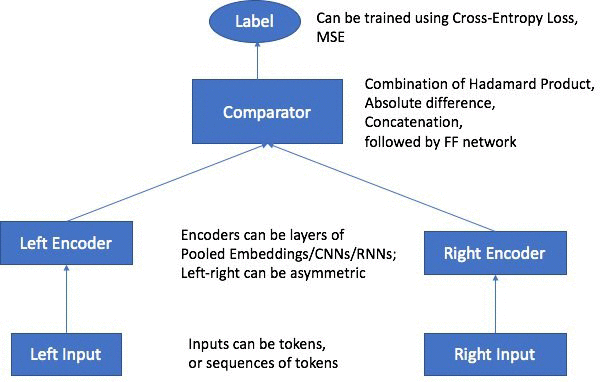
Supported input types, encoders and loss functions

Natively, Object2Vec currently supports singleton discrete tokens represented as integer-ids as well as sequences of discrete tokens represented as lists of integer-ids as inputs, so pre-processing is required to transform the input data to the supported formats. The objects in each pair can be asymmetric with respect to each other. For example, they can be (token, sequence) pairs, or (token, token) pairs, or (sequence, sequence) pairs. For tokens, we support simple embeddings as compatible encoders, while for sequences of tokens, we support average-pooled embeddings, hierarchical Convolutional Neural Networks (CNNs), as well as multi-layered Bi-Directional-Long-Short-Term-Memory (BiLSTM)-based Recurrent Neural Networks as encoders. The input label for each pair can be a categorical label that expresses the relationship between the objects in the pair, or it can be a rating or a score that expresses the strength of similarity between the two objects. For categorical labels, we support Cross-Entropy loss function, and for ratings/score-based labels, we support Mean Squared Error (MSE) loss function.

Although the current input types supported in Object2Vec are either sequences of discrete tokens or singleton tokens, these input types already cover plenty of real-world objects since the data that describes these objects can usually be represented as discrete sequences. Here are a few illustrative examples:

  • Embeddings of customers: To learn the embeddings of customers, you can generate training data consisting of a recent sequence of transactions of each customer, where the sequence is represented as the list of product-IDs bought by the customer, paired with the ID of the customer, as positive examples. As negative examples, one can generate transactions of a different customer paired with the original (and therefore incorrect) customer-ID. For each pair, the sequence of transactions could be passed as input to a CNN or BiLSTM encoder, and the customer-ID to an embedding-based encoder. Once trained, the embeddings of the customers can be directly read from the embedding-based encoder.
  • Embeddings of products: To train embeddings of products, you can pair the title of the product, represented as a sequence of text tokens, and the product-ID as positive examples. As negative examples, one can pair title of another (potentially related) product with the original (and incorrect) product-ID.
  • Embeddings of users and movies: To train embeddings of users and movies, you can use user-movie pairs where the user has assigned a high rating to the movie as positive examples, and those that the user has assigned low rating as negative examples. You can use an embedding-based encoder for both users and movies, and the embeddings of either can be read directly from the corresponding encoder, once trained.
  • Embeddings of football players: To learn the embeddings of players in a football game, you can use the time sequence of discretized locations in the field traced by each player during a game, paired with the player-ID as positive examples. Traced location sequences of a player paired with a different player-ID can serve as negative examples.
  • Embeddings of English sentences: To learn embeddings of sentences in English, you can treat pairs of adjacent sentences in a document as positive pairs, and the pairs of sentences sampled from different documents as negative pairs. You can use CNN- or BiLSTM-based encoders for both sentences in the pair. Once trained, either encoder can be used to generate embeddings of new sentences.

In this blog post we’ll walk  through some of these use cases in more detail using our Jupyter Notebook examples (movie recommendation, multi-label document classification, and sentence similarity).

Is Object2Vec a supervised learning algorithm?

Since the algorithm requires labeled data for training, it is indeed true that Object2Vec is a supervised learner. However, we want to emphasize that there are many scenarios where the relationship labels can be obtained purely from natural clusterings in data, without any explicit human annotation. We discussed some examples earlier, but we reiterate them as follows for clarity.

  • To learn embeddings of words, pairs of words that occur within a context window in a given document can be considered examples with a positive label and word pairs obtained as samples from unigram distribution in a corpus can be considered as examples with a negative label.
  • Likewise, to learn embeddings of sentences, pairs of sentences that occur adjacent to each other in a document can be considered examples with “positive labels” and sentence pairs that do not co-occur in the same document can be considered as those with negative labels.”
  • To learn embeddings of a customer, pairs of transaction records from the same customer within a given window of time can be considered positive examples, and pairs of transactions from two different customers can be considered negative examples.

To reiterate, the architecture of Object2Vec requires the user to make the relationship between objects in each pair explicit at training time, but the relationships themselves may be obtained from natural groupings in data, and they might not require explicit human labeling.

Hyperparameter

Object2Vec supports a range of hyperparameters for fine-tuning the training to meet different requirements. These are some of the main hyperparameters:

  • Encoder network (network)– You can choose Hierarchical CNN, BiLSTM, or Pooled Embedding.  Use Hierarchical CNN if you want faster training speed due to parallelization. BiLSTM will give you better results for sequential inputs, such as sentences where long-distance dependencies between tokens in the sequence need to be captured.  Pooled embedding is designed for the super-fast training at the cost of some drop in accuracy.
  • Optimizer– You can choose among ‘adam’ ‘adagrad,’ ‘rmsprop,’ ‘sgd,’ and ‘adadelta.’
  • Token embedding dimension (token_embedding_dim) – The dimension of the input layer. This is the layer where pre-trained embeddings could be applied.
  • Encoding dimension (enc_dim) – The dimension of the final encoding of the input, which is the output of the corresponding encoder.
  • Early stopping tolerance and patience – Use these hyperparameters to control the early stopping of training by measuring performance improvement over a number of epochs.

See here for a full list of supported hyperparameters.

Data input channel

Similar to other Amazon SageMaker built-in algorithms, Object2Vec supports a training data channel, a validation data channel, and a test data channel. It also provides an auxiliary data channel for you to provide a pre-trained embedding file and a vocabulary file. A pre-trained embedding file (e.g., GloVe embedding file) is used to replace each integer-id in input with a pre-trained embedding vector for each token-id. Using pre-trained embedding provides a warm start to the algorithm training since it starts from an informed initial point in the input layer. For Natural Language Processing applications, pre-trained embeddings such as (word2vec and GloVe) are available for download from multiple locations. To ensure that we use the correct embedding for each input token, the user is required to also provide a vocabulary dictionary that maps the integer-ids in the input to words, which are then used to look up the corresponding pre-trained embeddings. The vocabulary dictionary is a mapping of words and the corresponding integer representations in JSON format. The following example shows what a vocabulary file looks like.

{"!": 0, "#": 1, "$": 2, "%": 3, "&": 4, "'": 5, "''": 6, "'14": 7, 
"'50s-themed": 8, "'60s": 9, "'80s": 10, "'AST": 11, "'Anaconda": 12, 
"'Chips": 13, "'Em": 14, "'Free": 15, "'Good": 16, "'KISS": 17, 
"'Marco": 18, "'Mega": 19, "'Melanie": 20, "'N": 21, "'Out": 22, 
"'Round": 23, "'S": 24, "'Stairway": 25, "'T": 26, "'The": 27, 
"'Thing-o-matic": 28, "'White": 29, "'cleanest": 30, "'d": 31, 
"'free": 32, "'gobble": 33, "'heading": 34, "'house": 35, "'ll": 36, 
"'m": 37, "'mommy": 38, "'n": 39, "'no": 40, "'o": …}

Inference

After the model is trained, the trained encoder can be used to perform inference in two modes:

  • To convert singleton input objects into fixed length embeddings using the corresponding encoder.
  • To predict the relationship label or score between a pair of input objects.

The inference server automatically figures out which of these two modes is requested based on the input data. To get the embeddings as output, we would only provide one input in each instance, whereas to predict the relationship label or score, we would provide both inputs in the pair.

Compute recommendation

Currently, Object2Vec is set up to train only on a single machine. However, it does offer support for training on multiple GPUs. For training, we recommend that you start with GPUs for model training because GPUs provide higher throughput. For inference, CPU is recommended because there is no latency overhead between CPU and GPU communication.

Performance

Despite being a general-purpose embedding algorithm for a range of input types, Amazon SageMaker Object2Vec has comparable performance results against some of the purpose-built embedding algorithms. See the following for the Pearson Correlation comparisons using various versions of the Semantic Text Similarity (STS) dataset, where we compare Object2Vec with a state-of-the-art model called InferSent.
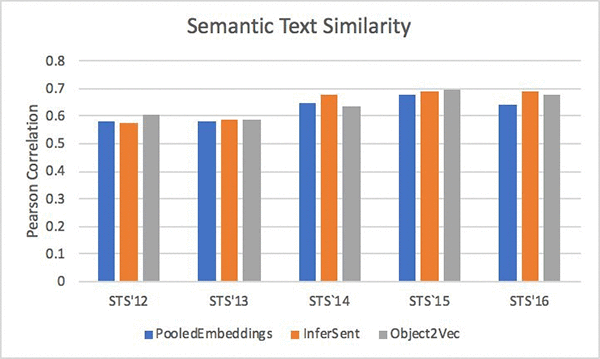
Use cases for Object2Vec

We currently support learning embeddings of pairs of tokens, pairs of sequences, and pairs of token and sequence. There are many use cases that can be mapped into one of these representations. Next, we will take a look at three specific use cases:

  • Collaborative recommendation system
  • Multi-label document classification
  • Sentence embeddings

Training with pairs of tokens: Collaborative recommendation system

Collaborative filtering is a popular technique for building recommendation systems. The main concept behind collaborative filtering is that users with similar tastes (based on observed user-item interactions) are more likely to have similar interactions with new items. Object2Vec can make recommendations by approximating the observed user-item interactions using low dimensional representations of users and items.

The following diagram shows how user-item interaction data can be used to learn the embedding of users and items. The resulting model can be used to predict user rating on a new item.
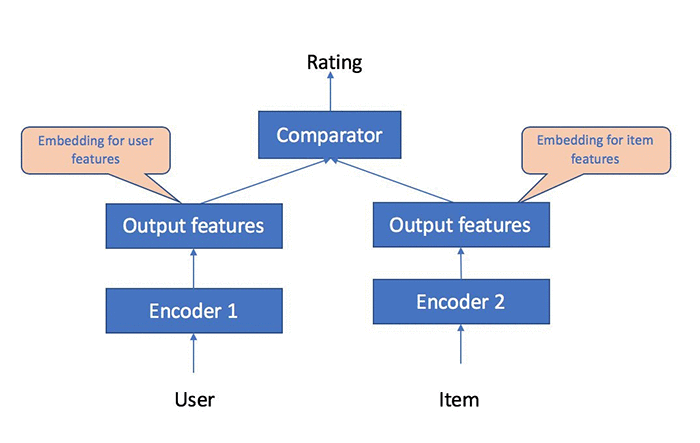
To see how SageMaker Object2Vec can be used for building a collaborative recommendation model, let’s take a look at this notebook.  More specifically, we will show how to solve the following two different kinds of machine learning tasks using the MovieLens dataset.

  • Task 1: Rating prediction as a regression problem
  • Task 2: Movie recommendation as a classification problem

The MovieLens dataset contains paired data of (user,movie) and the corresponding ratings. The integer-id corresponding to a user is fed into one arm of Object2Vec and the integer-id corresponding to the movie is fed into the other arm. We use separate embedding-based encoders for users and movies to convert them into dense embeddings, which are passed into the comparator that makes prediction of the rating for a given (user, movie) pair.  We will first show how to learn the embeddings of users and movies based on labeled training data. Then, we will demonstrate how to use the learned embeddings to make predictions of ratings on the held-out test set, and show that our model achieves accuracy comparable to some of the best tools available in the open source domain.  See the following diagram for a high-level logic flow of the data processing and training pipeline.

In the data processing and preparation step, we will create a training data file, a validation data file, and a test data file, and the files will be copied to an Amazon S3 bucket.  Amazon SageMaker Object2Vec takes input in JSON-lines format, so the raw MovieLens data will be converted to the format similar to the sample that follows.  In this sample, in0 represents the user id, in1 represents the movie id, and the label represents the movie rating by the user for the movie. We will use the raw dataset to create a training dataset, a validation dataset, and a test dataset. During training time, the in0 value will be fed into one arm of the Object2Vec algorithm, and in1 will be fed into another arm.

{"in0": [1], "in1": [20], "label": 4.0}
{"in0": [1], "in1": [33], "label": 4.0}
{"in0": [1], "in1": [61], "label": 4.0}
{"in0": [1], "in1": [117], "label": 3.0}
{"in0": [1], "in1": [155], "label": 2.0}

For the training step, we will configure the necessary hyperparameters for task 1 and task 2. For task1, which is a regression job, we will set the “output_layer” hyperparameter to “mean_squared_error“, and for task 2, we will use “softmax” for the “output_layer”.  Since the inputs are individual tokens, we set the network for both encoders to “pooled_embedding”.

Amazon SageMaker provides a Python SDK for easier integration with the SageMaker backend operations such as training and deployment. Here, we will use the Amazon SageMaker Estimator to kick off the training job.  See the following code sample for the syntax in the Amazon SageMaker Python SDK for kicking off the rating prediction (regression) job.

regressor = sagemaker.estimator.Estimator(container,
                                          role, 
                                          train_instance_count=1, 
                                          train_instance_type='ml.p2.xlarge',
                                          output_path=output_path,
                                          sagemaker_session=sess)

## train, tune, and test the model
regressor.fit({'train': s3_train, 'validation':s3_valid, 'test':s3_test})

See the following  for the code sample for kicking off a recommendation (classification) job.

classifier = sagemaker.estimator.Estimator(container,
                                    role, 
                                    train_instance_count=1, 
                                    train_instance_type='ml.p2.xlarge',
                                    output_path=output_path,
                                    sagemaker_session=sess)

## train, tune, and test the model
classifier.fit({'train': s3_train_c, 'validation':s3_valid_c, 'test':s3_test_c})

When the training job runs, it will output the following training and validation metrics in Amazon CloudWatch Logs and in the Jupyter notebook console.

[10/18/2018 14:39:43 INFO 140224059168576] Epoch 6 Training metrics:   mean_squared_error: 0.084 mean_absolute_error: 0.224 
[10/18/2018 14:39:43 INFO 140224059168576] #quality_metric: host=algo-1, epoch=6, train mean_squared_error <loss>=0.084217468395
[10/18/2018 14:39:43 INFO 140224059168576] Epoch 6 Validation metrics: mean_squared_error: 0.931 mean_absolute_error: 0.762 
[10/18/2018 14:39:43 INFO 140224059168576] #quality_metric: host=algo-1, epoch=6, validation mean_squared_error <loss>=0.930595424127

Check out the full notebook for detailed instructions.

Training with pairs of (one-hot vectors and sequences of one-hot vectors): Multi-label document classification

Document classification and tagging are common business challenges for many organizations, especially in the era of big data. There are unsupervised machine learning approaches such as topic modeling and supervised machine learning approaches such as multi-label classification. Object2Vec’s ability to support token and a sequence pair input is well suited for the multi-label document classification problem. See the following diagram on how document and label data can be fed into Object2Vec for multi-label classification training.
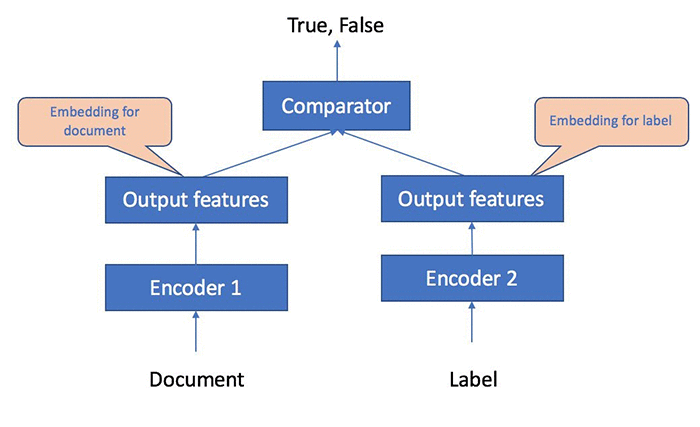
In this notebook example, we will show how to train Object2Vec on token, sequence pairs. The specific use case we consider is multi-labeled document classification. To model this problem, one arm of our architecture accepts a document represented as a sequence of word-ids as input. The other arm accepts the categorical label of the document represented as an integer-id as input. We convert multi-labeled documents into document, label pairs where each document is repeatedly paired with every label in the corpus. We apply a `positive’ relationship to a (document, label) pair if the document is tagged with the specific label in the ground truth data. Otherwise, the relationship between the document, label pair is marked as `negative.’ The encoder for the document arm would be a CNN or a BiLSTM which would convert the variable-length sequence into a fixed-length embedding. The encoder for the label arm would be a simple embedding encoder which would convert the label-id into dense embedding. These two would be passed to a comparator, which would emit scores that correspond to the model’s confidence in the two relationship types between the document and the label.

At training time, we associate all (document, label) pairs that exist in the training data with a “positive” relationship type, and we sample pairs with a “negative” relationship type from the cross-product of (documents, labels) such that the document is in the training data, but the pair (document, label) does not occur in the training data. If the same document has multiple labels, we generate a unique (document, label) pair with a “positive” relationship for each label that applies to the document. Such preprocessing is similar to how multi-labeled document classification is handled using multiple one-vs-rest classifiers.

At test time, given a document D, we pass the document to Object2Vec multiple times, where each time it is paired with one unique label L in the training set as input. We accept the label L as applicable to the document if the score for “positive” relationship type for the pair (D,L) is higher than a threshold.

Check out the full notebook for detailed instructions on running multi-label document classification with Object2Vec.

Training with pairs of (sequence of tokens, sequence of tokens): Sentence similarity

There are many practical use cases for sentence similarity. For example, in a customer support workflow, you might need to identify duplicate support tickets or route tickets to the correct support queue based on similarity of the text found in the ticket. Another example where sentence/text similarity can be used is information retrieval where a system can return a list of similar text given an input text.

Modeling sequences of tokens as embeddings is also relevant in contexts other than natural language. For example, a customer’s preferences can be modeled by the sequence of product-ids that he/she has bought in the recent past. We can learn a customer’s embedding by pairing sequences of product-ids bought by the customer as positive pairs and sequences of product-ids bought by different customers as negative examples. The embeddings thus learned can be used to find similar customers or can be used as features in a downstream supervised task.

In this notebook, we will demonstrate how to use Object2Vec to generate embeddings for sentences so they can be used for sentence similarity comparison. The following diagram shows the sentence pairs will be fed into the Object2Vec to learn the embeddings.
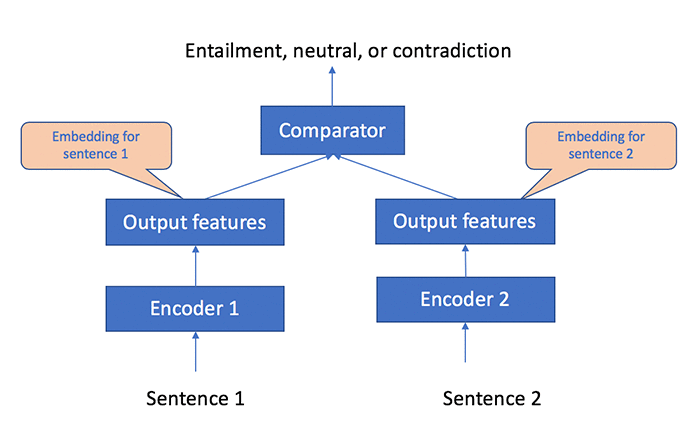
The high-level logical flow of the data processing and training pipeline is depicted in the following diagram.
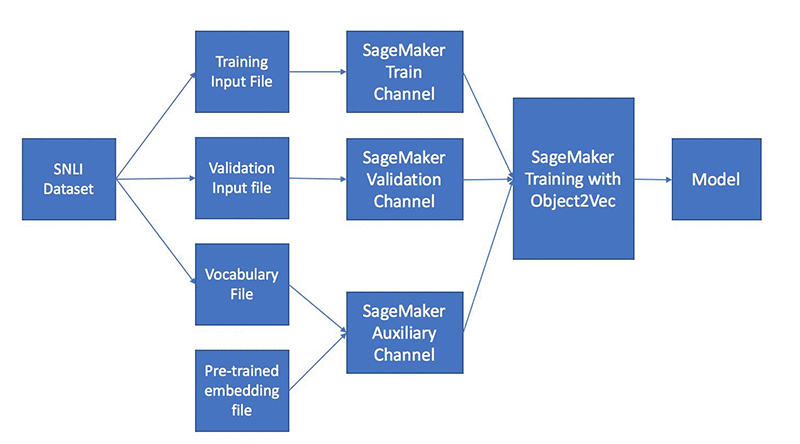
For training data, we will use The Stanford Natural Language Inference (SNLI) dataset, which consists of pairs of sentences labeled “entailment,” “neutral,” or “contradiction.”  After the model is trained, we can use the trained model to convert any English sentences into fixed-length embeddings. We will measure the quality of the model by using a hold-out test dataset from the SNLI dataset. In the notebook, we will also measure the quality of embeddings on new sentences, by comparing the similarity of sentence pairs in the embedding space from the Semantic Text Similarity (STS) dataset and evaluate that against the human-labeled ground truth.

We will preprocess the SNLI data into a JSON line structure shown by the following sample data, so it can be consumed by the Object2Vec algorithm.  In this sample, in0 and in1 represent two sentences respectively with the integers representing the words in the sentences, and the label representing the relationship (entailment, neutral, or contradiction) between the two sentences.

{"in0": [8976, 43036, 10889, 19131, 42641, 23620, 40005, 21984, 29937, 58], 
"in1": [8653, 36222, 10889, 23971, 22084, 42641, 23620, 40005, 21984], 
"label": 1}

Training this sentence similarity model is just like training any other models using the Amazon SageMaker built-in algorithms.  You would first define data channels which include channels for training data, validation data, and auxiliary data which is for the vocabulary file and the pre-trained embedding file.  You would then configure the necessary training hyperparameters and use an Amazon SageMaker estimator to kick off a training job.  See the following sample code snippet on the syntax for using the Amazon SageMaker Estimator to start the training job.

regressor = sagemaker.estimator.Estimator(container,
                                          role, 
                                          train_instance_count=1, 
                                          train_instance_type='ml.p2.xlarge',
                                          output_path=output_path,
                                          sagemaker_session=sess)

regressor.fit(input_channels)

When the training job runs, you will see the following performance metrics being reported in Amazon CloudWatch Logs and directly inside the Jupyter notebook console after each epoch runs.

[10/14/2018 22:13:39 INFO 140406399915840] Completed Epoch: 0, time taken: 0:00:18.556232
[10/14/2018 22:13:39 INFO 140406399915840] Epoch 0 Training metrics:   perplexity: 2.433 cross_entropy: 0.889 accuracy: 0.582 
[10/14/2018 22:13:39 INFO 140406399915840] #quality_metric: host=algo-1, epoch=0, train cross_entropy <loss>=0.88893990372
[10/14/2018 22:13:39 INFO 140406399915840] #quality_metric: host=algo-1, epoch=0, train accuracy <score>=0.582158705767
[10/14/2018 22:13:39 INFO 140406399915840] Epoch 0 Validation metrics: perplexity: 2.139 cross_entropy: 0.760 accuracy: 0.669 
[10/14/2018 22:13:39 INFO 140406399915840] #quality_metric: host=algo-1, epoch=0, validation cross_entropy <loss>=0.760480128229
[10/14/2018 22:13:39 INFO 140406399915840] #quality_metric: host=algo-1, epoch=0, validation accuracy <score>=0.668823242188 

Check out the full notebook for detailed instructions on running the embedding pipeline and additional code samples on how to use the STS dataset for measuring sentence similarity.

Conclusion

In this blog post, we introduced to you the new Amazon SageMaker Object2Vec algorithm. This post and the companion notebooks show you how Object2Vec works and how it can be applied to a range of practical business use cases.


About the authors

David Ping is a Principal Solutions Architect with the AWS Solutions Architecture organization. He works with our customers to build cloud and machine learning solutions using AWS. He lives in the NY metro area and enjoys learning the latest machine learning technologies.


Patrick Ng is a Software Development Engineer in the Verticals and Applications Group at AWS AI. He works on building scalable distributed machine learning algorithms, with focus in the area of deep neural networks and natural language processing.  Before Amazon, he obtained his PhD in Computer Science from the Cornell University and worked at startup companies building machine learning systems.



Cheng Tang is an Applied Scientist in the Verticals and Applications Group at AWS AI. Broadly interested in machine learning research and its applications to the natural language processing domain, Cheng finds great inspiration to be part of both research and industrialization of machine learning/deep learning algorithms, and she is thrilled to see them delivered to the customers.



Saswata Chakravarty is a Software Engineer in the AWS Algorithms team. He works on bringing fast and scalable algorithms to Amazon SageMaker and making them easy to use for customers.



Ramesh Nallapati is a Senior Applied Scientist in the Verticals and Applications Group at AWS AI. He works on building novel deep neural networks at scale primarily in the natural language processing domain. He is very passionate about deep learning, and enjoys learning about latest developments in AI and is excited about contributing to this field to the best of his abilities.


Bing Xiang is a Principal Scientist and Head of Verticals and Applications Group at AWS AI. He leads a team of scientists and engineers working on deep learning, machine learning, and natural language processing for multiple AWS services.


 Acknowledgments

We would like to thank Orchid Majumder, Software Development Engineer, AI Platforms team, for his early contributions on this project, as well as Laurence Rouesnel, Group Manager for the Algorithms & Platforms Group in Amazon AI Labs, and Leo Dirac, Senior Principal Engineer, AI Platforms team, for their expert advice and guidance throughout this work.