Blog

Learn About Our Meetup

5000+ Members

MEETUPS

LEARN, CONNECT, SHARE

Join our meetup, learn, connect, share, and get to know your Toronto AI community. 

JOB POSTINGS

INDEED POSTINGS

Browse through the latest deep learning, ai, machine learning postings from Indeed for the GTA.

CONTACT

CONNECT WITH US

Are you looking to sponsor space, be a speaker, or volunteer, feel free to give us a shout.

Category: Amazon

Newstag improves global video news discoverability using AI language services on AWS

Swedish startup Newstag uses artificial intelligence (AI) to allow customers to create personalized video news channels from major global news providers. Their mission is to continuously empower people and organizations with the latest, diverse information. To increase discoverability of video news from all around the world for their customers, Newstag creates rich metadata for each video. Newstag was able to automate this manually intensive process of extracting and creating metadata from videos by using Amazon Transcribe, Amazon Translate, and Amazon Comprehend. Using a combination of AWS services, Newstag can create rich metadata for ten times more videos than was previously possible.

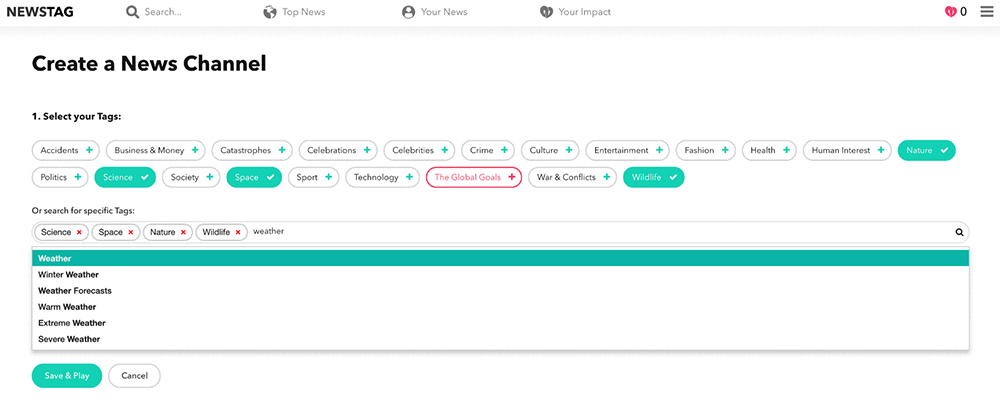
“We believe people want to choose what news they want to see. Enabling customers to curate relevant stories is pivotal for us to carry out our company mission,” says Mats Ekholm, Chief Technology Officer of Newstag. To accomplish this, Newstag has developed tags that customers can select to create a personalized video news channel. The following screenshot illustrates how customers can select these tags in Newstag.

To curate over 1,000 videos a day, Newstag’s editorial staff had spent a lot of time manually tagging content in various languages. Tags mostly consisted of titles, brief descriptions, and limited metadata. Struggling to keep up with demand, the startup looked for a simple, cost-efficient, and easy-to-deploy solution. By using pre-trained machine learning (ML) services on AWS, Newstag was able to use AI to solve the problem even though they had no previous experience with the technology.

First, Newstag uses Amazon Transcribe to create transcripts of speech in supported languages from the videos stored using Amazon Simple Storage Service (S3). Then Amazon Translate is applied to non-English transcripts as well as other titles, descriptions, or keywords originally provided with the video for accurate translation into English. Finally, Amazon Comprehend, a machine learning service that provides insights from analyzing textual content, is used to extract entities from all texts available in English. These named entities, such as organizations, people, places, and locations, are used to create accurate tags to help customers find targeted content.

“We used to manually create tags for about three to four videos per hour,” explains Ekholm. “With AI language services offered by AWS, we can now create tags for about 30 to 40 videos per hour. It means a 10-times increase in the number of news stories that our customers can see on Newstag.”

Ekholm automated a majority of the tagging process for video news in different languages within five hours at low cost. “I was impressed by how easy it was to deploy Transcribe, Translate, and Comprehend. I was also very pleased with their low costs. As a start-up, we have to be smart about operating costs,” says Ekholm.

Learn more

See the AWS website to learn more about language services for AI. Here are some useful blog posts from AWS to get you started:


About the Author

Woo Kim is a Product Marketing Manager for AWS machine learning services. He spent his childhood in South Korea and now lives in Seattle, WA. In his spare time, he enjoys playing volleyball and tennis.


Run ONNX models with Amazon Elastic Inference

At re:Invent 2018, AWS announced Amazon Elastic Inference (EI), a new service that lets you attach just the right amount of GPU-powered inference acceleration to any Amazon EC2 instance. This is also available for Amazon SageMaker notebook instances and endpoints, bringing acceleration to built-in algorithms and to deep learning environments.

In this blog post, I show how to use the models in the ONNX Model Zoo on GitHub to perform inference by using MXNet with Elastic Inference Accelerator (EIA) as a backend.

The benefits of Amazon Elastic Inference

Amazon Elastic Inference allows you to attach low-cost GPU-powered acceleration to Amazon EC2 and Amazon SageMaker instances to reduce the cost of running deep learning inference by up to 75 percent.

Amazon Elastic Inference provides support for Apache MXNet, TensorFlow, and ONNX models. ONNX is an open standard format for deep learning models that enables interoperability between deep learning frameworks such as Apache MXNet, Caffe2, Microsoft Cognitive Toolkit (CNTK), PyTorch, and more. This means that you can use any of these frameworks to train a model, export the model in ONNX format, and then import them into Apache MXNet for inference.

You can see the collection of pre-trained, state-of-the-art models in ONNX format at the ONNX Model Zoo on GitHub.

Getting started with inference by using Resnet 152v1 model

To start with the tutorial, I use an AWS Deep Learning AMI (DLAMI), which already provides support for Apache MXNet, EIA, ONNX and other required libraries. You can review Elastic Inference Prerequisites for the instructions related to Elastic Inference. For detailed instructions on how to launch a DLAMI with an Elastic Inference Accelerator, see the Elastic Inference documentation. I use the standard ResNet-152v1 ONNX model from model zoo for inference in MXNet.

Step 1: Activate the MXNet EI environment

To begin the tutorial, log in to your Deep Learning AMI with Conda console. Activate the Python 3 MXNet EI environment.

source activate amazonei_mxnet_p36

Step 2: Import dependencies and download

From the ONNX model zoo, download both the Resnet-152v1 model and synset.txt file, which contains class labels.

import mxnet as mx
import matplotlib.pyplot as plt
import numpy as np
from mxnet.gluon.data.vision import transforms
from mxnet.contrib.onnx.onnx2mx.import_model import import_model
import os
# Download model and synset.txt files containing class labels
mx.test_utils.download('https://s3.amazonaws.com/onnx-model-zoo/resnet/resnet152v1/resnet152v1.onnx')
mx.test_utils.download('https://s3.amazonaws.com/onnx-model-zoo/synset.txt')
with open('synset.txt', 'r') as f:
    labels = [l.rstrip() for l in f]

# Download image for inference
img_path = mx.test_utils.download('https://s3.amazonaws.com/onnx-mxnet/examples/mallard_duck.jpg')

Step 3: Import ONNX model in MXNet and perform inference

Import ONNX model in MXNet with the help of ONNX-MXNet API.

# Enter path to the ONNX model file
model_path= 'resnet152v1.onnx'
sym, arg_params, aux_params = import_model(model_path)

Load the resnet152v1 network for inference using CPU context.

# Determine and set context
ctx = mx.cpu()
# Load module
mod = mx.mod.Module(symbol=sym, context=ctx, label_names=None)
mod.bind(for_training=False, data_shapes=[('data', (1,3,224,224))], 
         label_shapes=mod._label_shapes)
mod.set_params(arg_params, aux_params, allow_missing=True, allow_extra=True)

Define a predict function, which takes the path of the input image and prints the top five predictions.

# Preprocess input image
def preprocess(img):   
    transform_fn = transforms.Compose([
    	transforms.Resize(256),
    	transforms.CenterCrop(224),
    	transforms.ToTensor(),
    	transforms.Normalize([0.485, 0.456, 0.406], [0.229, 0.224, 0.225])
    ])
    img = transform_fn(img)
    img = img.expand_dims(axis=0)
    return img

def predict(path):
    img = preprocess(path)
    # Run forward pass
    mod.predict(mx.nd.array(img))
    # Take softmax to generate probabilities
    scores = mx.ndarray.softmax(mod.get_outputs()[0]).asnumpy()
    # print the top-5 inferences class
    scores = np.squeeze(scores)
    a = np.argsort(scores)[::-1]
    for i in a[0:5]:
        print('class=%s ; probability=%f' %(labels[i],scores[i]))

Plot the input image for inference.

img = mx.image.imread(img_path)
plt.imshow(img.asnumpy())

Step 4: Generate prediction on input image

The top five classes, in order, along with the probabilities generated for the image displayed are as below.

predict(img)

Result:
class=n01847000 drake ; probability=0.999519
class=n02018207 American coot, marsh hen, mud hen, water hen, Fulica americana ; probability=0.000230
class=n01855032 red-breasted merganser, Mergus serrator ; probability=0.000130
class=n01855672 goose ; probability=0.000044
class=n09332890 lakeside, lakeshore ; probability=0.000022

Evaluate your output and improve performance

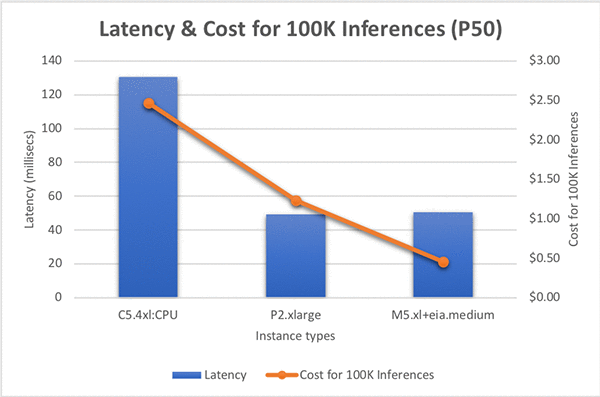
Inference on this model takes approximately 131 milliseconds on C5.4xlarge. So, for 100,000 inference requests, this would cost $2.46 USD. This can be expensive for production use cases. So, let’s look at how Amazon Elastic Inference can help.

Amazon Elastic Inference is available in the following three sizes, making it efficient for a wide range of inference models including computer vision, natural language processing, and speech recognition.

  • eia1.medium: 8 teraflops of mixed-precision performance
  • eia1.large: 16 teraflops of mixed-precision performance
  • eia1.xlarge: 32 teraflops of mixed-precision performance

This lets you select the best price-to-performance ratio for your application. I ran the inference on the same model using GPU and EIA contexts to see the difference in the cost and performance.

To run the model with mx.eia() context, you just need to do minor changes in the code.

  1. With EIA context, when you use either the Symbol API or the Module API, make sure you set for_training=False.
  2. Set the context to bind your model as ctx=mx.eia().

EI typically aims to minimize the host instance CPU memory requirements by offloading to the EI accelerator, but some pre and post-processing must still be done on the host. Depending on the application’s compute and memory requirements, you can select the instance types that are most appropriate.

I evaluated performance of this model with C5 and M5 instances but found that this model required more CPU memory. The M5 instances with more RAM were the most cost effective solution. I ran tests with a few different sized M5 instances with an EIA1.Medium accelerator and observed that instance sizes larger than the M5.xlarge didn’t materially improve latency performance. Next, I tested the M5.xlarge with different EI accelerator sizes. Inference calls with an EIA1.large accelerator were significantly faster than an EIA1.Medium, but my EIA1.Medium at 50ms for an inference request met my requirements, so I didn’t need more horsepower.

Based on my requirements, I decided on an M5.xlarge with an EIA1.Medium as the right infrastructure combination for my workload. Comparing the hourly costs for the instances in our comparison: a P2.xlarge cost $0.90 per hour, whereas the M5.xlarge + EIA1.Medium costs $0.32 per hour, and lastly the C5.4xlarge is $0.68 per hour. But let’s also compare the cost to perform 100,000 inferences, this will incorporate hourly cost and performance to give us a meaningful comparison. The P2.xlarge costs $1.23 to execute 100,000 inferences, whereas this new EI based combination costs $0.45, a whopping 74% reduction in cost, sacrificing just 2% speed. If you use C5.4xlarge, it costs $2.47 and is 2.5x slower than M5.xlarge with EIA1.Medium! See the graph below for more information:

Conclusion

As you can see from the tutorial here, Amazon Elastic Inference gives you the opportunity to select the best price-to-performance ratio suitable for your application. For ONNX ResNet152 model inference, EIA1.medium is 2.5x faster and 81% cheaper than C5.4xlarge! Also with ONNX support, you can export models trained in different deep learning frameworks to run inference with EIA using Apache MXNet as a backend.

For general information about how to use EI, see Working with Amazon EI in the EC2 user guide. You can also find more information about ONNX support in MXNet, in the ONNX API documentation on the MXNet website.


About the Authors

Roshani Nagmote is a Software Developer for AWS Deep Learning. She focusses on building distributed Deep Learning systems and innovative tools to make Deep Learning accessible for all. In her spare time, she enjoys hiking, exploring new places and is a huge dog lover.


Vandana Kannan is a Software Developer for AWS Deep Learning focusing on building scalable deep learning systems. In her spare time, she enjoys painting, learning Indian classical dance, and spending time with family and friends.


Hagay Lupesko is an Engineering Manager for AWS Deep Learning. He focuses on building Deep Learning tools that enable developers and scientists to build intelligent applications. In his spare time he enjoys reading, hiking and spending time with his family.


Machine learning: What’s in it for government?

Machine learning (ML) allows governments to deliver better, more cost-effective, and citizen-friendly services. We talked with three Amazon Web Services (AWS) customers from government authorities and institutes who shared their stories about how ML helped them transform their services and their organizations. These customers gathered at an executive learning track curated particularly for European Government delegates, as part of AWS re:Invent 2018.

The National Health Service Business Services Authority

The United Kingdom’s (UK) National Health Service Business Services Authority (NHSBSA), the organization overseeing the delivery of primary care, dental and prescription services to UK citizens, told us how they introduced Amazon Connect, a cloud-based chatbot to its contact center service to increase its capacity to respond to customer needs.

Chris Suter, Lead Cloud Architect of Digitisation, Insight, and Technology Solutions, shared the results of this investment with the group. In the first three weeks of its implementation, the chatbot helped NHSBSA respond to approximately 11,000 calls, addressing simple queries and rerouting complicated queries to staff who can provide more support. This helped NHSBSA save USD $650,000 per year.

NHSBSA used Amazon Lex to ensure that the calls were routed automatically and answered correctly, and they used Amazon Polly to simulate human-like speech. The ML-powered front end handles 40 percent of inbound calls, making staff available with an almost-zero customer queue time.

“This not only resulted in higher efficiency and cost savings for NHSBSA, but also boosted the morale of employees as they could focus their efforts on providing adequate guidance to customers with more complicated questions,” Suter said.

The Belgian public employment service VDAB

Another AWS customer, Belgian public employment service VDAB, wanted to know how they could use machine learning to improve job-matching, that is  finding the right opportunities for the right people. Radix.ai’s JobNet used a deep learning model to enhance this function. With each new dataset, the engine learns how the job market evolves, noting changes in job demand and how trends shift over time.

The deep learning model goes beyond analysis of words in job descriptions and resumes to include information on interests and talents of job seekers. By using this service, employment officials want to provide better and faster connections between job seekers and available jobs.

The Royal Institute of Blind People

The impact of machine learning on people with disabilities has also been transformative. The Royal Institute of Blind People (RNIB) uses Amazon Polly to provide the UK’s largest community of blind and partially sighted people with reading services. RNIB’s Talking Books service provides access to over 26,000 audiobooks, free of charge. For millions of people in the UK, this service can be life changing.

More and more government customers are discovering that ML can be a game-changing technology for their users, and in turn for their businesses. These examples serve as starting points for governments.

About the AWS Institute

The AWS Institute, which curated this program, will publish more blog posts on how machine learning has an impact on the public sector.

The AWS Institute convenes global leaders who share an interest in solving some of the world’s most pressing challenges using technology. The Institute convenes leaders from government, academia, and nonprofit organizations for private discussions to explore innovative ideas to transform the public sector. For a related blog post on how to prepare governments for digital transformation, check out How Can Government Grow and Recruit Digital Talent? The Case of the UK Driver and Vehicle Licensing Agency.


About the Author

Maysam Ali is Global Content Lead for the Amazon Web Services Institute. She writes about the impact of technology on society. She helps governments, nonprofits and educational leaders better understand how they can use new technologies, including machine learning and artificial intelligence, to address major societal challenges.


Leonardo Quattrucci is the Lead for Europe, Middle East and Africa for the Amazon Web Services Institute. He works with government executives to accelerate public sector transformation. By innovating on policy processes and building digital competencies, he is helping leaders use technology to deliver better citizen services.


Creating hierarchical label taxonomies using Amazon SageMaker Ground Truth

At re:Invent 2018 we launched Amazon SageMaker Ground Truth, which can Build Highly Accurate Datasets and Reduce Labeling Costs by up to 70% using machine learning. Amazon SageMaker Ground Truth offers easy access to public and private human labelers and provides them with built-in workflows and interfaces for common labeling tasks. Additionally, Amazon SageMaker Ground Truth lowers your labeling costs by using automated data labeling, which works by training Ground Truth from data labeled by humans so that the service learns to label data independently.

Let’s suppose we have a large corpus of images taken from cameras on a street. Each image might contain many different objects important for developing algorithms for driverless cars (e.g., vehicles or traffic signals). We must first define a hierarchical representation of the information that we want to capture from the images (see below for an example of what such a label taxonomy may look like). We then begin the labeling process by taking these raw, unlabeled images and labeling them with the high-level classes (e.g., ‘vehicles’, ‘traffic-signals’, and ‘pedestrian’.

In this blog post, we’ll show you how to accomplish such hierarchical labeling with Amazon SageMaker Ground Truth by chaining jobs and making use of the augmented manifest functionality.

How is this typically solved?

In supervised machine learning, we typically use a labeled dataset that contains both the raw data and the associated label for each data object. For example, you can have a training dataset of street images and classify them into “traffic-signals” or “no-traffic-signals” (where the label 0 and 1 correspond to the two classes). These labels are usually stored in a formats, such as CSV or JSON with the first column representing the raw data and the second column representing the label.

However, if you want to further label the same set of images (for example, to identify the type of traffic signals in the “traffic-signals” set), we typically create a new dataset by performing a filtering operation on the first dataset to select only those images with traffic signals in them. This reduces the dataset into another subset containing only “traffic-signals” (label 0) in it. Then we can add new label to classify traffic signals as ‘stop-sign’, ‘speed-limit’, and so on.

These kinds of filtering operations might become costly and time-consuming for large datasets. We might also want to mark all the stop signs and pedestrians in an image by an object detection (bounding box) algorithm. This typically requires us to create a third dataset by adding object detection labels around each of the stop signs and pedestrians in it. You can see that, as we continue classifying deep into the taxonomy, the number and complexity of the training datasets increases at approximately same rate as the fanout factor of the taxonomy (exponential in the most complex case).

In short when working with a hierarchical taxonomy, you need to be able to do all of the following:

  1. Associate multiple layers of labels to an image, and be able to store and retrieve them efficiently and cost effectively.
  2. Create a filtered dataset containing a given label efficiently and cost effectively.
  3. Train a model for a given label in the dataset containing multiple labels.

Amazon SageMaker Ground Truth helps you accomplish these tasks easily using the job chaining and augmented manifest functionality.

Job chaining

When you label datasets, often there will be different types of labels (image classification, bounding boxes, semantic segmentation, etc.) that might require a different UI or dramatically different labeling context that would in turn require different instructions for the labelers for optimal quality. In such cases, it can become necessary to split the labeling job up into multiple runs. Amazon SageMaker Ground Truth supports this workflow through job chaining. Job chaining refers to the workflow where the output of one labeling job will feed into the next via the output augmented manifest. At each step we can also apply a filter based on the labels from the previous job.

Job chaining can be a cost-saving measure, if you only run more expensive tasks (for example, semantic segmentation) on images that have already been identified as containing the features that you want to bound. It can also provide the opportunity to mix worker types. Use public workers to perform simple labeling and filtering tasks and use a private and curated workforce to perform tasks that require more precision or domain expertise.

In our street-scenes example, we start with a manifest containing images, then we progressively add each level of the labels. In the process we segment the dataset down with a filter. The workflow will look something like this:

  1. Collect the initial unlabeled data.
  2. Job1: Label road-objects (image classification job). The output will be an augmented manifest with labels for vehicles, traffic signals, or pedestrians.
  3. Job2: Select all images with vehicles and draw bounding boxes around each car in these images.

What is an augmented manifest?

An augmented manifest is a UTF-8 encoded JSON Lines file where each line is a complete and valid JSON object. Each line is delimited by a standard line break, n or rn. Since each line must be a valid JSON object, you can’t have unescaped line break characters within JSON. For more information about the data format, see JSON Lines.

Augmented manifests must contain a source field that defines a dataset object and also optionally includes attribute fields. Each labeling job outputs 2 additional attribute fields: one containing the label and another containing metadata associated with the label. The term augmented comes from the fact that the ground truth labels for the dataset objects are augmented inline. A new label for a dataset object is augmented as a new attribute field to the corresponding JSON line in the augmented manifest.

Normally with Amazon SageMaker training jobs there is one channel for training the actual image and an additional channel for the label. With augmented manifest one channel can stream both image and label. This cuts the number of channels in half, and it reduces the complexity of associating a label file with its corresponding image file.

This single, consistent format can be used as input to labeling jobs and input to training jobs without any additional transformation or reformatting. The format is transitive because the output of the labeling job is also the same format. This means that the output of a labeling job can be fed as input to another labeling job, thus facilitating the chaining of labeling jobs without any transformation or reformatting.

Let’s build an example augmented manifest to solve the taxonomy problem we described earlier.

Ok, let’s do this!

Let’s assume there are millions of images taken from cameras mounted in cars driving the public roadways. These images are stored in an Amazon S3 bucket location called s3://mybucket/datasets/streetscenes/. To start a labeling job to classify the images into vehicles, traffic signals, or pedestrian, we first need to create a manifest to be fed to Amazon SageMaker Ground Truth. The only mandatory field for a manifest is a field defining the dataset object. A dataset object can be an object in an Amazon S3 bucket, such as an image represented by a field “source-ref” pointing to s3Uri of the object or text that can be directly represented as “source” in the manifest. In this example, we’ll use the “source-ref” to point to our street scenes images. See the input section of Amazon SageMaker Ground Truth for more details.

Step 1: Downloading the example dataset

For this example, I’m going to use the CBCL StreetScenes dataset. This dataset has over 3000 images, but we’ll just use a selection of 10 images. The full dataset is approximately 2 GB. You can choose to upload all of the images to Amazon S3 for labeling, or just a selection of them.

  1. Download the images.zip from here: Download.
  2. Extract the zip archive to a folder. (By default the folder will be “Output.”)
  3. Create a small sample dataset to work with:
    $ mkdir streetscenes
    $ cp Original/SSDB00001.JPG ./streetscenes/
    $ cp Original/SSDB00006.JPG ./streetscenes/
    $ cp Original/SSDB00016.JPG ./streetscenes/
    $ cp Original/SSDB00021.JPG ./streetscenes/
    $ cp Original/SSDB00042.JPG ./streetscenes/
    $ cp Original/SSDB00003.JPG ./streetscenes/
    $ cp Original/SSDB00011.JPG ./streetscenes/
    $ cp Original/SSDB00020.JPG ./streetscenes/
    $ cp Original/SSDB00025.JPG ./streetscenes/
    $ cp Original/SSDB00279.JPG ./streetscenes/

  4. Go to the Amazon S3 console and create the ‘streetscenes’ folder in your bucket. (Note: Amazon S3 is a key-value store, so there is no concept of folders. However, the AmazonS3 console gives a sense of folder structure by using forward slashes in the key. So we use the console to create the folder.)
  5. Upload the following files to your Amazon S3 bucket (s3://mybucket/datasets/streetscenes/). You can use the Amazon S3 console or this AWS CLI command:
    aws s3 sync streetscenes/ s3://cnidus-ml-iad/datasets/streetscenes/
    upload: streetscenes/.DS_Store to s3://cnidus-ml-iad/datasets/streetscenes/.DS_Store
    upload: streetscenes/SSDB00011.JPG to s3://cnidus-ml-iad/datasets/streetscenes/SSDB00011.JPG
    upload: streetscenes/SSDB00020.JPG to s3://cnidus-ml-iad/datasets/streetscenes/SSDB00020.JPG
    upload: streetscenes/SSDB00042.JPG to s3://cnidus-ml-iad/datasets/streetscenes/SSDB00042.JPG
    upload: streetscenes/SSDB00001.JPG to s3://cnidus-ml-iad/datasets/streetscenes/SSDB00001.JPG
    upload: streetscenes/SSDB00016.JPG to s3://cnidus-ml-iad/datasets/streetscenes/SSDB00016.JPG
    upload: streetscenes/SSDB00006.JPG to s3://cnidus-ml-iad/datasets/streetscenes/SSDB00006.JPG
    upload: streetscenes/SSDB00021.JPG to s3://cnidus-ml-iad/datasets/streetscenes/SSDB00021.JPG
    upload: streetscenes/SSDB00025.JPG to s3://cnidus-ml-iad/datasets/streetscenes/SSDB00025.JPG
    upload: streetscenes/SSDB00279.JPG to s3://cnidus-ml-iad/datasets/streetscenes/SSDB00279.JPG
    upload: streetscenes/SSDB00003.JPG to s3://cnidus-ml-iad/datasets/streetscenes/SSDB00003.JPG

Step 2: Creating an input manifest

In the Amazon SageMaker console for Ground Truth, there is a crawling tool (see the “create manifest file” link in the input to labeling job) you can use for Ground Truth. This tool helps us create the manifest by crawling an Amazon S3 location containing raw data (image or text). For images, the crawler takes an input s3Prefix and crawls all of the image files (with extensions .jpg, .jpeg, .png) in that prefix and creates a manifest with each line as {“source-ref”:”<s3-location-of-crawled-image>”}. For text, the crawler takes an input s3Prefix and crawls all text files (with extensions .txt, .csv) in that prefix and reads each line of each of the text files in the prefix, and creates a manifest with each line as {“source”:”<one-line-of-text>”}.

In the Amazon SageMaker console, start the process by creating a labeling job. First choose Labeling jobs in the left navigation pane, and then choose the Create labeling job button:

Next choose Create manifest file.

This opens the create manifest file page. Enter the s3 path that you uploaded the files to (be sure to include the trailing slash). Next choose Create and then Use this manifest. (It will take a few seconds to create the manifest.)

For our taxonomy example, the objects are images in Amazon S3, so we can use the crawling to create the initial manifest with each line of JSON containing a field “source-ref” pointing to the s3Uri of an image.

{"source-ref":"s3://cnidus-ml-iad/datasets/streetscenes/SSDB00001.JPG"}
{"source-ref":"s3://cnidus-ml-iad/datasets/streetscenes/SSDB00006.JPG"}
{"source-ref":"s3://cnidus-ml-iad/datasets/streetscenes/SSDB00016.JPG"}
...
...

Job 1: Labeling road objects

Now, from the console we can start a labeling job using the image classification task type to classify images as containing vehicles, traffic signals, or pedestrians. We use this file as input and “streetscenes-road-objects1” as the job name (or you can start using the AWS API with the LabelAttributeName set to “streetscenes-road-objects1”). See this previous article on how to start a labeling job.

The output of the labeling job is an augmented manifest with the corresponding label augmented in each of the previous JSON lines. See the output data documentation for details on the format for different modalities. Note that if we enable automated data labeling we will also get a model as another output artifact (see this blog post for more details on automated data labeling).

{"source-ref":"s3://cnidus-ml-iad/datasets/streetscenes/SSDB00001.JPG","streetscenes-road-objects1":0,"streetscenes-road-objects1-metadata":{"confidence":0.95,"job-name":"labeling-job/streetscenes-road-objects1","class-name":"vehicles" ,"human-annotated":"yes","creation-date":"2018-12-12T01:30:14.449763","type":"groundtruth/image-classification"}}
{"source-ref":"s3://cnidus-ml-iad/datasets/streetscenes/SSDB00006.JPG","streetscenes-road-objects1":0,"streetscenes-road-objects1-metadata":{"confidence":0.95,"job-name":"labeling-job/streetscenes-road-objects1","class-name":"vehicles" ,"human-annotated":"yes","creation-date":"2018-12-12T01:26:08.019726","type":"groundtruth/image-classification"}}
{"source-ref":"s3://cnidus-ml-iad/datasets/streetscenes/SSDB00011.JPG","streetscenes-road-objects1":1,"streetscenes-road-objects1-metadata":{"confidence":0.95,"job-name":"labeling-job/streetscenes-road-objects1","class-name":"no-vehicles" ,"human-annotated":"yes","creation-date":"2018-12-12T01:26:08.019714","type":"groundtruth/image-classification"}}
...
...

Job 2: Adding a bounding box around ‘cars’

Now that I have a dataset with labels for the road objects that are present in each image, I can define a job to add the next layer of the taxonomy. The next layer is to add bounding boxes around the individual objects in the images.

Note: I could run an intermediate second classification job to split vehicles into cars, bicycles, trucks, etc., but for this example, I’ll just create a bounding box job for cars and feed all images with vehicles. In practice, with larger datasets you can choose to perform the intermediate classification because it will reduce the number of objects for each job and also provide the opportunity to run the jobs in parallel.

In the following screenshot, you can see that I’m following a naming scheme for the second job that is similar to the first job. I’ve also selected the output.manifest from Job1.

Filter: selecting vehicles

After classifying the images into those containing three types of road objects (first level of the taxonomy), we now intend to filter the dataset to contain only vehicles, so that we can start another labeling job to identify objects (bounding boxes) representing cars. The Amazon SageMaker console is equipped with a query engine powered by S3 Select to facilitate the filtering of the dataset to clean up or create subset of data.

In this case, we can apply the following query in the query box to filter the augmented manifest and create a subset containing only images with “vehicles” in it.

select * from s3Object s where s."streetscenes-road-objects1-metadata"."class-name" = 'vehicles';

Next choose Create subset and then Use this subset. This will produce a new manifest (in this example, 7 rows) as follows:

The new augmented manifest will look something like this:

{"source-ref":"s3://cnidus-ml-iad/datasets/streetscenes/SSDB00001.JPG","streetscenes-road-objects1":0,"streetscenes-road-objects1-metadata":{"confidence":0.95,"job-name":"labeling-job/streetscenes-road-objects1","class-name":"vehicles" ,"human-annotated":"yes","creation-date":"2018-12-12T01:30:14.449763","type":"groundtruth/image-classification"}}
{"source-ref":"s3://cnidus-ml-iad/datasets/streetscenes/SSDB00003.JPG","streetscenes-road-objects1":0,"streetscenes-road-objects1-metadata":{"confidence":0.95,"job-name":"labeling-job/streetscenes-road-objects1","class-name":"vehicles" ,"human-annotated":"yes","creation-date":"2018-12-12T01:21:57.370330","type":"groundtruth/image-classification"}}
{"source-ref":"s3://cnidus-ml-iad/datasets/streetscenes/SSDB00006.JPG","streetscenes-road-objects1":0,"streetscenes-road-objects1-metadata":{"confidence":0.95,"job-name":"labeling-job/streetscenes-road-objects1","class-name":"vehicles", "human-annotated":"yes","creation-date":"2018-12-12T01:26:08.019726","type":"groundtruth/image-classification"}}
{"source-ref":"s3://cnidus-ml-iad/datasets/streetscenes/SSDB00016.JPG","streetscenes-road-objects1":0,"streetscenes-road-objects1-metadata":{"confidence":0.95,"job-name":"labeling-job/streetscenes-road-objects1","class-name":"vehicles" ,"human-annotated":"yes","creation-date":"2018-12-12T01:19:53.472224","type":"groundtruth/image-classification"}}
{"source-ref":"s3://cnidus-ml-iad/datasets/streetscenes/SSDB00020.JPG","streetscenes-road-objects1":0,"streetscenes-road-objects1-metadata":{"confidence":0.95,"job-name":"labeling-job/streetscenes-road-objects1","class-name":"vehicles" ,"human-annotated":"yes","creation-date":"2018-12-12T01:26:08.019736","type":"groundtruth/image-classification"}}
{"source-ref":"s3://cnidus-ml-iad/datasets/streetscenes/SSDB00021.JPG","streetscenes-road-objects1":0,"streetscenes-road-objects1-metadata":{"confidence":0.95,"job-name":"labeling-job/streetscenes-road-objects1","class-name":"vehicles" ,"human-annotated":"yes","creation-date":"2018-12-12T01:19:53.472244","type":"groundtruth/image-classification"}}
{"source-ref":"s3://cnidus-ml-iad/datasets/streetscenes/SSDB00042.JPG","streetscenes-road-objects1":0,"streetscenes-road-objects1-metadata":{"confidence":0.94,"job-name":"labeling-job/streetscenes-road-objects1","class-name":"vehicles",
"human-annotated":"yes","creation-date":"2018-12-12T01:25:03.089097","type":"groundtruth/image-classification"}}

Job2 settings

After we have our filtered augmented manifest, we need to again select a workforce and write instructions for the job. In this case, I’m going to select a private workforce consisting of me, myself, and I.

As with Job1, we could have selected a public workforce, but this is to demonstrate that you can use a different workforce with more domain expertise on a smaller dataset. For a simple task like bounding cars, likely any workforce option would work well with good instructions. However, in another example, like medical imaging, you might want to have trained radiologists classify cancerous cells after a more simple filtering/classification has been performed by a less expensive workforce.

After defining the job parameters, I’ll need to write some sensible instructions. Ideally you would draw bounding boxes around the objects to show how you expect them to be in the output. However, in this case, since I will be the annotator, I’ll use the default image to describe the task.

Results

When the job is complete, you can see what the bounding boxes look like in the console job output.

The completed manifest is augmented with “streetscenes-road-objects2 and “streetscenes-road-objects2-metadata” fields in the above manifest. For example, the first JSON line in this manifest will become:

{
"source-ref":"s3://cnidus-ml-iad/datasets/streetscenes/SSDB00001.JPG",
"streetscenes-road-objects1":0,
"streetscenes-road-objects1-metadata":
{
"confidence":0.95,
"job-name":"labeling-job/streetscenes-road-objects1",
"class-name":"vehicles",
"human-annotated":"yes",
"creation-date":"2018-12-12T01:30:14.449763",
"type":"groundtruth/image-classification"
},
"streetscenes-road-objects2": { "annotations":[ {"class_id":0,"width":38,"top":490,"height":24,"left":351}, {"class_id":0,"width":85,"top":505,"height":53,"left":450}, {"class_id":0,"width":65,"top":489,"height":43,"left":592}, {"class_id":0,"width":59,"top":480,"height":43,"left":524}, {"class_id":0,"width":354,"top":471,"height":150,"left":567} ], "image_size":[{"width":1280,"depth":3,"height":960}]}, "streetscenes-road-objects2-metadata": { "job-name":"labeling-job/streetscenes-road-objects2", "class-map":{"0":"car"}, "human-annotated":"yes", "objects":[ {"confidence":0.09}, {"confidence":0.09}, {"confidence":0.09}, {"confidence":0.09}, {"confidence":0.09} ], "creation-date":"2018-12-12T18:40:15.710919", "type":"groundtruth/object-detection" }
}

Multi-label?

You might notice in the results or in the labeler UI that only a single label can be selected for Job1: Labeling Road objects. This will manifest as each image containing only a single label (vehicle, traffic signal or pedestrian). For this dataset, it’s perfectly valid for a given image to contain multiple labels, for example, there could be a car, pedestrian, AND a stop sign in a single image.

Currently the image-classifier in Ground Truth only supports labeling an image with a single label. For the purpose of this example, I opted to keep it simple and use the default image classifier. To extend to multi-label there are a couple of options:

  • Image classification jobs per label: Vehicles, pedestrians and traffic signals would be separate jobs. Each image would be run using all jobs (in parallel if desired).
  • Create a custom labeling workflow: Ground Truth provides a workflow where the customer can provide the HTML for worker input. Using this method, you could create a workflow that allows for multiple labels to be applied to a single image in a single pass.

Next steps: Training with an augmented manifest that contains multiple labels

A key feature of the augmented manifest is that the same manifest can contain labels from many different labeling jobs using the chaining method described in this blog post. We can use the augmented manifest to train a model for any desired label in it. For example, the manifest in this blog post contains labels from two jobs: “streetscenes-road-objects1” and “streetscenes-road-objects2”.

We can train an image classification model to classify road objects by directly using this output manifest without any transformation to start an Amazon SageMaker training job using S3DataType to AugmentedManifestFile and AttributeNames to [“source-ref”, “streetscenes-road-objects1″].

The same manifest can be used to train an object detection model to identify cars by directly using this output manifest without any transformation to start an Amazon SageMaker training job using S3DataType to AugmentedManifestFile and AttributeNames to [“source-ref”, “streetscenes-road-objects2”].

See this sample notebook to start an Amazon SageMaker training job using Augmented Manifest.

Conclusion

The blog post shows you how job chaining and augmented manifest can be used to associate multiple labels across your hierarchical label taxonomy. The augmented manifest contains all of the labels inline in a single manifest, and you can use this manifest directly in Amazon SageMaker training jobs. In addition, you learned how to create a subset of the dataset based on labels or metadata using the Ground Truth filtering and sampling capabilities.

We hope this post was informative, and we have just scratched the surface of what Amazon SageMaker Ground Truth can do. The service is available today in the following AWS Regions: US East (Virginia), US East (Ohio), US West (Oregon), Europe (Ireland), and Asia Pacific (Tokyo). Please let us know what you think!


About the authors

Doug Youd is a Solutions Architect with AWS covering strategic accounts. He has a background in networking and virtualization, but more recently has been working on ML projects for his customers. In his spare time he enjoys tinkering with classic cars & motorsport.


Zahid Rahman is a SDE in AWS AI where he builds large scale distributed systems to solve complex machine learning problems . He is primarily focused on innovating technologies that can ‘Divide and Conquer’ Big Data problem.

Using TensorFlow eager execution with Amazon SageMaker script mode

In this blog post, I’ll discuss how to use Amazon SageMaker script mode to train models with TensorFlow’s eager execution mode. Eager execution is the future of TensorFlow; although it is available now as an option in recent versions of TensorFlow 1.x, it will become the default mode of TensorFlow 2. I’ll provide a brief overview of script mode and eager execution, and then present a typical regression task scenario. Next, I’ll describe a workflow that solves this task using script mode and eager execution together. The notebook and related code for this blog post is available on GitHub. Let’s begin with a look at script mode.

Amazon SageMaker script mode

Amazon SageMaker provides APIs and prebuilt containers that make it easy to train and deploy models using several popular machine learning (ML) and deep learning frameworks such as TensorFlow. You can use Amazon SageMaker to train and deploy models using custom TensorFlow code without having to worry about building containers or managing the underlying infrastructure. The Amazon SageMaker Python SDK TensorFlow estimators, and the Amazon SageMaker open source TensorFlow container, make it easy to write a TensorFlow script and then simply run it in Amazon SageMaker. The preferred way to leverage these capabilities is to use script mode.

Amazon SageMaker script mode was launched around AWS re:Invent 2018. It replaces the previous legacy mode, which requires structuring training code around a defined interface of specific functions and the TensorFlow Estimator API. Starting with TensorFlow version 1.11, you can use script mode with Amazon SageMaker prebuilt TensorFlow containers to train TensorFlow models with the same kind of training script you would use outside SageMaker. Your script mode code does not need to comply with any specific Amazon SageMaker-defined interface or use any specific TensorFlow API.

Although a script mode training script is very similar to a training script you might use outside of Amazon SageMaker, you also can access useful properties about the Amazon SageMaker training environment through various environment variables you set. For example, these environment variables are used to specify the dataset location (local or in Amazon S3) and hyperparameters for the algorithm. As shown in the following code snippet, if your code is written in Python, typically the code that does that actual training is placed in a main guard (if __name__ == “__main__”) since Amazon SageMaker imports the script. The main guard prevents the code from being run until Amazon SageMaker is ready to do so.


if __name__ == "__main__":
        
    args, _ = parse_args()
    
    x_train, y_train = get_train_data(args.train)
    x_test, y_test = get_test_data(args.test)
    
    device = '/cpu:0' 
    print(device)
    batch_size = args.batch_size
    epochs = args.epochs
    print('batch_size = {}, epochs = {}'.format(batch_size, epochs))

    with tf.device(device):
        
        model = get_model()
        optimizer = tf.train.GradientDescentOptimizer(0.1)
        model.compile(optimizer=optimizer, loss='mse')    
        model.fit(x_train, y_train, batch_size=batch_size, epochs=epochs,
                  validation_data=(x_test, y_test))

        # evaluate on test set
        scores = model.evaluate(x_test, y_test, batch_size, verbose=2)
        print("Test MSE :", scores)

        # save checkpoint for locally loading in notebook
        saver = tfe.Saver(model.variables)
        saver.save(args.model_dir + '/weights.ckpt')
        # create a separate SavedModel for deployment to a SageMaker endpoint with TensorFlow Serving
        tf.contrib.saved_model.save_keras_model(model, args.model_dir)

In the flow of a typical script mode script, first the command line arguments are fetched, then the data is loaded, and then the model is set up. Next is the actual training, either using convenience methods supplied by tf.keras, or using a training loop that you define. Saved models should go into the /opt/ml/model directory of the container, from which they will be automatically uploaded to Amazon S3 prior to teardown of the container when training is completed.

 TensorFlow eager execution

Eager execution is the future of TensorFlow, and it’s a major paradigm shift. Recently introduced as a more intuitive and dynamic alternative to the original graph mode of TensorFlow, eager execution will become the default mode of TensorFlow 2.

The interface of eager execution is imperative:  Operations are executed immediately, rather than being used to build a static computational graph. Advantages of eager execution include a more intuitive interface with natural control flow and less boilerplate, simplified debugging, and support for dynamic models and almost all of the available TensorFlow operations. Another key difference between eager execution and graph mode is that for graph mode, program state such as variables is globally stored, and a state object’s lifetime is managed by a tf.Session object. By contrast, for eager execution the lifetime of state objects is determined by the lifetime of their corresponding Python objects. This makes it easier to reason about how your code will work, as well as debug it.

In addition to these advantages, eager execution also works with the tf.keras API to make rapid prototyping even easier. If tf.keras is used, the model can be built using the tf.keras functional API or using a subclass from tf.Keras.Model. After model setup with tf.keras, you can simply compile it, call the fit method to train, evaluate on a test set, and save the model. If you’re not using tf.keras, you define your own training loop, and use tf.GradientTape to record operations for later automatic differentiation. Whether you use tf.keras or not, you can now use eager execution with Amazon SageMaker’s prebuilt TensorFlow containers, which was not possible with legacy mode but is now enabled by script mode.

 Workflow initial steps:  Data preprocessing and local mode

To demonstrate how eager execution works with script mode, we’ll focus on presenting a relatively complete workflow within Amazon SageMaker. The workflow includes local and hosted training, as well as inference, in the context of a straightforward regression task. The task involves predicting house prices based on the well-known, public Boston Housing dataset. This dataset contains 13 features that apply to the housing stock of towns in the Boston area, including average number of rooms, accessibility to radial highways, adjacency to the Charles River, etc. To follow along with this blog post, we recommend that you set up an Amazon SageMaker notebook instance. If you don’t have one already see the Amazon SageMaker Developer Guide for instructions. You can upload the notebook and related code from the GitHub repository for this blog post.

After preprocessing the data and writing a training script, the next step is to make sure your code is working as expected. For example, you might train the model for only a few epochs, or train the model on only small sample of the dataset rather than the full dataset. A convenient way to do this is to use Amazon SageMaker local mode training. To train in local mode, it is necessary to have Docker Compose or NVIDIA-Docker-Compose (for GPU) installed in the notebook instance. The example code has a setup shell script you can run to check this and install missing software, if any.

The following code snippet shows how to set up a TensorFlow Estimator and then starts a training job for only a few epochs to confirm that the code is working. One of the key parameters for an Estimator is the train_instance_type, which is the kind of hardware on which the training will run. In the case of local mode, we simply set this parameter to ‘local’ to invoke local mode training on the CPU, or to ‘local_gpu’ if the instance has a GPU. Other parameters of note are the algorithm’s hyperparameters, which are passed in as a dictionary, and a Boolean parameter, which indicates that we are using script mode.

import sagemaker
from sagemaker.tensorflow import TensorFlow

model_dir = '/opt/ml/model'
train_instance_type = 'local'
hyperparameters = {'epochs': 10, 'batch_size': 128}
local_estimator = TensorFlow(entry_point='train.py',
                       model_dir=model_dir,
                       train_instance_type=train_instance_type,
                       train_instance_count=1,
                       hyperparameters=hyperparameters,
                       role=sagemaker.get_execution_role(),
                       base_job_name='tf-eager-scriptmode-bostonhousing',
                       framework_version='1.12.0',
                       py_version='py3',
                       script_mode=True)

inputs = {'train': f'file://{train_dir}',
          'test': f'file://{test_dir}'}

local_estimator.fit(inputs)

To start a training job, we call local_estimator.fit(inputs), where inputs is a dictionary where the keys and named channels have values pointing to the dataset’s location. The local_estimator.fit(inputs) invocation downloads locally to the notebook instance a prebuilt TensorFlow container with TensorFlow for Python 3, CPU version. It then simulates an Amazon SageMaker training job. When training starts, the TensorFlow container executes the train.py script, passing hyperparameters as command line script arguments. You can confirm that the script is working by viewing the logs that are output in the notebook cell, including metrics for each epoch of training.

After we’ve confirmed with local mode that the code is working, we also have a model checkpoint saved in Amazon S3 that we can retrieve and load anywhere, including our notebook instance. As a further sanity check, we can then use the model to make predictions and compare them with the test set. If you do so for the Boston Housing dataset, keep in mind that the housing values are in units of $1000s. (In case you’re wondering why the actual values seem relatively low compared to today’s big city housing prices: the paper referencing the dataset was originally published in 1978.) After we confirm that our code is working, let’s move on to hosted training.

Hosted training in Amazon SageMaker

Hosted training is preferred for doing complete training on the full dataset, especially for large-scale, distributed training. When we did the local mode training, the data was accessed from local directories. Keep in mind that Amazon S3 also can be used to hold training data for local mode if you would prefer to keep all of your data in one place. However, before starting hosted training, the data must be uploaded to an Amazon S3 bucket, as shown in the notebook.

After uploading the data, we’re ready to set up an Amazon SageMaker Estimator object. It is similar to the local mode Estimator, except (1) the train_instance_type has been set to a specific instance type instead of ‘local’ for local mode, and (2) the inputs argument to the fit invocation are set to Amazon S3 locations. Also, since we’re ready to do full-scale training, the number of epochs has been increased. With these changes, we simply call the fit method again to start the actual hosted training.

train_instance_type = 'ml.c4.xlarge'
hyperparameters = {'epochs': 30, 'batch_size': 128}

estimator = TensorFlow(entry_point='train.py',
                       model_dir=model_dir,
                       train_instance_type=train_instance_type,
                       train_instance_count=1,
                       hyperparameters=hyperparameters,
                       role=sagemaker.get_execution_role(),
                       base_job_name='tf-eager-scriptmode-bostonhousing',
                       framework_version='1.12.0',
                       py_version='py3',
                       script_mode=True)

estimator.fit(inputs)

predictor = estimator.deploy(initial_instance_count=1,instance_type='ml.m4.xlarge')
results = predictor.predict(x_test[:10])['predictions'] 

As with local mode training, hosted training produces a model saved in Amazon S3 that we can retrieve and load. We can then make predictions and compare them with the test set. This also demonstrates the modularity of Amazon SageMaker. Having trained the model in Amazon SageMaker, you can now take the model out of Amazon SageMaker and run it anywhere.

Alternatively, you can deploy the model using the Amazon SageMaker hosted endpoints functionality. To do so with TensorFlow, the model must be saved in the TensorFlow SavedModel format rather than a model checkpoint format, as required by TensorFlow Serving. As shown in the last code snippet above, deployment to a hosted endpoint is simply accomplished with one line of code by calling the Estimator’s deploy method.

Conclusion

One of the goals of Amazon SageMaker is to enable data scientists and developers to quickly and easily build, train, and deploy ML models. When script mode is combined with TensorFlow eager execution mode, it’s easy to set up a workflow for rapid prototyping to large-scale training and deployment you can use for a wide variety of data science projects. If you prefer the TensorFlow original static computational graph mode, you also can use script mode. It’s your choice, and it’s just one of the many flexible options provided by Amazon SageMaker.


About the Author

Brent Rabowsky focuses on data science at AWS, and leverages his expertise to help AWS customers with their own data science projects.


Read WordPress sites through Amazon Alexa devices

At the beginning of last year we announced an Amazon Polly plugin for WordPress. This plugin allows blog and website creators who are using WordPress to quickly and easily create audio versions of their posts, articles and websites. A few months later, we updated the plugin with the ability to quickly translate the content of websites to other languages using the Amazon Translate service. This functionality, together with the ability to create audio versions, allows you to voice the content of sites in translated languages. We want to allow creators and authors to reach more readers/listeners around the world using the latest AI services offered by AWS. Today we are happy to announce another extension of the plugin, which allows you to extend WordPress websites and blogs through Alexa devices. This opens new possibilities for the creators and authors of websites to reach an even broader audience. It also makes it easier for people to listen to their favorite blogs by just asking Alexa to read them! So let’s dive deep, and I’ll show you how to integrate your WordPress website with Alexa.

In addition, today we’re announcing that the official name for the plugin is changing to Amazon AI Plugin for WordPress to better reflect the broad integration with the AWS AI ecosystem.

The following diagram presents the flow of interactions and components that are required to expose your website through Alexa.

Let’s step through the process that we are going to implement:

  1. The user invokes a new Alexa skill, for example by saying: Alexa, ask Demo Blog for the latest update.
    1. The skill itself is created using one of the Alexa Skill Blueprints. This allows you to expose your skill through Alexa devices even if you don’t have deep technical knowledge.
  2. The Alexa skill analyzes the call and RSS feed that was generated by the Amazon AI plugin for WordPress, and then returns the link to the audio version of the latest article.
  3. Based on the link provided by the feed, Alexa reads the article by playing the audio file saved on Amazon S3.

The diagram illustrates that AWS services, such as Amazon Polly and Amazon Translate, are used by the WordPress plugin to generate audio versions.

So let’s go into details, and let’s expose our site using Alexa! We won’t be describing the process of installing the plugin on your WordPress website in this blog post. You can read about it in this post, or follow the instructions that are provided on the WordPress plugin website. In general, it should take just around 15 minutes to do this phase. Remember that after enabling the plugin, you should enable the text-to-speech functionality and Amazon Pollycast functionality – which will then generate an RSS feed on your WordPress site which we will be consuming in next phase. Enable Amazon S3 as the default storage for your files. It’s important that your website uses a secure HTTPS connection to expose its feed to Alexa.

After completing these steps, you should note the Amazon Pollycast link that is displayed on the podcast tab of the plugin.

If you open the feed link you should be able to see information about the posts you have published.

The next step is to create an actual skill. As I have already mentioned before, it will be really easy, because we will be using existing Alexa Skill Blueprints. Open the Alexa Skill Blueprints page, and look for the Blog blueprint.

After you find it, choose Make Your Own. After this a three-step wizard opens, which will allow you to create your skill. On the first page provide the link to your RSS feed that you have copied before, and then choose Next: Experience.

Next, you could customize your skill. For this blog post, we’ll leave it as it is, and choose Next: Name.

The next step is choosing the right name for your skill. This is the name that will be used by your readers/listeners to activate the skill and ask Alexa to read a new article. In my example I will use the name Demo Blog. Next, choose Next: Create Skill.

It will take a couple of minutes for the skill to be created, you can grab a quick coffee meanwhile.

Now, when you click the Skills you’ve made link on the top of the page, you should see your own Alexa Skill. Congratulations!

The following short video presents what the solution should look like:

Conclusion

At this stage, your skill is only available from devices that are registered on the Amazon account which you have used to build your skill. The next step would be to publish it as an official skill on the skill store. To do this, open the details page of your skill, where you will find a Publish to  Skill Store button. Just follow those instructions.

You can review the process of publishing the skill in this video:

When you are finished, you’ll be able to announce the world that your website is available on Alexa! Congratulations!


About the Author

Tomasz Stachlewski is a Solutions Architect at AWS, where he helps companies of all sizes (from startups to enterprises) in their cloud journey. He is a big believer in innovative technology, such as serverless architecture, which allows companies to accelerate their digital transformation.

Gubagoo uses Amazon Translate to build translated live chat for automotive dealers

Gubagoo is the leading provider of advanced communication solutions for automotive dealers. Gubagoo understands that automotive customers want a personalized experience and helpful information whenever they purchase a car or book a service appointment. In addition, customers want to be communicated with in their native language. However, dealerships in the US have a difficult time crafting these communications since their staff typically speaks English only. To address this problem, Gubagoo offers a live chat solution called ChatSmart. A dealership can integrate ChatSmart with its website to manage initial customer conversations in multiple languages in real-time. To accomplish this ChatSmart uses Amazon Translate, a neural machine translation service that delivers fast, high-quality, and affordable language translations.

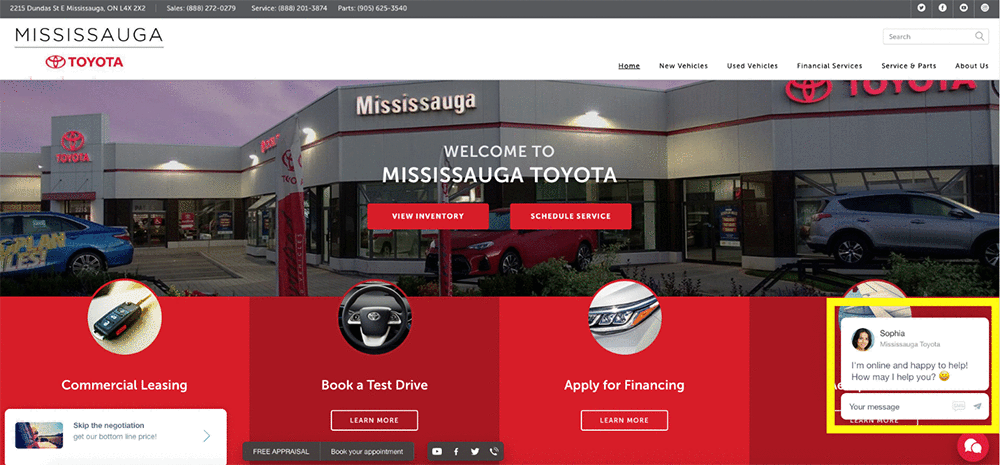
The ChatSmart solution looks like this:

As more dealerships adopted ChatSmart, Gubagoo realized that more than 10 percent of conversations were in a language other than English. “By giving car shoppers the ability to communicate in their language of choice, we are able to reach more consumers and generate more leads for dealers,” said Ilia Alshanetsky, CTO of Gubagoo. “We realized that the most efficient way to do so is by seamlessly integrating our solution to a neural machine translation services provider.” Gubagoo tested a few different machine translation services and chose Amazon Translate because it consistently provided translation two times faster at 25 percent less cost than other solutions.

“With Amazon Translate, we can now successfully serve dealerships that sell to non-English speaking consumers,” continued Alshanetsky. “For example, we serve our dealership clients in Puerto Rico by managing any conversations initiated by Spanish speaking customers using Amazon Translate, of which 48 percent have converted into leads. The translation is so natural that it is difficult for consumers to tell that they are chatting with a non-Spanish speaker.”

When a customer initiates a conversation using the live chat, the Amazon Comprehend Language Detection API recognizes the language used by the customer. When texts are in English, no translations are required. If these texts are in a language other than English, the Amazon Translate API will translate the texts into English and deliver them to the chat specialist. When the chat specialist types back in English, the Translate API will translate these responses and provide the texts in customer’s preferred language.

Here is an illustration of this workflow:

Example: ChatSmart and Amazon Translate work together

For example, here is how the family-owned-and-operated Mississauga Toyota dealership is using ChatSmart integrated with Amazon Translate. As soon as I enter their online site, I’m greeted by Sophia. See the bottom-right corner of the following screenshot.

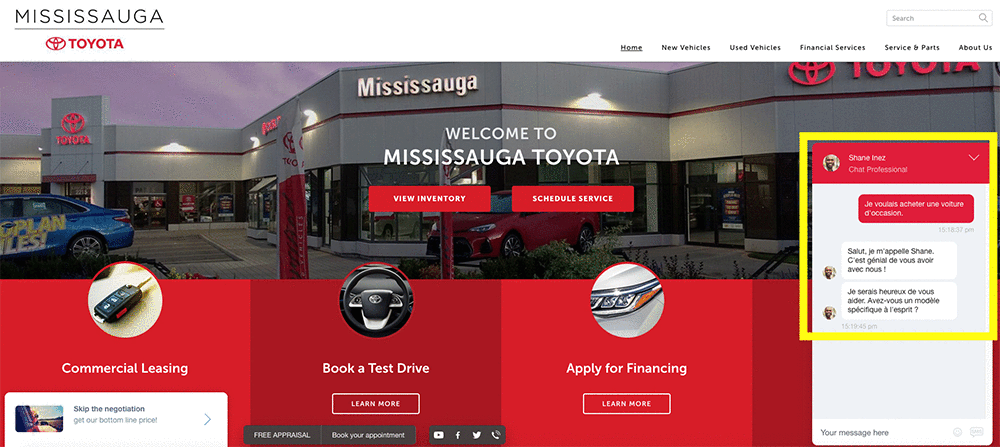
I decided to ask, “I want to buy a used car” in French. Within a few seconds, I got two replies back in French from Shane! See Shane’s responses in the bottom-right corner of the following screenshot.

  • “Salut, je m’appelle Shane. C’est génial de vous avoir avec nous!”, which means Hi, my name is Shane. It’s great to have you with us!” in English.
  • “Je serais heureux de vous aider. Avez-vous un modèle spécifique à l’esprit?”, which means, I would be happy to help you. Do you have a specific model in mind?” in English.

“To us the ROI is clear. The amount we spend on Amazon Translate is recouped many times over in terms of the revenue and flexibility we can offer to our customers,” stated Alshanetsky. “This is also just the beginning. Amazon Translate is opening the door to new business opportunities both locally and abroad allowing us to connect with a wider range of customers, which are in some cases underserved.”


About the Author

Woo Kim is a Product Marketing Manager for AWS machine learning services. He spent his childhood in South Korea and now lives in Seattle, WA. In his spare time, he enjoys playing volleyball and tennis.



Some Thoughts on Facial Recognition Legislation

Facial recognition technology significantly reduces the amount of time it takes to identify people or objects in photos and video. This makes it a powerful tool for business purposes, but just as importantly, for law enforcement and government agencies to catch criminals, prevent crime, and find missing people. We’ve already seen the technology used to prevent human trafficking, reunite missing children with their parents, improve the physical security of a facility by automating access, and moderate offensive and illegal imagery posted online for removal. Our communities are safer and better equipped to help in emergencies when we have the latest technology, including facial recognition technology, in our toolkit.

In recent months, concerns have been raised about how facial recognition could be used to discriminate and violate civil rights. You may have read about some of the tests of Amazon Rekognition by outside groups attempting to show how the service could be used to discriminate. In each case, we’ve demonstrated that the service was not used properly; and when we’ve re-created their tests using the service correctly, we’ve shown that facial recognition is actually a very valuable tool for improving accuracy and removing bias when compared to manual, human processes. These groups have refused to make their training data and testing parameters publicly available, but we stand ready to collaborate on accurate testing and improvements to our algorithms, which the team continues to enhance every month.

In the two-plus years we’ve been offering Amazon Rekognition, we have not received a single report of misuse by law enforcement. Even with this strong track record to date, we understand why people want there to be oversight and guidelines put in place to make sure facial recognition technology cannot be used to discriminate. We support the calls for an appropriate national legislative framework that protects individual civil rights and ensures that governments are transparent in their use of facial recognition technology.

Over the past several months, we’ve talked to customers, researchers, academics, policymakers, and others to understand how to best balance the benefits of facial recognition with the potential risks. It’s critical that any legislation protect civil rights while also allowing for continued innovation and practical application of the technology. Those discussions led to the development of our proposed guidelines for the responsible use of the technology, which we’d like to share today. We encourage policymakers to consider these guidelines as potential legislation and rules are considered in the US and other countries.

1. Facial recognition should always be used in accordance with the law, including laws that protect civil rights.

The uses of facial recognition technology must comply with all laws, including laws that protect civil rights. There should be no ambiguity that existing laws (for example, the Civil Rights Act of 1964 and Fourth Amendment of the U.S. Constitution) apply to and may restrict the use of this technology in some circumstances.

Our customers are responsible for following the law in how they use the technology. The AWS Acceptable Use Policy (AUP) prohibits customers from using any AWS service, including Amazon Rekognition, to violate the law, and customers who violate our AUP will not be able to use our services. To the extent there may be ambiguities or uncertainties in how existing laws should apply to facial recognition technology, we have and will continue to offer our support to policymakers and legislators in identifying areas to develop guidance or legislation to clarify the proper application of those laws.

2. When facial recognition technology is used in law enforcement, human review is a necessary component to ensure that the use of a prediction to make a decision does not violate civil rights.

Facial recognition is often used to ‘narrow the field’ from hundreds of thousands of potential matches, to a handful; it is this capability that benefits society in many ways by making it easier and more efficient to complete tasks that would take humans far more time. However, facial recognition should not be used to make fully automated, final decisions that might result in a violation of a person’s civil rights. In these situations, human review of facial recognition results should be used to ensure rights are not violated.

For example, for any law enforcement use of facial recognition to identify a person of interest in a criminal investigation, law enforcement agents should manually review the match before making any decision to interview or detain the individual. In all cases, facial recognition matches should be viewed in the context of other compelling evidence, and not be used as the sole determinant for taking action. On the other hand, if facial recognition is used to unlock a phone, or to authenticate an employee’s identity to access a secure, private office building, these decisions would not require a manual audit because they would not impinge on an individual’s civil rights.

3. When facial recognition technology is used by law enforcement for identification, or in a way that could threaten civil liberties, a 99% confidence score threshold is recommended.

Confidence scores can be thought of as a measure of how much trust a facial recognition system places in its own results; the higher the confidence score, the more the results can be trusted. When using facial recognition to identify persons of interest in an investigation, law enforcement should use the recommended 99% confidence threshold, and only use those predictions as one element of the investigation (not the sole determinant).

4. Law enforcement agencies should be transparent in how they use facial recognition technology.

To create the greatest public confidence in responsible law enforcement use of facial recognition, we encourage law enforcement entities to be transparent about their use of the technology and to describe this use in regular transparency reports. Such reports should indicate if and how facial recognition technology is being used and detail safeguards that have been put into place to protect citizens’ privacy and civil rights.

This type of reporting can help balance public safety and civil rights concerns, and help enable effective oversight and accountability of law enforcement use of facial recognition technology. AWS will continue to engage with policymakers, civil society and local community groups, and our law enforcement customers to help define these reports and how they should be provided.

5. There should be notice when video surveillance and facial recognition technology are used together in public or commercial settings.

There have been concerns about facial recognition technology and its potential use in connection with video monitoring in public or commercial settings. In many cases, this has already been addressed by states that have laws regulating the use of video cameras in public or commercial premises, such as shopping centers and restaurants. AWS supports the use of written, visible notices at these premises where video surveillance, including facial recognition, is in use.

AWS also supports the creation of a national legislative framework covering facial recognition through video and photographic monitoring on public or commercial premises, and we encourage deeper public discussion and debate about whether the existing video surveillance laws should be reviewed and updated. Our view is that facial recognition technology and video/photo surveillance should be covered by the same notice framework.

Standardized Testing

AWS has always been, and will remain, supportive and committed to investing in the development of standardized testing methodologies that seek to improve accuracy by removing bias from facial recognition technology.

Technical standards that establish clear benchmarks and testing methodologies are a proven way to address design issues in software, and we believe they are equally applicable here. AWS encourages and supports the development of independent standards for facial recognition technology by entities like the National Institute of Standards and Technology (NIST), including efforts by NIST and other independent and recognized research organizations and standards bodies to develop tests that support cloud-based facial recognition software. We are engaging with the NIST and other stakeholders to offer our direct assistance towards this effort. We also support efforts by members of the academic community to establish independent and trusted criteria, benchmarks, and evaluation protocols around facial recognition services. We encourage other groups from the technology industry, government, and academia to support and participate in these initiatives. We also invite researchers interested in these topics to apply for AWS Machine Learning Research grants, with which we are funding many research initiatives in this space.

Moving Forward

New technology should not be banned or condemned because of its potential misuse. Instead, there should be open, honest, and earnest dialogue among all parties involved to ensure that the technology is applied appropriately and is continuously enhanced. AWS dedicates significant resources to ensuring our technology is highly accurate and reduces bias, including using training data sets that reflect gender, race, ethnic, cultural, and religious diversity. We’re also committed to educating customers on best practices, and ensuring diverse perspectives in our technology development teams. We will continue to work with partners across industry, government, academia, and community groups on this topic because we strongly believe that facial recognition is an important, even critical, tool for business, government, and law enforcement use.

– Michael Punke, VP, Global Public Policy, AWS

Bridgeman Images uses Amazon Translate to establish their business globally

Many businesses aspire to expand globally to reach new customer and accelerate growth. For Bridgeman Images, this meant engaging customers who spoke languages other than English. They needed a scalable solution to overcoming the language barrier since having everything translated manually wasn’t fast enough or cost efficient. Using Amazon Translate, they reduced the time needed to localize content from several months down to a few weeks, translating 570 million English characters into Italian, French, German, and Spanish.

Bridgeman Images is a rights-managed image licensing company that has nearly three million active assets in its archive. To be easily searchable on their site, each of these assets has a title, a description, and a set of keywords/mediums that they index into the Amazon Elasticsearch Service (Amazon ES). Their research showed that between 20 and 30 percent of customers aggregated across all platforms required the image data to appear in a language other than English—either Italian, French, German, or Spanish. Therefore, they decided to provide translations for all of their metadata to provide the best possible experience for their customers.

Bridgeman Images researched a number of different options and decided that machine translations would provide the best overall value for their business. When preparing for the new translations, they took the opportunity to overhaul their internal metadata structures and implement a robust workflow that would minimize duplication and save on translation costs.

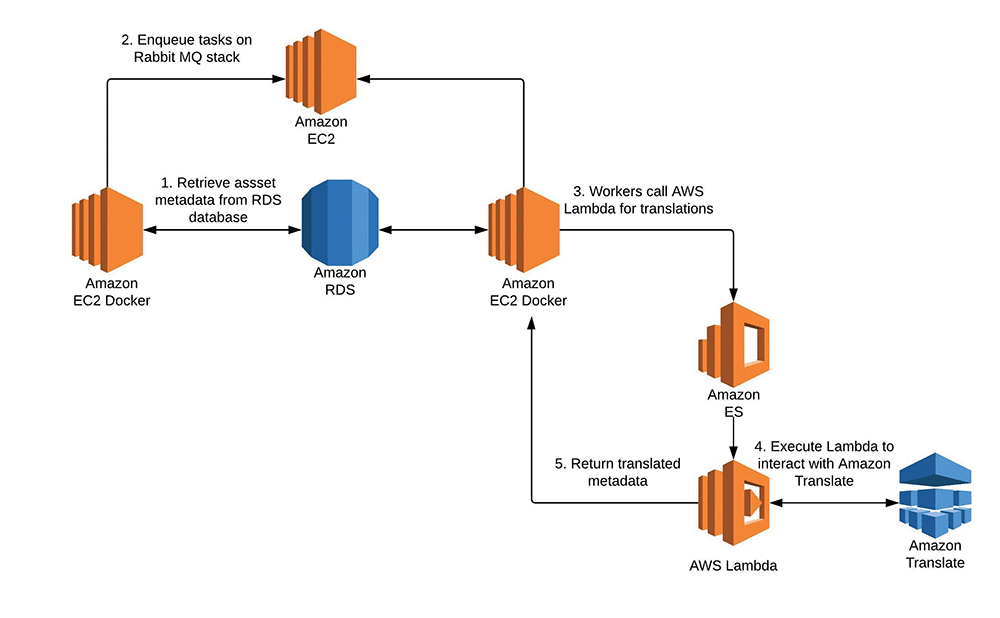
First they updated their keyword system. It was originally created as a flat data structure with semi-colon delimited records. They de-duplicated these entries and created a relational structure that would allow multiple assets to share the same keyword alongside its translations. The keywords are stored on an Amazon RDS MySQL instance and are updated into Amazon Elasticsearch Service index whenever a change is triggered to a keyword or a new one is entered into the system.

To handle the translations of their keywords (and other data), their next task was to create a simple wrapper for the Amazon Translate service using Python, Boto3, and the Flask API deployed with Zappa onto AWS Lambda.

They then designed a trigger so that any time a new keyword was added to their system, a task was put into a queue to their RabbitMQ cluster, which would in turn call a worker to query an AWS Lambda function to grab the translation from Amazon Translate.

Next, they needed to bulk translate nearly 700 million characters of data, which consisted of their titles and descriptions, into four different languages. Some of the source metadata is in more than one language so they extended the Lambda translation function to detect the original language using Amazon Comprehend.

To efficiently process and translate this large volume of data, Bridgeman Images relied on a RabbitMQ cluster hosted on AWS and an AWS Auto Scaling stack of Amazon EC2 instances that ran worker listeners inside Docker containers deployed with AWS Elastic Beanstalk. This setup allowed them to process nearly 14,000 assets per hour, with each asset averaging approximately 100-300 characters per translation.

“We translated roughly 570 million characters per language in the aggregate span of about 15 days. The time saving was significant – likely on the magnitude of months vs a couple of weeks to build and easily integrate with our existing technology infrastructure that AWS provides. The development cycle was super short especially refactoring as it took one developer a week to deliver it and we didn’t need to pile resources or re-skill our developers” said Sean Chambers, IT Director of Bridgeman Images.

Finally, to support ongoing translations, Bridgeman Images designed a newly structured cataloguing interface where their team could input metadata. They simply enter the source language (English, for example) and let the system provide automatic translations for Italian, German, French, and Spanish. These are put into a queue similar to the queue for their keyword triggers. They are updated on a regular basis into an Amazon Elasticsearch Service index so that they become searchable.

Here’s a simple architecture that shows how Bridgeman Images uses Amazon Translate to provide real-time translation for their customers.

“For me one of the reasons for choosing Amazon Translate was cost – 40 percent less than the other competitor we were considering,” says Sean Chambers, IT Director of Bridgeman Images.

Here’s a sneak peek at the Bridgeman Images site in action:


About the Author

Shafreen Sayyed is an AWS Solutions Architect based in London. She helps customers across the UK and Ireland, supporting various industry verticals to transform their businesses and build industry-leading cloud solutions. She has a special interest in Machine Learning and Artificial Intelligence and is passionate about finding ways to help our customers integrate these new and exciting technologies into all aspects of their business.
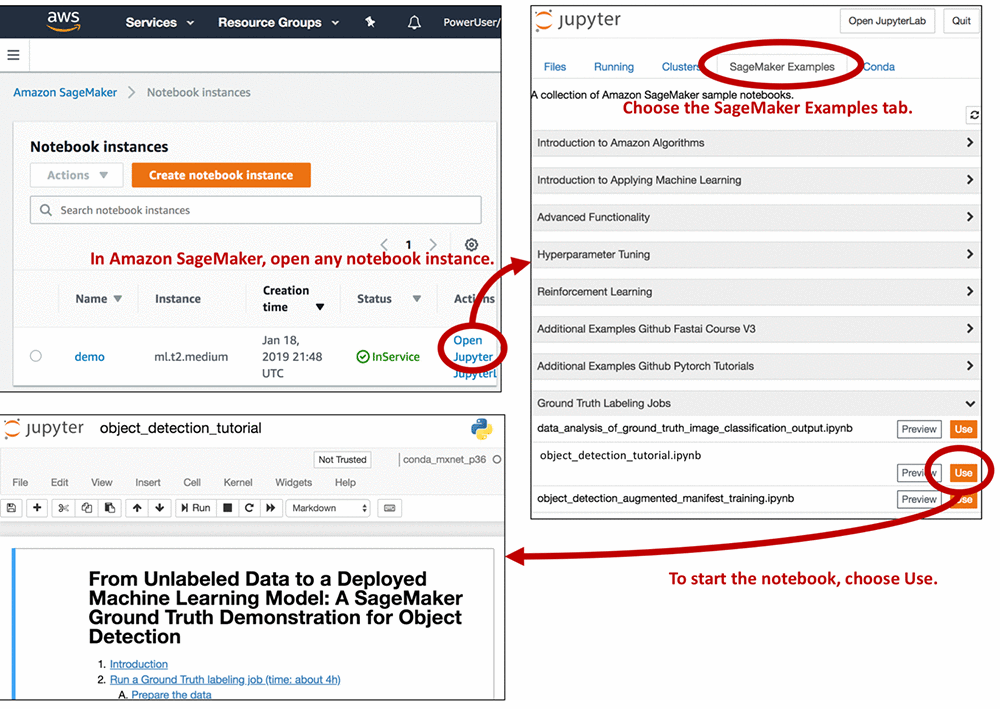
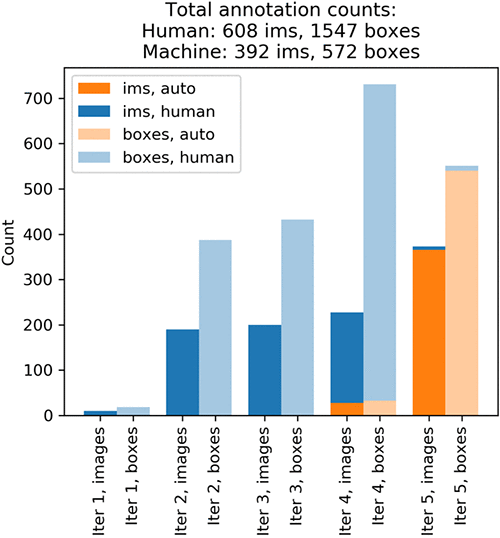
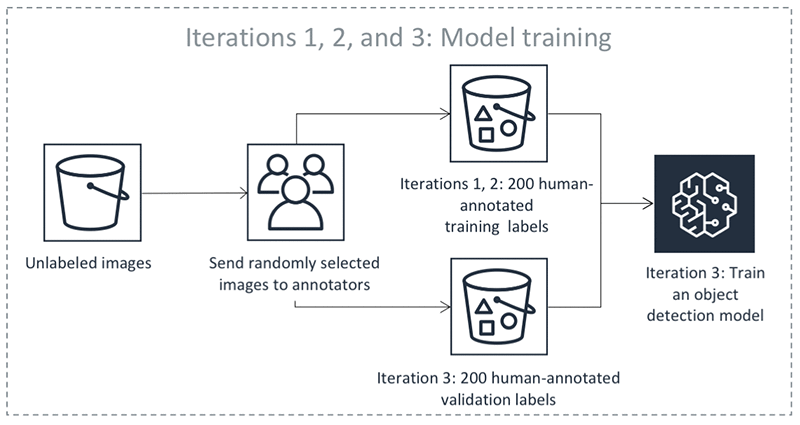


Annotate data for less with Amazon SageMaker Ground Truth and automated data labeling

With Amazon SageMaker Ground Truth, you can easily and inexpensively build more accurately labeled machine learning datasets. To decrease labeling costs, use Ground Truth machine learning to choose “difficult” images that require human annotation and “easy” images that can be automatically labeled with machine learning. This post explains how automated data labeling works and how to evaluate its results.

Run an object detection job with automated data labeling

In a previous blog post, Julien Simon described how to run a data labeling job using the AWS Management Console. For finer control over the process, you can use the API.  To show how, we use an Amazon SageMaker Jupyter notebook that uses the API to produce bounding box annotations for 1000 images of birds.

Note: The cost of running the demo notebook is about $200.

To access the demo notebook, start an Amazon SageMaker notebook instance using an ml.m4.xlarge instance type. You can follow this step-by-step tutorial to set up an instance. On Step 3, make sure to mark “Any S3 bucket” when you create the IAM role! Open the Jupyter notebook, choose the SageMaker Examples tab, and launch object_detection_tutorial.ipynb, as follows.

Run all of the cells in the “Introduction” and “Run a Ground Truth labeling job” sections of the notebook. You need to modify some of the cells, so read the notebook instructions carefully. Running these sections:

  1. Creates a dataset with 1,000 images of birds
  2. Creates object detection instructions for human annotators
  3. Creates an object detection annotation job request
  4. Submits the annotation job request to Ground Truth

The job should take about 4 hours. When it’s done, run all of the cells in the “Analyze Ground Truth labeling job results” and “Compare Ground Truth results to standard labels” sections. This produces a lot of information in plot form. To understand how Ground Truth annotates data, let’s look at some of the plots in detail.

Active learning and automated data labeling

The plots show that annotating the whole dataset took five iterations. In each iteration, Ground Truth sent out a batch of images to Amazon Mechanical Turk annotators. The following graph shows the number of images (abbreviated ‘ims’ in the plot) produced on each iteration and the number of bounding boxes in these images. Your results might differ slightly.

On iteration 1, Mechanical Turk workers annotated a small test batch of 10 randomly chosen images. This batch validates the end-to-end execution of the labeling task. On iteration 2, Mechanical Turk workers annotated another 190 randomly chosen images. This is the validation dataset. It’s used later by a supervised machine learning algorithm to produce automated labels. Iteration 3 created a training dataset by obtaining human-annotated labels on 200 more randomly chosen images. Throughout the process, Ground Truth consolidates each label from multiple human-annotated labels to avoid single-annotator bias. For more information, see the notebook and the Amazon SageMaker Developer Guide.

Now that it has small training and validation datasets, Ground Truth is ready to train the algorithm that later produces automated labels. The following diagram shows the process:

Because automated labeling involves comparing human-annotated labels to labels produced by machine learning, you need to choose a measure of bounding box quality. For this exercise, use the mean Intersection over Union (mIoU). An mIoU of 0 means that there is no overlap between two sets of bounding boxes. A mIoU of 1 means that the two sets of bounding boxes overlap perfectly. Your goal is to produce automated labels that would have an mIoU of at least 0.6 with the human-annotated labels, had you also gotten human annotations on corresponding images. This is slightly higher than 0.5, a threshold commonly used in computer vision to indicate a match between bounding boxes (see for example the “This is a break from tradition…” note here).

Equipped with a trained DL model and the mIoU measure, Ground Truth is ready to produce the first automated labels on iteration 4. There are four steps:

  1. Use the machine learning algorithm to predict the bounding boxes and their confidence scores on the validation dataset. Remember that you got human-annotated labels for this dataset on iterations 1 and 2. The algorithm assigns each bounding box a confidence score between 0 and 1. By averaging these scores for a particular image, the algorithm gets an image confidence score that tells you how confident the algorithm is in its prediction.
  2. For any image confidence threshold, we can compute how well the algorithm’s predictions on images that are scored above the threshold match human-annotated labels. Find a threshold so that the mIoU of above-threshold labels is at least 0.6. Let’s call the resulting threshold θ.
  3. Use the algorithm to predict bounding boxes and their confidence scores on the remaining unlabeled dataset, which contains 600 images.
  4. Take any unlabeled dataset predictions whose confidence scores exceed θ. In Steps 1 and 2, we made sure that on the human-annotated validation dataset these confidence scores indicate automated annotations that match human labels well. Now assume that the annotations also match what human annotators would have produced on unlabeled data. Ground Truth keeps these annotations as automated labels produced by the algorithm. There may be no need to send the images with automated labels with a high confidence score to human annotators, but that is subject to your specific use case. For example, you may want additional human review for certain use cases.

The following diagram illustrates the automatic labeling process:

If you look at the first diagram, you can see that the yellow bar at iteration 4 shows that the algorithm was confident enough to automatically label only 27 images. To produce more accurate predictions, you need more human-labeled data. From now on, however, you won’t choose the images to label at random. Instead, you let the machine learning model choose images to show to human annotators:

In iteration 4, an additional 200 images were annotated to increase the training set size to 400. The first diagram shows that on iterations 1, 2, and 3, you got about 2 bounding boxes per image. On iteration 4, it’s almost 3.5 boxes per image! The algorithm figured out it’s best to ask humans to annotate images that contain many predicted objects. Before iteration 5 started, you retrained the algorithm using 400 training and 200 validation images. This completes one round of the Ground Truth annotation loop.

Thanks to Ground Truth active learning, the machine learning model learned quickly—iteration 5 automatically labeled 365 images! This leaves only 8 unlabeled images. Iteration 5 sent these images to human annotators to complete the task. Let’s look at the annotation costs iteration-by-iteration:

Without automatic data labeling, the annotations would have cost $0.26 * 1000, which equals $260. Instead, you paid $158.08 for 608 human labels, and $31.36 for 392 automated labels, for a total of $189.44. This is a cost saving of 27%. (For pricing details, see the Amazon SageMaker Ground Truth pricing page.)

Compare human-annotated and automated labels

Automated labels are cheap, but how do they compare to human-annotated labels? The following mIoU graph shows how well the automated labels mirror the original annotations.

The human labelers performed slightly better on average. The automatically labeled images have an average mIoU of just above 0.6. This is the label quality that you asked the automatic labeler for. Let’s look at the top 5 images with the highest confidence scores annotated by humans and automatically labeled:


Conclusion

With automated data labeling, Ground Truth decreased bounding box annotation cost by 27%. This number will vary from dataset to dataset. It might decrease for image classification (where human annotation is cheap) and increase for semantic segmentation (where human annotation is expensive).

Feel free to experiment with or modify the Jupyter notebook. Check out our demos for other image annotation tasks – they can be accessed on any SageMaker instance, in the same way as the Jupyter notebook we just looked at!


About the authors

Krzysztof Chalupka is an applied scientist in the Amazon ML Solutions Lab. He has a PhD in causal inference and computer vision from Caltech. At Amazon, he figures out ways in which computer vision and deep learning can augment human intelligence. His free time is filled with family. He also loves forests, woodworking, and books (trees in all forms).



Tristan McKinney is an applied scientist in the Amazon ML Solutions Lab. He recently completed his PhD in theoretical physics at Caltech where he studied effective field theory and its application to high-T_c superconductors. As his father was in the US Army, he lived all over the place when growing up, including Germany and Albania. In his spare time, Tristan loves to ski and play soccer.



 Fedor Zhdanov is a Machine Learning Scientist at Amazon. He works on developing Machine Learning algorithms and tools for our internal and external customers.