Blog

Learn About Our Meetup

5000+ Members

MEETUPS

LEARN, CONNECT, SHARE

Join our meetup, learn, connect, share, and get to know your Toronto AI community. 

JOB POSTINGS

INDEED POSTINGS

Browse through the latest deep learning, ai, machine learning postings from Indeed for the GTA.

CONTACT

CONNECT WITH US

Are you looking to sponsor space, be a speaker, or volunteer, feel free to give us a shout.

Category: Amazon

The AWS DeepRacer League virtual circuit is underway—win a trip to re:Invent 2019!

The competition is heating up in the AWS DeepRacer League, the world’s first global autonomous racing league, open to anyone. The first round is almost halfway home, now that 9 of the 21 stops on the summit circuit schedule are complete. Developers continue to build new machine learning skills and post winning times to the leaderboards. Here’s a quick round-up of the news from all of this week’s action.

The AWS DeepRacer virtual circuit launched on April 29. Developers of all skill levels can enter the league from anywhere in the world via the AWS DeepRacer console.

The first of six monthly tracks is the London Loop, and racing is well underway. As of May 8, 2019, the are 346 participants on the leaderboard, competing to be crowned the first champion of the virtual circuit and advance on an all-expenses-paid trip to re:Invent. Our current leader is Holly, with a time of 12.48 seconds. Twenty-three days remain, so there’s still time to get rolling into the online competition. There are prizes for the Top 10, and plenty of chances to win!

Current leaderboard standings:

Time remaining on the London Loop race:

On the Summit Circuit this week, the AWS DeepRacer League made stops in Madrid and London and crowned two new champions. They both advance on an all-expenses-paid trip to re:Invent 2019 in Las Vegas, Nevada.

First up was Madrid, the third city in Europe to host the AWS DeepRacer League. The crowd was energetic and the competitors eager to win. The top 3 took to the tracks 14 times between them.

Pedro, Javier, and David arrived at the AWS Summit together, with 27 models that they had been training together in the AWS DeepRacer 3D racing simulator. They had seen some good results in the virtual world. However, the first couple of runs on the track didn’t seem to deliver in the same way, with our champion Pedro posting an opening time of 40 seconds. They pulled together as a team, tuning and trying the different models they had built at home, and eventually began to see much better results.

In the following video, David shares their thoughts on strategy during the day.

With about two hours of racing left, and on his fourth attempt, Pedro was the lucky team member who took the top spot with a winning time of 9.36 seconds. His colleagues were not far behind, claiming the second and third spot. Pedro advances to the finals and is excited to work with his teammates on a strategy to take home the AWS DeepRacer League Championship Cup. Don’t worry, they both join him to take on the rest of the field!

And on to London, the hometown of the reigning AWS DeepRacer Champion, Rick Fish. Developers came to the expo hall at the AWS Summit, for a full day of racing on two tracks and the chance to win their trip to re:Invent 2019.

The day started strong with our eventual third-place finisher “breadcentric,” with a 13-second lap. New to machine learning, he brought his model to the AWS Summit and was ready to race as soon as the tracks opened at 8AM. The competition came in strong as competitors quickly started logging lap times under 10 seconds, including our eventual champion, Matt Camp. Matt works at Jigsaw XYZ, whose cofounder happens to be Rick Fish! Rick’s team at Jigsaw XYZ had been preparing for the London race since re:Invent and knew that the pressure would be on to win.

Matt had been working on his model at home and was eager to see how well it could perform. Matt’s friend and colleague Tony joined him. With only 1 hour to go, they were in second and third position on the podium, behind Raul, who had spent most of the day on top with a 9.01-second lap. The Jigsaw XYZ team took to the tracks one more time. In his final 2 minutes of racing, Matt clinched the title with an 8.9-second lap. Matt had no experience with machine learning before re:Invent 2018. He now heads back in 2019 to take on Rick Fish and rest of the field to win the AWS DeepRacer League Championship Cup.

The competition and excitement are certainly building in the AWS DeepRacer League. Developers of all skill levels get hands-on, learn, and put their machine learning skills to the ultimate test. Get started in the AWS DeepRacer League, either virtually or at the next summit near you. We have all the tools to get you started even if you have no machine learning experience, as well as resources to help you take on the challenge and win!

Coming soon, we share our best tips from the AWS DeepRacer team, so stay tuned.


About the Author

Alexandra Bush is a Senior Product Marketing Manager for AWS AI. She is passionate about how technology impacts the world around us and enjoys being able to help make it accessible to all. Out of the office she loves to run, travel and stay active in the outdoors with family and friends.


Build end-to-end machine learning workflows with Amazon SageMaker and Apache Airflow

Machine learning (ML) workflows orchestrate and automate sequences of ML tasks by enabling data collection and transformation. This is followed by training, testing, and evaluating a ML model to achieve an outcome. For example, you might want to perform a query in Amazon Athena or aggregate and prepare data in AWS Glue before you train a model on Amazon SageMaker and deploy the model to production environment to make inference calls. Automating these tasks and orchestrating them across multiple services helps build repeatable, reproducible ML workflows. These workflows can be shared between data engineers and data scientists.

Introduction

ML workflows consist of tasks that are often cyclical and iterative to improve the accuracy of the model and achieve better results. We recently announced new integrations with Amazon SageMaker that allow you to build and manage these workflows:

  1. AWS Step Functions automates and orchestrates Amazon SageMaker related tasks in an end-to-end workflow.  You can automate publishing datasets to Amazon S3, training an ML model on your data with Amazon SageMaker, and deploying your model for prediction. AWS Step Functions will monitor Amazon SageMaker and other jobs until they succeed or fail, and either transition to the next step of the workflow or retry the job. It includes built-in error handling, parameter passing, state management, and a visual console that lets you monitor your ML workflows as they run.
  2. Many customers currently use Apache Airflow, a popular open source framework for authoring, scheduling, and monitoring multi-stage workflows. With this integration, multiple Amazon SageMaker operators are available with Airflow, including model training, hyperparameter tuning, model deployment, and batch transform. This allows you to use the same orchestration tool to manage ML workflows with tasks running on Amazon SageMaker.

This blog post shows how you can build and manage ML workflows using Amazon Sagemaker and Apache Airflow. We’ll build a recommender system to predict a customer’s rating for a certain video based on the customer’s historical ratings of similar videos, as well as the behavior of other similar customers. We’ll use historical star ratings from over 2 million Amazon customers on over 160,000 digital videos. Details on this dataset can be found at its AWS Open Data page.

High-level solution

We’ll start by exploring the data, transforming the data, and training a model on the data. We’ll fit the ML model using an Amazon SageMaker managed training cluster. We’ll then deploy to an endpoint to perform batch predictions on the test data set. All of these tasks will be plugged into a workflow that can be orchestrated and automated through Apache Airflow integration with Amazon SageMaker.

The following diagram shows the ML workflow we’ll implement for building the recommender system.

The workflow performs the following tasks:

  1. Data pre-processing: Extract and pre-process data from Amazon S3 to prepare the training data.
  2. Prepare training data: To build the recommender system, we’ll use the Amazon SageMaker built-in algorithm, Factorization machines. The algorithm expects training data only in recordIO-protobuf format with Float32 tensors. In this task, pre-processed data will be transformed to RecordIO Protobuf format.
  3. Training the model:Train the Amazon SageMaker built-in factorization machine model with the training data and generate model artifacts. The training job will be launched by the Airflow Amazon SageMaker operator.
  4. Tune the model hyperparameters:A conditional/optional task to tune the hyperparameters of the factorization machine to find the best model. The hyperparameter tuning job will be launched by the Amazon SageMaker Airflow operator.
  5. Batch inference:Using the trained model, get inferences on the test dataset stored in Amazon S3 using the Airflow Amazon SageMaker operator.

Note: You can clone this GitHub repo for the scripts, templates and notebook referred to in this blog post.

Airflow concepts and setup

Before implementing the solution, let’s get familiar with Airflow concepts. If you are already familiar with Airflow concepts, skip to the Airflow Amazon SageMaker operators section.

Apache Airflow is an open-source tool for orchestrating workflows and data processing pipelines. Airflow allows you to configure, schedule, and monitor data pipelines programmatically in Python to define all the stages of the lifecycle of a typical workflow management.

Airflow nomenclature

  • DAG (Directed Acyclic Graph): DAGs describe how to run a workflow by defining the pipeline in Python, that is configuration as code. Pipelines are designed as a directed acyclic graph by dividing a pipeline into tasks that can be executed independently. Then these tasks are combined logically as a graph.
  • Operators: Operators are atomic components in a DAG describing a single task in the pipeline. They determine what gets done in that task when a DAG runs. Airflow provides operators for common tasks. It is extensible, so you can define custom operators. Airflow Amazon SageMaker operators are one of these custom operators contributed by AWS to integrate Airflow with Amazon SageMaker.
  • Task: After an operator is instantiated, it’s referred to as a “task.”
  • Task instance: A task instance represents a specific run of a task characterized by a DAG, a task, and a point in time.
  • Scheduling: The DAGs and tasks can be run on demand or can be scheduled to be run at a certain frequency defined as a cron expression in the DAG.

Airflow architecture

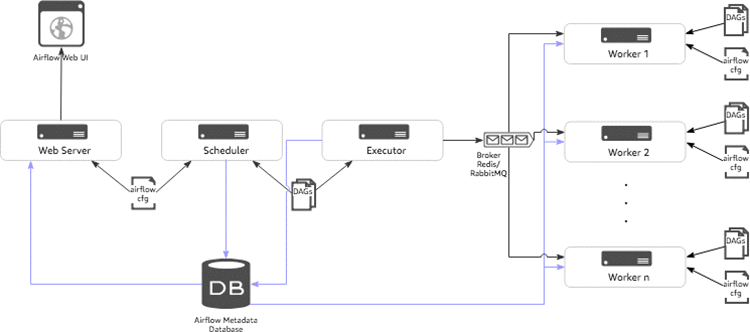
The following diagram shows the typical components of Airflow architecture.

  • Scheduler: The scheduler is a persistent service that monitors DAGs and tasks, and triggers the task instances whose dependencies have been met. The scheduler is responsible for invoking the executor defined in the Airflow configuration.
  • Executor: Executors are the mechanism by which task instances get to run. Airflow by default provides different types of executors and you can define custom executors, such as a Kubernetes executor.
  • Broker: The broker queues the messages (task requests to be executed) and acts as a communicator between the executor and the workers.
  • Workers: The actual nodes where tasks are executed and that return the result of the task.
  • Web server: A web server to render the Airflow UI.
  • Configuration file: Configure settings such as executor to use, airflow metadata database connections, DAG, and repository location. You can also define concurrency and parallelism limits, etc.
  • Metadata database: Database to store all the metadata related to the DAGS, DAG runs, tasks, variables, and connections.

Airflow Amazon SageMaker operators

Amazon SageMaker operators are custom operators available with Airflow installation allowing Airflow to talk to Amazon SageMaker and perform the following ML tasks:

  • SageMakerTrainingOperator: Creates an Amazon SageMaker training job.
  • SageMakerTuningOperator: Creates an AmazonSageMaker hyperparameter tuning job.
  • SageMakerTransformOperator: Creates an Amazon SageMaker batch transform job.
  • SageMakerModelOperator: Creates an Amazon SageMaker model.
  • SageMakerEndpointConfigOperator: Creates an Amazon SageMaker endpoint config.
  • SageMakerEndpointOperator: Creates an Amazon SageMaker endpoint to make inference calls.

We’ll review usage of the operators in the Building a machine learning workflow section of this blog post.

Airflow setup

We will set up a simple Airflow architecture with a scheduler, worker, and web server running on a single instance. Typically, you will not use this setup for production workloads. We will use AWS CloudFormation to launch the AWS services required to create the components in this blog post. The following diagram shows the configuration of the architecture to be deployed.

The stack includes the following:

  • An Amazon Elastic Compute Cloud (EC2) instance to set up the Airflow components.
  • An Amazon Relational Database Service (RDS) Postgres instance to host the Airflow metadata database.
  • An Amazon Simple Storage Service (S3) bucket to store the Amazon SageMaker model artifacts, outputs, and Airflow DAG with ML workflow. The template will prompt for the S3 bucket name.
  • AWS Identity and Access Management (IAM) roles and Amazon EC2 security groups to allow Airflow components to interact with the metadata database, S3 bucket, and Amazon SageMaker.

The prerequisite for running this CloudFormation script is to set up an Amazon EC2 Key Pair to log in to manage Airflow, for example, if you want to troubleshoot or add custom operators.

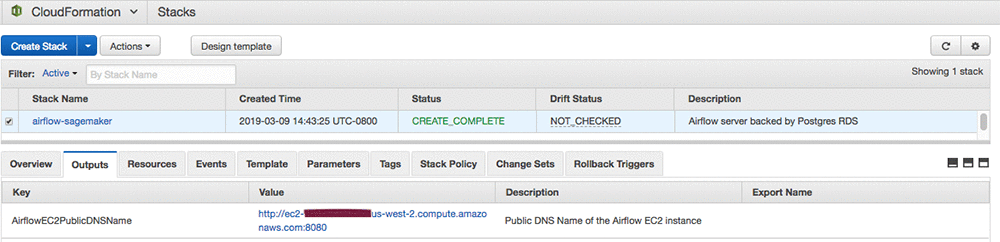
It might take up to 10 minutes for the CloudFormation stack to create the resources. After the resource creation is completed, you should be able to log in to Airflow web UI. The Airflow web server runs on port 8080 by default. To open the Airflow web UI, open any browser, and type in the http://ec2-public-dns-name:8080. The public DNS name of the EC2 instance can be found on the Outputs tab of CloudFormation stack on the AWS CloudFormation console.

Building a machine learning workflow

In this section, we’ll create a ML workflow using Airflow operators, including Amazon SageMaker operators to build the recommender. You can download the companion Jupyter notebook to look at individual tasks used in the ML workflow. We’ll highlight the most important pieces here.

Data preprocessing

  • As mentioned earlier, the dataset contains ratings from over 2 million Amazon customers on over 160,000 digital videos. More details on the dataset are here.
  • After analyzing the dataset, we see that there are only about 5 percent of customers who have rated 5 or more videos, and only 25 percent of videos have been rated by 9+ customers. We’ll clean this long tail by filtering the records.
  • After cleanup, we transform the data into sparse format by giving each customer and video their own sequential index indicating the row and column in our ratings matrix. We store this cleansed data in an S3 bucket for the next task to pick up and process.
  • The following PythonOperator snippet in the Airflow DAG calls the preprocessing function:
    # preprocess the data
    preprocess_task = PythonOperator(
        task_id='preprocessing',
        dag=dag,
        provide_context=False,
        python_callable=preprocess.preprocess,
        op_kwargs=config["preprocess_data"])

NOTE: For this blog post, the data preprocessing task is performed in Python using the Pandas package. The task gets executed on the Airflow worker node. This task can be replaced with the code running on AWS Glue or Amazon EMR when working with large data sets.

Data preparation

  • We are using the Amazon SageMaker implementation of Factorization Machines (FM) for building the recommender system. The algorithm expects Float32 tensors in recordIO protobuf format. The cleansed data set is a Pandas DataFrame on disk.
  • As part of data preparation, the Pandas DataFrame will be transformed to a sparse matrix with one-hot encoded feature vectors with customers and videos. Thus, each sample in the data set will be a wide Boolean vector with only two values set to 1 for the customer and the video.
    Cust 1 Cust 2 Cust N Video 1 Video 2 Video m
    1 0 0 0 1 0
  • The following steps are performed in the data preparation task:
    1. Split the cleaned data set into train and test data sets.
    2. Build a sparse matrix with one-hot encoded feature vectors (customer + videos) and a label vector with star ratings.
    3. Convert both the sets to protobuf encoded files.
    4. Copy the prepared files to an Amazon S3 bucket for training the model.
  • The following PythonOperator snippet in the Airflow DAG calls the data preparation function.
    # prepare the data for training
    prepare_task = PythonOperator(
        task_id='preparing',
        dag=dag,
        provide_context=False,
        python_callable=prepare.prepare,
        op_kwargs=config["prepare_data"]
    )

Model training and tuning

  • We’ll train the Amazon SageMaker Factorization Machine algorithm by launching a training job using Airflow Amazon SageMaker Operators. There are couple of ways we can train the model.
    • Use SageMakerTrainingOperator to run a training job by setting the hyperparameters known to work for your data.
      # train_config specifies SageMaker training configuration
      train_config = training_config(
          estimator=fm_estimator,
          inputs=config["train_model"]["inputs"])
      
      # launch sagemaker training job and wait until it completes
      train_model_task = SageMakerTrainingOperator(
          task_id='model_training',
          dag=dag,
          config=train_config,
          aws_conn_id='airflow-sagemaker',
          wait_for_completion=True,
          check_interval=30
      )

    • Use SageMakerTuningOperator to run a hyperparameter tuning job to find the best model by running many jobs that test a range of hyperparameters on your dataset.
      # create tuning config
      tuner_config = tuning_config(
          tuner=fm_tuner,
          inputs=config["tune_model"]["inputs"])
      
      tune_model_task = SageMakerTuningOperator(
          task_id='model_tuning',
          dag=dag,
          config=tuner_config,
          aws_conn_id='airflow-sagemaker',
          wait_for_completion=True,
          check_interval=30
      )

  • Conditional tasks can be created in the Airflow DAG that can decide whether to run the training job directly or run a hyperparameter tuning job to find the best model. These tasks can be run in synchronous or asynchronous mode.
    branching = BranchPythonOperator(
        task_id='branching',
        dag=dag,
        python_callable=lambda: "model_tuning" if hpo_enabled else "model_training")

  • The progress of the training or tuning job can be monitored in the Airflow Task Instance logs.

Model inference

  • Using the Airflow SageMakerTransformOperator, create an Amazon SageMaker batch transform job to perform batch inference on the test dataset to evaluate performance of the model.
    # create transform config
    transform_config = transform_config_from_estimator(
        estimator=fm_estimator,
        task_id="model_tuning" if hpo_enabled else "model_training",
        task_type="tuning" if hpo_enabled else "training",
        **config["batch_transform"]["transform_config"]
    )
    
    # launch sagemaker batch transform job and wait until it completes
    batch_transform_task = SageMakerTransformOperator(
        task_id='predicting',
        dag=dag,
        config=transform_config,
        aws_conn_id='airflow-sagemaker',
        wait_for_completion=True,
        check_interval=30,
        trigger_rule=TriggerRule.ONE_SUCCESS
    )

  • We can further extend the ML workflow by adding a task to validate model performance by comparing the actual and predicted customer ratings before deploying the model in production environment.

In the next section, we’ll see how all these tasks are stitched together to form a ML workflow in an Airflow DAG.

Putting it all together

Airflow DAG integrates all the tasks we’ve described as a ML workflow. Airflow DAG is a Python script where you express individual tasks with Airflow operators, set task dependencies, and associate the tasks to the DAG to run on demand or at a scheduled interval. The Airflow DAG script is divided into following sections.

  1. Set DAG with parameters such as schedule interval, concurrency, etc.
    dag = DAG(
        dag_id='sagemaker-ml-pipeline',
        default_args=args,
        schedule_interval=None,
        concurrency=1,
        max_active_runs=1,
        user_defined_filters={'tojson': lambda s: JSONEncoder().encode(s)}
    )

  2. Set up training, tuning, and inference configurations for each operator using Amazon SageMaker Python SDK for Airflow
  3. Create individual tasks with Airflow operators that define trigger rules and associate them with the DAG object. Refer to the previous section for defining these individual tasks.
  4. Specify task dependencies.
    init.set_downstream(preprocess_task)
    preprocess_task.set_downstream(prepare_task)
    prepare_task.set_downstream(branching)
    branching.set_downstream(tune_model_task)
    branching.set_downstream(train_model_task)
    tune_model_task.set_downstream(batch_transform_task)
    train_model_task.set_downstream(batch_transform_task)
    batch_transform_task.set_downstream(cleanup_task)

After the DAG is ready, deploy it to the Airflow DAG repository using CI/CD pipelines. If you followed the setup outlined in Airflow setup, the CloudFormation stack deployed to install Airflow components will add the Airflow DAG to the repository on the Airflow instance that has the ML workflow for building the recommender system. Download the Airflow DAG code from here.

After triggering the DAG on demand or on a schedule, you can monitor the DAG in multiple ways: tree view, graph view, Gantt chart, task instance logs, etc. Refer to the Airflow documentation for ways to author and monitor Airflow DAGs.

Clean up

Now to the final step, cleaning up the resources.

To avoid unnecessary charges on your AWS account do the following:

  1. Destroy all of the resources created by the CloudFormation stack in Airflow set up by deleting the stack after you’re done experimenting with it. You can follow the steps here to delete the stack.
  2. You have to manually delete the S3 bucket created by the CloudFormation stack because AWS CloudFormation can’t delete a non-empty Amazon S3 bucket.

Conclusion

In this blog post, you have seen that building an ML workflow involves quite a bit of preparation but it helps improve the rate of experimentation, engineering productivity, and maintenance of repetitive ML tasks. Airflow Amazon SageMaker Operators provide a convenient way to build ML workflows and integrate with Amazon SageMaker.

You can extend the workflows by customizing the Airflow DAGs with any tasks that better fit your ML workflows, such as feature engineering, creating an ensemble of training models, creating parallel training jobs, and retraining models to adapt to the data distribution changes.

References

  • Refer to the Amazon SageMaker SDK documentation and Airflow documentation for additional details on the Airflow Amazon SageMaker operators.
  • Refer to the Amazon SageMaker documentation to learn about the Factorization Machines algorithm used in this blog post.
  • Download the resources (Jupyter Notebooks, CloudFormation template, and Airflow DAG code) referred in this blog post from our GitHub repo.

If you have questions or suggestions, please leave them in the following comments section.


About the Author

Rajesh Thallam is a Professional Services Architect for AWS helping customers run Big Data and Machine Learning workloads on AWS. In his spare time he enjoys spending time with family, traveling and exploring ways to integrate technology into daily life. He would like to thank his colleagues David Ping and Shreyas Subramanian for helping with this blog post.

More ways to compete and win in the AWS DeepRacer League and two new champions!

It’s been a busy week for the AWS DeepRacer League. The world’s first global autonomous racing league allows machine learning developers of all skill levels to get hands-on with machine learning in a fun and exciting way.

On April 29 2019, the virtual circuit of the AWS DeepRacer League opened. The virtual circuit allows racers to compete from anywhere in the world by using the AWS DeepRacer console. Developers can put their skills to the test by competing in the Virtual Circuit World Tour, on virtual tracks inspired by famous raceways that will be revealed each month. They will race for prizes and glory, and a chance to win an expenses-paid trip to the AWS DeepRacer Championship Cup at re:Invent 2019. The first racetrack on the virtual world tour is inspired by the famous raceway in Silverstone, UK, named the London Loop. It’s open for racing until May 31, with developers from all parts of the globe already posting great lap times. Get racing today for a chance to win the AWS DeepRacer League Virtual Circuit!

Winners at the Sydney summit

In addition to the virtual circuit, race seven on the AWS Summit calendar took place in Sydney, Australia. The AWS Summit in Sydney was a two-day extravaganza, bringing together the cloud community down under, to learn and get hands-on with AWS services. The AWS DeepRacer League had three tracks for racers to compete on for more than 48 hours. It didn’t disappoint as hundreds of racers took to the tracks to compete for the champion’s spot on the podium.

Matt Kerrison (Matt@GJI) took first place, traveling to Sydney with three other teammates to learn how GJI Group, a Brisbane-based design and communications company, can continue to innovate with the help of AWS. They had no idea that they would walk away with the AWS DeepRacer trophy and two of the three of them in the top 10.

The Sydney winner, Matt Kerrison, started in the virtual league quickly after it launched on April 29th, and attended the AWS DeepRacer workshop on day two of the AWS Summit. He continued to tune his model overnight, which scored him a winning lap time of 8.29 seconds, just 1 hour and 45 minutes before racing finished.

Sydney Summit Champion Matt Kerrison

Matt is now on his way to AWS re:Invent 2019 in Las Vegas, Nevada, to compete for the championship cup. In preparation, he and his colleagues plan to host hackathons to continue experimenting with, and building knowledge of AI and machine learning, as well as participate in the virtual league.

Same week, different city

On to Atlanta, Georgia, which rounded out the week. More developers raced live on the track and attended workshops to learn about machine learning.

Our top three racers in Atlanta had sub 10-second lap times. Amelia Hough-Ross, a deputy chief technology officer, is the first female to stand on the podium and one of the most determined. Amelia had scored a third-place position during the morning hours of racing. However, she was moved down to tenth during the day. She went away and trained her model for several hours, and with only a couple of hours of racing left, she came from behind to clinch the third place finish. She’s excited to try out the virtual league, where she can also compete to win her place in the finals at re:Invent 2019. She also wants to see what improvements she can make to her model for the upcoming US summits in June and July. Amelia can score even more points for a chance to advance.

The Atlanta summit podium: Kevin Byuen (8.71 seconds) Steven Lucovsky (9.01 seconds) Amelia Hough-Ross (9.78 seconds)

Our Atlanta winner was Kevin Byuen, the only developer in Atlanta to beat the 9-second barrier. For his winning time of 8.71 seconds, he took to the track four times. Kevin prepared for the event for more than a week and learned from the AWS DeepRacer community in order to build the winning reinforcement learning model.

The AWS DeepRacer League is in full swing. In case you missed it, the AWS DeepRacer League now has a 21st stop on the schedule before re:Invent, at the inaugural re:MARS event. This event pairs the best of what’s possible today with perspectives on the future of machine learning, automation, robotics, and space travel. Developers of all skill levels can start competing today and in as many races as they like. Accumulate points throughout the season to earn more chances to win and advance to the AWS DeepRacer Championship at re:Invent 2019.


About the Author

Alexandra Bush is a Senior Product Marketing Manager for AWS AI. She is passionate about how technology impacts the world around us and enjoys being able to help make it accessible to all. Out of the office she loves to run, travel and stay active in the outdoors with family and friends.


Build a custom data labeling workflow with Amazon SageMaker Ground Truth

Good machine learning models are built with large volumes of high-quality training data. But creating this kind of training data is expensive, complicated, and time-consuming. To help a model learn how to make the right decisions, you typically need a human to manually label the training data.

Amazon SageMaker Ground Truth provides labeling workflows for humans to work on image and text classification, object detection, and semantic segmentation labeling jobs. You can also build custom workflows to define the user interface (UI) for data labeling jobs. To help you get started, Amazon SageMaker provides custom templates for image, text, and audio data labeling jobs. These templates use the Amazon SageMaker Ground Truth crowd HTML elements, which simplify building data labeling UIs. You can also specify your own HTML for the UI.

You might want to build a custom workflow for the following reasons:

  • You have custom data labeling requirements.
  • Your input data is complex, with multiple elements (for example, images, text, or custom metadata) per task.
  • You want to prevent sending certain items to labelers when you create tasks.
  • You require custom logic to consolidate labeling output and improve accuracy.

Science conferences, like those sponsored by IEEE, receive thousands of abstracts that are manually reviewed. A typical abstract for a science paper includes the following information: Background, objectives, methods, results, limitations, and conclusions. Reviewing these sections or entities for thousands of abstracts can be burdensome.

What if there were a natural language processing (NLP) model that could help reviewers by automatically tagging all of the required entities? What if text labeling tools could extract entities from published abstracts?

Amazon Comprehend is Natural language processing (NLP) service that uses machine learning to find insights and relationships in text. But in this post, I walk you through building a custom text labeling workflow that extracts named entities from science paper abstracts to build a training dataset for a named entity recognition (NER) model. It will demonstrate how to easily bring your own existing Web templates to Amazon SageMaker Ground Truth.

Solution overview

To build a custom workflow, I used input images from the first page of 10 science papers courtesy of arxiv.org.

To extract text from the papers, I used the Amazon Textract SDK. I used another script to generate an augmented manifest, which I fed into Amazon SageMaker Ground Truth later. The scripts are located in this GitHub repository. You can use this augmented manifest to create the labeling job.

To build the custom UI, use the React framework and the WebStorm integrated development environment (IDE). You can use any framework and IDE.

Everything you need is available in a template.

How the custom web template works

This solution uses server-side AWS Lambda functions for pre-labeling and post-labeling processing. The following diagram shows the high-level workflow. Explanations follow.

  1. Build custom web template.
  2. Deploy pre-labeling task Lambda function to your AWS account.
  3. Deploy post-labeling consolidation task Lambda function to your AWS account.
  4. Create input manifest and upload to your Amazon S3 bucket.
  5. Create workforce team and add members to the team.
  6. Launch SageMaker Ground Truth labeling job with custom template from the Ground Truth console.
  7. After labeling job finishes, consolidated labels are persisted in Amazon S3 output location.

The custom template

To build the labeling UI that displays a .jpg image, text for annotation, a free-form text field for additional notes, and a yes/no element to classify the quality of the abstract, you create a single-page Web app using React. The static JavaScript and CSS files are hosted on Amazon S3 at s3://smgtannotation/web/static. If you are curious about how I built the web app, refer to the GitHub repository for instructions.

With this app, a worker performing labeling can annotate the abstracts by labeling selected text. The worker can choose the type of entity (Background, Objectives, Methods, Results, Conclusions, and Limitations) from a dropdown list, as shown in the following screenshot. The worker can also add notes and label the quality of the abstract.

You can use the template provided at this GitHub location while launching a Ground Truth job. I’ll walk through the custom HTML template that I built. If you choose to build your own template from the source, replace the generated JavaScript and CSS URLs as appropriate.

First, I added the crowd-htm-element.js script at the top of the template so you can use the crowd HTML elements.

<script src="https://assets.crowd.aws/crowd-html-elements.js"></script>

Then I added static CSS content.

<link rel="stylesheet" href="https://s3.amazonaws.com/smgtannotation/web/static/css/1.3fc3007b.chunk.css">
<link rel="stylesheet" href="https://s3.amazonaws.com/smgtannotation/web/static/css/main.9504782e.chunk.css">

I used the Liquid templating language to inject the text to annotate, the URL of the image document, and the associated metadata to the user interface.

In the following snippet, you can see a variable “task.input.taskObject” from the pre-labeling task AWS Lambda function between double curly brackets. The grant_read_access variable is an additional filter that takes an S3 URI and encodes it into a signed S3 HTTPs URL. For more information, see the Ground Truth documentation in the Amazon SageMaker Developer Guide.

<div id='document-text' style="display: none;">
  {{ task.input.text }}
</div>
<div id='document-image' style="display: none;">
  {{ task.input.taskObject | grant_read_access }}
</div>
<div id="metadata" style="display: none;">
  {{ task.input.metadata }}
</div>

I used the <crowd-form /> element, which submits the annotations to Amazon SageMaker Ground Truth. I also included an invisible <crowd-button /> element within the form, so that <crowd-form /> does not include one on its own buttons. This gives you flexibility to add a button at the end of form. Of course, if the app didn’t contain its own Submit button, I could just use the default <crowd-button /> provided by <crowd-form />.

<crowd-form>
    <input name="annotations" id="annotations" type="hidden">

     <!-- Prevent crowd-form from creating its own button -->
    <crowd-button form-action="submit" style="display: none;"></crowd-button>
</crowd-form>

<!-- Custom annotation user interface is rendered here -->
<div id="root"></div>

I used a JavaScript app to build the UI, instead of using a crowd HTML element. This is why I included a small script to integrate the app with <crowd-form />. Essentially, I make a Submit button submit the <crowd-form />, and inject whatever data I want to submit into the form.

<crowd-button id="submitButton">Submit</crowd-button>

<script>
    document.querySelector('crowd-form').onsubmit = function() {
        document.getElementById('annotations').value = JSON.stringify(JSON.parse(document.querySelector('pre').innerText));
    };

    document.getElementById('submitButton').onclick = function() {
        document.querySelector('crowd-form').submit();
    };
</script>

I added the JavaScript scripts for the React app at the end of the template.

<script src="https://s3.amazonaws.com/smgtannotation/web/static/js/1.3e5a6849.chunk.js"></script>
<script src="https://s3.amazonaws.com/smgtannotation/web/static/js/main.96e12312.chunk.js"></script>
<script src="https://s3.amazonaws.com/smgtannotation/web/static/js/runtime~main.229c360f.js"></script>

The input augmented manifest

The input data for the labeling job is a set of data objects that you send to your workforce for labeling. Each object in the input data is described in a manifest file. Each line in the manifest file is a valid JSON Lines object to be labeled and any other custom metadata. Each line is delimited by a standard line break.

The input data and manifest are stored in an S3 bucket. Each JSON line in the manifest has:

  • A source-ref JSON object that contains the S3 object URI for the image.
  • The text-file-s3-uri JSON object containing the S3 object URI for the text.
  • A metadata JSON object containing additional metadata.

For more information, see Input Data in the Amazon SageMaker Developer Guide.

{'source-ref': 's3://smgtannotation/raw-abstracts-jpgs/1801_00006.jpg', 'text-file-s3-uri': 's3://smgtannotation/text/1801_00006.jpg.csv', 'metadata': {'Author': 'Alejandro Rosalez', 'ISBN': '1-358-98355-0'}}
{'source-ref': 's3://smgtannotation/raw-abstracts-jpgs/1801_00015.jpg', 'text-file-s3-uri': 's3://smgtannotation/text/1801_00015.jpg.csv', 'metadata': {'Author': Mary Major', 'ISBN': '1-242-55362-2'}}

The pre-labeling task Lambda function

The custom labeling workflow provides a hook for the pre-labeling task Lambda function. Before a labeling task is sent to the worker, this Lambda function is invoked with a JSON-formatted request containing a manifest entry in the dataObject object.

The following is an example of a request that is sent to AWS Lambda:

{
 "version": "2018-10-06",
 "labelingJobArn": <labeling job ARN>,
 "dataObject": {
   "source-ref": "s3://smgtannotation/raw-abstracts-jpgs/1801_00015.jpg",
	"text-file-s3-uri": "s3://smgtannotation/text/1801_00015.jpg.csv",
	"metadata": {
	"Author": "Mary Major",
	"ISBN": "1-242-55362-2"
	}
  }
}

The pre-labeling Lambda function parses the JSON request to retrieve the dataObject key, retrieves the raw text from the S3 URI for the text-file-s3-uri object, and transforms it into the taskInput JSON format required by Amazon SageMaker Ground Truth as the response.

{
 'taskInput': {
   'taskObject': 's3://smgtannotation/raw-abstracts-jpgs/1801_00015.jpg',
   'metadata': {
	'Author': 'Mary Major',
	'ISBN': '1-242-55362-2',
	'text_file_s3_uri': 's3://smgtannotation/text/1801_00015.jpg.csv'
   },
   'text': <Raw Text>	},
   'isHumanAnnotationRequired': 'true'
} 

The post-labeling task Lambda function

When all workers complete the labeling task, Amazon SageMaker Ground Truth invokes the post-labeling Lambda function with a pointer to the dataset object and the workers’ annotations. This Lambda function is generally used for annotation consolidation. The request object looks similar to the following:

{
"version": "2018-10-06",
"labelingJobArn": "<labeling job ARN>",
"payload": {
"s3Uri": "‘<s3uri of annotation consolidation request>"
},
"labelAttributeName": "<labeling job name>",
"roleArn": "<Amazon SageMaker Ground Truth Role ARN>",
"outputConfig": "<output s3 prefix uri>"
}

The annotations are stored in a file designated by the s3uri in the payload object. The Lambda function retrieves the S3 object file to read the annotations. Each input annotation looks similar to the following:

[{'datasetObjectId': '0', 
  'dataObject': {'content': <input manifest task content>}, 
  'annotations': [{
	'workerId': <worker Id>, 
	'annotationData': {'content': <named entity annotations>}
	}]
}]

All of the fields from the custom UI form are contained in the content object.

The Lambda function then starts data consolidation to create a consolidated annotation manifest in the S3 bucket that was specified for output when the labeling job was configured. The following example includes the consolidated response in the content object:

{
  "source-ref": "s3://smgtannotation/raw-abstracts-jpgs/1801_00006.jpg",
  "text-file-s3-uri": "s3://smgtannotation/text/1801_00006.jpg.csv",
  "metadata": {
			"Author": "Alejandro Rosalez",
			"ISBN": "1-358-98355-0"
		  },
  "<labeling jobname": {
"annotationsFromAllWorkers": [{
	"workerId": "<internal worker id>",
	"annotationData": {
"content": "{"annotations":"{\"value\":[{\"start\":296,\"end..."}"
		}]
	},
  "custom-ner-job-23-metadata": {
	"type": "groundtruth/custom",
	"job-name": "<labeling jobname>",
	"human-annotated": "yes",
	"creation-date": "2019-04-18T20:24:18+0000"
		}
}
{… }

Deploy the pre-labeling and post-labeling task Lambda functions

Sign in to the AWS console and launch the AWS CloudFormation stack in the US East (N. Virginia) us-east-1 Region. This deploys the pre-labeling and post-labeling task Lambda functions.

It should take less than a couple of minutes to deploy the Lambda functions and create the required AWS Identity and Access Management (IAM) role.

Open the AWS CloudFormation console, and in the Outputs section, note the Amazon Resource Name (ARN) of the IAM role. You need it later.

Open the AWS Lambda console and navigate to the Functions page to see the Lambda functions.

Launch an Amazon SageMaker Ground Truth labeling job  

A workforce is a group of workers that you choose to label your dataset. With Amazon SageMaker Ground Truth, you can choose to use a public Amazon Mechanical Turk workforce, a vendor-managed workforce, or your own private workforce. For this labeling job, you use a private workforce.

Prerequisites

Before you create the labeling job, complete the following steps.

  1. Upload augmented manifest file to your S3 bucket in N. Virginia region
  2. A labeling job requires an IAM role that has the SageMakerFullAccess policy attached to it. If you don’t already have such a role, create one by following the steps in Launching the labeling job.
  3. Attach a trust policy to the IAM role. This policy gives the post-labeling Lambda function access to resources stored in Amazon S3.
    1. In a new browser tab, open the IAM console. In the navigation pane, choose Roles, and search for the IAM role that you created in Step 2 (the role name typically starts with AmazonSageMaker-ExecutionRole-). For Role name, choose the name.
    2. On the Summary page, choose Trust relationships, then choose Edit trust relationship to edit the trust policy.
    3. Replace the trust policy with the following policy. Replace <Lambda IAM Role ARN> with the role ARN that you copied from the AWS CloudFormation template output.
      {
        "Version": "2012-10-17",
        "Statement": [
          {
            "Effect": "Allow",
            "Principal": {
              "Service": "sagemaker.amazonaws.com"
            },
            "Action": "sts:AssumeRole"
          },
          {
            "Effect": "Allow",
            "Principal": {
              "AWS": "<Lambda IAM Role ARN>",
              "Service": "lambda.amazonaws.com"
            },
            "Action": "sts:AssumeRole"
          }
        ]
      }
      

    4. Click “Add inline policy” link to add AWS Lambda invocation policy to the role.
    5. In “Create Policy” page, on JSON tab, add following json policy and click “Review Policy”

      {
          "Version": "2012-10-17",
          "Statement": [
              {
                  "Sid": "VisualEditor0",
                  "Effect": "Allow",
                  "Action": "lambda:InvokeFunction",
                  "Resource": "*"
              }
          ]
      }

    6. On “Review Policy” page, enter Name as “LambdaInvocationPolicy” and click “Create Policy”

Launching the labeling job

  1. Open the Amazon SageMaker console and ensure N. Virginia Region is selected. In the Labeling jobs menu, choose Create labeling job to launch new labeling job.
  2. Enter the “Job name”, provide the input manifest S3 location (you have already uploaded the manifest to your S3 bucket during pre-requisite step 1), and provide output dataset s3 prefix location.Ensure that the input manifest and output dataset locations in Amazon S3 are in the same Region as the job that you are launching.Select the existing IAM Role with “SageMakerFullAccess” IAM policy attached or create a new Role if you don’t have one.
  3. If you have already added the Lambda trust policy to the IAM role for this post, skip this step. If not, open a browser in a new tab and perform the Step 3 in Prerequisites to attach a trust policy to the IAM role.
  4. For Task type, choose Custom, and choose Next.
  5. For Worker type, choose Private. If you already have created a work team, select it and go to the next step.If this is the first time you are launching a Ground Truth job with private work team, then enter a team name, add comma-separated email addresses of workers you want to invite, add an organization, and provide contact email for workers to contact you if needed.
  6. For Templates, choose Custom, and copy and paste the custom template.
  7. For Pre-labeling task Lambda function and Post-labeling task Lambda function, choose “gt-prelabel-task-lambda” and “gt-postlabel-task-lambda” using respective dropdown and then choose Submit.
  8. In a few minutes, your private workers can log in to the portal and start labeling.

Conclusion

This blog post showed how to build custom labeling workflows with Amazon SageMaker Ground Truth. The custom workflow preprocessed multiple input attributes from an augmented manifest, used a custom created labeling UI, and then consolidated individual worker annotations into a high fidelity set of labels. Custom workflows enable you to easily meet your own labeling business needs when tapping into public, private, or vendor labeling workforces.

If you have any comments or questions about this blog post, please use the comments section below. Happy labeling!

Related blog posts


About the Authors

Nitin Wagh is Sr. Business Development Manager for Amazon AI. He likes the opportunity to help customers understand Machine Learning and  power of Augmented AI in AWS cloud. In his spare time, he loves spending time with family in outdoors activities.


Hareesh Lakshmi Narayanan is a software development engineer working on Sagemaker GroundTruth. He is passionate about building software systems to solve real world problems.


Ted Lee is a Software Development Engineer for Amazon AI. His focus is helping machine learning and AI customers create user interfaces for human annotators.


Amazon SageMaker Object2Vec adds new features that support automatic negative sampling and speed up training

Today, we introduce four new features of Amazon SageMaker Object2Vec: negative sampling, sparse gradient update, weight-sharing, and comparator operator customization. Amazon SageMaker Object2Vec is a general-purpose neural embedding algorithm. If you’re unfamiliar with Object2Vec, see the blog post Introduction to Amazon SageMaker Object2Vec, which provides a high-level overview of the algorithm with links to four notebook examples, one of which was added as part of this feature launch (Use Object2Vec to learn document embeddings). It also provides a link to the documentation page Object2Vec Algorithm, which provides further technical details. You can access these new features as the algorithm’s hyperparameters from the Amazon SageMaker console and using the high-level Amazon SageMaker Python API.

In this blog post we’ll discuss each of the following new features and show how it targets a customer pain point:

  1. Negative sampling: Previously, for use cases where only positively-labeled data are available (for example, the document embedding use case explained later in this post), customers need to implement negative sampling manually as part of data preprocessing. With the new negative sampling feature, Object2Vec automatically samples data that are unlikely observed and labels this data negative during training.
  2. Sparse gradient update: Previously, the algorithm’s training speed couldn’t scale to multiple GPUs and slowed down as the input vocabulary size became This is because by default, the MXNet optimizer calculates the full gradient even if most rows of the gradient are zero-valued, which not only causes unnecessary computation but also increases communication cost in a multi-GPU setup. Object2Vec with sparse gradient update speeds up single-GPU training without performance loss. In addition, the training speed can be further increased with multiple GPUs and is now independent of the vocabulary size.
  3. Weight sharing: Object2Vec has two encoders, each with its own token embedding layer, to encode data from two input For use cases where both sources are built on top of the same token-level units, it is common practice to jointly train the token embedding layers (known as weight-sharing in the deep learning community). The new weight sharing feature provides you with this option.
  4. Comparator operator customization: The comparator operator in the Object2Vec network architecture assembles the encoding vectors produced by the two encoders into Previously, this operator had been fixed, which may degrade the performance of the algorithm in some use cases (as we observed for document embedding; see Table 1). The new comparator_list parameter provides users with the flexibility to customize the comparator operator to their specific use case.

Accompanying this blog post is a new notebook example (Use Object2Vec to learn document embeddings) that demonstrates how to take advantage of all of the new features in a Document Embedding use-case. In this use case, a customer has a large collection of documents. Instead of storing these documents in their raw format or as sparse bag-of-words vectors, the customer wants to embed all documents in a common low-dimensional space, so that the semantic distances between these documents are preserved. Embedding documents this way has several useful applications, such as efficient nearest neighbor search, and as features in downstream tasks such as topical classification.

Negative sampling feature

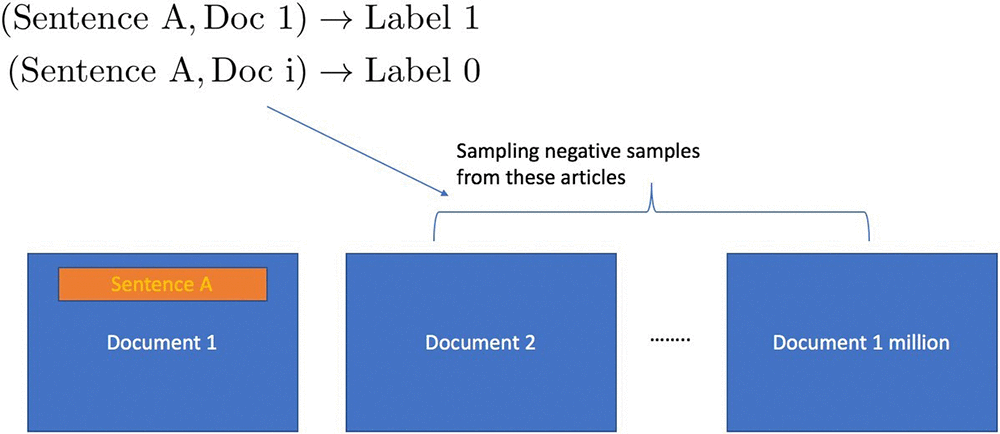
Similar to the widely used Word2Vec algorithm for word embedding, a natural approach to document embedding is to preprocess documents as (sentence, context) pairs, where the sentence and its context come from the same document, such that the context is the entire document with the given sentence removed. The idea is to  train  encoders to  embed both sentences and their contexts into a low dimensional  space  such  that  their  mutual  similarity  is maximized,  since they belong to the same document and therefore should be semantically  related.  The learned encoder for the context can then be used to encode new documents into the same embedding space.  To train the encoders for sentences and documents, we also need negative (sentence, context) pairs so that the model can learn to discriminate between semantically similar and dissimilar pairs. It it’s easy to generate such negatives by pairing sentences with documents that they do not belong to. Since there are many more negative pairs than positives in naturally occurring data, we typically resort to random sampling techniques to achieve a balance between positive and negative pairs in the training data. The following figure shows how the positive pairs and negative pairs are generated from unlabeled data for the purpose of learning embeddings for documents (and sentences).

Typically, a user might be required to do the negative pair creation and sampling as a preprocessing step before training the algorithm. With the new negative_sampling_rate hyperparameter in Object2Vec, users only need to provide positively labeled data pairs, and the algorithm automatically generates and samples negative data internally during training. The value of the negative sampling rate represents the ratio of negative examples to positive examples desired by the user.

In the notebook, we set the negative_sampling_rate hyperparameter to be 3.

hyperparameters['negative_sampling_rate'] = 3

Running the notebook, the user can check from the training console output that the negative sampling is enabled and that the sampling rate is indeed 3.

In general, to determine the best negative_sampling_rate, users should try different values and choose the one that emits the best metric (e.g., cross-entropy for classification) on validation set.

Sparse gradient update

The new sparse gradient support takes advantage of the sparse input format of Object2Vec and speeds up the mini- batch gradient descent training by 2-20 times. Even larger speedup is observed with larger vocab_size.

In the notebook example, we turned on sparse gradient update by setting token_embedding_storage_type

hyperparameters['token_embedding_storage_type'] = 'row_sparse'

The user can check that sparse gradient is indeed turned on by looking at the parameter summarization table in the training console output.

The following table shows the training speeds up with sparse gradient update feature switched on, as a function of number of GPUs, on Amazon EC2 P2 instances (see here for more information about p2 instances). Another benefit of using sparse gradient update is that, in contrast to full gradient updates, increasing the vocabulary size does not affect the training speed.

Speed gain with sparse gradient update

num_gpus Throughput (samples/sec) with dense embedding Throughput with sparse embedding max_seq_len (in0/in1) Speedup X- times
1 1 5k 14k 50 2.8
2 2 2.7k 23k 50 8.5
3 3 2k 24k 50 10
4 4 2k 23k 50 10
5 8 1.1k 19k 50 20
6
7 1 1.1k 2k 500 2
8 2 1.5k 3.6k 500 2.4
9 4 1.6k 6k 500 3.75
10 6 1.3k 6.7k 500 5.15
11 8 1.1k 5.6k 500 5

Weight-sharing of embedding layer

 Object2Vec has two encoders. During training, the algorithm previously learned the input embeddings separately for each encoder. The new tied_token_embedding_weight hyperparameter gives the user the flexibility to share the token embedding layer for both encoders. In the document embedding use case, we have found better performance in the document embedding use case with weight-sharing.

In the notebook, we set the tied_token_embedding_weight hyperparameter to True:

hyperparameters['tied_token_embedding_weight'] = "true"

The user can check that weight-sharing feature is on by looking at the training console output:

Customization of comparator operator

 The comparator operator in Object2Vec architecture aggregates the outputs from two encoders. Previously, the comparator operator was fixed. The new comparator_list hyperparameter gives users the flexibility to customize their own comparator operator so that they can tune the algorithm towards optimal performance for their applications. The available binary operators are “hadamard” (element-wise product), “concat” (concatenation), and “abs_diff” (absolute difference). Users can mix and match any combination of the three or simply use one of them.

In the notebook, we customize comparator operator to use element-wise product only:

hyperparameters['comparator_list'] = "hadamard"

The user can check the comparator operator configuration by looking at the training console output:

The default comparator operator concatenates the result of all three operators. If users want to combine hadamard and abs_diff operators, then they simply need to write:

hyperparameters['comparator_list'] = "hadamard, abs_diff"

For different problems, we recommend that the user either use the default or find out the best combination using the validation set (or use cross-validation).

Experiment on document embedding and the retrieval downstream task

In the document embedding notebook, we train the Object2Vec model using simple pooled embedding based encoders for both sentences and documents on the training data created from unlabeled Wikipedia articles as described earlier. Since we have binary labeled data, we use the standard cross-entropy function as our training loss. We can evaluate the performance of the model using the same loss function or using accuracy on a binary labeled test data. The following table shows the effect of these features on these two metrics evaluated on a test set obtained from the same data creation process.

We see that when negative sampling and weight-sharing of embedding layer is switched on, and when we use a customized comparator operator (hadamard product), the model has improved test accuracy. When all of these features are combined together (last row of the table), the algorithm has the best performance as measured by accuracy and cross-entropy.

Test performance of combining new features on Wikipedia250k data


negative_sampling_rate


Weight sharing

Comparator operator Test accuracy (higher is better) Test cross entropy (lower is better)


1


Off


Off

Default (hadamard, concat, abs_diff)


0.167


23

2 3 Off Default 0.92 0.21
3 5 Off Default 0.92 0.19
4 Off On Default 0.167 23
5 3 On Default 0.93 0.18
6 5 On Default 0.936 0.17
7 Off On Customized (hadamard) 0.17 23
8 3 On Customized 0.93 0.18
9 5 On Customized 0.94 0.17

After training the model, we can use the encoders in Object2Vec to map new articles and sentences into a shared embedding space. Then we evaluate the quality of these embeddings with a downstream document retrieval task.

In the retrieval task, given a sentence query, the trained algorithm needs to find its best matching document (the ground-truth document is the one that contains it) from a pool of documents, where the pool contains 10,000 other non-ground-truth documents. We use two metrics hits@k and mean rank to evaluate the retrieval performance. Note that the ground-truth documents in the pool have the query sentence removed from them, otherwise the task would have been trivial.

  • hits@k: It calculates the fraction  of  queries where  its best-matching  (ground-truth) document is contained  in  top k retrieved documents by the algorithm
  • mean rank: It is the average rank of the best-matching documents, as determined by the algorithm, over all queries

We compare the performance of Object2Vec with the StarSpace algorithm on the document retrieval evaluation task, using a set of 250,000 Wikipedia documents. The experimental results displayed in the following table, show that Object2Vec significantly outperforms StarSpace on all metrics although both models use the same kind of encoders for sentences and documents.

Document retrieval evaluation

Algorithm hits@1 hits@10 hits@20 Mean rank (smaller the better)
1 StarSpace 21.98% 42.77% 50.55% 303.34
2 Object2Vec 26.40% 47.42% 53.83% 248.67


About the Authors

Cheng Tang is an Applied Scientist in the Verticals and Applications Group at AWS AI. Broadly interested in machine learning research and its applications to the natural language processing domain, Cheng finds great inspiration to be part of both research and industrialization of machine learning/deep learning algorithms, and she is thrilled to see them delivered to the customers.


Patrick Ng is a Software Development Engineer in the Verticals and Applications Group at AWS AI. He works on building scalable distributed machine learning algorithms, with focus in the area of deep neural networks and natural language processing.  Before Amazon, he obtained his PhD in Computer Science from the Cornell University and worked at startup companies building machine learning systems.



Ramesh Nallapati is a Principal Applied Scientist in the Verticals and Applications Group at AWS AI. He works on building novel deep neural networks at scale primarily in the natural language processing domain. He is very passionate about deep learning, and enjoys learning about latest developments in AI and is excited about contributing to this field to the best of his abilities.


Bing Xiang is a Principal Scientist and Head of Verticals and Applications Group at AWS AI. He leads a team of scientists and engineers working on deep learning, machine learning, and natural language processing for multiple AWS services.


ACKNOWLEDGEMENT

We would like to thank Sr. Principal Engineer Leo Dirac for his kind help and useful discussion.

End document drudgery with Alkymi’s AWS-powered automated data entry and document insights

Even in today’s highly digital workplace, documents are often manually processed in many enterprise workflows, including workflows in financial services.  Alkymi, founded by a team from Bloomberg and x.ai, enlists automation to streamline this laborious and error-prone work. Using deep learning models hosted on Amazon SageMaker, Alkymi identifies patterns and relationships in unstructured data and synthesizes documents into actionable data.  This gives enterprises the potential to save billions in the process by removing a stubborn barrier to automation.

Alkymi uses AWS as their primary AI/ML platform. The CEO of Alkymi, Harald Collet, notes, “We apply AI to help automate tasks on documents that require human comprehension, and AWS has enabled us to quickly launch new functionality with the security and scalability that financial services customers require.”  As Alkymi ingests documents, emails, and images, the platform automates data extraction and data entry tasks by using various AWS services.  “AWS allows us to scale our platform to handle customers of all sizes. Amazon SageMaker has improved our development process by providing our data scientists with a way to train and deploy models to production,” remarks Alkymi CTO Steven She.

Alkymi’s data pipeline begins with ingesting documents and images through their REST API hosted on Amazon Elastic Container Service (ECS) or as email received through Amazon Simple Email Service (SES). The data are saved into encrypted Amazon S3 buckets based in geo-regions that adhere to the compliance policies of our customers.

Documents are placed into messaging queues, then processed by pipelines of Amazon SageMaker machine learning and natural language processing models.  The data science team loves Amazon SageMaker’s streamlined UI and workflow, which make it possible for the data scientists to train and deploy the models themselves.  Alkymi’s sophisticated ML models are both trained and hosted on Amazon SageMaker. With just a few clicks, the team can identify the context of the information on each page, such as tables, paragraphs, info boxes, and charts. This ensures that the natural language processing can be maximally effective as it operates within context. All model predictions come with a confidence score. Documents where the models have a low confidence score are flagged and routed for human review.

After clients deploy Alkymi in production, end users, such as business or ops analysts, no longer need to use a manual copy-and-paste workflow. Instead, they only need to validate a small amount of exceptions that have been flagged by Alkymi. These corrections fuel a feedback loop that improves model accuracy and performance over time. As a result, the business can move forward quicker, with fewer missed opportunities, less risk, and much less operational overhead. Alkymi’s customers estimate that the platform automates up to 90 percent of manual document processing tasks and cuts errors by 50 percent—all while generating actionable insights in real time rather than days or weeks later.

For Alkymi, the business impact is exciting, and the potential is limitless.  As customers are rapidly embracing AI / ML technologies, Alkymi is committed to maintaining its position as a pioneer in a fast-growing market.  Harald Collet comments, “We’re tackling a massive opportunity to help financial services companies transform how works get done and rapidly innovate to keep pace with the market.” Building on the AWS platform and energized by the support of the AWS Accelerate program, Alkymi is on an unstoppable mission to deliver digital transformation for financial services.


About the Author

Marisa Messina is on the AWS AI marketing team, where her job includes identifying the most innovative AWS-using customers and showcasing their inspiring stories. Prior to AWS, she worked on consumer-facing hardware and then university-facing cloud offerings at Microsoft. Outside of work, she enjoys exploring the Pacific Northwest hiking trails, cooking without recipes, and dancing in the rain.



Running Java-based deep learning with MXNet and Amazon Elastic Inference

The new release of MXNet 1.4 for Amazon Elastic Inference now includes Java and Scala support. Apache MXNet is an open source deep learning framework used to build, train, and deploy deep neural networks. Amazon Elastic Inference (EI) is a service that allows you to attach low-cost GPU-powered acceleration to Amazon EC2 and Amazon SageMaker instances. Amazon EI reduces the cost of running deep learning inference by up to 75%. In this post, we will show you how to run inference in Java using MXNet and an Elastic Inference Accelerator (EIA).

Setting up Amazon Elastic Inference with Amazon EC2

Starting up an EC2 instance with an attached Amazon EI accelerator requires some pre-configuration steps when you set up your AWS account. You can use the setup tool to easily start up everything you need. Or, you can launch an instance with an accelerator by following the instructions in the Amazon Elastic Inference documentation. Here, we start with a basic Ubuntu Amazon Machine Image (AMI), and configure it for our needs. Start by connecting to your instance via SSH and installing the following dependencies:

sudo apt update
sudo apt install openjdk-8-jdk maven unzip

Setting up a Java project

Start by downloading and unzipping the demo project.

wget https://s3.amazonaws.com/aws-ml-blog/artifacts/inference-blog/eiaBlogPostDemo.zip
unzip eiaBlogPostDemo.zip
cd eiaBlogpostDemo

Inside the archive is a pom.xml file that will build the project with the Amazon EI MXNet dependency. It uses an additional Maven repository located on Amazon S3 that contains the Amazon EI MXNet package:

<repositories>
    <repository>
      <id>Amazon Elastic Inference</id>
      <url>https://s3.amazonaws.com/amazonei-apachemxnet/scala</url>
    </repository>
</repositories>

Then, there is a dependency on the Amazon EI build of Apache MXNet in the project’s pom.xml:

<dependency>
    <groupId>com.amazonaws.ml.mxnet</groupId>
    <artifactId>mxnet-full_2.11-linux-x86_64-eia</artifactId>
    <version>[1.4.0,)</version>
</dependency>

With these changes, Maven can access the appropriate repository and will automatically download the Amazon EI MXNet jar to make it accessible from the project.

Creating a ResNet-152 application

In this section we will walk through the demo code in the archive at:

src/main/java/mxnet/ImageClassificationDemo.java

Let’s write some code to perform a simple image classification using the ResNet-152 model. First, we need to download the model, names of the different image classification labels, and a test image.

String urlPath = "http://data.mxnet.io/models/imagenet";
String filePath = System.getProperty("java.io.tmpdir");

// Download Model and Image
FileUtils.copyURLToFile(new URL(urlPath + "/resnet/152-layers/resnet-152-0000.params"),
        new File(filePath, "resnet-152/resnet-152-0000.params"));
FileUtils.copyURLToFile(new URL(urlPath + "/resnet/152-layers/resnet-152-symbol.json"),
        new File(filePath, "resnet-152/resnet-152-symbol.json"));
FileUtils.copyURLToFile(new URL(urlPath + "/synset.txt"),
        new File(filePath, "resnet-152/synset.txt"));
FileUtils.copyURLToFile(new URL("https://github.com/dmlc/web-data/blob/master/mxnet/doc/tutorials/python/predict_image/cat.jpg?raw=true"),
        new File(filePath, "cat.jpg"));

Then, we create a Predictor object to run the model. It takes in an image as a 1 element batch of images where each image is a 3 x 224 x 224 NDArray of Floats. Since the image is the only input to the model, we make a list with that inputDescriptor as the only element. We also provide the path to the model on the local file system. In order to run this predictor with Amazon EI we pass in Context.eia(). You could also use Context.cpu() to run inference locally on the CPU only (this could be useful for debugging).

List<Context> contexts = Collections.singletonList(Context.eia());
Shape inputShape = new Shape(new int[]{1, 3, 224, 224});
List<DataDesc> inputDesc = Collections.singletonList(new DataDesc("data", inputShape, DType.Float32(), "NCHW"));
Predictor predictor = new Predictor(filePath + "/resnet-152/resnet-152", inputDesc, contexts, 0);

Now that we have the predictor, we need to get the image to run the prediction on. There are some utilities within the ObjectDetector class to help simplify this process. Let’s load the image from the file, reshape it to 224 x 224, and convert it into an NDArray.

BufferedImage originalImg = ObjectDetector.loadImageFromFile(filePath + "/cat.jpg");
BufferedImage resizedImg = ObjectDetector.reshapeImage(originalImg, 224, 224);
NDArray img = ObjectDetector.bufferedImageToPixels(resizedImg, new Shape(new int[]{1, 3, 224, 224}));

Finally, let’s use our predictor to run inference on the image.

List<NDArray> predictResults = predictor.predictWithNDArray(Arrays.asList(img));
float[] results = predictResults.get(0).toArray();

Let’s print out the top 5 predicted classes of the image. After we execute the prediction, we need to find the results with largest confidence values. Then, we need to find the corresponding names for each element in the results from the synset.txt file.

List<String> synsetLines = FileUtils.readLines(new File(filePath + "/resnet-152/synset.txt"));

int[] best = IntStream.range(0, results.length)
        .boxed().sorted(Comparator.comparing(i -> -results[i]))
        .mapToInt(ele -> ele).toArray();

for (int i = 0; i < 5; i++) {
    int ind = best[i];
    System.out.println(i + ": " + synsetLines.get(ind) + " - " + best[ind]);
}

Building and running the ResNet-152 application

To build the project, simply navigate to the main directory containing the README and pom.xml and run mvn package. After it’s built, we can run the example by using mvn exec:java -Dexec.mainClass=mxnet.ImageClassificationDemo -Dexec.cleanupDaemonThreads=false.

Running the test produces the following results:

0: n02119022 red fox, Vulpes vulpes - 632
1: n02119789 kit fox, Vulpes macrotis - 237
2: n02120505 grey fox, gray fox, Urocyon cinereoargenteus - 860
3: n02441942 weasel - 731
4: n02112018 Pomeranian - 696

You can learn more by reading the Elastic Inference with MXNet Java API Documentation.

Cost and performance gains

Lets analyze the performance of the various configurations using the latency or time required to complete one inference call. Amazon EI accelerators are currently available in three sizes: eia1.medium, eia1.large, and eia1.xlarge. Each has from 1 to 4 GB of memory and from 8 to 32 TFLOPS of compute. For this example, we’ll run the resnet-152 model on P2, P3, C5.4xlarge, and C5.large EC2 instance types plus all EIA options.

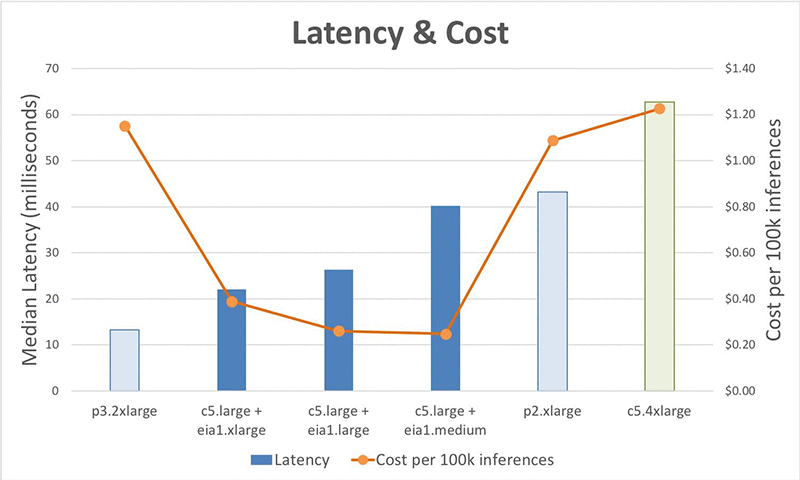
Looking at the results, we can see the latencies of the standard instances are, from best to worst, 13.26ms for P3, 43.52ms for P2, and 64.91ms for C5.4xlarge. The latencies for the EIA instances fall between the best, P3, and the middle, P2, with 22.11ms for c5.large + eia1.xlarge, 26.28 for c5.large + eia1.large, and 41.7ms for c5.large + eia1.medium. However, the cost efficiencies of the standard EC2 instances range from $1.08 to $1.19 per 100,000 inferences while the Amazon EI accelerator instances have cost efficiencies from $.24 to $.37, up to a 78% savings.

Compared to running inferences on CPU instances such as the c5.4xlarge, the Amazon EI options are up to 56% faster, while being cheaper as well. They have better performance than the P2 while being up to 76% cheaper. Although the P3 instances have better latency, you can get up to 13 Amazon EI instances for the same price, which is 93% cheaper.

In summary, if your application requires the lowest latency available, you probably need to stick to the P3 instance type. But if your application allows for just slightly higher latencies, you can take advantage of Amazon EI and save up to 78% compared to the cost of P2 and P3 instances. The results for the EIA instances show that EIA provides another option in terms of raw performance between P2 and P3 instances, but with the best cost efficiency of any instance type. Refer to Appendix 1 for a detailed performance comparison between different CPU, GPU, and EIA flavors.

Conclusion

The Java/Scala support for MXNet on Amazon EI enables Java applications to add cost-effective deep learning acceleration to existing production systems. Using Amazon EI accelerators can reduce latencies by 56% compared to using just CPU while reducing the inference cost by up to 78%.

Get Started with Amazon EI and the Java API

You can learn more on how to start with Amazon EI, set up your necessary infrastructure, and deploy your models into production from the posts on Model serving with Amazon Elastic inference and Amazon Elastic Inference – GPU powered deep learning inference acceleration. You can read more about MXNet from the Java MXNet API Reference and the Apache MXNet website.

Appendix 1 – Raw performance and cost results for ResNet-152

This table provides the data collected across a number of instance types both with and without Amazon Elastic Inference. We show the times to do a single prediction (latency), the number of predictions per second (throughput), the cost of the instances, and the cost effectiveness ($/100k inferences). For example, if your main goal is to get minimal latency while keeping costs under control (e.g., you don’t want expensive GPU hosts), one of the best choices for you is to use a c5.2xlarge instance with an eia1.xlarge accelerator. If your primary goal is to minimize costs, and your latency requirements are more lenient, you can use a c5.large instance with an eia1.large accelerator. Compared to the latency-optimized case inference time would increase by ~28%, but the corresponding cost reduction would be ~50%.

Remember that these metrics are only for the Resnet-152 model. You would need to collect data on your application’s model in order to find the best options for you.

Instance Type p50 Latency p90 Latency Throughput per sec Instance Cost per hour $/100k inferences Notes
c5.4xlarge 62.73 64.91 15.94 $0.68 $1.19
c5.9xlarge 39.61 39.81 25.25 $1.53 $1.68
c5.large + eia1.medium 40.19 41.37 24.88 $0.22 $0.24
c5.large + eia1.large 26.28 27.15 38.05 $0.35 $0.25 Best for cost effectiveness with EI
c5.large + eia1.xlarge 22.11 23.13 45.23 $0.61 $0.37
c5.xlarge + eia1.medium 39.62 41.35 25.24 $0.30 $0.33
c5.xlarge + eia1.large 26.24 26.92 38.11 $0.43 $0.31
c5.xlarge + eia1.xlarge 21.04 21.61 47.52 $0.69 $0.40
c5.2xlarge + eia1.medium 38.8 43.24 25.78 $0.47 $0.50
c5.2xlarge + eia1.large 26.27 27.03 38.07 $0.60 $0.44
c5.2xlarge + eia1.xlarge 20.89 21.26 47.88 $0.86 $0.50 Best for latency with EI
p2.xlarge 43.23 43.52 23.13 $0.90 $1.08
p3.2xlarge 13.26 13.54 75.44 $3.06 $1.13


About the authors

Zach Kimberg is a Software Engineer with AWS Deep Learning working mainly on Apache MXNet for Java and Scala. Outside of work he enjoys reading, especially Fantasy.


Sam Skalicky is a Software Engineer with AWS Deep Learning and enjoys building heterogeneous high performance computing systems. He is an avid coffee enthusiast and avoids hiking at all costs.


Denis Davydenko is an Engineering Manager with AWS Deep Learning. He focuses on building Deep Learning tools that enable developers and scientists to build intelligent applications. In his spare time he enjoys spending time with his family, playing poker and video games.



Udacity’s Machine Learning Nanodegree now includes Amazon SageMaker 

During the past few years, the demand for machine learning specialists and engineers has soared. These two roles now rank among the top emerging jobs on LinkedIn. More recently, machine learning is being adopted by a wide range of industries, from medical diagnostic companies to finance firms and more. Udacity created the Intro to Machine Learning Nanodegree program and Machine Learning Engineer Nanodegree program in response to this demand to provide access to this growing tech field to a broader audience.

There is a growing demand for engineers who are able to integrate machine learning models into globally available production applications like voice assistants and recommendation engines. Knowing how to build machine learning models is a great starting point. But, to truly make an impact, a data scientist or developer needs to know how to take a model out of the lab and into the real world so that it can be used to make millions or billions of predictions.

“Industry demand for the latest AI skills is at an all-time high. In collaboration with Amazon, we’ve updated the Udacity Machine Learning Nanodegree program to make it possible to gain the latest machine learning deployment skills anywhere in the world on the AWS platform,” says Sebastian Thrun, Co-Founder, President, Executive Chairman of Udacity.

AWS Educate and Amazon SageMaker collaborated with Udacity to create new deployment content for the Machine Learning Engineer Nanodegree program. AWS Educate provides Udacity students with access to AWS content and AWS promotional credits. These benefits allow students to use Amazon SageMaker for assignments developed in tandem with AWS subject matter experts (SMEs). The course examines a variety of machine learning models as they are applied at-scale to real-world tasks. Students learn how to deploy both unsupervised and supervised algorithms, and apply them to tasks such as feature engineering and time-series forecasting. This content addresses questions such as:

  1. How do you decide on the correct machine learning model for a given task?
  2. How can you use cloud deployment tools such as Amazon SageMaker to work with data and improve your machine learning models?

Machine Learning Engineer Nanodegree program description from Udacity.com

In addition to learning about model deployment, students also learn about model serving and updating. The course now shows how to connect a deployed sentiment analysis model to a website by using an AWS API. After deploying the model, it’s updated to account for changes in the underlying text data – an especially valuable skill in industries that continuously collect data. By the end of this section, students should have the skills needed to train and deploy models to solve tasks of their own design!

ML courses from beginner to advanced

Udacity’s Intro to Machine Learning and Machine Learning Engineer Nanodegree programs are part of Udacity’s School of AI, a set of free courses and Nanodegree programs designed by and for software developers. If you’re new to machine learning, their Intro to Machine Learning Nanodegree program is an entry point to learn foundational machine learning concepts such as data cleaning and supervised models. If you already have machine learning skills, the updated Machine Learning Engineer Nanodegree program, featuring Amazon SageMaker, focuses on teaching you the latest in machine learning deployment technologies.

Enroll today to get practical experience deploying machine learning models at-scale with an AWS Educate membership.


About the Author

Sally Revell is a Senior Manager, Product Marketing for AWS AI. She loves to work on innovative products that have the potential to impact people’s lives in a positive way. In her spare time, she loves to do yoga, horseback riding and being outdoors in the beauty of the Pacific Northwest.
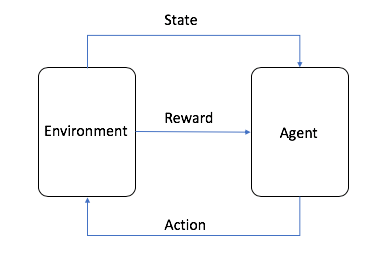


An introduction to reinforcement learning with AWS RoboMaker

Robotics often involves training complex sequences of behaviors. For example, consider a robot designed to follow or track another object. Although the goal is easy to describe (the closer the robot is to the object, the better), creating the logic that accomplishes the task is much more difficult. Reinforcement learning (RL), an emerging Machine Learning technique, can help develop solutions for exactly these kinds of problems.

This post is an introduction to RL and it explains how we used AWS RoboMaker to develop an application that trains a TurtleBot Waffle Pi to track and move toward a TurtleBot Burger. The AWS RoboMaker sample application, object tracker, uses the Intel Reinforcement Learning Coach and OpenAI’s Gym libraries. The Coach library is an easy-to-use RL framework written in Python. It was used to train the model that the TurtleBot uses for autonomous driving. OpenAI’s Gym is a toolkit that was used to develop and design RL agents that make autonomous decisions.

If you want to try using the sample object tracker application, see How to train a robot using reinforcement learning.

RL overview

In RL, training has two components:

  • An agent, which decides which actions the robot should take
  • The environment, which combines the action with the robot’s dynamics and physics of the world to determine the robot’s next state

In a nut shell, the agent uses a model to decide on an action. For the robot’s current state, the model maps possible actions to guesses of how good each action might be (in reinforcement learning, this is known as a reward). Initially, the model has no idea which actions are best, and its guesses are usually wrong. As the agent learns to maximize the potential rewards it can receive, the model improves and its guesses about which actions are good improve. The following graphic shows how this works.

In the sample object tracker application, RL works like this:

  1. With the robot in some starting position, the agent guesses the best action to take.
  2. The environment calculates the new state and a reward. The reward lets the agent know how good its last action was.
  3. The agent and environment interact, deciding on new actions and calculating new states. The agent accumulates rewards for its good actions and punishments for its bad actions.
  4. When one round of training ends, the robot has a total reward that tells it how well it did overall.
  5. By taking many actions, the agent slowly learns which actions are better (have a greater reward), and favors those actions when making decisions.

Building an RL application with AWS RoboMaker

Now let’s look at the object tracker source code to see how the application is implemented. We recommend looking at the code as you read. If you haven’t already run the sample application, you can download the code from Github repo.

Training the robot

The application has the following main components:

  • Simulation workspace – This workspace contains the code that defines the RL agent and environment.
  • Robot workspace – After training the RL model, the robot workspace is built and the model is deployed to a real robot.
  • Robot Operation System (ROS) – The development framework for robot applications. ROS provides a simple abstraction for interacting with the robot’s camera and motors.
  • Gazebo – A simulator that takes the robot’s state and action and calculates its next state. Gazebo also simulates the camera images that is fed into the RL agent.
  • Intel Coach library – A Python RL framework that was used to train the model that the TurtleBot uses to drive itself.
  • Open AI Gym – A toolkit used to develop and design the RL agent that makes autonomous decisions about turning, speed control, and so on.
  • TensorFlow – A machine learning library written by Google that stores and trains the model that the agent uses to make decisions.

In the development environment, navigate to the simulation_ws folder. The code in the simulation workspace trains the RL model. The Python file called single_machine_training_worker.py is the application entry point. In this file, environment variables, such as MARKOV_PRESET_FILE, are passed to the application to execute.  The application begins by creating a new TensorFlow model and storing it in an Amazon Simple Storage Service (Amazon S3) bucket. If there’s already a trained model in Amazon S3, the application uses that model instead. That way, it doesn’t have to start from scratch every time you restart training. All of these parameters are then passed to create a graph manager object. The graph manager is responsible for training the model. Finally, training starts when the improve method of the graph manager object is called.

The object_tracker.py file contains the hyperparameters for configuring the RL environment. The application uses a learning strategy known as ClippedPPO (Proximal Policy Optimization). PPO is an algorithm recommended by Open AI as a good starting point for RL. It has fewer parameters to tune than other RL algorithms, but still provides good overall performance.  OpenAI Gym is also configured in this file with the custom-level RoboMaker-ObjectTraker-v0, as follows:

env_params = GymVectorEnvironment()
…
env_params.level = 'RoboMaker-ObjectTracker-v0'

The TurtleBot3ObjectTrackerAndFollowerDiscreteEnv class contains the other elements needed to perform RL, such as instructions on how to reset the environment when the robot completes a round of training, the reward function, and the set of actions that the robot can take.

You might have noticed that the application uses an image captured by the camera as the state. For this reason, the real world should be as similar as possible to the simulated world in Gazebo for optimal performance. For example, the current simulated world is dark gray. When the trained model is deployed to a physical TurtleBot Waffle Pi, it should operate in a similar environment. If you want to train in a simulation environment that is closer to the real world, such as your room, you can add more details. For example, you can take pictures of the walls in your room and import them as textures to match the real world as much as possible.

In this application, the Waffle Pi uses its camera to move around. For every action it takes, it takes an image from its camera as the current state for everyone action it takes. The code is defined in the infer_reward_state(self) method of the TurtleBot3ObjectTrackerAndFollowerEnv class.

image = Image.frombytes('RGB', (self.image.width, self.image.height),
                                self.image.data,'raw', 'BGR', 0, 1)
image = image.resize(TRAINING_IMAGE_SIZE)
state = np.array(image)

Remember that the goal is for the TurtleBot Waffle Pi to reach the stationary TurtleBot Burger. For each correct step that the TurtleBot Waffle Pi takes towards the stationary TurtleBot Burger, it should receive a large reward. The reward calculation code is defined in the infer_reward_state(self) method of the TurtleBot3ObjectTrackerAndFollowerEnv class. If the current distance between the TurtleBots is less than it was in the last state, the TurtleBot Waffle Pi is moving closer to the stationary TurtleBot Burger, so it gets a reward. The closer the TurtleBot Waffle Pi gets to the goal, the greater the reward. If the distance is longer than 5 meters, the TurtleBot Waffle Pi is too far from the stationary TurtleBot Burger, and the agent ends the episode and starts a new one.

distance_of_turtlebot = math.sqrt((x - self.burger_x) * (x - self.burger_x) + (y - self.burger_y) * (y - self.burger_y))

…

if distance_of_turtlebot < self.last_distance_of_turtlebot:
            self.last_distance_of_turtlebot = distance_of_turtlebot
            reward = REWARD_CONSTANT / (distance_of_turtlebot * distance_of_turtlebot)
            if distance_of_turtlebot < 0.2:
                done = True

        if distance_of_turtlebot > 5:
            done = True

You can try to optimize the logic of the reward function code so that the agent can train faster and more accurately. For example, you can try giving a negative reward if the Waffle Pi moves further from the stationary TurtleBot compared to its last state. You can also try to use computer vision techniques, such as object detection, to find the stationary TurtleBot and then calculate the distance for further optimization.

The actions that the robot can take are defined in the TurtleBot3ObjectTrackerAndFollowerDiscreteEnv class at the end of the object_tracker_env.py file.  The actions are labeled from 0 to 4, and each action is one steering and throttle command for the TurtleBot. For example, when the action is 0, the TurtleBot should turn left at a speed of 0.1 meters per second.

# Convert discrete to continuous
if action == 0:  # move left
      steering = 0.6
      throttle = 0.1
elif action == 1:  # move right
      steering = -0.6
      throttle = 0.1
elif action == 2:  # straight
      steering = 0
      throttle = 0.1
elif action == 3:  # move left
      steering = 0.3
      throttle = 0.1
elif action == 4:  # move right
      steering = -0.3
      throttle = 0.1

Using the trained model

Remember that the code trains the model in TensorFlow. When deploying to the TurtleBot Waffle Pi, it has to be able to download the TensorFlow model stored in Amazon S3 and load it on the Waffle Pi itself. The robot_ws workspace is used for deploying the model to the Waffle Pi. The download_model Python file in the robot_ws workspace downloads the trained model from Amazon S3. Code in the inference_worker Python file loads the model into a TensorFlow session and instructs the Waffle Pi to take actions (steering, throttle) based on the images fed from its camera.

self.graph = self.load_graph()
self.session = tf.Session(graph=self.graph, config=tf.ConfigProto(allow_soft_placement=True, log_device_placement=True))

Running the application

ROS uses launch files to start applications. The local_training.launch file contains details about all of the nodes (processes) that you want to start when you launch the application. The node element instructs the ROS runtime to launch the shell script run_local_rl_agent.sh at startup.

<launch>
…

    <node name="agent" pkg="object_tracker_simulation" type="run_local_rl_agent.sh" output="screen" required="true"/>
</launch>

In the run_local_rl_agent.sh script, ROS executes the single_machine_training_worker Python script.

#!/usr/bin/env bash
…

python3 -m markov.single_machine_training_worker

The roboMakerSettings.json file is specific to AWS RoboMaker. It defines which AWS resources and rules to use to start the application. For example, the file specified for the launchFile parameter in the simulation configuration that the ROS framework launches at runtime.

Environment variables can be passed in the settings file. For example, the MARKOV_PRESET_FILE environment variable is where the main application code resides. The application is loaded at runtime using this variable. One handy feature of the roboMakerSettings.json file is that it allows you to create and configure workflows to automatically build, bundle, and run a simulation job for the application. This saves you from performing the steps manually when you need to make a change.

"type": "simulation",
      "cfg": {
        "simulationApp": {
          "name": "RoboMakerObjectTrackerSimulation",
          …
          "launchConfig": {
            "packageName": "object_tracker_simulation",
            "launchFile": "local_training.launch",
            "environmentVariables": {
              "MARKOV_PRESET_FILE": "object_tracker.py",
              "MODEL_S3_BUCKET": "<bucket name of your trained model>",
              "MODEL_S3_PREFIX": "model-store",
              "ROS_AWS_REGION": "<the AWS Region of your S3 model bucket>"
            }
          },

Summary

We hope this blog helps you understand how the sample object tracker application works, and how easy it is to develop and deploy complex machine learning techniques, such as RL, in AWS RoboMaker. If you want to try using the sample object tracker application, see How to train a robot using reinforcement learning.


About the Author

Tristan Li is a Solutions Architect with Amazon Web Services. He works with enterprise customers in the US, helping them adopt cloud technology to build scalable and secure solutions on AWS.


Wayne Davis is an Enterprise Solutions Architect for Amazon Web Services. Over the last 24 months he has been helping customers to come up to speed on cloud technologies as fast as possible.


Robert Meagher is a software development engineer for AWS RoboMaker. He enjoys designing and tinkering with robotics systems, both in and out of the office.
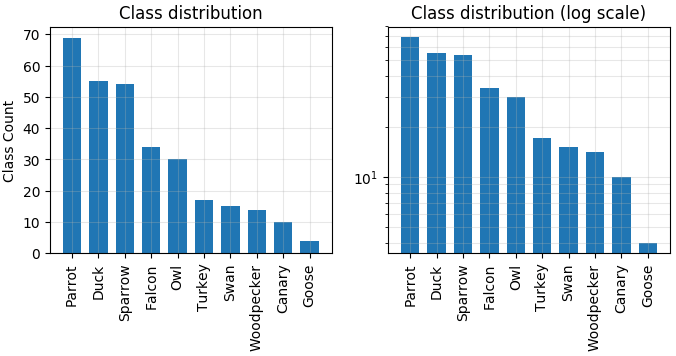
 

Use the wisdom of crowds with Amazon SageMaker Ground Truth to annotate data more accurately

Amazon SageMaker Ground Truth helps you quickly build highly accurate training datasets for machine learning (ML). To get your data labeled, you can use your own workers, a choice of vendor-managed workforces that specialize in data labeling, or a public workforce powered by Amazon Mechanical Turk.

The public workforce is large and economical but as with any set of diverse workers, can be prone to errors. One way to produce a high quality label from these lower quality annotations is to systematically combine the responses from different workers for the same item into a single label. Amazon SageMaker Ground Truth has built-in annotation consolidation algorithms that perform this aggregation so that you can get high accuracy labels as a result of a labeling job.

This blog post focuses on the consolidation algorithm for the case of classification (e.g. labeling an image as that of an “owl,” “falcon,” or “parrot”), and shows its benefit over two competing baseline approaches of single responses and majority voting.

Background

The most straightforward way of generating a labeled dataset is to send each image out to a single worker. However, a dataset where each image is only labeled by a single worker is more likely to be poor quality. Errors can creep in from workers providing low quality labels, stemming from factors like low skill or indifference. Quality can be improved if responses can be elicited from multiple workers and then aggregated in a principled manner. A simple way to aggregate responses from multiple annotators is to use majority voting (MV), which simply outputs the label that receives the most votes, breaking any ties randomly. So, if three workers labeled an image as “owl,” “owl,” and “falcon” respectively, MV would output “owl” as the final label. It can also assign a confidence of 0.67 (=2/3) to this output, since the winning response, “owl” was supplied by 2 out of the 3 workers.

While simple and intuitive in principle, MV misses the mark substantially when workers differ in skills. For example, suppose we knew that the first two workers (both of whom supplied the label “owl”) tend to be correct 60 percent of the times, and the last worker (who supplied the label “falcon”) tends to be correct 80 percent of the time. A probability computation using the Bayes Rule then shows that the label “owl” now only has a 0.36 probability (= 0.6*0.6*0.2*0.5/(0.6*0.6*0.2*0.5 + 0.4*0.4*0.8*0.5)) of being the correct answer, and consequently the label “falcon” has a 0.64 probability (= 1 – 0.36) of being correct. Thus, having an understanding of worker skills can drastically change our final output, favoring responses from workers with higher skills.

Our aggregation model, which is inspired by the classic Expectation Maximization method proposed by Dawid and Skene [1], takes worker skills into account. However, unlike the example we just discussed, the algorithm doesn’t have any prior understanding of worker accuracies, and has to learn those while also figuring out the final label. This is a bit of a chicken-and-egg problem, since if we knew the workers’ skills we can compute the final label (as we did earlier), and if we knew the true final label, we can estimate worker skills (by seeing how often they are right). When we don’t know either, we need to work out some mathematical formalism (as in [1]) to learn these concurrently. The algorithm achieves this by iteratively learning worker skills as well as the final label, terminating only when the iterations stop yielding any significant change to worker skill and final label estimates. For interested readers, we highly recommend looking into the original paper. We use our modified Dawid-Skene (MDS) model in the subsequent analysis.

Comparing the aggregation methods

There are two ways to follow along this post for a more hands-on experience. Once you have downloaded the analysis notebook, you can:

  1. Download our pre-annotated dataset with 302 images of birds (taken from Google Open Images Dataset).
  2. Run a new job for another dataset using either the Ground Truth Console or Ground Truth API.

In the discussion that follows, we will use the pre-annotated 302 birds dataset. The plot that follows shows the distribution of classes in the dataset. Note that the dataset is not balanced, and there are some categories which can be mistaken for one another — like “owl” vs. “falcon,” or “sparrow” vs. “parrot” vs. “canary.”

Now we look at how our modified Dawid-Skene (MDS) model performs compared to the two baselines:

  • Single Worker (SW). We only ask one worker to annotate any image and use their response as the final label.
  • Majority voting (MV). The final label is the one that received the most votes, breaking any ties randomly.

The plot below shows how the error (=1 – accuracy) changes as we increase the number of annotators labeling each image. The dotted line is the average performance of the SW baseline, and understandably stays constant with increasing number of annotators, since no matter what, we only look at one annotation per image. With only a single annotation, the performance of both MDS and MV matches that of SW because there are no responses to aggregate. However, as we start using more and more annotators, the consolidation methods (MDS and MV) start outperforming the SW baseline.

An interesting observation here is that the performance of majority voting with 2 annotators is approximately the same as with 1 annotator. This is because with 2 annotators (A and B) for an image, if there is agreement, the final output is the same as if only 1 worker (A or B) participated. If there is disagreement with ties broken randomly, and B wins the tie, the final output is the same as if only 1 worker (B) participated. This is not the case for our model because if A tends to agree with many different workers, the model will learn to trust A more over B, leading to better performance.

Another interesting and insightful visualization is a confusion matrix, which essentially looks at how often does one class in the dataset gets mistaken for another. The following plot shows the row normalized confusion matrices for raw annotations (all responses from the individual workers without aggregation), after MDS is used, and after MV is used. An ideal confusion matrix would be an identity matrix with 1s on the diagonal and 0s elsewhere, so that no class is ever confused for another class. We note that the raw confusion matrix is fairly “noisy.” For example, the label “goose” sometimes got assigned to “duck,” “swan,” and “falcon” (the “goose” column). Similarly, “parrot” often got mislabeled as “sparrow” and “canary” (the “parrot” row). Both majority voting and modified Dawid-Skene correct many errors, with MDS doing so slightly more effectively leading to a confusion matrix that is closer to an identity matrix. However, we note that this dataset is relatively easy leading to MV being comparable to MDS with 5 annotators.

In the experiment run we report, out of the 302 images, MDS recovered the true label for 273 images, whereas MV recovered the true label for 272 images. There were 2 image that MV had mislabeled but MDS managed to correct, and 1 image that MDS had mislabeled but MV managed to correct. Note that all the absolute numbers in our results are only broadly representative of the algorithms because the algorithms are not fully deterministic (like random tie breaks), and because our model is slated for consistent improvements (parameter tuning, modifications, etc.).

Let’s look at the imags that MDS gets right but MV doesn’t. In this case, it appears that the random tie break of MV ended up with the wrong answer over the trust based decision of MDS, but since on average MDS performs better than MV, the randomness alone does not account for the perfomance difference. For some datasets, the performance of MV can be comparable to that of MDS. Specifically, when the dataset is relatively easy or when workers do not differ much in quality. For this dataset, MV performance comes close to MDS with 5 annotators, but lags more with fewer annotators. For some other datsets that we tasted the two algorithms on, the performance difference can be more substantial.

The 1 image that MV gets right but MDS doesn’t:

The images that both MDS and MV got wrong are interestingly also qualitatively some of the hardest ones. As noticed in the confusion matrices, “parrot,” “sparrow,” and “canary” are often mislabeled as one another.

Conclusion

This blog post shows how aggregating responses from public workers can lead to more accurate labels. On a 302 image birds dataset, the error goes down by 20% when we aggregate responses from just 2 workers as opposed to using a single worker. Our algorithm also outperforms the commonly used majority voting technique for a range of annotator count, by incorporating estimates of worker skill. The potential accuracy improvement from our algorithm will vary depending on the dataset and the worker population, with most improvement when the dataset is difficult, and a public workforce is used that has workers with varied levels of skills.

Ground Truth currently supports three other task types: text classification, object detection and semantic segmentation. The aggregation method for text classification is the same as the image classification discussed here, however, different algorithms are needed for aggregating labels in the cases of object detection and semantic segmentation. Despite this, the central tenet remains the same — combining potentially lower quality annotations into a more accurate final label.

Disclosure regarding the Open Images Dataset V4

Open Images Dataset V4 is created by Google Inc. In some cases we have modified the images or the accompanying annotations. You can obtain the original images and annotations here. The annotations are licensed by Google Inc. under CC BY 4.0 license. The images are listed as having a CC BY 2.0 license. The following paper describes Open Images V4 in depth: from the data collection and annotation to detailed statistics about the data and evaluation of models trained on it.

A. Kuznetsova, H. Rom, N. Alldrin, J. Uijlings, I. Krasin, J. Pont-Tuset, S. Kamali, S. Popov, M. Malloci, T. Duerig, and V. Ferrari. The Open Images Dataset V4: Unified image classification, object detection, and visual relationship detection at scale. arXiv:1811.00982, 2018. (pdf)

[1] Dawid, A. P., & Skene, A. M. (1979). Maximum likelihood estimation of observer error‐rates using the EM algorithm. Journal of the Royal Statistical Society: Series C (Applied Statistics), 28(1), 20-28 (pdf).


About the Authors

Sheeraz Ahmad is an applied scientist in the AWS AI Lab. He received his PhD from University of California, San Diego working at the intersection of machine learning and cognitive science, where he built computational models of how biological agents learn and make decisions. At Amazon, he works on improving the quality of crowdsourced data. In his spare time, Sheeraz loves to play board games, read science fiction, and lift weights.


Lauren Moos is a software engineer with AWS AI. At Amazon, she has worked on a broad variety of machine learning problems, including machine learning algorithms for streaming data, consolidation of human annotations, and computer vision. Her primary interest is in machine learning’s relationship with cognitive science and modern philosophy. In her free time she reads, drinks coffee, and does yoga.