Blog

Learn About Our Meetup

5000+ Members

MEETUPS

LEARN, CONNECT, SHARE

Join our meetup, learn, connect, share, and get to know your Toronto AI community. 

JOB POSTINGS

INDEED POSTINGS

Browse through the latest deep learning, ai, machine learning postings from Indeed for the GTA.

CONTACT

CONNECT WITH US

Are you looking to sponsor space, be a speaker, or volunteer, feel free to give us a shout.

Category: Global

Real-time Continuous Transcription with Live Transcribe

The World Health Organization (WHO) estimates that there are 466 million people globally that are deaf and hard of hearing. A crucial technology in empowering communication and inclusive access to the world’s information to this population is automatic speech recognition (ASR), which enables computers to detect audible languages and transcribe them into text for reading. Google’s ASR is behind automated captions in Youtube, presentations in Slides and also phone calls. However, while ASR has seen multiple improvements in the past couple of years, the deaf and hard of hearing still mainly rely on manual-transcription services like CART in the US, Palantypist in the UK, or STTR in other countries. These services can be prohibitively expensive and often require to be scheduled far in advance, diminishing the opportunities for the deaf and hard of hearing to participate in impromptu conversations as well as social occasions. We believe that technology can bridge this gap and empower this community.

Today, we’re announcing Live Transcribe, a free Android service that makes real-world conversations more accessible by bringing the power of automatic captioning into everyday, conversational use. Powered by Google Cloud, Live Transcribe captions conversations in real-time, supporting over 70 languages and more than 80% of the world’s population. You can launch it with a single tap from within any app, directly from the accessibility icon on the system tray.

Building Live Transcribe
Previous ASR-based transcription systems have generally required compute-intensive models, exhaustive user research and expensive access to connectivity, all which hinder the adoption of automated continuous transcription. To address these issues and ensure reasonably accurate real-time transcription, Live Transcribe combines the results of extensive user experience (UX) research with seamless and sustainable connectivity to speech processing servers. Furthermore, we needed to ensure that connectivity to these servers didn’t cause our users excessive data usage.

Relying on cloud ASR provides us greater accuracy, but we wanted to reduce the network data consumption that Live Transcribe requires. To do this, we implemented an on-device neural network-based speech detector, built on our previous work with AudioSet. This network is an image-like model, similar to our published VGGish model, which detects speech and automatically manages network connections to the cloud ASR engine, minimizing data usage over long periods of use.

User Experience
To make Live Transcribe as intuitive as possible, we partnered with Gallaudet University to kickstart user experience research collaborations that would ensure core user needs were satisfied while maximizing the potential of our technologies. We considered several different modalities, computers, tablets, smartphones, and even small projectors, iterating ways to display auditory information and captions. In the end, we decided to focus on the smartphone form factor because of the sheer ubiquity of these devices and the increasing capabilities they have.

Once this was established, we needed to address another important issue: displaying transcription confidence. Traditionally considered to be helpful to the user, our research explored whether we actually needed to show word-level or phrase-level confidence.

Displaying confidence level of the transcription. Yellow is high confidence, green is medium and blue is low confidence. White is fresh text awaiting context before finalizing. On the left, the coloring is at a per-phrase level while on the right is at a per-word level.1 Research found them to be distracting to the user without providing conversational value.

Reinforcing previous UX research in this space, our research shows that a transcript is easiest to read when it is not layered with these signals. Instead, Live Transcribe focuses on better presentation of the text and supplementing it with other auditory signals besides speech.

Another useful UX signal is the noise level of their current environment. Known as the cocktail party problem, understanding a speaker in a noisy room is a major challenge for computers. To address this, we built an indicator that visualizes the volume of user speech relative to background noise. This also gives users instant feedback on how well the microphone is receiving the incoming speech from the speaker, allowing them to adjust the placement of the phone.

The loudness and noise indicator is made of two concentric circles. The inner brighter circle, indicating the noise floor, tells a deaf user how audibly noisy the current environment is. The outer circle shows how well the speaker’s voice is received.Together, the circles visually show the relative difference intuitively.

Future Work
Potential future improvements in mobile-based automatic speech transcription include on-device recognition, speaker-separation, and speech enhancement. Relying solely on transcription can have pitfalls that can lead to miscommunication. Our research with Gallaudet University shows that combining it with other auditory signals like speech detection and a loudness indicator, makes a tangibly meaningful change in communication options for our users.

Live Transcribe is now available in a staged rollout on the Play Store, and is pre-installed on all Pixel 3 devices with the latest update. Live Transcribe can then be enabled via the Accessibility Settings. You can also read more about it on The Keyword.

Acknowledgements
Live Transcribe was made by researchers Chet Gnegy, Dimitri Kanevsky, and Justin S. Paul in collaboration with Android Accessibility team members Brian Kemler, Thomas Lin, Alex Huang, Jacqueline Huang, Ben Chung, Richard Chang, I-ting Huang, Jessie Lin, Ausmus Chang, Weiwei Wei, Melissa Barnhart and Bingying Xia. We’d also like to thank our close partners from Gallaudet University, Christian Vogler, Norman Williams and Paula Tucker.


1 Eagle-eyed readers can see the phrase level confidence mode in use by Dr. Obeidat in the video above.

Deploy trained Keras or TensorFlow models using Amazon SageMaker

Amazon SageMaker makes it easier for any developer or data scientist to build, train, and deploy machine learning (ML) models. While it’s designed to alleviate the undifferentiated heavy lifting from the full life cycle of ML models, Amazon SageMaker’s capabilities can also be used independently of one another; that is, models trained in Amazon SageMaker can be optimized and deployed outside of Amazon SageMaker (or even out of the cloud on mobile or IoT devices at the edge). Conversely, Amazon SageMaker can deploy and host pre-trained models from model zoos, or other members of your team.

In this blog post, we’ll demonstrate how to deploy a trained Keras (TensorFlow or MXNet backend) or TensorFlow model using Amazon SageMaker, taking advantage of Amazon SageMaker deployment capabilities, such as selecting the type and number of instances, performing A/B testing, and Auto Scaling.  Auto Scaling clusters are spread across multiple Availability Zones to deliver high performance and high availability.

Your trained model will need to be saved in either the Keras (JSON and weights hdf5) format or the TensorFlow Protobuf format. If you’d like to begin from a sample notebook that supports this blog post, download it here.

For more on training the model on SageMaker and deploying, refer to this notebook on Github.

Step 1. Set up

In the AWS Management Console, go to the Amazon SageMaker console. Choose Notebook Instances, and create a new notebook instance. Upload the current notebook and set the kernel to conda_tensorflow_p36.

The get_execution_role function retrieves the AWS Identity and Access Management (IAM) role you created at the time of creating your notebook instance.

import boto3, re
from sagemaker import get_execution_role

role = get_execution_role()

Step 2. Load the Keras model using the JSON and weights file

If you saved your model in the TensorFlow ProtoBuf format, skip to “Step 4. Convert the TensorFlow model to an Amazon SageMaker-readable format.”

import keras
from keras.models import model_from_json

!mkdir keras_model

Navigate to keras_model from the Jupyter notebook home, and upload your model.json and model-weights.h5 files (using the “Upload” menu on the Jupyter notebook home). To use a sample model for this exercise download and unzip the files found here, then upload them to keras_model.

!ls keras_model
json_file = open('/home/ec2-user/SageMaker/keras_model/'+'model.json', 'r')
loaded_model_json = json_file.read()
json_file.close()
loaded_model = model_from_json(loaded_model_json)

loaded_model.load_weights('/home/ec2-user/SageMaker/keras_model/model-weights.h5')

print("Loaded model from disk")

Step 3. Export the Keras model to the TensorFlow ProtoBuf format

from tensorflow.python.saved_model import builder
from tensorflow.python.saved_model.signature_def_utils import predict_signature_def
from tensorflow.python.saved_model import tag_constants
# Note: This directory structure will need to be followed - see notes for the next section
model_version = '1'
export_dir = 'export/Servo/' + model_version
# Build the Protocol Buffer SavedModel at 'export_dir'
builder = builder.SavedModelBuilder(export_dir)
# Create prediction signature to be used by TensorFlow Serving Predict API
signature = predict_signature_def(
    inputs={"inputs": loaded_model.input}, outputs={"score": loaded_model.output})
from keras import backend as K

with K.get_session() as sess:
    # Save the meta graph and variables
    builder.add_meta_graph_and_variables(
        sess=sess, tags=[tag_constants.SERVING], signature_def_map={"serving_default": signature})
    builder.save()

Step 4. Convert TensorFlow model to an Amazon SageMaker-readable format

Move the TensorFlow exported model into a directory exportServo. Amazon SageMaker will recognize this as a loadable TensorFlow model. Your directory and file structure should look like this:

!ls export

!ls export/Servo

!ls export/Servo/1

!ls export/Servo/1/variables

Tar the entire directory and upload to Amazon S3

import tarfile
with tarfile.open('model.tar.gz', mode='w:gz') as archive:
    archive.add('export', recursive=True)
import sagemaker

sagemaker_session = sagemaker.Session()
inputs = sagemaker_session.upload_data(path='model.tar.gz', key_prefix='model')

Step 5. Deploy the trained model

The entry_point file train.py can be an empty Python file. The requirement will be removed at a later date.

!touch train.py
from sagemaker.tensorflow.model import TensorFlowModel
sagemaker_model = TensorFlowModel(model_data = 's3://' + sagemaker_session.default_bucket() + '/model/model.tar.gz',
                                  role = role,
                                  framework_version = '1.12',
                                  entry_point = 'train.py')
%%time
predictor = sagemaker_model.deploy(initial_instance_count=1,
                                   instance_type='ml.m4.xlarge')

Note: You need to update the endpoint in the following command with the endpoint name from the output of the previous cell (INFO:sagemaker:Creating endpoint with name sagemaker-tensorflow-2019-01-29-17-36-55-987).

endpoint_name = 'sagemaker-tensorflow-2019-01-29-17-36-55-987'
import sagemaker
from sagemaker.tensorflow.model import TensorFlowModel
predictor=sagemaker.tensorflow.model.TensorFlowPredictor(endpoint_name, sagemaker_session)

Step 6. Invoke the endpoint

Invoke the Amazon SageMaker endpoint from the notebook

import numpy as np

# The sample model expects an input of shape [1,50]
data = np.random.randn(1, 50)
predictor.predict(data)

Invoke the Amazon SageMaker endpoint using a boto3 client

import json
import boto3
import numpy as np
import io
 
client = boto3.client('runtime.sagemaker')
# The sample model expects an input of shape [1,50]
data = np.random.randn(1, 50).tolist()
response = client.invoke_endpoint(EndpointName=endpoint_name, Body=json.dumps(data))
response_body = response['Body']
print(response_body.read())

Step 7. Clean up

To avoid incurring unnecessary charges, use the AWS Management Console to delete the resources that you created for this exercise: https://docs.aws.amazon.com/sagemaker/latest/dg/ex1-cleanup.html

Conclusion

In this blog post, we demonstrated deploying a trained Keras or TensorFlow model at scale using Amazon SageMaker, independent of the computing resource used for model training. This gives you the flexibility to use your existing workflows for model training, while easily deploying the trained models to production with all the benefits offered by a managed platform. These benefits include the ability to select the optimal type and number of deployment instances, perform A/B testing, and auto scale. The Auto Scaling clusters of Amazon SageMaker ML instances can be spread across multiple Availability Zones to deliver both high performance and high availability.


About the author

Priya Ponnapalli is a principal data scientist at Amazon ML Solutions Lab, where she helps AWS customers across different industries accelerate their AI and cloud adoption.


Transformer-XL: Unleashing the Potential of Attention Models

To correctly understand an article, sometimes one will need to refer to a word or a sentence that occurs a few thousand words back. This is an example of long-range dependence — a common phenomenon found in sequential data — that must be understood in order to handle many real-world tasks. While people do this naturally, modeling long-term dependency with neural networks remains a challenge. Gating-based RNNs and the gradient clipping technique improve the ability of modeling long-term dependency, but are still not sufficient to fully address this issue.

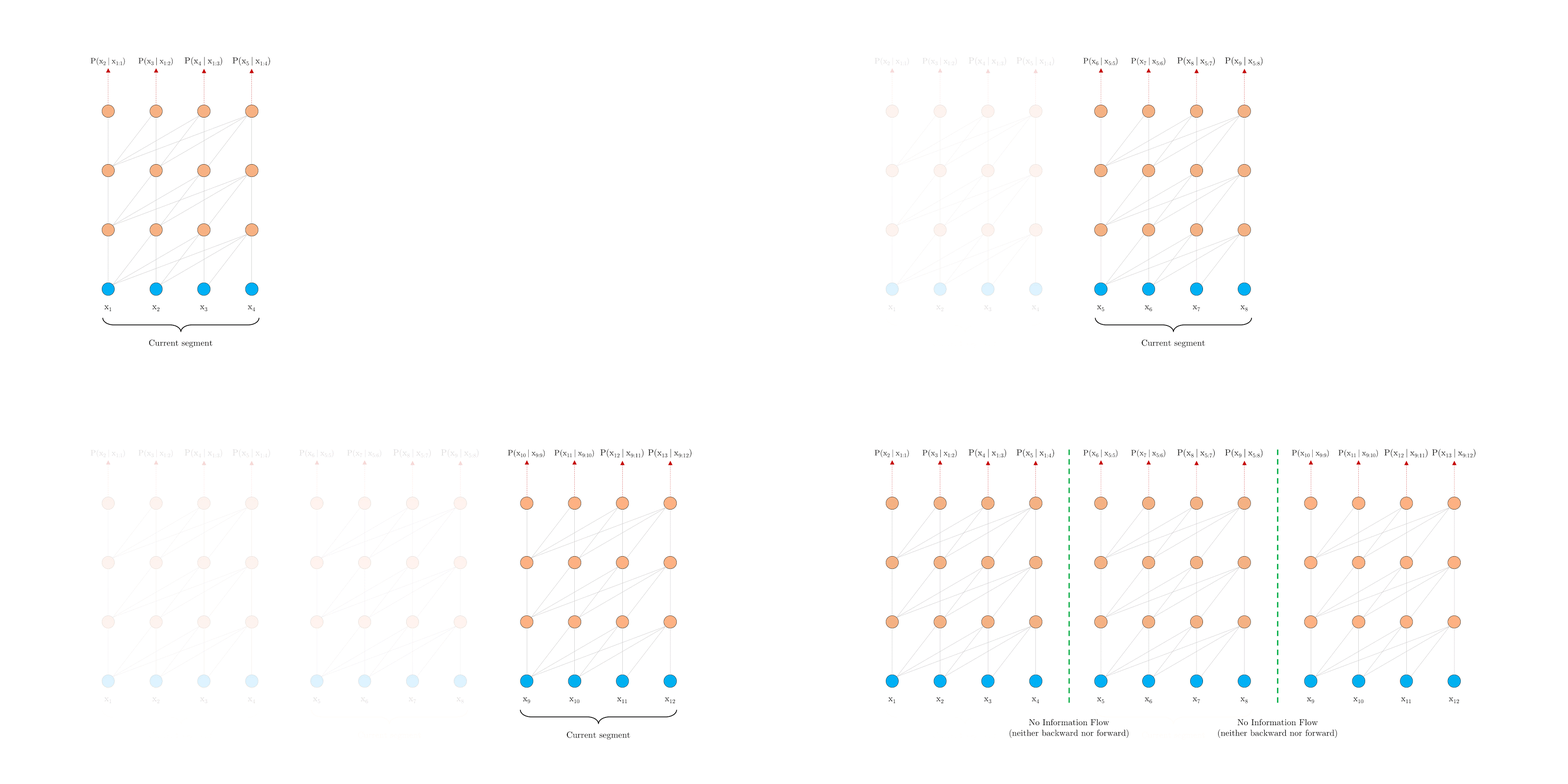
One way to approach this challenge is to use Transformers, which allows direct connections between data units, offering the promise of better capturing long-term dependency. However, in language modeling, Transformers are currently implemented with a fixed-length context, i.e. a long text sequence is truncated into fixed-length segments of a few hundred characters, and each segment is processed separately.

Vanilla Transformer with a fixed-length context at training time.

This introduces two critical limitations:

  1. The algorithm is not able to model dependencies that are longer than a fixed length.
  2. The segments usually do not respect the sentence boundaries, resulting in context fragmentation which leads to inefficient optimization. This is particularly troublesome even for short sequences, where long range dependency isn’t an issue.

To address these limitations, we propose Transformer-XL a novel architecture that enables natural language understanding beyond a fixed-length context. Transformer-XL consists of two techniques: a segment-level recurrence mechanism and a relative positional encoding scheme.

Segment-level Recurrence
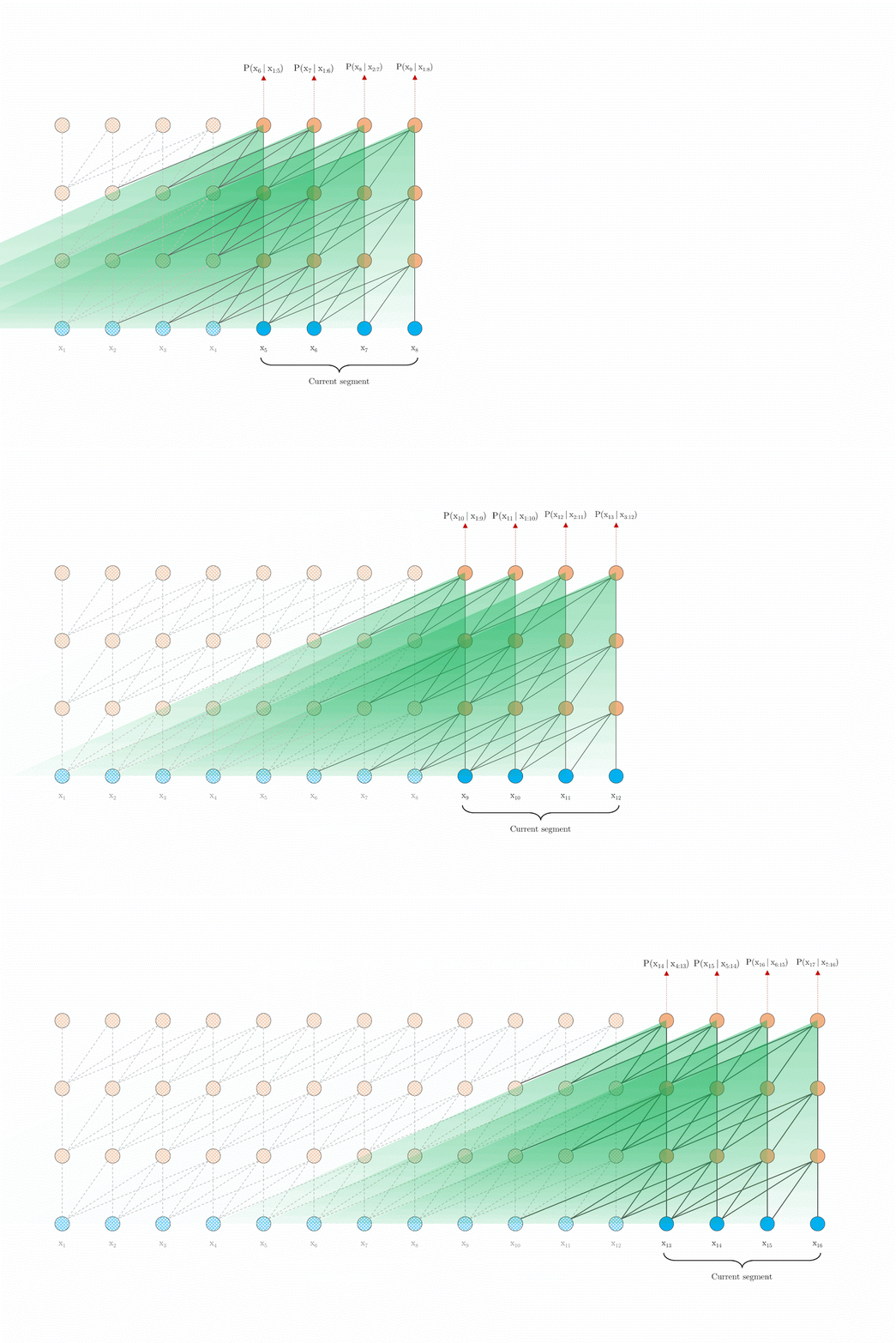
During training, the representations computed for the previous segment are fixed and cached to be reused as an extended context when the model processes the next new segment. This additional connection increases the largest possible dependency length by N times, where N is the depth of the network, because contextual information is now able to flow across segment boundaries. Moreover, this recurrence mechanism also resolves the context fragmentation issue, providing necessary context for tokens in the front of a new segment.

Transformer-XL with segment-level recurrence at training time.

Relative Positional Encodings
Naively applying segment-level recurrence does not work, however, because the positional encodings are not coherent when we reuse the previous segments. For example, consider an old segment with contextual positions [0, 1, 2, 3]. When a new segment is processed, we have positions [0, 1, 2, 3, 0, 1, 2, 3] for the two segments combined, where the semantics of each position id is incoherent through out the sequence. To this end, we propose a novel relative positional encoding scheme to make the recurrence mechanism possible. Moreover, different from other relative positional encoding schemes, our formulation uses fixed embeddings with learnable transformations instead of learnable embeddings, and thus is more generalizable to longer sequences at test time. When both of these approaches are combined, Transformer-XL has a much longer effective context than a vanilla Transformer model at evaluation time.

Vanilla Transformer with a fixed-length context at evaluation time.

Transformer-XL with segment-level recurrence at evaluation time./td>

Furthermore, Transformer-XL is able to process the elements in a new segment all together without recomputation, leading to a significant speed increase (discussed below).

Results
Transformer-XL obtains new state-of-the-art (SoTA) results on a variety of major language modeling (LM) benchmarks, including character-level and word-level tasks on both long and short sequences. Empirically, Transformer-XL enjoys three benefits:

  1. Transformer-XL learns dependency that is about 80% longer than RNNs and 450% longer than vanilla Transformers, which generally have better performance than RNNs, but are not the best for long-range dependency modeling due to fixed-length contexts (please see our paper for details).
  2. Transformer-XL is up to 1,800+ times faster than a vanilla Transformer during evaluation on language modeling tasks, because no re-computation is needed (see figures above).
  3. Transformer-XL has better performance in perplexity (more accurate at predicting a sample) on long sequences because of long-term dependency modeling, and also on short sequences by resolving the context fragmentation problem.

Transformer-XL improves the SoTA bpc/perplexity from 1.06 to 0.99 on enwiki8, from 1.13 to 1.08 on text8, from 20.5 to 18.3 on WikiText-103, from 23.7 to 21.8 on One Billion Word, and from 55.3 to 54.5 on Penn Treebank (without fine tuning). We are the first to break through the 1.0 barrier on char-level LM benchmarks.

We envision many exciting potential applications of Transformer-XL, including but not limited to improving language model pretraining methods such as BERT, generating realistic, long articles, and applications in the image and speech domains, which are also important areas in the world of long-term dependency. For more detail, please see our paper.

The code, pretrained models, and hyperparameters used in our paper are also available in both Tensorflow and PyTorch on GitHub.

Thoughts on Recent Research Paper and Associated Article on Amazon Rekognition

A research paper and associated article published yesterday made claims about the accuracy of Amazon Rekognition. We welcome feedback, and indeed get feedback from folks all the time, but this research paper and article are misleading and draw false conclusions. This blog post shares details which we hope will help clarify several ‎misperceptions and inaccuracies.

People often think of accuracy as an absolute measure, such as a percentage score on a math exam, where each answer is either right or wrong.‎ To understand, interpret, and compare the accuracy of machine learning systems, it’s important to understand what is being predicted, the confidence of the prediction, and how the prediction is to be used, which is impossible to glean from a single absolute number or score.

What is being predicted: Amazon Rekognition provides two distinct face capabilities using a type of machine learning called computer vision. The first capability is facial analysis—for a particular image or video, the service can tell you where a face appears, and certain characteristics of the image (such as if the image contains a smile, glasses, mustache, or the gender of a face). These attributes are usually used to help search a catalog of photographs. The second capability of Amazon Rekognition is commonly known as facial recognition. It is a distinct and different feature from facial analysis and attempts to match faces that appear similar. This is the same approach used to unlock some phones, or authenticate somebody entering a building, or by law enforcement to narrow the field when attempting to identify a person of interest. In the latter, it’s the modern equivalent of detectives in old movies flicking through books of photos, but much faster.‎

Facial analysis and facial recognition are completely different in terms of the underlying technology and the data used to train them. Trying to use facial analysis to gauge the accuracy of facial recognition is ill-advised, as it’s not the intended algorithm for that‎ purpose (as we state in our documentation).

Confidence: For both facial analysis and facial recognition, Amazon Rekognition also tells you how confident the service is in a specific result. Since all machine learning systems are probabilistic by nature, the confidence score can be thought of as a measure of how much trust the systems place in their results; the higher the confidence number, the more the results can be trusted. It is not possible to interpret the quality of either facial analysis or facial recognition without being transparent and thoughtful about the confidence threshold used to interpret the results. We are not yet aware of the threshold used in this research, but as you will see below, the results are much different when run with the recommended confidence level.

Use case for predictions: Combined with confidence, the intended use of a machine learning prediction is important, as it helps put the accuracy in context. For example, when using facial analysis to search for images containing ‘sunglasses’ in a photo catalog, showing more images in the search results is often desirable, even if there are some that aren’t perfect matches. Because the cost of an imperfect result in this use case is low, people often accept a lower confidence level in exchange for more results and less manual inspection of those results. However, when using facial recognition to identify persons of interest in an investigation, law enforcement should use our recommended 99% confidence threshold (as documented), and only use those predictions as one element of the investigation (not the sole determinant).

With the above context for how to think about ‘tests’ of Amazon Rekognition, we can get to this latest report and its erroneous claims.

The research paper seeks to “expose performance vulnerabilities in commercial facial recognition products,” but uses facial analysis as a proxy.

As stated above, facial analysis and facial recognition are two separate tools; it is not possible to use facial analysis to match faces in the same way as you would in facial recognition. This is not just an issue of semantics or definitions; they are two different features with two different purposes. Facial analysis can only find generic features (such as facial hair, smiles, frowns, gender, and so forth), which are primarily used to help filter and organize images. It has no knowledge of features which make a face unique (and cannot reverse engineer this from the image). In contrast, facial recognition focuses on unique facial features to match faces, and is used to match faces in datasets that customers bring to the service. Using facial analysis to do facial recognition is an inaccurate and unadvised way to identify unique individuals.  We explain this in our documentation,‎ and haven’t received a report from a customer who’s been confused on this issue.

The research paper states that Amazon Rekognition provides low quality facial analysis results. This does not reflect our own extensive testing and what we’ve heard from customers using the service.

First, the researchers used an outdated version of Amazon Rekognition. We made a significant set of improvements in November. Second, in a test run by AWS using the latest version of Amazon Rekognition, we ran facial analysis to perform gender classification on more than 12,000 images: a random selection of 1,000 men and 1,000 women across six ethnicities (South Asian, Hispanic, East Asian, Caucasian, African American, and Middle Eastern). Across all ethnicities, we found no significant difference in accuracy with respect to gender classification. In a broader test of facial recognition (which, as we explained earlier, is the logical and recommended way to do facial recognition), we evaluated photos from parliamentary websites with the Megaface dataset of 1 million images using Amazon Rekognition, and found exactly zero false positive matches at the recommended 99% confidence threshold. The research paper in question does not use the recommended facial recognition capabilities, does not share the confidence levels used in their research, and we have not been able to reproduce the results of the study.‎ We’d love to collaborate with these researchers on helping with this research, and more importantly, to help continue improving the state of the art in facial recognition.

Beyond our internal tests or single ‘point in time’ results, we are very interested in working with academics in establishing a series of standardized tests for facial analysis and facial recognition and in working with policy makers on guidance and/or legislation of its use. One existing standardized test from the National Institute of Standards and Technology (NIST). Amazon Rekognition’s Face API is a large-scale system which runs on a broad set of Amazon EC2 instance types using multiple deep learning models and proprietary data processing, storage, and search systems. Amazon Rekognition can’t be ‘downloaded’ for testing outside of AWS, and components cannot be tested in isolation while replicating how customers would use the service in the real world. We welcome the opportunity to work with NIST on improving their tests against this API objectively, and to establish datasets and benchmarks with the broader academic community.

The research papers implies that Amazon Rekognition is not improving, and that AWS is not interested in discussing issues around facial recognition.

This is false. We are now on our fourth significant version update of Amazon Rekognition. We are acutely aware of the concerns around facial recognition, and remain highly motivated and committed to continuous improvement, just as we are with all of our services. We make funding available for research projects and staff through the AWS Machine Learning Research Grants and have made significant investments to continuously improve Amazon Rekognition. Those improvements are made available to customers in all geographic regions, as soon as our improvements are validated – and just like all AWS services – we will continue to update and improve Amazon Rekognition. So far, our direct offers to discuss, update, and collaborate on these results have not been acknowledged or accepted by the researchers in this case.

We know that facial recognition technology, when used irresponsibly, has risks. This is true of a lot of technologies, computers included.‎ And, people are concerned about this. We are, too. It’s why we suspend people’s use of our services if we find they’re using them irresponsibly or to infringe on people’s civil rights. It’s also why we clearly recommend in our documentation that facial recognition results should only be used in law enforcement when the results have confidence levels of at least 99%, and even then, only as one artifact of many in a human-driven decision.‎ But, we remain optimistic about the good this technology‎ will provide in society, and are already seeing meaningful proof points with facial recognition helping thwart child trafficking, reuniting missing kids with parents, providing better payment authentication, or diminishing credit card fraud. ‎And, to date (over two years after releasing the service), we have had no reported law enforcement misuses of Amazon Rekognition.

The answer to anxieties over new technology is not to run ‘tests’ inconsistent with how the service is designed to be used, and to amplify the test’s false and misleading conclusions through the news media. We are eager to continue to work with researchers, academics, and customers, to continuously improve as we evolve this important technology.

-Dr. Matt Wood, general manager of artificial intelligence at AWS

Updated (1st Feb): This post was updated to accurately reflect the current state of testing with NIST.

Deploy TensorFlow models with Amazon Elastic Inference using a flexible new Python API available in EI-enabled TensorFlow 1.12

Amazon Elastic Inference (EI) now supports the latest version of TensorFlow­–1.12. It provides EIPredictor, a new easy-to-use Python API function for deploying TensorFlow models using EI accelerators. You can now use this new Python API function within your inference scripts as an alternative to using TensorFlow Serving when running TensorFlow models with EI. EIPredictor allows for easy experimentation and lets you compare performance with and without EI. This blog post shows you how to use EIPredictor to deploy your models on EI.

Let me start with some background. Amazon Elastic Inference is a new capability we launched at re:Invent 2018. EI provides a new, significantly more cost-effective way to apply acceleration to your deep learning inference workloads than using standalone GPU instances. EI lets you attach accelerators to any Amazon SageMaker or Amazon EC2 instance type and provides you the low latency, high throughput benefits of GPU acceleration at a much lower cost (up to 75%). You can use EI to deploy TensorFlow, Apache MXNet, and ONNX models for inference.

Using TensorFlow Serving to run models on EI

At the launch of Amazon EI we introduced EI-enabled TensorFlow Serving, which provides an easy way to run your TensorFlow models with EI accelerators without having to make any code changes. Just start a model server with EI-enabled TensorFlow Serving with your trained TensorFlow SavedModel, and make calls to it. EI-enabled TensorFlow Serving uses the same API as normal TensorFlow Serving. The only difference is that the entry point is a different binary named AmazonEI_TensorFlow_Serving_v1.12_v1. Here is an example command that you can use to launch the server:

$ AmazonEI_TensorFlow_Serving_v1.12_v1 --model_name=ssdresnet --model_base_path=/tmp/ssd_resnet50_v1_coco --port=9000

You can find EI-enabled TensorFlow Serving in the AWS Deep Learning AMIs (here’s a tutorial), or you can download the package from this Amazon S3 bucket so you can build it into your own custom Amazon Machine Image (AMI) or Docker container. EI-enabled TensorFlow Serving extends TensorFlow’s high performance model serving system to work seamlessly with EI. It automates accelerator discovery, secures your inference requests over the network with TLS encryption, and restricts access with AWS Identity and Access Management (IAM) policies.

Using EIPredictor to run models on EI

EIPredictor is a simple Python function for performing inference on a pretrained model. It is a new API function available within EI-enabled TensorFlow.  It’s also available in the Deep Learning AMI and for download using Amazon S3. You can use EIPredictor in the following ways:

  • You can use EIPredictor with a saved model or a frozen graph. It’s similar to TF predictor. Please see EI’s documentation for using EIPredictor with these model formats.
  • You can disable usage of EI by using the use_ei flag which is defaulted to True. This is useful to see how your model performs with and without EI acceleration.
  • EIPredictor can also be created from a TensorFlow Estimator. Given a trained Estimator, you first export a SavedModel. Refer to the SavedModel documentationfor more details. Example usage:
    saved_model_dir = estimator.export_savedmodel(my_export_dir, serving_input_fn)
    ei_predictor = EIPredictor(export_dir=saved_model_dir)
    //Once the EIPredictor is created, inference is done using the following:
    output_dict = ei_predictor(feed_dict)

The following code sample shows the available parameters for this function:

ei_predictor = EIPredictor(model_dir,
           signature_def_key=None,
           signature_def=None,
           input_names=None,
           output_names=None,
           tags=None,
           graph=None,
           config=None,
           use_ei=True)

output_dict = ei_predictor(feed_dict)

Example for running a model with EI Predictor

Here’s an example you can try for serving a ResNet using a Single Shot Detector (SSD) model using EI Predictor. This example assumes that you’ve launched an EC2 instance with an EI accelerator. We’re going to use the latest Deep Learning AMI here for this example.

  1. The first step is to activate the TensorFlow Elastic Inference Note that this is specific to the Deep Learning AMI. You don’t need this step if you built the EI-enabled TensorFlow library with your own custom AMI. You can choose between the Python 2 and Python 3 TensorFlow EI environments. I’ll use Python 2 for this example:
    $ source activate amazonei_tensorflow_p27

  2. Download the ResNet SSD model example from Amazon S3.
    $ curl -O https://s3-us-west-2.amazonaws.com/aws-tf-serving-ei-example/ssd_resnet.zip

  3. Unzip the model. Again, you may skip this step if you already have the model.
    $ unzip ssd_resnet.zip -d /tmp

  4. Download a picture of three dogs to your current directory.
    $ curl -O https://raw.githubusercontent.com/awslabs/mxnet-model-server/master/docs/images/3dogs.jpg

  5. Now open a text editor, such as vim, and paste the following inference script. Save the file as ssd_resnet_predictor.py
    from __future__ import absolute_import
    from __future__ import division
    from __future__ import print_function
    
    import os
    import sys
    import numpy as np
    import tensorflow as tf
    import matplotlib.image as mpimg
    import time
    from tensorflow.contrib.ei.python.predictor.ei_predictor import EIPredictor
    
    tf.app.flags.DEFINE_string('image', '', 'path to image in JPEG format')
    FLAGS = tf.app.flags.FLAGS
    if(FLAGS.image == ''):
      print("Supply an Image using '--image [path/to/image]'")
      exit(1)
    coco_classes_txt = "https://raw.githubusercontent.com/amikelive/coco-labels/master/coco-labels-paper.txt"
    local_coco_classes_txt = "/tmp/coco-labels-paper.txt"
    # Downloading coco labels
    os.system("curl -o %s -O %s" % (local_coco_classes_txt, coco_classes_txt))
    # Setting default number of predictions
    NUM_PREDICTIONS = 20
    # Reading coco labels to a list
    with open(local_coco_classes_txt) as f:
      classes = ["No Class"] + [line.strip() for line in f.readlines()]
    
    
    def main(_):
      # Reading the test image given by the user
      img = mpimg.imread(FLAGS.image)
      # Setting batch size to 1
      img = np.expand_dims(img, axis=0)
      # Setting up EIPredictor Input
      ssd_resnet_input = {'inputs': img}
    
      print('Running SSD Resnet on EIPredictor using specified input and outputs')
      # This is the EIPredictor interface, using specified input and outputs
      eia_predictor = EIPredictor(
          # Model directory where the saved model is located
          model_dir='/tmp/ssd_resnet50_v1_coco/1/',
          # Specifying the inputs to the Predictor
          input_names={"inputs": "image_tensor:0"},
          # Specifying the output names to tensor for Predictor
          output_names={"detection_classes": "detection_classes:0", "num_detections": "num_detections:0",
                        "detection_boxes": "detection_boxes:0"},
      )
    
      pred = None
      # Iterating over the predictions. The first inference request can take saveral seconds to complete
      for curpred in range(NUM_PREDICTIONS):
        if(curpred == 0):
          print("The first inference request loads the model into the accelerator and can take several seconds to complete. Please standby!")
        # Start the timer
        start = time.time()
        # This is where the inference actually happens
        pred = eia_predictor(ssd_resnet_input)
        print("Inference %d took %f seconds" % (curpred, time.time()-start))
    
      # Getting the number of objects detected in the input image from the output of the predictor
      num_detections = int(pred["num_detections"])
      print("%d detection[s]" % (num_detections))
      # Getting the class ids from the output
      detection_classes = pred["detection_classes"][0][:num_detections]
      # Mapping the class ids to class names from the coco labels
      print([classes[int(i)] for i in detection_classes])
    
      print('Running SSD Resnet on EIPredictor using default Signature Def')
      # This is the EIPredictor interface using the default Signature Def
      eia_predictor = EIPredictor(
          # Model directory where the saved model is located
          model_dir='/tmp/ssd_resnet50_v1_coco/1/',
      )
    
      # Iterating over the predictions. The first inference request can take saveral seconds to complete
      for curpred in range(NUM_PREDICTIONS):
        if(curpred == 0):
          print("The first inference request loads the model into the accelerator and can take several seconds to complete. Please standby!")
        # Start the timer
        start = time.time()
        # This is where the inference actually happens
        pred = eia_predictor(ssd_resnet_input)
        print("Inference %d took %f seconds" % (curpred, time.time()-start))
    
      # Getting the number of objects detected in the input image from the output of the predictor
      num_detections = int(pred["num_detections"])
      print("%d detection[s]" % (num_detections))
      # Getting the class ids from the output
      detection_classes = pred["detection_classes"][0][:num_detections]
      # Mapping the class ids to class names from the coco labels
      print([classes[int(i)] for i in detection_classes])
    
    
    if __name__ == "__main__":
      tf.app.run()
    

  6. Run the inference script.
    $ python ssd_resnet_predictor.py --image 3dogs.jpg

Conclusion

You now have two convenient ways, depending on your preference, to run your TensorFlow models on cost efficient accelerators. Give it a try and let us know what you think at amazon-ei-feedback@amazon.com

You can learn more about Elastic Inference here and see our documentation user guide. For instructions on using the Deep Learning AMI for EI check out the AWS Deep Learning AMI documentation.

About the Author


Dominic Divakaruni is the Product Manager for Amazon Elastic Inference. He builds services that help customers scale production machine learning applications. In this spare time he enjoys drumming with his son and working on cars.


AWS launches open source Neo-AI project  to accelerate ML deployments on edge devices

 At re:Invent 2018, we announced Amazon SageMaker Neo, a new machine learning feature that you can use to train a machine learning model once and then run it anywhere in the cloud and at the edge. Today, we are releasing the code as the open source Neo-AI project under the Apache Software License. This release enables processor vendors, device makers, and deep learning developers to rapidly bring new and independent innovations in machine learning to a wide variety of hardware platforms.

Ordinarily, optimizing a machine learning model for multiple hardware platforms is difficult because developers need to tune models manually for each platform’s hardware and software configuration. This is especially challenging for edge devices, which tend to be constrained in compute power and storage. These constraints limit the size and complexity of the models that they can run. Therefore, developers spend weeks or months manually tuning a model to get the best performance. The tuning process requires rare expertise in optimization techniques and deep knowledge of the hardware. Even then, it typically requires considerable trial and error to get good performance because good tools aren’t readily available.

Differences in software further complicate this effort. If the software on the device isn’t the same version as the model, the model will be incompatible with the device. This leads developers to limit themselves to only the devices that exactly match their model’s software requirements.

All of this makes it very difficult to quickly build, scale, and maintain machine learning applications.

Neo-AI eliminates the time and effort needed to tune machine learning models for deployment on multiple platforms by automatically optimizing TensorFlow, MXNet, PyTorch, ONNX, and XGBoost models to perform at up to twice the speed of the original model with no loss in accuracy. Additionally, it converts models into an efficient common format to eliminate software compatibility problems. On the target platform, a compact runtime uses a small fraction of the resources that a framework would typically consume. By making optimization easier, Neo-AI allows sophisticated models to run on resource-constrained devices, where they can unlock innovation in areas such as autonomous vehicles, home security, and anomaly detection. Neo-AI currently supports platforms from Intel, NVIDIA, and ARM, with support for Xilinx, Cadence, and Qualcomm coming soon.

At its core, Neo-AI is a machine learning compiler and a runtime built on decades of research on traditional compiler technologies, such as LLVM and Halide. It uses TVM and Treelite, which started as open source research projects at the University of Washington. The Neo-AI project uses TVM to compile deep learning models, Treelite to compile decision tree models, platform-specific optimizations from various contributors, and a common runtime for compiled models. AWS is an active contributor to the open source TVM and Treelite projects, and supports the growing TVM and LLVM communities.

Today’s release of AWS code back to open source through the Neo-AI project allows any developer to innovate on the production-grade Neo compiler and runtime. The Neo-AI project will be steered by the contributions of several organizations, including AWS, ARM, Intel, NVIDIA, Qualcomm, Xilinx, Cadence, and others.

By working with the Neo-AI project, processor vendors can quickly integrate their custom code into the compiler at the point at which it has the greatest effect on improving model performance. The project also enables device makers to customize the Neo-AI runtime for the particular software and hardware configuration of their devices. The Neo-AI runtime is currently deployed on devices from ADLINK, Lenovo, Leopard Imaging, Panasonic, and others. The Neo-AI project will absorb innovations from diverse sources into a common compiler and runtime for machine learning to deliver the best available performance for models.

“Intel’s vision of Artificial Intelligence is motivated by the opportunity for researchers, data scientists, developers, and organizations to obtain real value from advances in deep learning,” said Naveen Rao, General Manager of the Artificial Intelligence Products Group at Intel. “To derive value from AI, we must ensure that deep learning models can be deployed just as easily in the data center and in the cloud as on devices at the edge. By supporting Neo through Intel’s software efforts including nGraph and OpenVINO, device makers and system vendors can get better performance for models developed in almost any framework on platforms based on all Intel compute platforms.”

“NVIDIA Jetson with TensorRT is the best performing platform for AI at the edge” said Ian Buck, Vice President and General Manager, Accelerated Computing, NVIDIA. “Neo simplifies the deployment of deep learning models in production by optimizing them for both NVIDIA Tensor Core GPUs and NVIDIA Jetson GPUs to provide higher throughput and low-latency.  Our collaboration with AWS and Neo will bring the full capability of NVIDIA Inferencing from the edge to the cloud to a broader set of developers.”

Sudip Nag, Corporate Vice President at Xilinx, said, “Xilinx provides the FPGA hardware and software capabilities that accelerate machine learning inference applications in the cloud and at the edge. We are pleased to support developers using Neo to optimize models for deployment on Xilinx FPGAs. We look forward to enabling Neo-AI to use Xilinx ML Suite to deliver optimal inference performance per watt.”

“ARM’s vision of a trillion connected devices by 2035 is driven by the additional consumer value derived from innovations like machine learning,” said Jem Davies, fellow, General Manager and Vice President for the Machine Learning Group at ARM. “The combination of Neo and the ARM NN SDK will help developers optimize machine learning models to run efficiently on a wide variety of connected edge devices.”

To learn more, see the Neo-AI repository on GitHub.


About the Authors

Sukwon Kim is a Senior Product Manager for AWS Deep Learning. He works on products that make it easier for customers to use deep learning engines. In his spare time, he enjoys hiking and traveling.


Vin Sharma is a Engineering Leader for AWS Deep Learning. He leads the team building Neo, which helps ML models train once and run anywhere in the cloud and at the edge.


Identifying and working with sensitive healthcare data with Amazon Comprehend Medical

At AWS, I regularly speak with AWS customers and AWS Partner Network (APN) partners about how they are using technology to transform human health. These companies often generate large amounts of health data that they use in a variety of applications, such as population health management and electronic health records. Developers need to find ways to use the valuable medical information in these applications while meeting their compliance obligations with regard to sensitive data, such as protected health information (PHI). Some applications where our customers and APN partners are doing this today are clinical decision support, revenue cycle management, and clinical trial management.

There are multiple methods to mask data, and each organization has their own approaches based on internal risk assessments. We recommend that you consult risk assessment specialists for your organization’s specific implementation process. Typically, data is masked in two steps. First, PHI must be identified. Then, an algorithm is used that either anonymizes or de-identifies the data, usually in accordance with Safe Harbor or expert determination. This approach lends itself to using a state machine to apply the business logic your organization requires for each step independently and pass the information between states.

In this blog post, I’ll demonstrate how you can use a combination of Amazon Comprehend Medical, AWS Step Functions, and Amazon DynamoDB to identify sensitive health data and help support your compliance objectives. I’ll then discuss some potential extensions of the architecture that are patterns customers often adopt.

The architecture

This architecture uses the following services:

  • Amazon Comprehend Medical to identify entities within a body of text
  • AWS Step Functions and AWS Lambda to coordinate and execute the workflow
  • Amazon DynamoDB to store the de-identified mapping

This architecture and the code that follows are available as an AWS CloudFormation template.

The individual components

Like many modern applications being built on AWS, the individual components within this architecture are represented as Lambda functions. In this blog post, I’ll show you how to build three Lambda functions:

  • IdentifyPHI: Uses the Amazon Comprehend Medical API to detect and identify PHI entities from a body of text, such as a medical note.
  • MaskEntities: Takes the entities from IdentifyPHI as input and masks them in the body of text
  • DeidentifyEntities: Takes the entities from IdentifyPHI and applies a hash to each entity and stores that mapping in DynamoDB.

Let’s walk through each in turn.

Identify PHI

The following code reads in a JSON body, extracts PHI entities from the message, and returns a list of extracted entities.

from botocore.vendored import requests
import json
import boto3
import logging
import threading
client = boto3.client(service_name='comprehendmedical')

def timeout(event, context):
    raise Exception('Execution is about to time out, exiting...')

def extract_entities_from_message(message):
    return client.detect_phi(Text=message)

def handler(event, context):
    # Add in context for Lambda to exit if needed
    timer = threading.Timer((context.get_remaining_time_in_millis() / 1000.00) - 1, timeout, args=[event, context])
    timer.start()
    print ('Received message payload. Will extract PII')
    try:
        # Extract the message from the event
        message = event['body']['message']
        # Extract all entities from the message
        entities_response = extract_entities_from_message(message)
        entity_list = entities_response['Entities']
        print ('PII entity extraction completed')
        return entity_list
    except Exception as e:
        logging.error('Exception: %s. Unable to extract PII entities from message' % e)
        raise e

The workhorse in this Lambda function is the Amazon Comprehend Medical DetectPHI API call, which returns a list of entities that Amazon Comprehend Medical identifies. Note that confidence scores are provided with each identified entity – these scores indicate the level of confidence in the accuracy of identified entities. You should take these confidence scores into account and review identified entities output to make sure they are correct. For more information on the returned data structure, see the DetectPHI documentation.

Mask entities

There are multiple approaches to masking a message. In this example, we take each entity and replace it with a series of pound signs (#) corresponding to the length of the entity. The output is the message that has been input with each entity masked. You could choose whichever methods that are most meaningful to and appropriate for your business. For example, if there are multiple NAME PHI entities, you could order them as NAME1, NAME2, and so on.

Here’s the Lambda function:

from botocore.vendored import requests
import json
import boto3
import logging
import threading
import sys

def timeout(event, context):
  raise Exception('Execution is about to time out, exiting...')

def mask_entities_in_message(message, entity_list):
  for entity in entity_list:
      message = message.replace(entity['Text'], '#' * len(entity['Text']))
  return message

def handler(event, context):
  # Add in context for Lambda to exit if needed
  timer = threading.Timer((context.get_remaining_time_in_millis() / 1000.00) - 1, timeout, args=[event, context])
  timer.start()
  print ('Received message payload')
  try:
      # Extract the entities and message from the event
      message = event['body']['message']
      entity_list = event['body']['entities']
      # Mask entities
      masked_message = mask_entities_in_message(message, entity_list)
      print (masked_message)
      return masked_message
  except Exception as e:
      logging.error('Exception: %s. Unable to extract entities from message' % e)
      raise e

De-identify entities

There are multiple methods for de-identification. The example described in this blog post is meant to demonstrate one way you can de-identify sensitive entities so that they can be reidentified later on by a user with the appropriate permissions. Here, we do several steps:

  1. Apply a salt to the entity.
  2. For each entity, generate a sha3-256 hash of the salted entity. Store this entity in a dictionary.
  3. Replace each entity in the message with the hash generated in step 1.
  4. Generate a sha3-256 hash of the de-identified message.
  5. Store the entities in DynamoDB with the hashed message as the hash key and the entity hash as the range key.

Here is the Lambda function for this step. The EntityMap, which is a DynamoDB table, is read in as an environment variable:

from botocore.vendored import requests
import json
import boto3
import hashlib
import base64
import logging
import threading
import uuid
import os

ddb = boto3.client('dynamodb')

def timeout(event, context):
    raise Exception('Execution is about to time out, exiting...')
    
def store_deidentified_message(message, entity_map, ddb_table):
    hashed_message = hashlib.sha3_256(message.encode()).hexdigest()
    for entity_hash in entity_map:
        ddb.put_item(
            TableName=ddb_table,
            Item={
                'MessageHash': {
                    'S': hashed_message
                },
                'EntityHash': {
                    'S': entity_hash
                },
                'Entity': {
                    'S': entity_map[entity_hash]
                }
            }
        )
    return hashed_message
    
def deidentify_entities_in_message(message, entity_list):
    entity_map = dict()
    for entity in entity_list:
      salted_entity = entity['Text'] + str(uuid.uuid4())
      hashkey = hashlib.sha3_256(salted_entity.encode()).hexdigest()
      entity_map[hashkey] = entity['Text']
      message = message.replace(entity['Text'], hashkey)
    return message, entity_map
    
def handler(event, context):
    # Add in context for Lambda to exit if needed
    timer = threading.Timer((context.get_remaining_time_in_millis() / 1000.00) - 1, timeout, args=[event, context])
    timer.start()
    print ('Received message payload')
    try:
        # Extract the entities and message from the event
        message = event['body']['message']
        entity_list = event['body']['entities']
        # Mask entities
        deidentified_message, entity_map = deidentify_entities_in_message(message, entity_list)
        hashed_message = store_deidentified_message(deidentified_message, entity_map, os.environ['EntityMap'])
        return {
            "deid_message": deidentified_message, 
            "hashed_message": hashed_message
        }
    except Exception as e:
      logging.error('Exception: %s. Unable to extract entities from message' % e)
      raise e

Building the Boto3 Lambda layer

Next, we’ll create a Lambda layer containing Boto3. This is a common best practice when deploying Lambda functions in production.

Copy and paste the following code into a terminal. Feel free to change boto3env to a folder of your choice. The following example uses Python 3.6.

pip install boto3 --target python/.
 
# install botocore
pip install botocore --target python/.
 
# zip to four layer
zip boto3layer.zip -r python/

aws lambda publish-layer-version --layer-name boto3-layer --zip-file fileb://boto3layer.zip

Note the LayerVersionArn in the output. We’ll use this shortly.

Building the state machine

The multiple steps within this workflow, such as data passed between steps and forking paths based on user input, can be best represented as a state machine. We’ll use AWS Step Functions to define the state machines and execute the individual Lambda functions.
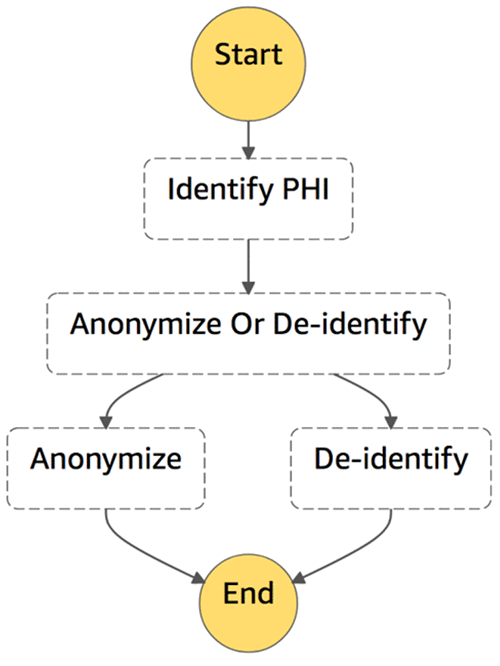
The state machine reads in a JSON blob containing the message text to process as well as whether to mask or de-identify the message. The overall steps are:

  1. Identify PHI entities using Amazon Comprehend Medical APIs.
  2. Determine whether to mask entities or de-identify.
  3. Based on results of Step 2, act accordingly.

Here is the Amazon States Language code defining this state machine:

{
  "Comment": "State Machine that anonymizes or deidentifies PHI",
  "StartAt": "Identify PHI",
  "States": {
    "Identify PHI": {
      "Type": "Task",
      "Resource": "arn:aws:lambda:us-east-1:123456789012:function:IdentifyPHILambda",
      "InputPath": "$",
      "ResultPath": "$.body.entities",
      "Next": "Anonymize Or De-identify"
    },
    "Anonymize Or De-identify": {
      "Type": "Choice",
      "Choices": [
        {
          "Variable": "$.body.anonymizeOrDeidentify",
          "StringEquals": "anonymize",
          "Next": "Anonymize"
        },
        {
          "Variable": "$.body.anonymizeOrDeidentify",
          "StringEquals": "deidentify",
          "Next": "De-identify"
        }
      ],
      "Default": "Anonymize"
    },
    "Anonymize": {
      "Type": "Task",
      "Resource": "arn:aws:lambda:us-east-1:123456789012:function:MaskEntitiesLambda",
      "InputPath": "$",
      "ResultPath": "$.maskedMessage",
      "OutputPath": "$.maskedMessage",
      "End": true
    },
    "De-identify": {
      "Type": "Task",
      "Resource": "arn:aws:lambda:us-east-1:123456789012:function:DeidentifyLambda",
      "InputPath": "$",
      "ResultPath": "$.maskedMessage",
      "OutputPath": "$.maskedMessage",
      "End": true
    }
  }
} 

Testing the state machine

As mentioned in the introduction, you can deploy the entire architecture using AWS CloudFormation. Launch the CloudFormation template now:

Use the LayerVersionArn output that you noticed previously in the Boto3LayerArn CloudFormation parameter.

After the CloudFormation stack deploys, you should have the following resources:

  • The three Lambda functions
  • A DynamoDB table containing mappings to the re-identified entities
  • A Step Functions state machine
  • AWS Identity and Access Management (IAM) resources

Let’s take a fictional medical note, or rather a combination of what would be several notes, which was provided by the Amazon Comprehend Medical team. Notice that it’s filled with typos, which would present challenges for rules-based approaches for entity identification.

Stay Free Medical Center
Emergency Department
Clinical Summary
12341 W. Bohannon Rd, Grantville, GA
Phone: (770) 922-9800

PERSON INFORMATION
Name: SALAZAR, CARLOS
MRN: RQ36114734
ED Arrival Time: 11/12/2011 18:15

Sex: Male
DOB: 2/11/1961
Age: 50 Years
Visit Reason: New onset A Fib, SOB
Acuity: 2 Emergent Disposition: Home/Self-Care
Address: 186 VALETINE, NE 69201
Phone: 402 213-2221

SUBJECTIVE:
Carlos came to the ED via ambulance accompanied by son, Jorge. He is a 50 yo male who was working at Food Corp when he had sudden onset of palpitations. Carlos stated his fater, Diego, also had palpitations through his life.

Provider Contact Time: 11/12/2011 19:00
Decision to Admit: Not entered
ED Departure Time: 11/23/2011 00:07

DIAGNOSIS: Hyperthyroidism
Attending Provider:
Saanvi Sarkar, MD

Primary Nurse(s):
Jackson; Mateo

Fill New Prescriptions:
nepafenac (nepafenac 1 mg / 1mL Ophthalmic Suspension) 1 drop left eye every 12 hours 14 day(s)
zofran (Ondansetron 4 mg oral tablet) 4 mg ORAL PRN
atropine sulfate 0.05 mcg / hyopscyamine sulfate 3.1 mcg / phenobartbital 48.6 MG / scopolamine hydrobromide 0.0195 mg ( Donnata ER oral tablet) 1 table PO PRN
acetaminophen – hydrocodone ( Vicodin 5 mg – 500 mg oral tablet ) 2 tablet(s) by Mouth every 6 hours as needed for pain
docusate sodium 100 mg oral capsule 100 mg by Mouth twice daily as needed for constipation

Allergies:
penicillins
ibuprofen
bee pollen

Patient Education and Follow-up Information
Instructions:
ED, Nausea (Custom)
Follow up:

With:
Address:
When:

Return to Emergency Department

Comments:

Nausea Vomiting

Nausea persists without control from anti-nausea medications Projectile vomiting Uncontrolled , consistent nausea & vomiting Blood or “coffee grounds” appearing material in vomit Medicine not kept down because of vomiting Weakness or dizziness along with nausea/vomiting Severe stomach pain while vomiting

Pain
Severe Chest / Arm pain Severe squeezing or pressure in chest Severe sudden headache
New or uncontrolled pain New headache Chest discomfort Pounding heart Heart “flip – flop” feeling Painful Central Line site or area of “tunnel” Burning in chest or stomach Pain or burning while urinating Pain with infusion of medications or fluids into Central Line

Diarrhea

Constant or uncontrolled diarrhea New onset diarrhea Diarrhea with fever and abdominal cramping Whole pills passed in stool Greater than 5 times each day Stool which is bloody , burgundy or black Abdominal cramping

Fatigue
Unable to wake
Dizziness Fatigue is getting worse Too tired to get out of bed or walk to the bathroom Staying in bed all day

Fever / Chills

Shaking chills , temperature may be normal Temperature greater than 38.3° C or 100.9° F by mouth Fever greater than 1 degree above usual if on steroids 24 Cold symptoms ( runny nose , watery eyes , sneezing , coughing )

With:
Address:
When:

Follow up with primary care provider

Comments:

Call tomorrow to make an appointment for the next 1-2 days and to start arranging PCP follow-up

Thank you for visiting the Stay Free Medical Center.

Comments:

Call tomorrow to make an appointment for the next 1-2 days and to start arranging PCP follow-up

Thank you for visiting the Stay Free Medical Center.

The input to the state machine takes two values. First, the note. Second, a choice of whether to anonymize the note or de-identify it. In this example we’ll de-identify the message. Here’s what that looks like:

{
	"body": {
		"message": " Stay Free Medical Center nEmergency Department nClinical Summary n12341 W. Bohannon Rd, Grantville, GAnPhone: (770) 922-9800 nnnPERSON INFORMATIONnName:  SALAZAR, CARLOSnMRN:  RQ36114734 nED Arrival Time:  11/12/2011 18:15n nSex:  Male nDOB:  2/11/1961n Age:   50 Years nVisit Reason:  New onset A Fib, SOBn Acuity:  2   Emergent Disposition:  Home/Self-Care nAddress:  186 VALETINE, NE 69201nPhone:  402 213-2221 n nSUBJECTIVE:nCarlos came to the ED via ambulance accompanied by son, Jorge. He is a 50 yo male who was working at Food Corp when he had sudden onset of palpitations. Carlos stated his fater, Diego, also had palpitations through his life.n nProvider Contact Time:  11/12/2011 19:00n Decision to Admit:  Not enteredn ED Departure Time:  11/23/2011 00:07n nDIAGNOSIS:  Hyperthyroidism n Attending Provider: nSaanvi Sarkar, MDn n Primary Nurse(s): nJackson; Mateon nn Fill New Prescriptions:nnepafenac (nepafenac 1 mg / 1mL Ophthalmic Suspension) 1 drop left eye every 12 hours 14 day(s)nzofran (Ondansetron 4 mg oral tablet) 4 mg ORAL PRNnatropine sulfate 0.05 mcg / hyopscyamine sulfate 3.1 mcg / phenobartbital 48.6 MG / scopolamine hydrobromide 0.0195 mg ( Donnata ER oral tablet) 1 table PO PRNnacetaminophen - hydrocodone ( Vicodin 5 mg - 500 mg oral tablet )  2 tablet(s) by Mouth every 6 hours as needed for painndocusate sodium 100 mg oral capsule 100 mg by Mouth twice daily as needed for constipationnn nAllergies:n penicillinsn ibuprofenn bee pollenn nPatient Education and Follow-up Informationn Instructions:n   ED, Nausea (Custom) n Follow up:n  n With:nAddress:nWhen:nnReturn to Emergency DepartmentnnnnComments:nnNausea VomitingnnNausea persists without control from anti-nausea medications  Projectile vomiting  Uncontrolled , consistent nausea & vomiting  Blood or “coffee grounds” appearing material in vomit Medicine not kept down because of vomiting Weakness or dizziness along with nausea/vomiting Severe stomach pain while vomitingnnPain nSevere Chest / Arm pain Severe squeezing or pressure in chest Severe sudden headachenNew or uncontrolled pain New headache Chest discomfort Pounding heart Heart “flip - flop” feeling Painful Central Line site or area of “tunnel” Burning in chest or stomach Pain or burning while urinating Pain with infusion of medications or fluids into Central LinennnDiarrhea nnConstant or uncontrolled diarrhea New onset diarrhea Diarrhea with fever and abdominal cramping Whole pills passed in stool Greater than 5 times each day Stool which is bloody , burgundy or black Abdominal crampingnnFatiguenUnable to wakenDizziness Fatigue is getting worse Too tired to get out of bed or walk to the bathroom Staying in bed all daynnFever / Chills nnShaking chills , temperature may be normal Temperature greater than 38.3° C or 100.9° F by mouth Fever greater than 1 degree above usual if on steroids 24 Cold symptoms ( runny nose , watery eyes , sneezing , coughing ) nnnnWith:nAddress:nWhen:nnFollow up with primary care providernnnnComments:nnCall tomorrow to make an appointment for the next 1-2 days and to start arranging PCP follow-upnnnThank you for visiting the Stay Free Medical Center.n n",
		"anonymizeOrDeidentify": "deidentify"
	}
}

In the AWS CloudFormation console, navigate to the output page and note the state machine Amazon Resource Name (ARN), you will be using it later to invoke a state machine execution.

You can test using the AWS CLI, your AWS SDK of choice, or the AWS Step Functions console. The following command shows what it would be like if you used the CLI. However, before you type the following command, copy the previous JSON and save it to example_note.json. Also replace the AWS Step Functions state machine ARN with the ARN in the CloudFormation output.

aws stepfunctions start-execution --state-machine-arn YOUR_STATEMACHINE_ARN --input file://example_note.json

The overall execution should take only a couple of seconds. Let’s navigate to the AWS Step Functions console to see what happened.
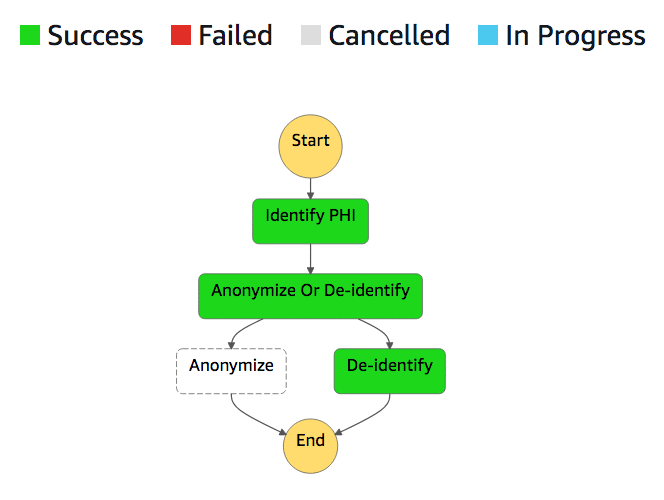
When you ran the previous command, several things happened.

  1. A Lambda function identified potential PHI entities within the note.
  2. These entities were salted and the resulting combination was hashed using SHA3-256.
  3. The hashes replaced the original entities in the message and the updated message was then hashed.
  4. The mappings were stored in DynamoDB.
  5. The hashed message is returned as the output of the execution.

You can view the output from the steps in the AWS Step Functions console. The previous message should now look like the following (formatted for ease of reading).  The de-identified message still contains valuable information that can be used, but the sensitive data has been masked using the previous masking example.

8db49f8fdfc0a003402dd68439d2a848635d6c60a2719020c7b922916aafbdf0 
c027ee7d7992ea804c589c2c2777fc646e2f394d5db900177246f9d7bd8d762d 
Clinical Summary 
5d0276605f49fa2c8e010b9781cb348d9efca84dd7a49e0ce6fb845e156f3331
Phone: 988c20b763f3b60b83aa64f48ce3184642dcf15707eeaead9d24c266e8967680 

PERSON INFORMATION
Name:  ba1a8b9ba885c1b867b0fda332845d2c4435a921cdbf849a86b4e5768b00972395cbf6c9eda8afecd3a8a454a28774512f78cd9d03ae7f2670433bc0217379
MRN:  45dd4310f18cddb1f37c4e11b36b12e77fc64001229a2632333d1e0f379f5847 
2e0fbaa0c9008457c15f9306a9cd588ec09402f8db12194ec705b3f058e3eff6 Arrival Time:  712caefd59fd2015172ef9cb560dad2852c652368a618d446b472958db6a288b 18:15
 
Sex:  Male 
DOB:  88d76b85ad3e7cc2b1d06ea99a8a13df842fdd7ab0986ae3c747a3993944f91d
 Age:   b9ba885c1b867b0fda332845d2c4435a921cdbf849a86b4e5768b00972395cbf Years 
Visit Reason:  New onset A Fib, SOB
 Acuity:  2   Emergent Disposition:  Home/Self-Care 
Address:  aff3537058e53a9de01a4689cf1c3109584370e98ec31241a3ae4c07eceb0cbb
Phone:  35cda8ec6c456bdf120843e0a1302f0aef1bab003a51353a02fe41e56baa92f03a465fe2bac1c23d18cacdb3576a84aa5c0aeee3fb8aafb61bd18a6970610d 
 
SUBJECTIVE:
1093369cc39bcae926a41719947e202ba749ff91691777321dcec52d34eb9296 came to the 2e0fbaa0c9008457c15f9306a9cd588ec09402f8db12194ec705b3f058e3eff6 via ambulance accompanied by son, abaefc3557e1c7577a16c658126d74cf8ae36857737c22eb587bc414bd926936. He is a b9ba885c1b867b0fda332845d2c4435a921cdbf849a86b4e5768b00972395cbf yo male who was working at f64136468ffae173d7eb43e4735e0bb9940d1718723dc0f42e0ffeb9053756cf when he had sudden onset of palpitations. 1093369cc39bcae926a41719947e202ba749ff91691777321dcec52d34eb9296 stated his fater, 23f255a3e4ec38a0fd094f3d96f30cb1a4787f269913aa890fb3a68058bd44fb, also had palpitations through his life.
 
Provider Contact Time:  712caefd59fd2015172ef9cb560dad2852c652368a618d446b472958db6a288b 19:00
 Decision to Admit:  Not entered
 2e0fbaa0c9008457c15f9306a9cd588ec09402f8db12194ec705b3f058e3eff6 Departure Time:  c078acc1b42e5eda560ec66cbabcddc16fde9ba0758ef73f095a11b87cda87b5 00:07
 
DIAGNOSIS:  Hyperthyroidism 
 Attending Provider: 
9437ca325df16c59a18c57c52194cc344ea3a3e4155a9b8decb7caf453b93c10, MD
 
 Primary Nurse(s): 
30ed768bd50007158ddd6ca6e71bc3e5d8bf411cb7597692c7aa729b53a13527

 Fill New Prescriptions:
nepafenac (nepafenac 1 mg / 1mL Ophthalmic Suspension) 1 drop left eye every 12 hours 14 day(s)
zofran (Ondansetron 4 mg oral tablet) 4 mg ORAL PRN
atropine sulfate 0.05 mcg / hyopscyamine sulfate 3.1 mcg / phenobartbital 48.6 MG / scopolamine hydrobromide 0.0195 mg ( Donnata ER oral tablet) 1 table PO PRN
acetaminophen - hydrocodone ( Vicodin 5 mg - b9ba885c1b867b0fda332845d2c4435a921cdbf849a86b4e5768b00972395cbf0 mg oral tablet )  2 tablet(s) by Mouth every 6 hours as needed for pain
docusate sodium 100 mg oral capsule 100 mg by Mouth twice daily as needed for constipation

Allergies:
 penicillins
 ibuprofen
 bee pollen
 
Patient Education and Follow-up Information
 Instructions:
   2e0fbaa0c9008457c15f9306a9cd588ec09402f8db12194ec705b3f058e3eff6, Nausea (Custom) 
 Follow up:
  
 With:
Address:
When:

Return to c027ee7d7992ea804c589c2c2777fc646e2f394d5db900177246f9d7bd8d762d

Comments:

Nausea Vomiting

Nausea persists without control from anti-nausea medications  Projectile vomiting  Uncontrolled , consistent nausea & vomiting  Blood or “coffee grounds” appearing material in vomit Medicine not kept down because of vomiting Weakness or dizziness along with nausea/vomiting Severe stomach pain while vomiting

Pain 
Severe Chest / Arm pain Severe squeezing or pressure in chest Severe sudden headache
New or uncontrolled pain New headache Chest discomfort Pounding heart Heart “flip - flop” feeling Painful Central Line site or area of “tunnel” Burning in chest or stomach Pain or burning while urinating Pain with infusion of medications or fluids into Central Line

Diarrhea 

Constant or uncontrolled diarrhea New onset diarrhea Diarrhea with fever and abdominal cramping Whole pills passed in stool Greater than 5 times each day Stool which is bloody , burgundy or black Abdominal cramping

Fatigue
Unable to wake
Dizziness Fatigue is getting worse Too tired to get out of bed or walk to the bathroom Staying in bed all day

Fever / Chills 

Shaking chills , temperature may be normal Temperature greater than 38.3° C or 100.9° F by mouth Fever greater than 1 degree above usual if on steroids 24 Cold symptoms ( runny nose , watery eyes , sneezing , coughing ) 

With:
Address:
When:

Follow up with primary care provider

Comments:

Call tomorrow to make an appointment for the next 1-2 days and to start arranging PCP follow-up

Thank you for visiting the 8db49f8fdfc0a003402dd68439d2a848635d6c60a2719020c7b922916aafbdf0.

Here’s what the table looks like after two runs with the same message.

Because each entity is salted, there’s no way of mapping that hash back to the original entity without using the DynamoDB mapping table, which you can notice by repeated entities having different hashes due to salting. Additionally, since you can manage DynamoDB access using IAM, you can control who has access to the items in your table. You can then use AWS CloudTrail to audit reads from your table containing sensitive information.

Conclusion and next steps

Protecting sensitive data is always job zero for healthcare organizations. In this blog post, I demonstrated how you can use Amazon Comprehend Medical to work with and identify protected health information. While organizations have different approaches to protect sensitive data, they follow the same architectural pattern: (1) identify the sensitive entities, and (2) apply the appropriate protection strategy for the sensitive entities as defined by your organization. A state machine is well-suited to orchestrate the two steps.

There are additional modifications you can make to this architecture to suit your needs. Here are a few ideas:

  • Put the state machine behind Amazon API Gateway to add an authorization layer to process your text, as well as a gateway to the individual Lambda functions.
  • Filter by the confidence of the DetectPHI call. Amazon Comprehend Medical entities have a Score field in addition to Text. You can apply a threshold to filter the calls by, depending on your business requirements.
  • Use DetectPHI in conjunction with DetectEntities to help you detect and identify PHI, and also extract non-PHI entity relationships, which can be used for downstream analytics.

Interested in learning more about Amazon Comprehend Medical?

Coming to HIMSS? Meet the AWS Healthcare team live at HIMSS19 Booth #5058!

We welcome your questions and comments. We look forward to hearing from you!


About the Author

Dr. Aaron Friedman is a Healthcare and Life Sciences Partner Solutions Architect at Amazon Web Services. He works with ISVs and SIs to architect healthcare solutions on AWS, and bring the best possible experience to their customers. His passion is working at the intersection of science, big data, and software. In his spare time, he’s exploring the outdoors, learning a new thing to cook, or spending time with his wife, son, and his dog, Macaroon.



Extract and visualize clinical entities using Amazon Comprehend Medical

Amazon Comprehend Medical is a new HIPAA-eligible service that uses machine learning (ML) to extract medical information with high accuracy. This reduces the cost, time, and effort of processing large amounts of unstructured medical text. You can extract entities and relationships like medication, diagnosis, and dosage, and you can also extract protected health information (PHI). Using Amazon Comprehend Medical allows end users to get value from raw clinical notes that is otherwise largely unused for analytical purposes because it’s difficult to parse. There is immense value associated with extracting information from these notes and integrating it with other medical systems like an Electronic Health Record (EHR) and a Clinical Trial Management System (CTMS). This allows you to generate a longitudinal view of the patient considering information in raw notes that would otherwise be discarded.

As with all our API-level services, the focus of Amazon Comprehend Medical is ease of use for developers. We provide a pre-trained model that can be invoked using an API call or the console. The results are returned as a structured JSON file that can be parsed and integrated with other structural clinical datasets. To know more about Amazon Comprehend Medical, see the product documentation.

In this example, I demonstrate how you can use Amazon Comprehend Medical to extract clinical entities and visualize them on a Kibana dashboard. The solution is provided as an AWS CloudFormation template so you can deploy it easily in your own environments.

Solution architecture

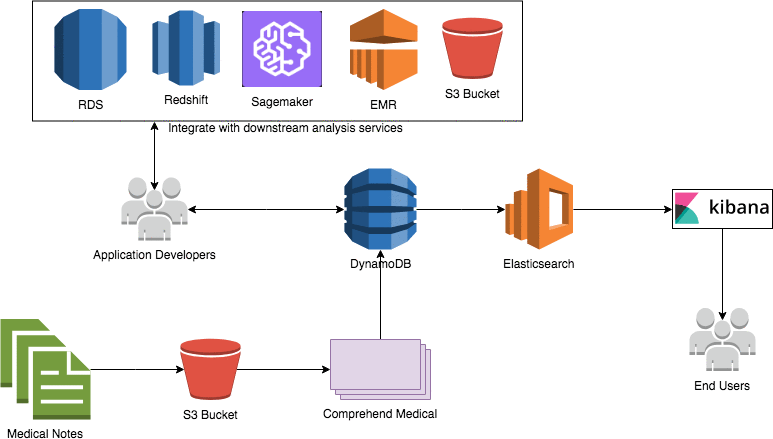
The architecture diagram showcases the various components of the solution. Here are the details of each component:

  1. You can use Amazon S3 as a platform to store your raw clinical notes.
  2. Use Amazon Comprehend Medical API to loop through your notes and extract various clinical entities and relationships from the notes. You can also filter the extracted elements to exclude all protected health information (PHI) from the notes. This is useful for use cases that require non-identifiable elements in a note for downstream analysis.
  3. The extracted entities JSON file is parsed and inserted into an Amazon DynamoDB table. This table can serve as a repository of all clinical entities over time and can be used for downstream integration by developers.
  4. The DynamoDB table has a stream attached to it. This stream is parsed using an AWS Lambda function that is triggered by an event on the stream.
  5. The Lambda function inserts the records into an Amazon Elasticsearch Service (Amazon ES) domain. This domain can be kept up to date with all clinical entity information.
  6. A Kibana dashboard is built on top of Amazon ES to visualize the clinical entities. This will serve as an entry point for end users looking for analytical information and search capabilities on the notes.

Instructions for deploying the solution

We will use an AWS CloudFormation stack to deploy the solution. The CloudFormation stack creates the resources needed by the solution. These include:

  1. An S3 bucket
  2. A DynamoDB table
  3. A Lambda function
  4. Necessary AWS Identity and Access Management (IAM) roles

This example uses the us-east-1 (N. Virginia) AWS Region.

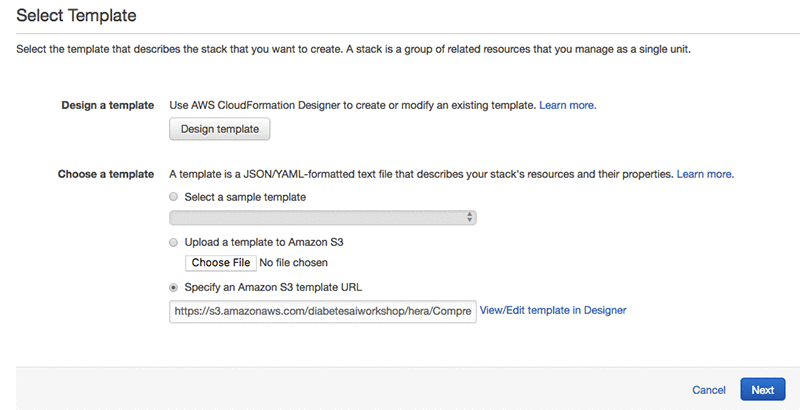
Log into the AWS Management Console with your IAM username and password. Right click on the “Launch Stack” icon below and open it in a new tab.

On the Select Template page, choose Next.

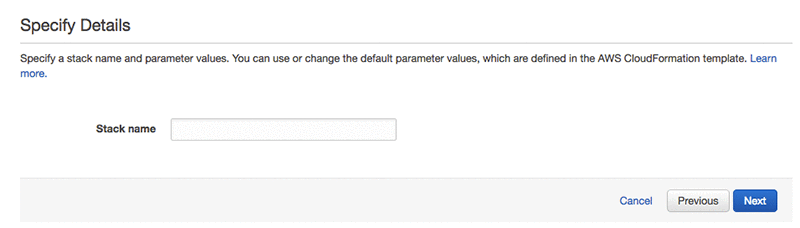
On the next page provide a name for the stack. Enter a name and choose Next.

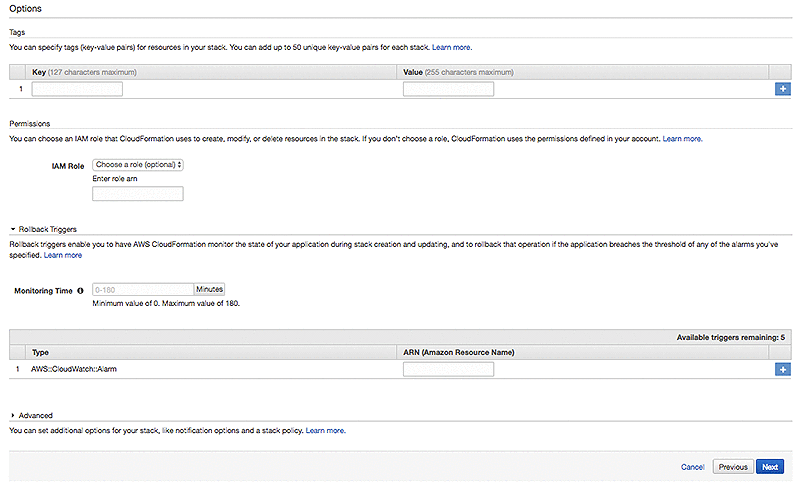
On the options page, leave everything as the default and choose Next.

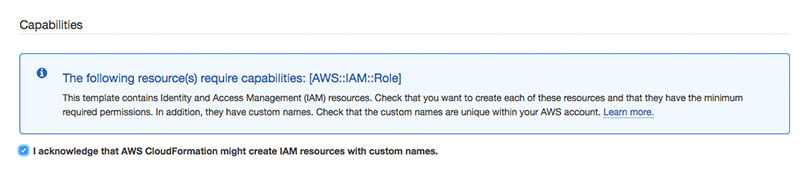
On the Review page, scroll down and select the checkbox “I acknowledge that AWS CloudFormation might create IAM resources wit custom names.” Choose Create.

Wait for the stack to complete executing. You can examine various events from the stack creation process in the Events tab. After the stack creation is complete, look at the Resources tab to see all the resources created by the CloudFormation template. Open the Outputs tab to look at the output of the CloudFormation stack.

Setting up Amazon Elasticsearch Service and AWS Lambda

Now we’ll use Amazon Comprehend Medical to extract entities from a collection of clinical notes and visualize them on a Kibana dashboard.

Log into the AWS Management Console and follow these steps to complete this part of the workshop:

  1. Open the Amazon Elasticsearch Service. You should see the domain that you created for this example. Choose it.
  2. On the Overview tab, copy the Endpoint url and paste it on a notepad. You will use this in step 10 below.
  3. Choose the Modify access policy
  4. On the Select a template dropdown, select Allow or deny access to one or more AWS accounts or IAM users.
  5. In the pop-up window, paste the Account ID in the Account ID or ARN textbox. Click Ok
  6. An access policy will be generated for you automatically. Review it and choose Submit.
  7. Navigate to the AWS Lambda console.
  8. On the list of functions, select the function created for the workshop.
  9. Scroll down to the section that contains the function code.
  10. On line 13, you will see a variable named host set to the Elasticsearch Host Name. Replace that with the hostname that was copied in step 2, earlier. Make sure to put it between single quotes.
  11. Choose Save.

Setting up the local environment

You will run a python program to extract entities from raw notes using Amazon comprehend medical and then insert those entities into a DynamoDB table. Before you run this program, you will have to setup your environment. Make sure you have competed the following setup tasks before executing the program:

  1. Have the AWS command line interface (CLI) installed and configured with an identity and access management (IAM) user with Administrator privileges. Click on this link to see the steps to configure your AWS CLI.
  2. Create a folder on your computer and download this zip file into it. Unzip the file.
  3. This will create a new folder Blog_Code. Navigate to the notes folder inside the Blog_Code folder and open up one of the note files and examine its contents to see how the unstructured notes look like. Here is a screenshot of file1.txt.
  4. Go back to the <> directory and open the python file and paste the name of your DynamoDB table between the single quotes replacing “your_table_name_here” on line 7 as shown in the screenshot below:
  5. You are now ready to execute the python program. Execute the program by typing:
    python Entity_Extraction.py

    The program will extract entities from the downloaded notes and insert them into DynamoDB. Once completed, you will see the following message:

Visualizing entitles on Kibana

  1. On the AWS Management Console, navigate to the DynamoDB console.
  2. Choose Tables on the left navigation pane.
  3. Choose the table name created for you by the CloudFormation stack. You can get the name of the table in the Outputs tab of the CloudFormation stack, in the CloudFormation console
  4. On the Overview tab, you can see the value Latest stream ARN, which denotes that this DynamoDB table has a stream associated with it.
  5. Choose the Items
  6. You can see the extracted entities from the notes. We get the attributes like Category, Type and also a confidence score. In addition, we also get a list of attributes and traits associated with the entities.
  7. Now, let’s visualize these entities in Kibana. To do this, we will use an open source proxy called aws-es-kibana. Please follow the steps on the GitHub repo to install the proxy on your computer.
  8. Once installed, run the following command:
    aws-es-kibana your_Elasticsearch_domain_endpoint 

    You can find the domain endpoint in the outputs tab of the CloudFormation stack. You should see the following output:

  9. Copy the url for Kibana and paste it in your browser window. This will open up the Kibana dashboard. On the Index pattern text box, type lambda-index and choose Create.
  10. You will see the field and attribute names in Kibana on which we will build some visualizations.
  11. Kibana provides multiple options to build visualizations that can be integrated into a dashboard. You can experiment with those options in the Visualize and Dashboard links on the left navigation pane of Kibana. To get you started, we have pre-built a dashboard for you as a basic example. Follow these steps to import the dashboard file and visualize the results.
  12. On the left navigation pane, click Management and then click Saved Objects.
  13. Click Import on the top right corner and navigate to the Entity_Dashboard.json file under the folder Blog_Code you downloaded and extracted earlier.
  14. You will see a pop-up message with a question asking if you want to overwrite. Choose Yes, overwrite all.
  15. You will see another pop-up window saying some index patterns do not exist. Make sure lambda-index is selected in the drop-down Newindex pattern list and click Confirm all changes. You should see a new dashboard called EntityDashboard.
  16. On the left navigation pane, click Dashboard and then on the EntityDashboard Link. You will see the dashboard with visualizations generated from the extracted entities.

There are three visualizations in the dashboard. The top left visualization aggregates the counts of different categories. As you can see, our sample notes had Medical Condition as the highest category. The top right visualization is a pie chart capturing the distribution of entity types. The bottom visualization is a term cloud that tells you what are the most common terms extracted from the notes. You can experiment with different visualizations and options to build you own visual dashboards.

Conclusion

In the example in this blog post, you saw how to use Amazon Comprehend Medical to extract clinical entities and visualize them on a Kibana dashboard. We foresee many use cases being enabled by this ability to extract entities. Some examples include:

  • Patient and Population Health Analytics: Unstructured data is difficult to mine.
    Example: Clinical team in the ICU makes over 120 decisions about care per day, How do you keep up?
  • Revenue Cycle Management: Medical Coding: Process of coding or classifying patient records according to the International Classification of Diseases (ICD) is one of the most complex transactions.
  • Pharmacovigilance: Multiple avenues of reporting adverse drug reactions or adverse events.
  • PHI Compliance: Difficult to maintain HIPAA compliance and technical requirements for PHI.
  • Clinical Trial Management: Identify the right patients for clinical trials quickly.

You can also combine Amazon Comprehend Medical with upstream services like Optical Character Recognition (OCR) systems to extract information from medical forms and pass it to comprehend medical for analysis. For downstream analysis, customers can integrate the output into a clinical data warehouse to improve reporting on Centers for Medicare and Medicaid services (CMS) quality measures.

Amazon Comprehend Medical also enables you to build machine learning models on raw clinical data in EHR systems for common problems like mortality risk prediction and predicting readmissions. These are models that are largely built using structured clinical data and by adding attributes from raw clinical notes can improve the results.

Explore related blog posts discussing Amazon Comprehend Medical:

There are many possibilities, and we are excited to see how you use Amazon Comprehend Medical for your use cases.

Disclaimer: Please keep in mind the following guidelines and limits for Amazon Comprehend Medical. https://docs.aws.amazon.com/comprehend/latest/dg/guidelines-and-limits-med.html

The notes used in this blog post are borrowed from https://www.mtsamples.com/


About the Author

Ujjwal Is a Principal Machine Learning Specialist Solution Architect in the Global Healthcare and Lifesciences team at Amazon Web Services. He works on the application of machine learning and deep learning to real world industry problems like medical imaging, unstructured clinical text, genomics, precision medicine, clinical trials and quality of care improvement. He has expertise in scaling machine learning/deep learning algorithms on the AWS cloud for accelerated training and inference. In his free time, he enjoys listening to (and playing) music and taking unplanned road trips with his family.



Natural Questions: a New Corpus and Challenge for Question Answering Research

Open-domain question answering (QA) is a benchmark task in natural language understanding (NLU) that aims to emulate how people look for information, finding answers to questions by reading and understanding entire documents. Given a question expressed in natural language (“Why is the sky blue?”), a QA system should be able to read the web (such as this Wikipedia page) and return the correct answer, even if the answer is somewhat complicated and long. However, there are currently no large, publicly available sources of naturally occurring questions (i.e. questions asked by a person seeking information) and answers that can be used to train and evaluate QA models. This is because assembling a high-quality dataset for question answering requires a large source of real questions and significant human effort in finding correct answers.

To help spur research advances in QA, we are excited to announce Natural Questions (NQ), a new, large-scale corpus for training and evaluating open-domain question answering systems, and the first to replicate the end-to-end process in which people find answers to questions.1 NQ is large, consisting of 300,000 naturally occurring questions, along with human annotated answers from Wikipedia pages, to be used in training QA systems. We have additionally included 16,000 examples where answers (to the same questions) are provided by 5 different annotators, useful for evaluating the performance of the learned QA systems. Since answering the questions in NQ requires much deeper understanding than is needed to answer trivia questions — which are already quite easy for computers to solve — we are also announcing a challenge based on this data to help advance natural language understanding in computers.

The Data
NQ is the first dataset to use naturally occurring queries and focus on finding answers by reading an entire page, rather than extracting answers from a short paragraph. To create NQ, we started with real, anonymized, aggregated queries that users have posed to Google’s search engine. We then ask annotators to find answers by reading through an entire Wikipedia page as they would if the question had been theirs. Annotators look for both long answers that cover all of the information required to infer the answer, and short answers that answer the question succinctly with the names of one or more entities. The quality of the annotations in the NQ corpus has been measured at 90% accuracy.

Our paper “Natural Questions: a Benchmark for Question Answering Research“, which has been accepted for publication in Transactions of the Association for Computational Linguistics, has a full description of the data collection process. To see some more examples from the dataset, please check out the NQ website.

The Challenge
NQ is aimed at enabling QA systems to read and comprehend an entire Wikipedia article that may or may not contain the answer to the question. Systems will need to first decide whether the question is sufficiently well defined to be answerable — many questions make false assumptions or are just too ambiguous to be answered concisely. Then they will need to decide whether there is any part of the Wikipedia page that contains all of the information needed to infer the answer. We believe that the long answer identification task — finding all of the information required to infer an answer — requires a deeper level of language understanding than finding short answers once the long answers are known.

It is our hope that the release of NQ, and the associated challenge, will help spur the development of more effective and robust QA systems. We encourage the NLU community to participate and to help close the large gap between the performance of current state-of-the-art approaches and a human upper bound. Please visit the challenge website to view the leaderboard and learn more.


1 A reader just alerted us to DuReader, a dataset from Baidu that contains real queries and full documents. We will add this to our paper, in which we discuss NQ in relation to previous work.

Expanding the Application of Deep Learning to Electronic Health Records

In 2018 we published a paper that showed how machine learning, when applied to medical records, can predict what might happen to patients who are hospitalized: for example, how long they would need to be in the hospital and, if discharged, how likely they would be to come back unexpectedly. Predictive models of various kinds have already been deployed in hospital settings by others, and our work aims to further improve potential clinical benefit by using new models that can make predictions faster, more accurate, and more adaptable for a broader range of clinical contexts.

Any endeavor to demonstrate the promise of machine learning requires intense collaboration between engineers, doctors, and medical researchers to make sure the work benefits patients, physicians, and health systems, and that it is equitable. Google is already fortunate to partner with some of the best academic medical centers in the world and we are now expanding this work to include Intermountain Healthcare, based in Utah.

The initial collaboration will focus on understanding how Google might adapt machine learning predictions to the various Intermountain care settings, from primary care clinics to the TeleHealth critical care unit, which remotely monitors critically ill patients in surrounding hospitals. We see potential in exploring how scalable computing platforms that include predictions might assist clinical teams in providing the best possible care.

As with our previous research, we will begin with jointly testing the performance of machine learning models on historical records, following strict policies to ensure that all data privacy and security measures are followed.

We are excited to explore how scalable computing platforms that include predictions might assist clinical teams in providing the best possible care in these settings. We additionally hope to further validate that our approach to predictions can work across health systems and improve care for patients.