Blog

Learn About Our Meetup

5000+ Members

MEETUPS

LEARN, CONNECT, SHARE

Join our meetup, learn, connect, share, and get to know your Toronto AI community. 

JOB POSTINGS

INDEED POSTINGS

Browse through the latest deep learning, ai, machine learning postings from Indeed for the GTA.

CONTACT

CONNECT WITH US

Are you looking to sponsor space, be a speaker, or volunteer, feel free to give us a shout.

Category: Global

A personalized ‘shop-by-style’ experience using PyTorch on Amazon SageMaker and Amazon Neptune

Remember the screech of the dial-up and plain-text websites? It was in that era that the Amazon.com website launched in the summer of 1995.

Like the rest of the web, Amazon.com has gone through a digital experience makeover that includes slick web controls, rich media, multi-channel support, and intelligent content placement.

Nonetheless, there are certain aspects of the experience that have remained relatively constant. Navigation for an online shopping experience still includes running searches, following recommendations, and textual navigation. However, with the democratization of IoT and AI, this is the moment for innovators to change the status quo.

Amazon, true to its culture of continuous innovation, has been experimenting with creating new customer experiences. Products like Echo Look use machine learning (ML) to allow a customer to ask “Alexa, how do I look?” Then Alexa gives you real-time feedback on your outfit, and you receive smart, specific, and fun styling advice.

In this blog post, I’ll show you how easy it is to create a shop-by-style experience. I’ll introduce you to AWS services that can put you on the right path for rapid experimentation and innovation of new customer experiences.

To demonstrate the shop-by-style experience, we’re going to use the product catalog from Zappos.com. The catalog consists of a variety of footwear from a large selection of brands that include shoes, boots, and sandals of various types.

Footwear is a great example of where a shop-by-style experience could be helpful. If you’re like me, you don’t know exactly what you’re looking for when you walk into a shoe store. Maybe you have some general preferences like color or a brand’s signature style, so you gravitate to specific selections on the shoe rack.

We can replicate this experience in the digital world with the help of machine learning. I’ll show you how you can deliver a quality experience quickly and economically with the help of the AWS Cloud.

The following animated GIF illustrates the concept. The large image displays the shopper’s current selection, and an ML model is used to identify six products from the catalog that are the most stylistically similar to the selection.
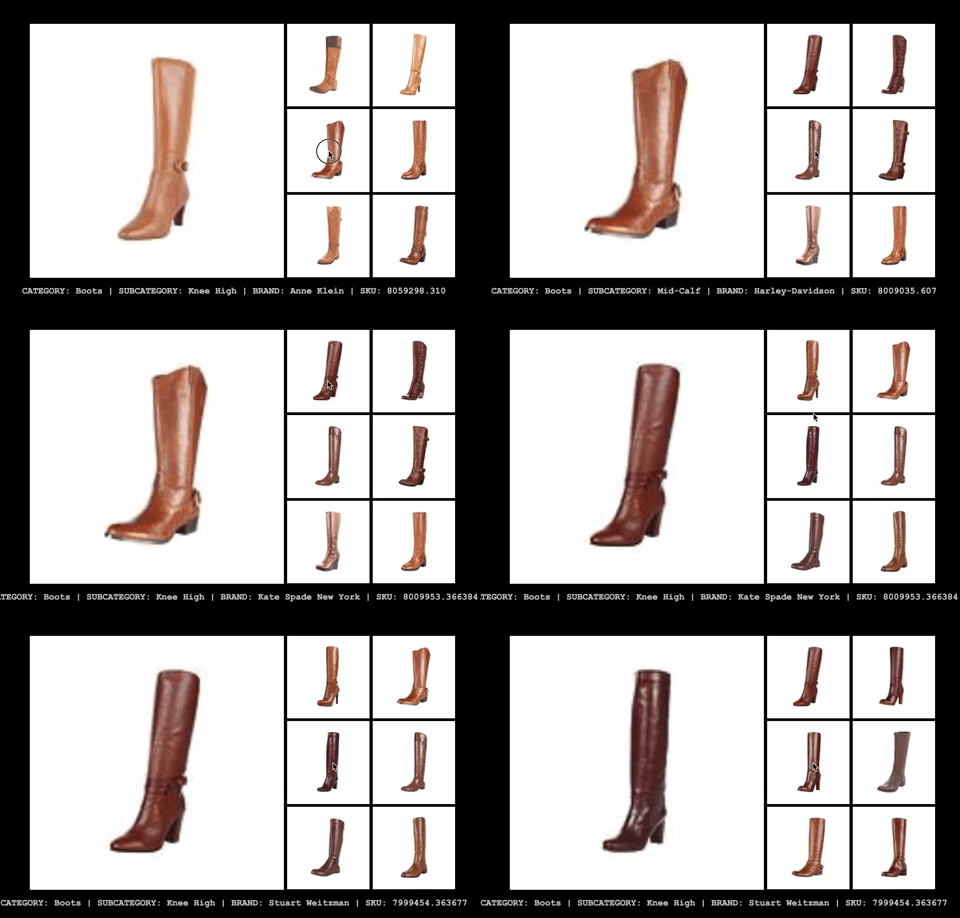
You can implement creative variations of this experience. For instance, your app could share products visually similar to those that the user’s favorite celebrity wears, or your app could use stylistic similarity as one of the features that influence product recommendations.

You can deploy this prototype to your AWS account using AWS CloudFormation by using the following link:

Solution architecture

Our minimalist solution architecture leverages the following AWS services:

Our solution makes use of Amazon SageMaker to manage the end-to-end process of building a deep learning (DL) model. We’ll use PyTorch, which is a DL framework favored by many for rapid prototyping. Together, PyTorch and Amazon SageMaker enable rapid development of a custom model tailored to our needs. However, depending on your preferences, Amazon SageMaker provides you with the choice of using other frameworks like TensorFlow, Keras, and Gluon.

Next, we’ll generate similarity scores using our model, store this data in our Amazon data lake, and use AWS Glue to catalog and transform the data so that it can be loaded into Amazon Neptune, a managed graph database.

Amazon Neptune provides us with a way to build graphical visualizations to analyze the similarity between our products. It’s also designed to serve as an operational database. Therefore, it can back a website by providing low-latency queries under high-concurrency.

We’ll build the rest of the website to be serverless using Amazon API Gateway, AWS Lambda, and Amazon S3. We want to maximize our time spent on creating a great web experience and minimize the time spent on managing servers.

Building a tailored image similarity model

Our journey starts with launching an Amazon SageMaker managed Notebook Instance where we implement PyTorch scripts to build, train, and deploy our deep learning model. Here is a link to a Jupyter notebook that will take you through the entire process. The notebook demonstrates the “Bring-Your-Own-Script” integration for PyTorch on Amazon SageMaker. In this example, we bring our own native PyTorch script that implements a Siamese network (model and training scripts located here).

A Siamese network is a type of neural network architecture and is one of a few common methods for creating a model that can learn the similarities between images. In our implementation, we leverage a pre-trained model provided by PyTorch based on ResNet-152.

ResNet-152 is a convolution neural network (CNN) architecture famous for achieving superhuman level accuracy on classifying images from ImageNet, an image database of over 14 million images. As the following illustration shows, ResNet-152 is a complex model that consists of 512 layers (of neurons) with over 60 million parameters.

A lot of computation is involved in training this model on ImageNet, so it normally takes hours to days depending on the training infrastructure.

It turns out that this model has a lot of “transferable knowledge” acquired from being trained on a large image dataset. The first image that follows is a visualization of the basic features, like edges that a CNN can extract in the early layers. The next two images illustrate how more complex features are learned and extracted in the deeper layers of a trained CNN like ResNet-152.
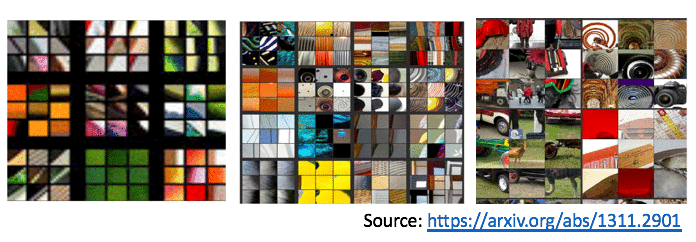
Intuitively, the pre-trained ResNet-152 model can be used as a feature extractor for images. We can inherit the properties of ResNet-152 through a technique called transfer learning. Transfer learning enables us to create a high-performing model with little data, computational resources, and in less time.

We’re going to take advantage of transfer learning. We do so by replacing the final pre-trained layer of the PyTorch ResNet-152 model with a new untrained extension of the model (which could simply be a single untrained layer). We then re-train this new model on the Zappos catalog while leaving the pre-trained layers immutable.

A dataset like Zappos50k, which has a single image of each of approximately fifty-thousand unique products will suffice for our example.

The Siamese network is trained on image pairings with target values where zero represents a pair of identical images, and values near and up to the value of one represent different images. In effect, the training process translates our images into a numerical encoding of features —referred to as feature vectors—and discovers a dimensional space where the distance between these vectors represents similarity. Details about the Siamese network are illustrated in the following diagram.

Ultimately, this model will provide us a means to measure the visual similarity between product images in the Zappos50k dataset.

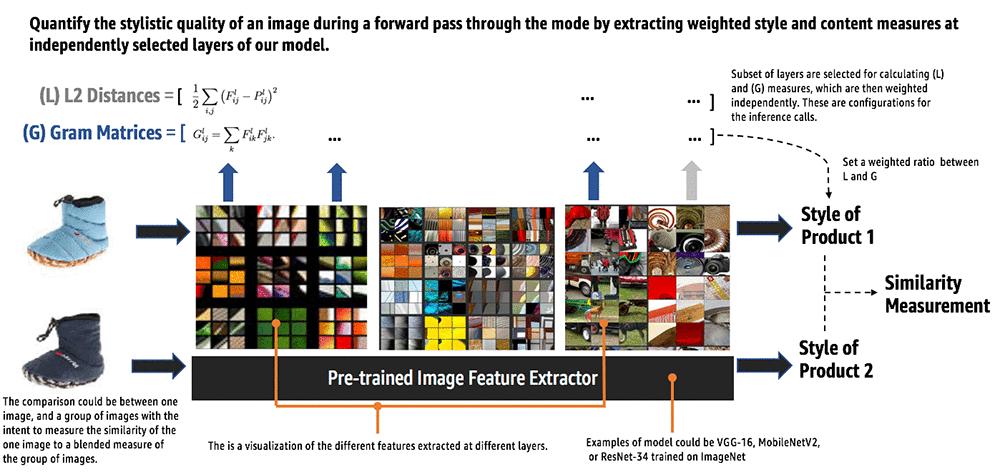
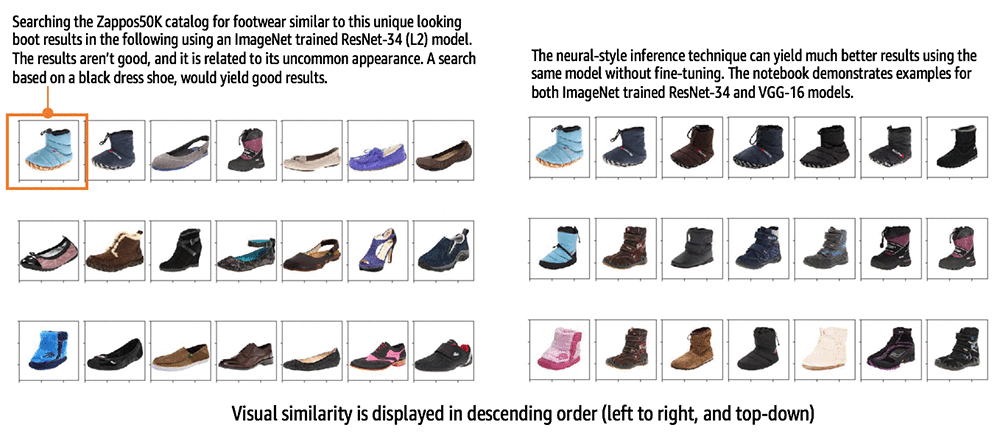
This model yielded good results for this scenario, but you should always consider your options. For example, using triplet Loss, k-NN, or another clustering algorithm might be more suitable under certain circumstances. In the notebook that I’ve provided, I demonstrate an unconventional method that also yielded good results. The method is inspired by an DL technique called style transfer, which was first published in this research paper. The technique is generally used for artistic applications. For example, the technique could be used to synthesize an image of your home in the style of the artist Van Gogh by blending a photo of your home with Van Gogh’s Starry Night.

In the provided notebook, I demonstrate that the most important stylistic features of products in our catalog could be extracted through similar techniques to quantify the style of each product. In turn, we can then measure the stylistic similarity between products in our catalog. The technique didn’t require additional model training to produce better results than k-NN search (using the same model with L1 and L2 distance). It is purely an inference technique and can use user input to adapt to varying opinions in style in real time. See the notebook for great results even when using a simpler architecture like VGG-16 or ResNet-34 instead of ResNet-152. The following diagrams illustrate the concept.
After we’ve defined the model architecture in PyTorch, a training job for our PyTorch model can be launched on a cluster of training servers managed by Amazon SageMaker with just a couple of lines of code using the AWS Python SDK. First, we create an Amazon SageMaker estimator object:

estimator = PyTorch(entry_point="siamese.py",
                    role=role,
                    framework_version='0.4.0',
                    train_instance_count=2,
                    train_instance_type="ml.p3.2xlarge",
                    source_dir=SOURCE_DIR,
                    hyperparameters=HYPERPARAMETERS)

The estimator contains information about the location of your PyTorch scripts, how to run them, and what infrastructure to use.

Next, we can launch the training job by calling the fit method with the location of your training data set in Amazon S3.

estimator.fit({'train':DATA_S3URI})

Behind the scenes, an Amazon SageMaker managed container for PyTorch is launched with the hardware specs, scripts, and data that were specified.

Model optimization

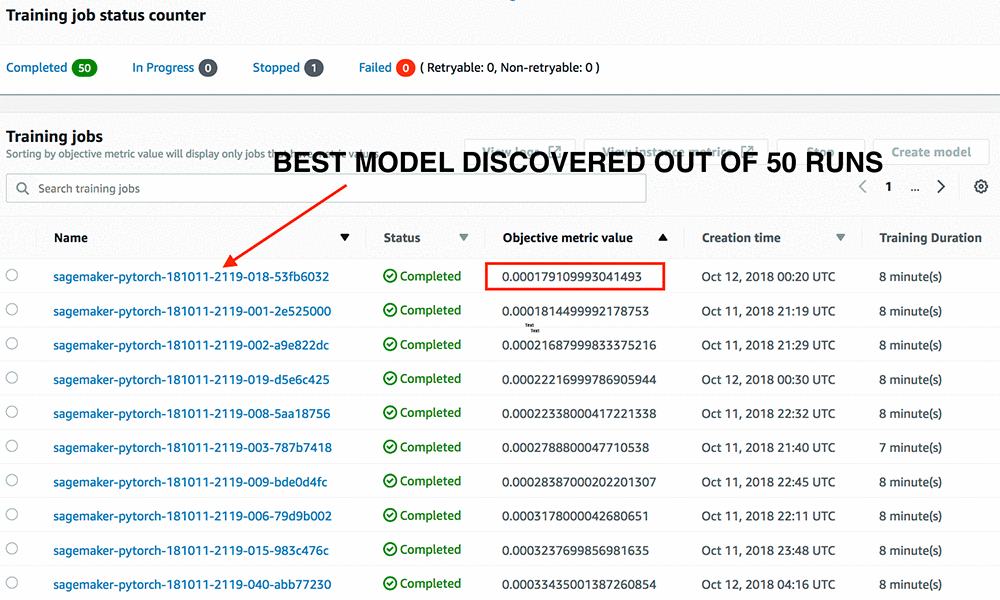
Depending on the infrastructure selected, we’ll have a good model in minutes to hours. However, we could further improve the performance of our model through a tedious process called hyperparameter tuning. We have the option of accelerating this process by leveraging Amazon SageMaker Automatic Model Tuning. This option is available to us regardless of which framework or algorithm we use.

First, we specify the hyperparameters and the range of values we want the tuning job to search over to discover an optimized model. See the following code snippet from the provided notebook. For our model, we explore a range of learning rates, different sizes for the final layer of our model, and a couple of different optimization algorithms.

HYPERPARAM_RANGES = {
                        'learning-rate': ContinuousParameter(1e-6, 1e-4),
                        'similarity-dims': CategoricalParameter([16,32,64,96,128]),
                        'optimizer': CategoricalParameter(['Adam','SGD'])
                    }

Second, we need to set an objective metric to define what we’re going to optimize. If your goal is to optimize a classification model, then your objective could be to improve classification accuracy. In this case, we’ve set the objective to minimize loss with this line of code in our notebook.

OBJECTIVE_METRIC_NAME = 'average training loss'

This minimizes the error between our model estimates, and the subjective truth of similarity measurements provided in the training data.

Next, we create a HyperparameterTuner by providing, as input, the PyTorch estimator (the one we created previously), the objective metric, hyperparameter ranges, and the maximum number of training jobs and degree of parallelism. This corresponds to the following code snippet in our notebook:

tuner = HyperparameterTuner(estimator=estimator,
                            objective_metric_name = OBJECTIVE_METRIC_NAME,
                            hyperparameter_ranges  = HYPERPARAM_RANGES,
                            metric_definitions = METRIC_DEFINITIONS,
                            max_jobs=2,
                            max_parallel_jobs=1)

Third, we launch the tuning job by calling the fit method:

tuner.fit({'train': DATA_S3URI})

The tuning job will launch training jobs according to your configurations, and proceed to find some optimal combination of hyperparameters using Bayesian optimization. This is an ML algorithm designed to accelerate the search for optimal hyperparameters. It’s better than common strategies like random or grid search. The intended benefit is to improve productivity through automation and lower the total training time required to produce an optimized model.
Generating product similarity scores

At the end of our tuning process, Amazon SageMaker delivers a well-tuned model that can be used to produce similarity scores. But we can get more value from our model if we could run graph queries on our similarity scores for analysis. We also need to deliver these queries with consistently low response times at scale to deliver a quality user experience on our customer-facing systems. Amazon Neptune makes this possible.

We’ll take the approach of pre-calculating and storing similarity scores in Amazon Neptune with the help of Amazon SageMaker Batch Transform. Batch Transform is well suited for high-throughput batch processing.

First, we ”bring our own” native PyTorch model serving script over to Amazon SageMaker. By doing so, we can run our script as a batch processing job at scale without having to build and manage the infrastructure. The provided model serving script illustrates a programmatic interface that you can optionally redefine (method override), as we did in our example. Each of the interface functions serves as a stage in a batch inference invocation.

  • Model_fn(…): Loads the model into the PyTorch framework from the trained model artifacts.
  • Input_fn(…): Performs transformations on the input batches.
  • Predict_fn(…): Performs the prediction step logic.
  • Output_fn(…): Performs transformations on predictions to produce results in the expected format.

Launching a batch transform job only requires a few configurations from the AWS Management Console, or a few lines of code using the AWS SDK. There are two distinct steps illustrated in our notebook. The first is model registration:

batchModel = PyTorchModel(model_data=MODELS_S3URI+'/model.tar.gz', 
                            role=role,
                            framework_version='0.4.0',
                            entry_point='batch.py',
                            source_dir=SOURCE_DIR)

batchModel.sagemaker_session = sagemaker_session
container_def = batchModel.prepare_container_def(instance_type=BATCH_INSTANCE_TYPE)
sagemaker_session.create_model(BATCH_MODEL_NAME, role, container_def)

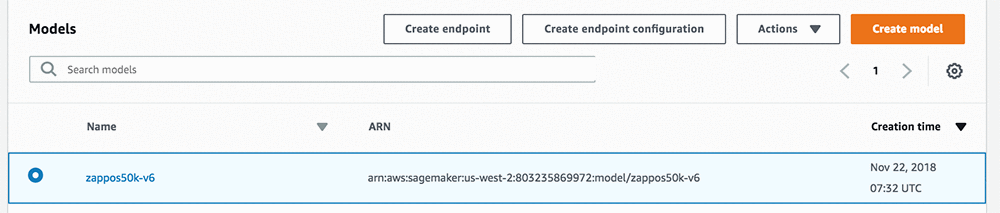
After running this code, you should see your trained model listed in the Amazon SageMaker console.
At last, we launch the batch transform job, which could be done programmatically with another couple of lines of code:

from sagemaker.transformer import Transformer

transformer = Transformer(model_name=BATCH_MODEL_NAME,
                          instance_count=1,
                          instance_type= BATCH_INSTANCE_TYPE,
                          accept = 'text/csv',
                          output_path=BATCH_OUTPUT_S3URI
                         )

transformer.transform(BATCH_INPUT_S3URI, content_type= 'application/x-npy')

This code creates a Transformer object that is configured to use our trained model, our selected infrastructure, and an Amazon S3 location to write out the results of our job. When the transform method is executed, Amazon SageMaker provisions resources underneath the covers for you to perform the batch job. You can monitor the status of your job from the Amazon SageMaker console.

Transforming inference results to graph data

After our batch inference output is stored in Amazon S3, AWS Glue can run crawlers to automatically catalog this new dataset within our data lake. However, before we can load this data into Amazon Neptune, we need to transform our inference results into one of the supported open graph data formats. We’ll use the Gremlin compatible CSV format to keep our transformations simple. The format requires the graph to be formatted in two set of CSV files. One set defines the graph vertices (complete vertices file provided here), and another set defines the edges.

As a serverless ETL service, AWS Glue allows us to run Apache Spark jobs without managing any infrastructure. I can configure my transform job to run on a schedule, on demand, and optionally use Job Bookmarks for facilitating incremental reoccurring processing. This sample script demonstrates how our batch inference results can be transformed to graph edges compatible with Gremlin.

Let’s go to the AWS Glue console and kick off an AWS Glue job to perform this transformation.
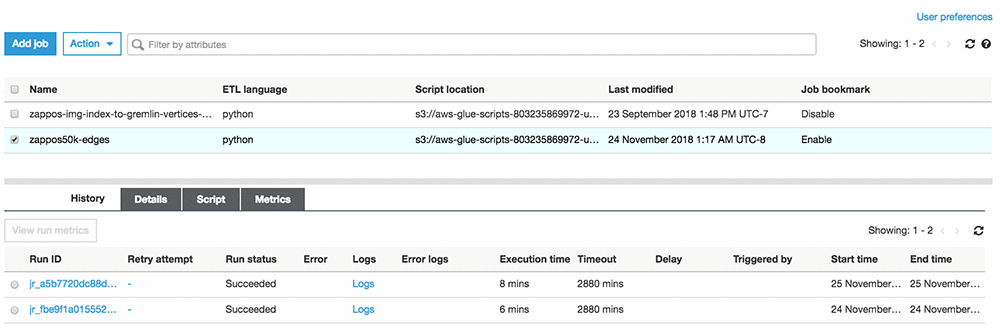
AWS Glue allows us to specify the number of resources to allocate to our ETL job. Our dataset can be transformed in minutes while paying only for the resources used.

Loading our data into Amazon Neptune

Our dataset is now well suited for graph databases compatible with Gremlin and Apache TinkerPop, an open-source, vendor agnostic, graph computing framework. Thus, we have the freedom to move this data easily between a variety of graph databases. In our solution, we’ll use Amazon Neptune. By using an AWS managed database, we leave the bulk of the operational complexities, like reliability and scale, to AWS.

Amazon Neptune provides a RESTful API and a single command that we can execute from a terminal to bulk load our data. Like other AWS APIs, you could do the same using our SDKs. The provided prototype includes a Lambda function that can load our data using the AWS Python SDK.

The provided prototype is intended as a sample. The sample data includes all 50K vertices corresponding to each product in the Zappos50K catalog. However, it only includes about 50M edges that represent the similarity scores between a subset of products. The full graph for the Zappos50K dataset would consist of over 1.2B edges. To handle that scale, you could be selective, and for instance, build a graph that only includes 10 edges per vertex to represent the top 10 most similar products to each item in the catalog.

Nonetheless, this approach isn’t necessary with Amazon Neptune. If there is value in storing the entire graph, Amazon Neptune can support this scale. Amazon Neptune is a purpose-built, high-performance graph database engine optimized for storing billions of relationships and querying the graph with milliseconds of latency. With support for up to 15 read replicas you can scale query throughput to hundreds of thousands of queries per second.

Explore the graph

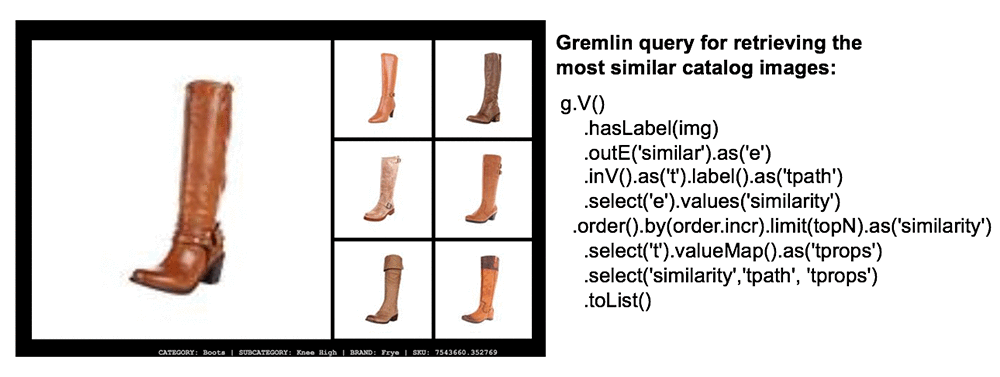
After our data is in Amazon Neptune, we can interact with it through open tools like the Gremlin console. We can also query our data through various drivers supported through the Apache TinkerPop project. This Lambda function from our prototype uses the Gremlin language variant for Node.js. The sample function uses the Gremlin traversal language to query the most similar products to display for the selected product.
Amazon Neptune provides a high degree of durability by replicating our data six times across three Availability Zones at the storage layer. We have the option of adding up to 15 read replicas to improve the availability of our Amazon Neptune deployment. In the event the primary node fails, the database can fail over to any of our available replicas.

Furthermore, we can use our read replicas to serve queries. This provides us a means to scale our read workload or separate disparate workloads that would otherwise be inefficient to run together on the same node. For instance, we might have some heavy-duty graph traversal queries that we might want to run to support offline analysis. We would want to run these queries on a replica instead of our primary node.

The prototype has an example of a graph visualization page built on vis.js. You can tinker with this example, and create your own graph traversals and visualizations. This is an example of an offline workload that you could run on a replica to get some additional value from infrastructure that is otherwise mostly idle without introducing significant risk to the overall reliability of your database cluster.

Launching serverless microservices

There are many ways we can build out the rest of our web application on AWS to deliver a great experience. The fastest way, which allows us to spend more time on innovation, is to go serverless. We’ll use the standard serverless microservices architecture as presented in the AWS microservices whitepaper. Amazon API Gateway is used for API management, and AWS Lambda provides us with serverless compute.

I prefer to use AWS Cloud9, a fully managed integrated development environment (IDE) to maximize development productivity when building AWS serverless applications. Within minutes, we can have a fully managed IDE instance pre-integrated for serverless development. The following picture illustrates the AWS Cloud9 native support for one-click serverless application deployments as well as for local and remote debugging for Amazon API Gateway and AWS Lambda.
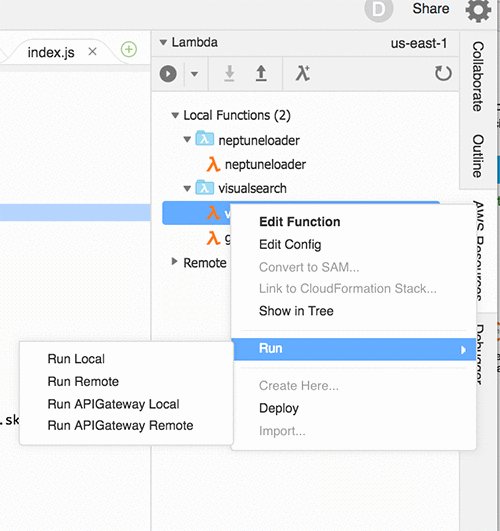
Enhance the shop-by-style experience with minimal response times

We want to ensure our application provides a great customer experience by delivering the lowest possible response times. Since we expect our product catalog to be relatively static, we can cache our catalog along with our similarity measurements at the edge of the AWS network. We want to deliver our users a smooth shopping experience as they click through the different styles in our catalog. By caching everything at the edge of the AWS network, we can deliver web browser response times in 10s of milliseconds.

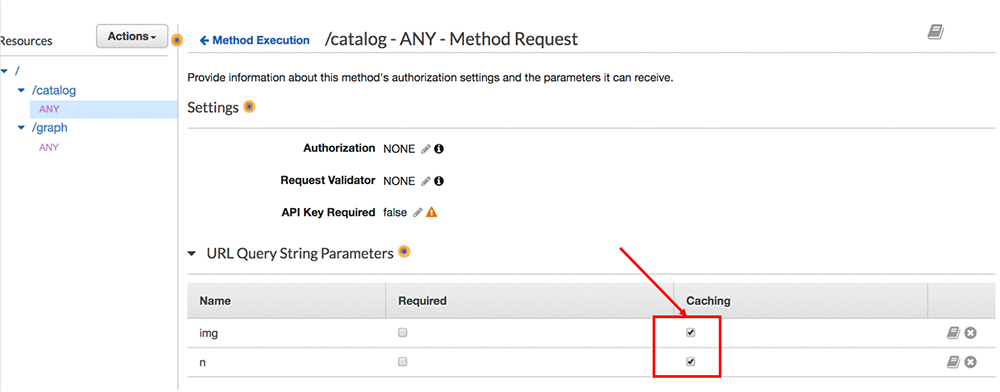
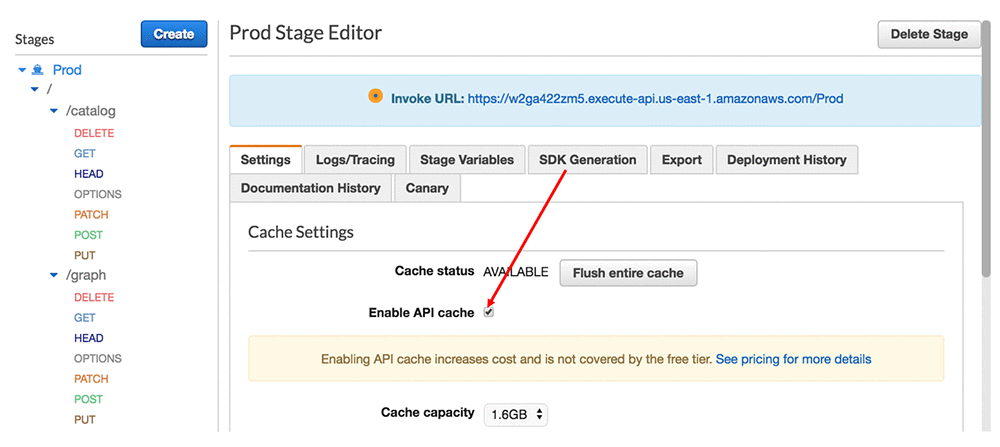
We can enable edge-caching in the Amazon API Gateway console by selecting a few check boxes. If the method you intend to enable caching on has query parameters like the one in our prototype, ensure that caching is selected on the appropriate parameters to ensure they’re accounted for in the cache key. The cache key determines how responses are uniquely cached.
Select the Enable API cache check box in the appropriate API stage. In the following screenshot, I’ve enabled caching in my Prod stage, which represents the instance the API running in my production environment.
 

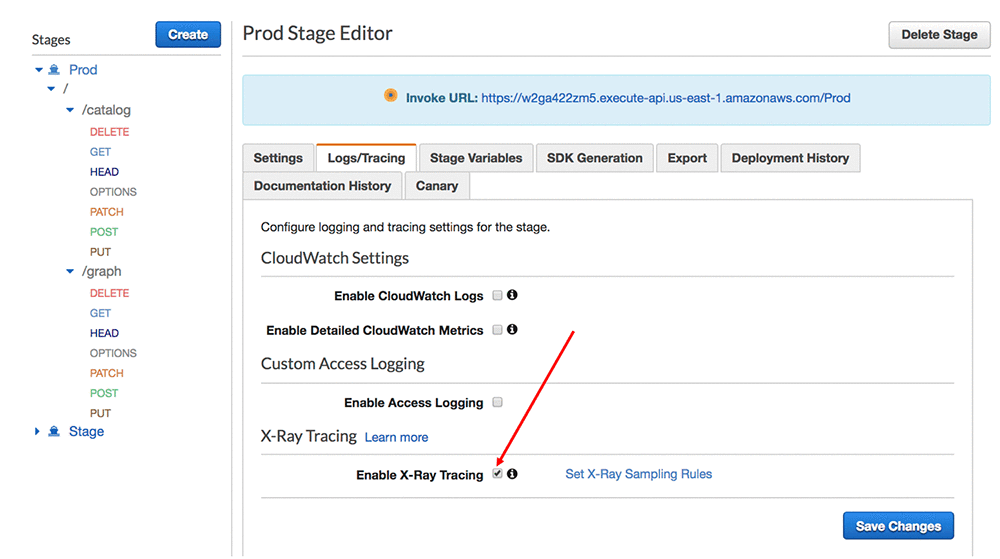
We should validate and monitor our API to ensure we continue to provide our customers with low response times by enabling AWS X-Ray. This requires enabling a single Amazon API Gateway configuration.


We can now observe the latency break down across the distributed components of our microservice through the AWS X-ray console service map. The diagram below illustrates response times for the prototype running in my AWS account once the edge-cache is enabled. The following diagram shows that the average response times for my deployment is within tens of milliseconds.
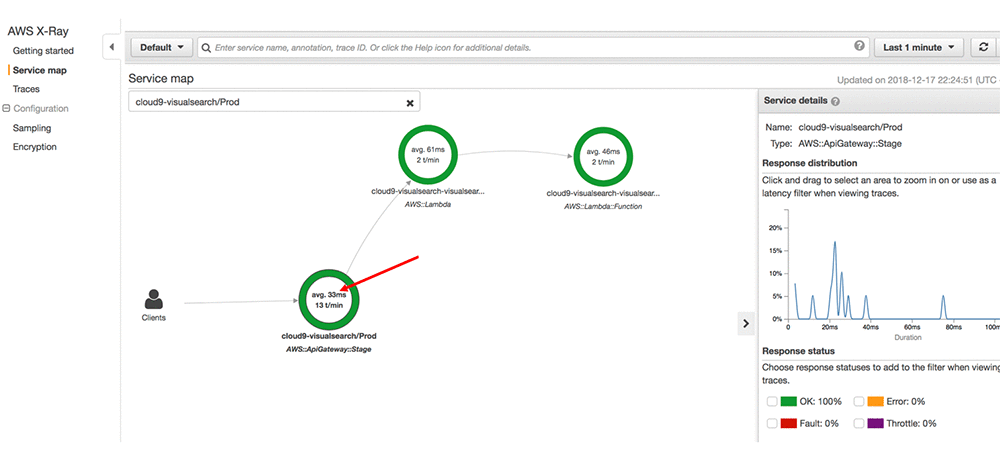
AWS X-Ray allows us to drill deeper into specific traces of our API calls. The specific API call that follows responded to a visual search query for products most similar to a particular Franco Sarto boot in our catalog within 4.0ms through the edge-cache.

Conclusion: Think big and build on

Together, we’ve created a unique, shop-by-style experience enabled by a tailor-made deep-learning model and a responsive web interface.  We’ve accomplished this in a short time and have taken advantage of the benefits of serverless.

The possibilities are limitless, and I hope you’re inspired to rethink the web experience. The journey doesn’t end with what we’ve created in this blog post. The customer experience can be further enhanced through voice-enabled interfaces and augmented reality. These technologies are within your reach on the AWS Cloud. Think big and build on!


About the Author

Dylan Tong is a Machine Learning Partner Solutions Architect at AWS. He works with technology and consulting partners to craft machine learning solutions, and develop their AI strategy through AWS AI.



Deploying PyTorch inference with MXNet Model Server

Training and inference are crucial components of a machine learning (ML) development cycle. During the training phase, you teach a model to address a specific problem. Through this process, you obtain binary model files ready for use in production.

For inference, you can choose among several framework-specific solutions for model deployment, such as TensorFlow Serving or Model Server for Apache MXNet (MMS). PyTorch offers various ways to perform model serving in PyTorch. In this blog post, we demonstrate how to use MMS to serve PyTorch models.

MMS is an open-source model serving framework, designed to serve deep learning models for inference at scale. MMS fully manages the lifecycle of any ML model in production. Along with control-plane REST-based APIs, MMS also provides critical features required for a production-hosted service, such as logging and metrics generation.

In the following sections, we will see how to deploy a PyTorch model in production using MMS.

Serving a PyTorch model with MMS

MMS was designed to be ML framework–agnostic. In other words, MMS offers enough flexibility to serve as a backend engine for any framework. This post presents a robust, production-level inference using MMS with PyTorch.

Architecture

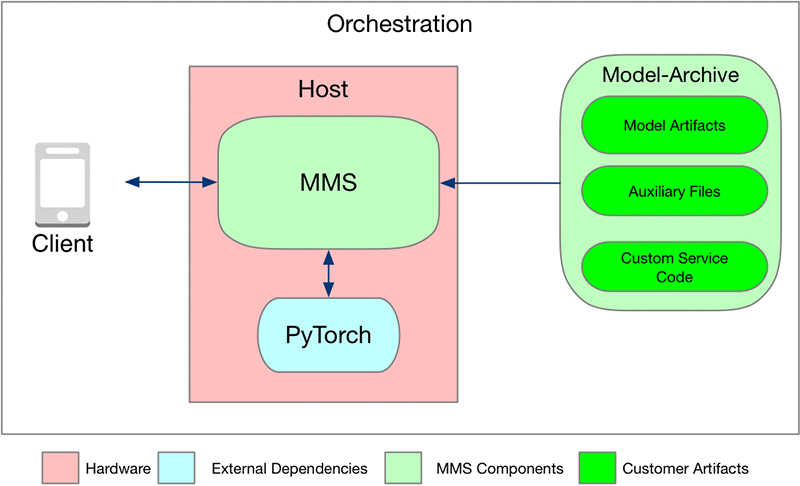
As shown in the following diagram, MMS consumes the model in form of a model archive:

The model archive can be placed in an Amazon S3 bucket or put on the localhost where MMS is running. The model archive contains all the logic and artifacts to run the inference.

MMS also requires the prior installation of the ML framework and any other needed system libraries on the host. Because MMS is ML framework–agnostic, it doesn’t come with any ML/DL framework or system library. MMS is completely configurable. For a list of configurations available, see Advanced configuration.

Look back at the model archive in detail. The model archive is composed of the following:

  1. Custom service code: This code defines the mechanisms to initialize a model, pre-process incoming raw data into tensors, convert input tensors into predicted output tensors, and convert the output of the inference logic into a human-readable message.
  2. Model artifacts:  PyTorch provides a utility to save your model or checkpoint. In this example, we save the model in the model.pth file. This file is the actual trained model binary, containing the model, optimizer, input, and output signature. For more information about how to save the model, see PyTorch Models.
  3. Auxiliary files: Any additional files and Python modules that are required to perform inference.

These files are bundled into a model archive using a tool that comes with the MMS, called model-archiver. In the following sections, we show how to create this model archive and run it with the model server.

Inference code

In this section, look at how to write your custom service code. In this example, we trained the densenet161 model using the PyTorch Image Classifier. This resource includes images of 102 flower species.

Prerequisites

Before proceeding, you should have the following resources:

  1. Model server package: MMS is currently distributed as a Python package and also pre-built containers hosted on DockerHub. In this post, we use the Python package to host PyTorch models. You can easily install MMS on your host by running the following command:
    pip install mxnet-model-server

  2. Model archiver: This tool comes with the installation of the mxnet-model-server package. You can also install this by running the following command:
    $ pip install model-archiver

Writing the inference code

MMS provides a useful inference template, which you can follow and extend with minimal coding. We extend the template methods for initialization, preprocess, and inference. This extension includes model initialization, input data conversion to tensor, and forward path to model, respectively.  For more information, see the example model templates in the MMS repository. The following is example code for initialization, preprocess, and inference:

def initialize(self, context):
    """
       Initialize the model and auxiliary attributes.
    """
    super(PyTorchImageClassifier, self).initialize(context)
    
    # Extract the model from checkpoint
    checkpoint = torch.load(self.checkpoint_file_path, map_location='cpu')
        self.model = checkpoint['model']

In the pre-process function, you must transform the image:

def preprocess(self, data):
    """
       Preprocess the data, transform or convert to tensor, etc
    """
        image = data[0].get("data")
        if image is None:
            image = data[0].get("body")

        my_preprocess = transforms.Compose([
            transforms.Resize(256),
            transforms.CenterCrop(224),
            transforms.ToTensor(),
            transforms.Normalize(mean=[0.485, 0.456, 0.406], 
                                 std=[0.229, 0.224, 0.225])
        ])
        image = Image.open(io.BytesIO(image))
        image = my_preprocess(image)
        return image 

Then, in the inference function, take a tensor and do a forward pass to the model. You also get the top five possibilities of flower species.

def inference(self, image):
    """
       Predict the class of image 
    """
    # Convert 2D image to 1D vector
    img = np.expand_dims(img, 0)
    img = torch.from_numpy(img)

    # Run forward pass
    self.model.eval()
    inputs = Variable(img).to(self.device)
    logits = self.model.forward(inputs)
    
    #Extract the top 5 species      
    ps = F.softmax(logits,dim=1)
    topk = ps.cpu().topk(5)
    probs, classes = (e.data.numpy().squeeze().tolist() for e in topk)

    # Formulate the result
    results = []
    for i in range(len(probs)):
       tmp = dict()
       tmp[self.mapping[str(classes[i])]] = probs[i]
       results.append(tmp)
    return [results]    

For more about the custom service code, see densenet_service.py in the PyTorch densenet example in the MMS GitHub repository.

Creating the model archive

Now that you have your inference code and trained model, you can package them into a model archive using the MMS model-archiver. Find all the code pieces and artifacts collected in /tmp/model-store.

We created a model archive of this model and made it publicly available in an S3 bucket. You can download and use that file for inference.

$ ls /tmp/model-store
index_to_name.json    model.pth    pytorch_service.py

# Run the model-archiver on this folder to get the model archive
$ model-archiver -f --model-name densenet161_pytorch --model-path /tmp/model-store --handler pytorch_service:handle --export-path /tmp

# Verify that the model archive was created in the "export-path"
$ ls /tmp
densenet161_pytorch.mar

Testing the model

Now that you have packaged the trained model along with the inference code into a model archive, you can use this artifact with MMS to serve inference. We have already created this artifact and have it on an S3 bucket. We will use this in our example below:

$ mxnet-model-server --start --models densenet=https://s3.amazonaws.com/model-server/model_archive_1.0/examples/PyTorch+models/densenet/densenet161_pytorch.mar

This binary creates an endpoint called densenet, hosting the densenet161_pytorch.mar model. The server is now ready to serve requests.

Now, download a flower image and send it to MMS to get an inference result that identifies the flower species:

# Download an image of the flower
$ curl -O https://s3.amazonaws.com/model-server/inputs/flower.jpg

Then run the inference:

$ curl -X POST http://127.0.0.1:8080/predictions/densenet -T flower.jpg

[
  {
    "canna lily": 0.01565943844616413
  },
  {
    "water lily": 0.015515935607254505
  },
  {
    "purple coneflower": 0.014358781278133392
  },
  {
    "globe thistle": 0.014226051047444344
  },
  {
    "ruby-lipped cattleya": 0.014212552458047867
  }
  ]

Conclusion

In this post, we showed how you can host a model trained with PyTorch on the MMS inference server. To host an inference server on GPU hosts, you can configure MMS to schedule models onto GPU. To learn more, head over to awslabs/mxnet-model-server.


About the authors

Gautam Kumar is a Software Engineer with AWS AI Deep Learning. He has developed AWS Deep Learning Containers and AWS Deep Learning AMI. He is passionate about building tools and systems for AI. In his spare time, he enjoy biking and reading books.



Vamshidhar Dantu is a Software Developer with AWS Deep Learning. He focuses on building scalable and easily deployable deep learning systems. In his spare time, he enjoy spending time with family and playing badminton.


What’s My Line? GPUs Help Researcher Decipher Ancient Sanskrit

With 10 verb tenses, eight noun cases, three grammatical genders and a strong predilection for compound words, Sanskrit is not an easy language to teach a human — let alone an AI model.

But Indologist Oliver Hellwig is undertaking the challenge, training deep learning models that can analyze Sanskrit texts up to 4,000 years old. A digital repository of Sanskrit works parsed word by word would enable researchers to more easily search for information and better identify passages with parallel context.

AI is being used to interpret historical texts in German and Italian, as well as classical Japanese literature. But most existing NLP models are geared towards Western languages that follow similar rules of grammar, punctuation and formatting.

That presents a challenge for researchers developing software to transcribe and analyze scripts that are read right to left, are pictographical instead of phonetic, or — like Sanskrit — often don’t use character breaks between words.

Unlike English, Sanskrit is a highly inflected language, which means words change their form depending on their function in a sentence. Some Sanskrit verbs have more than 200 forms depending on the context. The language also has an extensive vocabulary, with more than 50 words for terms like “sun” or “moon” — making it essential that an AI model be trained on a large, diverse dataset of text.

Hellwig, a postdoctoral researcher at the University of Zurich, Switzerland, knew 15 years ago that computational tools could enable new possibilities for his linguistics research — but found that just a fraction of Sanskrit manuscripts have been digitized into machine-readable text.

For a half hour almost every day since, he’s been changing that bit by bit, painstakingly parsing Sanskrit works and adding them to a database that now consists of 4.5 million manually labeled words.

Hellwig began building Sanskrit-parsing tools from scratch — starting with statistical models before advancing to more complex optical character recognition and NLP models. Using an NVIDIA Quadro GPU, he’s now training deep learning models that can identify characters and find word endings in Sanskrit texts.

AI tools that transcribe Sanskrit could help digitize a vast corpus of historical manuscripts, spanning epic poetry, religious texts and Ayurvedic medicine.

Segmenting Sanskrit 

When training an AI model for texts based on the Latin alphabet, researchers can teach the neural network to detect white spaces to determine where one word ends and another begins.

That’s not the case for Sanskrit manuscripts, where one line of text can be made up of multiple words merged together into just one or two compound strings. The word sandhi, meaning “connection,” is used to describe the phonetic process of joining these words together.

An effective NLP model for Sanskrit texts must be able to split a sandhied line into individual words, posing a significant challenge for researchers.

“Any algorithm has to a certain degree understand the semantics of a line of text to generate a valid split form of it,” said Hellwig. “What’s quite trivial for English is actually the most problematic step in Sanskrit.”

The deep learning tool Hellwig developed to split lines of Sanskrit into individual words is 10 to 15 percent more accurate than previous methods.

“I was surprised that it worked so well,” he said, “because it’s a complicated task, even for human readers using the original forms of these texts.”

Using an NVIDIA GPU helped Hellwig speed up training his AI models by 10x. This speed allows him to evaluate errors faster, and efficiently develop more accurate models. His sandhi-splitting tool is now being used on a large Sanskrit corpus dubbed GRETIL.

Many historians debate the age of key Sanskrit texts — particularly religious works like the Bhagavad Gita. To contribute to this academic conversation, Hellwig wants to use neural networks and NVIDIA GPUs to analyze the grammatical structure and language patterns in ancient Sanskrit texts.

By connecting this linguistic evidence with a model of how Sanskrit changed over time, he hopes to help determine when some of these major texts were composed.

Main image shows a leaf from a manuscript of the Mahabharata, a 100,000-verse Sanskrit epic poem that includes the Bhagavad Gita  a foundational Hindu text. Image from Miami University Libraries Digital Collections, available in the public domain.

The post What’s My Line? GPUs Help Researcher Decipher Ancient Sanskrit appeared first on The Official NVIDIA Blog.

Associating prediction results with input data using Amazon SageMaker Batch Transform

When you run predictions on large datasets, you may want to drop some input attributes before running the predictions. This is because those attributes don’t carry any signal or were not part of the dataset used to train your machine learning (ML) model. Similarly, it can be helpful to map the prediction results to all or part of the input data for analysis after the job is complete.

For example, consider a dataset that comes with an ID attribute. Commonly, an observation ID is a randomly generated or sequential number that carries no signal for a given ML problem. For this reason, it is usually not part of the training data attributes. However, when you make batch predictions, you may want your output to contain both the observation ID and the prediction result as a single record.

The Batch Transform feature in Amazon SageMaker enables you to run predictions on datasets stored in Amazon S3. Previously, you had to filter your input data before creating your batch transform job and join prediction results with desired input fields after the job was complete. Now, you can use Amazon SageMaker Batch Transform to exclude attributes before running predictions. You can also join the prediction results with partial or entire input data attributes when using data that is in CSV, text, or JSON format. This eliminates the need for any additional pre-processing or post-processing and accelerates the overall ML process.

This post demonstrates how you can use this new capability to filter input data for a batch transform job in Amazon SageMaker and join the prediction results with attributes from the input dataset.

Background

Amazon SageMaker is a fully managed service that covers the entire ML workflow. The service labels and prepares your data, chooses an algorithm, trains the model, tunes and optimizes it for deployment, makes predictions, and takes action.

Amazon SageMaker manages the provisioning of resources at the start of batch transform jobs. It releases the resources when the jobs are complete, so you pay only for what was used during the execution of your job. When the job is complete, Amazon SageMaker saves the prediction results in an S3 bucket that you specify.

Batch transform example

Use the public data set for breast cancer detection from UCI and train a binary classification model to detect whether a given tumor is likely to be malignant (1) or benign (0). This dataset comes with an ID attribute for each tumor, which you exclude during training and prediction. However, you bring it back in your final output and record it with the predicted probability of malignancy for each tumor from the batch transform job.

You can also download the companion Jupyter notebook. Each of the following sections in the post corresponds to a notebook section so that you can run the code for each step as you read along.

Setup

First, import common Python libraries for ML such as pandas and NumPy, along with the Amazon SageMaker and Boto3 libraries that you later use to run the training and batch transform jobs.

Also, set up your S3 bucket for uploading your training data, validation data, and the dataset against which you run the batch transform job. Amazon SageMaker stores the model artifact in this bucket, as well as the output of the batch transform job. Use a folder structure to keep the input datasets separate from the model artifacts and job outputs.

import os
import boto3
import sagemaker
import pandas as pd
import numpy as np

role = sagemaker.get_execution_role()
sess = sagemaker.Session()

bucket=sess.default_bucket()
prefix = 'sagemaker/breast-cancer-prediction-xgboost' # place to upload training files within the bucket

Data preparation

Download the public data set onto the notebook instance and look at a sample for preliminary analysis. Although the dataset for this example is small (with 569 observations and 32 columns), you can use the Amazon SageMaker Batch Transform feature on large datasets with petabytes of data.

data = pd.read_csv('https://archive.ics.uci.edu/ml/machine-learning-databases/breast-cancer-wisconsin/wdbc.data', header = None)

# specify columns extracted from wbdc.names
data.columns = ["id","diagnosis","radius_mean","texture_mean","perimeter_mean","area_mean","smoothness_mean",
                "compactness_mean","concavity_mean","concave points_mean","symmetry_mean","fractal_dimension_mean",
                "radius_se","texture_se","perimeter_se","area_se","smoothness_se","compactness_se","concavity_se",
                "concave points_se","symmetry_se","fractal_dimension_se","radius_worst","texture_worst",
                "perimeter_worst","area_worst","smoothness_worst","compactness_worst","concavity_worst",
                "concave points_worst","symmetry_worst","fractal_dimension_worst"] 

In the following table, the first column in your dataset is the ID of the tumors and the second is the diagnosis (M for malignant or B for benign). In the context of supervised learning, this is your target, or what you want to be able to predict. The following attributes are the features also known as predictors.

id diagnosis radius_mean texture_mean perimeter_mean concave points_worst symmetry_worst fractal_dimension_worst
288 8913049 B 11.26 19.96 73.72 0.09314 0.2955 0.07009
375 901303 B 16.17 16.07 106.3 0.1251 0.3153 0.0896
467 9113514 B 9.668 18.1 61.06 0.025 0.3057 0.07875
203 87880 M 13.81 23.75 91.56 0.2013 0.4432 0.1086
148 86973702 B 14.44 15.18 93.97 0.1599 0.2691 0.07683
118 864877 M 15.78 22.91 105.7 0.2034 0.3274 0.1252
224 8813129 B 13.27 17.02 84.55 0.09678 0.2506 0.07623
364 9010877 B 13.4 16.95 85.48 0.06987 0.2741 0.07582

After doing some minimal data preparation, split the data into three sets:

  • A training set consisting of 80% of your original data.
  • A validation set for your algorithm to perform the proper evaluation of the model.
  • A batch set that you set aside for now and use later to run a batch transform job using the new I/O join feature.

To train and validate the model, keep all the features, such as radius_mean, texture_mean, perimeter_mean, and so on. Drop the id attribute, because it has no relevance in determining whether a tumor is malignant.

When you have a trained model in production, you typically want to run predictions against it. One way to do that is to deploy the model for real-time predictions using the Amazon SageMaker hosting services.

However, in your case, you do not need real-time predictions. Instead, you have a backlog of tumors as a .csv file in Amazon S3, which consists of a list of tumors identified by their ID. Use a batch transform job to predict, for each tumor, the probability of being malignant. To create this backlog of tumors here, make a batch set with the id attribute but without the diagnosis attribute. That’s what you’re trying to predict with your batch transform job.

The following code example shows the configuration of data between the three datasets:

# replace the M/B diagnosis with a 1/0 boolean value
data['diagnosis']=data['diagnosis'].apply(lambda x: ((x =="M"))+0) 

# data split in three sets, training, validation and batch inference
rand_split = np.random.rand(len(data))
train_list = rand_split < 0.8
val_list = (rand_split >= 0.8) & (rand_split < 0.9)
batch_list = rand_split >= 0.9

data_train = data[train_list].drop(['id'],axis=1)
data_val = data[val_list].drop(['id'],axis=1)
data_batch = data[batch_list].drop(['diagnosis'],axis=1)

data_train = data[train_list].drop(['id'],axis=1)
data_val = data[val_list].drop(['id'],axis=1)
data_batch = data[batch_list].drop(['diagnosis'],axis=1)

Finally, upload these three datasets to S3.

train_file = 'train_data.csv'
data_train.to_csv(train_file,index=False,header=False)
sess.upload_data(train_file, key_prefix='{}/train'.format(prefix))

validation_file = 'validation_data.csv'
data_val.to_csv(validation_file,index=False,header=False)
sess.upload_data(validation_file, key_prefix='{}/validation'.format(prefix))

batch_file = 'batch_data.csv'
data_batch.to_csv(batch_file,index=False,header=False)
sess.upload_data(batch_file, key_prefix='{}/batch'.format(prefix))  

Training job

Use the Amazon SageMaker XGBoost built-in algorithm to quickly train a model for binary classification based on your training and validation datasets. Set the training objective to binary:logistic, which trains XGBoost to output the probability that an observation belongs to the positive class (malignant in this example), as shown in the following code example:

%%time
from time import gmtime, strftime
from sagemaker.amazon.amazon_estimator import get_image_uri

job_name = 'xgb-' + strftime("%Y-%m-%d-%H-%M-%S", gmtime())
output_location = 's3://{}/{}/output/{}'.format(bucket, prefix, job_name)
image = get_image_uri(boto3.Session().region_name, 'xgboost')

sm_estimator = sagemaker.estimator.Estimator(image,
                                             role,
                                             train_instance_count=1,
                                             train_instance_type='ml.m5.4xlarge',
                                             train_volume_size=50,
                                             input_mode='File',
                                             output_path=output_location,
                                             sagemaker_session=sess)

sm_estimator.set_hyperparameters(objective="binary:logistic",
                                 max_depth=5,
                                 eta=0.2,
                                 gamma=4,
                                 min_child_weight=6,
                                 subsample=0.8,
                                 silent=0,
                                 num_round=100)

train_data = sagemaker.session.s3_input('s3://{}/{}/train'.format(bucket, prefix), distribution='FullyReplicated', 
                                        content_type='text/csv', s3_data_type='S3Prefix')
validation_data = sagemaker.session.s3_input('s3://{}/{}/validation'.format(bucket, prefix), distribution='FullyReplicated', 
                                             content_type='text/csv', s3_data_type='S3Prefix')
data_channels = {'train': train_data, 'validation': validation_data}

# Start training by calling the fit method in the estimator
sm_estimator.fit(inputs=data_channels, logs=True)

Batch transform

Use the Python SDK to kick off the batch transform job to run inferences on your batch dataset and store your inference results in S3.

Your batch dataset contains the id attribute in the first column. As I explained earlier, because this attribute was not used for training, you must use the new input filter capability. Also, before the I/O join feature, the output of the batch transform job would have been a list of probabilities, such as the following:

0.0226082857698

0.987275004387

0.836603999138

0.00795079022646

0.0182465240359

0.995905399323

0.0129367504269

0.961541593075

0.988895177841

It would have required some post-inference logic to map these probabilities to their corresponding input tumor. The Batch Transform filters make this easy.

Specify the input as the join source. Then, specify an output filter to indicate that you do not require the entire input (which is the ID followed by the 30 features). Instead, you want to present the tumor ID and its probability of being malignant. And you only want to show the first (id) and the last (inference result) columns.

The Batch Transform filters use JSONPath expressions to selectively extract the input or output data, based on your needs. For the supported JSONPath operators in Batch Transform, see this link.

JSONPath is developed to work with JSON data. To use it on CSV data, consider a CSV row as a JSON array with a zero-based index. For example, applying ‘$[0,1]’ on a row of ‘8810158, B, 13.110, 22.54, 87.02’ returns the first and second column of the row, which is ‘8810158, B’.

In this example, the input filter is “$[1:]”. You are excluding column 0 (id) before processing the inferences, and keeping everything from column 1 to the last column

(all the features or predictors). The output filter is “$[0,-1].” When presenting the output, you only want to keep column 0 (id) and the last (-1) column (inference_result), which is the probability of a given tumor to be malignant.

You could also consider bringing back input columns other than id. In your current example, where you happen to have the ground truth diagnosis, you could consider bringing it back in your output file next to the prediction. That way, you could do side-by-side comparisons and evaluate your predictions.

%%time

sm_transformer = sm_estimator.transformer(1, 'ml.m4.xlarge', assemble_with = 'Line', accept = 'text/csv')

# start a transform job
input_location = 's3://{}/{}/batch/{}'.format(bucket, prefix, batch_file) # use input data with ID column
sm_transformer.transform(input_location, split_type='Line', content_type='text/csv', input_filter='$[1:]', join_source='Input', output_filter='$[0,-1]')
sm_transformer.wait()

Result

Read the CSV output in S3 at your output location:

import json
import io
from urllib.parse import urlparse

def get_csv_output_from_s3(s3uri, file_name):
    parsed_url = urlparse(s3uri)
    bucket_name = parsed_url.netloc
    prefix = parsed_url.path[1:]
    s3 = boto3.resource('s3')
    obj = s3.Object(bucket_name, '{}/{}'.format(prefix, file_name))
    return obj.get()["Body"].read().decode('utf-8')

output = get_csv_output_from_s3(sm_transformer.output_path, '{}.out'.format(batch_file))
output_df = pd.read_csv(io.StringIO(output), sep=",", header=None)
output_df.sample(10)    

It should show the list of tumors identified by their ID and their corresponding probabilities of being malignant. Your file should look like the following:

844359,0.990931391716 

84458202,0.968179702759 

8510824,0.006071804557 

855138,0.780932843685 

857155,0.0154032697901 

857343,0.0171982143074 

861598,0.540158748627 

86208,0.992102086544 

862261,0.00940885581076 

862989,0.00758415739983 

864292,0.006071804557 

864685,0.0332484431565 

....

Conclusion

This post demonstrated how you can provide input and output filters for your batch transform jobs using the Amazon SageMaker Batch Transform feature. This eliminates the need to pre-process or post-process input and output data respectively. In addition, you can associate prediction results with their corresponding input data with the flexibility of keep all or part of the input data attributes. To learn more about this feature, see the Amazon SageMaker Developer Guide.


About the Authors

Ro Mullier is a Sr. Solutions Architect at AWS helping customers run a variety of applications on AWS and machine learning workloads in particular. In his spare time, he enjoy spending time with family and friends, playing soccer and competing in machine learning competitions.



Han Wang is a Software Development Engineer at AWS AI. She focuses on developing highly scalable and distributed machine learning platforms. In her spare time, she enjoys watching movies, hiking and playing “Zelda: Breath of the wild”.



Support for Apache MXNet 1.4 and Model Server in Amazon SageMaker

Apache MXNet is an open-source deep learning software framework used to train and deploy deep neural networks. Data scientists and machine learning (ML) developers love MXNet due to its flexibility and efficiency when building deep learning models. Amazon SageMaker is committed to improving the customer experience for all ML frameworks and libraries, including MXNet. With the latest release of MXNet 1.4, you can use MXNet containers in internet-free mode, and use Model Server for Apache MXNet (MMS) to deploy deep learning models for inference.

Model Server for Apache MXNet (MMS) is an open source toolset that simplifies the task of deploying deep learning models for inference. You can use MMS to serve MXNet and other framework models easily, quickly, and at scale. For more information, see Model Server for Apache MXNet v1.0 release.

The MXNet 1.4 update has several new features, including network isolation, Julia bindings, experimental control flow operators, JVM memory management, graph optimization and quantizations, and usability enhancements. For change log information, see Apache MXNet (incubating) 1.4.0.

Amazon SageMaker training and deployed inference containers are internet-enabled by default. With the new MXNet container, you are able to use containers in internet-free mode, which enables running training jobs inside a secure and isolated environment. If you do not want Amazon SageMaker to provide external network access to your training or inference containers, you can enable network isolation when you create your training job or model.

The MXNet 1.4 update is accompanied by the Python 3.6 support. You can now use Python 3.6 when building and deploying deep neural networks with the MXNet framework. For more information, see What’s New In Python 3.6.

With the latest release, the Keras version for MXNet is now 2.2.4.1. Keras 2.2.4.1 adds bug and usability fixes on top of the API completeness and usability improvements introduced in the Keras 2.2.3 release. For release notes, see the Keras 2.2.4 GitHub repo.

Another update is the 1.4.1 release of ONNX. 1.4.1 comes with several big features, including support for large models, ability to store the data externally, and control flow operators. It also adds a test driver for ONNXIFI enabling C++ tests.

OpenBlas, an optimized BLAS (Basic Linear Algebra Subprograms) library, is no longer available in MXNet 1.4. MXNet now offers MKL pip packages that are much faster when running on Intel hardware.

With MKL BLAS, performance improves with variable range, depending on the computation load of the models. MKL DNN uses a BLAS library internally and supports linking with MKLML or MKL for additional performance. For more information, see Build/Install MXNet with MKL-DNN.

Get started with Amazon SageMaker

The new enhancements to built-in containers are now available in all AWS Regions where Amazon SageMaker is available. We recommend that you update your Python SDK version to use this release of MXNet and MMS. You can do this by running the following command:

pip install --upgrade sagemaker

For more information about using pre-configured containers within Amazon SageMaker, see Use Apache MXNet with Amazon SageMaker. To learn more about how to produce Docker images for serving MXNet on Amazon SageMaker, visit the GitHub page for SageMaker MXNet Serving Container.


About the Author

Erkan Tas is a Sr. Product Manager for Amazon SageMaker. He is on a mission to make Artificial Intelligence easy, accessible, and scalable. He is also a sailor, overlander, science and nature admirer, Go and Stratocaster player.

The AWS DeepRacer League visits Hong Kong, bringing together developers of all skill levels!

The AWS DeepRacer League is the world’s first global autonomous racing league, open to anyone. Developers of all skill levels can compete in person at 22 AWS events globally, or online via the AWS DeepRacer console (no car required), for a chance to win an expenses paid trip to re:Invent 2019, where they will race to win the Championship Cup 2019.

The League visited Hong Kong this week. This was the final race in the Asia Pacific region in 2019, and it did not disappoint.

Attracting developers of all ages and skill levels

So far this season, the AWS DeepRacer League has brought together developers of all skill levels, backgrounds and ages to compete to win. More importantly they get to learn and explore machine learning. From those with a masters in artificial intelligence, to those with no prior experience in the field, the stories have been diverse and speak to how easy it is to get started with machine learning on AWS.

Hong Kong was no different. The winner was Peter Chong, another victor who came to the AWS Summit as part of a DeepRacer team. This time the team was not part of a corporation, they came as 6 students from Hong Kong Institute of Vocational Education (IVE). Five of them placed in the top 10 and 2 of them scored a spot on the podium with times of 8.64 seconds (1st place) and 9.43 seconds (2nd place)!

They have been preparing for the race since AWS re:Invent 2018 with the help of Cyrus Wong, a Data Scientist who is one of the professors at IVE and is an AWS ML Community Hero. Cyrus and his students have been experimenting with AWS DeepRacer and recently shared their story with the community about how they were successful in having AWS DeepRacer drive in the dark; aka Midnight DeepRacer!

The team that he has been teaching had no prior machine learning experience, and the youngest is just 15 years old! They are also learning and building their cloud skills through the AWS Academy curriculum and plan to become AWS Certified Solutions Architect Associates later this year. You can learn more about their story and their journey to win the Hong Kong summit race on the blog post recently published by Cyrus.

Peter Chong, the winner says: “I was interested in machine learning before, but it was hard to understand how it works. The DeepRacer activity helps me understand and learn machine learning. My programming skills are not strong, but the last DeepRacer champion only wrote 30 lines of code, so I thought I could write the training code, as the players don’t have to be Machine Learning experts.”

Peter and the rest of the team are really excited about winning their chance to compete the AWS DeepRacer League Championship Cup at AWS re:Invent 2019 and plan to continue developing their code in the run up to the event in December.

Tips, Tricks and the AWS DeepRacer community

There are only 4 more races on the AWS DeepRacer Summit 2019 Circuit: July 11 – New York & Cape Town, August 29 – Mexico City, and the final AWS Summit race will take place October 3 in Toronto. Don’t forget the Virtual Circuit races run 24×7 all the way though to October- it’s all online via the AWS DeepRacer console, so no physical car is required to enter. The AWS DeepRacer community is growing in size, and more tips tricks and information about community discussion and meet ups can be found on the DeepRacer racing tips page. Take a drive through the Pit Lane today and fuel up ready to compete to win that trip to Vegas!

If you’re looking for other ways to learn machine learning check out the new Learn ML website where you’ll find a collection of content including the same ML courses used to train engineers at Amazon – available for free.


About the Author

Alexandra Bush is a Senior Product Marketing Manager for AWS AI. She is passionate about how technology impacts the world around us and enjoys being able to help make it accessible to all. Out of the office she loves to run, travel and stay active in the outdoors with family and friends.


Announcing the YouTube-8M Segments Dataset

Over the last two years, the First and Second YouTube-8M Large-Scale Video Understanding Challenge and Workshop have collectively drawn 1000+ teams from 60+ countries to further advance large-scale video understanding research. While these events have enabled great progress in video classification, the YouTube dataset on which they were based only used machine-generated video-level labels, and lacked fine-grained temporally localized information, which limited the ability of machine learning models to predict video content.

To accelerate the research of temporal concept localization, we are excited to announce the release of YouTube-8M Segments, a new extension of the YouTube-8M dataset that includes human-verified labels at the 5-second segment level on a subset of YouTube-8M videos. With the additional temporal annotations, YouTube-8M is now both a large-scale classification dataset as well as a temporal localization dataset. In addition, we are hosting another Kaggle video understanding challenge focused on temporal localization, as well as an affiliated 3rd Workshop on YouTube-8M Large-Scale Video Understanding at the 2019 International Conference on Computer Vision (ICCV’19).

YouTube-8M Segments
Video segment labels provide a valuable resource for temporal localization not possible with video-level labels, and enable novel applications, such as capturing special video moments. Instead of exhaustively labeling all segments in a video, to create the YouTube-8M Segments extension, we manually labeled 5 segments (on average) per randomly selected video on the YouTube-8M validation dataset, totalling ~237k segments covering 1000 categories.

This dataset, combined with the previous YouTube-8M release containing a very large number of machine generated video-level labels, should allow learning temporal localization models in novel ways. Evaluating such classifiers is of course very challenging if only noisy video-level labels are available. We hope that the newly added human-labeled annotations will help ensure that researchers can more accurately evaluate their algorithms.

The 3rd YouTube-8M Video Understanding Challenge
This year the YouTube-8M Video Understanding Challenge focuses on temporal localization. Participants are encouraged to leverage noisy video-level labels together with a small segment-level validation set in order to better annotate and temporally localize concepts of interest. Unlike last year, there is no model size restriction. Each of the top 10 teams will be awarded $2,500 to support their travel to Seoul to attend ICCV’19. For details, please visit the Kaggle competition page.

The 3rd Workshop on YouTube-8M Large-Scale Video Understanding
Continuing in the tradition of the previous two years, the 3rd workshop will feature four invited talks by distinguished researchers as well as presentations by top-performing challenge participants. We encourage those who wish to attend to submit papers describing their research, experiments, or applications based on the YouTube-8M dataset, including papers summarizing their participation in the challenge above. Please refer to the workshop page for more details.

It is our hope that this newest extension will serve as a unique playground for temporal localization that mimics real world scenarios. We also look forward to the new challenge and workshop, which we believe will continue to advance research in large-scale video understanding. We hope you will join us again!

Acknowledgements
This post reflects the work of many machine perception researchers including Ke Chen, Nisarg Kothari, Joonseok Lee, Hanhan Li, Paul Natsev, Joe Yue-Hei Ng, Naderi Parizi, David Ross, Cordelia Schmid, Javier Snaider, Rahul Sukthankar, George Toderici, Balakrishnan Varadarajan, Sudheendra Vijayanarasimhan, Yexin Wang, Zheng Xu, as well as Julia Elliott and Walter Reade from Kaggle. We are also grateful for the support and advice from our partners at YouTube.

Predicting Bus Delays with Machine Learning

Hundreds of millions of people across the world rely on public transit for their daily commute, and over half of the world’s transit trips involve buses. As the world’s cities continue growing, commuters want to know when to expect delays, especially for bus rides, which are prone to getting held up by traffic. While public transit directions provided by Google Maps are informed by many transit agencies that provide real-time data, there are many agencies that can’t provide them due to technical and resource constraints.

Today, Google Maps introduced live traffic delays for buses, forecasting bus delays in hundreds of cities world-wide, ranging from Atlanta to Zagreb to Istanbul to Manila and more. This improves the accuracy of transit timing for over sixty million people. This system, first launched in India three weeks ago, is driven by a machine learning model that combines real-time car traffic forecasts with data on bus routes and stops to better predict how long a bus trip will take.

The Beginnings of a Model
In the many cities without real-time forecasts from the transit agency, we heard from surveyed users that they employed a clever workaround to roughly estimate bus delays: using Google Maps driving directions. But buses are not just large cars. They stop at bus stops; take longer to accelerate, slow down, and turn; and sometimes even have special road privileges, like bus-only lanes.

As an example, let’s examine a Wednesday afternoon bus ride in Sydney. The actual motion of the bus (blue) is running a few minutes behind the published schedule (black). Car traffic speeds (red) do affect the bus, such as the slowdown at 2000 meters, but a long stop at the 800 meter mark slows the bus down significantly compared to a car.

To develop our model, we extracted training data from sequences of bus positions over time, as received from transit agencies’ real time feeds, and aligned them to car traffic speeds on the bus’s path during the trip. The model is split into a sequence of timeline units—visits to street blocks and stops—each corresponding to a piece of the bus’s timeline, with each unit forecasting a duration. A pair of adjacent observations usually spans many units, due to infrequent reporting, fast-moving buses, and short blocks and stops.

This structure is well suited for neural sequence models like those that have recently been successfully applied to speech processing, machine translation, etc. Our model is simpler. Each unit predicts its duration independently, and the final output is the sum of the per-unit forecasts. Unlike many sequence models, our model does not need to learn to combine unit outputs, nor to pass state through the unit sequence. Instead, the sequence structure lets us jointly (1) train models of individual units’ durations and (2) optimize the “linear system” where each observed trajectory assigns a total duration to the sum of the many units it spans.

To model a bus trip (a) starting at the blue stop, the model (b) adds up the delay predictions from timeline units for the blue stop, the three road segments, the white stop, etc.

Modeling the “Where”
In addition to road traffic delays, in training our model we also take into account details about the bus route, as well as signals about the trip’s location and timing. Even within a small neighborhood, the model needs to translate car speed predictions into bus speeds differently on different streets. In the left panel below, we color-code our model’s predicted ratio between car speeds and bus speeds for a bus trip. Redder, slower parts may correspond to bus deceleration near stops. As for the fast green stretch in the highlighted box, we learn from looking at it in StreetView (right) that our model discovered a bus-only turn lane. By the way, this route is in Australia, where right turns are slower than left, another aspect that would be lost on a model that doesn’t consider peculiarities of location.

To capture unique properties of specific streets, neighborhoods, and cities, we let the model learn a hierarchy of representations for areas of different size, with a timeline unit’s geography (the precise location of a road or a stop) represented in the model by the sum of the embeddings of its location at various scales. We first train the model with progressively heavier penalties for finer-grain locations with special cases, and use the results for feature selection. This ensures that fine-grained features in areas complex enough where a hundred meters affects bus behavior are taken into account, as opposed to open countryside where such fine-grained features seldom matter.

At training time, we also simulate the possibility of later queries about areas that were not in the training data. In each training batch, we take a random slice of examples and discard geographic features below a scale randomly selected for each. Some examples are kept with the exact bus route and street, others keep only neighborhood- or city-level locations, and others yet have no geographical context at all. This better prepares the model for later queries about areas where we were short on training data. We expand the coverage of our training corpus by using anonymized inferences about user bus trips from the same dataset that Google Maps uses for popular times at businesses, parking difficulty, and other features. However, even this data does not include the majority of the world’s bus routes, so our models must generalize robustly to new areas.

Learning the Local Rhythms
Different cities and neighborhoods also run to a different beat, so we allow the model to combine its representation of location with time signals. Buses have a complex dependence on time — the difference between 6:30pm and 6:45pm on a Tuesday might be the wind-down of rush hour in some neighborhoods, a busy dining time in others, and entirely quiet in a sleepy town elsewhere. Our model learns an embedding of the local time of day and day of week signals, which, when combined with the location representation, captures salient local variations, like rush hour bus stop crowds, that aren’t observed via car traffic.

This embedding assigns 4-dimensional vectors to times of the day. Unlike most neural net internals, four dimensions is almost few enough to visualize, so let’s peek at how the model arranges times of day in three of those dimensions, via the artistic rendering below. The model indeed learns that time is cyclical, placing time in a “loop”. But this loop is not just the flat circle of a clock’s face. The model learns wide bends that let other neurons compose simple rules to easily separate away concepts like “middle of the night” or “late morning” that don’t feature much bus behavior variation. On the other hand, evening commute patterns differ much more among neighborhoods and cities, and the model appears to create more complex “crumpled” patterns between 4pm-9pm that enable more intricate inferences about the timings of each city’s rush hour.

The model’s time representation (3 out of 4 dimensions) forms a loop, reimagined here as the circumference of a watch. The more location-dependent time windows like 4pm-9pm and 7am-9am get more complex “crumpling”, while big featureless windows like 2am-5am get bent away with flat bends for simpler rules. (Artist’s conception by Will Cassella, using textures from textures.com and HDRIs from hdrihaven.)

Together with other signals, this time representation lets us predict complex patterns even if we hold car speeds constant. On a 10km bus ride through New Jersey, for example, our model picks up on lunchtime crowds and weekday rush hours:

Putting it All Together
With the model fully trained, let’s take a look at what it learned about the Sydney bus ride above. If we run the model on that day’s car traffic data, it gives us the green predictions below. It doesn’t catch everything. For instance, it has the stop at 800 meters lasting only 10 seconds, though the bus stopped for at least 31 sec. But we stay within 1.5 minutes of the real bus motion, catching a lot more of the trip’s nuances than the schedule or car driving times alone would give us.

The Trip Ahead
One thing not in our model for now? The bus schedule itself. So far, in experiments with official agency bus schedules, they haven’t improved our forecasts significantly. In some cities, severe traffic fluctuations might overwhelm attempts to plan a schedule. In others, the bus schedules might be precise, but perhaps because transit agencies carefully account for traffic patterns. And we infer those from the data.

We continue to experiment with making better use of schedule constraints and many other signals to drive more precise forecasting and make it easier for our users to plan their trips. We hope we’ll be of use to you on your way, too. Happy travels!

Acknowledgements
This work was the joint effort of James Cook, Alex Fabrikant, Ivan Kuznetsov, and Fangzhou Xu, on Google Research, and Anthony Bertuca, Julian Gibbons, Thierry Le Boulengé, Cayden Meyer, Anatoli Plotnikov, and Ivan Volosyuk on Google Maps. We thank Senaka Buthpitiya, Da-Cheng Juan, Reuben Kan, Ramesh Nagarajan, Andrew Tomkins, and the greater Transit team for support and helpful discussions; as well as Will Cassella for the inspired reimagining of the model’s time embedding. We are also indebted to our partner agencies for providing the transit data feeds the system is trained on.

Empowering wheelchair users with a socially assistive robot running on Amazon Machine Learning

Loro is a socially assistive robot that helps users with physical limitations to more robustly experience their worlds by assisting with seeing, sensing, speaking, and interacting with surroundings.  Loro uses a range of AWS artificial intelligence (AI) and especially machine learning (ML) services to enable its broad range of use cases.

Wheelchair users and others without full physical mobility face more than physical barriers; social interactions and personal health and safety are additional ongoing challenges in their lives. Inspired by their wheelchair-bound friend and mentor Steve Saling, Loro co-founders David Hojah and Johae Song sought to create a socially assistive robot to alleviate these challenges. In CTO David’s words, “We wanted Loro to be a friendly companion on your shoulder like a parrot.”

This “parrot” and its companion app are powered entirely by AWS AI/ML.  Among the services that work in concert to give Loro its assistive abilities are Amazon SageMaker and AWS DeepLens, as well as a wide combination of Amazon Comprehend, Amazon Lex, Amazon Polly, Amazon Rekognition, Amazon Transcribe, Amazon Translate, and Amazon Textract.

Loro itself is about a foot tall and is designed to be affixed to the side of a wheelchair. “We started with just the idea of a camera attached to the wheelchair, to give people a panoramic view so they can navigate easily,” Hojah explained to TechCrunch in a recent interview. “We developed from that idea after talking with mentors and experts; we did a lot of iterations and came up with the idea to be smarter, and now it’s this platform that can do all these things.”

By “all these things,” Hojah is referring to Loro’s constantly expanding set of offerings, which currently includes helping its users to see, sense, listen, speak, interact with surroundings, and access information.  The robot uses a small camera and a built-in video screen to provide users a panoramic view of their surroundings. Using Amazon Rekognition, it can identify the faces of people in its 360-degree field of view and label them to help users keep track of their names. The camera also enables a user to navigate by using gaze-tracking.  Additional features include helpful tools like a flashlight and a laser pointer to assist with gesturing.

“Furthermore, Loro has a ‘Follow Mode’ based on face recognition that allows it to rotate automatically to follow the person who is moving in front of a wheelchair user without any manual input to control the camera view.  It is a wonderful tool to interact with the people who they really care about,” comments Hojah.

Loro also incorporates emotion recognition, making it able to identify the emotional statues of the patients, caregivers and the people who are around the end users. With Amazon SageMaker Reinforcement Learning, the bot continuously improves its emotional detection especially of people it encounters frequently.  Separately, Loro uses Amazon SageMaker to predict the appearance and emotion of specific people based on the surrounding context.

Many Loro users are non-verbal, so Loro uses Amazon Lex and Amazon Polly work in conjunction to understand and participate in conversations on their behalf.  It displays the speech it hears as text on its screen. Users can type on the screen to have Polly assist them in speaking their responses.  Additionally, Loro uses Amazon Lex and Amazon SageMaker to understand the sounds in its environment and determine whether it needs to take action based on them.  For example, if it hears a doorbell, it prompts its user with a verbal question and on-screen button allowing them to decide if they want to navigate toward the door.  This functionality also plays a role in helping keep users safe, as it can alert caregivers if a user needs assistance. In the future, Loro will be able to engage seamlessly with a large number of smart home devices (beyond the light switch and temperature control that it already offers).

In addition to providing an intuitive, inclusive, and user-friendly experience, Loro is designed to emphasize privacy. Amazon Cognito ensures that Loro’s user-signup and access control processes are completely secure.  The robot also fully encrypts all data that it sends over the internet and stores in the cloud (using Amazon S3).

The Loro solution and the company of innovators behind it have been recognized across the globe for the compassion-driven product.  Hojah describes the success as “like I dreamed, it’s a testimony to the power of technology mixed with good ideas.”  With AWS as Loro’s exclusive AI/ML platform, the technology-assisted care robot is indeed a dream come true.


About the Author

Marisa Messina is on the AWS ML marketing team, where her job includes identifying the most innovative AWS-using customers and showcasing their inspiring stories. Prior to AWS, she worked on consumer-facing hardware and then university-facing cloud offerings at Microsoft. Outside of work, she enjoys exploring the Pacific Northwest hiking trails, cooking without recipes, and dancing in the rain.