Blog

Learn About Our Meetup

5000+ Members

MEETUPS

LEARN, CONNECT, SHARE

Join our meetup, learn, connect, share, and get to know your Toronto AI community. 

JOB POSTINGS

INDEED POSTINGS

Browse through the latest deep learning, ai, machine learning postings from Indeed for the GTA.

CONTACT

CONNECT WITH US

Are you looking to sponsor space, be a speaker, or volunteer, feel free to give us a shout.

Category: Global

Get Your Fashion Fix: Stitch Fix Adds AI Flair to Your Closet

Some say style never fades, and now with the help of AI, finding one’s fashion sense is about to get a whole lot easier.

Fashion ecommerce startup Stitch Fix is piecing together a seamless balance between AI-powered decision making and human judgement.

“We really want to be a partner and personal stylist for people over a long period of time,” said Stitch Fix’s Chief Algorithms Officer Brad Klingenberg in a conversation with AI Podcast host Noah Kravitz.

“A lot of our clients find it really rewarding to be able to have their stylists get to know them … and this is all augmented and complemented with what we can learn algorithmically,” he added. ‘But I think there’s a really rich human component there that is not something easily replaced by an algorithm.”

Since launching in 2011, Stitch Fix has attracted over 3 million clients. Users complete a style profile and are assigned a personal stylist. Stylists will send a box — also referred to as a “fix” — with a curated selection of clothes, accessories, and shoes that fit within one’s taste and budget. Using clients’ feedback per fix, both the stylist and Stitch Fix’s algorithms gain a better sense of their styles.

As a service, Stitch Fix benefits from a “human-in-the-loop” method to help users experiment with their own aesthetic. The stylist acts as a check to the algorithm by evaluating if a selected piece either deviates too much from or helps diversify a client’s existing wardrobe.

“[This] really allows data scientists and folks on my team to really focus on things that dramatically improve the client experience and worry less about rare edge cases,” said Klingenberg. “The stylist will be able to help us make the right decision.”

Personalized curation, Klingenberg explains, is an increasing trend in not just retail, but also in other consumer services such as television and music.

“There’s certainly a central aspect to the Stitch Fix value proposition where… the goal isn’t to present clients with an unlimited selection of everything they could ever want… but to actually just share what they want,” said Klingenberg. “And so I think this counter trend to just limitless availability will show up in a few places.”

If you are interested in learning more about Klingenberg’s work at Stitch Fix, you can check out their technical blog, Multithreaded, and venture into the science behind the fashion with their Algorithms Tour.

Help Make the AI Podcast Better

Have a few minutes to spare? It’d help us if you fill out this short listener survey.

Your answers will help us learn more about our audience, which will help us deliver podcasts that meet your needs, what we can do better, and what we’re doing right.

How to Tune into the AI Podcast

Our AI Podcast is available through iTunesCastbox, DoggCatcher, Google Play MusicOvercastPlayerFMPodbayPodBean, Pocket Casts, PodCruncher, PodKicker, Stitcher, Soundcloud and TuneIn.

If your favorite isn’t listed here, email us at aipodcast [at] nvidia [dot] com.

The post Get Your Fashion Fix: Stitch Fix Adds AI Flair to Your Closet appeared first on The Official NVIDIA Blog.

Advancing Semi-supervised Learning with Unsupervised Data Augmentation

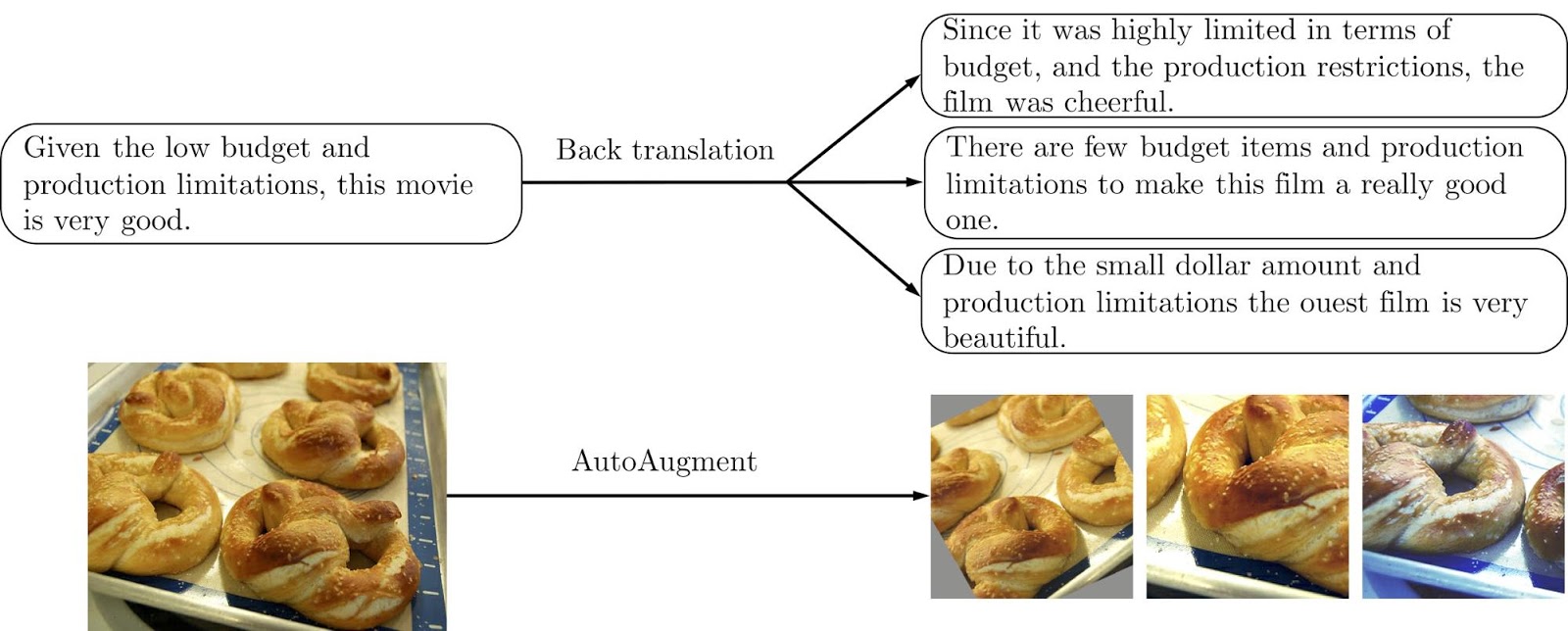
Success in deep learning has largely been enabled by key factors such as algorithmic advancements, parallel processing hardware (GPU / TPU), and the availability of large-scale labeled datasets, like ImageNet. However, when labeled data is scarce, it can be difficult to train neural networks to perform well. In this case, one can apply data augmentation methods, e.g., paraphrasing a sentence or rotating an image, to effectively increase the amount of labeled training data. Recently, there has been significant progress in the design of data augmentation approaches for a variety of areas such as natural language processing (NLP), vision, and speech. Unfortunately, data augmentation is often limited to supervised learning only, in which labels are required to transfer from original examples to augmented ones.

Example augmentation operations for text-based (top) or image-based (bottom) training data.

In our recent work, “Unsupervised Data Augmentation (UDA) for Consistency Training”, we demonstrate that one can also perform data augmentation on unlabeled data to significantly improve semi-supervised learning (SSL). Our results support the recent revival of semi-supervised learning, showing that: (1) SSL can match and even outperform purely supervised learning that uses orders of magnitude more labeled data, (2) SSL works well across domains in both text and vision and (3) SSL combines well with transfer learning, e.g., when fine-tuning from BERT. We have also open-sourced our code (github) for the community to replicate and build upon.

Unsupervised Data Augmentation Explained
Unsupervised Data Augmentation (UDA) makes use of both labeled data and unlabeled data. To use labeled data, it computes the loss function using standard methods for supervised learning to train the model, as shown in the left part of the graph below. For unlabeled data, consistency training is applied to enforce the predictions to be similar for an unlabeled example and the augmented unlabeled example, as shown in the right part of the graph. Here, the same model is applied to both the unlabeled example and its augmented counterpart to produce two model predictions, from which a consistency loss is computed (i.e., the distance between the two prediction distributions). UDA then computes the final loss by jointly optimizing both the supervised loss from the labeled data and the unsupervised consistency loss from the unlabeled data.

An overview of Unsupervised Data Augmentation (UDA). Left: Standard supervised loss is computed when labeled data is available. Right: With unlabeled data, a consistency loss is computed between an example and its augmented version.

By minimizing the consistency loss, UDA allows for label information to propagate smoothly from labeled examples to unlabeled ones. Intuitively, one can think of UDA as an implicit iterative process. First, the model relies on a small amount of labeled examples to make correct predictions for some unlabeled examples, from which the label information is propagated to augmented counterparts through the consistency loss. Over time, more and more unlabeled examples will be predicted correctly which reflects the improved generalization of the model. Various other types of noise have been tested for consistency training (e.g., Gaussian noise, adversarial noise, and others), yet we found that data augmentation outperforms all of them, leading to state-of-the-art performance on a wide variety of tasks from language to vision. UDA applies different existing augmentation methods depending on the task at hand, including back translation, AutoAugment, and TF-IDF word replacement.

Benchmarks in NLP and Computer Vision
UDA is surprisingly effective in the low-data regime. With only 20 labeled examples, UDA achieves an error rate of 4.20 on the IMDb sentiment analysis task by leveraging 50,000 unlabeled examples. This result outperforms the previous state-of-the-art model trained on 25,000 labeled examples with an error rate of 4.32. In the large-data regime, with the full training set, UDA also provides robust gains.

Benchmark on IMDb, a sentiment analysis task. UDA surpasses state-of-the-art results in supervised learning across different training sizes.

On the CIFAR-10 semi-supervised learning benchmark, UDA outperforms all existing SSL methods, such as VAT, ICT, and MixMatch by significant margins. With 4k examples, UDA achieves an error rate of 5.27, matching the performance of the fully supervised model that uses 50k examples. Furthermore, with a more advanced architecture, PyramidNet+ShakeDrop, UDA achieves a new state-of-the-art error rate of 2.7, a more than 45% reduction in error rate compared to the previous best semi-supervised result. On SVHN, UDA achieves an error rate of 2.85 with only 250 labeled examples, matching the performance of the fully supervised model trained with ~70k labeled examples.

SSL benchmark on CIFAR-10, an image classification task. UDA surpases all existing semi-supervised learning methods, all of which use the Wide-ResNet-28-2 architecture. At 4000 examples, UDA matches the performance of the fully supervised setting with 50,000 examples.

On ImageNet with 10% labeled examples, UDA improves the top-1 accuracy from 55.1% to 68.7%. In the high-data regime with the fully labeled set and 1.3M extra unlabeled examples, UDA continues to provide gains from 78.3% to 79.0% for top-1 accuracy.

Release
We have released the codebase of UDA, together with all data augmentation methods, e.g., back-translation with pre-trained translation models, to replicate our results. We hope that this release will further advance the progress in semi-supervised learning.

Acknowledgements
Special thanks to the co-authors of the paper Zihang Dai, Eduard Hovy, and Quoc V. Le. We’d also like to thank Hieu Pham, Adams Wei Yu, Zhilin Yang, Colin Raffel, Olga Wichrowska, Ekin Dogus Cubuk, Guokun Lai, Jiateng Xie, Yulun Du, Trieu Trinh, Ran Zhao, Ola Spyra, Brandon Yang, Daiyi Peng, Andrew Dai, Samy Bengio and Jeff Dean for their help with this project. A preprint is available online.

Optimizing costs in Amazon Elastic Inference with TensorFlow

Amazon Elastic Inference allows you to attach low-cost GPU-powered acceleration to Amazon EC2 and Amazon SageMaker instances, and reduce the cost of running deep learning inference by up to 75 percent. The EIPredictorAPI makes it easy to use Elastic Inference.

In this post, we use the EIPredictor and describe a step-by-step example for using TensorFlow with Elastic Inference. Additionally, we explore the cost and performance benefits of using Elastic Inference with TensorFlow. We walk you through how we improved total inference time for FasterRCNN-ResNet50 over 40 video frames from ~113.699 seconds to ~8.883 seconds, and how we improved cost efficiency by 78.5 percent.

The EIPredictor is based on the TensorFlow Predictor API. The EIPredictor is designed to be consistent with the TensorFlow Predictor API to make code portable between the two data structures. The EIPredictor is meant to be an easy way to use Elastic Inference within a single Python script or notebook. A flow that’s already using the TensorFlow Predictor only needs one code change: importing and specifying theEIPredictor. This procedure is shown later.

Benefits of Amazon Elastic Inference

Look at how Elastic Inference compares to other EC2 options in terms of performance and cost.

Instance Type vCPUs CPU Memory (GB) GPU Memory (GB) FP32 TFLOPS $/hour TFLOPS/$/hr
1 m5.large 2 8 0.07 $0.10 0.73
2 m5.xlarge 4 16 0.14 $0.19 0.73
3 m5.2xlarge 8 32 0.28 $0.38 0.73
4 m5.4xlarge 16 64 0.56 $0.77 0.73
5 c5.4xlarge 16 32 0.67 $0.68 0.99
6 p2.xlarge (K80) 4 61 12 4.30 $0.90 4.78
7 p3.2xlarge (V100) 8 61 16 15.70 $3.06 5.13
8 eia.medium 1 1.00 $0.13 7.69
9 eia.large 2 2.00 $0.26 7.69
10 eia.xlarge 4 4.00 $0.52 7.69
11 m5.xlarge + eia.xlarge 4 16 4 4.14 $0.71 5.83

If you look at compute capability (teraFLOPS or floating point operations per second), m5.4xlarge provides 0.56 TFLOPS for $0.77/hour, whereas an eia.medium with 1.00 TFLOPS costs just $0.13/hour. If pure performance (ignoring costs) is the goal, it’s clear that a p3.2xlarge instance provides the most compute at 15.7 TFLOPS.

However, in the last column for TFLOPS per dollar, you can see that Elastic Inference provides the most value. Elastic Inference accelerators (EIA) must be attached to an EC2 instance. The last row shows one possible combination. The m5.xlarge + eia.xlarge has a similar amount of vCPUs and TFLOPS as a p2.xlarge, but at a $0.19/hour discount. With Elastic Inference, you can right-size your compute needs by choosing your compute instance, memory and GPU compute. With this approach, you can realize the maximum value per $ spent. The GPU attachments to your CPU are abstracted by framework libraries, which makes it easy to make inference calls without worrying about the underlying GPU hardware.

Video object detection example using the EIPredictor

Here is a step-by-step example of using Elastic Inference with the EIPredictor. For this example, we use a FasterRCNN-ResNet50 model, an m5.large CPU instance, and an eia.large accelerator.

Prerequisites

  • Launch Elastic Inference with a setup script.
  • An m5.large instance and attached eia.large accelerator.
  • An AMI with Docker installed. In this post, we use DLAMI. You may choose an AMI without Docker, but install Docker first before proceeding.
  • Your IAM role has ECRFullAccess.
  • Your VPC security group has ports 80 and 443 open for both inbound and outbound traffic and port 22 open for inbound traffic.

Using Elastic Inference with TensorFlow

  1. SSH to your instance with port forwarding for the Jupyter notebook. For Ubuntu AMIs:
    ssh -i {/path/to/keypair} -L 8888:localhost:8888 ubuntu@{ec2 instance public DNS name}

    For Amazon Linux AMIs:

    ssh -i {/path/to/keypair} -L 8888:localhost:8888 ec2-user@{ec2 instance public DNS name} 

  2. Copy the code locally.
    git clone https://github.com/aws-samples/aws-elastic-inference-tensorflow-examples   

  3. Run and connect to your Jupyter notebook.
    cd aws-elastic-inference-tensorflow-examples; ./build_run_ei_container.sh

    Wait until the Jupyter notebook starts up. Go to localhost:8888 and supply the token that is given in the terminal.

  4. Run benchmarked versions of Object Detection examples.
    1. Open elastic_inference_video_object_detection_tutorial.ipynb and run the notebook.
    2. Take note of the session runtimes produced. The following two examples show without Elastic Inference, then with Elastic Inference.
      1. The first is TensorFlow running your model on your instance’s CPU, without Elastic Inference:
        Model load time (seconds): 8.36566710472
        Number of video frames: 40
        Average inference time (seconds): 2.86271090508
        Total inference time (seconds): 114.508436203

      2. The second reporting is using an Elastic Inference accelerator:
        Model load time (seconds): 21.4445838928
        Number of video frames: 40
        Average inference time (seconds): 0.23773444891
        Total inference time (seconds): 9.50937795639

    3. Compare the results, performance, and cost between the two runs.
      • In the screenshots posted above, Elastic Inference gives an average inference speedup of ~12x.
      • With this video of 340 frames of shape (1, 1080, 1920, 3) simulating streaming frames, about 44 of these full videos can be inferred in one hour using the m5.large+eia.large, considering one loading of the model.
      • With the same environment excluding the eia.large Elastic Inference accelerator, only three or four of these videos can be inferred in one hour. Thus, it would take 12–15 hours to complete the same task.
      • An m5.large costs $0.096/hour, and an eia.large slot type costs $0.26/hour. Comparing costs for inferring 44 replicas of this video, you would spend $0.356 to run inference on 44 videos in an hour using the Elastic Inference set up in this example. You’d spend between $1.152 and $1.44 to run the same inference job in 12–15 hours without the eia.large accelerator.
      • Using the numbers above, if you use an eia.large accelerator, you would run the same task in between a 1/12th and a 1/15th of the time and at ~27.5% of the cost. The eia.large accelerator allows for about 4.2 frames per second.
      • The complete video is 340 frames. To run object detection on the complete video, remove  and count < 40 from the def extract_video_frames function.
    4. Finally, you should produce a video like this one: annotated_dog_park.mp4.
    5. Also note the usage of the EIPredictor for using an accelerator (use_ei=True) and running the same task locally (use_ei=False).
      ei_predictor = EIPredictor(
                      model_dir=PATH_TO_FROZEN_GRAPH,
                      input_names={"inputs":"image_tensor:0"},
                      output_names={"detections_scores":"detection_scores:0",
                                    "detection_classes":"detection_classes:0",
                                    "detection_boxes":"detection_boxes:0",
                                    "num_detections":"num_detections:0"},
                      use_ei=True)
      

Exploring all possibilities

Now, we’ve done more investigation and tried out a few more instance combinations for Elastic Inference. We experimented with FasterRCNN-ResNet50, batch size of 1, and input image dimensions of (1080, 1920, 3).

The model is loaded into memory with an initial inference using a random input of shape (1, 100, 100, 3). After rerunning the initial notebook, we started with combinations of m5.large, m5.xlarge, m5.2xlarge, and m5.4xlarge with Elastic Inference accelerators eia.medium, eia.large, and eia.xlarge. We produced the following table:

A B C D E
1 Client instance type Elastic Inference accelerator type Cost per hour Infer latency [ms] Cost per 100k inferences
2 m5.large eia.medium $0.23 353.53 $2.22
3 eia.large $0.36 222.78 $2.20
4 eia.xlarge $0.62 140.96 $2.41
5 m5.xlarge eia.medium $0.32 357.70 $3.20
6 eia.large $0.45 224.81 $2.82
7 eia.xlarge $0.71 150.29 $2.97
8 m5.2xlarge eia.medium $0.51 350.38 $5.00
9 eia.large $0.64 229.65 $4.11
10 eia.xlarge $0.90 142.55 $3.58
11 m5.4xlarge eia.medium $0.90 355.53 $8.87
12 eia.large $1.03 222.53 6.35
13 eia.xlarge $1.29 149.17 $5.34

Looking at the client instance types with the eia.medium (highlighted in yellow in the table above), you see similar results. This means that there isn’t much client-side processing, so going to a larger client instance does not improve performance. You can save on cost by choosing a smaller instance.

Similarly, looking at client instances using the largest eia.xlarge accelerator (highlighted in blue), there isn’t a noticeable performance difference. This means that you can stick with the m5.large client instance type, achieve similar performance, and pay less. For information about setting up different client instance types, see Launch accelerators in minutes with the Amazon Elastic Inference setup tool for Amazon EC2.

Comparing M5, P2, P3, and EIA instances

Plotting the data that you’ve collected from runs on different instance types, you can see that GPU performed better than CPU (as expected). EC2 P3 instances are 3.34x faster than EC2 P2 instances. Before this, you had to choose between P2 and P3. Now, Elastic Inference gives you another choice, with more granularity at a lower cost.

Based on instance cost per hour (us-west-2 for EIA and EC2), the m5.2xlarge + eia.medium costs in between the P2 and P3 instance costs (see the following table) for the TensorFlow EIPredictor example. When factoring the cost to perform 100,000 inferences, you can see that the P2 and P3 have a similar cost, while with m5.large+eia.large, you achieve nearly P2 performance at less than half the price!

A B C D
1 Instance Type Cost per hour Infer latency [ms] Cost per 100k inferences
2 m5.4xlarge $0.77 415.87 $8.87
3 c5.4xlarge $0.68 363.45 $6.87
4 p2.xlarge $0.90 197.68 $4.94
5 p3.2xlarge $3.06 61.04 $5.19
6 m5.large+eia.large $0.36 222.78 $2.20
7 m5.large+eia.xlarge $0.62 140.96 $2.41

Comparing inference latency

Now that you’ve decided on an m5.large client instance type, you can look at the accelerator types (the orange bars). There is a progression from 222.78 ms and 140.96 ms in terms of inference latency. This shows that the Elastic Inference accelerators provide options between P2 and P3 in terms of latency, at a lower cost.

Comparing inference cost efficiency

The last column in the preceding table, Cost per 100k inferences, shows the cost efficiency of the combination. m5.large and eia.large have the best cost efficiency. The m5.large + eia.large combo provides the best cost efficiency compared to the m5.4xlarge and P2/P3 instances with 55% to 75% savings.

The m5.large and eia.xlarge provides a 2.95x speed increase over m5.4xlarge (CPU only) with 73% savings and a 1.4x speedup over p2.xlarge with 51% savings.

Results

Here’s what we’ve found so far:

  • Combining Elastic Inference accelerators with any client EC2 instance type enables users to choose the amount of client compute, memory, etc. with a configurable amount of GPU memory and compute.
  • Elastic Inference accelerators provide a range of memory and GPU acceleration options at a lower cost.
  • Elastic Inference accelerators can achieve a better cost efficiency than M5, C5, and P2/P3 instances.

In our analysis, we found that increasing ease of use within TensorFlow is as simple as creating and calling an EIPredictor object. This allowed you to use largely the same test notebook on CPU, GPU, and CPU+EIA environments with TensorFlow, and ease testing and performance analysis.

We started with a FasterRCNN-ResNet50 model running on an m5.4xlarge instance with a 415.87 ms inference latency. We were able to reduce it to 140.96 ms by migrating to an m5.large and eia.xlarge, resulting in a 2.95x increase in speed with a $0.15 hourly cost savings to top it off. We also found that we could achieve a $0.41 hourly cost savings with an m5.large and eia.large and still get better performance (416 ms vs. 223 ms).

Conclusion

Try out TensorFlow on Elastic Inference and see how much you can save while still improving performance for inference on your model. Here are the steps we went through to analyze the design space for deep learning inference, and you too can follow for your model:

  1. Write a test script or notebook to analyze inference performance for CPU context.
  2. Create copies of the script with tweaks for GPU and EIA.
  3. Run scripts on M5, P2, and P3 instance types and get a baseline for performance.
  4. Analyze the performance.
    1. Start with the largest Elastic Inference accelerator type and large client instance type.
    2. Work backwards until you find a combo that is too small.
  5. Introduce cost efficiency to the analysis by computing cost to perform 100k inferences. 

About the author

Cory Pruce is a Software Development Engineer with AWS. He works on building AWS services in AI space, specifically using TensorFlow. In his free time, he likes participating in Data Science/Machine Learning competitions, learning about state-of-the-art techniques, and working on projects.


Srinivas Hanabe is a Principal Product Manager with AWS AI for Elastic Inference. Prior to this role, he was the PM lead for Amazon VPC. Srinivas loves running long distance, reading books on a variety of topics, spending time with his family, and is a career mentor.


Optimizing costs in Amazon Elastic Inference with Amazon TensorFlow

Amazon Elastic Inference allows you to attach low-cost GPU-powered acceleration to Amazon EC2 and Amazon SageMaker instances, and reduce the cost of running deep learning inference by up to 75 percent. The EIPredictorAPI makes it easy to use Elastic Inference.

In this post, we use the EIPredictor and describe a step-by-step example for using TensorFlow with Elastic Inference. Additionally, we explore the cost and performance benefits of using Elastic Inference with TensorFlow. We walk you through how we improved total inference time for FasterRCNN-ResNet50 over 40 video frames from ~113.699 seconds to ~8.883 seconds, and how we improved cost efficiency by 78.5 percent.

The EIPredictor is based on the TensorFlow Predictor API. The EIPredictor is designed to be consistent with the TensorFlow Predictor API to make code portable between the two data structures. The EIPredictor is meant to be an easy way to use Elastic Inference within a single Python script or notebook. A flow that’s already using the TensorFlow Predictor only needs one code change: importing and specifying theEIPredictor. This procedure is shown later.

Benefits of Elastic Inference

Look at how Elastic Inference compares to other EC2 options in terms of performance and cost.

Instance Type vCPUs CPU Memory (GB) GPU Memory (GB) FP32 TFLOPS $/hour TFLOPS/$/hr
1 m5.large 2 8 0.07 $0.10 0.73
2 m5.xlarge 4 16 0.14 $0.19 0.73
3 m5.2xlarge 8 32 0.28 $0.38 0.73
4 m5.4xlarge 16 64 0.56 $0.77 0.73
5 c5.4xlarge 16 32 0.67 $0.68 0.99
6 p2.xlarge (K80) 4 61 12 4.30 $0.90 4.78
7 p3.2xlarge (V100) 8 61 16 15.70 $3.06 5.13
8 eia.medium 1 1.00 $0.13 7.69
9 eia.large 2 2.00 $0.26 7.69
10 eia.xlarge 4 4.00 $0.52 7.69
11 m5.xlarge + eia.xlarge 4 16 4 4.14 $0.71 5.83

If you look at compute capability (teraFLOPS or floating point operations per second), m5.4xlarge provides 0.56 TFLOPS for $0.77/hour, whereas an eia.medium with 1.00 TFLOPS costs just $0.13/hour. If pure performance (ignoring costs) is the goal, it’s clear that a p3.2xlarge instance provides the most compute at 15.7 TFLOPS.

However, in the last column for TFLOPS per dollar, you can see that Elastic Inference provides the most value. Elastic Inference accelerators (EIA) must be attached to an EC2 instance. The last row shows one possible combination. The m5.xlarge + eia.xlarge has a similar amount of vCPUs and TFLOPS as a p2.xlarge, but at a $0.19/hour discount. With Elastic Inference, you can right-size your compute needs by choosing your compute instance, memory and GPU compute. With this approach, you can realize the maximum value per $ spent. The GPU attachments to your CPU are abstracted by framework libraries, which makes it easy to make inference calls without worrying about the underlying GPU hardware.

Video object detection example using the EIPredictor

Here is a step-by-step example of using Elastic Inference with the EIPredictor. For this example, we use a FasterRCNN-ResNet50 model, an m5.large CPU instance, and an eia.large accelerator.

Prerequisites

  • Launch Elastic Inference with a setup script.
  • An m5.large instance and attached eia.large accelerator.
  • An AMI with Docker installed. In this post, we use DLAMI. You may choose an AMI without Docker, but install Docker first before proceeding.
  • Your IAM role has ECRFullAccess.
  • Your VPC security group has ports 80 and 443 open for both inbound and outbound traffic and port 22 open for inbound traffic.

Using Elastic Inference with TensorFlow

  1. SSH to your instance with port forwarding for the Jupyter notebook. For Ubuntu AMIs:
    ssh -i {/path/to/keypair} -L 8888:localhost:8888 ubuntu@{ec2 instance public DNS name}

    For Amazon Linux AMIs:

    ssh -i {/path/to/keypair} -L 8888:localhost:8888 ec2-user@{ec2 instance public DNS name} 

  2. Copy the code locally.
    git clone https://github.com/aws-samples/aws-elastic-inference-tensorflow-examples   

  3. Run and connect to your Jupyter notebook.
    cd aws-elastic-inference-tensorflow-examples; ./build_run_ei_container.sh

    Wait until the Jupyter notebook starts up. Go to localhost:8888 and supply the token that is given in the terminal.

  4. Run benchmarked versions of Object Detection examples.
    1. Open elastic_inference_video_object_detection_tutorial.ipynb and run the notebook.
    2. Take note of the session runtimes produced. The following two examples show without Elastic Inference, then with Elastic Inference.
      1. The first is TensorFlow running your model on your instance’s CPU, without Elastic Inference:
        Model load time (seconds): 8.36566710472
        Number of video frames: 40
        Average inference time (seconds): 2.86271090508
        Total inference time (seconds): 114.508436203

      2. The second reporting is using an Elastic Inference accelerator:
        Model load time (seconds): 21.4445838928
        Number of video frames: 40
        Average inference time (seconds): 0.23773444891
        Total inference time (seconds): 9.50937795639

    3. Compare the results, performance, and cost between the two runs.
      • In the screenshots posted above, Elastic Inference gives an average inference speedup of ~12x.
      • With this video of 340 frames of shape (1, 1080, 1920, 3) simulating streaming frames, about 44 of these full videos can be inferred in one hour using the m5.large+eia.large, considering one loading of the model.
      • With the same environment excluding the eia.large Elastic Inference accelerator, only three or four of these videos can be inferred in one hour. Thus, it would take 12–15 hours to complete the same task.
      • An m5.large costs $0.096/hour, and an eia.large slot type costs $0.26/hour. Comparing costs for inferring 44 replicas of this video, you would spend $0.356 to run inference on 44 videos in an hour using the Elastic Inference set up in this example. You’d spend between $1.152 and $1.44 to run the same inference job in 12–15 hours without the eia.large accelerator.
      • Using the numbers above, if you use an eia.large accelerator, you would run the same task in between a 1/12th and a 1/15th of the time and at ~27.5% of the cost. The eia.large accelerator allows for about 4.2 frames per second.
      • The complete video is 340 frames. To run object detection on the complete video, remove  and count < 40 from the def extract_video_frames function.
    4. Finally, you should produce a video like this one: annotated_dog_park.mp4.
    5. Also note the usage of the EIPredictor for using an accelerator (use_ei=True) and running the same task locally (use_ei=False).
      ei_predictor = EIPredictor(
                      model_dir=PATH_TO_FROZEN_GRAPH,
                      input_names={"inputs":"image_tensor:0"},
                      output_names={"detections_scores":"detection_scores:0",
                                    "detection_classes":"detection_classes:0",
                                    "detection_boxes":"detection_boxes:0",
                                    "num_detections":"num_detections:0"},
                      use_ei=True)
      

Exploring all possibilities

Now, we’ve done more investigation and tried out a few more instance combinations for Elastic Inference. We experimented with FasterRCNN-ResNet50, batch size of 1, and input image dimensions of (1080, 1920, 3).

The model is loaded into memory with an initial inference using a random input of shape (1, 100, 100, 3). After rerunning the initial notebook, we started with combinations of m5.large, m5.xlarge, m5.2xlarge, and m5.4xlarge with Elastic Inference accelerators eia.medium, eia.large, and eia.xlarge. We produced the following table:

A B C D E
1 Client instance type Elastic Inference accelerator type Cost per hour Infer latency [ms] Cost per 100k inferences
2 m5.large eia.medium $0.23 353.53 $2.22
3 eia.large $0.36 222.78 $2.20
4 eia.xlarge $0.62 140.96 $2.41
5 m5.xlarge eia.medium $0.32 357.70 $3.20
6 eia.large $0.45 224.81 $2.82
7 eia.xlarge $0.71 150.29 $2.97
8 m5.2xlarge eia.medium $0.51 350.38 $5.00
9 eia.large $0.64 229.65 $4.11
10 eia.xlarge $0.90 142.55 $3.58
11 m5.4xlarge eia.medium $0.90 355.53 $8.87
12 eia.large $1.03 222.53 6.35
13 eia.xlarge $1.29 149.17 $5.34

Looking at the client instance types with the eia.medium (highlighted in yellow in the table above), you see similar results. This means that there isn’t much client-side processing, so going to a larger client instance does not improve performance. You can save on cost by choosing a smaller instance.

Similarly, looking at client instances using the largest eia.xlarge accelerator (highlighted in blue), there isn’t a noticeable performance difference. This means that you can stick with the m5.large client instance type, achieve similar performance, and pay less. For information about setting up different client instance types, see Launch accelerators in minutes with the Amazon Elastic Inference setup tool for Amazon EC2.

Comparing M5, P2, P3, and EIA instances

Plotting the data that you’ve collected from runs on different instance types, you can see that GPU performed better than CPU (as expected). EC2 P3 instances are 3.34x faster than EC2 P2 instances. Before this, you had to choose between P2 and P3. Now, Elastic Inference gives you another choice, with more granularity at a lower cost.

Based on instance cost per hour (us-west-2 for EIA and EC2), the m5.2xlarge + eia.medium costs in between the P2 and P3 instance costs (see the following table) for the TensorFlow EIPredictor example. When factoring the cost to perform 100,000 inferences, you can see that the P2 and P3 have a similar cost, while with m5.large+eia.large, you achieve nearly P2 performance at less than half the price!

A B C D
1 Instance Type Cost per hour Infer latency [ms] Cost per 100k inferences
2 m5.4xlarge $0.77 415.87 $8.87
3 c5.4xlarge $0.68 363.45 $6.87
4 p2.xlarge $0.90 197.68 $4.94
5 p3.2xlarge $3.06 61.04 $5.19
6 m5.large+eia.large $0.36 222.78 $2.20
7 m5.large+eia.xlarge $0.62 140.96 $2.41

Comparing inference latency

Now that you’ve decided on an m5.large client instance type, you can look at the accelerator types (the orange bars). There is a progression from 222.78 ms and 140.96 ms in terms of inference latency. This shows that the Elastic Inference accelerators provide options between P2 and P3 in terms of latency, at a lower cost.

Comparing inference cost efficiency

The last column in the preceding table, Cost per 100k inferences, shows the cost efficiency of the combination. m5.large and eia.large have the best cost efficiency. The m5.large + eia.large combo provides the best cost efficiency compared to the m5.4xlarge and P2/P3 instances with 55% to 75% savings.

The m5.large and eia.xlarge provides a 2.95x speed increase over m5.4xlarge (CPU only) with 73% savings and a 1.4x speedup over p2.xlarge with 51% savings.

Results

Here’s what we’ve found so far:

  • Combining Elastic Inference accelerators with any client EC2 instance type enables users to choose the amount of client compute, memory, etc. with a configurable amount of GPU memory and compute.
  • Elastic Inference accelerators provide a range of memory and GPU acceleration options at a lower cost.
  • Elastic Inference accelerators can achieve a better cost efficiency than M5, C5, and P2/P3 instances.

In our analysis, we found that increasing ease of use within TensorFlow is as simple as creating and calling an EIPredictor object. This allowed you to use largely the same test notebook on CPU, GPU, and CPU+EIA environments with TensorFlow, and ease testing and performance analysis.

We started with a FasterRCNN-ResNet50 model running on an m5.4xlarge instance with a 415.87 ms inference latency. We were able to reduce it to 140.96 ms by migrating to an m5.large and eia.xlarge, resulting in a 2.95x increase in speed with a $0.15 hourly cost savings to top it off. We also found that we could achieve a $0.41 hourly cost savings with an m5.large and eia.large and still get better performance (416 ms vs. 223 ms).

Conclusion

Try out TensorFlow on Elastic Inference and see how much you can save while still improving performance for inference on your model. Here are the steps we went through to analyze the design space for deep learning inference, and you too can follow for your model:

  1. Write a test script or notebook to analyze inference performance for CPU context.
  2. Create copies of the script with tweaks for GPU and EIA.
  3. Run scripts on M5, P2, and P3 instance types and get a baseline for performance.
  4. Analyze the performance.
    1. Start with the largest Elastic Inference accelerator type and large client instance type.
    2. Work backwards until you find a combo that is too small.
  5. Introduce cost efficiency to the analysis by computing cost to perform 100k inferences. 

About the author

Cory Pruce is a Software Development Engineer with AWS AI TensorFlow. He works on building AWS services in AI space, specifically using TensorFlow. In his free time, he likes participating in Data Science/Machine Learning competitions, learning about state-of-the-art techniques, and working on projects.


Srinivas Hanabe is a Principal Product Manager with AWS AI for Elastic Inference. Prior to this role, he was the PM lead for Amazon VPC. Srinivas loves running long distance, reading books on a variety of topics, spending time with his family, and is a career mentor.


NVIDIA Breaks Eight AI Performance Records

You can’t be first if you’re not fast.

Inside the world’s top companies, teams of researchers and data scientists are creating ever more complex AI models, which need to be trained, fast.

That’s why leadership in AI demands leadership in AI infrastructure. And that’s why the AI training results released today by MLPerf matter.

Across all six of six MLPerf categories, NVIDIA demonstrated world-class performance and versatility. Our AI platform set eight records in training performance, including three in overall performance at scale and five on a per-accelerator basis.

Record Type Benchmark Record
Max Scale
(Minutes to Train)
Object Detection (Heavy Weight) – Mask R-CNN 18.47 mins
Translation (Recurrent) – GNMT 1.8 mins
Reinforcement Learning – MiniGo 13.57 mins
Per Accelerator
(Hours to Train)
Object Detection (Heavy Weight) – Mask R-CNN 25.39 hrs
Object Detection (Light Weight) – SSD 3.04 hrs
Translation (Recurrent) – GNMT 2.63 hrs
Translation (Non-recurrent) – Transformer 2.61 hrs
Reinforcement Learning – MiniGo 3.65 hrs

Table 1: NVIDIA MLPerf AI Records

Per accelerator comparison derived from reported performance for MLPerf 0.6 on a single NVIDIA DGX-2H (16 V100 GPUs) compared to other submissions at same scale except for MiniGo, where NVIDIA DGX-1 (8 V100 GPUs) submission was used | MLPerf ID Max Scale: Mask R-CNN: 0.6-23, GNMT: 0.6-26, MiniGo: 0.6-11 | MLPerf ID Per Accelerator: Mask R-CNN, SSD, GNMT, Transformer: all use 0.6-20, MiniGo: 0.6-10 

These numbers — backed by Google, Intel, Baidu, NVIDIA and the dozens of other top technology companies and universities behind the creation of MLPerf’s suite of AI benchmarks — translate into innovation where it counts.

Simply put, our AI platform now slashes through models that once took a whole workday to train in less than two minutes.

Companies know unlocking that kind of productivity is key. Supercomputers are now the essential instruments of AI, and AI leadership requires strong AI computing infrastructure.

Our latest MLPerf results bring all these strands together, demonstrating the benefits of weaving our NVIDIA V100 Tensor Core GPUs into supercomputing-class infrastructure.

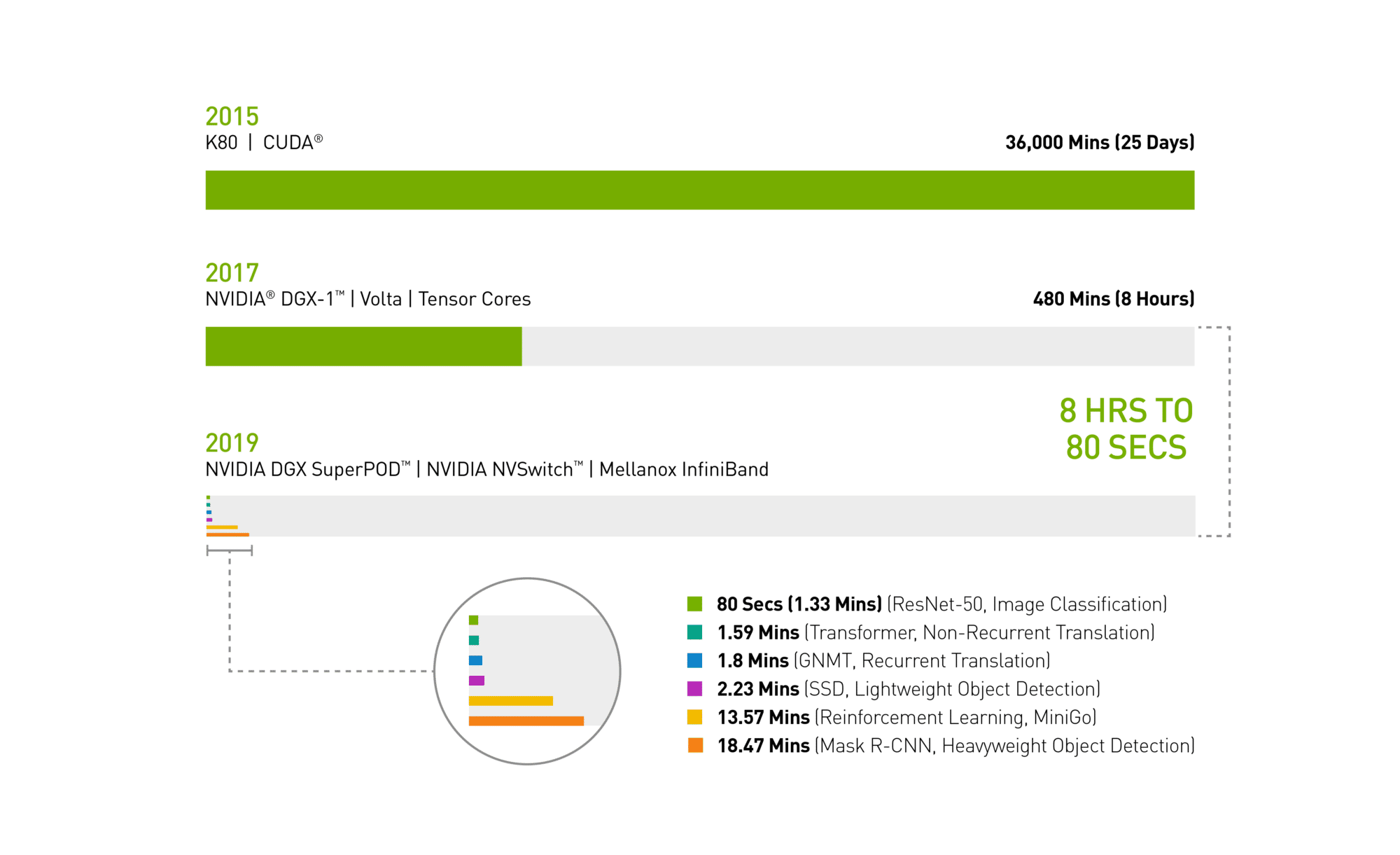
In spring 2017, it took a full workday — eight hours — for an NVIDIA DGX-1 system loaded with V100 GPUs to train the image recognition model ResNet-50.

Today an NVIDIA DGX SuperPOD — using the same V100 GPUs, now interconnected with Mellanox InfiniBand and the latest NVIDIA-optimized AI software for distributed AI training — completed the task in just 80 seconds.

That’s less time than it takes to get a cup of coffee.

MLPerf infographic
Chart 1: Time Machine for AI
2019 MLPerf ID (in order from top to bottom of chart): ResNet-50: 0.6-30 | Transformer: 0.6-28 | GNMT: 0.6-14 | SSD: 0.6-27 | MiniGo: 0.6-11 | Mask R-CNN: 0.6-23

The Essential Instrument of AI: DGX SuperPOD Masters Workloads Faster 

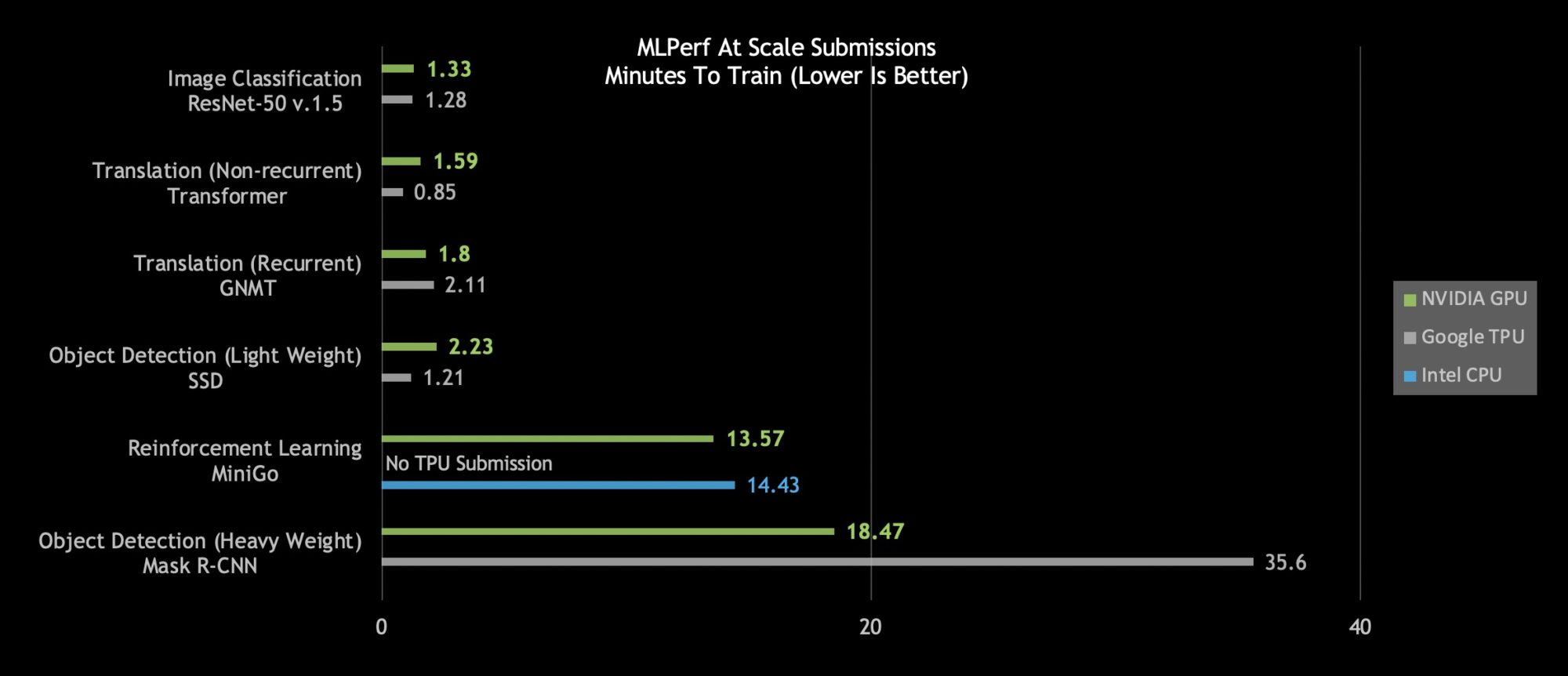
A close look at today’s MLPerf results shows the NVIDIA DGX SuperPOD is the only AI platform able to complete each of the six MLPerf categories in less than 20 minutes:

MLPerf at scale submissions
Chart 2: DGX SuperPOD Breaks At Scale AI Records MLPerf 0.6 Performance at Max Scale | MLPerf ID at Scale: RN50 v1.5: 0.6-30, 0.6-6 | Transformer: 0.6-28, 0.6-6 | GNMT: 0.6-26, 0.6-5 | SSD: 0.6-27, 0.6-6 | MiniGo: 0.6-11, 0.6-7 | Mask R-CNN: 0.6-23, 0.6-3

An even closer look reveals NVIDIA’s AI platform stands out on the hardest AI problems as measured by total time to train: heavyweight object detection and reinforcement learning.

Heavyweight object detection using the Mask R-CNN deep neural network provides users with advanced instance segmentation. Its uses include combining it with multiple data sources — cameras, sensors, lidar, ultrasound and more — to precisely identify and locate specific objects.

This type of AI workload helps train autonomous vehicles, providing precise locations of pedestrians and other objects to self-driving cars. Another real-life application helps doctors find and identify tumors in medical scans. Critical stuff.

NVIDIA’s heavyweight object detection submission, which came in at just under 19 minutes, delivers nearly twice the performance as the next best submission.

Reinforcement learning is another difficult category. This AI method trains robots working on factory floors to streamline production. It’s also used in cities to control traffic lights to reduce congestion. Using an NVIDIA DGX SuperPOD, NVIDIA trained the MiniGo AI reinforcement training model in a record-setting 13.57 minutes.

No More Time for Coffee: Instant AI Infrastructure Delivers World-Leading Performance

Speeding innovation, however, is about more than beating benchmarks. That’s why we made DGX SuperPOD not only powerful, but easy to set up.

Fully configured with optimized CUDA-X AI software freely available from our NGC container registry, DGX SuperPODs deliver world-leading AI performance out of the box.

They plug into an ecosystem of more than 1.3 million CUDA developers we work with to support every AI framework and development environment.

We’ve helped optimize millions of lines of code so our customers can bring their AI projects to life everywhere you can find NVIDIA GPUs: on the cloud, in data centers and at the edge.

AI Infrastructure That’s Fast Now, Faster Tomorrow 

Better still, this is a platform that’s always getting faster. We publish new optimizations and performance improvements to CUDA-X AI software every month, with integrated software stacks freely available for download on our NGC container registry. That includes containerized frameworks, pre-trained models and scripts.

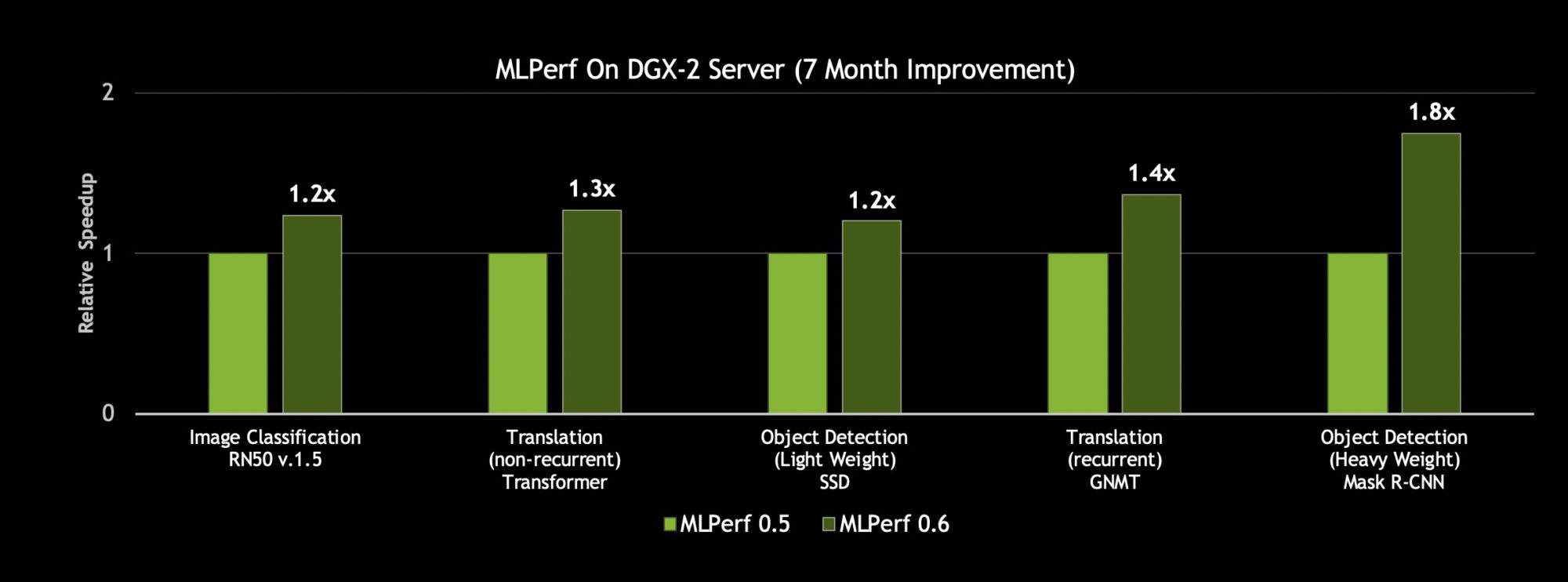
With such innovation to the CUDA-X AI software stack, an NVIDIA DGX-2H server gained up to 80 percent more throughput on our MLPerf 0.6 submissions than what we posted just seven months ago.

MLPerf on DGX-2 server
Chart 3: Up to 80 Percent More Performance on the Same Server Comparing the throughput of a single DGX-2H server on a single epoch (Single pass of the dataset through the neural network) | MLPerf ID 0.5/0.6 comparison: ResNet-50 v1.5: 0.5-20/0.6-30 | Transformer: 0.5-21/0.6-20 | SSD: 0.5-21/0.6-20 | GNMT: 0.5-19/0.6-20 | Mask R-CNN: 0.5-21/0.6-20

Add it up and these efforts represent an investment of tens of billions of dollars. All so you can get your work done fast today. And faster tomorrow.

The post NVIDIA Breaks Eight AI Performance Records appeared first on The Official NVIDIA Blog.

Bring your own deep learning framework to Amazon SageMaker with Model Server for Apache MXNet

Deep learning (DL) frameworks enable machine learning (ML) practitioners to build and train ML models. However, the process of deploying ML models in production to serve predictions (also known as inferences) in real time is more complex. It requires that ML practitioners build a scalable and performant model server, which can host these models and handle inference requests at scale.

Model Server for Apache MXNet (MMS) was developed to address this hurdle. MMS is a highly scalable, production-ready inference server. MMS was designed in a ML/DL framework agnostic way to host models trained in any ML/DL framework.

In this post, we showcase how you can use MMS to host a model trained using any ML/DL framework or toolkit in production. We chose Amazon SageMaker for production hosting. This PaaS solution does a lot of heavy lifting to provide infrastructure and allows you to focus on your use cases.

For this solution, we use the approach outlined in Bring your own inference code with Amazon SageMaker hosting. This post explains how you can bring your models together with all necessary dependencies, libraries, frameworks, and other components. Compile them in a single custom-built Docker container and then host them on Amazon SageMaker.

To showcase the ML/DL framework-agnostic architecture of MMS, we chose to launch a model trained with the PaddlePaddle framework into production. The steps for taking a model trained on any ML/DL framework to Amazon SageMaker using an MMS bring your own (BYO) container are illustrated in the following diagram:

As this diagram shows, you need two main components to bring your ML/DL framework to Amazon SageMaker using an MMS BYO container:

  1. Model artifacts/model archive: These are all the artifacts required to run your model on a given host.
    • Model files: Usually symbols and weights. They are the artifacts of training a model.
    • Custom service file: Contains the entry point that is called every time an inference request is received and served by MMS. This file contains the logic to initialize the model in a particular ML/DL framework, preprocess the incoming request, and run inference. It also post-processes the logic that takes the data coming out of the framework’s inference method and converts it to end-user consumable data.
    • MANIFEST : The interface between the custom service file and MMS. This file is generated by running a tool called the model-archiver, which comes as a part of MMS distribution.
  1. Container artifact: To load and run a model written in a custom DL framework on Amazon SageMaker, bring a container to be run on Amazon SageMaker. In this post, we show you how to use the MMS base container and extend it to support custom DL frameworks and other model dependencies. The MMS base container is a Docker container that comes with a highly scalable and performant model-server, which is readily launchable in Amazon SageMaker.

In the following sections, we describe each of the components in detail.

Preparing a model

The MMS container is ML/DL framework agnostic. Write models in a ML/DL framework of your choice and bring it to Amazon SageMaker with an MMS BYO container to get the features of scalability and performance. We show you how to prepare a PaddlePaddle model in the following sections.

Preparing model artifacts

Use the Understand Sentiment example that is available and published in the examples section of the PaddlePaddle repository.

First, create a model following the instructions provided in the PaddlePaddle/book repository. Download the container and run the training using the notebook provided as part of the example. We used the Stacked Bidirectional LSTM network for training, and trained the model for 100 epochs. At the end of this training exercise, we got the following list of trained model artifacts.

$ ls
embedding_0.w_0    fc_2.w_0    fc_5.w_0    learning_rate_0    lstm_3.b_0    moment_10    moment_18    moment_25    moment_32    moment_8
embedding_1.w_0    fc_2.w_1    fc_5.w_1    learning_rate_1    lstm_3.w_0    moment_11    moment_19    moment_26    moment_33    moment_9
fc_0.b_0    fc_3.b_0    fc_6.b_0    lstm_0.b_0    lstm_4.b_0    moment_12    moment_2    moment_27    moment_34
fc_0.w_0    fc_3.w_0    fc_6.w_0    lstm_0.w_0    lstm_4.w_0    moment_13    moment_20    moment_28    moment_35
fc_1.b_0    fc_3.w_1    fc_6.w_1    lstm_1.b_0    lstm_5.b_0    moment_14    moment_21    moment_29    moment_4
fc_1.w_0    fc_4.b_0    fc_7.b_0    lstm_1.w_0    lstm_5.w_0    moment_15    moment_22    moment_3    moment_5
fc_1.w_1    fc_4.w_0    fc_7.w_0    lstm_2.b_0    moment_0    moment_16    moment_23    moment_30    moment_6
fc_2.b_0    fc_5.b_0    fc_7.w_1    lstm_2.w_0    moment_1    moment_17    moment_24    moment_31    moment_7

These artifacts constitute a PaddlePaddle model.

Writing custom service code

You now have the model files required to host the model in production. To take this model into production with MMS, provide a custom service script that knows how to use these files. This script must also know how to pre-process the raw request coming into the server and how to post-process the responses coming out of the PaddlePaddle framework’s infer method.

Create a custom service file called paddle_sentiment_analysis.py. Here, define a class called PaddleSentimentAnalysis that contains methods to initialize the model and also defines pre-processing, post-processing, and inference methods. The skeleton of this file is as follows:

$ cat paddle_sentiment_analysis.py

import ...
  
class PaddleSentimentAnalysis(object):
    def __init__(self):
    ...

    def initialize(self, context):
    """
    This method is used to initialize the network and read other artifacts.
    """
    ...
    
    def preprocess(self, data):
    """
    This method is used to convert the string requests coming from client 
    into tensors. 
    """
    ...

    def inference(self, input):
    """
    This method runs the tensors created in preprocess method through the 
    DL framework's infer method.
    """
    ...

    def postprocess(self, output, data):
    """
    Here the values returned from the inference method is converted to a 
    human understandable response.
    """
    ...
    

_service = PaddleSentimentAnalysis()


def handle(data, context):
"""
This method is the entrypoint "handler" method that is used by MMS.
Any request coming in for this model will be sent to this method.
"""
    if not _service.initialized:
        _service.initialize(context)

    if data is None:
        return None

    pre = _service.preprocess(data)
    inf = _service.inference(pre)
    ret = _service.postprocess(inf, data)
    return ret

To understand the details of this custom service file, see paddle_sentiment_analysis.py. This custom service code file allows you to tell MMS what the lifecycle of each inference request should look like. It also defines how a trained model-artifact can initialize the PaddlePaddle framework.

Now that you have the trained model artifacts and the custom service file, create a model-archive that can be used to create your endpoint on Amazon SageMaker.

Creating a model-artifact file to be hosted on Amazon SageMaker

To load this model in Amazon SageMaker with an MMS BYO container, do the following:

  1. Create a MANIFEST file, which is used by MMS as a model’s metadata to load and run the model.
  2. Add the custom service script created earlier and the trained model-artifacts, along with the MANIFEST file, to a .tar.gz file.

Use the model-archiver tool to do this. Before you use the tool to create a .tar.gz artifact, put all the model artifacts in a separate folder, including the custom service script mentioned earlier. To ease this process, we have made all the artifacts available for you. Run the following commands:

$ curl https://s3.amazonaws.com/model-server/blog_artifacts/PaddlePaddle_blog/artifacts.tgz | tar zxvf -
$ ls -R artifacts/sentiment
paddle_artifacts        paddle_sentiment_analysis.py    word_dict.pickle
artifacts/sentiment/paddle_artifacts:
embedding_0.w_0    fc_2.b_0    fc_4.w_0    fc_7.b_0    lstm_1.b_0    lstm_4.w_0    moment_12    moment_19    moment_25    moment_31    moment_6
embedding_1.w_0    fc_2.w_0    fc_5.b_0    fc_7.w_0    lstm_1.w_0    lstm_5.b_0    moment_13    moment_2    moment_26    moment_32    moment_7
fc_0.b_0    fc_2.w_1    fc_5.w_0    fc_7.w_1    lstm_2.b_0    lstm_5.w_0    moment_14    moment_20    moment_27    moment_33    moment_8
fc_0.w_0    fc_3.b_0    fc_5.w_1    learning_rate_0    lstm_2.w_0    moment_0    moment_15    moment_21    moment_28    moment_34    moment_9
fc_1.b_0    fc_3.w_0    fc_6.b_0    learning_rate_1    lstm_3.b_0    moment_1    moment_16    moment_22    moment_29    moment_35
fc_1.w_0    fc_3.w_1    fc_6.w_0    lstm_0.b_0    lstm_3.w_0    moment_10    moment_17    moment_23    moment_3    moment_4
fc_1.w_1    fc_4.b_0    fc_6.w_1    lstm_0.w_0    lstm_4.b_0    moment_11    moment_18    moment_24    moment_30    moment_5

Now you are ready to create the artifact required for hosting in Amazon SageMaker, using the model-archiver tool. The model-archiver tool is a part of the MMS toolkit. To get this tool, run these commands in a Python virtual environment because it provides isolation from the rest of the working environment.

The model-archiver tool comes preinstalled when you install mxnet-model-server.

# Create python virtual environment
$ virtualenv py
$ source py/bin/activate
# Lets install model-archiver tool in the python virtual environment
(py) $ pip install model-archiver
# Run the model-archiver tool to generate a model .tar.gz, which can be readily hosted
# on Sagemaker
(py) $ mkdir model-store
(py) $ model-archiver -f --model-name paddle_sentiment 
--handler paddle_sentiment_analysis:handle 
--model-path artifacts/sentiment --export-path model-store --archive-format tgz

This generates a file called sentiment.tar.gz in the /model-store directory. This file contains all the artifacts of the models and the manifest file.

(py) $ ls model-store
paddle_sentiment.tar.gz

You now have all the model artifacts that can be hosted on Amazon SageMaker. Next, look at how to build a container and bring it into Amazon SageMaker.

Building your own BYO container with MMS

In this section, you build your own MMS-based container (also known as a BYO container) that can be hosted in Amazon SageMaker.

To help with this process, every released version of MMS comes with a corresponding MMS base CPU and GPU containers hosted on DockerHub, which can be hosted on Amazon SageMaker.

For this example, use a container tagged awsdeeplearningteam/mxnet-model-server:base-cpu-py3.6. To host the model created in the earlier section, install the PaddlePaddle and numpy packages in the container. Create a Dockerfile that extends from the base MMS image and installs the Python packages. The artifacts that you downloaded earlier come with the sample Dockerfile necessary to install required packages:

(py) $ cat artifacts/Dockerfile.paddle.mms
FROM awsdeeplearningteam/mxnet-model-server:base-cpu-py3.6

RUN pip install --user -U paddlepaddle 
    && pip install --user -U numpy

Now that you have the Dockerfile that describes your BYO container, build it:

(py) $ cd artifacts && docker build -t paddle-mms -f Dockerfile.paddle.mms .
# Verify that the image is built
(py) $ docker images
REPOSITORY      TAG        IMAGE ID            CREATED             SIZE
paddle-mms     latest     864796166b63        1 minute ago        1.62GB

You have the BYO container with all of the model artifacts in it, and you’re ready to launch it in Amazon SageMaker.

Creating an Amazon SageMaker endpoint with the PaddlePaddle model

In this section, you create an Amazon SageMaker endpoint in the console using the artifacts created earlier. We also provide an interactive Jupyter Notebook example of creating an endpoint using the Amazon SageMaker Python SDK and AWS SDK for Python (Boto3). The notebook is available on the mxnet-model-server GitHub repository.

Before you create an Amazon SageMaker endpoint for your model, do some preparation:


  1. Upload the model archive sentiment.tar.gz created earlier to an Amazon S3 bucket. For this post, we uploaded it to an S3 bucket called paddle_paddle.
  2. Upload the container image created earlier, paddle-mms, to an Amazon ECR repository. For this post, we created an ECR repository called “paddle-mms” and uploaded image there.

Creating the Amazon SageMaker endpoint

Now that the model and container artifacts are uploaded to S3 and ECR, you can create the Amazon SageMaker endpoint. Complete the following steps:

  1. Create a model configuration.
  2. Create an endpoint configuration.
  3. Create a user endpoint.
  4. Test the endpoint.

Create a model configuration

First, create a model configuration.

  1. On the Amazon SageMaker console, choose Models, Create model.
  2. Provide values for Model name, IAM role, location of inference code image (or the ECR repository), and Location of model artifacts (which is the S3 bucket where the model artifact was uploaded).

  3. Choose Create Model.

Create endpoint configuration

After you create the model configuration, create an endpoint configuration.

  1. In the left navigation pane, choose Endpoint Configurations, Create endpoint configuration.
  2. Give an endpoint configuration name, choose Add model, and add the model that we created earlier. Then choose create endpoint configuration.

Now we go to the final step, which is creating endpoint for users to send the inference requests to.

Create user endpoint

  1. In the left navigation pane, choose Endpoints, Create endpoint.
  2. For Endpoint name, enter a value such as sentiment and select the endpoint configuration that you created earlier.
  3. Choose Select endpoint configuration, Create endpoint.

You have created an endpoint called “sentiment” on Amazon SageMaker with an MMS BYO container to host a model built with the PaddlePaddle DL framework.

Now test this endpoint and make sure that it can indeed serve inference requests.

Testing the endpoint

Create a simple test client using the Boto3 library. Here is a small test script that sends a payload to the Amazon SageMaker endpoint and retrieves its response:

$ cat paddle_test_client.py

import boto3

runtime = boto3.Session().client(service_name='sagemaker-runtime',region_name='us-east-1')
endpoint_name="sentiment"
content_type="application/text"

payload="This is an amazing movie."
response = runtime.invoke_endpoint(EndpointName=endpoint_name,
                                   ContentType=content_type,
                                   Body=payload)

print(response['Body'].read())

The corresponding output from running this script is as follows:

b'Prediction : This is a Positive review'

Conclusion

In this post, we showed you how to build and host a PaddlePaddle model on Amazon SageMaker using an MMS BYO container. This flow can be reused with minor modifications to build BYO containers serving inference traffic on Amazon SageMaker endpoints with MMS for models built using many ML/DL frameworks, not just PaddlePaddle.

For a more interactive example to deploy the above PaddlePaddle model into Amazon SageMaker using MMS, see Amazon SageMaker Examples. To learn more about the MMS project, see the mxnet-model-server GitHub repository.


About the Authors

Vamshidhar Dantu is a Software Developer with AWS Deep Learning. He focuses on building scalable and easily deployable deep learning systems. In his spare time, he enjoy spending time with family and playing badminton.


Denis Davydenko is an Engineering Manager with AWS Deep Learning. He focuses on building Deep Learning tools that enable developers and scientists to build intelligent applications. In his spare time he enjoys spending time with his family, playing poker and video games.


Predicting the Generalization Gap in Deep Neural Networks

Deep neural networks (DNN) are the cornerstone of recent progress in machine learning, and are responsible for recent breakthroughs in a variety of tasks such as image recognition, image segmentation, machine translation and more. However, despite their ubiquity, researchers are still attempting to fully understand the underlying principles that govern them. In particular, classical theories (e.g., VC-dimension and Rademacher complexity) suggest that over-parameterized functions should generalize poorly to unseen data, yet recent work has found that massively over-parameterized functions (orders of magnitude more parameters than the number of data points) generalize well. In order to improve models, a better understanding of generalization, which can lead to more theoretically grounded and therefore more principled approaches to DNN design, is required.

An important concept for understanding generalization is the generalization gap, i.e., the difference between a model’s performance on training data and its performance on unseen data drawn from the same distribution. Significant strides have been made towards deriving better DNN generalization bounds—the upper limit to the generalization gap—but they still tend to greatly overestimate the actual generalization gap, rendering them uninformative as to why some models generalize so well. On the other hand, the notion of margin—the distance between a data point and the decision boundary—has been extensively studied in the context of shallow models such as support-vector machines, and is found to be closely related to how well these models generalize to unseen data. Because of this, the use of margin to study generalization performance has been extended to DNNs, resulting in highly refined theoretical upper bounds on the generalization gap, but has not significantly improved the ability to predict how well a model generalizes.

An example of a support-vector machine decision boundary. The hyperplane defined by w∙x-b=0 is the “decision boundary” of this linear classifier, i.e., every point x lying on the hyperplane is equally likely to be in either class under this classifier.

In our ICLR 2019 paper, “Predicting the Generalization Gap in Deep Networks with Margin Distributions”, we propose the use of a normalized margin distribution across network layers as a predictor of the generalization gap. We empirically study the relationship between the margin distribution and generalization and show that, after proper normalization of the distances, some basic statistics of the margin distributions can accurately predict the generalization gap. We also make available all the models used as a dataset for studying generalization through the Github repository.

Each plot corresponds to a convolutional neural network trained on CIFAR-10 with different classification accuracies. The probability density (y-axis) of normalized margin distributions (x-axis) at 4 layers of a network is shown for three different models with increasingly better generalization (left to right). The normalized margin distributions are strongly correlated with test accuracy, which suggests they can be used as a proxy for predicting a network’s generalization gap. Please see our paper for more details on these networks.

Margin Distributions as a Predictor of Generalization
Intuitively, if the statistics of the margin distribution are truly predictive of the generalization performance, a simple prediction scheme should be able to establish the relationship. As such, we chose linear regression to be the predictor. We found that the relationship between the generalization gap and the log-transformed statistics of the margin distributions is almost perfectly linear (see figure below). In fact, the proposed scheme produces better prediction relative to other existing measures of generalization. This indicates that the margin distributions may contain important information about how deep models generalize.

Predicted generalization gap (x-axis) vs. true generalization gap (y-axis) on CIFAR-100 + ResNet-32. The points lie close to the diagonal line, which indicates that the predicted values of the log linear model fit the true generalization gap very well.

The Deep Model Generalization Dataset
In addition to our paper, we are introducing the Deep Model Generalization (DEMOGEN) dataset, which consists of of 756 trained deep models, along with their training and test performance on the CIFAR-10 and CIFAR-100 datasets. The models are variants of CNNs (with architectures that resemble Network-in-Network) and ResNet-32 with different popular regularization techniques and hyperparameter settings, inducing a wide spectrum of generalization behaviors. For example, the models of CNNs trained on CIFAR-10 have the test accuracies ranging from 60% to 90.5% with generalization gaps ranging from 1% to 35%. For details of the dataset, please see our paper or the Github repository. As part of the dataset release, we also include utilities to easily load the models and reproduce the results presented in our paper.

We hope that this research and the DEMOGEN dataset will provide the community with an accessible tool for studying generalization in deep learning without having to retrain a large number of models. We also hope that our findings will motivate further research in generalization gap predictors and margin distributions in the hidden layers.

Turning Microsoft Word documents into audio playlists using Amazon Polly

Listening to your Microsoft Word documents as audio is a great way to save time or to be productive on a long commute. You can easily convert an entire block of text into MP3 format with Amazon Polly. But you can vastly improve your listening experience with just a few simple steps.

In this blog post, I show how you can use a serverless workflow to convert your word documents into MP3 playlists using AWS Lambda and Amazon Polly.

To review a Word document that I needed to listen to, I converted the whole document to one block of text, then converted it to MP3 using Amazon Polly. After listening, I realized that a long, single-voice MP3 file results in a monotonous stream of audio.

Next, I split the document into small parts and processed each part with a different voice and cadence. This process added audio cues to keep me engaged while listening. I came up with the following serverless architecture that takes in a Microsoft Word document and generates MP3 files and an ordered M3U playlist file. I can download my list and listen to the Word document as an audio playlist anywhere!

Solution overview

The following diagram shows the architecture of this solution.

The following steps generate the MP3 files and playlist:

  1. Upload the Word document to the Project bucket at /src.
  2. On upload, a PUT object event triggers the Word to SSML AWS Lambda function.
  3. The Lambda function splits the document into multiple SSML files, assigns a VoiceId tag to each file, and saves them to the project bucket at /ssml.
  4. Several PUT object events in the /ssml key trigger the Amazon Polly SSML to MP3 Lambda function, which starts an Amazon Polly task to convert the SSML document into an MP3 file. The Amazon Polly task then saves the MP3 file in Amazon S3 and the file metadata to the Mp3 metadata table in Amazon DynamoDB.
  5. After Amazon Polly completes its tasks, invoke the m3u builder Lambda function to generate the m3u playlist file and save it to the Project bucket.

The following table shows the solution components and describes how they are used.

Resource Type Description
Project bucket S3 bucket S3 bucket used for storing the Word document before processing, the generated SSML files, the generated MP3 files, and the M3U playlist file. Event notifications on the bucket trigger various Lambda functions.
Word to SSML Lambda function A Lambda function that uses the Java 8 runtime to take in a Word document and split it into several SSML documents based on the contained sections, topics, and paragraphs in the document. The S3 bucket stores the SSML documents, with each file assigned a VoiceId tag used later by the Amazon Polly SSML to MP3 Lambda function.
Amazon Polly SSML to MP3 Lambda function A Lambda function that takes one SSML file in S3 and converts it to MP3 using an Amazon Polly voice that matches the assigned VoiceId. It then stores the MP3 files in the Project bucket. It also saves the metadata of processed files and the corresponding Amazon Polly tasks to a DynamoDB table.
MP3 metadata DynamoDB table A DynamoDB table that stores the metadata of processed SSML files and corresponding Amazon Polly tasks.
M3U builder Lambda function A Lambda function that processes the metadata in the MP3 metadata table database, generates a correctly ordered M3U playlist file, and stores it in the Project bucket.

Building the Word to SSML Lambda function

I used Apache POI to read the Word document and split it into several small SSML files. I provide an extensible implementation that works for any three-level document that contains a set of sections, each containing a set of topics, and each of those topics containing a set of paragraphs.

I used the public Amazon Polly FAQs as an example document, which uses categories of the FAQ (for example, general, billing, data privacy) as the sections. Those sections divide into individual questions for the topics, and into individual answers for the paragraphs.

This same model generally applies to any three-level document: The user supplies a way to identify sections and topics. The default implementation extracts the sections from text with the Heading 1 Word style and identifies topics by recognizing the question mark character in the sentence.

Prerequisites

You need a few tools to follow the steps in this post:

  • OpenJDK 8 and Apache Maven 3.5: The Word to SSML Lambda function uses the Java 8 runtime and uses Apache Maven for packaging. Install OpenJDK version 8 or higher and Maven version 3.5 or higher. I tested this solution with Maven version 3.5.0 and OpenJDK Runtime Environment Corretto-8.202.08.2.
  • AWS Command Line Interface: Some of the instructions assume that you have a working AWS CLI version to execute the test steps.
  • S3 bucket: Lambda functions can only use artifacts from an S3 bucket in the Region in which you choose to deploy your solution. Choose a bucket to reuse, or create a bucket by running the following command:
    aws s3 mb s3://<PROJECT-BUCKET> --region <REGION>

Deployment steps

Follow these steps to deploy your tool.

  1. Clone the GitHub repository for the project.
    git clone https://github.com/aws-samples/amazon-polly-mp3-for-microsoft-word.git

  2. Export the AWS Region, project S3 bucket, and AWS CloudFormation stack name as environment variables for convenience.
    export PROJECT_BUCKET=<your-project-bucket>
    export REGION=<your-region> 
    export STACK_NAME=polly-stack

  3. Change to the project directory and execute the deploy_lambda_cloudformation.sh script to provide your chosen AWS Region, S3 bucket, and name for your CloudFormation stack. This script performs the following actions:
    1. Packages the three Lambda functions and copies it to your S3 bucket.
    2. Copies the CloudFormation template to your S3 bucket.
    3. Deploys the stack with the chosen name.
    4. Waits until the Lambda function successfully creates the stack. This should take approximately two minutes.
    5. Updates the bucket notifications template (scripts/bucket_lambda_notification.json) with values from the stack output.
    6. Adds event notifications to the S3 bucket.
      cd Amazon-Polly-Microsoft-Word-to-MP3
      bash scripts/deploy_lambda_cloudformation.sh $REGION $PROJECT_BUCKET $STACK_NAME
      

  4. [Optional] After the script executes, in the AWS CloudFormation console, verify that the stack deployed and is in CREATE_COMPLETE status.
  5. In the S3 console, verify that the bucket contains your event notifications. The first notification, on the polly-faq-reader/src/ path, invokes the Word to SSML Lambda function when a new DOCX file uploads to this path. This Lambda function generates several SSML text files and uploads them to the polly-faq-reader/ssml/ A notification set up on this path then invokes the Amazon Polly SSML to MP3 Lambda function. The following screenshot shows sample events.
  6. Now you’re ready to test the MP3 conversion. Copy the demo/src/polly-faq.docx to the Project bucket at polly-faq-reader/src/. This triggers the Lambda functions to generate SSML and MP3 files.
    aws s3 cp demo/src/polly-faq.docx s3://${PROJECT_BUCKET}/polly-faq-reader/src/

  7. List the polly-faq-reader/ prefix in the S3 bucket and verify that it generates new SSML and MP3 directories.
    aws s3 ls s3://$PROJECT_BUCKET/polly-faq-reader/
                               PRE mp3/
                               PRE src/
                               PRE ssml/

  8. Wait about two minutes for the Amazon Polly tasks to complete. To verify when MP3 conversion completes, you can verify that the number of files in the /ssml directory matches the number of /mp3 files.
    aws s3 ls s3://$PROJECT_BUCKET/polly-faq-reader/mp3/ | wc -l
         62
    aws s3 ls s3://$PROJECT_BUCKET/polly-faq-reader/ssml/ | wc -l
         62

  9. The tool builds an M3U playlist file to play all the generated MP3 files in the correct order. In your terminal, in the scripts directory, execute the invoke_m3u_builder.sh script providing your Region, bucket name, and name of your AWS CloudFormation stack.
    bash scripts/invoke_m3u_builder.sh $REGION ${PROJECT_BUCKET} ${STACK_NAME}

  10. Verify that a new polly-faq.m3u file is present in the S3 bucket at polly-faq-reader/mp3/.
    aws s3 ls s3://$PROJECT_BUCKET/polly-faq-reader/mp3/polly-faq.m3u

  11. Download the mp3 files and m3u playlist to your computer.
    cd <your-chosen-mp3-directory>
    aws s3 sync s3://$PROJECT_BUCKET/polly-faq-reader/mp3/ 

  12. Open the m3u playlist file in your preferred media player and listen to the files.

Clean up

To clean up the deployment and avoid incurring future costs, follow these steps:

  1. In the S3 console, select your bucket and delete the two event notifications.
  2. In the AWS CloudFormation console, and delete the polly-stack.
  3. If you no longer need the SSML or MP3 files, delete them. Run the following commands:
    aws s3 rm --recursive s3://$PROJECT_BUCKET/polly-faq-reader/ssml/
    aws s3 rm --recursive s3://$PROJECT_BUCKET/polly-faq-reader/mp3/

Conclusion

In this post, I demonstrated a serverless workflow to convert Microsoft Word documents into an MP3 audio playlist using Amazon Polly and AWS Lambda.

To dig deeper into the code, check out the GitHub repository and create issues for providing feedback or suggesting enhancements. Open-source code contributions are welcome as pull requests.


About the Author

Vinod Shukla is a Partner Solutions Architect at Amazon Web Services. As part of the AWS Quick Starts team, he enjoys working with partners providing technical guidance and assistance in building gold-standard reference deployments.


Build a custom vocabulary to enhance speech-to-text transcription accuracy with Amazon Transcribe

Amazon Transcribe is a fully-managed automatic speech recognition (ASR) service that makes it easy for developers to add speech-to-text capabilities to applications. Depending on your use case, you may have domain-specific terminology that doesn’t transcribe properly (e.g. “EBITDA” or “myocardial infarction”). In this post, we will show you how to leverage the custom vocabulary feature – by leveraging custom pronunciations and custom display forms – to enhance transcription accuracy of domain-specific words or phrases that are relevant to your use case.

Custom vocabulary is a powerful feature that helps users transcribe terms that would otherwise not be part of our general ASR service. For instance, your use case may involve brand names or proper names that are not normally part of a language model’s regular lexicon, like in the case of “Hogwarts”. In this case, it would not only be helpful to be able to add the custom text, but also be able to inform our ASR service on the pronunciation to help our system better recognize unfamiliar terms. On a related note, perhaps you have a term, say, “Lotus” which is a brand name of a car. Naturally, we recognize “lotus” as a flower already. But for your use case, you’d like to have the word transcribed with proper capitalization in the context of recognizing it as a make or model of a vehicle. You can therefore use the recently added custom display forms to achieve this.

So, let’s walk through some examples of using both custom pronunciation and also custom display forms.

First, we’ve recorded a sample audio and stored it in an S3 bucket (this is a pre-requisite and can be achieved by following documentation). For reference, here’s the audio file’s ground truth transcript:

“Hi, my name is Paul. And I’m calling in about my order of two separate LEGO toys. The first one is the Harry Potter Hogwarts Castle that has a cool Grindelwald mini-fig. The second set is a model of the Lotus Elise car. I placed the orders on the same day. Can you tell me when they will be arriving please?”

As you can see, there are some very specific brand names and custom terms. Let’s see what happens when we pass the audio sample through Amazon Transcribe as is. First, let’s sign into the AWS Console and create a new transcription job:

Then, in the next screen, I’ll name my transcription job and reference the S3 bucket in which my sample audio is stored. I’ve selected the language model as US English and identified the file format as WAV. I’ll leave the sample rate blank as that’s optional. And also notice I deliberately left the custom vocabulary field blank, because we want to run a baseline transcription job without using the feature to see performance accuracy as is. I’ve left all of the remaining fields as default, since those are features we’re not interested in using for this baseline test. Then I’ll hit “Create Job” to initiate the transcription.

In the next screen you’ll see that the transcription job has completed with a preview window showing you the output text: “Hi. My name is Paul, and I’m calling in about my order of two separate Lego toys. The first one is the Harry Potter Hogwarts Castle that has a cool, Grendel walled many fig. The second set is a model of the lotus, At least car. I placed the orders on the same day. Can you tell me when they will be arriving, please? Thanks.”

Looks like the transcription output did pretty well overall, except it missed “Grindelwald”, “mini-fig”, and “Lotus Elise”. Additionally, it didn’t capture “LEGO” properly with full capitalization. No surprise, as these are pretty content-specific custom terms.

So, let’s see how we can use the custom vocabulary feature’s custom pronunciation to enhance the transcription output. First, we need to prepare a vocabulary file, which not only lists the custom terms (Phrase), but also indicates the corresponding pronunciations.

Using any simple text editor, I am going to create a new custom vocabulary file. And then type in the terminology (Phrase), the corresponding pronunciation (IPA, while International Phonetic Alphabet guidelines or orthography using SoundsLike), and then any output format of my preference (DisplayAs). In the text editor, I’ve configured the white bars to indicate when typing a tab for blanks where there are no inputs desired. Here’s what the vocabulary text file looks like in my text editor. Notice I basically augmented any of the words that were missed in the baseline transcription. I’ll save the file as “paul-sample-vocab.”

So now, all I have to do is upload this text file via the Amazon Transcribe Console by uploading the vocabulary file and clicking “Create Vocabulary”:

We can confirm that the custom vocabulary was successfully generated, as it will be visible in the custom vocabulary list:

Ok, so now we can start another new transcription job for the same audio file, but this time, we’ll invoke the custom vocabulary text file to see the accuracy results. The process is the same as we had been through before, except this time we will actually designate a custom vocabulary “paul-sample-vocab”. And of course, I’ll name the transcription job something different from the first one, like “customer-call-with-vocabulary”:

Let’s take a look at the new transcription results now!

Here’s the transcription output:

“Hi. My name is Paul, and I’m calling in about my order of two separate LEGO toys. The first one is the Harry Potter Hogwarts Castle. That has a cool Grindelwald mini-fig. The second set is a model of the Lotus Elise car. I placed the orders on the same day. Can you tell me when they will be arriving, please?”

We’ve not only correctly transcribed custom formal nouns such as “Grindelwald” but also custom terms like “mini-fig” which are specific to LEGO toys. And look at that, we also were able to properly capitalize “LEGO” as it is spelled as a brand, along with proper casing for “Lotus Elise” as well.

Custom vocabulary should be used in a targeted manner, meaning that the more specific a list of terms is when applied to specific audio recordings, the better the transcription result. We don’t recommend flooding a single vocabulary file with more than 300 words. The feature is available in all regions where Transcribe is available today. Refer to the Region Table to see the full list.

For more information, refer to the Amazon Transcribe technical documentation. If you have any questions, please leave them in the comments.


About the authors

Paul Zhao is a Product Manager at AWS Machine Learning. He manages the Amazon Transcribe service. Outside of work, Paul is a motorcycle enthusiast and avid woodworker.


Yibin Wang is a Software Development Engineer at Amazon Transcribe. Outside of work, Yibin likes to travel and explore new culinary experiences.