Blog

Learn About Our Meetup

5000+ Members

MEETUPS

LEARN, CONNECT, SHARE

Join our meetup, learn, connect, share, and get to know your Toronto AI community. 

JOB POSTINGS

INDEED POSTINGS

Browse through the latest deep learning, ai, machine learning postings from Indeed for the GTA.

CONTACT

CONNECT WITH US

Are you looking to sponsor space, be a speaker, or volunteer, feel free to give us a shout.

Category: Global

Introducing medical language processing with Amazon Comprehend Medical

We are excited to announce Amazon Comprehend Medical, a new HIPAA-eligible machine learning service that allows developers to process unstructured medical text and identify information such as patient diagnosis, treatments, dosages, symptoms and signs, and more. Comprehend Medical helps health care providers, insurers, researchers, and clinical trial investigators as well as health care IT, biotech, and pharmaceutical companies to improve clinical decision support, streamline revenue cycle and clinical trials management, and better address data privacy and protected health information (PHI) requirements.

The majority of health and patient data is stored today as unstructured medical text, such as medical notes, prescriptions, audio interview transcripts, and pathology and radiology reports. Identifying this information today is a manual and time consuming process, which either requires data entry by high skilled medical experts, or teams of developers writing custom code and rules to try and extract the information automatically. In both cases this undifferentiated heavy lifting takes material resources away from efforts to improve patient outcomes through technology.

Improving medical language processing with machine learning

Amazon Comprehend Medical allows developers to identify the key common types of medical information automatically, with high accuracy, and without the need for large numbers of custom rules. Comprehend Medical can identify medical conditions, anatomic terms, medications, details of medical tests, treatments and procedures. Ultimately, this richness of information may be able to one day help consumers with managing their own health, including medication management, proactively scheduling care visits, or empowering them to make informed decisions about their health and eligibility.

There are no servers to provision or manage – developers only need to provide unstructured medical text to Comprehend Medical. The service will “read” the text and then identify and return the medical information contained within it. Comprehend medical will also highlight protected health information (PHI). There are no models to train and no ML experience is required. And, no data processed by the service is stored or used for training. Through the Comprehend Medical API, these new capabilities can be integrated with existing services and health systems easily. The service is also covered under AWS’s HIPAA eligibility and BAA.

Unlocking this information from medical language makes a variety of common medical use cases easier and cost-effective, including: clinical decision support (e.g., getting a historical snapshot of a patient’s medical history), revenue cycle management (e.g., simplifying the time-intensive manual process of data entry), clinical trial management (e.g., by identifying and recruiting patients with certain attributes into clinical trials), building population health platforms, and helping address (PHI) requirements (e.g., for privacy and security assurance.)

From Hours To Seconds In Cancer Care

We are working closely with Seattle’s own Fred Hutchinson Cancer Research Center – known as Fred Hutch to Seattleites – to support their goals to eradicate cancer in the future. Comprehend Medical is helping to identify patients for clinical trials who may benefit from specific cancer therapies. Fred Hutch was able to evaluate millions of clinical notes to extract and index medical conditions, medications, and choice of cancer therapeutic options, reducing the time to process each document from hours, to seconds.

“Curing cancer is, inherently, an issue of time,” said Matthew Trunnell, Chief Information Officer, Fred Hutchinson Cancer Research Center. “For cancer patients and the researchers dedicated to curing them, time is the limiting resource. The process of developing clinical trials and connecting them with the right patients requires research teams to sift through and label mountains of unstructured medical record data. Amazon Comprehend Medical will reduce this time burden from hours per record to seconds. This is a vital step toward getting researchers rapid access to the information they need when they need it so they can find actionable insights to advance lifesaving therapies for patients.”

Another customer AWS who has been previewing the service is Roche Diagnostics.

“Roche’s NAVIFY decision support portfolio provides solutions that accelerate research and enable personalized healthcare. With petabytes of unstructured data being generated in hospital systems every day, our goal is to take this information and convert it into useful insights that can be efficiently accessed and understood,” said Anish Kejariwal, Director of Software Engineering for Roche Diagnostics Information Solutions. “Amazon Comprehend Medical provides the functionality to help us with quickly extracting and structuring information from medical documents, so that we can build a comprehensive, longitudinal view of patients, and enable both decision support and population analytics.”

Improving patient care through technology is a passion we share with our health care IT and ecosystem customers. We’re extremely excited about the role that Comprehend Medical can play in supporting that mission.

Introducing Dynamic Training for deep learning with Amazon EC2

Today we are excited to announce the availability of Dynamic Training (DT) for deep learning models, or DT for short. DT allows deep learning practitioners to reduce model training cost and time by leveraging the cloud’s elasticity and economies of scale. Our first reference implementation of DT is based on Apache MXNet, and is open sourced under Dynamic Training with Apache MXNet. This blog post introduces the concept of DT, showcases training results achieved, and demonstrates how you can get started leveraging it for your model training jobs.

Distributed Training of deep learning models

Training neural networks is a repetitive process in which the network is fed with batches of training data, the loss and the gradient are calculated, and model parameters are updated iteratively until a sufficient accuracy is achieved. For state-of-the-art deep learning models, the process becomes extremely computationally intensive as both the number of model parameters and the number of training samples becomes extremely large. For example, ResNet-50 [1], a modern image classification model, contains around 25 million parameters, and the IMAGENET labeled dataset, often used to train models such as ResNet-50, contains more than 14 million images, while industry datasets are often 10 times larger. Indeed, training a network such as ResNet-50 with the IMAGENET dataset on a single host can take days. To reduce the training time of deep networks, practitioners typically use distributed training, which distributes the training job across multiple hosts, thus reducing the overall training time. Distributed multi-host training is supported in modern deep learning frameworks such as Apache MXNet and TensorFlow. It can be used to reduce training time significantly: The team at Sony recently demonstrated training ResNet50 on IMAGENET in 224 seconds using 2176 Nvidia Tesla V100 GPUs.

Introducing Dynamic Training

Traditional distributed training requires a fixed number of hosts that are actively participating in the training job throughout the training process. With DT, this requirement is relaxed: the number of hosts in the training cluster is allowed to fluctuate, growing and shrinking throughout the training process. This relaxed property of DT enables training jobs to leverage key advantages of the cloud: compute elasticity and cost reduction. The AWS Cloud provides rapid access to flexible and low-cost IT resources such as compute, and allows customers to benefit from the cloud’s massive economies of scale through products such as Amazon Elastic Compute Cloud (EC2) Spot Instances. Spot Instances offer spare compute capacity in the AWS Cloud at steep discounts, up to 90 percent, compared to standard On-Demand Instances.

With DT, practitioners running compute-intensive training jobs can benefit from these economies of scale, and reduce training costs by pulling in Spot Instances when available, and releasing them when they are interrupted, all without stopping the training job. DT allows practitioners to cut down on model training cost significantly, as well as reduce training time by increasing the training cluster size when possible.

In addition, DT enables practitioners to better utilize their organization’s pool of Amazon EC2 Reserved Instances. Practitioners can pull Reserved Instances into the training job when available, and release instances back to the Reserved Instances pool when instances are required for other, more critical applications, all while allowing the training job to continue without interruption. The following diagram shows the DT process using the Reserved Instances pool.

Dynamic Training of ResNet-50 with Apache MXNet

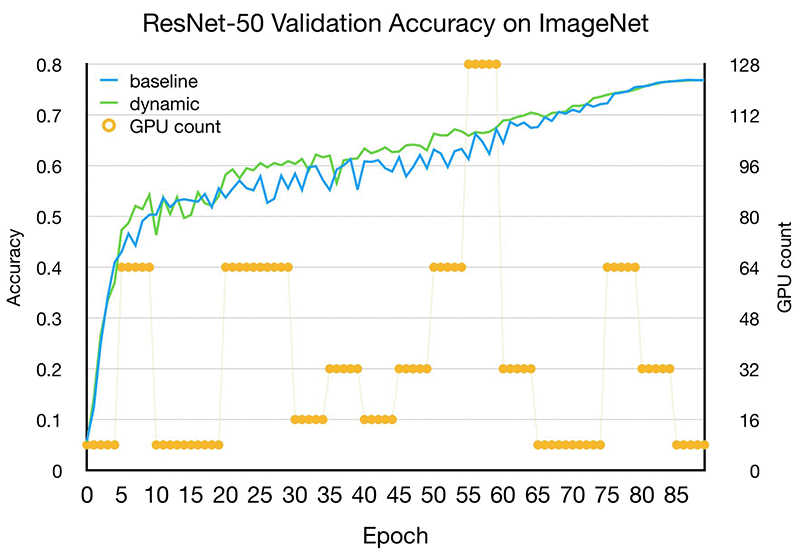
Now let’s go over some results. With our implementation of Dynamic Training with Apache MXNet, we were able to train ResNet-50 v1 [1], a deep convolutional model for image classification, on the IMAGENET dataset, without loss of accuracy. The elastic training job used a pool of P3.16xlarge instances, each consisting of 8 Tesla V100 GPUs. Throughout the 90 epochs training process, the number of hosts in the training cluster fluctuated up and down between 8 GPUs and 96 GPUs.

Because the number of hosts may be changed across training epochs, DT fixes the total batch size, while dynamically adjusting the mini-batch size per GPU based on the number of hosts participating in the given epoch. The following chart illustrates how the DT process utilized a dynamic training cluster, and how it performed compared to the baseline fixed cluster training. Note that both training sessions converged on the same target validation accuracy by the 90th epoch.

This example, alongside other experiments that we ran, demonstrated that DT reduces cost to train by 15 to 50 percent, and reduces time to train by 15 to 30 percent. The actual time and cost reductions vary because they depend on the model architecture, the training cluster setup, and the type of instances used.

We are running computer vision models developed in MXNet to measure the freshness of waffle fries. To reduce the training time of neural networks, we wanted to use distributed training,” said Jay Duff, Management Consultant, Chick-Fil-A. “Dynamic Training with Apache MXNet on AWS allows us to better utilize the AWS infrastructure by elastically adding EC2 Spot and Reserved Instances to training jobs. We expect to reduce training costs by up to 20 percent.”

Getting started with Dynamic Training

To get started with DT with Apache MXNet, visit the GitHub repository, and follow the example. Currently, the implementation supports only Apache MXNet and EC2 Reserved Instances.  We plan to add support for Spot Instances, as well as additional deep learning frameworks, in the future.

We’d love to hear your feedback and experience using DT to train your models. Your feedback on issues and your contributions on the GitHub repository are welcomed!

[1] He, Kaiming, et al. “Deep residual learning for image recognition.” Proceedings of the IEEE conference on computer vision and pattern recognition. 2016.


About the authors

Vikas Kumar – Vikas is Senior Software Engineer for AWS Deep Learning, focusing on building scalable deep learning systems. Prior to this Vikas has worked on building service discovery systems for microservices and databases. In his spare time he enjoys reading and music.


Haibin Lin – Haibin is a Software Development Engineer for AWS Deep Learning, focusing on distributed optimization and natural language processing. In his spare, he enjoys hiking and traveling.


Andrea Olgiati – Andrea is a Principal Engineer for AWS Deep Learning, focusing on building scalable machine learning systems. Prior to this, he worked on databases, compilers, and microchips. In his spare time he enjoys playing the piano and lifting heavy things.


Mu Li – Mu Li is a principal scientist for machine learning at AWS. Before joining AWS, he was the CTO of Marianas Labs, an AI start-up. He also served as a principal research architect at the Institute of Deep Learning at Baidu. He obtained his PhD in computer science from Carnegie Mellon University. He enjoys spending time with his family.


Hagay Lupesko – Hagay is an Engineering Leader for AWS Deep Learning. He focuses on building deep learning systems that enable developers and scientists to build intelligent applications. In his spare time, he enjoys reading, hiking, and spending time with his family.


Amazon’s own ‘Machine Learning University’ now available to all developers

Today, I’m excited to share that, for the first time, the same machine learning courses used to train engineers at Amazon are now available to all developers through AWS.

We’ve been using machine learning across Amazon for more than 20 years. With thousands of engineers focused on machine learning across the company, there are very few Amazon retail pages, products, fulfillment technologies, stores which haven’t been improved through the use of machine learning in one way or another. Many AWS customers share this enthusiasm, and our mission has been to take machine learning from something which had previously been only available to the largest, most well-funded technology companies, and put it in the hands of every developer. Thanks to services such as Amazon SageMaker, Amazon Rekognition, Amazon Comprehend, Amazon Transcribe, Amazon Polly, Amazon Translate, and Amazon Lex, tens of thousands of developers are already on their way to building more intelligent applications through machine learning.

Regardless of where they are in their machine learning journey, one question I hear frequently from customers is: “how can we accelerate the growth of machine learning skills in our teams?” These courses, available as part of a new AWS Training and Certification Machine Learning offering, are now part of my answer.

There are more than 30 self-service, self-paced digital courses with more than 45 hours of courses, videos, and labs for four key groups: developers, data scientists, data platform engineers, and business professionals. Each course starts with the fundamentals, and builds on those through real-world examples and labs, allowing developers to explore machine learning through some fun problems we have had to solve at Amazon. These include predicting gift wrapping eligibility, optimizing delivery routes, or predicting entertainment award nominations using data from IMDb (an Amazon subsidiary). Coursework helps consolidate best practices, and demonstrates how to get started on a range of AWS machine learning services, including Amazon SageMaker, AWS DeepLens, Amazon Rekognition, Amazon Lex, Amazon Polly, and Amazon Comprehend.

New AWS Certification for Machine Learning

To help developers demonstrate their knowledge (and to help employers hire more efficiently), we are also announcing the new “AWS Certified Machine Learning – Specialty” certification. Customers can take the exam now (and at half price for a limited time). Customers at re:Invent can sit for the exam this week at our Training and Certification exam sessions.

The digital courses are now available at no charge at aws.training/machinelearning and you only pay for the services you use in labs and exams during your training.


Dr. Matt Wood, General Manager of Artificial Intelligence, AWS


Amazon Rekognition announces updates to its face detection, analysis, and recognition capabilities

Today we are announcing updates to our face detection, analysis, and recognition features. These updates provide customers with improvements in the ability to detect more faces from images, perform higher accuracy face matches, and obtain improved age, gender, and emotion attributes for faces in images. Amazon Rekognition customers can use each of these enhancements starting today, at no additional cost. No machine learning experience is required.

“Face detection” tries to answer the question: Is there a face in this picture? In real-world images, various aspects can have an impact on a system’s ability to detect faces with high accuracy. These aspects might include pose variations caused by head movement and/or camera movements, occlusion due to foreground or background objects (such as faces covered by hats, hair, or hands of another person in the foreground), illumination variations (such as low contrast and shadows), bright lighting that leads to washed out faces, low quality and resolution that leads to noisy and blurry faces, and distortion from cameras and lenses themselves. These issues manifest as missed detections (a face not detected) or false detections (an image region detected as a face even when there is no face). For example, on social media different poses, camera filters, lighting, and occlusions (such as a photo bomb) are common. For financial services customers, verification of customer identity as a part of multi-factor authentication and fraud prevention workflows involves matching a high resolution selfie (a face image) with a lower resolution, small, and often blurry image of face on a photo identity document (such as a passport or driving license). Also, many customers have to detect and recognize faces of low contrast from images where the camera is pointing at a bright light.

With the latest updates, Amazon Rekognition can now detect 40 percent more faces – that would have been previously missed – in images that have some of the most challenging conditions described earlier. At the same time, the rate of false detections is reduced by 50 percent. This means that customers such as social media apps can get consistent and reliable detections (fewer misses, fewer false detections) with higher confidence, allowing them to deliver better customer experiences in use cases like automated profile photo review. In addition, face recognition now returns 30 percent more correct ‘best’ matches (the most similar face) compared to our previous model when searching against a large collection of faces. This enables customers to obtain better search results in applications like fraud prevention. Face matches now also have more consistent similarity scores across varying lighting, pose, and appearance, allowing customers to use higher confidence thresholds, avoid false matches, and reduce human review in applications such as identity verification. As always, for use cases involving civil liberties or customer sentiments, where the veracity of the match is critical, we recommend that customers use best practices, higher confidence level (at least 99%), and always include human review.

Now let’s look at some images to see how Amazon Rekognition handles the various aspects of challenging images captured in unconstrained environments.

Pose variations

This issue is encountered in faces captured from acute camera angles (like shots taken from above or below a face), shots with side-on view of a face, or when the subject is looking away. This issue is typically seen in social media photos (for example, when a subject is looking into the distance), selfies, or fashion photoshoots. Face detection algorithms have difficulty in detecting such faces because less than half the face might be visible in many cases, or the faces might be tilted at uncommon angles (like being upside down).

Image 1: Side-on view of faces

Image 2: Faces looking down at the camera at various angles

Image 3: Person looking into the sky and away from the camera

Difficult lighting

Lighting might be challenging due to low contrast, low light setups, or extreme contrast. This pattern is common in stock photography and at event venues. Face detection algorithms can struggle with such examples because there is either not enough contrast between face features and the background in low lighting, or, alternatively, face features can be washed out due to bright lighting, again making them difficult to discern.

Image 4: Bright lighting on face

Image 5: Low contrast and shadows on a face

Image 6: Extreme contrast

Blur or occlusion

This challenge is seen in photos that have artistic effects (selfies or fashion photos, video motion blur), partial occlusion by objects, paint or hair (fashion photography), or less-than ideal sharpness (photos taken from identity documents). All of the features of the face are not clearly visible clearly in such cases, so face detection is challenging.

Image 7: Face obstructed by hair

Image 8: Face obstructed by hands and other objects

Face detection and recognition updates are now available in all AWS Regions supported by Amazon Rekognition except AWS GovCloud  – US East (N. Virginia), US East (Ohio), US West (Oregon), EU West (Ireland), Asia Pacific (Tokyo), Asia Pacific (Mumbai), Asia Pacific (Seoul), and Asia Pacific (Sydney). To get started, you can try the latest version in the Amazon Rekognition console and refer to the documentation.


About the Authors

Ranju Das has been with Amazon for almost five years and leads Amazon Rekognition, a deep learning-based image recognition service which allows you to search, verify and organize millions of images. Before joining Amazon, Ranju worked at Barnes and Noble leading Nook Cloud engineering. His team was responsible for strategy, design, development and SaaS operation of Nook mobile services and Digital Asset Management Services.


Venkatesh Bagaria is a Senior Product Manager for Amazon Rekognition. He focuses on building powerful but easy-to-use deep learning-based image and video analysis services for AWS customers. In his spare time, you’ll find him watching way too many stand-up comedy specials and movies, cooking spicy Indian food, and trying to pretend that he can play the guitar.


Building a conversational business intelligence bot with Amazon Lex

Conversational interfaces are transforming the way people interact with software applications and services. They are untethering people from keyboards and smartphone gestures by replacing those interfaces with a more natural style of interaction: the spoken word. Increasingly, people are opting to interact with a bot when they need an answer to a question, to set a reminder, or to obtain a product or service.

With Amazon Lex, we can bring this same level of convenience to data. By allowing users to explore datasets by asking a series of questions, and maintaining a conversational context, we can provide a whole new experience and relationship with data.

This blog post shows you how to use Amazon Lex to implement a business intelligence (BI) chatbot, which we refer to as “BIBot,” although you can customize it to use a different name. BIBot can respond to user questions about data in a database, by converting the questions into backend database queries, and transforming the result sets into natural language responses. For example, the request “tell me the increase in inventory last month” could be translated to “select sum(item_qty) from inventory where month(received_date) = 10”.

BIBot has been integrated with a typical relational database intended for business intelligence and reporting applications. The sample database is the Amazon Redshift TICKIT database, which tracks sales activity for a fictional website where users buy and sell tickets online for music concerts and theater shows. The database is a star schema with two fact tables (sales, listings) and five dimension tables (events, dates, venues, categories, and users). See Amazon Redshift » Sample Database for details.

Here are some sample interactions with BIBot:
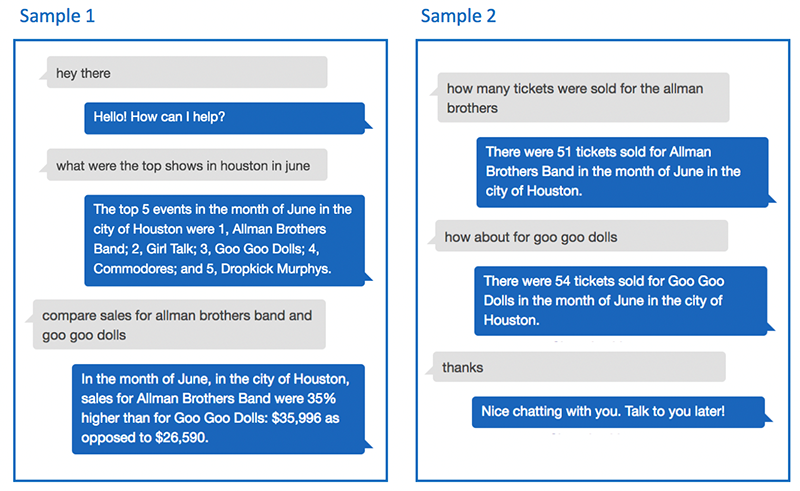
As you can see from these examples, BIBot is able to keep track of the context of your questions, by remembering that you asked about Houston in June, and that you asked how many tickets were sold. The conversation uses the “language” of the data, which in this case is ticket sales, cities, months, events, and so on. These are the facts and dimensions of the sample ticket sales database. If you adapt BIBot to use your reporting database, conversations with the bot will be in the language of your data.

Architecture

BIBot’s architecture is simple. A Lex bot directs each of the user’s questions to an intent, which parses the question into slots. The Amazon Lex bot then passes the intent and slot data to an AWS Lambda function, which uses the data to construct a SQL query, and execute it against an Amazon Athena database. Athena retrieves the query results from a set of CSV files stored in an Amazon S3 bucket, and returns the result set back to the Lambda function, which converts it into a natural language response.

Athena was used for simplicity and convenience, but this architecture will work with any SQL-based database, and can be adapted to other types of data sources, such as NoSQL databases.

Installing BIBot

To get started, let’s install the sample Amazon Lex bot in your AWS account. To make it easy to install BIBot, and for you to make subsequent changes, we’ve implemented a pipeline using AWS CodePipeline that uses AWS CodeBuild to create and update the Amazon Lex bot, the Lambda intent handler functions, and the Athena database.

Step 1: Fork the public amazon-lex-bi-bot into your own GitHub account.

By creating your own copy of the BIBot codebase, you can experiment by making changes to the bot, and even modify it to use your data. Any time you commit a change to your repo, the pipeline will rebuild your bot for you.

Note: if you don’t already have a GitHub account, you can create one for free at https://github.com.

Step 2: Store your AWS API credentials in AWS Systems Manager Parameter Store

The CodeBuild project will make AWS API calls to build the Amazon Lex bot, Lambda function, and Athena database. To do this, it will require your AWS API credentials. If you don’t already have the AWS CLI set up in your environment, follow the directions here: Configuring the AWS CLI. In the AWS Management Console, go to the AWS Systems Manager console, and choose Shared Resources, then choose Parameter Store. Create two parameters with the following parameter names and values:

  • ACCESS_KEY_ID – paste in the value of your aws_access_key_id from your AWS credentials file
  • SECRET_ACCESS_KEY – paste in the value of your aws_secret_access_key from your credentials file

To protect these sensitive keys, make sure to select the Secure String type for each parameter, so that the values are encrypted in Parameter Store.

Step 3: Create the pipeline using AWS CloudFormation

Use this button to launch the AWS CloudFormation stack in the us-east-1 AWS Region (N. Virginia):

Enter bibot for the Stack Name. Enter your GitHub username in the Owner field, and for Personal Access Token you can generate a token with Repo scope on GitHub.

Accept the default values for the other parameters, and choose Next twice to display the Review page. Select the acknowledgement check box, and choose Create.

The CloudFormation template will take a minute or two to finish, and it will create the following resources:

CodePipeline A “bibot-pipeline” AWS CodePipeline, which retrieves the source from your GitHub repository any time you do a commit, and calls CodeBuild
CodeBuildProject A CodeBuild project “bibot-build”, which builds (or rebuilds) the Amazon Lex bot
ArtifactStore An S3 bucket where CodePipeline deposits the code for CodeBuild
AthenaBucket An S3 bucket where you will store a copy of the TICKIT sample data
AthenaOutputLocation An S3 bucket for Athena to store output from queries
CodePipelineRole An IAM service role that allows CodePipeline to access S3 and CodeBuild
CodeBuildServiceRole An IAM service role that allows CodeBuild to access S3 and CloudWatch Logs
LambdaExecutionRole An IAM service role required for the Lambda function

In the AWS Management Console, go to the CodePipeline console and open “bibot-pipeline”. You should see two stages, Source and Build. When both stages have succeeded, your Amazon Lex bot is built.

Next, go to the CodeBuild console and choose Build history. You should see an entry for the “bibot-build” project. Choose the Build run link and inspect the Build details, Environment variables, and Build logs.

Step 4: Copy the sample TICKIT data to your AthenaBucket S3 bucket

When your CloudFormation stack has finished launching, the Output tab will contain AWS CLI commands to copy the data files from the Amazon Redshift sample TICKIT database to your new AthenaBucket S3 bucket. For example:

$ aws s3 cp s3://awssampledbuswest2/tickit/allevents_pipe.txt s3://bibot-athenabucket-xxxxxxxxxxxxx/event/allevents_pipe.txt --source-region us-west-2

Copy each of these AWS CLI commands and execute them to make a copy of the sample data. The Athena database created by CloudFormation uses this data. In the AWS Management Console, go to the Athena console, select the “tickit” database, and try a SQL query. For example:

SELECT DISTINCT event_name from event ORDER BY event_name

Step 5: Test the Lex bot, and refresh its “event_name” slot from the database

Next, got to Amazon Lex, and open BIBot. You will see a warning that you are about to give Amazon Lex permission to invoke your Lambda function, which is expected, so choose OK.

Choose the “event_name” Slot type, and you will see that there are only two entries for this slot (“Sample Event 1” and “Another Sample Event”). Now choose Test Chatbot to open the Lex simulator, and type (or say) “refresh yourself”. BIBot will read the list of events from the database and update the “event_name” Slot type. Choose the “event_name” Slot type again to see the events – you should see a list of event names such as “Joshua Radin,” “Jessica Simpson,” “Nine Inch Nails,” etc.

You will now need to rebuild your bot. Return to the Amazon Lex console, select the BIBot Lex bot, and choose Build. BIBot is now ready for testing – open the Lex simulator and ask BIBot some questions!

Lex bot design

The BIBot Lex bot has eight intents:

Intent Purpose
Hello Say hello to BIBot
Top Ask for the top n aggregate values for a given dimension (e.g., shows, venues, cities, months)
Compare Ask for a comparison of two dimension aggregate values (e.g., March versus April)
Count Ask for the total quantity of a fact (e.g., tickets sold in March) for the current set of dimensions
Switch Switch to a new dimension value for a prior query (e.g., how about in May)
Reset Clear some or all of the query parameters to broaden the search results, or to start over
Refresh Refresh a slot type using dimension data from the database, and retrain the NLU engine
GoodBye Say goodbye, and end the session

The Hello and GoodBye intents are simple, and included mainly just to add character. You can say “Hello,” “hey there,” “hi,” and so on, and BIBot will respond. When you’re done, if you want, you can say “thanks,” “bye,” “good job,” “catch you later,” etc., and BIBot will end the session.

Top, Compare, Count, Switch, and Reset are more interesting. These intents are designed to implement a conversational, natural language interface for specific types of database queries. They’re flexible, because they can work with any of the dimensions in the database, and they’re coordinated, because they remember and share context as the user asks a series of questions as part of a larger conversation.

The Refresh intent updates the definition of a Lex slot type with dimension data from the database (in this case, the list of event names from the EVENT table in the sample TICKIT database).

Let’s take a look at the Top intent:

This intent allows you to ask questions like, “Tell me the top 3 events in Boston,” or “What were the top cities for Dave Matthews Band in March.”

This intent uses the following slots:

  • {count} – uses the built-in AMAZON.NUMBER slot type.
  • {dimension} – a custom slot type, identifying dimensions from the sample database: “events,” “months,” “venues,” “cities,” “states,” and “categories.” This slot type also uses synonyms, so that you can say “locations” instead of “venues,” for example.

Each of the dimensions in the sample database are also represented as slots:

  • {event_name} – a custom slot type, identifying the set of events that exist in the sample TICKIT database “EVENT” table. This slot type is updated via the Refresh
  • {event_month} – uses the built-in AMAZON.Month slot type.
  • {venue_name} – uses the built-in AMAZON.MusicVenue slot type.
  • {venue_city} – uses the built-in AMAZON.US_CITY slot type.
  • {venue_state} – uses the built-in AMAZON.US_STATE slot type
  • {cat_desc} – a custom slot type, identifying the set of categories that exist in the sample TICKIT database “CATEGORY” table.

Building a domain-specific natural language

BIBot’s query intents – Top, Compare, Count, Switch, and Reset – all work in this way: they use slots as the “vocabulary” needed to build sentence structures relevant to the underlying dataset. In effect, BIBot’s intents implement a domain-specific natural language. The Amazon Lex powerful natural language understanding capabilities make this easy to do.

As an example, take a look at some sample utterances from the Count intent:

When you ask BIBot “How many tickets were sold for the Allman Brothers in Arlington in February?” the Lex natural language processing engine is able to parse the question correctly, by using components from several of the sample utterances. You don’t need to specify every permutation of every question in the sample utterances.

Maintaining conversational context

When you ask BIBot a question, the Lambda fulfillment function responds with an answer, but also retains some of the slot values in session attributes, which are shared across intents. This allows BIBot to carry on a conversation, in effect remembering what was previously asked. Maintaining conversational context in this way is key to providing a more natural user experience, and for simplifying the ability for users to explore a dataset by asking a series of related questions.

For example, in the sample interaction at the beginning of this blog, the user asked about the top shows in Houston in June, and BIBot identified the top five events. When the user asked to compare sales for the Allman Brothers and the Goo Goo Dolls, BIBot “understood” that this was a follow-on question, and that the user really wanted to compare the sales for those events in Houston, in June. This approach enables the user to drill down on their results until they find the information they need.

Sometimes a user may want to back up, switch gears, broaden the search results, or just start over. BIBot’s Top, Compare, and Count query intents support this, with some additional help from the Reset intent. For example:

Interaction Intent – Result

what were the top shows in houston in june?

The top 5 events in the month of June in the city of Houston are 1, Allman Brothers Band; 2, Girl Talk; 3, Goo Goo Dolls; 4, Commodores; and 5, Dropkick Murphys.

Top – BIBot remembers city: Houston and month: June as query parameters

top cities for goo goo dolls

There are only 2. The top 2 cities for Goo Goo Dolls in the month of June are 1, Houston; and 2, Cincinnati.

Top – BIBot remembers event: Goo Goo Dolls, but forgets the city: Houston query parameter

forget about june

OK, I have reset June.

Reset – BIBot forgets the month: June

top cities

The top 5 cities for Goo Goo Dolls are 1, Toronto; 2, Houston; 3, Boston; 4, Oakland; and 5, Cincinnati.

Top – BIBot uses the remembered event: Goo Goo Dolls to complete the request.

how many tickets were sold in Boston?

There were 46 tickets sold for Goo Goo Dolls in the city of Boston.

Count – BIBot uses the remembered event: Goo Goo Dolls to complete the request, and remembers the city: Boston

start over

OK, I have reset everything.

Reset – BIBot forgets event: Goo Goo Dolls and city: Boston

Sourcing slots from the data

As noted previously, BIBot uses built-in Amazon slot types to represent some of the dimensions, including the month, city, state, and venue name. For the event name dimension, the Refresh intent reads the data from the database and updates the corresponding slot types using the aws.lex-models.put-slot-type API call. This trains the Amazon Lex NLU engine to recognize event names specific to the TICKIT database. For frequently changing datasets, the Refresh intent logic could be triggered automatically on a scheduled basis.

Amazon Lex can correctly identify the intended slots even when they include values that might also exist in other slot types, as shown in the following examples. Lex is able to recognize “Boston” and “Chicago” as bands, as well as cities, even in the same request.

AWS Lambda implementation and extensibility

BIBot’s Python-based Lambda fulfillment functions consist of intent handlers, helper functions, configuration data, and user exit functions. There are eight intent handler functions:

  • hello_intent.py
  • count_intent.py
  • compare_intent.py
  • top_intent.py
  • switch_intent.py
  • reset_intent.py
  • refresh_intent.py
  • goodbye_intent.py

Helper functions include:

  • get_slot_values(slot_values, intent_request)
  • remember_slot_values(slot_values, session_attributes)
  • get_remembered_slot_values(slot_values, session_attributes)
  • execute_athena_query(query_string)
  • close(session_attributes, fulfillment_state, message)

All of these functions are database agnostic, and can be configured to work for different database schemas.

Configuration parameters include slot configuration, dimension information, and SQL query strings, which are specific to the underlying database. Slots are configured to match the slot types defined for the intents:

SLOT_CONFIG = {
  'event_name':  {'type': TOP_RESOLUTION, 'remember': True,  
                  'error': 'I did not find an event called "{}".'},
  'event_month': {'type': ORIGINAL_VALUE, 'remember': True},
  'venue_name':  {'type': ORIGINAL_VALUE, 'remember': True},
  'venue_city':  {'type': ORIGINAL_VALUE, 'remember': True},
  'venue_state': {'type': ORIGINAL_VALUE, 'remember': True},
   ...
}

BIBot also needs to understand the dimensions for the database, and how they map to database columns:

DIMENSIONS = {
  'events':     {'slot': 'event_name',  'column': 'e.event_name',  'singular': 'event'},
  'months':     {'slot': 'event_month', 'column': 'd.month',       'singular': 'month'},
  'venues':     {'slot': 'venue_name',  'column': 'v.venue_name',  'singular': 'venue'},
  'cities':     {'slot': 'venue_city',  'column': 'v.venue_city',  'singular': 'city'},
  'states':     {'slot': 'venue_state', 'column': 'v.venue_state', 'singular': 'state'},
  'categories': {'slot': 'cat_desc',    'column': 'c.cat_desc',    'singular': 'category'}
}

The query intent handlers need SQL queries that are specific to the database. For example, here are the configuration parameters for the Top intent handler for the sample TICKIT database:

TOP_SELECT  = "SELECT {}, SUM(s.amount) ticket_sales FROM sales s, event e, venue v, "            
              "category c, date_dim d " 
TOP_JOIN    = " WHERE e.event_id = s.event_id AND v.venue_id = e.venue_id AND "  
              " c.cat_id = e.cat_id AND d.date_id = e.date_id "
TOP_WHERE   = " AND LOWER({}) LIKE LOWER('%{}%') " 
TOP_ORDERBY = " GROUP BY {} ORDER BY ticket_sales desc" 

The “{ }” parameters are replaced by column names and values at runtime based on the user’s request.

In addition to configuration parameters, there are user exit functions:

  • pre_process_query_value(key, value)
  • post_process_slot_value(key, value)
  • post_process_dimension_output(key, value)
  • get_state_name(value)
  • get_month_name(value)
  • post_process_venue_name(venue)

These functions are called prior to inserting values into query parameters or after extracting them from the result set, in order to allow mappings between human-readable values and the values stored in the database. You can insert custom code in these functions to implement database-specific mappings.

For example, when the user asks for the top five events in California, preprocess_query_value() converts the value to “CA” which corresponds to the data in the database. The post_process_dimension_output() performs the reverse function, converting the value “CA” returned from the database to back to “California”.

Conclusion

Natural language interfaces will change the way that people interact with data. Traditional business intelligence dashboards, visualizations, and alerts will be augmented with conversational interfaces, in which business users find answers to their questions about their data simply by asking.

BIBot provides an extensible framework for implementing a conversational interface for business data. It’s designed to be integrated with traditional reporting database structures, such as star schemas or snowflake schemas, but can be adapted to other types of data sources, such as NoSQL databases. The sample implementation includes three simple analytics – top aggregates by dimension, compare aggregates for two dimensions, and count an aggregate – which can all participate together seamlessly within a shared conversational context. Additional analytics can be added to this framework, from simple queries to complex simulations and predictive models.

Give BIBot a try with your business data, and let us know how it works for your organization!


About the Author

Brian Yost is a Senior Consultant with AWS Professional Services. In his spare time, he enjoys mountain biking, home brewing, and tinkering with technology.

New Features For Amazon SageMaker: Workflows, Algorithms, and Accreditation

We’ve seen a ton of progress in machine learning during the past 12 months, with customers using Amazon SageMaker – a fully-managed service which has put ML into the hands of tens of thousands of developers and data scientists – to find fraud, predict pitches, and tune engines. We’ve added nearly 100 new features and capabilities since we introduced SageMaker at re:Invent last year, with the vast majority based on customer feedback (keep it coming). We continue that drum beat today, with major new announcements for Amazon SageMaker.

Introducing SageMaker Workflows

Today, we’re announcing new automation, orchestration, and collaboration features for Amazon SageMaker to make it easier to build, manage, and share machine learning workflows.

Machine learning is a highly collaborative process – combining domain experience with technical skills is the bedrock of success, and often requires multiple iterations and experimentation with different datasets and features. Developers often need to share progress and gather feedback from many collaborators. Training a successful model is almost never a hole-in-one, and so it’s important to be able to keep track of the important decisions, replay the successful parts, reuse what worked, and get help on what didn’t. We’re introducing new capabilities to make these iterations easier to manage, repeat, and share.

Experiment Management with SageMaker Search

Developing a successful ML model requires continuous experimentation, trying new algorithms and model hyperparameters, all the while observing the impact of potentially small changes on performance and accuracy. This iterative exercise means it can be hard to track which unique combination of datasets, algorithms, and parameters brewed the “winning” model.

Data scientists and developers can now organize, track, and evaluate their machine learning model training experiments with Amazon SageMaker Search. SageMaker Search lets you quickly find and evaluate the most relevant model training runs from the potentially thousands of Amazon SageMaker model training runs, right from the AWS console.

Collaboration with Version Control

Data scientists, developers, data engineers, analysts, and business leaders often need to share ideas, tasks, and collaborate to make progress with machine learning. The de-facto standard for this type of collaboration with traditional software development has been version control. It plays an important role in ML too, and we’re making it easier by adding Git integration and visualization to Amazon SageMaker.

Customers can now link GitHub, AWS CodeCommit, or self-hosted Git repositories with SageMaker notebooks, clone public and private repositories, and store repository information in Amazon SageMaker securely using IAM, LDAP, and AWS Secrets Manager. You can review your branches, merges, and versions directly in SageMaker, using a new open source notebook app.

Automation with Step Functions & Apache Airflow

ML often requires multiple steps in a complete workflow to be run in a coordinated sequence. For example, you may want to perform a query in Amazon Athena or aggregate and prepare data in AWS Glue, before training a model in SageMaker, and deploying it to production. Automating these steps and orchestrating them across multiple services helps build reusable, reproducible ML workflows which can be shared between engineers and scientists.

You can now use Step Functions to automate and orchestrate SageMaker steps in an end-to-end workflow. You can automate publishing datasets to Amazon S3, training an ML model on your data with SageMaker, and deploying your model for prediction. AWS Step Functions will monitor SageMaker (and Glue) jobs until they succeed or fail, and either transition to the next step of the workflow or retry the job. It includes built-in error handling, parameter passing, state management, and a visual console that lets you monitor your ML workflows as they run.

In addition to Step Functions, many developers currently use Apache Airflow, a popular open source framework to author, schedule, and monitor multi-stage workflows. Amazon SageMaker now also integrates with Airflow, so you can use the same orchestration tool you’re used to to drive SageMaker tasks such as data preparation, training, and tuning. If you’re new to Airflow, you can spin up a new instance and start orchestrating workflows on AWS in just a few clicks, using CloudFormation.

These new features will be available to customers to take for a test drive, starting early next month.

New Algorithms and Frameworks

Not that long ago, part of the ‘cost of doing business’ with machine learning was significant investment in research and development of new algorithms; both in achieving the right levels of accuracy, and in bringing those algorithms out of the lab and into the real world where they could run across large, complex training datasets. Customers can run algorithms for training models in three ways in SageMaker; by bringing their own in a custom container, by using built-in SageMaker Algorithms, or by running fully-managed MXNet, TensorFlow, PyTorch, and Chainer algorithms with just 20 lines of code. We’ve been adding new algorithms through the year too, including BlazingText for text classification, and Object Detection in images.

We’re pleased to announce new built-in algorithms for detecting suspicious IP addresses (IP Insights), low dimensional embeddings for high dimensional objects (Object2Vec), and – an oldie but a goodie – unsupervised grouping (K-means clustering), all designed to support petabyte scale datasets, at 10x better performance than you would expect to see with traditional methods. Without needing an entire R&D department, any developer can access these algorithms as they would any other API in SageMaker, and get the benefit of fast, low cost training, even at scale.

We’ve also been adding new framework support through the year (including PyTorch 1.0 and Chainer) and keeping others up to date (such as the latest MXNet 1.3), and we’re pleased to announce that customers will soon also be able to run fully-managed Horovod jobs for high scale distributed training, and scikit-learn and Spark MLeap for inference.

New Compliance Standards and Accreditation

Security, encryption, compliance, and accreditation are all critical areas for machine learning; ensuring you can meet the regulatory and organizational requirements on your data (and data dependent assets such as models and notebooks) is job zero for everyone using ML.

We’re pleased to add SageMaker to our System and Organizational Controls (SOC) Level 1, Level 2, and Level 3 audits. The SOC reports are available now in the AWS Management Console, and you can download the SOC3 report as a PDF. These controls complement SageMaker’s existing accreditations; the service is in scope for ISO 9001:2015, 27001:2013, 27017:2015, 27018:2014, PCI DSS 3.2 Level 1, and is eligible for HIPAA and BAA coverage on AWS. ITAR workloads can be run on SageMaker in the AWS GovCloud (US) region.

Real World Machine Learning with Amazon SageMaker

 These new capabilities, algorithms, and accreditation will help bring more machine learning workloads to more developers. By focusing almost exclusively on what customers are asking for, we’re making real strides in making machine learning useful and usable in the real world through Amazon SageMaker. Accreditation, experimentation, and automation aren’t always the first thing you may think of when it comes to artificial intelligence, but our customers tell us that these features can further shorten the time it takes to build, train, and deploy their models. No R&D department required.


Dr. Matt Wood, General Manager of Artificial Intelligence, AWS


Amazon Transcribe now supports real-time transcriptions

Amazon Transcribe is an automatic speech recognition (ASR) service that makes it easy for developers to add speech-to-text capability to applications. We’re excited to announce a new feature called Streaming Transcription, which enables users to pass a live audio stream to our service and receive text transcripts in real time.

Real-time transcriptions benefit use cases across diverse verticals, including contact centers, media and entertainment, courtroom record keeping, finance, and insurance. For example, contact centers can detect keywords in real-time transcriptions to trigger downstream actions, like automatically summoning a supervisor. In media, live broadcasting of news or shows can benefit from live subtitling. Video game companies can use streaming transcription to meet accessibility requirements for in-game chat, helping players who have hearing impairments. In the legal domain, courtrooms can leverage real-time transcriptions to enable stenography, while lawyers can also make legal annotations on top of live transcripts for deposition purposes. In business productivity, companies can leverage real-time transcription to capture meeting notes on the fly.

Streaming Transcription utilizes HTTP 2’s implementation of bidirectional streams to handle streaming audio and transcripts between your application and the Amazon Transcribe service. Bidirectional streams allow your application to handle sending and receiving data at the same time, resulting in quicker, more reactive results.

To demonstrate how to use the AWS SDK to take advantage of Streaming Transcription within your own applications, we’ve created an example application. This application creates a basic user interface that allows you to stream audio from your microphone or an audio file to Amazon Transcribe and receive transcripts in real time.

The example application can be found on the AWS GitHub account (https://github.com/aws-samples). Download the example app by choosing the green Clone or download button and selecting the Download ZIP link. Alternatively, you can clone the repository to your desktop using Git or SVN.

Build the application with Apache Maven (https://maven.apache.org/index.html) and then execute the resulting jar with the following commands:

export AWS_ACCESS_KEY_ID=<your key id>
export AWS_SECRET_ACCESS_KEY=<your secret access key>
export AWS_REGION=<desired region endpoint to use, such as us-east-1>
mvn clean package
java -jar target/aws-transcribe-sample-application-1.0-SNAPSHOT-jar-with-dependencies.jar

You should be off and transcribing! Live!

To explore the code, start with the startTranscription method in the TranscribeStreamingClientWrapper class:

return client.startStreamTranscription(
        //Request parameters. Refer to API documentation for details.
        getRequest(sampleRate),
        //AudioEvent publisher containing "chunks" of audio data to transcribe
        requestStream,
        //Defines what to do with transcripts as they arrive from the service
        responseHandler);

All the code necessary to set up an audio stream and a response handler can be found in the repository. We recommend using this example as a starting point for your application.

Good luck and happy transcribing!


About the authors

Paul Zhao is a Sr. Product Manager at AWS Machine Learning. He manages the Amazon Transcribe service. Outside of work, Paul is a motorcycle enthusiast and avid woodworker.


Paul Kohan is a Sr. Software Engineer at Amazon Transcribe. Outside of work Paul enjoys hanging out with his dog, Toby, and playing video and board games.


Easily monitor and visualize metrics while training models on Amazon SageMaker

Data scientists and developers can now quickly and easily access, monitor, and visualize metrics that are computed while training machine learning models on Amazon SageMaker. You can now specify the metrics you want to track by using the AWS Management Console for Amazon SageMaker or by using the Amazon SageMaker Python SDK APIs. After the model training starts, Amazon SageMaker will automatically monitor and stream the specified metrics in real time to the Amazon CloudWatch console for visualizing time-series curves, such as loss curves and accuracy curves. You can also access the metrics programmatically using Amazon SageMaker Python SDK APIs.

Model training is an iterative process of teaching a model to make predictions by presenting examples from a training dataset. Typically a training algorithm computes several metrics such as training loss and prediction accuracy that help diagnose whether the model is learning well and will generalize well for making predictions on unseen data. This diagnosis is especially helpful when you are tuning your model’s hyperparameters or evaluating whether your model has the potential for deploying to production.

Now let’s dive into few examples so you can see how you can monitor and visualize these metrics on Amazon SageMaker.

Amazon SageMaker algorithms provide built-in support for metrics

All Amazon SageMaker built-in algorithms automatically compute and emit a variety of model training, evaluation, and validation metrics. For example, the Amazon SageMaker Object2Vec algorithm emits the validation:cross_entropy metric. Object2Vec is a supervised learning algorithm that can learn low dimensional dense embeddings of high dimensional objects such as words, phrases, and sentences. It also learns how similar two embeddings are in vector space. This is a technique that has applications in assessing whether a given pair of sentences in a text are similar. The validation:cross_entropy metric emitted by the algorithm measures the extent to which the prediction made by the model diverges from the actual label in the validation data set. If the model is learning well, the cross_entropy should decrease over the progression of model training.

Now let’s walk through the AWS Management Console step by step. We’ll also show you how to use the code snippets from the sample notebook for training an Amazon SageMaker Object2Vec model.

Step 1: Start the training job on Amazon SageMaker

The sample notebook has step-by-step instructions for creating the training job. You can find all the metrics emitted by the training algorithm on the AWS Management Console. In the console, open the Amazon SageMaker console and choose Training Jobs in the left navigation pane.  Then, choose the training job name to open the details page for the training job.

On the training job details page, scroll down to the Metrics section to find all the metrics published by the training algorithm to your Amazon CloudWatch Logs and Amazon CloudWatch Metrics streams. You can use the regex patterns that you see next to each metric to quickly parse and filter the metric values from your Amazon CloudWatch Log files created by Amazon SageMaker.

In the next step we’ll show you how you can avoid doing the manual parsing from log files, and monitor the metric directly on your Amazon CloudWatch metrics dashboard.

Step 2: Visit the Amazon CloudWatch metrics dashboard to monitor and visualize the metrics

The training jobs details page now has a direct link to the Amazon CloudWatch metrics dashboard for the metrics emitted by the training algorithm.

Choose the link to go to your Amazon CloudWatch metrics dashboard. Use this dashboard to select the validation:cross_entropy metric for graphing and visualization.

Step 3: Using Amazon SageMaker Python SDK APIs to visualize metrics

You can also visualize the metrics inline in your Amazon SageMaker Jupyter notebooks using the Amazon SageMaker Python SDK APIs. Here is a sample code snippet.

%matplotlib inline
from sagemaker.analytics import TrainingJobAnalytics

training_job_name = '<insert job name>'
metric_name = 'validation:cross_entropy'

metrics_dataframe = TrainingJobAnalytics(training_job_name=training_job_name,metric_names=[metric_name]).dataframe()
plt = metrics_dataframe.plot(kind='line', figsize=(12,5), x='timestamp', y='value', style='b.', legend=False)
plt.set_ylabel(metric_name);

Step 4: Using the DescribeTrainingJob API action

In addition to visualizing the running value of the metric, you can also access the final value of the metric using the DescribeTrainingJob API action.

Monitoring and visualizing metrics for your own training algorithm

If you are performing model training on Amazon SageMaker using either one of the built-in deep learning framework containers such as the TensorFlow or PyTorch containers, or running your own algorithm container, you can now easily specify the metrics you want Amazon SageMaker to monitor and publish to your Amazon CloudWatch metrics dashboard.

Using the Amazon SageMaker console

While you are creating your model training job on the console, you can now specify the regex pattern for the metrics that your algorithm or model training script publishes to logs. Amazon SageMaker will automatically parse the metrics from logs and publish them to your Amazon CloudWatch metrics dashboard for graphing and visualization.

Using the AWS SDK

You can also add the MetricsDefinition for the metrics you want to track while creating a training job using the CreateTrainingJob API action.

trainingJobParams = {
   "AlgorithmSpecification": { 
      "TrainingImage": "string",
      "TrainingInputMode": "string"
   }, 
...............
...............
MetricDefinitions: [
  {
   "Name": "validation:rmse",
   "Regex": ".*\[[0-9]+\].*#011validation-rmse:(\S+)"
  },
  {
   "Name": "validation:auc",
   "Regex": ".*\[[0-9]+\].*#011validation-auc:(\S+)"
  },
  {
   "Name": "train:auc",
   "Regex": ".*\[[0-9]+\]#011train-auc:(\S+).*"
  }
 ]
...............
...............
}

Get started with more examples and developer support

Now that you have seen examples of how to monitor and visualize metrics on Amazon SageMaker, you can try out the sample notebooks that we mentioned earlier or add metrics visualization to your own training algorithm. You can refer our developer guide for a complete listing of metrics computed by our built-in Amazon SageMaker algorithms or post your questions on our developer forum. Happy modeling!


About the Authors

Sifei Li is a Software Engineer in Amazon AI where she’s working on building Amazon Machine Learning Platforms and was part of the launch team for Amazon SageMaker.



Sumit Thakur is a Senior Product Manager for AWS Machine Learning Platforms where he loves working on products that make it easy for customers to get started with machine learning on cloud. He is product manager for Amazon SageMaker and AWS Deep Learning AMI. In his spare time, he likes connecting with nature and watching sci-fi TV series.


Andrew Packer is a Software Engineer in Amazon AI where he is excited about building scalable, distributed machine learning infrastructure for the masses. In his spare time, he likes playing guitar and exploring the PNW.

Detect suspicious IP addresses with the Amazon SageMaker IP Insights algorithm

Today, we are announcing the new IP Insights algorithm for Amazon SageMaker. IP Insights is an unsupervised learning algorithm for detecting anomalous behavior and usage patterns of IP addresses. In this blog post, we introduce the problem of identifying fraudulent behavior using IP addresses, describe the Amazon SageMaker IP Insights algorithm, demonstrate how you can use it in a real-world application, and share some of our results using it internally.

Fighting malicious activity

Malicious activities often involve an account takeover — unauthorized access to online resources, such as access to online banking accounts, admin consoles, and social networking or webmail accounts. Takeover attempts typically use stolen, lost, or leaked credentials, and unauthorized access is likely to originate from an IP address that is not typical to the account (for example, from the hacker’s computer rather than from the user’s).

A common defense for preventing account takeovers is to flag cases when online resources are accessed by an IP address that hasn’t been seen before. Flagged interactions can be blocked, or users can be challenged to provide additional forms of authentication (such as responding to an SMS). However, most users regularly access online resources from IP addresses they have never used before. Therefore, the “flag new IPs” method yields unreasonably high false positive rates and results in a poor customer experience.

While users regularly access online resources from new IP addresses, choosing a new IP address is not completely random. Several latent factors influence the allocation, such as traveling habits of users and IP assignment strategies of internet service providers. Explicitly enumerating all of these latent factors is generally intractable. However, by looking at access patterns of an online resource, it’s possible to predict whether a new IP address is an expected event or an anomaly. The Amazon SageMaker IP Insights algorithm is designed precisely to do that.

The Amazon SageMaker IP Insights algorithm

The Amazon SageMaker IP Insights algorithm uses statistical modeling and neural networks to capture associations between online resources (for example, online bank accounts) and IPv4 addresses. Under the hood, the algorithm learns vector representations for the online resources and IP addresses where each point is close together if they have been used together. The algorithm itself can learn and incorporate many of the latent factors without requiring us to explicitly model them.

The training procedure starts by randomly assigning each possible IP address and resource to a random point. An online resource is any opaque string identifier (such as a user ID, UUID, etc.). At its core, the algorithm iteratively pushes the points representing IP addresses and resources together if they are associated with each other in the training data, and it pulls them away from each other if they are not associated.

Due to the special neural network architecture, which uses the structure of IPv4 addresses, the algorithm models the behavior of IP addresses. It can compute accurate vector representations, even if they were not seen before in the training data.

The Amazon SageMaker IP Insights Algorithm can be used to analyze access logs and make predictions about whether an access attempt (such as a login event or an online transaction) is suspicious based on the IP address and a user’s access history. This is even the case when an IP address has not been seen before.

Hands-on example: Detecting suspicious login attempts to a web application

In this section, we’ll show you how the Amazon SageMaker IP Insights algorithm can be used to identify suspicious login events to a web application. For more information or to try it out yourself, try the example notebook here.

We are going to focus on an account takeover scenario where an attacker tries to log in to a user’s account with stolen credentials. Such malicious login attempts often originate from unusual IP addresses. Therefore, we can identify them by using the Amazon SageMaker IP Insights algorithm. First, we’ll show you how to prepare your dataset and train the model, then we’ll show how you can call the trained model from your application to act on insights.

Preparing the dataset

The Amazon SageMaker IP Insights algorithm can be applied to any situation where you have data linking a resource (such as user account) and an IP address. In many cases this might come directly from your application or web server logs, application database, or data warehouse. The first step is exporting your data to Amazon S3 in headerless CSV files that contain two fields (EntityId, IpAddress). The <EntityID> can be any string identifier for a resource, and the <IpAddress> should be in IPv4 dot notation. For example, your dataset should look like this:

Entity1,10.0.0.1
Entity2,192.168.0.100
.
.
.
Entity2,10.0.0.1

To see how our model performs, we split the dataset into a training and test set. The algorithm makes predictions using the test set to evaluate how accurately it can identify valid and invalid access attempts. Typically you will want to use several consecutive days of the dataset for training, and then the subsequent days for the test set.

It’s a best practice to use data over a longer period of time (at least days to weeks) and to regularly refresh your model by retraining with new data. Similarly, the algorithm performs better if the training dataset is shuffled when you create it.

Training the model

We train the model on Amazon SageMaker using the IP Insights algorithm. There are a few hyperparameters (configuration for the algorithm) that we can tweak to improve performance: vector_dim is the dimension of the latent space that both IP addresses and accounts are represented; num_entity_vectors is the number of distinct vector representations that the algorithm maintains for accounts. The mapping from an account to a vector is determined by a hash function, so num_entity_vectors should be set larger than the total number of unique accounts to minimize the adverse effects of hash collisions. Finally, shuffled_negative_sampling_rate and random_negative_sampling_rate specify how many negative samples are generated for each record of the training data by randomly picking an IP address from the current mini batch and by randomly generating IP address, respectively. A detailed explanation of the model hyperparameters is provided here.

After we set the training job parameters and the model hyperparameters, we start training the Amazon SageMaker IP Insights model as follows:

role = get_execution_role()
sess = sage.Session()
image = 'xxxxxxx.dkr.ecr.yyyy.amazonaws.com/ipinsights:latest'

input_data = {
    'train': sage.session.s3_input('s3://my_train_data', content_type='text/csv'),
}

model = sage.estimator.Estimator(image, 
                                 role, 
                                 train_instance_count=1, 
                                 train_instance_type='ml.p3.2xlarge',
                                 output_path='s3://{}/output'.format(sess.default_bucket()),
                                 sagemaker_session=sess)
                                 
model.set_hyperparameters(epochs='25', 
                          mini_batch_size='1000', 
                          learning_rate='0.001', 
                          vector_dim='128', 
                          num_entity_vectors='1000000',
                          shuffled_negative_sampling_rate='2',
                          random_negative_sampling_rate='1',
                          num_ip_encoder_layers='1')
model.fit(input_data)          

Identifying suspicious logins

After the training is completed, we deploy the model to an endpoint for online inference:

from sagemaker.predictor import csv_serializer, json_deserializer

predictor = model.deploy(
    initial_instance_count=1,
    instance_type='ml.m4.xlarge'
)

From your application code, you can now invoke the model. Since Amazon SageMaker is a managed service this can be done from many different languages including Java, Python, etc.

Python

predictor.serializer = csv_serializer
predictor.accept = 'application/json'
predictor.deserializer = json_deserializer

predictor.predict(dataset)

Java 8

String dataCSV = String.join(",", entityId, ipv4Address);
ByteBuffer buf = ByteBuffer.wrap(dataCSV.getBytes());

InvokeEndpointRequest invokeEndpointRequest = new InvokeEndpointRequest();
invokeEndpointRequest.setBody(buf);
invokeEndpointRequest.setEndpointName(endpointName);
invokeEndpointRequest.setContentType("text/csv");
invokeEndpointRequest.setAccept("application/json");

AmazonSageMakerRuntime amazonSageMaker = AmazonSageMakerRuntimeClientBuilder.defaultClient();
InvokeEndpointResult invokeEndpointResult = amazonSageMaker.invokeEndpoint(invokeEndpointRequest);

Evaluating model performance

Now that we have the model deployed, we want to validate that it can distinguish between authorized login events and suspicious or fraudulent attempts. We do that by comparing the scores the model gives for legitimate login events in the test dataset with those of the negatively sampled random events. To generate negative events, we pick a login event from test dataset, keep the account the same and replace the IP address with a randomly generated IP address. This way, a negative event somewhat represents a malicious login attempt, since it is a record of a known account being accessed from an unknown IP address.

As we can see, the Amazon SageMaker IP Insights model gives much higher scores to malicious events, and there is a clear separation between the two distributions.

Tweaking model performance and threshold

Now that we can see the range of scores for legitimate and malicious events, we can make a better choice about the threshold we chose and the actions we should take. If we used the model’s score to trigger an additional authentication challenge, such as sending one-time code to a mobile phone or displaying security questions, a good choice of threshold value would be around 0. This allows for most malicious login attempts to face additional authentication challenges. More legitimate traffic will be flagged, but only a small fraction of legitimate users would be bothered by that. On the other hand, if we triggered a manual investigation based on these scores, then we would choose a threshold value around 10. This would correspond to an operating point with a much lower false positive rate. That is, although some malicious events would be missed, the ones selected for manual investigation would be much more likely to be malicious.

Results and baseline comparison

When designing the algorithm, we evaluated its performance on an internal dataset of user logins. In this section, we compare its performance to existing methods that are used to detect suspicious logins. First we compare it to two variations of the “flag new IP” method mentioned earlier:

  1. IP Table Method: In this method, a login event is considered malicious if the account has never used the IP address during training period.
  2. Subnet Table Method: This method is a more relaxed version of the previous method. Here, a login event is considered malicious if the account has never used an IP address from the same /24 subnet during the training period.

While being simple, these methods are quite effective and often achieve close to 100% true positive rate because an attacker’s IP address is highly likely to be different than the IP addresses that the victim uses. However, as we will see, they suffer from high false positive rates because legitimate users sometime log in from IP addresses that they have not used during the training period. One of the main contributions of the Amazon SageMaker IP Insights algorithm is to reduce the high false positive rate by associating accounts with more likely IP addresses, even if they have never been used before.

To compare Amazon SageMaker IP Insights with the baselines, we created a labelled test case where we artificially inject 1% malicious traffic into a dataset of legitimate traffic. We then score each event in the dataset using both methods.

We observe in these Receiver Operating Characteristics (ROC) curves  that both baseline methods reach 100% true positive rate (TPR) with around 20% false positive rate (FPR). The Amazon SageMaker IP Insights model, on the other hand, achieves 100% true positive rate at a much lower false positive rate, around 10%. In addition, the baseline models are rigid and their only operating point is TPR=100% and FPR~20%. On the other hand, the Amazon SageMaker IP Insights model can be configured to operate at lower FPR values by adjusting the threshold. As we discussed earlier, lower FPR is especially useful when high-scoring events trigger a manual investigation.

Conclusion

In this post, we introduced the problem of malicious login attempts. We demonstrated how the Amazon SageMaker IP Insights model can be used to identify suspicious login events, and we showed that the Amazon SageMaker IP Insights model performs significantly better than baseline methods. Furthermore, now that the IP Insights model is on Amazon SageMaker, it can be used with Amazon SageMaker Automatic Model Tuning for you to achieve even better performance.


About the authors

Jared Katzman is a Software Engineer in the AWS AI Labs organization. They are interested in researching ways we can use machine learning and technology for social good. In their spare time, they run a mentorship program for LGBTQ+ students interested in technology.



Baris Coskun is a Senior Applied Scientist in the AWS External Security Services, where he leads a team of scientists working on machine learning and information security.


Acknowledgements

We would like to thank Jakub Zablocki, Jianbo Liu, and Zak Jost from AWS Payments & Fraud Team for their valuable inputs on the research of this project, as well as Eric Kim and Pranav Garg from Amazon AI, for their early contributions.


Analyze live video at scale in real time using Amazon Kinesis Video Streams and Amazon SageMaker

We are excited to announce the launch of the Amazon Kinesis Video Streams Inference Template (KIT) for Amazon SageMaker. This capability enables customers to attach Kinesis Video streams to Amazon SageMaker endpoints in minutes. This drives real-time inferences without having to use any other libraries or write custom software to integrate the services. The KIT comprises of the Kinesis Video Client Library software packaged as a Docker container and an AWS CloudFormation template that automates the deployment of all required AWS resources. Amazon Kinesis Video Streams makes it easy to securely stream audio, video, and related metadata from connected devices to AWS for analytics, machine learning (ML), playback, and other processing. Amazon SageMaker is the managed platform for developers and data scientists to build, train, and deploy ML models quickly and easily.

Customers ingest audio and video feeds from sources like home security cameras, enterprise IP cameras, traffic cameras, AWS DeepLens, cellphones, and more into Kinesis Video Streams. Developers and data scientists across industry verticals ranging from smart homes to smart cities, from intelligent manufacturing to retail, want to deploy their own machine learning algorithms to analyze these video feeds on the AWS Cloud. These customers want a reliable way to connect Kinesis Video Streams to their Amazon SageMaker endpoints, so that they can build scalable, real-time, ML-driven video analytics pipelines with minimal operating overhead.

In this blog post, we’ll introduce this new capability and explain the functionality of both the Kinesis Video Streams Client Library and the CloudFormation template. We’ll also provide a step-by-step working example of integrating Kinesis Video Streams to Amazon SageMaker using KIT.

Kinesis Video Streams and Machine-Learning driven analytics

Amazon Kinesis Video Streams launched at re:Invent 2017. At launch it was already integrated with Amazon Rekognition Video, enabling an easy way to perform real-time face recognition using a private database of face metadata. This earlier blog post details how to use facial recognition to deliver high-end consumer experience with Amazon Kinesis Video Streams and Amazon Rekognition Video.

As customers ingest a variety of video feeds using Kinesis Video Streams their use cases, training data sets, and types of inferences being performed are also diversifying. For example, a leading home security provider wants to ingest audio and video from their home security cameras using Kinesis Video Streams. After which, they want to attach their own custom ML-models running in Amazon SageMaker to detect and analyze pets and objects to build richer user experiences. An in-store physical retail intelligence provider, wants to stream videos from cameras placed inside stores to train a custom person-counting model using Amazon SageMaker. This will enable them to make real-time inferences to estimate the number of shoppers in the store to inform store operations. 

Kinesis Video Streams integration with Amazon SageMaker using KIT

We’ll now discuss the two components that constitute KIT for Amazon SageMaker.

The Kinesis Video Streams client library enables scalable, a- least-once-processing of the media across a distributed set of workers, manages the reliable invocation of Amazon SageMaker endpoints, and publishing of inference results into a Kinesis data stream for subsequent processing. Specifically, the library determines the Kinesis Video streams that have to be processed, connects to the streams, and refreshes them periodically to include/ exclude streams for processing. The software instantiates a worker that runs consumers which are responsible for processing a Kinesis Video stream at any given time. As part of this, it also maintains leases for every consumer running in (and across) workers to coordinate among themselves the ability to process the various streams. It also ensures reliable, at-least-once-processing of the media fragments by managing checkpoints on a per lease-stream basis.

The software pulls media fragments from the streams using the real-time Kinesis Video Streams GetMedia API operation, parses the media fragments to extract the H264 chunk, samples the frames that need decoding, then decodes the I-frames and converts them into image formats such as JPEG/PNG format, before invoking the Amazon SageMaker endpoint. As the Amazon SageMaker-hosted model returns inferences, KIT captures and publishes those results into a Kinesis data stream. Customers can then consume those results using their favorite service, such as AWS Lambda. Finally, the library publishes a variety of metrics into Amazon CloudWatch so that customers can build dashboards, monitor, and alarm on thresholds as they deploy into production.

The AWS CloudFormation template automates the deployment of all relevant AWS infrastructure in the customer’s own account, to read media from Kinesis Video Streams and invoke the Amazon SageMaker endpoint for ML-based analytics. This saves time to build, operate, and scale the integrated capability.

The CloudFormation template first creates an Amazon Elastic Container Services (ECS) cluster using AWS Fargate compute engine that runs the library software hosted in a Docker container.

It also spins up an Amazon DynamoDB table for maintaining checkpoints and related state across workers that run on Fargate Tasks and Amazon Kinesis Data Streams to capture the inference outputs generated from Amazon SageMaker.  The template also creates the requisite AWS Identity and Access Management (IAM) policies and Amazon CloudWatch resources to monitor the entire infrastructure. KIT for Amazon SageMaker is compatible with any Amazon SageMaker endpoint that accepts image data. Customer can modify the template as needed to fit their specific use case.

How to set up KIT

Prerequisites

Step-by-step instructions for KIT deployment

  • You’ll deploy a website by means of a CloudFormation
  • CloudFormation is a powerful tool that facilitates the creation of an infrastructure-as-code template for repeatable infrastructure resource deployments.
    1. Log into your AWS account if you haven’t already. If you have already logged in go to step 2 by means of the following URL: https://xxxxxxxxxxxx.signin.aws.amazon.com/console replacing the Xs with your account number.
    2. On the AWS Services search bar choose CloudFormation.
    3. Select the CloudFormation Template for your target region from this location
    4. Name the Stack and fill out the parameters then choose Next.
      • AppName – A unique application name that is used for creating all resources
      • DockerImageRepository – Docker Image for Kinesis Video Streams and SageMaker Driver
      • EndPointAcceptContentType – image/jPEG or image/png image formats are currently supported to invoke the SageMaker endpoint
      • LambdaFunctionBucket – Amazon S3 bucket location for your custom Lambda function
      • LambdaFunctionKey – Amazon S3 Object Key  for your custom Lambda function code zip file
      • SageMaker Endpoint – Amazon SageMaker endpoint that hosts your custom Machine Learning model
      • StreamNames – CSV list of strings specifying stream names
      • TagFilters – JSON string of Tag filters
    5. Leave the parameters on the Options page as default and choose Next.
    6. Review the configuration information on the Review Acknowledge the creation of IAM Roles check box, and choose Create.

Extending the Solution

Depending on your use case, this solution can be extended by updating the Lambda function and integrating with other AWS services.

In this example, we’ll retrieve the Kinesis Video fragment and store it in an Amazon S3 bucket along with detection data.

  1. Create an Amazon S3 bucket.
  2. Add the following additional permissions to the AWS Lambda Execution role – replacing with correct bucket name and Kinesis Video Stream ARNs. These additional permissions enable AWS Lambda to retrieve the fragment from the Kinesis Video Stream and write to an S3 bucket.
    {
        "Effect": "Allow",
        "Action": [
            "s3:PutObject",
        ],
        "Resource": [
            "arn:aws:s3:::<<YOUR BUCKET>>/*",
        ]
    },
    {
        "Effect": "Allow",
        "Action": [
            "kinesisvideo:GetMediaForFragmentList",
            "kinesisvideo:GetDataEndpoint",
        ],
        "Resource": [
            "<< YOUR KINESIS VIDEO STREAM ARNs>>",
        ]
    }
    

  3. Replace <<YOUR BUCKET>> in the following code and replace the Lambda function code.
    from __future__ import print_function
    import base64
    import json
    import boto3
    import os
    import datetime
    import time
    from botocore.exceptions import ClientError
    
    bucket='<<YOUR BUCKET>>'
    
    #Lambda function is written based on output from an Amazon SageMaker example: 
    #https://github.com/awslabs/amazon-sagemaker-examples/blob/master/introduction_to_amazon_algorithms/object_detection_pascalvoc_coco/object_detection_image_json_format.ipynb
    object_categories = ['person', 'bicycle', 'car',  'motorbike', 'aeroplane', 'bus', 'train', 'truck', 'boat', 
                         'traffic light', 'fire hydrant', 'stop sign', 'parking meter', 'bench', 'bird', 'cat', 'dog',
                         'horse', 'sheep', 'cow', 'elephant', 'bear', 'zebra', 'giraffe', 'backpack', 'umbrella', 'handbag',
                         'tie', 'suitcase', 'frisbee', 'skis', 'snowboard', 'sports ball', 'kite', 'baseball bat',
                         'baseball glove', 'skateboard', 'surfboard', 'tennis racket', 'bottle', 'wine glass', 'cup',
                         'fork', 'knife', 'spoon', 'bowl', 'banana', 'apple', 'sandwich', 'orange', 'broccoli', 'carrot',
                         'hot dog', 'pizza', 'donut', 'cake', 'chair', 'sofa', 'pottedplant', 'bed', 'diningtable',
                         'toilet', 'tvmonitor', 'laptop', 'mouse', 'remote', 'keyboard', 'cell phone', 'microwave', 'oven',
                         'toaster', 'sink', 'refrigerator', 'book', 'clock', 'vase', 'scissors', 'teddy bear', 'hair drier',
                         'toothbrush']
    
    def lambda_handler(event, context):
      for record in event['Records']:
        payload = base64.b64decode(record['kinesis']['data'])
        #Get Json format of Kinesis Data Stream Output
        result = json.loads(payload)
        #Get FragmentMetaData
        fragment = result['fragmentMetaData']
        
        # Extract Fragment ID and Timestamp
        frag_id = fragment[17:-1].split(",")[0].split("=")[1]
        srv_ts = datetime.datetime.fromtimestamp(float(fragment[17:-1].split(",")[1].split("=")[1])/1000)
        srv_ts1 = srv_ts.strftime("%A, %d %B %Y %H:%M:%S")
        
        #Get FrameMetaData
        frame = result['frameMetaData']
        #Get StreamName
        streamName = result['streamName']
       
        #Get SageMaker response in Json format
        sageMakerOutput = json.loads(base64.b64decode(result['sageMakerOutput']))
        #Print 5 detected object with highest probability
        for i in range(5):
          print("detected object: " + object_categories[int(sageMakerOutput['prediction'][i][0])] + ", with probability: " + str(sageMakerOutput['prediction'][i][1]))
        
        detections={}
        detections['StreamName']=streamName
        detections['fragmentMetaData']=fragment
        detections['frameMetaData']=frame
        detections['sageMakerOutput']=sageMakerOutput
    
        #Get KVS fragment and write .webm file and detection details to S3
        s3 = boto3.client('s3')
        kv = boto3.client('kinesisvideo')
        get_ep = kv.get_data_endpoint(StreamName=streamName, APIName='GET_MEDIA_FOR_FRAGMENT_LIST')
        kvam_ep = get_ep['DataEndpoint']
        kvam = boto3.client('kinesis-video-archived-media', endpoint_url=kvam_ep)
        getmedia = kvam.get_media_for_fragment_list(
                                StreamName=streamName,
                                Fragments=[frag_id])
        base_key=streamName+"_"+time.strftime("%Y%m%d-%H%M%S")
        webm_key=base_key+'.webm'
        text_key=base_key+'.txt'
        s3.put_object(Bucket=bucket, Key=webm_key, Body=getmedia['Payload'].read())
        s3.put_object(Bucket=bucket, Key=text_key, Body=json.dumps(detections))
        print("Detection details and fragment stored in the S3 bucket "+bucket+" with object names : "+webm_key+" & "+text_key)
      return 'Successfully processed {} records.'.format(len(event['Records']))
    

S3 Bucket with video fragments and detection details

The following screenshot shows that KIT for Amazon SageMaker is emitting detected video fragments and corresponding inferences into the Amazon S3 bucket.

AWS Lambda function logs showing processed output

This solution can be extended for various use cases. For example, by combining the Computer Vision OpenCV library and the Amazon SageMaker prediction details, bounding boxes can added to the detected objects in the video frames and fed in to a real time alerting portal.

Monitoring the KIT-managed infrastructure

The library software vends a variety of CloudWatch metrics by default that customers can use to monitor the progress being made to process individual streams. These include metrics that determine the resource consumption of the workers in their cluster, the rates at which the Amazon SageMaker endpoint is being invoked, and how the inference results are published into their Kinesis Data Stream. The CloudFormation template, creates a ready-to-use CloudWatch dashboard that customers can further extend for their purposes. By default the dashboard captures the key metrics for the underlying services that power KIT and custom metrics specific to the latency, reliability, and scaling characteristics of the software.

CloudWatch dashboard – KIT metrics

Conclusion

Through KIT for Amazon SageMaker, we have simplified the real-time, ML-driven processing of media streams in a reliable and scalable manner. Customers can attach all of their Kinesis Video streams to their Amazon SageMaker endpoints to power their ML-driven use cases with minimal operational overhead. You can read more about this capability in our documentation. We look forward to iterating on the underlying Kinesis Video Client Library software, based on customer feedback so that all developers can further customize for their use cases.


About the Authors

Aditya Krishnan is the head of Amazon Kinesis Video Streams. In this role he has the good fortune of working with customers, hardware and software partners, and a phenomenal engineering team to deliver on the vision of making it ridiculously easy to stream video from internet-enabled camera devices at massive scale.


Jagadeesh Pusapadi is a Solutions Architect with AWS working with customers on their strategic initiatives. He helps customers build innovative solutions on AWS Cloud by providing architectural guidance to achieve desired business outcomes.