Blog

Learn About Our Meetup

5000+ Members

MEETUPS

LEARN, CONNECT, SHARE

Join our meetup, learn, connect, share, and get to know your Toronto AI community. 

JOB POSTINGS

INDEED POSTINGS

Browse through the latest deep learning, ai, machine learning postings from Indeed for the GTA.

CONTACT

CONNECT WITH US

Are you looking to sponsor space, be a speaker, or volunteer, feel free to give us a shout.

Category: Global

Analyzing contact center calls—Part 1: Use Amazon Transcribe and Amazon Comprehend to analyze customer sentiment

Contact centers aiming to improve overall operational efficiency have an imperative to understand caller-agent dynamics. In part one of this two-part blog post series we’ll show you how you can use Amazon Transcribe and Amazon Comprehend to transform call recordings from audio to text and then run sentiment analysis on the transcripts. We will demonstrate how to use Amazon Transcribe to create text transcripts from an audio file. Afterwards, we’ll use Amazon Comprehend to analyze the call transcript, producing insights on keywords, topics, entities, and sentiment.

AWS services leveraged

Amazon Transcribe is an automatic speech recognition (ASR) service that makes it easy for developers to add speech-to-text capability to their applications. Using the Amazon Transcribe API, you can transcribe audio files stored in Amazon S3 into text transcripts.

Amazon Comprehend analyzes text and tells you what it finds, starting with the language, from Afrikaans to Yoruba, with 98 more in between. It can identify different types of entities (people, places, brands, products, and so forth), key phrases, sentiment (positive, negative, mixed, or neutral), and extract key phrases, all from text in English or Spanish. Finally, the Amazon Comprehend topic modeling service extracts topics from large sets of documents for analysis or topic-based grouping.

AWS Lambda lets you run code without provisioning or managing servers. You pay only for the compute time you consume – there is no charge when your code is not running.

AWS Step Functions makes it easy to coordinate the components of distributed applications and microservices using visual workflows.

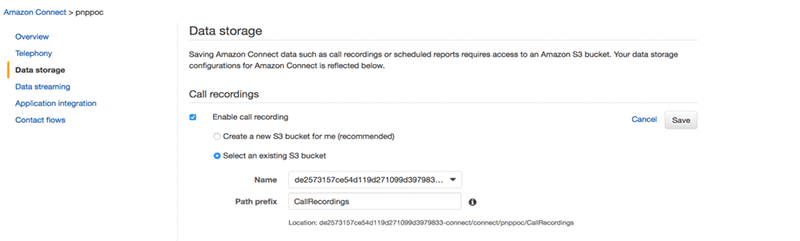
Amazon Connect is a self-service, cloud-based contact center service that makes it easy for any business to deliver better customer service at lower cost. Amazon connect produces Call Recordings between caller and Agent interactions.

Solution overview

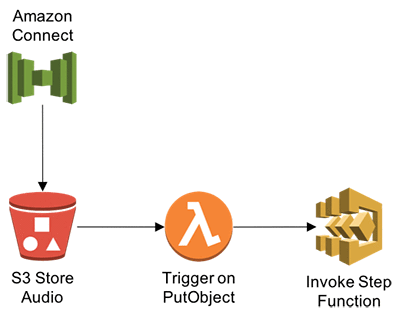
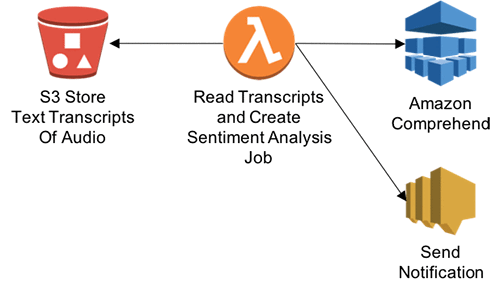
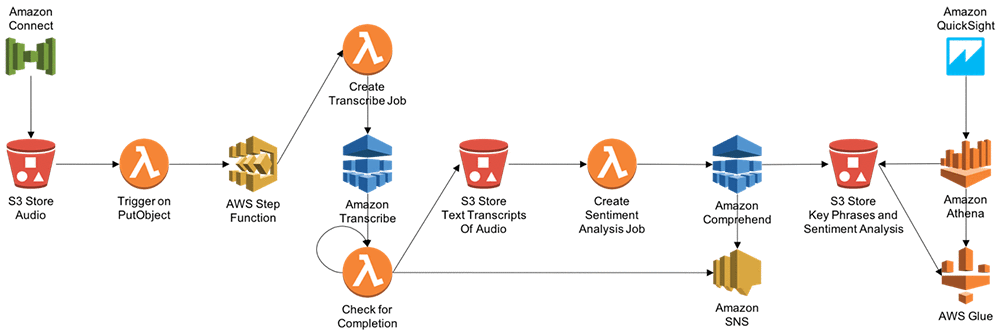
The architecture is broadly divided into these components, as the following diagram illustrates:

  1. Audio Transcript Storage → Amazon S3 bucket
  2. Orchestration component and business logic component → AWS Step Functions and AWS Lambda
  3. Transcribing component → Amazon Transcribe
  4. Sentiment analysis component → Amazon Comprehend
  5. Notification component → SNS Topic
  6. Amazon Comprehend → Entity, sentiment, key phrases, and language output into an Amazon S3 bucket
  7. AWS Glue maintains the database catalogue and database table structure. Amazon Athena queries data in Amazon S3 using the AWS Glue database catalogue.
  8. Amazon QuickSight analyzes call recording and performs sentiment, and performs a key phrases analysis of caller-agent interactions.

Transcribe call center audio, run sentiment analysis, and visualize analytics

After uploading audio files to an Amazon S3 bucket, we’ll trigger a Lambda function to invoke Step Functions that will point the Amazon Transcribe service to the bucket destination to create transcription jobs. Accepted audio/visual formats include: WAV, FLAC, MP3, and MP4.

Step 1: Create the Lambda function and IAM policy

  1. Open the AWS Management Console and navigate to the Lambda console. Then choose Create a Lambda function.
  2. Choose Skip to skip the blueprint selection.
  3. For Runtime, choose Node JS 8.10.
  4. For Name, enter a function name.
  5. Enter a description that notes the source bucket and destination bucket used.
  6. For Code entry type, choose Edit code inline.
  7. Create environment variable – STEP_FUNCTIONS_ARN
  8. Paste the following into the code editor:
    'use strict';
    
    const aws = require('aws-sdk');
    
    var stepfunctions = new aws.StepFunctions();
    const s3 = new aws.S3({apiVersion: '2006-03-01'});
    
    exports.handler = (event, context, callback) => {
        const bucket = event.Records[0].s3.bucket.name;
        const key = decodeURIComponent(event.Records[0].s3.object.key.replace(/+/g, ' '));
        const params = {Bucket: bucket,Key: key};
    
        s3.getObject(params, (err, data) => {
            if (err) {
                console.log(err);
                const message = `Error getting object ${key} from bucket ${bucket}. Make sure they exist and your bucket is in the same region as this function.`;
                console.log(message);
                callback(message);
            } else {
                var job_name = key.replace("/", "-");
                var stepparams = {
                  "stateMachineArn": process.env.STEP_FUNCTIONS_ARN,
                   "input": "{"s3URL": "https://s3.amazonaws.com/" + bucket + "/" + key + "","JOB_NAME": ""+ job_name + ""}"
                };
                stepfunctions.startExecution(stepparams, function(err, data) {
                  if (err) console.log(err, err.stack); // an error occurred
                  else     console.log(data);           // successful response
                });
                callback(null, data.ContentType);
            }
        });
    };
    

Step 2: Create source Amazon S3 bucket

  1. Navigate to the Amazon S3 console and edit the source bucket configuration.
  2. Expand the Events section and provide a name for the new event.
  3. For Events, choose ObjectCreated (ALL).
  4. For Send to, choose Lambda Functions.
  5. For Lambda Function, select the Lambda function name you chose in Step 1.
  6. Choose Save

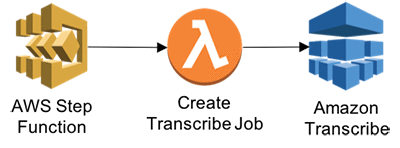
Step 3: Create Transcribe and Comprehend APIs using a Lambda function

Trigger Transcribe job based on the input S3 audio transcript received. Two parameters are received – s3URL and JOB name.

  1. Navigate to the Lambda console, and then choose Create a Lambda function.
  2. Choose Skip to skip the blueprint selection.
  3. For Runtime, choose Node JS 8.10.
  4. For Name, enter a function name.
  5. Enter a description that notes Create Transcribe JOB based on the input received.
  6. For Code entry type, choose Edit code inline.
  7. Paste the following into the code editor:
    var AWS = require('aws-sdk');
    var transcribeservice = new AWS.TranscribeService();
    exports.handler = (event, context, callback) => {
        var params = {
          LanguageCode: 'en-US',
          Media: { /* required */
            MediaFileUri: event.s3URL + ""
          },
          MediaFormat: 'mp3',
          TranscriptionJobName: event.JOB_NAME
    
        };
        transcribeservice.startTranscriptionJob(params, function(err, data) {
          if (err) console.log(err, err.stack); // an error occurred
          else     {
          console.log(data);           // successful response
          event.wait_time = 60;
          event.JOB_NAME = data.TranscriptionJob.TranscriptionJobName;
          callback(null, event);
          }
        });
    
    };

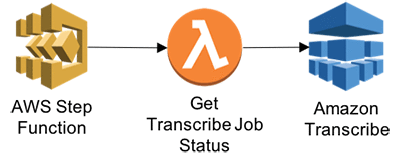
Step 4: Get Transcribe Job Status

Get transcribe JOB status. This function will enable Step functions to wait for transcribe job to complete.

  1. In the Lambda console, choose Create a Lambda function.
  2. Choose Skip to skip the blueprint selection.
  3. For Runtime, choose Node JS 8.10.
  4. For Name, enter a function name.
  5. Enter a description that notes Transcribe JOB details.
  6. For Code entry type, choose Edit code inline.
  7. Paste the following into the code editor:
    var AWS = require('aws-sdk');
    var transcribeservice = new AWS.TranscribeService();
    
    exports.handler = (event, context, callback) => {
        var params = {
          TranscriptionJobName: event.JOB_NAME /* required */
        };
        transcribeservice.getTranscriptionJob(params, function(err, data) {
          if (err) console.log(err, err.stack); // an error occurred
          else     console.log(data);           // successful response
          event.STATUS = data.TranscriptionJob.TranscriptionJobStatus;
          event.Transcript =data.TranscriptionJob.Transcript;
          callback(null,event);
        });
    };

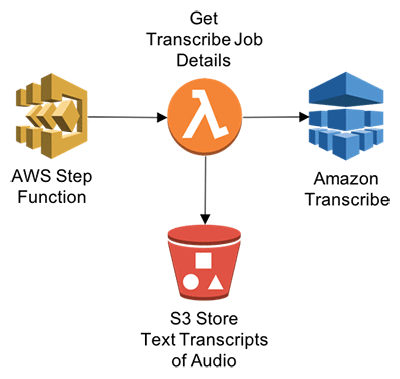
Step 5: Get transcribe job details

This function will enable Step Functions to get transcribe JOB details once completed.

  1. In the Lambda console, choose Create a Lambda function.
  2. Choose Skip to skip the blueprint selection.
  3. For Runtime, choose Node JS 8.10.
  4. For Name, enter a function name.
  5. Enter a description that notes get information about the transcribe job.
  6. For Code entry type, choose Edit code inline.
  7. Paste the following into the code editor:
    var AWS = require('aws-sdk');
    var transcribeservice = new AWS.TranscribeService();
    
    exports.handler = (event, context, callback) => {
    
        var params = {
          TranscriptionJobName: event.JOB_NAME /* required */
        };
        transcribeservice.getTranscriptionJob(params, function(err, data) {
          if (err) console.log(err, err.stack); // an error occurred
          else     console.log(data);           // successful response
          event.STATUS = data.TranscriptionJob.TranscriptionJobStatus;
          event.TranscriptFileUri =data.TranscriptionJob.Transcript.TranscriptFileUri;
          callback(null,event);
        });
    };

Step 6: Call Amazon Comprehend to analyze transcription text

In this step, you’ll get transcribed audio text and perform contextual analysis. This function will enable Step Functions to call Amazon Comprehend to perform sentiment analysis.

  1. In the Lambda console, choose Create a Lambda function.
  2. Choose Skip to skip the blueprint selection.
  3. For Runtime, choose Node JS 8.10.
  4. For Name, enter a function name.
  5. Enter a description that notes get information about the transcribe job.
  6. For Code entry type, choose Edit code inline.
  7. Paste the following into the code editor:
    var https = require('https');
    let AWS = require('aws-sdk');
    var comprehend = new AWS.Comprehend({apiVersion: '2017-11-27'});
    exports.handler = function(event, context, callback) {
        var request_url = event.request_url;
        https.get(request_url, (res) => {
          var chunks = [];
    	  res.on("data", function (chunk) {
            chunks.push(chunk);
          });
          res.on("end", function () {
            var body = Buffer.concat(chunks);
            var results = JSON.parse(body);
            console.log( body.toString());
            var transcript = results.results.transcripts[0].transcript;
            console.log(transcript)
            var params = {
              LanguageCode: "en",
              Text: transcript + ""
            };
            comprehend.detectSentiment(params, function(err, data) {
              if (err) console.log(err, err.stack); // an error occurred
              else     console.log(data);           // successful response
              callback(null, data);
            });
            callback(null, transcript);      });
    
    	}).on('error', (e) => {
    	  console.error(e);
    	});
    };

Step 7: Invoke Step Functions

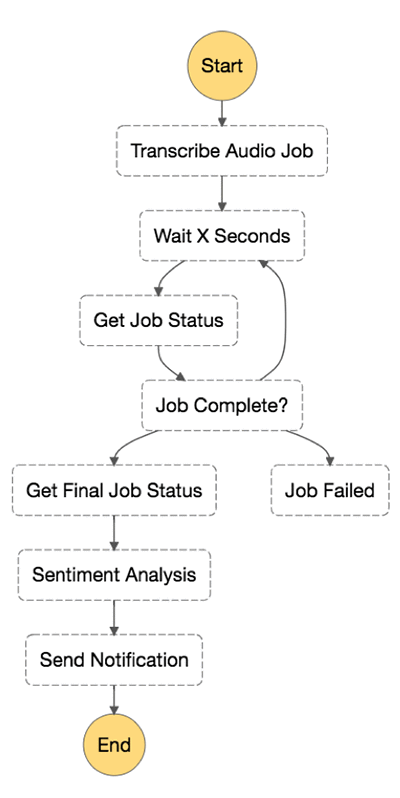
In this step you will leverage AWS Steps Functions orchestrate the Lambda functions created earlier and notify the end customer about the contextual analysis.

  1. In the Step Functions console, choose Create a state machine.
  2. Choose Author from scratch
  3. For Name,  Enter your State Machine Name For example : TranscribeJob.
  4. Paste the following code in State machine definition
  5. Update the ARN values of lambda functions created in earlier steps in the State machine definition code
  6. Click Next
  7. Choose existing role which has permissions to invoke lambda functions, send SNS (Create the custom role if the role doesn’t exists)
  8. Click Create state machine


{
	"Comment": "A state machine that submits a Job to AWS Batch and monitors the Job until it completes.",
	"StartAt": "Transcribe Audio Job",
	"States": {
		"Transcribe Audio Job": {
			"Type": "Task",
			"Resource": "<<Start Transcribe job for Audio to Text ARN>>",
			"ResultPath": "$",
			"Next": "Wait X Seconds",
			"Retry": [{
				"ErrorEquals": ["States.ALL"],
				"IntervalSeconds": 1,
				"MaxAttempts": 3,
				"BackoffRate": 2
			}]
		},
		"Wait X Seconds": {
			"Type": "Wait",
			"SecondsPath": "$.wait_time",
			"Next": "Get Job Status"
		},
		"Get Job Status": {
			"Type": "Task",
			"Resource": "<<Get Transcribe job status ARN>>",
			"Next": "Job Complete?",
			"InputPath": "$",
			"ResultPath": "$",
			"Retry": [{
				"ErrorEquals": ["States.ALL"],
				"IntervalSeconds": 1,
				"MaxAttempts": 3,
				"BackoffRate": 2
			}]
		},
		"Job Complete?": {
			"Type": "Choice",
			"Choices": [{
				"Variable": "$.STATUS",
				"StringEquals": "IN_PROGRESS",
				"Next": "Wait X Seconds"
			}, {
				"Variable": "$.STATUS",
				"StringEquals": "COMPLETED",
				"Next": "Get Final Job Status"
			}, {
				"Variable": "$.STATUS",
				"StringEquals": "FAILED",
				"Next": "Job Failed"
			}],
			"Default": "Wait X Seconds"
		},
		"Job Failed": {
			"Type": "Fail",
			"Cause": "AWS Batch Job Failed",
			"Error": "DescribeJob returned FAILED"
		},
		"Get Final Job Status": {
			"Type": "Task",
			"Resource": "<<Get Transcribe job details ARN>>",
			"InputPath": "$",
			"Next": "Send contextual analysis"
			"Retry": [{
				"ErrorEquals": ["States.ALL"],
				"IntervalSeconds": 1,
				"MaxAttempts": 3,
				"BackoffRate": 2
			}]
		},
		
		"Send contextual analysis": {
			"Type": "Task",
			"Resource": "<<Send Contextual Analysis ARN>>",
			"InputPath": "$",
			"End": true,
			"Retry": [{
				"ErrorEquals": ["States.ALL"],
				"IntervalSeconds": 1,
				"MaxAttempts": 3,
				"BackoffRate": 2
			}]
		}
	}
}

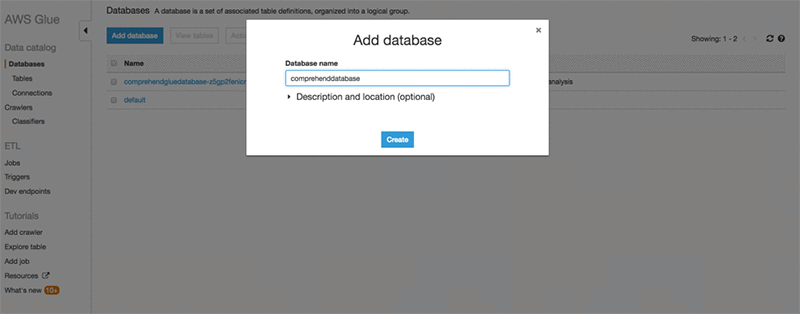
Step 8: Create an AWS Glue database for visualization

Navigate to the AWS Glue console and create a database to store sentiment analysis entities.

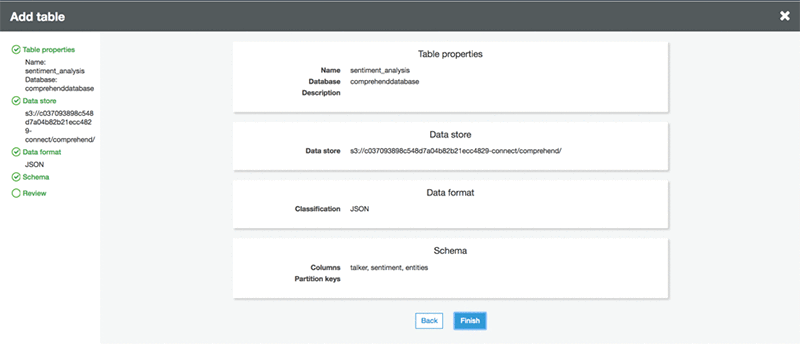
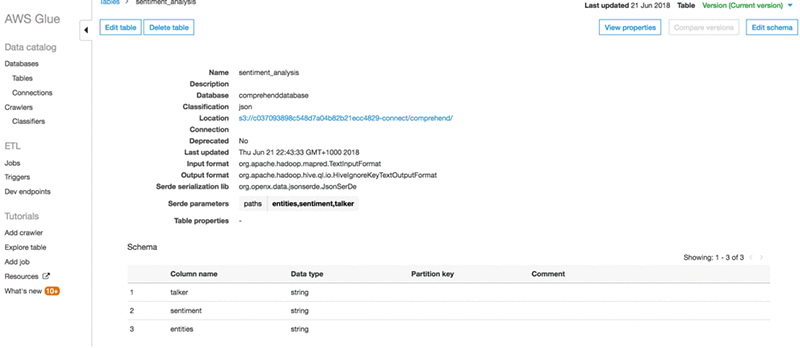
Add the AWS Glue table to the database you just created.


A created table in database looks like this:

Step 9: Visualization using Amazon QuickSight

To visualize Amazon Comprehend output using Amazon QuickSight, do the following:

  1. Connect Amazon QuickSight to Amazon Athena.
    1. https://docs.aws.amazon.com/quicksight/latest/user/create-a-data-set-athena.html
    2. https://docs.aws.amazon.com/quicksight/latest/user/managing-permissions.html
    3. https://aws.amazon.com/blogs/big-data/derive-insights-from-iot-in-minutes-using-aws-iot-amazon-kinesis-firehose-amazon-athena-and-amazon-quicksight/
  2. Grant Amazon QuickSight access to Athena and the associated S3 buckets in the account. For information on how to do this, see Managing Amazon QuickSight Permissions to AWS Resources in the Amazon QuickSight User Guide.
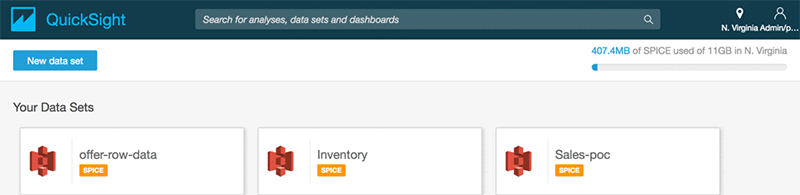
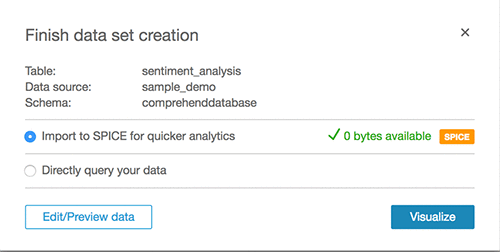
  3. Create a new data set for visualising sentiment analysis in Amazon QuickSight based on the Athena table that was created during deployment.

After setting up permissions, create a new analysis in Amazon QuickSight by choosing New analysis.

Add a new data set.

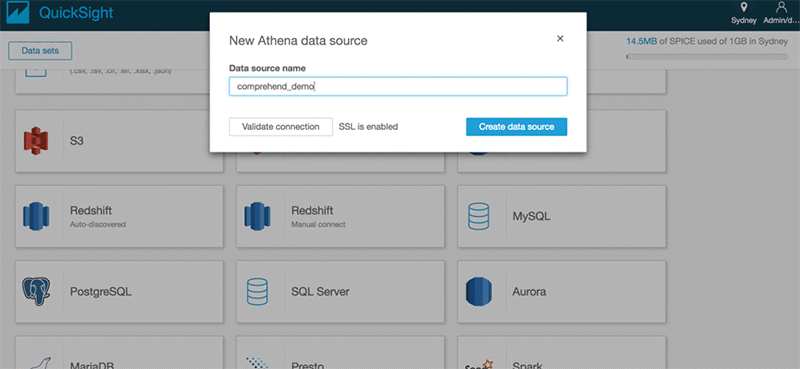
Choose Athena as the source and give the data source a name, such as comprehend_demo.

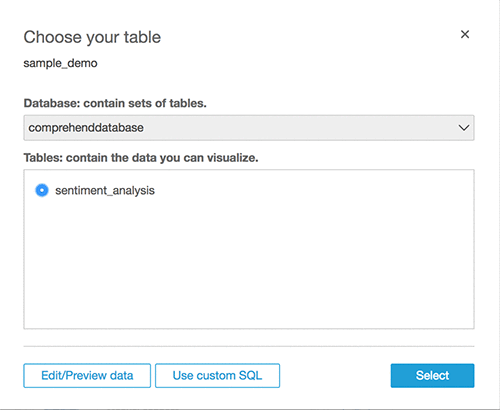
Click Select to choose the database and table.

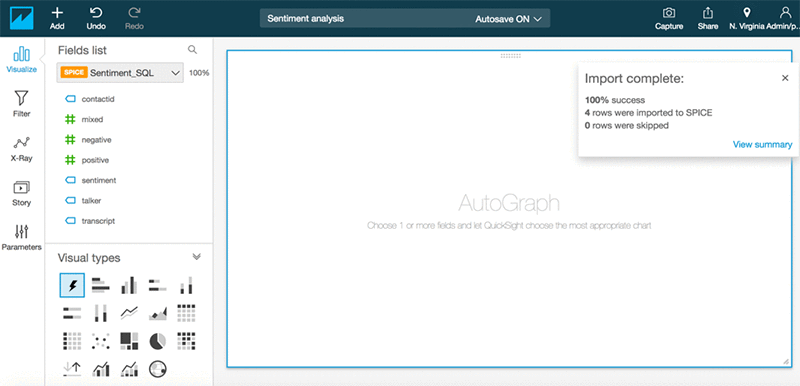
Click Visualize.

Create custom visualizations.

Conclusion

Enterprises can reap significant benefits by realizing the hidden value in the massive amounts of caller-agent audio recordings from their contact centers. By deriving meaningful insights, enterprises can enhance both efficiency and performance of call centers and improve their overall service quality to end customers. So far, we’ve used Amazon Transcribe to transform audio data into text transcripts and then used Amazon Comprehend to run text analysis. Along the way, we’ve also used AWS Lambda and AWS Step Functions to string together the solution. And finally, AWS Glue, Amazon Athena, and AWS QuickSight to visualize the analysis. The AWS CloudFormation templates used to build and deploy this process are available on part 2 of the next post.

In Part 2 of this blog post series we’ll show you how to automate, deploy, and visualize analytics using Amazon Transcribe, Amazon Comprehend, AWS CloudFormation, and Amazon QuickSight.

About the Authors

Deenadayaalan Thirugnanasambandam is a Senior Cloud Architect in the Professional Services team in Australia.


Piyush Patel is a big data consultant with AWS.


Paul Zhao is a Sr. Product Manager at AWS Machine Learning. He manages the Amazon Transcribe service. Outside of work, Paul is a motorcycle enthusiast and avid woodworker.


Revanth Anireddy is a professional services consultant with AWS.


Loc Trinh is a Solutions Architect for AWS Database and Analytics services. In his spare time, he captures data from his eating and fitness habits and uses analytical modeling to determine why he is still out of shape.


Scalable multi-node training with TensorFlow

We’ve heard from customers that scaling TensorFlow training jobs to multiple nodes and GPUs successfully is hard. TensorFlow has distributed training built-in, but it can be difficult to use. Recently, we made optimizations to TensorFlow and Horovod to help AWS customers scale TensorFlow training jobs to multiple nodes and GPUs. With these improvements, any AWS customer can use an AWS Deep Learning AMI to train ResNet-50 on ImageNet in just under 15 minutes.

To achieve this, 32 Amazon EC2 instances, each with 8 GPUs, a total 256 GPUs, were harnessed with TensorFlow. All of the required software and tools for this solution ship with the latest Deep Learning AMIs (DLAMIs), so you can try it out yourself. You can train faster, implement your models faster, and get results faster than ever before. This blog post describes our results and shows you how to try out this easier and faster way to run distributed training with TensorFlow.

Figure A. ResNet-50 ImageNet model training with the latest optimized TensorFlow with Horovod on a Deep Learning AMI takes 15 minutes on 256 GPUs.

Training a large model takes time, and the larger and more complex the model is, the longer the training is going to take. If your business requirement is to generate updated models on a regular basis, any training that takes too long means missed opportunities. A typical response is to throw more processing power at the problem, but for deep learning, the communications overhead during training has made this approach infeasible or profoundly expensive. This communications overhead results in a loss of efficiency, significantly reducing your throughput and increasing your time to train. It can also be complex to set up the required infrastructure and reach required levels of accuracy. TensorFlow supports distributed training natively, but in our experiments, we obtained better results (in both speed and accuracy) when we incorporated Horovod.

Horovod is a popular choice for distributed training. Take, for example, the recent use of Horovod with 27,000 GPUs to analyze climate change. Orchestrating this number of GPUs would be impossible without proper tooling. With Horovod, using software optimizations and Amazon EC2 p3 instances, we were able to limit the efficiency loss to 15 percent, resulting in a time-to-train under 15 minutes.
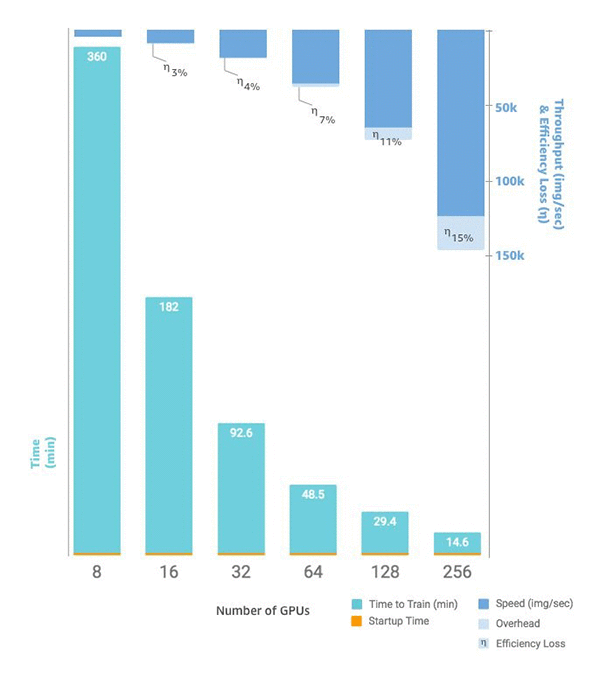
Figure B. Time to train vs number of GPUs vs images per second, communication overhead, and efficiency. Startup time is a consistent 1.5 minutes regardless of cluster size.

All of the tools you need to try this out are shipped on the latest DLAMI. This includes example scripts for training ResNet-50 with ImageNet. If you’re ready to roll up your sleeves now and try it out, continue reading. The rest of this blog post shows you how you can use EC2 p3 instances, TensorFlow, and Horovod to train ResNet-50 on ImageNet in under 15 minutes.

How to train ResNet/ImageNet in under 15 minutes with TensorFlow

I first tried out Horovod with TensorFlow on the Deep Learning AMI (DLAMI). I was asked to write a tutorial on using Horovod to train ImageNet on an eight-GPU EC2 instance. I wondered what on earth was Uber thinking when they named their distributed training framework “Horovod”, and I wondered how much time was this going to take? Training ImageNet takes forever, and Horovod sounds like some villain from the Harry Potter universe. It’s not. It was created by Alexander Sergeev at Uber. He named it after Russian & eastern European folk dance where a large group of dancers perform synchronized moves in a circle. It turned out to be a fun way to learn how to dance with Horovod using up to 8 GPUs in one DLAMI.

That was a couple of months ago, and now I’m going to show you what the the TensorFlow team here at Amazon AI has been up to. They’ve been fine-tuning Horovod with TensorFlow, and the implementation on the DLAMI is much faster. More importantly, you can run upwards of 256 GPUs in one training run to train ResNet-50 on ImageNet in under 15 minutes!

The first time I ran Horovod on a DLAMI was on a p3.16xlarge EC2 instance. This beast of an instance has eight Tesla V100 GPUs. Horovod uses all of the instance’s GPUs  to turn a training time that could take more than a day to a training time that could be finished in a few hours. I used the latest DLAMI so I wouldn’t have to install and configure CUDA, TensorFlow, or Horovod. I could activate the environment with one command, and then execute the training script with another one liner.

Setup was easy. Training was relatively fast – only slightly sub-linear scaling from one to eight GPUs. It finished in eight hours and the accuracy was acceptable: 75.4% for top-1 and 92.6% for top-5. Based on this result, I wrote the Tensorflow-Horovod tutorial for the DLAMI .

Next, I asked myself how fast I can train ResNet-50 on several p3 instances. I knew that scaling efficiency will never be 100% and that, in total, people will end up paying more. However, if your team was waiting for a model to train for a day, they would think training in 15 minutes was worth the savings on developers’ productivity. This is especially true because the efficiency loss of the faster training, as our experiments demonstrate, is minimal.

We recently benchmarked running 256 GPUs with great accuracy and an even faster completion time. Don’t you want to try that out yourself? Does your dance card even have 256 slots? Keep reading and I’ll walk you through how we can make this happen.

With the latest updates to the DLAMI and its TensorFlow-Horovod environment you could train ResNet-50 on all of ImageNet for about a 20% cost reduction compared to its release. In this blog post we’ll demonstrate how fast things can go and scale, and save your wallet for future dances with Horovod. Are you ready?

The original TensorFlow-Horovod tutorial shows you a single node implementation. You spin up one instance and use all of its GPUs. This time I’ll show you how you can spin up several nodes, link them up with a Horovod configuration, and then run the training. We’ll run some benchmarks, so you can estimate your time for completion and see what your efficiency loss is for each new node. With this info you can estimate your costs, and then apply this pattern to other models that you want to train.

Part 1: Spin up a bunch of DLAMIs

Now is a good time to plan out your moves with a quick questionnaire:

  1. Do you need to get a copy of ImageNet?
    1. If yes:
      1. Spin up one DLAMI for now. Downloading and prepping the dataset can take several hours, and you don’t want several instances sitting around, racking up your bill while you wait. You can add more DLAMIs later. If you want to be clever, you can run the download and prep steps faster with a big DLAMI CPU instance, then transfer it to your DLAMI GPU instances for training when it is ready. You could also divide up the dataset and prep the dataset across multiple machines.
    2. If no: go to 2.
  2. Do you have an ImageNet dataset already downloaded to your AWS environment – on Amazon S3, a shared volume, or on an instance?
    1. If yes:
      1. Later in this blog I’ll give you some bash functions that can help you distribute the dataset to each node.
    2. If no:
      1. Only spin up one instance for now. Get it ready there, then spin up the rest and distribute the dataset using one of the functions I just mentioned.
  3. Is your ImageNet dataset already preprocessed for training with TensorFlow?
    1. If yes:
      1. You’re going to be able to do everything in this blog post pretty quickly, even train ImageNet entirely in about an hour-and-a-half with just four instances.
    2. If no:
      1. Follow these detailed instructions in DLAMI’s docs on how to prepare the ImageNet dataset.

Now let’s spin up one or more DLAMIs. There are several ways you can do this, but I’m going to use the Amazon EC2 console. If you already know how to use AWS Cloud Formation templates or the AWS CLI, you can use those tools as well. The goal here is to launch some number of identical DLAMIs that each have more than one GPU. For this next step, I’m going to launch four p3.16xlarge DLAMIs all in the same Region and security zone (VPC). This step is important. You can’t just link up random instances you have that are launched in different Regions or security zones without impacting performance.

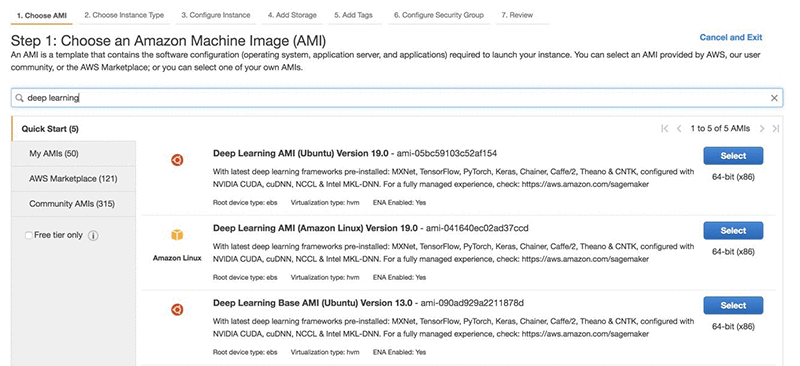
On the EC2 console you can search for an AMI by name. Search for “deep learning” and you will find Deep Learning AMI (Ubuntu). Choose the Select button.
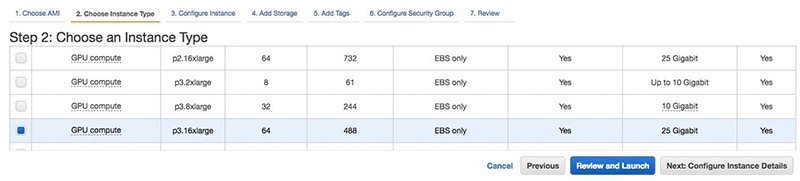
After you select the Deep Learning AMI (Ubuntu) you can choose the instance type. Since we want to use the faster instance to achieve the fastest training, choose the p3dn.24xl instance type. If this is not available yet in your Region, choose the p3.16xlarge instead. The more GPUs you have on the same system, the faster your training will be. Now choose Next: Configure Instance Details. You have the option of launching multiple identical instances. Choose up to 32 instances to achieve 256 GPU training. For the purposes of this example, however, I’ll use 4 instances, with a total of 32 GPUs.
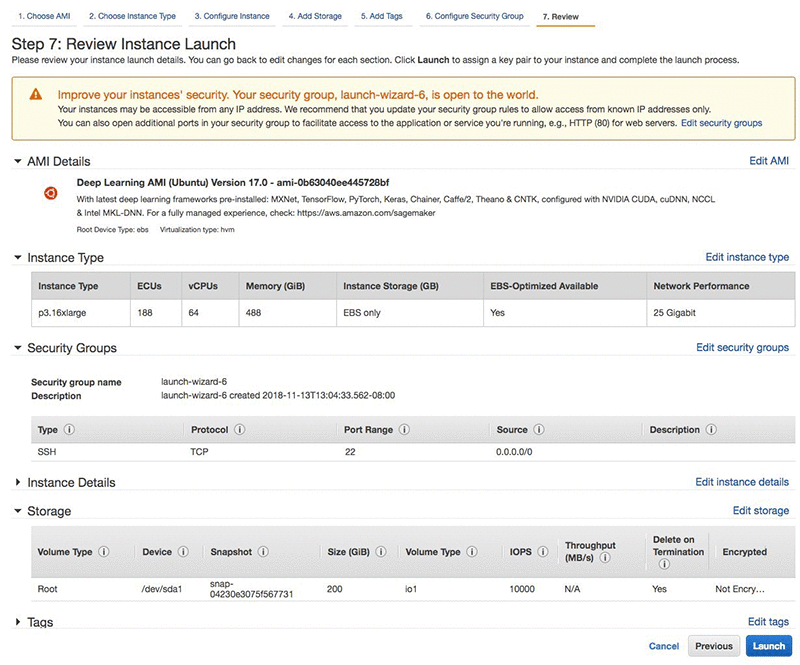
Next, choose your instance details.  You should choose an instance with at least 200 GB of fast storage. I’m choosing a Provisioned IOPS SSD with 10,000 IOPS to get the best performance.
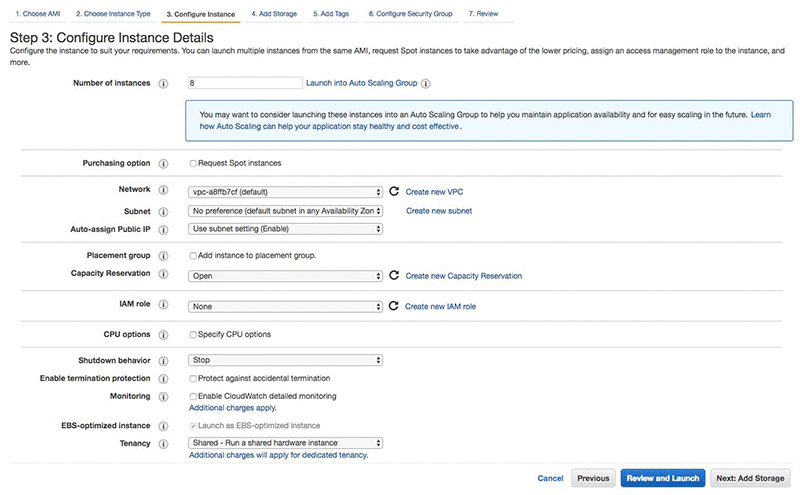
You can just skip through the tags screen and continue to Configure Security Group.

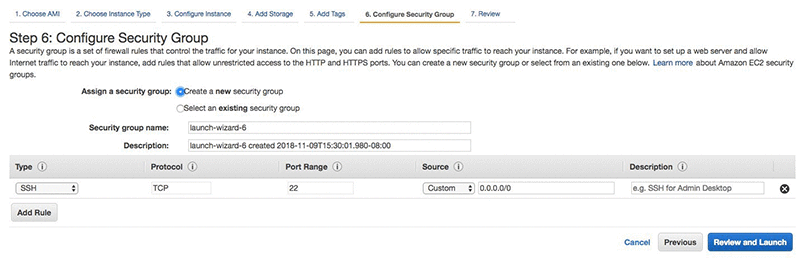
On the security group settings page, you can create a new group, or use an existing one. Next, review your choices, make corrections as needed, and then choose Review and Launch.
Your screen should look much like the following screenshot. Important things to note are in the storage section: size, volume type, and IOPS.  Choose Launch.
After choosing Launch, you’ll select a key pair. Use existing keys or create new ones. Make note of where you put your keys and what you named them because you will need this information later.

If you get a green box, choose View Instances to review the list of the freshly launch DLAMIs.

It takes a couple of minutes to launch the instances, so now is a good time to name them.

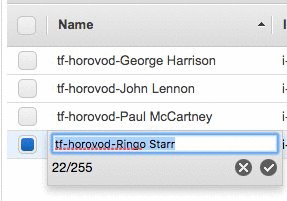
Select one of your DLAMIs. Rename it in the console so you don’t forget which one is which. If you have 8 nodes, you could call them Snow White and the Seven Dwarves (Doc, Dopey, Bashful, Grumpy, Sneezy, Sleepy, and Happy). I only launched four, so I called them John Lennon, Paul McCartney, George Harrison, and Ringo Starr. I chose John Lennon to be the leader. Some people like to call the leader the master, but I prefer “leader.” There’s a leader and members.
Part 2: Prep the dataset

Step 1. Download a copy of ImageNet to each new cluster of DLAMIs. 

For the fastest performance you will want each instance in your cluster to have a local copy of the dataset. The raw dataset needs to be preprocessed by a TensorFlow utility before you train with it. Otherwise, training will take longer, and you won’t see the accuracy levels that are reported in most benchmarks. If you don’t have ImageNet handy, you’ll need to download it. Even if you do have a copy, you will need this data to be inside your cluster’s Region and security zone, and it will need that previously mentioned preprocessing. So, if you have a preprocessed copy ready on Amazon S3 or elsewhere, great, copy it to your leader, then you can skip ahead to Part 3.

Download ImageNet to one of your instances now, or if you already have it somewhere, copy it to an instance now, and then read ahead. This way you’ll know what is coming, and in Part 3 you can try out distributed training with a synthetic dataset while you wait.

Step 2. Prep the ImageNet files for training.

You need to run a preparation step prior to training. This preprocesses all of the images, so that they’re consistent and optimized for training speed. Without running this step you can’t hope to achieve comparable speed or accuracy. Your costs will certainly be higher. Note that after you run this step once, you don’t have to do it again for subsequent training runs. You might want to keep this volume around and connect it to future DLAMIs and tests or benchmarking runs.

Follow these detailed instructions in DLAMI’s docs on how to prepare the ImageNet dataset.

I must admit that I already had my preprocessed copy of ImageNet sitting around, so that’s why I said the setup and training was so easy. Now that you’ve done the preprocessing, you’ll want to keep yours too. You can stop any one of your instances without terminating it, then bring the instance back along with the data sometime in the future! You could also save the preprocessed dataset to S3 to archive it for later use.

Part 3: training with synthetic data

While you wait for ImageNet to download, you can try the setup with synthetic data. This will assure that your members can talk to each other, TensorFlow with Horovod is working in this multi-node mode, and that eventually you can switch to training with the ImageNet dataset.

Before you move on to the next step, review the overall settings, making sure each node is running, is the same instance type and is in the same Availability Zone.

In the console, choose the leader, choose the Actions button, and then choose Connect. The next page provides instructions for connecting. If you created a new key, you will need to adjust its security settings with chmod 400 key.pem. These instructions are in the Connect prompt. However, one important variation in how you connect with ssh is that you want your leader to be able to access your members. You do this by adding your key and customizing your ssh login to be slightly different than what is suggested by the Connect prompt. Run the following commands from your local terminal and the directory where you downloaded your key. Be sure to swap out “key.pem” with the filename of the key and “PUBLIC_IP_ADDRESS_OF_THE_LEADER” before running it.

ssh-add -K key.pem
ssh -A ubuntu@PUBLIC_IP_ADDRESS_OF_THE_LEADER

Once connected, activate the tensorflow_p36 environment.
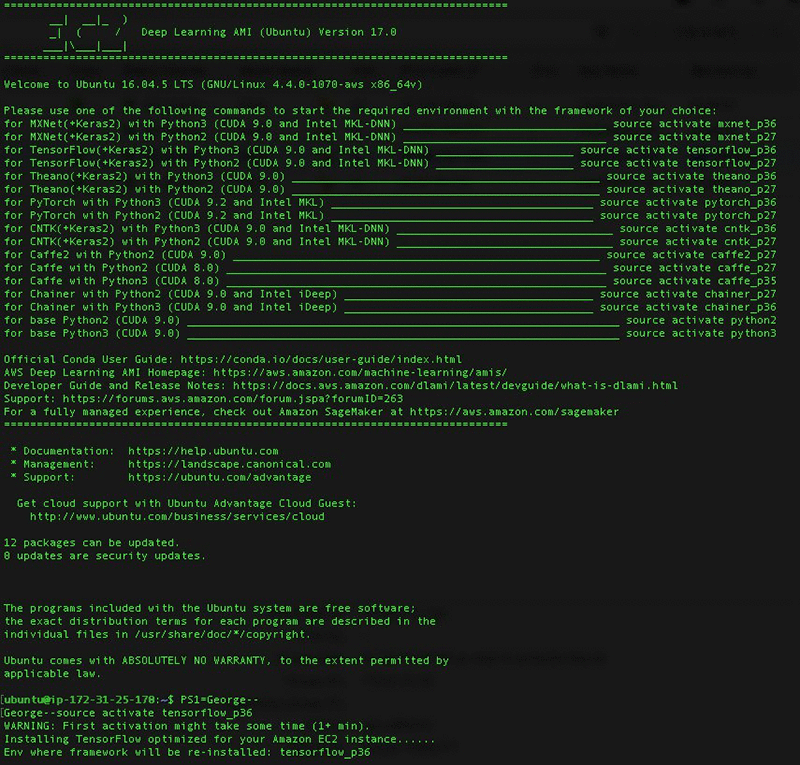
In this example, I’m launching John Lennon now. After I have logged in, I’ll start the TensorFlow environment. You will likely see TensorFlow being optimized for the instance type, so this first activation may take a moment.

source activate tensorflow_p36

After activating the environment we must let Horovod know about the rest of the band. This is achieved by adding each member’s info to a hosts file. Change directories to where the training scripts reside.

cd ~/examples/horovod/tensorflow

Use vim to edit a file in the leader’s home directory.

vim hosts

Select one of the members in the EC2 console, and the description page opens. Find the Private IPs field and copy the IP address and paste it in a text file. Copy each member’s private IP address on a new line. Then, next to each IP address add a space and then the text slots=8. This represents how many GPUs each instance has. The p3.16xlarge instances have 8 GPUs, so if you chose a different instance type, you would provide the actual number of GPUs for each instance. For the leader you can use localhost. It should look similar to the following:

172.100.1.200 slots=8
172.200.8.99 slots=8
172.48.3.124 slots=8
localhost slots=8

Save the file and exit back to the leader’s terminal.

Now your leader knows how to reach each member. This is all going to happen on the private network interfaces. Next, use a short bash function to help send commands to each member. Run this command in your leader’s terminal session:

function runclust(){ while read -u 10 host; do host=${host%% slots*}; ssh -o "StrictHostKeyChecking no" $host ""$2""; done 10<$1; };

First tell the other members to not do “StrickHostKeyChecking” as this may cause training to hang.

runclust hosts "echo "StrictHostKeyChecking no" >> ~/.ssh/config"

Now it is time to try out the training with synthetic data. The script deep-learning-models/models/resnet/tensorflow/dlami_scripts/train_synthetic.sh will default to 8 GPUs, but you can provide it the number of GPUs you want to run. Run the script, passing 4 as a parameter for the 4 GPUs we’re using for this run.

$ ./train_synthetic.sh 4

After some warning messages you will see the following output that verifies Horovod is using 4 GPUs.

PY3.6.5 |Anaconda custom (64-bit)| (default, Apr 29 2018, 16:14:56) 
[GCC 7.2.0]TF1.11.0
Horovod size: 4

Then after some other warnings you see the start of a table and some data points. You break out of the training if you don’t want to watch for 1,000 batches. Here I stop it at 400 since I can see that the training is averaging about 3,000 images per second.

   Step Epoch  Speed  Loss   FinLoss LR
     0   0.0   105.6  6.794  7.708 6.40000
     1   0.0   311.7  0.000  4.315 6.38721
   100   0.1  3010.2  0.000 34.446 5.18400
   200   0.2  3013.6  0.000 13.077 4.09600
   300   0.2  3012.8  0.000  6.196 3.13600
   400   0.3  3012.5  0.000  3.551 2.30401

Let’s try 8 GPUs.

./train_synthetic.sh 8

I stopped at 200 this time once I saw that the speed was a little less than double: 5,874 vs 3,012.

   Step Epoch  Speed  Loss   FinLoss LR
    0    0.0   200.5  6.804   7.718 6.40000
    1    0.0   564.2  0.000   6.878 6.38721
  100    0.2  5871.7  0.000  60.158 5.18400
  200    0.3  5874.3  0.000  22.838 4.09600

Now you’re ready to test multi-node training. Try out the full 32 GPUs.

./train_synthetic.sh 32

Your output will be similar. You will see the Horovod size at 32, and you will see roughly 4 times the speed. With this experimentation completed, you will have tested your leader and its ability to communicate with the members. If you run into any issues, check the troubleshooting section in the Horovod tutorials docs.

Part 4: Train ResNet-50 on ImageNet

After you’re satisfied watching the synthetic data training step and you’ve prepared the ImageNet dataset, you’re ready to copy the prepared dataset to all of the members.

If you still only have the dataset on your leader, use this copyclust function to copy data over to other members. Run this command in your leader’s terminal session:

function copyclust(){ while read -u 10 host; do host=${host%% slots*}; rsync -azv "$2" $host:"$3"; done 10<$1; };

Now you can use copyclust to copy the dataset folder. The first param is the hosts file, the second is the dataset folder on your leader, and the third is the target directory on each member:

copyclust hosts ~/imagenet_data ~/imagenet_data

Or, if you have the files sitting in an Amazon S3 bucket, use the runclust function to download the files to each member directly.

runclust hosts "tmux new-session -d "export AWS_ACCESS_KEY_ID=YOUR_ACCESS_KEY && export AWS_SECRET_ACCESS_KEY=YOUR_SECRET && aws s3 sync s3://your-imagenet-bucket ~/imagenet_data/ && aws s3 sync s3://your-imagenet-validation-bucket ~/imagenet_data/""

There’s something to be said here about using tmux or screen or some tools to let you disconnect and resume sessions. Using tools that let you manage multiple nodes at once is a great timesaver. But, I’m going to gloss over this part because it goes beyond the scope of this blog. You have many options: wait around for each step and manage each instance separately or use some power tools.

After the copying is completed, you’re ready to start training. Run the script, passing 32 as a parameter for the 32 GPUs we’re using for this run. Use tmux or a similar tool if you’re concerned about disconnecting and terminating your session, thereby aborting the training run.

./train.sh 32

The following output is what you see when running the training on ImageNet with 32 GPUs. 32 GPUs will take 90-110 minutes.

   Step Epoch  Speed  Loss   FinLoss LR
     0   0.0   440.6  6.935  7.850 0.00100
     1   0.0  2215.4  6.923  7.837 0.00305
    50   0.3 19347.5  6.515  7.425 0.10353
   100   0.6 18631.7  6.275  7.173 0.20606
   150   1.0 19742.0  6.043  6.922 0.30860
   200   1.3 19790.7  5.730  6.586 0.41113
   250   1.6 20309.4  5.631  6.458 0.51366
   300   1.9 19943.9  5.233  6.027 0.61619
   350   2.2 19329.8  5.101  5.864 0.71872
   400   2.6 19605.4  4.787  5.519 0.82126
   450   2.9 20025.5  5.020  5.725 0.92379
   500   3.2 19526.8  4.702  5.383 1.02632
   550   3.5 18102.1  4.632  5.294 1.12885
   600   3.8 19450.3  4.377  5.023 1.23138
   650   4.2 19845.1  3.738  4.372 1.33392
   700   4.5 18838.6  3.862  4.488 1.43645
   750   4.8 19572.7  3.435  4.059 1.53898
   800   5.1 20697.7  3.388  4.015 1.64151
   850   5.4 19651.1  3.141  3.774 1.74405
   900   5.8 20012.3  3.231  3.878 1.84658
   950   6.1 19261.0  3.039  3.699 1.94911
  1000   6.4 18248.2  2.969  3.645 2.05164
  1050   6.7 18730.4  2.731  3.429 2.15417
  ...
   13750  87.9 19398.8  0.676  1.082 0.00217
 13800  88.2 19827.5  0.662  1.067 0.00156
 13850  88.6 19986.7  0.591  0.997 0.00104
 13900  88.9 19595.1  0.598  1.003 0.00064
 13950  89.2 19721.8  0.633  1.039 0.00033
 14000  89.5 19567.8  0.567  0.973 0.00012
 14050  89.8 20902.4  0.803  1.209 0.00002
Finished in 6004.354426383972

This run completed! It follows up with an evaluation run. It will run on the leader as it will run quickly enough without having to distribute the job to the other members. The following is the output of the evaluation run.

Horovod size: 32
Evaluating
Validation dataset size: 50000
 step  epoch  top1    top5     loss   checkpoint_time(UTC)
14075   90.0  75.716   92.91    0.97  2018-11-14 08:38:28

If you’re curious what this output looks like with 256 GPUs, you can check it out in the following output block.

  Step Epoch  Speed    Loss   FinLoss LR
  1550  79.3 142660.9  1.002  1.470 0.04059
  1600  81.8 143302.2  0.981  1.439 0.02190
  1650  84.4 144808.2  0.740  1.192 0.00987
  1700  87.0 144790.6  0.909  1.359 0.00313
  1750  89.5 143499.8  0.844  1.293 0.00026
Finished in 860.5105031204224

Finished evaluation
1759   90.0  75.086   92.47    0.99  2018-11-20 07:18:18

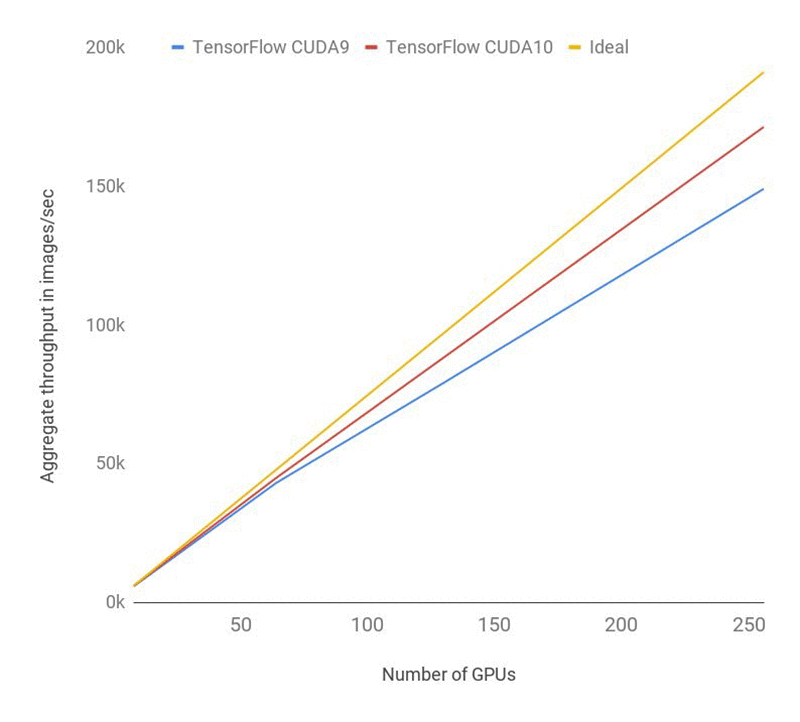
You can see that the speed in images/sec is over 140k. The following chart shows the latest benchmarks with CUDA10 using 256 GPUs which reaches speeds of 171k! This improves efficiency to 90%. Look for this to ship on the DLAMI after TensorFlow releases an official binary for CUDA 10.  The following chart shows the Performance of ResNet-50 training using CUDA 10. Overhead is reduced compared to CUDA 9.
Conclusion

Now that you’ve tried four nodes, do you want to try more? How about 16 or 32 nodes? Or how about 2? You can scale up or down and see how that impacts performance. Compare epoch training times and estimate your overall cost for completion.

Note: if you use the “more like this” feature in the Amazon EC2 console, be prepared to adjust all of the settings, most notably the storage. “More like this” doesn’t include storage, so make sure you update that to have at least 200 GB.

You might want to also try a different dataset and see how fast you can train it using the latest instance types and optimized TensorFlow environments on the DLAMI.

Stay tuned for our next blog where we apply the latest improvements in scalable training on a cluster of DLAMIs.


Appendix

Troubleshooting

The following command might help you get past errors that come up when you experiment with Horovod.

  • If the training crashes, mpirun may fail to clean up all the Python processes on each machine. In that case, before you start the next job kill the Python processes on all machines as follows:
    • runclust hosts “pkill -9 python”
  • If the process finishes abruptly without error, try deleting your log folder.
  • If other unexplained issues pop up, check your disk space. If you’re out of space, try removing the logs folder since that is full of checkpoints and data. You can also increase the size of the volumes for each member.
  • As a last resort you can also try rebooting.
# kill python
runclust hosts "pkill -9 python"
# delete log folder
runclust hosts "rm -rf ~/imagenet_resnet/"
# check disk space
runclust hosts "df /"
# reboot
runclust hosts "sudo reboot"

About the Author

Aaron Markham is a programmer writer for MXNet and AWS Deep Learning AMI. He has a degree in winemaking and a passion for new technology which he shares by writing and teaching. Aside from talking about deep learning tech, he teaches computer skills to the homeless in Santa Cruz and web programming to prisoners at San Quentin. When not working or teaching, you can find him on the slopes snowboarding or hiking.


Amazon SageMaker Automatic Model Tuning now supports early stopping of training jobs

In June 2018, we launched Amazon SageMaker Automatic Model Tuning, a feature that automatically finds well-performing hyperparameters to train a machine learning model with. Unlike model parameters learned during training, hyperparameters are set before the learning process begins. A typical example of the use of hyperparameters is the learning rate of stochastic gradient procedures. Using default hyperparameters doesn’t always yield the best model performance, and finding well-performing hyperparameters can be a non-trivial and time-consuming task. Using Automatic Model Tuning, Amazon SageMaker will automatically find well-performing hyperparameters and train your model to maximize your objective metric.

The number of possible hyperparameter configurations is exponential in the number of hyperparameters that are being explored. A naive exploration of this search space would require a large number of training jobs and would result in high cost. To overcome this, Amazon SageMaker uses Bayesian optimization, a strategy that efficiently models the performance of different hyperparameters based on a small number of training jobs. This algorithm will, however, at times explore hyperparameter configurations which, by the end of the training, turn out to be significantly worse than previous configurations.

Today, we are adding the early stopping feature to Automatic Model Tuning. By enabling early stopping when you launch a tuning job, Amazon SageMaker tracks objective metrics per training iteration (‘epoch’) for each candidate model. Amazon SageMaker then assesses how likely each candidate is to outperform the previous best model evaluated thus far in your tuning job. With early stopping those models that are unlikely to bring value are terminated before completing all iterations, saving time and reducing cost by up to 28% (depending on your algorithm and dataset). For example, in this blog post we show how to use early stopping with an image classification algorithm using Amazon SageMaker, reducing time and cost by 23%.

You can use early stopping with supported built-in Amazon SageMaker algorithms and with your own algorithms, provided that they emit objective metrics per epoch.

Tuning an image classification model that uses early stopping

To demonstrate how you can leverage early stopping, we’ll build an image classifier using the built-in image classification algorithm and tune the model against the Caltech-256 dataset. We will run two hyperparameter tuning jobs: one without automatic early stopping and one with early stopping enabled, while all the other configurations stay the same. We’ll then compare the results of the two hyperparameter tuning jobs toward the end. You can find the full sample notebook here.

Set up and launch the hyperparameter tuning job without early stopping

We’ll skip the steps for creating a notebook instance, preparing the dataset, and pushing it to Amazon S3. The sample notebook covers these processes, so we won’t go through them here. Instead we’ll start by launching a hyperparameter tuning job.

To create a tuning job, we first need to create a training estimator for the built-in image classification algorithm, and specify a value for every hyperparameter of this algorithm, except for those we plan to tune. To learn more about hyperparameters of the built-in image classification algorithm, you can explore our documentation.

s3_train_data = 's3://{}/{}/'.format(bucket, s3_train_key)
s3_validation_data = 's3://{}/{}/'.format(bucket, s3_validation_key)

s3_input_train = sagemaker.s3_input(s3_data=s3_train_data, content_type='application/x-recordio')
s3_input_validation = sagemaker.s3_input(s3_data=s3_validation_data, content_type='application/x-recordio')

s3_output_key = "image-classification-full-training/output"
s3_output = 's3://{}/{}/'.format(bucket, s3_output_key)

sess = sagemaker.Session()
imageclassification = sagemaker.estimator.Estimator(training_image, 
                                                    role, 
                                                    train_instance_count=1,
                                                    train_instance_type='ml.p3.2xlarge',
                                                    output_path=s3_output, 
                                                    sagemaker_session=sess)

imageclassification.set_hyperparameters(num_layers=18, 
                                        image_shape='3,224,224',
                                        num_classes=257, 
                                        epochs=10, 
                                        top_k='2',
                                        num_training_samples=15420,  
                                        precision_dtype='float32',
                                        augmentation_type='crop')

Now we can create a hyperparameter tuning job with the estimator. We’ll specify the search ranges for the hyperparameters that we want to tune and the number of total training jobs that we want to run.

We selected three hyperparameters that should have the greatest impact on model quality, and thus our objective metric, according to the image classification algorithm tuning guide. You can find the full list of hyperparameters in our documentation. These are the three hyperparameters:

  • learning_rate: Controls how fast the training algorithm will try to optimize your model.
  • mini_batch_size: Controls how many data points are used for one gradient update.
  • optimizer: A choice among ‘sgd’, ‘adam’, ‘rmsprop’ and ‘nag’.

In this case we don’t need to specify the regular expressions for the objective metric because we are using one of the Amazon SageMaker built-in algorithms.

We first launch a hyperparameter tuning job without early stopping, which is turned off by default.

from time import gmtime, strftime 
from sagemaker.tuner import IntegerParameter, CategoricalParameter, ContinuousParameter, HyperparameterTuner

tuning_job_name = "imageclassif-job-{}".format(strftime("%d-%H-%M-%S", gmtime()))

hyperparameter_ranges = {'learning_rate': ContinuousParameter(0.00001, 1.0),
                         'mini_batch_size': IntegerParameter(16, 64),
                         'optimizer': CategoricalParameter(['sgd', 'adam', 'rmsprop', 'nag'])}

objective_metric_name = 'validation:accuracy'

tuner = HyperparameterTuner(imageclassification, 
                            objective_metric_name, 
                            hyperparameter_ranges,
                            objective_type='Maximize', 
                            max_jobs=20, 
                            max_parallel_jobs=2)

tuner.fit({'train': s3_input_train, 'validation': s3_input_validation}, 
          job_name=tuning_job_name, include_cls_metadata=False)
tuner.wait()

After the tuning job is finished, we can bring in a table of metrics using HyperparameterTuningJobAnalytics from the Amazon SageMaker Python SDK.

tuner_metrics = sagemaker.HyperparameterTuningJobAnalytics(tuning_job_name)
tuner_metrics.dataframe().sort_values(['FinalObjectiveValue'], ascending=False).head(5)

The following table shows the top 5 performing training jobs that were run. You can look at all of the results by running the notebook. From this table, we can see that the best model from this hyperparameter tuning job has validation accuracy of 0.356. Unlike in the notebook, here we provide a screenshot from the Amazon SageMaker console to check the total training time and the job status. We will then compare them later to the tuning results when training job early stopping is enabled.

In the following screenshots from the Amazon SageMaker console, you can see that the total training duration is 2 hours and 48 minutes. Total training duration is defined as the aggregated duration of all training jobs and thus reflects the total cost of the hyperparameter tuning job. You may also notice that the hyperparameter tuning job takes 1 hour and 53 minutes to complete, thanks to parallelization of the training jobs. Also, all 20 training jobs are completed normally, as you can see in the Training job status counter.

Set up and launch the hyperparameter tuning job with early stopping

Next, we’ll launch another hyperparameter tuning job with the same configuration, but this time we’ll enable early stopping of training jobs. Specifically, in the tuning job configuration, we set one extra field ‘early_stopping_type’ to ‘Auto’. It’s worth noting that training job early stopping requires training jobs to emit epoch-wise objective metrics, preferably validation metrics. In this example, since the built-in image classification algorithm already emits the metric ‘validation:accuracy’ for each epoch, we can directly use ‘validation:accuracy’ as the objective metric without any change.

tuning_job_name_es = "imageclassif-job-{}-es".format(strftime("%d-%H-%M-%S", gmtime()))

tuner_es = HyperparameterTuner(imageclassification, 
                               objective_metric_name, 
                               hyperparameter_ranges,
                               objective_type='Maximize', 
                               max_jobs=20, 
                               max_parallel_jobs=2, 
                               early_stopping_type='Auto')

tuner_es.fit({'train': s3_input_train, 'validation': s3_input_validation}, 
             job_name=tuning_job_name_es, include_cls_metadata=False)
tuner_es.wait()

Alternatively, you can launch a tuning job with early stopping from the console by setting Training job early stopping type to Auto (default is Off).

After the hyperparameter tuning job is finished, we can again check the top 5 performing training jobs.

tuner_metrics_es = sagemaker.HyperparameterTuningJobAnalytics(tuning_job_name_es)
tuner_metrics_es.dataframe().sort_values(['FinalObjectiveValue'], ascending=False).head(5)

This time, because we have training job early stopping enabled, the best hyperparameter training job has a validation accuracy of 0.353, which is very close to the setting without early stopping. The total training time and training job status can be again checked from the console as shown in the next screenshot.


This time, with training job early stopping, the total training duration is 2 hours and 10 minutes, 38 minutes (23%) shorter than without early stopping and thus 23% cheaper as well. It takes 1 hour and 38 minutes to complete the hyperparameter tuning job, which is 15 minutes faster than the previous hyperparameter tuning job. Meanwhile, 6 training jobs are stopped by early stopping, as you can see in the following list.

df = tuner_metrics_es.dataframe
df[df.TrainingJobStatus == 'Stopped']

It is clear that all the stopped training jobs have very low validation accuracies and they run much shorter than normally completed jobs.

Conclusion

To recap, we demonstrated in this blog post how to use training job early stopping to speed up hyperparameter tuning jobs in Amazon SageMaker. Keep in mind that as the training time for each training job gets longer, the benefit of training job early stopping becomes more significant. However, smaller training jobs won’t benefit as much due to infrastructure overhead. For example, our experiments show that the effect of training job early stopping typically becomes noticeable when the training jobs last longer than 4 minutes.

Training job early stopping of Automatic Model Tuning is now available in all the AWS Regions where Amazon SageMaker is available today. For more information on Amazon SageMaker Automatic Model Tuning, see the Amazon SageMaker documentation.


About the Authors

Huibin Shen is an applied scientist in Amazon AI. He works in the part of the team that launched the Automatic Model Tuning feature in Amazon SageMaker.



Fan Li is a Product Manager of Amazon SageMaker. He used to be a big fan of ballroom dance but now loves whatever his 8-year-old son likes.


Miroslav Miladinovic is a Software Development Manager at Amazon SageMaker.


Build a serverless Twitter reader using AWS Fargate

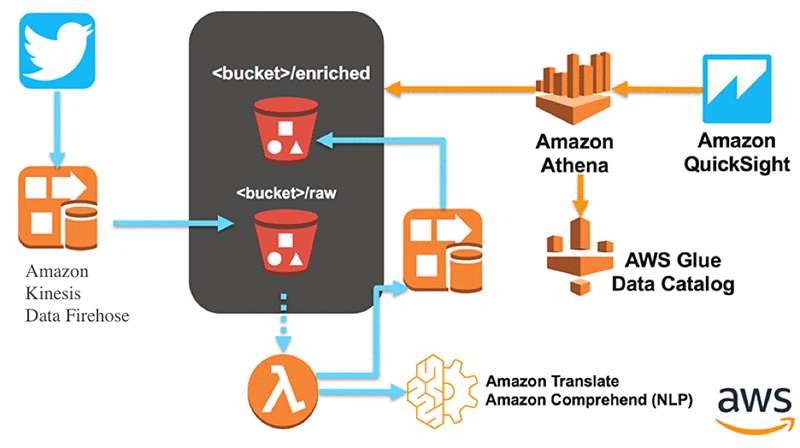
In a previous post, Ben Snively and Viral Desai showed us how to build a social media dashboard using serverless technology. The social media dashboard reads tweets with the #AWS hashtag, uses machine learning based services to do translation, and natural language processing (NLP) to determine topics, entities, and sentiment analysis. Finally, it aggregates this information using Amazon Athena and builds dashboards to visualize the information captured from the tweets. In this architecture, the only server to manage is running the application that reads the Twitter feed. In this blog post we’ll walk you through the steps to move this application to a Docker container and execute it in Amazon ECS with AWS Fargate. This removes the need to manage any Amazon EC2 instances in the architecture.

AWS Fargate is a technology for Amazon Elastic Container Service (ECS) that allows you to run containers without having to manage servers or clusters. With AWS Fargate, you no longer have to provision, configure, and scale clusters of virtual machines to run containers. This removes the need to choose server types, decide when to scale your clusters, or optimize cluster packing. AWS Fargate removes the need for you to interact with or think about servers or clusters. Using AWS Fargate you can focus on designing and building your container applications, instead of managing the infrastructure that runs them.

AWS Fargate is a great approach if you want to eliminate operational responsibilities with Amazon EC2. AWS Fargate is fully integrated with the AWS Code services such as AWS CodeStar, AWS CodeBuild, AWS CodeDeploy, and AWS CodePipeline, making it very simple to configure an end-to-end continuous delivery pipeline to automate deployments to ECS.

Run tweet-reading app on Fargate

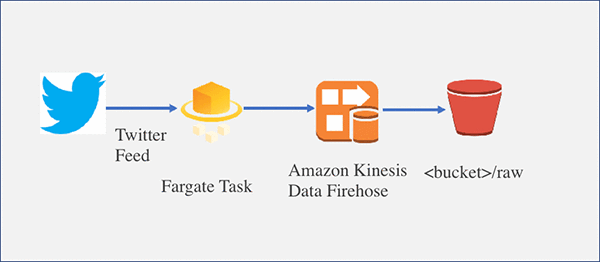
As you follow this blog post, you’ll set up an architecture that looks like this:

Our focus for this blog post is to move the Twitter stream producer app from running in an EC2 instance to running in containers managed by Fargate.

We’ll start by creating a Docker image that has our code for the Twitter feed reader application, plus all of its dependencies. After we have the Docker image, we’ll upload and register this image to ECR, which serves as a repository for Docker images. With the image registered in ECR, we are going to create a task definition, which describes the configuration we want to set for running our Docker container in the Fargate service. Finally, we are going to run the task and test our app.

Prerequisites

  1. Go to the previous blog post and follow the instructions found there. The high level steps are:
    1. Launching the AWS CloudFormation template. When you launch the template you need to provide the Twitter API configuration parameters.
    2. After the CloudFormation stack is created go to the AWS Management Console, search for the stack and choose the Resources Take note of the Physical ID of the IngestionFirehoseStream resource. It will be something like: SocialMediaAnalyticsBlogPo-IngestionFirehoseStream-<ID>
    3. Setting up S3 Notification – Call Amazon Translate/Comprehend from new Tweets.
    4. Start the Twitter stream producer. This is the application that is running in an EC2 instance.
    5. Create the Athena tables. This is done by running four different SQL statements.
    6. (optional – recommended) Building Amazon QuickSight dashboards.
      After you complete all the steps you should have following architecture deployed on your environment:
  2. Configure an environment where you can run AWS CLI and Docker commands. You can launch an EC2 instance and install Docker or you can use AWS Cloud9, which comes with Docker. We used an EC2 instance and installed Docker in it. If you decide to go with the EC2 option, you’ll need to create an IAM role and attach it to the instance.
    {
        "Version": "2012-10-17",
        "Statement": [
            {
                "Sid": "VisualEditor0",
                "Effect": "Allow",
                "Action": [
                    "ssm:PutParameter",
                    "firehose:*",
                    "iam:CreateRole",
                    "ecr:*",
                    "iam:AttachRolePolicy",
                    "ssm:GetParameter"
                ],
                "Resource": "*"
            }
        ]
    }
    

    We are going to refer this environment as the “Dev Environment” in the following steps. We will use the Dev Environment to create our Docker image and register the image with the ECR service. This environment will need permission to use Amazon Kinesis Data Firehose, ECR, and IAM APIs.

    Note: You need to install the AWS CLI on the Docker environment. For AWS CLI installation, refer this page.

 Step 1: Create the Docker image

To create the Docker image, first we need to create a Dockerfile. A Dockerfile is a manifest that describes the base image to use for your Docker image and what you want installed and running on it. For more information about Dockerfiles, go to the Dockerfile Reference. In our case, we want to create a Docker image that we use to instantiate containers that run Node applications. In particular, we want to run our Twitter stream producer node app.

  1. Choose a directory in the Docker environment and perform the following steps in that directory. I used /home/ec2-user directory to perform the following steps.
  2. Download the application code to our Dev Environment. When you executed the instructions in the prerequisites section 1.a, a CloudFormation template was used to create a stack called SocialMediaAnalyticsBlogPost. This stack configures the EC2 instance with the Twitter stream producer app. If you open the CloudFormation file and go to the EC2 configuration section (line 229 in the template), you will find that the application code was copied from an Amazon S3 bucket to the EC2 instance. We want to copy the same code to our Dev Environment. Use the following command:
    mkdir SocialAnalyticsReader
    
    cd socialAnalyticsReader
    
    wget https://s3.amazonaws.com/serverless-analytics/SocialMediaAnalytics-blog/SocialAnalyticsReader.tar
    
    tar -xf SocialAnalyticsReader.tar

  3. Now we are going to do a small refactor on the SocialAnalyticsReader app. The Node application is currently designed to read the Twitter API credentials from a configuration file. We want to avoid this approach after the application runs on a container. A better way is to store the configuration settings on a service like AWS Systems Manager Parameter Store. Extracting the configuration settings increases the flexibility and reusability of our container image. For example, it allows us to change the configuration values for the application without the need of rebuilding the Docker image.Replace the contents of the following files:twitter_stream_producer_app.js
    'use strict';
    
    
    var AWS = require('aws-sdk');
    var config = require('./config');
    var producer = require('./twitter_stream_producer');
    
    // var kinesis = new AWS.Kinesis({region: config.kinesis.region});
    var kinesis_firehose = new AWS.Firehose({apiVersion: '2015-08-04', region: config.region});
    // console.log(kinesis_firehose.listDeliveryStreams());
    
    var params = {
      Name: '/twitter-reader/aws-config', /* required */
      WithDecryption: false
    };
    
    var config_from_parameter_store;
    var ssm = new AWS.SSM({region: config.region});
    var request = ssm.getParameter(params);
    var promise = request.promise();
    
    promise.then(
       function(data){
          console.log('promise then:',data.Parameter.Value);
         // global.twitter_config = data.Parameter.Value;
          producer(kinesis_firehose, data.Parameter.Value).run();
       },
       function(error){
            console.log(error);
       });
    

    twitter_stream_producer.js

    'use strict';
    
    var config = require('./config');
    //var twitter_config = require('./twitter_reader_config.js');
    var Twit = require('twit');
    var util = require('util');
    var logger = require('./util/logger');
    
    function twitterStreamProducer(firehose, twitter_config_str) {
      var twitter_config = JSON.parse(twitter_config_str);
      var log = logger().getLogger('producer');
      var waitBetweenPutRecordsCallsInMilliseconds = config.waitBetweenPutRecordsCallsInMilliseconds;
      var T = new Twit(twitter_config.twitter)
    
      function _sendToFirehose() {
    
        var stream = T.stream('statuses/filter', { track: twitter_config.topics , language: twitter_config.languages });
    
    
        var records = [];
        var record = {};
        var recordParams = {};
        stream.on('tweet', function (tweet) {
                    var tweetString = JSON.stringify(tweet)
                    recordParams = {
                      DeliveryStreamName: twitter_config.kinesis_delivery,
                      Record: {
                        Data: tweetString +'n'
                      }
                    };
                  firehose.putRecord(recordParams, function(err, data) {
                    if (err) {
                      console.log(err);
                    }
                  });
            }
        );
      }
    
    
      return {
        run: function() {
          log.info(util.format('Configured wait between consecutive PutRecords call in milliseconds: %d',
              waitBetweenPutRecordsCallsInMilliseconds));
            _sendToFirehose();
          }
      }
    }
    
    module.exports = twitterStreamProducer;
    

    If you compare the new files with the original version, you will notice that only a few lines of code were changed. In summary, our application will now use the AWS Node SDK to retrieve configuration settings from AWS Systems Manager Parameter store instead of retrieving them from a config file. For additional information on recommended approaches for handling configuration and secrets on containers, we recommend this blog post.

  4. Navigate back to /home/ec2-user directory and create a file called Dockerfile (case sensitive) with the following content:
    FROM amazonlinux:2017.09
    RUN curl -o- https://raw.githubusercontent.com/creationix/nvm/v0.32.0/install.sh | bash 
            && . ~/.nvm/nvm.sh 
            && nvm install 8.10.0
    ENV PATH /root/.nvm/versions/node/v8.10.0/bin:$PATH
    WORKDIR /home/ec2-user
    RUN mkdir twitterApp
    COPY ./SocialAnalyticsReader/ /home/ec2-user/twitterApp
    RUN chmod ugo+x /home/ec2-user/*
    USER root
    WORKDIR /home/ec2-user/twitterApp
    	 ENTRYPOINT ["node","twitter_stream_producer_app.js"]

  5. After completing these steps, your directory structure will look like this:

Step 2: Build the Docker image

Build the Docker image by running this command from the directory where you created the Dockerfile in the Docker environment in the previous step (I ran it from /home/ec2-user directory):

docker build –t tweetreader .

Output: It installs various packages and sets environment variables as part of building the image from the Dockerfile. The steps 5 to 10 from the Dockerfile should produce an output similar to the following:

Step 5/8 : COPY ./SocialAnalyticsReader/ /home/ec2-user/twitterApp/
 ---> Using cache
 ---> 04d0088db623
Step 6/8 : RUN chmod ugo+x /home/ec2-user/*
 ---> Running in 5e4d9cc10239
Removing intermediate container 5e4d9cc10239
 ---> 5d7d7328cb93
Step 7/8 : USER root
 ---> Running in 893f1653c200
Removing intermediate container 893f1653c200
 ---> dfc016c8e4a7
Step 8/8 : ENTRYPOINT ["node","twitterApp/twitter_stream_producer_app.js"]
 ---> Running in a839a2139689
Removing intermediate container a839a2139689
 ---> ba5ede432da0
Successfully built ba5ede432da0
Successfully tagged tweetreader:latest

Step 3: Push the Docker image to Amazon Elastic Container Registry (ECR)

Now we are going to upload the Docker image we just built to Amazon Elastic Container Registry (ECR), a fully-managed Docker container registry that makes it easy for developers to store, manage, and deploy Docker container images. Amazon ECR is integrated with Amazon Elastic Container Service (ECS), simplifying your development to production workflow.

Perform the following steps in the Dev Environment.

  1. Run the following aws configure command and set the default Region to be us-east-1.
    aws configure set default.region us-east-1

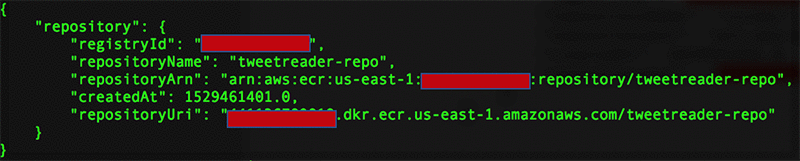
  2. Create an Amazon ECR repository using this command (note the repositoryUri in the output):
    aws ecr create-repository --repository-name tweetreader-repo

Output:

  1. Tag the tweetreader image with the repositoryUri value from the previous step using this command:
    docker tag tweetreader:latest aws_account_id.dkr.ecr.us-east-1.amazonaws.com/ tweetreader-repo

  2. Get the Docker login credentials using the following command:
    aws ecr get-login --no-include-email

  3. Run the Docker login command returned from the previous step. If the command is successful, you will get a message “Login Succeeded.”
  4. Push the Docker image to Amazon ECR with the repositoryUri from step 1 using this command:
    docker push aws_account_id.dkr.ecr.us-east-1.amazonaws.com/tweetreader-repo

Step 4: Store configuration information in AWS Systems Manager Parameter Store

Now we are going to store application configuration information in AWS Systems Manager Parameter Store, which provides hierarchical storage for configuration data management and secrets management. You can store data such as passwords, database strings, and license codes as parameter values. By storing our configuration parameters outside the container we improve the security posture by separating this data from the code and enabling us to control and audit access at granular levels. 

  1. Go to the AWS Management Console and navigate to the AWS Systems Manager console.
  2. In the navigation pane at the left, scroll to the bottom and choose Parameter Store and then choose create parameter at the top right.
    For name use : /twitter-reader/aws-configFor type: select StringFor Value:

    { "twitter": {
     "consumer_key": "VAL1", 
    "consumer_secret": "VAL2", 
    "access_token": "VAL3", 
    "access_token_secret": "VAL4" }, 
    "topics": ["AWS", "VPC", "EC2", "RDS", "S3", "ECSSSS"], 
    "languages": ["en", "es", "de", "fr", "ar", "pt"],
     "kinesis_delivery": "VAL5" }

    • Update the placeholders VAL1 through VAL4 with the values corresponding to your Twitter API credentials.
    • Update the placeholder VAL5 with the value captured in the Prerequisites section step b IngestionFirehoseStream physical ID.
    • The value will be something like SocialMediaAnalyticsBlogPo-IngestionFirehoseStream-<value>
    • Choose Create Parameter.

Step 5: Create Fargate task definition and cluster

Now we are going to configure a task for Amazon ECS using AWS Fargate as the launch type. The Fargate launch type allows you to run your containerized applications without the need to provision and manage the backend infrastructure. 

  1. Create a text file called trustpolicyforecs.json with the following content in the DevEnvironment:
    {
      "Version": "2012-10-17",
      "Statement": [
        {
          "Effect": "Allow",
          "Principal": {
            "Service": "ecs-tasks.amazonaws.com"
          },
          "Action": "sts:AssumeRole"
        }
      ]
    }

  2. Create a role called AccessRoleForTweetReaderfromFG using the following command in the DevEnvironment:
    aws iam create-role --role-name AccessRoleForTweetReaderfromFG --assume-role-policy-document file://trustpolicyforecs.json

  3. Attach Kinesis Data Firehose and Systems Manager IAM policies to the role created in step 2 using the following commands in the DockerEnvironment:
    aws iam attach-role-policy --policy-arn arn:aws:iam::aws:policy/AmazonKinesisFirehoseFullAccess --role-name AccessRoleForTweetReaderfromFG
    
    aws iam attach-role-policy --policy-arn arn:aws:iam::aws:policy/AmazonSSMReadOnlyAccess --role-name AccessRoleForTweetReaderfromFG

    AccessRoleForTweetReaderfromFG is the IAM role that will be assumed by the task running on ECS. Our task is running the Node application and only needs IAM policies to write records to Kinesis Data Firehose and read configuration information from AWS Systems Manager Parameter Store.

  4. In the Amazon ECS console, choose Repositories and select the tweetreader-repo repository that was created in the previous step. Copy the Repository URI.
  5. Choose Task Definitions and then choose Create New Task Definition.
  6. Select launch type compatibility as FARGATE and click Next Step.
  7. In the create task definition screen, do the following:
    • In Task Definition Name, type tweetreader-task
    • In Task Role, choose AccessRoleForTweetReaderfromFG
    • In Task Memory, choose 2GB
    • In Task CPU, choose 1 vCPU
    • Choose Add Container under Container Definitions. On the Add Container page, do the following:
      • Enter Container name as tweetreader-cont
      • Enter Image URL copied from step 1
      • Enter Memory Limits as 128 and choose Add.

    Note: Select TaskExecutionRole as “ecsTaskExecutionRole” if it already exists. If not, select Create new role and it will create “ecsTaskExecutionRole” for you.

  8. Choose the Create button on the task definition screen to create the task. It will successfully create the task, execution role and Amazon CloudWatch Logs groups.
  9. In the Amazon ECS console, choose Clusters and create cluster. Select template as “Networking only, Powered by AWS Fargate” and chooose the next step.
  10. Enter cluster name as tweetreader-cluster and choose Create.

Step 6: Start the Fargate task and verify the application       

  1. In the Amazon ECS console, go to Task Definitions, select the tweetreader-task, choose Actions, and then choose Run Task.
  2. On the Run Task page, for Launch Type select Fargate, for Cluster select tweetreader-cluster, select Cluster VPC and Subnets values, and then choose Run Task.
  3. To test the application, choose the running task in the Fargate console. Go to the logs tab and verify there is nothing there. This means the node application is running and no errors occurred. After you have verified that the Fargate task does not have any error logs, navigate to the Amazon S3 console and go to the bucket that was created as part of the CloudFormation template in the original blog post. You will see a folder called raw. Check the contents of this folder. It should have the data sent from our Twitter feed reader app to serverless processing flow (Amazon Kinesis Data Firehose, Amazon Lex, Amazon Translate, Amazon Athena )

Conclusion

Congratulations! You have successfully ‘containerized’ an application that was previously running on an EC2 instance. Furthermore, you are running the container with Amazon ECS and AWS Fargate so you don’t need to provision or manage any EC2 instances. You can also tweak the task definition configuration in AWS Fargate by tuning the amount of memory, CPU, and concurrent executions your task might need.

For more information about working with ECS and Fargate, see the AWS Fargate documentation.


About the Authors

Raja Mani is a Solution Architect supporting AWS partners. He is interested in Serverless development, DevOps, Containers, Big Data and Machine Learning. He is helping AWS partners to architect the enterprise-grade Amazon Web Services Solutions for their customers.



Luis Pineda is a Partner Solutions Architect at Amazon Web Services based in Chicago. He works with our partners and customers to solve business problems using AWS. Outside of work, Luis enjoys being outdoors, running, cycling and soccer.


Anomaly detection on Amazon DynamoDB Streams using the Amazon SageMaker Random Cut Forest algorithm

Have you considered introducing anomaly detection technology to your business? Anomaly detection is a technique used to identify rare items, events, or observations which raise suspicion by differing significantly from the majority of the data you are analyzing.  The applications of anomaly detection are wide-ranging including the detection of abnormal purchases or cyber intrusions in banking, spotting a malignant tumor in an MRI scan, identifying fraudulent insurance claims, finding unusual machine behavior in manufacturing, and even detecting strange patterns in network traffic that could signal an intrusion.

There are many commercial products to do this, but you can easily implement an anomaly detection system by using Amazon SageMaker, AWS Glue, and AWS Lambda. Amazon SageMaker is a fully-managed platform to help you quickly build, train, and deploy machine learning models at any scale. AWS Glue is a fully-managed ETL service that makes it easy for you to prepare your data/model for analytics. AWS Lambda is a well-known a serverless real-time platform. Using these services, your model can be automatically updated with new data, and the new model can be used to alert for anomalies in real time with better accuracy.

In this blog post I’ll describe how you can use AWS Glue to prepare your data and train an anomaly detection model using Amazon SageMaker. For this exercise, I’ll store a sample of the NAB NYC Taxi data in Amazon DynamoDB to be streamed in real time using an AWS Lambda function.

The solution that I describe provides the following benefits:

  • You can make the best use of existing resources for anomaly detection. For example, if you have been using Amazon DynamoDB Streams for disaster recovery (DR) or other purposes, you can use the data in that stream for anomaly detection. In addition, stand-by storage usually has low utilization. The data in low awareness can be used for training data.
  • You can automatically retrain the model with new data on a regular basis with no user intervention.
  • You can make it easy to use the Random Cut Forest built-in Amazon SageMaker algorithm. Amazon SageMaker offers flexible distributed training options that adjust to your specific workflows in a secure and scalable environment.

Solution architecture

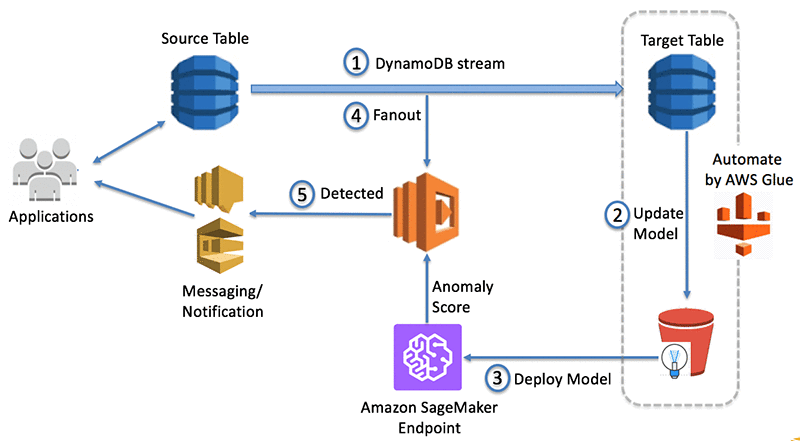
The following diagram shows the overall architecture of the solution.

The steps that data follows through the architecture are as follows:

  1. Source DynamoDB captures changes and stores them in a DynamoDB stream.
  2. AWS Glue job regularly retrieves data from target DynamoDB table and runs a training job using Amazon SageMaker to create or update model artifacts on Amazon S3.
  3. The same AWS Glue job deploys the updated model on the Amazon SageMaker endpoint for real-time anomaly detection based on Random Cut Forest.
  4. AWS Lambda function polls data from the DynamoDB stream and invokes the Amazon SageMaker endpoint to get inferences.
  5. The Lambda function alerts user applications after anomalies are detected.

This blog post consists of two sections. The first section, “Building the auto-updating model,” explains how the previous steps 1, 2, and 3 can be automated using AWS Glue. All of the sample scripts in this section run in one AWS Glue job. The second section, “Detecting anomalies in real time,” shows how the AWS Lambda function processes previous steps 4 and 5 for anomaly detection.

Building the auto-updating model

This section explains how AWS Glue reads a DynamoDB table and automatically trains and deploys a model of Amazon SageMaker. I assume that the DynamoDB stream is already enabled and DynamoDB items are being written to the stream. If you have not set these up yet, you can reference these documents for more information: Capturing Table Activity with DynamoDB Streams, DynamoDB Streams and AWS Lambda Triggers, and Global Tables.

In this example, a DynamoDB table (“taxi_ridership”) in the us-west-2 Region is replicated to another DynamoDB table with same name in us-east-1 Region using the Global Tables of DynamoDB.

Create an AWS Glue job and prepare data

To prepare data for model training, we’ll store our data in DynamoDB. The AWS Glue job retrieves data from the target DynamoDB table by using create_dynamic_frame_from_options() with a dynamodb connection_type argument. While you pull data from DynamoDB, we recommend that you choose only the necessary columns for model training and write them into Amazon S3 as CSV files.  You can do this by using the ApplyMapping.apply() function in AWS Glue. In this example, only the transaction_id and ridecount columns are mapped.

In addition, when you run the write_dynamic_frame.from_options function, you need to add this option,  format_options = {"writeHeader": False , "quoteChar": "-1" }, because the column’s name and double quotation marks (‘”‘) are not necessary for model training.

Finally, the AWS Glue job should be created in the same Region (for this blog post it’s us-east-1 ) where the DynamoDB table resides. For more information on creating an AWS Glue job. See Adding Jobs in AWS Glue.

import sys
from awsglue.transforms import *
from awsglue.utils import getResolvedOptions
from pyspark.context import SparkContext
from awsglue.context import GlueContext
from awsglue.job import Job

## @params: [JOB_NAME]
args = getResolvedOptions(sys.argv, ['JOB_NAME'])
 
sc = SparkContext()
glueContext = GlueContext(sc)
spark = glueContext.spark_session
job = Job(glueContext)
job.init(args['JOB_NAME'], args)

my_region  = '<region name>'
my_bucket = '<bucket name>'
my_project = '<project name>'
my_train_data = "s3://{}/{}/taxi-ridership-rawdata/".format(my_bucket ,  my_project )
my_dynamodb_table = "taxi_ridership"

## Read raw(source) data from target DynamoDB 
raw_data_dyf = glueContext.create_dynamic_frame_from_options("dynamodb", {"dynamodb.input.tableName" : my_dynamodb_table , "dynamodb.throughput.read.percent" : "0.7" } , transformation_ctx="raw_data_dyf" )
 
## Write necessary columns into S3 as CSV format for creating Random Cut Forest(RCF)  model  
selected_data_dyf = ApplyMapping.apply(frame = raw_data_dyf, mappings = [("transaction_id", "string", "transaction_id", "string"), ("ridecount", "string", "ridecount", "string")], transformation_ctx = "selected_data_dyf")
datasink = glueContext.write_dynamic_frame.from_options(frame=selected_data_dyf , connection_type="s3", connection_options={ "path": my_train_data }, format="csv", format_options = {"writeHeader": False , "quoteChar": "-1" }, transformation_ctx="datasink")

This AWS Glue job writes CSV files in the specified path on Amazon S3 ( “s3://<bucket name>/<project name>/taxi-ridership-rawdata/” ).

Run training job and update model

After the data is prepared, you can run a training job on Amazon SageMaker. To submit the training job to Amazon SageMaker the boto3 package, which is automatically bundled with your AWS Glue ETL script, should be imported. This enables you to use the low-level SDK for Python in the AWS Glue ETL script. To learn more about how to create a training job, see Create a Training Job.

The create_training_job function creates model artifacts on the S3 path you specified. Those model artifacts are required for creating the model in the next step.

## Execute training job with CSV data and create model artifacts for RCF
import boto3
from time import gmtime, strftime

sagemaker = boto3.client('sagemaker', region_name= my_region)
job_name = 'randomcutforest-' + strftime("%Y-%m-%d-%H-%M-%S", gmtime())
sagemaker_role = "arn:aws:iam::<account id>:role/service-role/<AmazonSageMaker-ExecutionRole-Name>"

containers = {
    'us-west-2': '174872318107.dkr.ecr.us-west-2.amazonaws.com/randomcutforest:latest',
    'us-east-1': '382416733822.dkr.ecr.us-east-1.amazonaws.com/randomcutforest:latest',
    'us-east-2': '404615174143.dkr.ecr.us-east-2.amazonaws.com/randomcutforest:latest',
    'eu-west-1': '438346466558.dkr.ecr.eu-west-1.amazonaws.com/randomcutforest:latest'}

image = containers[my_region]
artifacts_location = 's3://{}/{}/artifacts'.format(my_bucket , my_project )
print('myINFO : training artifacts will be uploaded to: {}'.format(artifacts_location))

create_training_params = 
{
    "AlgorithmSpecification": { "TrainingImage": image, "TrainingInputMode": "File" },
    "RoleArn": sagemaker_role, "OutputDataConfig": {"S3OutputPath": artifacts_location },
    "ResourceConfig": { "InstanceCount": 2, "InstanceType": "ml.c4.xlarge", "VolumeSizeInGB": 50 },
    "TrainingJobName": job_name,
    "HyperParameters": { "num_samples_per_tree": "200", "num_trees": "50", "feature_dim": "2" },
    "StoppingCondition": { "MaxRuntimeInSeconds": 60 * 60 },
    "InputDataConfig": [
        {
            "ChannelName": "train",
            "ContentType": "text/csv;label_size=0",
            "DataSource": {
                "S3DataSource": {"S3DataType": "S3Prefix", "S3Uri": my_train_data, "S3DataDistributionType": "ShardedByS3Key" } 
            },
            "CompressionType": "None",
            "RecordWrapperType": "None"
        }
    ]
}

sagemaker.create_training_job(**create_training_params)
status = sagemaker.describe_training_job(TrainingJobName=job_name)['TrainingJobStatus']
print('myINFO : Status of {} traning job ==>  {}'.format(job_name , status ))
 
try:
    sagemaker.get_waiter('training_job_completed_or_stopped').wait(TrainingJobName=job_name)
finally:
    status = sagemaker.describe_training_job(TrainingJobName=job_name)['TrainingJobStatus']
    print("myINFO : Training job ended with status: " + status)
    if status == 'Failed':
        message = sagemaker.describe_training_job(TrainingJobName=job_name)['FailureReason']
        print('myINFO : Training failed with the following error: {}'.format(message))
        raise Exception('Training job failed')

## Create Model from model artifacts 
model_name=job_name
print("myINFO : Model name - {}".format(model_name))

info = sagemaker.describe_training_job(TrainingJobName=job_name)
model_data = info['ModelArtifacts']['S3ModelArtifacts']
primary_container = {'Image': image, 'ModelDataUrl': model_data }

create_model_response = sagemaker.create_model(
    ModelName = model_name,
    ExecutionRoleArn = sagemaker_role,
    PrimaryContainer = primary_container)
print("myINFO : Created Model ARN : {}".format( create_model_response['ModelArn']))

You can see a new model name with date format on the Amazon SageMaker console after model creation is successful.

Execute batch transform and obtain cut-off score

We can now use this trained model to compute anomaly scores for each of the training data points. As the amount of data to work with is big, I decided to use Amazon SageMaker Batch Transform. Batch transform uses a trained model to get inferences for an entire dataset in Amazon S3, and saves the inferences in an S3 bucket that you specify when you create a batch transform job.

After getting the inferences (=anomaly scores) on each data point, we need to obtain a score_cutoff value to be used for real-time anomaly detection. To make it simple, I used a standard technique for classifying anomalies. Anomaly scores outside three standard deviations from the mean score are considered anomalous.

## Execute Batch Transform in order to calculate anomaly scores and the value of score cutoff.
## score cutoff will be used in Lambda function in real time to identify anomalous transaction 
import time
batch_job_name = 'Batch-Transform-' + strftime("%Y-%m-%d-%H-%M-%S", gmtime())
batch_output = "s3://{}/{}/batch_output/".format(my_bucket , my_project )

request = {
        "TransformJobName": batch_job_name,
        "ModelName": model_name,
        "MaxConcurrentTransforms": 1, 
        "TransformOutput": { "S3OutputPath": batch_output },
        "TransformInput" : { 
            "ContentType": "text/csv;label_size=0",
             "DataSource" : { 
                 "S3DataSource": { "S3DataType": "S3Prefix", "S3Uri": my_train_data } 
             }
        }, 
       "TransformResources": { "InstanceType": "ml.m4.xlarge","InstanceCount": 1  } 
}
response = sagemaker.create_transform_job(**request)

batch_status = 'InProgress'
while batch_status == 'InProgress':
    batch_status = sagemaker.describe_transform_job( TransformJobName=batch_job_name)['TransformJobStatus']
    print("myINFO : Batch job {} in Progress ".format( batch_job_name ))
    time.sleep(10)
if batch_status == 'Failed':
    message = sagemaker.describe_transform_job(TransformJobName=batch_job_name)['FailureReason']
    print('myINFO : Transforming job failed with the following error: {}'.format(message))
    raise Exception('Transforming job failed')

## Calculate score_cutoff from the result of Batch-Transform 
from pyspark.sql.functions import mean, stddev
from decimal import Decimal
all_scores_dfy = glueContext.create_dynamic_frame_from_options("s3", {'paths': [ batch_output ]}, format="json", transformation_ctx = "all_scores_dfy" ).toDF()
score_mean = all_scores_dfy.agg(mean(all_scores_dfy["score"]).alias("mean")).collect()[0]["mean"]
score_stddev = all_scores_dfy.agg(stddev(all_scores_dfy["score"]).alias("stddev")).collect()[0]["stddev"]
score_cutoff = Decimal( str( score_mean + 3*score_stddev ) ) 
print("myINFO : RFC score cutoff : {}".format( score_cutoff))

The history of the batch transform job can be found in the Batch transform jobs menu on the Amazon SageMaker console.

Deploy model and update cut-off score

The final step in the AWS Glue ETL script is to deploy the updated model on the Amazon SageMaker endpoint and upload the obtained score_cutoff value in the DynamoDB table for real-time anomaly detection. The Lambda function queries this score_cutoff value on DynamoDB to compare it with anomaly scores of new transactions.

## Create Endpoint Configuration for realtime service 
endpoint_config_name = 'randomcutforest-endpointconfig-' + strftime("%Y-%m-%d-%H-%M-%S", gmtime()) 
create_endpoint_config_response = sagemaker.create_endpoint_config(
    EndpointConfigName = endpoint_config_name,
    ProductionVariants=[{ 'InstanceType':'ml.m4.xlarge', 'InitialInstanceCount':1, 'ModelName':model_name, 'VariantName':'AllTraffic'}]
)
print("myINFO : Endpoint Config Arn:  " + create_endpoint_config_response['EndpointConfigArn'] )


##  Create/Update Endpoint with new configuration that has updated model. 
endpoint_name = 'randomcutforest-endpoint'
endpoint_status = ""
try:
    endpoint_status = sagemaker.describe_endpoint(EndpointName=endpoint_name)['EndpointStatus']
except Exception as e : 
    endpoint_status = "NotInService"
print("myINFO : randomcutforest-endpoint Status: " + status)

if endpoint_status == 'InService':
    update_endpoint_response = sagemaker.update_endpoint( EndpointName=endpoint_name, EndpointConfigName=endpoint_config_name)
    try:
        sagemaker.get_waiter('endpoint_in_service').wait(EndpointName=endpoint_name)
    finally:
        resp = sagemaker.describe_endpoint(EndpointName=endpoint_name) 
        status = resp['EndpointStatus']
        print("myINFO : Update endpoint {} ended with {} status: ".format( resp['EndpointArn'] , status ) )         
        if status != 'InService':
            message = sagemaker.describe_endpoint(EndpointName=endpoint_name)['FailureReason']
            print('myINFO : Endpoint update failed with the following error: {}'.format(message))
            raise Exception('Endpoint update did not succeed')
else:
    create_endpoint_response = sagemaker.create_endpoint( EndpointName=endpoint_name, EndpointConfigName=endpoint_config_name)
    try:
        sagemaker.get_waiter('endpoint_in_service').wait(EndpointName=endpoint_name)
    finally:
        resp = sagemaker.describe_endpoint(EndpointName=endpoint_name) 
        status = resp['EndpointStatus']
        print("myINFO : Create endpoint {} ended with {} status: ".format( resp['EndpointArn'] , status ) )         
        if status != 'InService':
            message = sagemaker.describe_endpoint(EndpointName=endpoint_name)['FailureReason']
            print('myINFO : Endpoint creation failed with the following error: {}'.format(message))
            raise Exception('Endpoint creation did not succeed')

            
## Add the score_cutoff value into DynamoDB 
## score_cutoff will be queried by Lambda function for real time abnormal detection
dynamodb_table = boto3.resource('dynamodb', region_name= my_region).Table('anomaly_cut_off')
dynamodb_table.put_item(Item= {'data_kind': my_dynamodb_table ,'update_time':  strftime("%Y%m%d%H%M%S", gmtime()), 'score_cutoff': score_cutoff })
print('myINFO : New score_cutoff value has been updated in DynamoDB table.')
    
## Delete Temporary data to save cost. 
s3 = boto3.resource('s3').Bucket(my_bucket ) 
s3.objects.filter(Prefix="{}/taxi-ridership-rawdata".format(my_project)).delete()
s3.objects.filter(Prefix="{}/batch_output".format(my_project)).delete()
print('myINFO : Temporary S3 objects have been deleted.')

## End job 
job.commit()

Now the Amazon SageMaker endpoint is created, and the AWS Glue job has been completed. You can check the detailed log of the AWS Glue job by choosing the Logs link in the AWS Glue console.

The score_cutoff value is stored in a DynamoDB table whose partition key is taxi-ridership and whose range key is a latest update time.

Schedule the AWS Glue job

Those previous scripts run in the same AWS Glue job and AWS Glue supports a time-based schedule by creating a trigger. You can retrain model with new data on regular basis if you define a time-based schedule and associate it with your job.  I do not think the model should be updated too frequently.  Weekly or bi-weekly renewal should be enough.

Detecting anomalies in real time

This section discusses how to detect anomalous transactions in real time from an AWS Lambda function. You need to create an AWS Lambda function to poll the DynamoDB stream. While you create the AWS Lambda function, you can use the “dynamodb-process-stream-python3” blueprint for quick implementation. The Lambda function with the blueprint can be integrated with the DynamoDB table that you specify. The blueprint provides the basic Lambda code.

Get an anomaly score on each data point

I’ll briefly explain the code in the Lambda function. It filters only INSERT and MODIFY events because they are new data.  The Lambda function adds them into instances array in order to get inferences for an entire events in the array. The Amazon SageMaker Random Cut Forest algorithm accepts multiple records as input requests and return multi-record inferences to support a mini-batch predictions. To learn more, see Common Data Formats—Inference.

import json
import boto3
from boto3.dynamodb.conditions import Key, Attr

print("Starting Lambda Function.... ")
sagemaker = boto3.client('sagemaker-runtime', region_name ='<region name>' )
dynamodb_table = boto3.resource('dynamodb', region_name='us-east-1').Table('anomaly_cut_off')

def lambda_handler(event, context):
    #print("Received event: " + json.dumps(event, indent=2))
    transaction_data = {} # key : transaction_id / value : ridecount
    
    for record in event['Records']:
        ## filter only INSERT or MODIFY event and add to "transaction_data" dictionary 
        if record['eventName'] == "INSERT" or record['eventName'] == "MODIFY":
            transaction_id = record['dynamodb']['NewImage']['transaction_id']['S']
            ridecount = record['dynamodb']['NewImage']['ridecount']['S']
            transaction_data[transaction_id] = ridecount
    print( "transaction_data: " + str(transaction_data )) 
    
    features=[]  
    features_dic={}   
    instances=[]
    instances_dic={}  # example, {'instances': [{'features': ['10231', '3837']}, {'features': ['10232', '10844']}]}
    for key in transaction_data.keys():
        features.append(key)
        features.append(transaction_data[key])
        features_dic["features"] = features
        instances.append(features_dic)
        features=[]
        features_dic={}
    instances_dic["instances"] = instances
    transaction_json = json.dumps(instances_dic)  # To make argument format for invoke_endpoint method.

Alert anomalous transaction

An array of features can be submitted to the sagemaker.invoke_endpoint function. It returns an array of scores corresponding to each feature in the instances array. We can compare each score in response to the latest value of score_cutoff retrieved from the DynamoDB table. If the anomaly score of a new transaction is larger than the value of score_cutoff, that transaction is considered to be anomalous. Then the Lambda function will alert the user application.

    response = sagemaker.invoke_endpoint( EndpointName='randomcutforest-endpoint', Body=transaction_json ,  ContentType='application/json' )
    scores_result = json.loads(response['Body'].read().decode())
    print("Result score : "+ str(scores_result))  # return an array of score 
    
    response = dynamodb_table.query(
              Limit = 1,
              ScanIndexForward = False,
              KeyConditionExpression=Key('data_kind').eq('taxi_ridership') & Key('update_time').lte('99990000000000')
           )
    socre_cutoff = response['Items'][0]['score_cutoff'] 
    print("socre cutoff : " + str(socre_cutoff) )       
    
    for index in range(len(scores_result['scores'])):
        if scores_result['scores'][index]['score'] > socre_cutoff:
            print("Detected abnormal transaction ID : {} , Ridecount : {}".format(instances[index]['features'][0], instances[index]['features'][1]   ))
            ## Add your codes to send a notification
            
    return 'Successfully processed {} records.'.format(len(event['Records']))

The following is an example of an output log in Amazon CloudWatch. Two transactions (10231 and 21101) were created  in DynamoDB, and those transaction triggered a Lambda function as new events. The anomaly score of transaction of 21101 is 3.6189932108. That is larger than the cut-off value (1.31462299965) in the DynamoDB table, so the transaction is detected to be anomalous.

Conclusion

In this blog post, I introduced an example of how to build an anomaly detection system on Amazon DynamoDB Streams by using Amazon SageMaker, AWS Glue, and AWS Lambda.

In addition, you can adapt this example to your specific use case because AWS Glue is very flexible based on user’s script and continues to add new data source. Other kinds of data sources and streams can be applied to this architecture because AWS Lambda function also works with many other AWS streaming services.

Finally, I hope this post helps you reduce business risks and save cost while adopting anomaly detection system.


About the Author

Yong Seong Lee is a Cloud Support Engineer for AWS Big Data Services. He is interested in every technology related to Big Data/Data Analysis/Machine Learning and helping customers who have difficulties in using AWS services. His motto is “Enjoy life, be curious and have maximum experience.”


Announcing the Winners of the 2018 AWS AI Hackathon

We’re excited to announce the winners of the 2018 AWS AI Hackathon.  Horacio Canales has won first place with his “Second Alert” project. This project enables users from around the world to identify missing persons, including human trafficking victims, children too young to remember their family members’ names, and mentally handicapped individuals. Horacio built the solution using image analysis, text analysis, and conversational agents with Amazon Rekognition, Amazon Comprehend, and Amazon Lex. In recognition for his contribution, Horacio will receive $5,000 USD and $2,500 in AWS Credits.

We want to thank all of the participating developers from around the world for their time and creativity during the 2018 AWS AI Hackathon. In this hackathon, we challenged developers to build intelligent applications using pre-trained machine learning computer vision, natural language processing, speech recognition, text-to-speech, and machine translation API services. Last week our judges determined three winners from more than 900 submissions.

Developers submitted projects aimed at applying artificial intelligence to solve problems in ecommerce, health, entertainment, and much more. Our judges reviewed submissions based on the quality, creativity, and originality of the idea; implementation of the idea, including how well AWS machine learning services were leveraged by the developer; and the potential impact of the idea, such as how the solution can be widely useful. Our panel of judges included machine learning and open source experts from across AWS:

Congratulations to our winners!

1st Place | $5,000 USD and $2,500 in AWS Credits: Second Alert, by Horacio Canales. Horacio was motivated to help identify missing persons using facial recognition. AWS services used include Amazon Rekognition, Amazon Comprehend, Amazon Lex, and AWS Lambda.

2nd Place | $3,000 USD and $1,500 in AWS Credits: Mobu, by Yosun Chang and Luannie Dang. Yosun built an “empathy-powered movie buddy robot” that recommends movies using chat, image recognition, and a person’s mood—by determining user happiness through facial analysis. AWS services used include Amazon Rekognition, Amazon Lex, and AWS Lambda.

3rd Place | $2,000 USD and $1,000 in AWS Credits: Lab monitor, by Kitson Cheung, Cyrus Wong Chun Yin, Kwok Tung Chan, Chun Long Kwan, Mei Ching Law, Fung Lam Jacqueline Wu, Mike Ng, and Man Ting Ma. This team built an application that helps students stay focused during technical lab classes. AWS services used include Amazon Rekognition, Amazon Polly, Amazon Lex and AWS Lambda. 

Honorable Mentions

We also recognize these four submissions in no particular order, with $300 in AWS Credits:

Serverless Hands-free Allergy Checker, by Ceyhun Ozgun. AWS services used include Amazon Rekognition, Amazon Lex, Amazon Polly, and AWS Lambda.

The Healing Power of Telling Your Story, by Mohamed Hassan Abdulrahman. AWS services used include Amazon Translate, Amazon Comprehend, and AWS Lambda.

QuickSeek, by Harry Banda. AWS services used include Amazon Transcribe, Amazon Comprehend, and AWS Lambda.

Galudy, by Emmanuel Adigun, Olalekan Elesin, and Samuel James. AWS services used include Amazon Rekognition, Amazon Comprehend, Amazon Translate, and AWS Lambda.

What’s next?

You can view all of the submissions on the 2018 AWS AI Hackathon page. See our website to learn more about how you can build with AWS machine learning services.


About the Author

Cameron Peron is Sr. Developer Marketing Manager for Artificial Intelligence at Amazon Web Services.
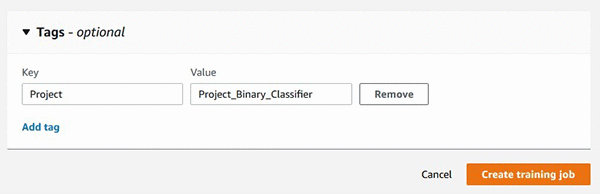
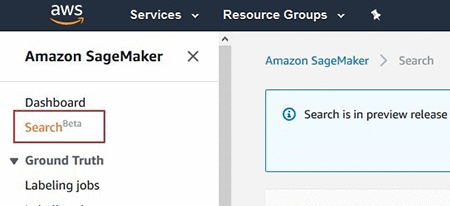



Amazon SageMaker now comes with new capabilities for accelerating machine learning experimentation

Data scientists and developers can now quickly and easily organize, track, and evaluate their machine learning (ML) model training experiments on Amazon SageMaker. We are introducing a new Amazon SageMaker Search capability that lets you find and evaluate the most relevant model training runs from the hundreds and thousands of your Amazon SageMaker model training jobs. This accelerates the model development and experimentation phase, improves the productivity of data scientists and developers, and reduces overall time to market of machine-learning-based solutions. The new search capability is available in beta through both the AWS Management Console and the AWS SDK APIs for Amazon SageMaker. It’s available in 13 AWS Regions where Amazon SageMaker is currently available, at no additional charge to you.

Developing a machine learning model requires continuous experimentation and observation. For example, when you try a new learning algorithm or tune the model hyperparameters, you need to observe the impact of such incremental changes on model performance and accuracy. This iterative optimization exercise often leads to data explosion, with hundreds of model training experiments and model versions. This can slow down the convergence and discovery of the “winning” model. The information explosion also makes it cumbersome to trace back the antecedents of a model version deployed in a production environment. This difficulty in tracing model lineage hinders model auditing and compliance verifications, debugging a degradation in model’s live prediction performance and setting up new model retraining experiments.

Amazon SageMaker Search lets you quickly identify the most relevant model training runs for addressing your business use case. You can search on all of the defining attributes: the learning algorithm employed, hyperparameter settings, training datasets used, even the tags you have added on the model training jobs. Searching on tags lets you quickly find the model training runs associated with a specific business project, a research lab, or a data science team. This can help you meaningfully categorize and catalog your model training runs. In addition to tracking and organizing the relevant model training runs in a centralized place, you can quickly compare and rank them based on their performance metrics such as training loss and validation accuracy, thus creating leaderboards for picking “winning” models to deploy into production environments. Finally, with Amazon SageMaker search you can quickly trace back the lineage of a model deployed in live environments right to the data set used in training or validating the model. With a single click on the AWS Management Console or through simple one-line API calls, you can now access the specific training run along with all of the ingredients that went into creating the model in first place.

Now let’s dive into a step-by-step experience that shows you how you can efficiently manage your model training experiments using Amazon SageMaker Search. This new feature is available in beta, so use it with caution in production.

Organize, track, and evaluate model training experiments using Amazon SageMaker Search

In this example we’ll train a simple binary classification model on the MNIST data set using the Amazon SageMaker Linear Learner algorithm. The model will predict whether a given image is of the digit 0 or otherwise. We’ll experiment with tuning the hyperparameters of the Linear Learner algorithm, such as mini_batch_size, while optimizing for the binary_classification_accuracy metric that measures the accuracy of predictions made by the model. You can find the sample notebook for this example here.

Step 1: Set up the experiment tracking by choosing a unique label for tagging all of the model training runs

You can add the tag while creating a model training job. Open the AWS Management Console and navigate to the Amazon SageMaker console.

You can also add the tag using the Amazon SageMaker Python SDK API while you are creating a training job using SageMaker estimator.

linear_1 = sagemaker.estimator.Estimator(
  linear_learner_container, role, 
  train_instance_count=1, train_instance_type = 'ml.c4.xlarge',
  output_path=<you model output S3 path URI>,
  tags=[{"Key":"Project", "Value":"Project_Binary_Classifier"}],
  sagemaker_session=sess)

Step 2: Perform multiple model training runs trying new hyperparameter settings each time

For demonstration purposes, we’ll try three different batch_sizes of 100, 200, and 300. Here is some sample code:

linear_1.set_hyperparameters(feature_dim=784,predictor_type='binary_classifier', mini_batch_size=100)
linear_1.fit({'train': <your training dataset S3 URI>})

We are consistently tagging all three model training runs with the same unique label so we can group them together under the same project. In the next step we’ll show you how you can use Amazon SageMaker Search to query and organize all of the model training runs labelled with our “Project” tag.

Step 3: Search and organize the relevant experiments at a centralized place for further evaluation

Search is available in beta on the Amazon SageMaker console.

You can search all three model training runs that we performed in Step 2, by searching for the tag.

This lists all of the labelled training runs in a table.

You can also search using the AWS SDK API for Amazon SageMaker Search.

………………
search_params={
   "MaxResults": 10,
   "Resource": "TrainingJob",
   "SearchExpression": { 
      "Filters": [{ 
            "Name": "Tags.Project",
            "Operator": "Equals",
            "Value": "Project_Binary_Classifier"
         }]},
  "SortBy": "Metrics.train:binary_classification_accuracy",
  "SortOrder": "Descending"
}
smclient = boto3.client(service_name='sagemaker')
results = smclient.search(**search_params)

While we have demonstrated searching by tags, the new Amazon SageMaker Search supports searching on any metadata for model training runs, such as the learning algorithm used, training dataset URIs, and ranges of numerical values for hyperparameters and model training metrics.

Step 4: Sort on the objective performance metric of your choice to find the winning model

The model training jobs returned by Amazon SageMaker Search in Step 3 are presented to you in a table—like a leaderboard—with all of the hyperparameters and model training metrics presented in sortable columns. Choose the column header to rank the leaderboard for the objective performance metric of your choice, in this case, binary_classification_accuracy.

You can also print the leaderboard inline in your Amazon SageMaker Jupyter notebooks. Here is some sample code:

import pandas
headers=["Training Job Name", "Training Job Status", "Batch Size", "Binary Classification Accuracy"]
rows=[]
for result in results['Results']: 
    trainingJob = result['TrainingJob']
    metrics = trainingJob['FinalMetricDataList']
    rows.append([trainingJob['TrainingJobName'],
     trainingJob['TrainingJobStatus'],
     trainingJob['HyperParameters']['mini_batch_size'],
     metrics[[x['MetricName'] for x in  
     metrics].index('train:binary_classification_accuracy')]['Value']
    ])
df = pandas.DataFrame(data=rows,columns=headers)
from IPython.display import display, HTML
display(HTML(df.to_html()))

As you can see in Step 3, we had already given the sort criteria in the search() API call as “SortBy“:  “Metrics.train:binary_classification_accuracy” and “SortOrder“: “Descending” for returning the results sorted on metric of our interest. The previous sample code  parses the JSON response and presents the results in a leaderboard format, that looks like the following:

Now that you have identified the winning model—with batch_size = 300, and the highest classification accuracy of 0.99344—you can now deploy this model to a live endpoint. The sample notebook has step-by-step instructions for deploying an Amazon SageMaker endpoint.

Tracing a model’s lineage on Amazon SageMaker

Now we’ll show you an example of picking a prediction endpoint and quickly tracing back to the model training run used in creating the model deployed at the endpoint.

Using single-click on the Amazon SageMaker console

In the left navigation pane of the Amazon SageMaker, choose Endpoints, and select the relevant endpoint from the list of all your deployed endpoints. Scroll to Endpoint Configuration Settings, which lists all the model versions deployed at the endpoint. You will see an additional hyperlink to the Model Training Job that created that model in the first place.

Using the AWS SDK for Amazon SageMaker Search

You can also use few simple one-line API calls to quickly trace the lineage of a model.

#first get the endpoint config for the relevant endpoint
endpoint_config = smclient.describe_endpoint_config(EndpointConfigName=endpointName)

#now get the model name for the model deployed at the endpoint. 
model_name = endpoint_config['ProductionVariants'][0]['ModelName']

#now look up the S3 URI of the model artifacts
model = smclient.describe_model(ModelName=model_name)
modelURI = model['PrimaryContainer']['ModelDataUrl']

#search for the training job that created the model artifacts at above S3 URI location
search_params={
   "MaxResults": 1,
   "Resource": "TrainingJob",
   "SearchExpression": { 
      "Filters": [ 
         { 
            "Name": "ModelArtifacts.S3ModelArtifacts",
            "Operator": "Equals",
            "Value": modelURI
         }]}
}
results = smclient.search(**search_params)

Get started with more examples and developer support

Now that you have seen examples of how to efficiently manage the machine learning experimentation process and trace a model’s lineage using the new Amazon SageMaker Search, you can try out our sample notebook. You can also refer to our developer guide for more examples or post your questions on our developer forum. Happy experimenting!


About the Author

Sumit Thakur is a Senior Product Manager for AWS Machine Learning Platforms where he loves working on products that make it easy for customers to get started with machine learning on cloud. He is product manager for Amazon SageMaker and AWS Deep Learning AMI. In his spare time, he likes connecting with nature and watching sci-fi TV series.
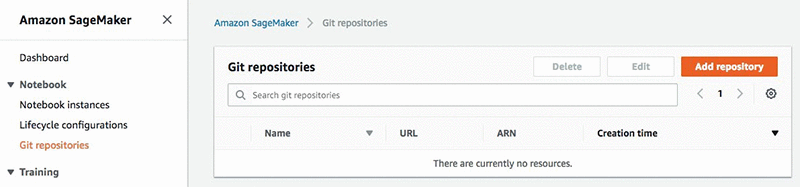
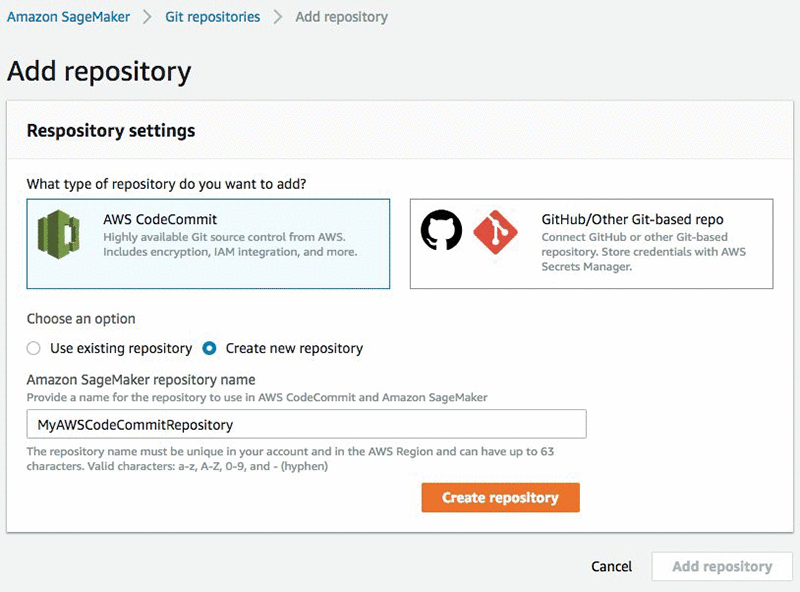
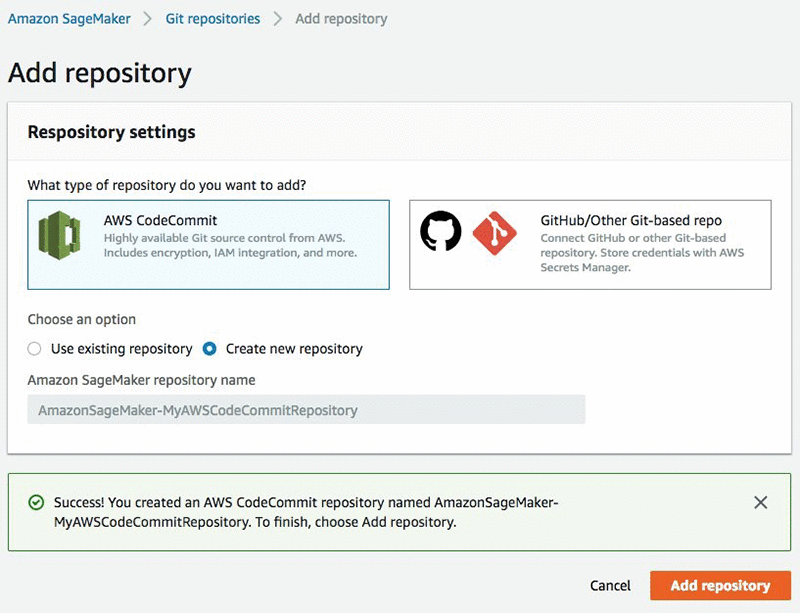


Amazon SageMaker notebooks now support Git integration for increased persistence, collaboration, and reproducibility

It’s now possible to associate GitHub, AWS CodeCommit, and any self-hosted Git repository with Amazon SageMaker notebook instances to easily and securely collaborate and ensure version-control with Jupyter Notebooks. In this blog post, I’ll elaborate on the benefits of using Git-based version-control systems and how to set up your notebook instances to work with Git repositories.

Data science projects demand collaborative effort. Data scientists, machine learning developers, data engineers, analysts, and business decision-makers need to share insights, delegate tasks, and review the history of their work to ensure a healthy journey from ideation to productization of machine learning models. Git-based version-control systems allow us to centralize data science practices in a sharable environment. By using Git repositories with Jupyter Notebooks, we can coauthor projects, track code changes, and amalgamate software engineering and data science practices for production-ready code management.

Additionally, notebooks in a notebook instance are stored on durable Amazon Elastic Block Store (EBS) volumes. However, they don’t persist beyond the life of the notebook instance. That means that if you delete your notebook instance, you will lose your work. Storing notebooks in a Git repository enables you to decouple Jupyter Notebooks from the instance lifecycle and keep them as standalone documents that can be referenced and reused in the future.

Finally, most of the publicly available content about machine learning and deep learning techniques are provided on Jupyter Notebooks that are hosted in Git repositories, such as GitHub. Cloning these notebooks seamlessly onto your notebook instances speeds up the learning process by allowing you to easily discover, execute, and share the publicly available learning material.

There are two ways to associate Git repositories with Amazon SageMaker notebook instances:

  • If you want to clone a public Git repository, which doesn’t require any credentials, you can simply provide the URL for the repository while creating a notebook instance. Amazon SageMaker will kick off your instance with the Git repository cloned onto it.
  • If you want to associate a private Git repository that requires credentials or personal access token, or if you want to store public Git repository information for future use, you first need to add this Git repository as a resource in your Amazon SageMaker account. When you add a Git repository that requires authentication, you can specify an AWS Secrets Manager secret that contains credentials or personal access token to access the repository. After you add a Git repository as a resource, you can create and use as many notebook instances as you need to be associated with this repository.

Since it’s comprehensive, I’ll walk you through the second use case where we introduce a private Git repository to Amazon SageMaker as a resource and create a notebook instance that is associated with this Git repository.

Add a Git repository to your Amazon SageMaker account

You can add Git repositories to your Amazon SageMaker account in the AWS Management Console or by using the AWS CLI.

To add a Git repository to Amazon SageMaker using the AWS Management Console, open the Amazon SageMaker console at https://console.aws.amazon.com/sagemaker/.

In the left navigation pane, choose Git repositories, which provides a centralized visibility and management for all of your Git repositories. Choose Add repository.

To add an AWS CodeCommit repository, choose AWS CodeCommit. Here, you can create a new AWS CodeCommit repository or use an existing one. Please note that the repository name must be 1 to 63 characters. Valid characters are a-z, A-Z, 0-9, and – (hyphen).

If you are creating a new AWS CodeCommit repository, the action button to Add repository will be active after your AWS CodeCommit repository is created.

To add a Git repository hosted somewhere other than AWS CodeCommit, choose GitHub/Other Git-based repo.

Enter the URL for the repository and a name to use for the repository in Amazon SageMaker. The name must be 1 to 63 characters. Valid characters are a-z, A-Z, 0-9, and – (hyphen).

For Git credentials, enter the credentials to use to authenticate to the repository. For GitHub repositories, instead of your account password, we strongly recommend using a Personal Access Token generated by your Git service provider due to its convenience and safety.

Amazon SageMaker uses AWS Secrets Manager behind the scenes to securely store Git credentials for private Git repositories that require authentication. Here, you can either create a new AWS Secrets Manager secret or choose an existing one. For more information about AWS Secrets Manager secrets or about using your company’s LDAP credentials with AWS Secrets Manager, see the AWS Secrets Manager User Guide.

If you are creating a new secret to store your credentials, the action button to Add repository will be active after your new secret is created.

You can view and manage all Git repositories that you have associated with Amazon SageMaker under the Git repositories menu.

To add a Git repository to Amazon SageMaker using the CLI, use the create-code-repository AWS CLI command.

If you are adding a private Git repository other than AWS CodeCommit, you first need to create an AWS Secrets Manager secret to store your credentials and obtain the Amazon Resource Name (ARN) of the AWS Secrets Manager secret to provide while using create-code-repository AWS CLI command.

Ensure that your IAM role has a policy update to give you permission to access for GetSecretValue.

Also, the secret must be in the following format:

{“username”: UserName, “password”: Password}

If you are adding a public Git repository, you don’t need an AWS Secrets Manager secret.

Specify a name for the repository as the value of the code-repository-name argument. The name must be 1 to 63 characters. Valid characters are a-z, A-Z, 0-9, and – (hyphen). Specify the default branch, the URL of the Git repository, and the Amazon Resource Name (ARN) of an AWS Secrets Manager secret that contains the credentials to use to authenticate the repository as the value of the git-config argument.

The following command creates a new repository named MyRespository in your Amazon SageMaker account that points to a Git repository hosted at https://github.com/myprofile/my-repo”.

aws sagemaker create-code-repository  --code-repository-name "MyRepository"  --git-config '{"Branch":"master",  "RepositoryUrl" : "https://github.com/myprofile/my-repo",  "SecretArn" : "arn:aws:secretsmanager:us-east-2:012345678901:secret:my-secret-ABc0DE"}'

Create a notebook instance with associated Git repositories

To create an instance with Git repositories cloned to it, go to Notebook instances on the Amazon SageMaker console, and choose Create notebook instance.

Follow the steps described in the Amazon SageMaker Developer Guide for other configurations, such as Amazon Virtual Private Cloud (VPC) or AWS Identity and Access Management (IAM).

You can  use existing AWS CodeCommit repositories that you have not created with Amazon SageMaker, but directly with AWS CodeCommit. However, you need to ensure that you have either added the “AmazonSageMaker-” prefix to the name of the repository (for example, AmazonSageMaker-MyAWSCodeCommitRepository) or that you have updated the IAM policy for your notebook instance’s execution role to grant permission to Amazon SageMaker for accessing your AWS CodeCommit repository. Update the IAM policy for your notebook instance’s execution role to have codecommit:GitPull and codecommit:GitPush permissions. For a full list of AWS CodeCommit permissions, see the AWS CodeCommit User Guide.

To clone Git repositories, use the menu to specify which repositories you want to clone:

Here, if you want to use a public repository that you haven’t added or don’t want to add to your Amazon SageMaker account, you can select Clone a public Git repository to this notebook instance only. In this case, you can simply paste the public URL for the repository, and Amazon SageMaker will clone it to your notebook instance.

You can also select Add a repository to Amazon SageMaker, which will lead you to the previous menu where we added repositories to Amazon SageMaker.

Finally, you can see the repositories that you have added to Amazon SageMaker on the menu. If you just added a repository and don’t see it yet on the menu, try to refresh the menu by using the refresh button.

You can select one default repository and up to three additional repositories to be associated with your notebook instance.

Your notebook instance will be created with the Git repositories cloned to it.

Open JupyterLab to see your repositories on the left menu.

If you prefer to execute these actions using CLI commands, refer to the Amazon SageMaker Developer Guide for the details.

Using Git repositories in a notebook instance

Your notebook instance will open in the default repository, which is installed in your notebook instance under /home/ec2-user/SageMaker. You can manually run Git commands in a notebook cell. For example:

!git pull origin master

To open any of the additional repositories, navigate up one folder. The additional repositories are also installed as directories under /home/ec2-user/SageMaker.

In collaboration with the Project Jupyter community, the Amazon SageMaker team has redesigned and developed an open-source Git extension for JupyterLab. If you are not a fan of CLI commands, the Git extension provides an intuitive and visual way to collaborate on JupyterLab. You can use the Git extension to create and switch branches, stage and commit code changes, send push and pull requests to shared repositories, see the version history in detail, and revert to previous versions when needed.

If you open the notebook instance with a JupyterLab interface, the jupyter-git extension is installed and available to use. For information about the JupyterLab Git extension, visit the JupyterLab GitHub page.

Conclusion

By using Git workflows easily with notebooks, you will be able to clone content to your JupyterLab workbench, participate in multiple-coauthor projects, and branch your data science work within the organization’s broader development and production workflows.


About the Author

Erkan Tas is a Senior Product Manager for Amazon SageMaker. He is on a mission to make Artificial Intelligence easy, accessible, and scalable through AWS platforms. He is also a sailor, science and nature admirer, Go and Stratocaster player.



Semantic Segmentation algorithm is now available in Amazon SageMaker

Amazon SageMaker is a managed and infinitely scalable machine learning (ML) platform. With this platform, it is easy to build, train, and deploy machine learning models. Amazon SageMaker already has two popular built-in computer vision algorithms for image classification and object detection. The Amazon SageMaker image classification algorithm learns to categorize images into a set of pre-defined categories. The Amazon SageMaker object detection algorithm learns to draw bounding boxes and identify objects in the boxes. Today, we are excited to announce that we are enhancing our computer vision family of algorithms with the launch of the Amazon SageMaker semantic segmentation algorithm.

An example of the Amazon SageMaker semantic segmentation algorithm at work. Photo by Pixabay via PEXELS.

Semantic segmentation (SS) is the task of classifying every pixel in an image with a class from a known set of labels. The segmentation output is usually represented as different RGB (or grayscale, if the number of classes is fewer than 255) values. Therefore the output is a matrix (or grayscale image)  with the same shape as the input image. This output image is also called a segmentation mask. With the Amazon SageMaker semantic segmentation algorithm, you can train your models with your own dataset, plus you can use our pre-trained models for favorable initialization. The algorithm is built using the MXNet Gluon framework and the Gluon CV toolkit. It provides an option of three built-in, state-of-the-art algorithms with which you can learn the semantic segmentation model:

All algorithms have two distinct components:

  • An encoder or a backbone
  • A decoder.

The backbone is a network that produces reliable activation maps of image features. The decoder is a network that constructs the segmentation mask from the encoded activation maps. Amazon SageMaker semantic segmentation provides a choice of pre-trained or randomly initialized ResNet50 or ResNet101 as options for backbones. The backbones come with pre-trained artifacts that were originally trained on the ImageNet classification task. These are reliable pre-trained artifacts that users can use to fine-tune their FCN or PSP backbones for segmentation. Alternatively, users can initialize these networks from scratch. Decoders are never pre-trained.

The algorithm can be trained using P2/P3 type  Amazon Elastic Compute Cloud (Amazon EC2) instances in single machine configurations. Trained models from the algorithm can be hosted on all CPU and GPU instances supported by Amazon SageMaker. However, training on CPU machines is always more expensive than GPU machines since we are able to make use of advanced math libraries to fully use GPUs for convolutional networks. Therefore, we restrict training only to GPU machines. When trained and properly hosted, the algorithm can either generate segmentation masks for a query image as a PNG file or produce a probability score for each pixel for each class. The algorithm can handle a variety of segments of varying sizes, shapes and scales natively.

Getting started

Amazon SageMaker semantic segmentation expects the customer’s training dataset to be on Amazon Simple Storage Service (Amazon S3). Once trained, it produces the resulting model artifacts on Amazon S3. Amazon SageMaker takes care of starting and stopping Amazon EC2 instances for the customers during training. After the model is trained, it can be deployed to an endpoint. For a general, high-level overview of the Amazon SageMaker workflow, see the Amazon SageMaker documentation. The Amazon SageMaker semantic segmentation algorithm can be trained using several interfaces. The AWS Management Console interface has a simple form-like structure that can be used to kick off training jobs and creating endpoints. There are also APIs that are available in Python that are explained using the associated notebook.

I/O format

The Amazon SageMaker semantic segmentation algorithm will supports the following file input format. This format allows the user to directly pass images. The dataset in Amazon S3 is expected to be presented in four channels: two for train and two for validation using four directories, two for images and two for annotations. Annotations are expected to be uncompressed PNG images. The dataset may also have a label map that describes how the annotation mappings are established. If not, a default will be used. The algorithm is capable of working with annotations from various annotation systems and standard benchmarking datasets. The algorithm also supports an augmented manifest for PIPE mode training straight from S3. Refer to the documentation on how the I/O format works. The algorithm allows inputs to be supplied using an augmented manifest, which works in Pipe mode straight from S3.

Inference formats

To query a trained model using the model’s endpoint, an image needs to be supplied along with an Accept Type denoting the type of output required. Depending on the request, the algorithm will output a PNG file with a segmentation mask in the same format as the labels itself, or it outputs class probabilities encoded in a protobuf format. Refer to the documentation for more information on AcceptTypes.

Training job

Note that the Amazon SageMaker semantic segmentation algorithm only supports GPU instances for training. We recommend using GPU instances with more memory for training with large batch sizes.  While the algorithm trains, you can monitor the progress through either at the Amazon SageMaker notebook or Amazon CloudWatch. After the training is done, the trained model artifacts will be uploaded to the Amazon S3 output location that you specified in the training configuration. To deploy the model as an endpoint, you can choose to use either a CPU or a GPU instance.

Performance numbers

The following numbers demonstrate some performance numbers for the Amazon SageMaker semantic segmentation algorithm. We trained on the PASCAL VOC12  training dataset and observe the mean Intersection-over-Union (mIOU) on the VOC12  validation dataset with a crop size of  240X240.  For the experiment, we used backbone = "resnet-50" and “rmsprop” as the optimizer with default parameters (momentum = 0.9, weight_decay = 0.0001). We trained the model for 20 epochs and achieved an mIOU of 0.62. Using backbone="resnet-50", we observe an approximately 5.83x speedup in training speed while going from a single GPU (ml.p3.2xlarge) to 8 GPUs in (ml.p3.16xlarge) instances with a mini_batch_size of 8 for the former and 64 for the latter. Analogously, we also observed greater than 2.5x speed increase when moving from ml.p2.16xlarge to ml.p3.16xlarge multi-GPU instances.

Notebooks

An example of object detection is available in the SageMaker notebooks repository. Refer to this for a complete tutorial and some recommendations for data preparation and hyperparameters.

Conclusion

In this blog post we announced the launch of the Amazon SageMaker Semantic Segmentation algorithm. We described how to get started with training your own semantic segmentation models, and we presented a few performance numbers. We look forward to hearing from you as you set up your own implementation of semantic segmentation.


About the Authors

Ragav Venkatesan is a Research Scientist with AWS AI Labs. He has an MS in Electrical Engineering and a PhD in Computer Science from Arizona State University. His current area of research includes Neural Network compression and Computer Vision algorithms for Amazon SageMaker. Outside of work, Ragav is a session bassist and producer at Thaalam Studios.



Saksham Saini did his BS in Computer Engineering from University of Illinois at Urbana-Champaign. He is currently working on building highly optimized and scalable algorithms for Amazon SageMaker. Outside work, he enjoys reading, music and traveling.



Satyaki Chakraborty is an MS student at Carnegie Mellon University studying computer vision. He contributed to Amazon SageMaker Semantic Segmentation during his summer internship.


Xiong Zhou is an Applied Scientist with AWS AI Labs. He has a PhD in Electrical and Electronics Engineering from University of Houston. His current research focus involves developing domain adaptation and active learning algorithms. He is also working on building computer vision algorithms for Amazon SageMaker.



Luka Krajcar is a Software Development Engineer on the AWS AI Algorithms team. He received his M.S. in Computer Science at the Faculty of Electrical Engineering and Computing at the University of Zagreb. Outside of work, Luka enjoys reading fiction, running, and video gaming.


Hang Zhang is an Applied Scientist with Amazon AI. He has a PhD from Rutgers University. He is currently working with the GluonCV team.



Introducing Amazon Translate Custom Terminology

Amazon Translate is a neural machine translation service that delivers fast, high-quality, and affordable language translation. Today, we are introducing Custom Terminology, a feature that customers can use to customize Amazon Translate output to use company- and domain-specific vocabulary. By uploading and invoking Custom Terminology with translation requests, customers have the ability to ensure that their unique content, such as brand names, character names, and model names, is translated exactly the way they need it, regardless of context and the Amazon Translate algorithm’s decision.

To Illustrate, consider the following example. “Amazon Family” is a collection of benefits that offers Amazon Prime members exclusive offers, such as up to 20% off subscriptions to diapers, baby food, and more. This is very useful if you have a couple of diaper-wearers at home like I do. In France, we call it “Amazon Famille.” If I try to translate “Amazon Family” into French using Amazon Translate without any additional context, I get the output “Famille Amazon.” This is an accurate translation, but it is not what the team in France needs. Now, if I try adding context, for example “Have you ever shopped with Amazon Family?”, the service determines that the program name does not need to be translated, and leaves it as is: “Avez-vous déjà fait des achats avec Amazon Family?”. This is a good translation too but still not what our team is looking for. To solve for this and similar problems, we are introducing the Custom Terminology feature. By adding an entry that says that the term “Amazon Family” should be translated as “Amazon Famille” to their Custom Terminology, the team can make sure that “Amazon Family” is translated into “Amazon Famille,” regardless of context. “Amazon Family” will now be translated into “Amazon Famille” and “Have you ever shopped with Amazon Family?” will now be translated into “Avez-vous déjà fait des achats avec Amazon Famille?”

Why is this important?

All of our customers want accurate and fluent translations regardless of where and how they use Amazon Translate. But some customers tell us that when they use the service to translate company-authored content like product documentation, website strings, functional content, knowledge bases, and help pages, they have another requirement. They need translations to adhere to the company’s specific vocabulary, and in some cases to the industry or domain jargon. In tests we ran, we saw that customizing output with Custom Terminology more than doubled the amount of times the service gets specific terminology right. To our customers, this means more accurate translations that translate (no pun intended) into better engagement with applications built with Amazon Translate powering multilingual content. This means fewer translations that need to be edited by professional translators, thus cutting costs and time to market.

How does it work?

Generally speaking, the engine works as follows: When a translation request comes in, Amazon Translate reads the source sentence, creates a semantic representation of the content (simply put — “understands it”), and generates a translation into the target language word after word.

When a Custom Terminology is invoked as part of the translation request, the engine scans the terminology file before returning the final result. When it identifies an exact match between a terminology entry and a string in the source text, it locates the appropriate string in the proposed translation and replaces it with the terminology entry. In the Amazon Family example, it first generates the translation “Avez-vous déjà fait des achats avec Amazon Family?” but stops and replaces “Amazon Family” with “Amazon Famille”, before providing the response.

When should I use Custom Terminology?

First, note that Amazon Translate is trained on billions of parallel words, from a wide range of domains. As in the Amazon Family example, in many cases, Amazon Translate can distinguish named entities and handle them as required “out of the box”. Second, understand that, at this point, the Custom Terminology feature is an override mechanism. It does NOT train a custom model based on your organization’s terminology. It finds a match and replaces it. It does not transform content in any way, nor does it behave differently depending on the context. For example, in the Amazon Family case, if I had references to the Amazon Family brand and also to the Amazon family of employees (and for some reason the word Family was capitalized in the latter) within the same body of text, applying the terminology would have degraded the translation quality. Therefore, while we do not limit the acceptable types of input, we strongly recommend that users follow the following best practices. Any deviation from them is likely to result in translation quality degradation.

Best practices

  1. Do keep your terminology minimal. Only include completely unambiguous words that you want to control/preserve. These should be words that you want to be translated in only one way. Ideally, you should limit the list to proper names, like brand names and product names.
  2. For every term, do include any transformations of the source phrase you want to control for separately. E.g., for plural and possessive in that language (e.g., Amazon, Amazon’s) or capitalization (e.g., AMAZON, amazon).
  3. Do NOT include different translations for the same source phrase (e.g., entry #1 — EN: Amazon, FR: Amazon, entry #2 – EN: Amazon FR: Amazone).
  4. Some languages do not change the shape of a word based on sentence context. Applying Custom Terminology per these guidelines is most likely to improve overall translation quality. Other languages have extensive word shape changes. We do NOT recommend applying the feature to those languages, but do not restrict you from doing so. The following list of languages can help guide you:
    Languages Compatibility
    East Asian Languages (e.g., Chinese, Japanese, Korean, Indonesian) Compatible
    Germanic Languages (German, Dutch, English, Swedish, Danish) Compatible
    Romance Languages (Italian, French, Spanish, Portuguese) Compatible
    Hebrew Compatible
    Slavic Languages (Russian, Polish, Czech) Incompatible
    Finno-Ugric Languages (Finnish) Incompatible
    Arabic Incompatible
    Turkish Incompatible

How do I use it?

Get started with Custom Terminology by reviewing the documentation pages here to understand best practices and the formatting requirements to ensure your files are readable. Then create and upload your terminology using the console or supported SDKs. Once your terminology file is accepted, you can make translation requests to the service coupled with Custom Terminology. When matches are found, the translation results will automatically replace applicable content with terminology entries. For more details, visit the documentation page.

To get started with Amazon Translate go to Getting Started with Amazon Translate or check out this 10 minute video tutorial.


About the Author

Yoni Friedman is a Sr. Technical Product Manager in the AWS Artificial Intelligence team where he leads product management for Amazon Translate. He spends his free time reading, running, playing ball, and doing other stuff his two toddlers ask him to.