Shopper Sentiment: Analyzing in-store customer experience
Retailers have been using in-store video to analyze customer behaviors and demographics for many years. Separate systems are commonly used for different tasks. For example, one system would count the number of customers moving through a store, in which part of the store those customers linger and near which products. Another system will hold the store layout, whilst yet another may record transactions. Historically, for a retailer to join these data sources to gain insights which could drive more sales by following a strategy has required complex algorithms and data structures that also require significant investment to deliver and incur ongoing maintenance costs.
In this blog post, we will demonstrate how to simplify this process using AWS services (Amazon Rekognition, AWS Lambda, Amazon S3, AWS Glue, AWS Athena and AWS QuickSight) to build an end-to-end solution for in-store video analytics. We will focus on the analysis of still images leveraging an existing loss prevention store camera to produce data for the retail in-store experience.
The following diagram shows the overall architecture and the AWS services involved.
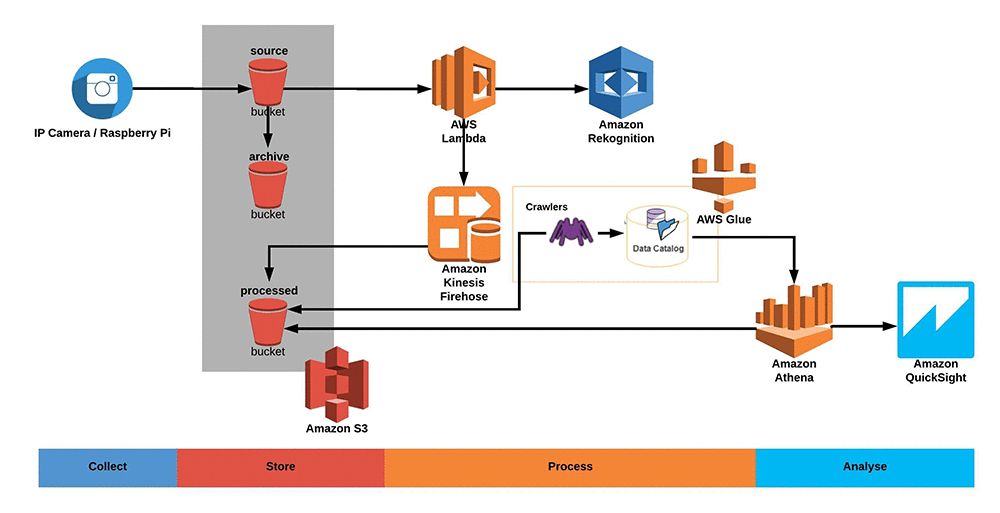
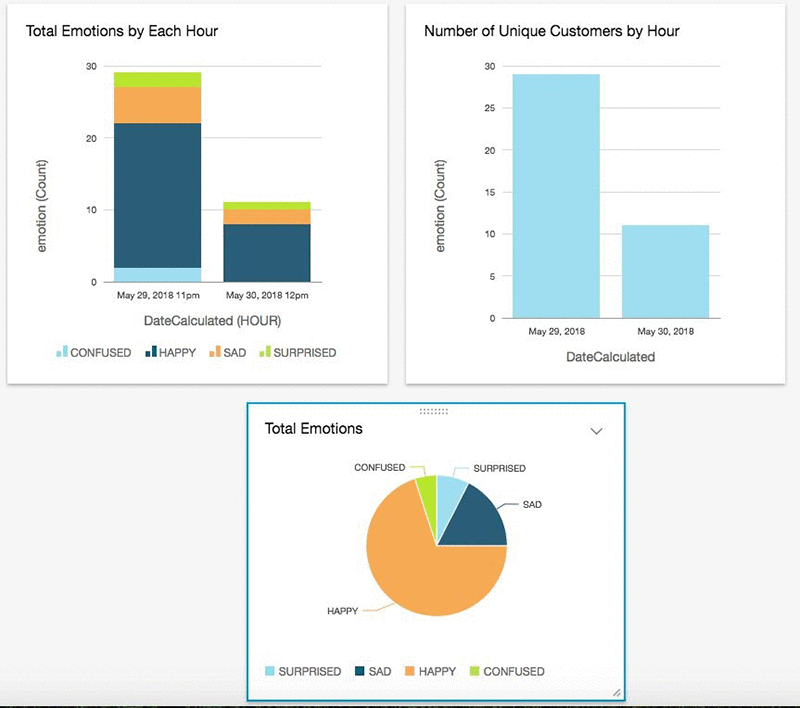
Using the Machine Learning services on AWS like Amazon Rekognition and applying them to motion video or still images from your store, it is possible to derive insights from customer behavior (i.e. which area of the store is frequently visited), demographic segmentation of store traffic (i.e. such as gender or approximate age) while also analyzing patterns of customer sentiment. This practice is already common in the industry, and our proposed solution makes it easier, faster, and more accurate. Sentiment analysis can be used, for example, to get insights into how customers respond to brand content and signage, end cap displays or advertising campaigns while presenting these insights using dashboards similar to the examples shown below.
The overall solution can be decomposed into four main steps, collect, store, process and analyze. Let’s describe each of these components:
Collect
The purpose of this stage is to collect images or motion video of your customers in-store experience from the camera. This is possible by making use of various cameras such as an existing CCTV or IP Camera system, a (configured) Raspberry Pi with an attached camera module, an AWS DeepLens, or any other similar camera. These still images or motion video files are stored in an Amazon S3 bucket for further processing.
For this example, we used a Raspberry Pi with the motion package installed. This package helps to collect images when there is an interesting event that limits the amount of data needed to be processed. This package also detects motion, creates still images in a local folder, and this folder can be easily synced (in a realtime or batch manner) to the input S3 bucket. After installing the AWS Command Line (instructions here), here is one example of syncing the motion folder to an S3 bucket and deleting locally the file after successful synchronisation (need to adapt the destination bucket to your specific bucket).
Store
We propose using Amazon S3 object store so we can benefit from its virtually unlimited storage, high availability and event triggering capabilities. After creating this bucket, we enable the Amazon S3 event notification capability to publish events to AWS Lambda for every new file in the input folder, then an invoked Lambda function will pass the event data (i.e., incoming data as a parameter to be processed).
Process
To process the incoming images, we use AWS Lambda to read the image and use the Amazon Rekognition APIs to gather all of the relevant information provided by Rekognition for each image (such as facial landmarks that include the coordinates for eye and mouth), gender, age, presence of beard, sunglasses etc) and put the resulting information to a Amazon Kinesis Data Firehose which will publish the data to an Amazon S3 bucket. Amazon Kinesis Data Firehose simplifies the data management because it automatically handles the encryption, the folder structure (year/month/day/hour), optional data transformation, and compression.
The resulting dataset is a set of JSON files that contain the output from Rekognition, representing customers captured on these images. For effective querying from S3 we recommend the files to be in columnar format. One option is to use Amazon Firehose data Data Transformation feature, another is to convert the JSON using AWS Lambda or AWS Glue. Querying small datasets of JSON files is fine but as the table grows with thousands of files it will become less optimal. In this demo, we will be using JSON format to keep it simple.
Analyze
All the resulting information is then stored in a new Amazon S3 bucket. Per the process step, the information is stored in a JSON format and therefore allows to be queried with Amazon Athena. Therefore we can use AWS Glue Crawlers to automatically infer the data schema based on the data sitting in S3 and use the shared AWS Glue Catalog for Amazon Athena to query the data. Amazon Athena is a service that allows you to query data directly in S3 using standard ANSI SQL commands and without needing to spin up any infrastructure. This allows any data visualization / dashboard tool (i.e. Tableu, Superset, or Amazon QuickSight) to connect to Athena and visualize the data. For our example, we will show how we can use Amazon QuickSight to create a dashboard for this data.
Build this solution yourself
Now that we have described the components of this solution, let’s bring it all together.
We have provided a CloudFormation template which will deploy all the necessary components shown in the architecture diagram except Amazon QuickSight and also the devices IP Camera / Raspberry Pi. In the following section, we will explain key parts of the solution and show how we can make sense of all the analyzed data using Amazon QuickSight while building the dashboard manually.
Note: Cloud Formation template is tested only on eu-west-1 (Ireland) region and it may not work in other regions. Some of the resources deployed by the stack incur costs as long as they’re in use.
To get started deploying the CloudFormation template, take these steps:
- Choose the Launch Stack button. It automatically launches the AWS CloudFormation service in eu-west-1 region on your AWS account with a template. You’re prompted to sign in if needed.

Input Value Region eu-west-1 CFN Template https://s3-eu-west-1.amazonaws.com/retail-instore-analysis/retail-instore-demo-cloudformation.json - Choose Next to proceed with the following settings.

- Specify the name of the CloudFormation stack and the required parameters. The default bucket name on the template might have been used, please change the bucket names to a unique name and click Next.
A B 1 Parameter Description 2 SourceBucketName Unique bucket name where the images files will be uploaded for processing 3 ProcessedBucketName Unique bucket name where the processed files will be stored 4 ArchivedBucketName Unique bucket name where the images files will be archived after processing 
- On the Review page, acknowledge that CloudFormation creates AWS Identity and Access Management (IAM)resources and with custom names as a result of launching the stack.

- Custom names are required because the template uses serverless transforms. Choose Create Change Set to check the resources that the transforms add, then choose Execute.

- After the CloudFormation stack is launched, wait until the status changes from CREATE_IN_PROGRESS to CREATE_COMPLETE. Usually it takes around 7 to 9 minutes to provision all the required resources.

- When the launch is finished, you’ll see a set of resources that we’ll use throughout this blog post:

Test the functionality
Once AWS CloudFormation template has created the required resources, lets use some pre-captured sample images to process, and AWS Glue crawlers to automatically discover the schema of our processed image data.
- Download the pre-captured images from the S3 bucket https://s3-eu-west-1.amazonaws.com/retail-instore-analysis/Amazon_Fresh_Pickup_Images.zip
- Open the source bucket (retail-instore-demo-source), and upload an image or multiple images with multiple people in it. For this example, use few of the downloaded images from the step 1 as you could upload other images later each hour to get different time interval graphs.
- Lambda will be triggered, image analyzed using Amazon Rekognition and the results will be put in the S3 processed bucket (retail-instore-demo-processed) for further processing by Athena and QuickSight. You can monitor the files being processed either by watching the processed images being dropped in the processed bucket or by monitoring the AWS Lambda executions in the Lambda Monitoring Console.
- In order to query using Athena, first we need to create the tables. We will leverage the AWS Glue crawlers which will automatically discover the schema of our data and create the appropriate table definition in AWS Glue Data Catalog. More details can be found in the documentation for Crawlers with AWS Glue.
By launching a stack from the CloudFormation template, we have only created a Crawler and configured it to “run on demand” as it’s charged hourly. Therefore, we need to run the Crawler manually when we have new data sources to construct the data catalog using pre-built classifiers. To do this, Go to AWS Glue, under Crawlers, run the crawler (retail-instore-demo-glue-s3-crawler).

The Crawler connects to the S3 bucket, progresses through a prioritized list of classifiers to determine the schema for your data, and then creates metadata tables in AWS Glue Data Catalog which will be used to query the processed content in S3 using Athena on top of which we will build a QuickSight dashboard.
Note: Make sure you upload pictures at different time and repeat step 2 to 4, so that you can see graph projection at different timelines.
Building QuickSight dashboards
First let’s the configure the QuickSight with the dataset.
- Login into the QuickSight console – https://eu-west-1.quicksight.aws.amazon.com/sn/start
- If it’s the first time you access QuickSight, follow the instruction below. If not, go to step 3.
- click on “Sign up for QuickSight”
- select the “Standard” edition
- Enter a QuickSight Account name
- Enter a valid Email
- Select the EU (Ireland) Region
- Tick the checkbox next to “Amazon Athena”
- Tick the checkbox next to “Amazon S3”
- click “choose s3 buckets” and select the retail_instore_demo_processed bucket
- Choose Manage data from the top right.
- Choose New Data Set.
- Create a Data Set from Athena Data Source as “retail-instore-analysis-blog”
- Choose the “retail-instore-demo-db” database, select the “retail_instore_demo_processed” table and click on Select

- Leave it on default Import to SPICE for quicker analytics and then click Visualize.
- Import complete will appear with the total rows imported to SPICE (which is the in-memory storage component used by QuickSight)Now you can easily start to build some dashboards. We will step through creating a dashboard.
- We will first add a custom date field, so that we can have graphs with time axis. Click on “Add” and Add calculated field.

- Provide a name for the Calculated field name like “DateCalculated”
- Select “epochDate” from Function list, select “retailtimestamp” from Fieldlist, and Create.


- This should create the calculated field.
- Resize the visual windows as necessary, and select “Vertical stacked bar chart” under Visual types.
- From Fields list, drag and drop the “DateCalculated” to X axis, “emotion” to Value and “emotion” to Group/Color on the Field wells. Graph will be populated based on the emotions captured from the images.
- Click on drop down arrow on “DateCacluated” in X axis of Field wells, and scroll over “Aggregate: Day” and select “Hour”
- This graph will display the emotions of people in different timestamps. For example, this can be a dashboard to display emotions captured at Aisle 23 while tracking a new product response on that aisle. Another example, this allows to better count and qualify customers in front of a specific store endcap.
- Lets add few more visuals. Click on “Add” and Add visual.

- Select “pie chart” from Visual types and drag and drop “emotion” from fields list to Group/Color on Field wells

- You can further enrich you dashboard by adding meaningful heading, and also adding other visual types with fields list as below,
- add a new Visual, Select “Vertical bar char”, Set X axis as DateCalculated(DAY), Value as emotion(count) in Field wells:

Results
The QuickSight dashboard above shows analysis of image capture events in a store. For examples, you can see analysis of overall customer sentiment. You could understand the customer age range, and how many people visited each day from these metrics. Once you’re done with your analysis, you can easily share these insights with others in your team or organization by publishing it as a dashboard.
Using Amazon Rekognition you can better segment your customers. You can obtain feedback on customer experience for a specific area of the store.
Shutting down
When you have finished experimenting, you can remove all the resources by following these steps.
- Delete the contents inside all the S3 buckets that the CloudFormation template created.
- Delete the CloudFormation stack.
Conclusions and next steps
This post showed you how simple it is to gain insights into customers’ in-store behaviour using AWS. Using your existing cctv systems or any camera, you can quickly build this solution and adapt it to your needs.
Some additional concepts that leverage this solution are:
- In-store video streams analysis:Using Kinesis Videostreams it’s possible to stream your existing videos, which allows for additional use cases such as capturing the path of customers (and using heatmaps) and where they spent time in the store.
- Customer loyalty and engagement programs utilizing facial recognition: Another very interesting possibility is the ability to recognize customers who have opted-in and shared a profile photo of themselves as part of a loyalty program, incentive program, or other customer benefit. Using the volunteered data, those customers could be recognized and offered a more elevated and personalized customer experience at a retail location.
If you have questions or suggestions, please comment below.
Additional Reading
- Use facial recognition to deliver high-end consumer experience
- Optimize the data using Apache Parquet
About the Authors
 Bastien Leblanc is a Solutions Architect with AWS. He helps Retail customers adopt the AWS Platform, focusing on Data & Analytics workloads, he likes to work with customers helping to solve retail problems and drive innovation.
 Imran Dawood is a Solutions Architect with AWS. He works with Retail customers helping them build solutions on AWS with architectural guidance to achieve success in the AWS cloud. In his spare time, Imran enjoys playing table tennis and spending time with family.
 Ishaaq Chandy is a Senior Engineer in Amazon AI where he loves his work in building an innovative and massively scalable training platform for Amazon Sagemaker. Prior to this he was working on AWS ELB where he was part of the launch teams for both ALB as well as NLB.
 Sumit Thakur works on products that make it quick and easy for customers to get started with deep learning on cloud. He is product manager for Amazon SageMaker and AWS Deep Learning AMI. In his spare time, he likes connecting with nature and watching sci-fi TV series.


 David Ping is a Principal Solutions Architect with the AWS Solutions Architecture organization. He works with our customers to build cloud and machine learning solutions using AWS. He lives in the NY metro area and enjoys learning the latest machine learning technologies.
 Feng Nan is an Applied Scientist on the AWS AI Algorithms team, researching and developing machine learning algorithms in Amazon SageMaker. Before Amazon, Feng obtained his PhD in Systems Engineering from Boston University and his thesis focused on resource-constrained machine learning.
 Ran Ding is an Applied Scientist on the AWS AI Algorithms team, researching and developing machine learning algorithms in Amazon SageMaker. Before Amazon, Ran obtained his PhD in Electrical Engineering from the University of Washington and worked at a startup company making optical processors.
 Ramesh Nallapati is a Senior Applied Scientist in the AWS AI SageMaker team. He works on building novel deep neural networks at scale primarily in the natural language processing domain. He is very passionate about deep learning, and enjoys learning about latest developments in AI and is excited about contributing to this field to the best of his abilities.
 Patrick Ng is a Software Development Engineer on the AWS AI SageMaker Algorithms team. He works on building scalable distributed machine learning algorithms, with focus in the area of deep neural networks and natural language processing. Before Amazon, he obtained his PhD in Computer Science from the Cornell University and worked at startup companies building machine learning systems.