Blog

Learn About Our Meetup

5000+ Members

MEETUPS

LEARN, CONNECT, SHARE

Join our meetup, learn, connect, share, and get to know your Toronto AI community. 

JOB POSTINGS

INDEED POSTINGS

Browse through the latest deep learning, ai, machine learning postings from Indeed for the GTA.

CONTACT

CONNECT WITH US

Are you looking to sponsor space, be a speaker, or volunteer, feel free to give us a shout.

Category: Amazon

Building, training, and deploying fastai models with Amazon SageMaker

Deep learning is changing the world. However, much of the foundation work, such as building containers, can slow you down. This post describes how you can build, train, and deploy fastai models into Amazon SageMaker training and hosting by using the Amazon SageMaker Python SDK and a PyTorch base image. This helps you avoid the extra steps of building your own container.

Amazon SageMaker is a fully managed machine learning (ML) service. It allows data scientists and developers to quickly build, train, and deploy ML models into production at a low cost. The Amazon SageMaker Python SDK is an open source library for training and hosting ML models. It is easy to use and compatible with popular deep learning frameworks such as TensorFlow, MXNet, PyTorch, and Chainer. AWS recently added the fastai library to the base PyTorch container. This allows you to take advantage of the fastai deep learning model in Amazon SageMaker, instead of providing your own container.

Using modern best practices, the fastai library helps create advanced deep learning models with just a few lines of code. This includes domains like computer vision, natural language processing, structured data, or collaborative filtering.

The organization fast.ai develops and maintains the fastai library, which works with the popular deep learning open source PyTorch package. The organization recently placed well in the DAWNBench Competition. It also provides popular online courses to train developers in using their models, even those with no background or experience in ML.

Set up the environment

To set up a new Amazon SageMaker notebook instance with the fastai library installed, choose Launch Stack:

This AWS CloudFormation template provisions all the AWS resources that you need for this walkthrough. To create the stack, select I acknowledge that AWS CloudFormation might create IAM resources and choose Create stack.

When the stack has been successfully completed, AWS CloudFormation announces the stack’s CREATE_COMPLETE state.

In the Amazon SageMaker console, choose Notebook instances.

You can see a notebook instance labeled fastai, created from the AWS CloudFormation stack. Select Open Juypter to launch a managed Juypter environment. You can write your own Python code here to build the model.

For this post, we provide the IPython notebook under SageMaker Examples, Advanced Functionality, fastai_lesson1_sagemaker_example.ipynb. Create a copy of this notebook to build, train, and deploy the model into Amazon SageMaker.

For demonstration purpose, we use the Oxford IIIT Pet dataset to identify dog breeds.

Because the fastai library builds onto PyTorch, you can use the Amazon SageMaker Python SDK to train your PyTorch model. Training a PyTorch model is a two-step process:

  1. Create a PyTorch training script.
  2. Create a training job in Amazon SageMaker.

Create a PyTorch training script

Define a _train() function where you write your training code. A typical training script loads data from the input channels, configures training with hyperparameters, trains a model, and saves a model to model_dir to host later. For a more detailed example, see the pets.py file in the fastai_oxford_pets GitHub repo.

Here is the basic training code:

print('Creating DataBunch object')
    data = ImageDataBunch.from_name_re(path_img, fnames, pat, 
                                ds_tfms=get_transforms(), 
                                size=args.image_size, 
                                bs=args.batch_size).normalize(imagenet_stats)

    # create the CNN model
    print('Create CNN model from model zoo')
    print(f'Model architecture is {args.model_arch}')
    arch = getattr(models, args.model_arch)
    print("Creating pretrained conv net")    
    learn = create_cnn(data, arch, metrics=error_rate)
    print('Fit for 4 cycles')
    learn.fit_one_cycle(4)    
    learn.unfreeze()
    print('Unfreeze and fit for another 2 cycles')
    learn.fit_one_cycle(2, max_lr=slice(1e-6,1e-4))
    print('Finished Training')

In this example, combine the training and inference code in a single script. Make sure to put your training code in a main guard (if __name__==’__main__’:), so that Amazon SageMaker doesn’t inadvertently run it at the wrong point in execution. You can also place pass hyperparameters in your training script, which you can retrieve with an argparse.ArgumentParser. The following code snippet features passing hyperparameters:

if __name__ == '__main__':
    parser = argparse.ArgumentParser()

    parser.add_argument('--workers', type=int, default=2, metavar='W',
                        help='number of data loading workers (default: 2)')
    parser.add_argument('--epochs', type=int, default=2, metavar='E',
                        help='number of total epochs to run (default: 2)')
    parser.add_argument('--batch_size', type=int, default=64, metavar='BS',
                        help='batch size (default: 4)')
    parser.add_argument('--lr', type=float, default=0.001, metavar='LR',
                        help='initial learning rate (default: 0.001)')

Create a training job in Amazon SageMaker

You can train and host PyTorch models on Amazon SageMaker with the help of the PyTorch base image and PyTorch SageMaker Estimators, which handle end-to-end training and hosting.

The entry_point argument takes the training script that contains the _train() function. The train_instance_type argument takes the instance type where the model trains. If you set this parameter as ‘local’, the model trains on Amazon SageMaker notebook instance as a Docker container.

To use local mode training, install Docker Compose, as well as NVIDIA-Docker if training with a GPU. To train the model on Amazon SageMaker, pass the value of a GPU-optimized instance type, such as ml.p3.2xlarge or ml.p2.xlarge.

Amazon SageMaker bases the instance lifetime on your training time. When it completes training, Amazon SageMaker uploads the model artifact to Amazon S3 and terminates the instance.

The training script contains the definition of the model and the serving functions that are required to reconstruct the model back at the endpoint. This doesn’t limit when the code was written or the model was created, as long as the models and code match versioning.

pets_estimator = PyTorch(entry_point='source/pets.py',
                         base_job_name='fastai-pets',
                         role=role,
                         framework_version='1.0.0',
                         train_instance_count=1,
                         train_instance_type='ml.p3.2xlarge')

pets_estimator.fit(data_location)

Deploy the model in Amazon SageMaker

Using the Amazon SageMaker Python SDK, create a PyTorchModel object from the PyTorch estimator. The deploy () method on the model object creates an Amazon SageMaker endpoint, which serves prediction requests in real time.

The Amazon SageMaker endpoint runs an Amazon SageMaker-provided PyTorch model server. It hosts the model that your training script produces after you call fit. This was the model you saved to model_dir.

pets_model=PyTorchModel(model_data=pets_estimator.model_data,
                        name=pets_estimator._current_job_name,
                        role=role,
                        framework_version=pets_estimator.framework_version,
                        entry_point=pets_estimator.entry_point,
                        predictor_cls=ImagePredictor)

pets_predictor = pets_model.deploy(initial_instance_count=1, 
                                     instance_type='ml.c5.large')

Create the inference script

To do the inference, define four functions in your inference script. In this example, we use the same script for training and inference. You define these functions along with a training function called _train():

  • model_fn(model_dir)—Loads the model into the Amazon SageMaker PyTorch model server.
  • input_fn(request_body,request_content_type)—Deserializes the data into an object for predictions.
  • predict_fn(input_object,model)—On deserialized data performs inference against loaded model.
  • output_fn(prediction,content_type)—Serializes predictions according to the response content type.

For a more detailed example, see the pets.py file in the fastai_oxford_pets GitHub repo.

Run your inference using predict () method after the model deploys. This method returns the result of inference against your model.

response = pets_predictor.predict(img_bytes)

Clean up

Make sure that you stop the notebook instance and delete the Amazon SageMaker endpoint to prevent any additional charges.

Conclusion

In this post, we showed you how to use Amazon SageMaker to train and host fastai models using the PyTorch base image and Amazon SageMaker Python SDK. This approach eliminates the bring-your-own-container approach, which helps you to build, train, and deploy a fastai model easily and quickly in Amazon SageMaker.

To get started, login to the AWS Management Console and deploy the AWS CloudFormation template. If you are a new user, you will need to create an account. Also, follow this GitHub link for detail information on how to build the fastai model with Amazon SageMaker.


About the authors:

Amit Mukherjee is a partner solutions architect with AWS. He provides architectural guidance to help partners achieve success in the cloud. He has interest in the deep learning space. In his spare time, he enjoys spending quality time with his family.


Matt McClean is a partner solutions architect for AWS. He is a specialist in machine learning and works with technology partners in the EMEA Region, providing guidance on developing solutions using AWS technologies. In his spare time, he is a passionate skier and cyclist.

Machine learning for all developers with edX and Amazon SageMaker

Customers often ask us how to get started when they do not have a deep data science and machine learning (ML) background. At AWS, our goal is to put ML in the hands of every developer and data scientist.

AWS Training and Certification has partnered with edX to help you get started quickly and easily with ML with our interactive course, Amazon SageMaker: Simplifying Machine Learning Application Development

Available exclusively on edX, Amazon SageMaker: Simplifying Machine Learning Application Development is an intermediate-level digital course that provides a baseline understanding of ML and how applications can be built, trained, and deployed using Amazon SageMaker. Amazon SageMaker is a fully managed, modular service that covers the entire ML workflow. It helps you label and prepare your data; choose an algorithm; train the model; tune and optimize it for deployment; make predictions; and act.

This course was developed by AWS experts. It explains the following:

  • Key problems that ML can address and ultimately help solve
  • How to train a model using Amazon SageMaker’s built-in algorithms and a Jupyter Notebook instance
  • How to deploy a model using Amazon SageMaker
  • How to integrate the published SageMaker endpoint with an application

Amazon SageMaker: Simplifying Machine Learning Application Development is recommended for developers of all skills. If you want to take your models from concept to production quickly and easily, or are looking to level up in ML, this course is for you. Before beginning, we recommend that you have at least one year of software development experience. You should also have a basic understanding of AWS services and the AWS Management Console, either through previous experience or the AWS Developer Professional Series.

The course is divided into four weekly lessons, with an estimated two to four hours per week of study time. It features video-based lectures, demonstrations, and hands-on lab exercises. You can set your own pace and deadlines. Everyone can take the weekly quizzes, which are not graded and allow unlimited retries.

This on-demand, 100%-digital course is available now and is offered on a complimentary basis.

Get started today at Amazon SageMaker: Simplifying Machine Learning Application Development.


About the Author

Jennifer Davis is the Senior Manager, Product Marketing, for AWS Training and Certification.

Enabling healthcare access from home: Electronic Caregiver’s AWS-powered virtual caregiver  

When Electronic Caregiver’s founder and CEO, Anthony Dohrmann, started the company a decade ago, he was reacting to a difficult situation faced by 100 million Americans and countless individuals globally: the challenge of managing health treatment for chronic diseases. “Patients are often confused about their care instructions and non-adherence with care plans and medications schedules are estimated to cause 50% of all treatment failures,” he explains.

As such, Electronic Caregiver was designed “to improve the patient experience and to positively engage patients in their personal care plans. We improve communication between providers, families, and caregivers, and expedite a more informed response to the need of the aging and ill. We intend to reduce costly complications, improve health outcomes, and extend lifespans.”

Today, Electronic Caregiver’s solution revolves around Addison, a-state-of-the-art, 3D-animated virtual caregiver. She can engage in two-way conversations and is programmed for a user’s personal needs. Similar to a human in-home caregiver, Addison monitors patients’ activity, reminds them to take medications, collects vitals, and conducts real-time health assessments—all from the safety and comfort of a patient’s home. Whereas a patient would otherwise need to make myriad doctor visits or pay an in-home caregiver, Addison brings health solutions to the user wherever they are.

To power that life-changing magic, Electronic Caregiver relies on AWS in multiple ways. For raw computational power to store patient data in a HIPPA-compliant way, the team uses services including AWS Lambda functions. For the patient-facing experience, Electronic Caregiver has developed an augmented reality (AR) character named Addison using Amazon Sumerian. And for the intelligence behind that character including collecting and analyzing data, AWS IoT Core, AWS IoT Greengrass, and Amazon SageMaker are key to the solution. The architecture that the Electronic Caregiver team has developed is shown in the following diagram.

Bryan Chasko, CTO at Electronic Caregiver, comments, “We saw an opportunity to use the latest sensing, artificial intelligence, and other cloud-based technologies to address unmet customer needs with a fuller-featured solution than traditional alert devices.”

Specifically, Electronic Caregiver provides patients with wearable gadgets (such as a wrist pendant) and monitoring devices (such as a contact-free thermometer and a glucose meter) that are connected to the cloud.

To connect device fleets, AWS IoT Core easily and securely connects devices to the cloud via an MQTT lightweight communication protocol specifically designed to tolerate intermittent connections, minimize the code footprint on devices, and reduce network bandwidth requirements.

Whenever a user completes a health reading, such as checking their temperature or completing a physical therapy exercise, that activity generates data that the devices capture. That data can then be queried to check whether a measured value is in the expected range. If the reading is good, the patient will receive a contextually appropriate positive response from Addison.

For example, in cases where a patient is in physical therapy recovering from an injury, Electronic Caregiver monitors improvement to their range of motion. The built-in gamification rewards the patient with points and even sends gifts to their homes to celebrate improvements. This personalized support reinforces their ongoing commitment to their treatment plan and helps these patients execute their treatments properly; it is pivotal to their long-term recovery.

If a reading is atypical, Electronic Caregiver springs into action to get the patient back on track. From a technical perspective, AWS IoT Greengrass Machine Learning Inference pushes a machine learning model built in Amazon SageMaker directly to the edge device in the user’s home. The patient is asked specific questions to help assess the cause of the anomaly, and then they receive from their device a prediction of the likely reason(s) for this result as well as recommended solutions. These questions and solutions are voiced to the patient with Amazon Lex and Amazon Polly, as well as shared with the patient’s selected stakeholders (such as family members and doctors) so everyone on the individual’s care team is immediately aware.

With this set-up, it is as though the patient has a constant caregiver watching out for them, so they receive the quality of care typical of a full-time facility like a nursing home, but possible from their own house. As a further benefit, even individuals who are not co-located with the patient (such as family members on a different continent) can get real-time updates from across the world.

In addition to the connected wearables, Electronic Caregiver has developed a platform to track patients’ activity and ensure that they are conscious and mobile. If activity is not detected, Electronic Caregiver can summon emergency response, coming to the rescue quickly in the event of a fall or other lapse into unconsciousness.

There is a visual analytics monitoring system that also enables personalized monitored medication reminders. Motion is tracked by the visual analytics system and then the pills are identified with Amazon SageMaker-trained machine learning models. This means that Addison can pinpoint when a user has taken their medication and remind them if they’re late.

Amazon Lex also accepts verbal input from the user, so a patient can simply articulate that they’re taking a medication and the system logs it. This feature makes it feel almost like the caregiver is human. Just as someone would articulate to a housemate that they’d completed their medication routine, they can inform Addison.

“Only 3% of the US population can afford live caregiving,” Dohrmann notes. “We are bringing affordable, effective care alternatives to the world through Addison.”


About the Author

Marisa Messina is on the AWS ML marketing team, where her job includes identifying the most innovative AWS-using customers and showcasing their inspiring stories. Prior to AWS, she worked on consumer-facing hardware and then university-facing cloud offerings at Microsoft. Outside of work, she enjoys exploring the Pacific Northwest hiking trails, cooking without recipes, and dancing in the rain.


Creating custom labeling jobs with AWS Lambda and Amazon SageMaker Ground Truth  

Amazon SageMaker Ground Truth helps you build highly accurate training datasets for machine learning. It offers easy access to public and private human labelers, and provides them with built-in workflows and interfaces for common labeling tasks. Ground Truth can lower your labeling costs by up to 70% using automatic labeling. It works by training Ground Truth from human-labeled data, so that the service learns to label data independently.

In addition to built-in workflows, Ground Truth gives you the option to upload custom workflows. A custom workflow consists of an HTML interface that provides the human labelers with all of the instructions and required tools for completing the labeling tasks. You also create pre– and post-processing AWS Lambda functions:

  • The pre-processing Lambda function helps customize input to the HTML interface.
  • The post-processing Lambda function helps to process the data. For example, one of its primary uses is to host an accuracy improvement algorithm to tell Ground Truth how it should assess the quality of human-provided labels.

An algorithm is used to find consensus on what is “right” when the same data is provided to multiple human labelers. It also identifies and de-emphasizes those labelers who tend to provide poor quality data. You can upload the HTML interface and the pre- and post-processing Lambda functions using the Amazon SageMaker console.

To integrate successfully with the HTML interface, the pre– and post-processing Lambda functions should adhere to the input/output specifications laid out in the Creating Custom Labeling Workflows. Setting up all the moving pieces and getting them to talk to each other successfully may take a few iterations.

In this post, I walk you through the process of setting up a custom workflow with a custom HTML template and sample Lambda functions. The sample Lambda functions can be found in the AWS Serverless Application Repository. These Lambda functions can be easily deployed to your AWS account and directly modified in the AWS Lambda Console. The source code is available in the aws-sagemaker-ground-truth-recipe GitHub repo.

For this post, you create a custom labeling job for instance segmentation. But first, deploy Lambda functions from the AWS Serverless Application Repository to your AWS account.

Import Lambda functions

On the Serverless Application Repository home page, select “Available applications” on the left-hand menu and search for Ground Truth. Choose aws-sagemaker-ground-truth-recipe.

On the application’s details page, choose Deploy. Make sure that the user has permissions to create IAM roles. If the user does not have permissions, this deployment fails.

It may take a few minutes to deploy this application. Wait until you see the status screen, which shows that four AWS resources (two Lambda functions and two IAM roles) have been created.

Now, you have successfully imported the Lambda functions used in the labeling job into your account. To modify these Lambda functions, select them and tweak the Python code.

Create a custom labeling job

Assume that there are millions of images taken from cameras mounted in cars driving the public roadways. These images are stored in an Amazon S3 bucket location called s3://mybucket/datasets/streetscenes/. To start a labeling job for instance segmentation, you first create a manifest to be fed to Ground Truth.

The following code example shows the sample contents of a manifest file with a set of images. For more information, see Input Data.

{"source-ref": "S3 location for image 1"} 
{"source-ref": "S3 location for image 2"} 
   ... 
{"source-ref": "S3 location for image n"} 

Step 1: Download the example dataset

If you already have a manifest file for instance segmentation, skip this section.

For this example, I use the CBCL StreetScenes dataset. This dataset has over 3000 images, but I use a selection of just 10 images. The full dataset is approximately 2 GB. You can choose to upload all of the images to S3 for labeling or just a selection of them.

  • Download the zip file and extract to a folder. By default, the folder is Output.
  • Create a small sample dataset with which to work:
    mkdir streetscenes
    cp Original/SSDB00010.JPG ./streetscenes/
    cp Original/SSDB00017.JPG ./streetscenes/
    cp Original/SSDB00019.JPG ./streetscenes/
    cp Original/SSDB00025.JPG ./streetscenes/
    cp Original/SSDB00038.JPG ./streetscenes/
    cp Original/SSDB00016.JPG ./streetscenes/
    cp Original/SSDB00018.JPG ./streetscenes/
    cp Original/SSDB00021.JPG ./streetscenes/
    cp Original/SSDB00029.JPG ./streetscenes/
    cp Original/SSDB00039.JPG ./streetscenes/

In the S3 console, create the /streetscenes folder in your bucket.  S3 is a key-value store, so there is no concept of folders. However, the S3 console gives you a sense of folder structure by using forward slashes in the key. You use the console to create the key.

Upload the following files to your S3 bucket, s3://mybucket/datasets/streetscenes/. You can use the S3 console or the following AWS CLI command:

aws s3 sync streetscenes/ s3://gt-recipe-demo/datasets/streetscenes/
upload: streetscenes/SSDB00010.JPG to s3://gt-recipe-demo/datasets/streetscenes/SSDB00010.JPG
upload: streetscenes/SSDB00017.JPG to s3://gt-recipe-demo/datasets/streetscenes/SSDB00017.JPG
upload: streetscenes/SSDB00018.JPG to s3://gt-recipe-demo/datasets/streetscenes/SSDB00018.JPG
upload: streetscenes/SSDB00021.JPG to s3://gt-recipe-demo/datasets/streetscenes/SSDB00021.JPG
upload: streetscenes/SSDB00025.JPG to s3://gt-recipe-demo/datasets/streetscenes/SSDB00025.JPG
upload: streetscenes/SSDB00038.JPG to s3://gt-recipe-demo/datasets/streetscenes/SSDB00038.JPG
upload: streetscenes/SSDB00029.JPG to s3://gt-recipe-demo/datasets/streetscenes/SSDB00029.JPG
upload: streetscenes/SSDB00016.JPG to s3://gt-recipe-demo/datasets/streetscenes/SSDB00016.JPG
upload: streetscenes/SSDB00039.JPG to s3://gt-recipe-demo/datasets/streetscenes/SSDB00039.JPG
upload: streetscenes/SSDB00019.JPG to s3://gt-recipe-demo/datasets/streetscenes/SSDB00019.JPG

Step 2: Create an input manifest

If you already have a manifest file for instance segmentation, skip this section.

In the Amazon SageMaker console, start the process by creating a labeling job.

Under input dataset location, choose Create manifest file. This tool helps you create the manifest by crawling an S3 location containing raw data (images or text).

For images, the crawler takes an input s3Prefix and crawls all of the image files with extensions .jpg, .jpeg, and .png in that prefix. It then creates a manifest with each line as follows:

{"source-ref":"<s3-location-of-crawled-image>"}

The Create manifest file link opens a modal window. Enter the S3 path to which you uploaded the images files, and make sure to include the trailing slash. Next, choose Create. When the creation process is completed, choose Use this manifest. It takes a few seconds to create the manifest.

In this example, the objects are images in S3, so you can use the crawling tool to create the initial manifest. Each line of JSON contains a field called source-ref pointing to the s3Uri value of an image. The contents of the created manifest file should look as follows:

{"source-ref":"s3://gt-recipe-demo/datasets/streetscenes/SSDB00010.JPG"}
{"source-ref":"s3://gt-recipe-demo/datasets/streetscenes/SSDB00016.JPG"}
{"source-ref":"s3://gt-recipe-demo/datasets/streetscenes/SSDB00017.JPG"}
{"source-ref":"s3://gt-recipe-demo/datasets/streetscenes/SSDB00018.JPG"}
{"source-ref":"s3://gt-recipe-demo/datasets/streetscenes/SSDB00019.JPG"}
{"source-ref":"s3://gt-recipe-demo/datasets/streetscenes/SSDB00021.JPG"}
{"source-ref":"s3://gt-recipe-demo/datasets/streetscenes/SSDB00025.JPG"}
{"source-ref":"s3://gt-recipe-demo/datasets/streetscenes/SSDB00029.JPG"}
{"source-ref":"s3://gt-recipe-demo/datasets/streetscenes/SSDB00038.JPG"}
{"source-ref":"s3://gt-recipe-demo/datasets/streetscenes/SSDB00039.JPG"}

Step 3: Create a custom labeling job

Configure the following job settings:

Select the custom task type and choose Next.

For Workers, choose Private. For more information about the different workforce options, see Managing Your Workforce.

There are a number of labeling UI templates that you can use for setting up your own custom workflows. In this case, use the instance segmentation UI. For Templates, choose Instance Segmentation.

Modify the HTML code to look like the following. In the original template, you had three placeholders: src, header, and labels. I changed the header and labels fields. When tasks are created for workers using this template, Ground Truth provides the data to fill in the src placeholder field.

<script src="https://assets.crowd.aws/crowd-html-elements.js"></script>

<crowd-form>
  <crowd-instance-segmentation
    name="annotatedResult"
    src="{{ task.input.taskObject | grant_read_access }}"
    header="Draw a polygon around all people in the image."
    labels="['Person']"
  >
    <full-instructions header="Segmentation Instructions">
      <ol>
          <li><strong>Read</strong> the task carefully and inspect the image.</li>
          <li><strong>Read</strong> the options and review the examples provided to understand more about the labels.</li>
          <li><strong>Choose</strong> the appropriate label that best suits the image.</li>
      </ol>
    </full-instructions>

    <short-instructions>
      <p>Use the tools to label all instances of the requested items in the image</p>
    </short-instructions>
  </crowd-instance-segmentation>
</crowd-form>

Next, for pre– and post-processing task Lambda function fields, select the Lambda functions that you imported earlier.

Under Custom labeling task setup, choose Preview. Remember to allow pop-ups before attempting to preview the UI. If the page loads successfully without errors, you know that the pre-processing task Lambda function and the custom HTML template are working well together.

Step 4: Give execute permissions to the Amazon SageMaker role

In the previous step, while creating a Ground Truth labeling job, you created an IAM role. Ground Truth uses this IAM role to execute your labeling job. This role should trust the execution role of the post-processing Lambda function.

In the Lambda console, select the Lambda function that you previously imported. At the top of the page or under the Tags section, note the Amazon Resource Name (ARN). It should look like the following:

arn:aws:lambda:us-east-1:919226420625:function:serverlessrepo-aws-sagema-GtRecipeAnnotationConsol-xxxxxxx

Choose Execution role, Use an existing role, and view the role.

Copy the IAM role ARN.

In the IAM console, find the Amazon SageMaker execution role that you created. Choose Trust relationshipsEdit trust relationship.  Add the copied Lambda execution role to the trust relationship. The following code example shows the contents of the trust relationship.

{
  "Version": "2012-10-17",
  "Statement": [
    {
      "Effect": "Allow",
      "Principal": {
        "AWS": [
          "arn:aws:iam::<your-aws-account>:role/serverlessrepo-aws-sagema-GtRecipeAnnotationConsol-xxxxx"
        ],
        "Service": [
          "lambda.amazonaws.com",
          "sagemaker.amazonaws.com"
        ]
      },
      "Action": "sts:AssumeRole"
    }
  ]
}

Choose PermissionsAttach policies. Select AWSLambdaFullAccess, and choose Attach Policy. After attaching the policy, your Permissions tab should look like the following screenshot:

Close the current tab.

Step 5: Submit the labeling job

In the main browser tab, which has your labeling job open, choose Submit. The labeling job is in progress. Wait for this job to complete.

If you have workers assigned to your private work team, instruct them to work on your tasks. If you have added yourself as a worker, complete the tasks in the private work team portal. For more information, see Managing a Private Workforce.

Labeling results

After the workers perform the labeling work, your output manifest looks like the following:

{"source-ref":"s3://gt-recipe-demo/dataset/streetscenes/SSDB00010.JPG","gt-label":{"annotationsFromAllWorkers":[{"workerId":"public.us-east-1.M52TVGWFFYHS34QM3EHF3NMTKY","annotationData":{"content":"{"annotatedResult":{"inputImageProperties":{"height":960,"width":1280},"instances":[],"labeledImage":{"pngImageData":"iVBORw0KGgoAAAANSUhEUgAABQAAAAPAAQMAAABQEkY6AAAAAXNSR0IB2cksfwAAAANQTFRFAAAAp3o92gAAAAF0Uk5TAEDm2GYAAACsSURBVHic7cExAQAAAMKg9U/tbwagAAAAAAAAAAAAAAAAAAAAAAAAAAAAAAAAAAAAAAAAAAAAAAAAAAAAAAAAAAAAAAAAAAAAAAAAAAAAAAAAAAAAAAAAAAAAAAAAAAAAAAAAAAAAAAAAAAAAAAAAAAAAAAAAAAAAAAAAAAAAAAAAAAAAAAAAAAAAAAAAAAAAAAAAAAAAAAAAAAAAAAAAAAAAAAAAAAAAAACAN1veAAH/xLK9AAAAAElFTkSuQmCC"}}}"}},{"workerId":"public.us-east-1.JZUQXKHROY2DBQ2V2ZLEWEYCAE","annotationData":{"content":"{"annotatedResult":{"inputImageProperties":{"height":960,"width":1280},"instances":[{"color":"#2ca02c","label":"Person"}],"labeledImage":{"pngImageData":"iVBORw0KGgoAAAANSUhEUgAABQAAAAPAAQMAAABQEkY6AAAAAXNSR0IB2cksfwAAAAZQTFRFAAAALKAsCO/WQQAAAAJ0Uk5TAP9bkSK1AAABeklEQVR4nO3awWnEQAxAURsffHQJLsWlOaVtKVNCjjmEzGYbGMNqQTK8V8FHJyE0TQAAAAAAAAAAAAAAAAAAAAAAAAAAAAAAAAAAAAAAAAAAAAAAAAAAAAAAAAAAAAAAAAAAAAAAAAAAAAAAAAAAAAC8ac8OuLL/ZBdcOPojO2FMYNQpMKh8YBcYJDBo7r1lNwyVD1xuEPid3TD0H1h731pvEPib3TC09f6X3TBUPnDvvWc3DAmMOqoHlp/gK/ArO2JEYJTAqO0OgY/siBGBUQKj1jsEtuyIEYFRAqNegaWPMwKjbhHYsiNGBEYJjBIYJTBqqR44Vw+cBEad1QOP6oF79cBNYNBaPbD800L5t49JYNRZPfCoHrhVD5yrB05nyy64sLXsggtLyy640rIDAAAAAAAAAAAAAAAAAAAAAAAAAAAAAAAAAAAAAAAAAAAAAAAAAAAAAAAAAAAAAAAAAAAAAAAAAAAAAAAAAAAAAAAAAAAAAAAAAPicJ/PI71EA2TUjAAAAAElFTkSuQmCC"}}}"}},{"workerId":"public.us-east-1.H7WTTAHGRYWYXEA7V7E7KOMOCE","annotationData":{"content":"{"annotatedResult":{"inputImageProperties":{"height":960,"width":1280},"instances":[],"labeledImage":{"pngImageData":"iVBORw0KGgoAAAANSUhEUgAABQAAAAPAAQMAAABQEkY6AAAAAXNSR0IB2cksfwAAAANQTFRFAAAAp3o92gAAAAF0Uk5TAEDm2GYAAACsSURBVHic7cExAQAAAMKg9U/tbwagAAAAAAAAAAAAAAAAAAAAAAAAAAAAAAAAAAAAAAAAAAAAAAAAAAAAAAAAAAAAAAAAAAAAAAAAAAAAAAAAAAAAAAAAAAAAAAAAAAAAAAAAAAAAAAAAAAAAAAAAAAAAAAAAAAAAAAAAAAAAAAAAAAAAAAAAAAAAAAAAAAAAAAAAAAAAAAAAAAAAAAAAAAAAAAAAAAAAAACAN1veAAH/xLK9AAAAAElFTkSuQmCC"}}}"}}]},"gt-label-17-metadata":{"type":"groundtruth/custom","job-name":"gt-label-17","human-annotated":"yes","creation-date":"2019-04-01T05:21:34+0000"}}
{"source-ref":"s3://gt-recipe-demo/dataset/streetscenes/SSDB00016.JPG","gt-label":{"annotationsFromAllWorkers":[{"workerId":"public.us-east-1.H7WTTAHGRYWYXEA7V7E7KOMOCE","annotationData":{"content":"{"annotatedResult":{"inputImageProperties":{"height":960,"width":1280},"instances":[{"color":"#2ca02c","label":"Person"},{"color":"#1f77b4","label":"Person"}],"labeledImage":{"pngImageData":"iVBORw0KGgoAAAANSUhEUgAABQAAAAPAAgMAAAAXsjzqAAAAAXNSR0IB2cksfwAAAAlQTFRFAAAALKAsH3e00sbfdAAAAAN0Uk5TAP//RFDWIQAABI1JREFUeJzt3E2O4kgUhVGwhNTyqCdswqtgCTUo74elMGx5lV1JklWGWXP10u2IcxYQL/QJ/2CEDwcAAAAAAAAAAAAAAAAAAAAAAAAAAAAAAAAAAAAAAAAAAAAAAAAAAAAAAAAAAAAAAAAAAAAAAAAAAAAAAAAAAAAAAAAAAAAAAAAAAAAAAAAAAAAAAAAAAAAAAAAAAAAAAAAAAAAAAAAAAAAAAAAAAAAAAAAAaMhpnufL1pvYMwFDHwF/bL2JPRMw9BHw59ab2DMBQx8B5603sWcChu4BL1vvYscEDN0Duo95n4Che8CG72PG6gGtB5yuxQPuAdu9jxmWW/GExgOOyz/FEz4DXoqnbGZaluIJjQdcluVaO+EzYKv3McOvgLfaEZ8BWz0J/jqCq0+Cj4CX2ilbWT7UjngEbPNOcLgHvJbOeARs8yM43gPeSmd8BWzyMjLdA9aeBL8CtngZ+TyCi0+C57ndj+D4CHgtnHH86tfiZWR6BLwVzvh9BLd4GfmOgLOAkWPTAZf6gCcBM7OAkWPTAYf6gOc+AtZ9FZkFjBzbDjiWBzwLmJkFjJwaDzhVBzwLmOkmYNUDwdYDLgJmBAwJmBkEzNQHnAXMNB5wFDCzCnitmSBgqPGAk4AZAUMChpbqgEcBMx0FvJUMaDzgIGBGwJCAoVHATH3Ak4AZAUMdBaz5YbjxgIOAIQFDAoYmATPlAc+NBxwFzKzvY0oGtB5w8AkMVX8T6SjgtWT95gNOtUdwRwFvNes3H3CsPYJffxZuL+Dvy3DR+t0ErPqXQ/MBD7WnwH4CXouWbz/gVHoK7CbgN/1Xs8WAY+kR/PqzcIMBh9IjuJeA3/R//yYDHipvYroJeK1avIeAU+EpsIuAY+U7YzoJeCtbvIeAQ+XbK19/Fm4zYOELaHsIePiuVwe2G/Bat3YXAafCtbsI+Ffh2l0ErCRgSMDQWcCMgCEBQwKGBAwJGBIw9NpPwP/q9SN42XpDu9P6a5DrNf4q+HoChgQMCRgSMCRgSMCQgCEBQwKGBAwJGBIwJGBIwJCAIQFDAoYEDAkYEjAkYOg54Na72SEBQwKGBAwJGBIw9BTw59a72SEBQwKGBAydBMw8Bfyx9W52SMCQgCEBQwKGngJett7NDgkYEjAkYEjAkIChp4Bbb2aPBAwJGBIwJGBoHdDz1DcIGBIwJGBIwNA6oOepbxAwJGBIwJCAIQFD64CXrTezRwKGBAwJGBIwtA649V526SxgRsCQgCEBQ6uAnqe+Q8CQgCEBQwKGBAytAnqe+g4BQwKGBAwJGBIwtAp42XovuyRgSMCQgCEBQ6uAW29lnwQMCRgSMCRgSMDQn4AeSL9FwJCAIQFDAob+BPQ89S0ChmYBMwKGBIyd9Usd9Yv9vfUGAAAAAAAAAAAAAAAAAAAAAAAAAAAAAAAAAAAAAAAAAAAAAAAAAAAAAAAAAAAAAAAAAAAAAAAAAAAAAAAAAAAAAAAAAAAAAAAAAAAAAAAAAAAAAAAAAAAAAAAAAAAAAAAAAAAAAAAAAAAAAAAAAAAAAAAAAID/t38Buw1HOPtmWvcAAAAASUVORK5CYIIu003d"}}}"}},{"workerId":"public.us-east-1.M52TVGWFFYHS34QM3EHF3NMTKY","annotationData":{"content":"{"annotatedResult":{"inputImageProperties":{"height":960,"width":1280},"instances":[],"labeledImage":{"pngImageData":"iVBORw0KGgoAAAANSUhEUgAABQAAAAPAAQMAAABQEkY6AAAAAXNSR0IB2cksfwAAAANQTFRFAAAAp3o92gAAAAF0Uk5TAEDm2GYAAACsSURBVHic7cExAQAAAMKg9U/tbwagAAAAAAAAAAAAAAAAAAAAAAAAAAAAAAAAAAAAAAAAAAAAAAAAAAAAAAAAAAAAAAAAAAAAAAAAAAAAAAAAAAAAAAAAAAAAAAAAAAAAAAAAAAAAAAAAAAAAAAAAAAAAAAAAAAAAAAAAAAAAAAAAAAAAAAAAAAAAAAAAAAAAAAAAAAAAAAAAAAAAAAAAAAAAAAAAAAAAAACAN1veAAH/xLK9AAAAAElFTkSuQmCC"}}}"}},{"workerId":"public.us-east-1.QUERNWRJ6HNNO5D6XDUVPMWTMA","annotationData":{"content":"{"annotatedResult":{"inputImageProperties":{"height":960,"width":1280},"instances":[{"color":"#2ca02c","label":"Person"},{"color":"#1f77b4","label":"Person"}],"labeledImage":{"pngImageData":"iVBORw0KGgoAAAANSUhEUgAABQAAAAPAAgMAAAAXsjzqAAAAAXNSR0IB2cksfwAAAAlQTFRFAAAALKAsH3e00sbfdAAAAAN0Uk5TAP//RFDWIQAABJZJREFUeJzt3EFuIjsUhtFUJKQW89oEq2AJb/BqPyyFYYtVdpMOCcms+9etUl2fswDb+oRlMAUvLwAAAAAAAAAAAAAAAAAAAAAAAAAAAAAAAAAAAAAAAAAAAAAAAAAAAAAAAAAAAAAAAAAAAAAAAAAAAAAAAAAAAAAAAAAAAAAAAAAAAAAAAAAAAAAAAAAAAAAAAAAAAAAAAAAAAAAAAAAAAAAAAAAAAEB3y3nrFezbImBiWgRM3PsJmBAwJGDoHvC/rRexZwKGBAwJGBIwJGBIwNA94P9bL2LPBAwJGBIwNAuYETAkYOgecNl6EXvWPuDrtXb89gGP19rx2we8/awdv3vA4+1WO0H3gDcBI6+/A15KZ5h7fy13+h3wWjpD64D31191wKVxwONbv+JjWMDMJGDmIGCmdcDTCgHfDuGuX8utEXAZIGDpR5E/AZt+FFkh4PQe8Fw4x3ZWCHh4D9jzUv+2XsCee3iFgPMjYMtjZIWAj3499/Aj4KVuio+AHY+R1/qA02fAhnt4hYCHz4ANj5GVA57LZtnKCgHnp4D9jpEVAi5L55fg8RHwWjbFl4DtjpFTecCp9yuwPuChd8CbgJHX+oCzgJmldcCPQ7juTr93wFN5wEnAzKF3wJuAkdf6gLOAmaV1wM9DuOxOv3fAU/krcBIw8+0M6XYlfRMwUx9w7h2wfgsLGGoe8Chgpv6NdPOA9Z+Fxwl4rZmge8CTgJmjgBkBQ+VfKnUPWP5oR/uAL+sG7Pd01scmvtYM3z/gYxNfakYfIOCLgKE/m7ho8BECvm3ilb7VFPBvDRPwWjT2MkrAS9HYAoaGCVg19igBV3q8UsC/NkrAa9XY3wK2+53Nm2PhD70EDI0SsGzsQQLW/W+RgKFBAl7Lxh4k4KVsbAFDgwSsG1vA0BgBC/99UcDQGAGvdWN/C3ium2lDhQGb/1Dp3fFSNrSAoUEC1g0tYGiMgD/qhhYwNEbAQgKGBAwJGBIwJGDoe8Ct17M7AoYEDAkYEjAkYEjAkICh5n+dVU/AkC0cEjAlYGj+0q/nz0RKCRg6CJiZBMwImBIwNAuYETD05Rju+YRvrUnAjIAhAUMChgQMCRgSMCRg6EvA89ar2SEBUwKGBAwJGBIwJGBIwJCAoeeAW69llwQMCRgSMCRgSMCQgCEBQ0/9PNnxLwQMCRgSMCRgSMCQgCEBQ08BPZjwLwQMCRgSMCRg6Cngeeu17JKAIQFDAoaeAm69lH0SMCRgSMCQy5iQgCEBQwKGBAy5jAkJGBIwJGDIZUxIwJCAIQFDLmNCAoYEDAkYEjDkMiYkYEjAkIAhlzEhAUMChgQMCRhymxUSMCRgSMCQgCEBQwKGBAwJGBIwJGBIwNBHwK0XslcChgQMCRg6CBiaBcxMAoYOAoYEDB0EDM0CAgAAAAAAAAAAAAAAAAAAAAAAAAAAAAAAAAAAAAAAAAAAAAAAAAAAAAAAAAAAAAAAAAAAAAAAAAAAAAAAAAAAAAAAAAAAAAAAAAAAAAAAAAAAAAAAAAAAAAAAAAAAAAAAAAAAAAAAAAAAAAAAAAAAAAAAjOIXhsjo6mjj6oAAAAAASUVORK5CYIIu003d"}}}"}}]},"gt-label-17-metadata":{"type":"groundtruth/custom","job-name":"gt-label-17","human-annotated":"yes","creation-date":"2019-04-01T05:21:34+0000"}}

Expand one JSON line to view the annotations. You can see that three workers worked on the image and produced annotations:

  • source-ref: The location of the image.
  • workerId: The ID of the worker to whom the subsequent annotationData In this case, you can see three workerIds, which means three workers annotated this image.
  • annotationData: The annotation result.
  • gt-label-17-metadata: The metadata associated with the labeling job of which this image was a part.
{  
   "source-ref":"s3://gt-recipe-demo/dataset/streetscenes/SSDB00010.JPG",
   "gt-label-17":{  
      "annotationsFromAllWorkers":[  
         {  
            "workerId":"public.us-east-1.M52TVGWFFYHS34QM3EHF3NMTKY",
            "annotationData":{  
               "content":"{"annotatedResult":{"inputImageProperties":{"height":960,"width":1280},"instances":[],"labeledImage":{"pngImageData":"iVBORw0KGgoAAAANSUhEUgAABQAAAAPAAQMAAABQEkY6AAAAAXNSR0IB2cksfwAAAANQTFRFAAAAp3o92gAAAAF0Uk5TAEDm2GYAAACsSURBVHic7cExAQAAAMKg9U/tbwagAAAAAAAAAAAAAAAAAAAAAAAAAAAAAAAAAAAAAAAAAAAAAAAAAAAAAAAAAAAAAAAAAAAAAAAAAAAAAAAAAAAAAAAAAAAAAAAAAAAAAAAAAAAAAAAAAAAAAAAAAAAAAAAAAAAAAAAAAAAAAAAAAAAAAAAAAAAAAAAAAAAAAAAAAAAAAAAAAAAAAAAAAAAAAAAAAAAAAACAN1veAAH/xLK9AAAAAElFTkSuQmCC"}}}"
            }
         },
         {  
            "workerId":"public.us-east-1.JZUQXKHROY2DBQ2V2ZLEWEYCAE",
            "annotationData":{  
               "content":"{"annotatedResult":{"inputImageProperties":{"height":960,"width":1280},"instances":[{"color":"#2ca02c","label":"Person"}],"labeledImage":{"pngImageData":"iVBORw0KGgoAAAANSUhEUgAABQAAAAPAAQMAAABQEkY6AAAAAXNSR0IB2cksfwAAAAZQTFRFAAAALKAsCO/WQQAAAAJ0Uk5TAP9bkSK1AAABeklEQVR4nO3awWnEQAxAURsffHQJLsWlOaVtKVNCjjmEzGYbGMNqQTK8V8FHJyE0TQAAAAAAAAAAAAAAAAAAAAAAAAAAAAAAAAAAAAAAAAAAAAAAAAAAAAAAAAAAAAAAAAAAAAAAAAAAAAAAAAAAAAC8ac8OuLL/ZBdcOPojO2FMYNQpMKh8YBcYJDBo7r1lNwyVD1xuEPid3TD0H1h731pvEPib3TC09f6X3TBUPnDvvWc3DAmMOqoHlp/gK/ArO2JEYJTAqO0OgY/siBGBUQKj1jsEtuyIEYFRAqNegaWPMwKjbhHYsiNGBEYJjBIYJTBqqR44Vw+cBEad1QOP6oF79cBNYNBaPbD800L5t49JYNRZPfCoHrhVD5yrB05nyy64sLXsggtLyy640rIDAAAAAAAAAAAAAAAAAAAAAAAAAAAAAAAAAAAAAAAAAAAAAAAAAAAAAAAAAAAAAAAAAAAAAAAAAAAAAAAAAAAAAAAAAAAAAAAAAPicJ/PI71EA2TUjAAAAAElFTkSuQmCC"}}}"
            }
         },
         {  
            "workerId":"public.us-east-1.H7WTTAHGRYWYXEA7V7E7KOMOCE",
            "annotationData":{  
               "content":"{"annotatedResult":{"inputImageProperties":{"height":960,"width":1280},"instances":[],"labeledImage":{"pngImageData":"iVBORw0KGgoAAAANSUhEUgAABQAAAAPAAQMAAABQEkY6AAAAAXNSR0IB2cksfwAAAANQTFRFAAAAp3o92gAAAAF0Uk5TAEDm2GYAAACsSURBVHic7cExAQAAAMKg9U/tbwagAAAAAAAAAAAAAAAAAAAAAAAAAAAAAAAAAAAAAAAAAAAAAAAAAAAAAAAAAAAAAAAAAAAAAAAAAAAAAAAAAAAAAAAAAAAAAAAAAAAAAAAAAAAAAAAAAAAAAAAAAAAAAAAAAAAAAAAAAAAAAAAAAAAAAAAAAAAAAAAAAAAAAAAAAAAAAAAAAAAAAAAAAAAAAAAAAAAAAACAN1veAAH/xLK9AAAAAElFTkSuQmCC"}}}"
            }
         }
      ]
   },
   "gt-label-17-metadata":{  
      "type":"groundtruth/custom",
      "job-name":"gt-label",
      "human-annotated":"yes",
      "creation-date":"2019-04-01T05:21:34+0000"
   }
}

Cleanup

In order to avoid incurring future charges:

  1. Make sure that your labeling job is marked as “Complete,” “Stopped,” or “Failed” in the Amazon SageMaker console.
  2. Delete the corresponding S3 bucket “mybucket” in Amazon S3.
  3. Delete the “serverlessrepo-aws-sagemaker-ground-truth-recipe” stack from Amazon CloudFormation console.

Conclusion

In this post, I started by deploying the pre– and post-processing Lambda functions from a Ground Truth app, using the AWS Serverless Application Repository. I then created a custom labeling job and configured it to use the imported Lambda functions.

These sample Lambda functions help you get a custom labeling job running quickly. You can add or modify them with your own logic, using the AWS Lambda Console.

Visit your AWS Management Console to get started!


About the Authors

Anjan Dash is a Software Development Engineer in AWS AI where he builds large scale distributed systems to solve complex machine learning problems. He is primarily focused on innovating technologies that can ‘Divide and Conquer’ Big Data problem. In his spare time, he loves spending time with family in outdoors activities.


Revekka Kostoeva is a Software Developer Engineer intern at Amazon AI where she works on customer facing and internal solutions to expand the breadth of Sagemaker Ground Truth services. As a researcher, she is driven to improve the tools of the trade to drive innovation forward.



Digging deep and solving problems: Well Data Labs applies machine learning to oil and gas challenges

When CEO Josh Churlik co-founded Well Data Labs in 2014, he was acutely aware of a bizarre dichotomy in his industry: For oil and gas companies, “downhole” innovation (that is, what happens underground) far exceeds the pace of data and analysis innovation. The data systems used then were relics of the 1990s – more homages to history than helpful to the people who needed them.

Like many others in the industry, Josh and the Well Data Labs team were frustrated with the inability to access information that would have made frontline engineers’ jobs much easier. While the industry plodded along with spreadsheets, Churlik and his team saw an opportunity to build a modern software company around the rapid advancements in cloud computing.

The resulting company, Well Data Labs, describes itself as “a modern web application built to give operators the fastest and simplest way to manage, analyze, and report on their internal data.” In other words, Well Data Labs efficiently handles the messy time-series data created during operations—capturing, normalizing, structuring, and enabling analysis on that data—all within a web-based app.

With what Well Data Labs offers, engineers can make faster, more informed decisions—decisions that have a direct and immediate impact on the cost and success of the operations. The company has replaced manual front-end data collection and analysis with custom-developed machine learning (ML) models running on AWS, so that Well Data Labs’ customers can monitor field operations in real-time.

The AWS tech stack powers this solution. Churlik explained, “When we were getting started, we did a bakeoff between other cloud providers and AWS. Even though we’re a .NET stack and SQL database, AWS was significantly more performant.” So, AWS was their choice; to this day, Well Data Labs uses AWS for all their cloud needs. “What we’ve liked about AWS is we can always scale. We’ve been able to continuously build and grow,” Churlik added. “AWS was and still is ahead of its industry peers on technology services.”

Well Data Labs leverages the seamless integration between AWS services to power their robust solution. Currently, the Well Data Labs architecture includes Amazon Elastic Compute Cloud (Amazon EC2) for all of their managed servers (to power their applications), Amazon S3 to store the various data artifacts without worrying about storage limitations, Amazon Simple Queue Service (Amazon SQS) to create a distributed system, and Amazon Virtual Private Cloud (VPC) and AWS Identity and Access Management (IAM) to keep its infrastructure secure. In addition to all of those core services, Well Data Labs uses Amazon SageMaker in their Machine Learning (ML) workloads.

Churlik recalls that he started a data science team to begin exploratory R&D with ML about a year ago. “We asked ourselves, ‘what is the value that it [ML] could be providing to our customers?’ And then we started experimenting.”

Now, the team uses Amazon SageMaker to deploy trained models on custom Docker containers via their proprietary SaaS application. The Amazon SageMaker models and SageMaker endpoint features enable Well Data Labs to integrate ML into the SaaS application and thereby bring frontline engineering workers real-time data for event detection and notification during operations. Well Data Labs set the precedent by bringing ML to the oil and gas market in this way.

Using AWS to build and host many of their solutions means the Well Data Labs team can focus on R&D and developing new product features, rather than on managing infrastructure. Well Data Labs data scientists can deploy new prediction models as soon as they are ready and iterate on new versions rapidly. The quick integration and deployment of ML functionality into the SaaS application in turn enables frontline users to benefit from data science advances right away. The first set of models that Well Data Labs built immediately saved their customers up to an hour a day of manual data entry.

Achieving that kind of success right out of the gates is exciting, and this is only the beginning. Well Data Labs pioneered the “digital oilfield” (where technology, data, automation, and people in the oil and gas industry all intersect), and their customers affirm that this small but mighty Denver-based company is ushering in a new era for the oil and gas industry.


About the Author

Marisa Messina is on the AWS ML marketing team, where her job includes identifying the most innovative AWS-using customers and showcasing their inspiring stories. Prior to AWS, she worked on consumer-facing hardware and then university-facing cloud offerings at Microsoft. Outside of work, she enjoys exploring the Pacific Northwest hiking trails, cooking without recipes, and dancing in the rain.




Full ML Engineer scholarships from Udacity and the AWS DeepRacer Scholarship Challenge

The growth of artificial intelligence could create 58 million net new jobs in the next few years, states the World Economic Forum [1]. Yet, according to the Tencent Research Institute, it’s estimated that currently there are 300,000 AI engineers worldwide, but millions are needed [2]. As you can tell, there is a unique and immediate opportunity to develop creative experiences and introduce you—no matter what your developer skill levels are—to essential ML concepts. These experiences in fields of ML like deep learning, reinforcement learning, and so on, will expand your skills and help close the talent gap.

To help you advance your AI/ML capabilities with hands-on and fun ML learning experiences, I am thrilled to announce the AWS DeepRacer Scholarship Challenge. 

What is AWS DeepRacer?

In November 2018, Jeff Barr announced the launch of AWS DeepRacer on the AWS News Blog as a new way to learn ML. With AWS DeepRacer, you have an opportunity to get hands-on with a fully autonomous 1/18th-scale race car driven by reinforcement learning, a 3D racing simulator, and a global racing league.

What is the AWS DeepRacer Scholarship Challenge?

AWS and Udacity are collaborating to educate developers of all skill levels on ML concepts.  Those skills are reinforced by putting them to the test through the world’s first autonomous racing league—the AWS DeepRacer League.

Students enrolled in the AWS DeepRacer Scholarship Challenge who have the top lap times can win full scholarships to the Machine Learning Engineer nanodegree program. The Udacity Nanodegree program is a unique online educational offering designed to bridge the gap between learning and career goals. 

How does the AWS DeepRacer Scholarship Challenge work?

The program begins August 1, 2019 and runs through October 31, 2019. You can join the scholarship community at any point during these three months and immediately enroll in Udacity’s specialized AWS DeepRacer course. Register now to be in pole position for the start of the race.

After enrollment, you go through the AWS DeepRacer course, which consists of short, step-by-step modules (90 minutes in total). The modules prepare you to create, train, and fine-tune a reinforcement learning model in the AWS DeepRacer 3D racing simulator. Throughout the program and during each race, you have access to a custom scholarship student community to get pro tips from experts and exchange ideas with your classmates.

Each month, you can pit your skills against others in virtual races in the AWS DeepRacer console. Students compete for top spots in each month’s unique race course. Students that record the top lap times in August, September, and October 2019 qualify for one of 200 full scholarships to the Udacity Machine Learning Engineer nanodegree program, sponsored by Udacity.

Next steps

To get notified about the scholarship program and enrollment dates, register now. For a program FAQ, see AWS DeepRacer Scholarship Challenge.

Developers, start your engines! The first challenge starts August 1, 2019!


[1] Artificial Intelligence To Create 58 Million New Jobs By 2022, Says Report (Forbes)
[2] Tencent says there are only 300,000 AI engineers worldwide, but millions are needed (The Verge)


About the Author

Tara Shankar Jana is a Senior Product Marketing Manager for AWS Machine Learning. Currently he is working on building unique and scalable educational offerings for the aspiring ML developer communities- to help them expand their skills on ML. Outside of work he loves reading books, travelling and spending time with his family.

 

Pricing housing just right: Entrata enables apartments to fill capacity with Amazon SageMaker and 1Strategy

The housing market is complex.  There is a continuously changing supply of student housing units around any given education campus. Moreover, the accepted value of a unit continuously changes based on physical and social variables. These variables could include proximity to campus with regard to other available options, friend groups living nearby, and the availability of nearby parking as other properties fill. The interplay happens at all levels—entire properties may shift in value and specific units within them may exacerbate or counteract those shifts.

For a property management company to earn the maximum revenue from its rental units, it needs to price each unit just within the price-point for the tenants—but it doesn’t know what their price constraints are.  The company would not want to leave money on the table by setting a price too low. Setting a price too high can mean that the unit sits empty—effectively costing the company to maintain the unit. Finding that balance is a difficult problem.

Entrata, a comprehensive technology provider of multifamily property management solutions, solves this problem by employing machine learning (ML) with AWS.  Specifically, they feed location-specific and even building-specific data (such as occupancy, proximity to campus, and lease term length) into an ML-based dynamic pricing engine running on Amazon SageMaker. The model helps Entrata’s customers—property managers—to predict occupancy levels and in turn optimize their prices of student housing.

At the implementation level, this solution relies on a number of AWS offerings.  AWS Glue extracts Entrata’s historical data into Amazon S3. This data enables Amazon SageMaker to make pricing predictions, which are written to an output bucket back into Amazon S3. Entrata’s applications consume this data request using API Gateway, which triggers AWS Lambda functions to deliver the most relevant forecast for any available unit.

Entrata developed this solution in partnership with AWS Premier Consulting Partner 1Strategy, a Seattle-based consultancy that helps businesses architect, migrate, and optimize their workloads on AWS. The partnership between 1Strategy and Entrata has existed for years, but the ML work is their most recent—and arguably, most impressive—joint technical accomplishment.

Their collaboration previously focused exclusively on data management through AWS—which in itself proves a non-trivial challenge due to the location, size, and complexity of the data. Entrata currently serves greater than 20,000 apartment communities nationwide and offers a variety of tools, from mobile apps to lease signing portals to accounting platforms.

The novel ML solution is exciting. Entrata’s CTO, Ryan Byrd, says, “The impact is far ranging and positive. Automating back-office functions with Amazon ML frees property management to focus on people first, instead of performing rote behind-the-scenes guessing of price recommendations.”

Entrata plans even more work with AWS in the future. Byrd adds, “AWS technologies will decrease our time to market with various ML projects.” He and his colleagues on the Entrata team are keen to aid customers in their decision-making efforts. They also use ML for various operational elements for their and their customers’ businesses, strategic planning, and maintenance management.


About the Author

Marisa Messina is on the AWS ML marketing team, where her job includes identifying the most innovative AWS-using customers and showcasing their inspiring stories. Prior to AWS, she worked on consumer-facing hardware and then university-facing cloud offerings at Microsoft. Outside of work, she enjoys exploring the Pacific Northwest hiking trails, cooking without recipes, and dancing in the rain.


Helping students learn with Course Hero, powered by Amazon SageMaker

Course Hero is an online learning platform that provides students access to over 25 million course-specific study materials, including study guides, class notes, and practice problems for numerous subjects. The platform, which runs on AWS, is designed to enable every student to take on their courses feeling confident and prepared. To make that possible, Course Hero is equipped to do some learning of its own, using Amazon Machine Learning (Amazon ML), which powers Course Hero and serves as its primary artificial intelligence and ML platform.

The artificial intelligence group at Course Hero is tasked with building the company’s semantic knowledge graph. This constantly expanding graph enables students to access personalized learning experiences and gives educators tools to create unique course content.

Most aspects of Course Hero’s offerings rely on AWS in some form or another (either compute or ML). For example, Amazon Elasticsearch Service (Amazon ES) powers the search function that students and educators use to search for materials. The Amazon ES platform allows the Course Hero team to write custom implementations through its API extension plugin. The plugin gives them the flexibility to create relevant user experiences, even for more esoteric searches that require locally dense semantic search capability.

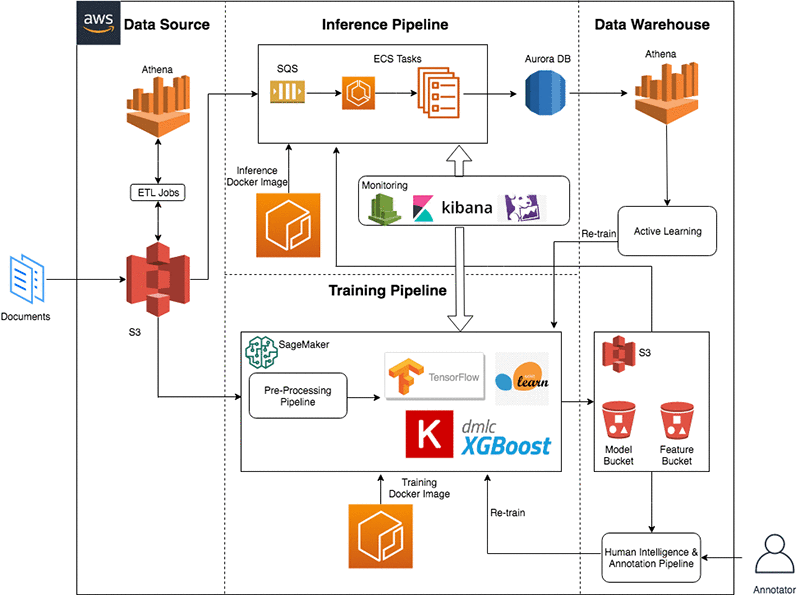
Students and educators search within Course Hero’s document library (which is freely accessible) in exchange for uploading one’s own content. Course Hero does not accept all documents as publishable library material; documents gain acceptance to the library after going through a cloud-driven vetting process. When new documents are uploaded, an artificial intelligence platform running on Amazon EMR and Amazon SageMaker Inference Pipelines checks and validates the documents for fraud, honor code violations, copyright infringements, and spam.

The documents that pass quality review then move to further processing and tagging using ML models that are built on the label data that Amazon SageMaker Ground Truth has collected. This document labeling enables Course Hero to learn what kind of materials are used by a given student, then predict what else might be useful for them.

By personalizing the experience in this way, Course Hero provides each user with relevant content for their studying needs. With the right content in hand, students gain a deeper understanding and meet their learning objectives more efficiently.

AWS is a comprehensive platform for Course Hero. In addition to the student-facing use cases described above, Course Hero uses AWS services for ad hoc analyses, data exploration, trend discovery, real-time analytics, fraud detection, and more. Course Hero constructs its data platform using key AWS services, including the following:

Course Hero’s planning, tracking, and monitoring platforms also use Kibana, Logstash, and Amazon CloudWatch to keep all monitoring and service centers running smoothly.

The following diagram shows how all of these components work together.

To further augment the existing AWS technology that powers Course Hero, the team is exploring additional Amazon services, including Amazon Forecast, for time series and financial forecasting. It is also looking at possibilities using Amazon Echo that will allow users to ask questions via Alexa,

Course Hero’s Saurabh Khanwalkar, the Director of Machine Learning & Search Sciences, says, “The entire machine learning, engineering, and artificial intelligence stack runs on AWS. From our CI/CD pipelines to our code workbench to our end-to-end model development to our staging and production inferences, we’re on AWS.”


About the Author

Marisa Messina is on the AWS ML marketing team, where her job includes identifying the most innovative AWS-using customers and showcasing their inspiring stories. Prior to AWS, she worked on consumer-facing hardware and then university-facing cloud offerings at Microsoft. Outside of work, she enjoys exploring the Pacific Northwest hiking trails, cooking without recipes, and dancing in the rain.


Voicing play with Volley, where words are the gameboard and Amazon Polly brings the fun

Voice-powered experiences are gaining traction and customer love. Volley is at the cutting edge of voice-controlled entertainment with its series of popular smart-speaker games, and many aspects of Volley rely on Amazon Polly.

Every day, more and more people switch on lights, check the weather, and play music not by pushing buttons but with verbal commands to smart speakers. Volley is a San Francisco–based startup co-founded in 2016 by former Harvard roommates Max Child (CEO) and James Wilsterman (CTO). They’re on a mission to use smart speakers as the basis for building fun experiences.

Volley creates games of all sorts, from song quizzes to political satire to role-playing games. Many of the latter, such as “Yes Sire,” feature choose-your-own-adventure style games, in which infinite dialogue permutations can flow from each player’s choices. Volley relies heavily on Amazon Polly to enable these growing dialogue permutations amid multiple characters’ interactions.

“We associate each character with a particular Amazon Polly voice,” said Wilsterman. “Our on-the-fly TTS generation only works because Amazon Polly’s text-to-speech API latency is low enough to be essentially imperceptible to the user.”

From a cost perspective, the comparison is a no-brainer: hiring voice actors to voice the games would be a thousand times more expensive (literally–Volley ran the numbers). Amazon Polly has reaction speed nailed, with faster reactions than a human option. It also provides more diverse characters and reactions than recorded, scripted voice actors.

“We want our games to showcase diverse, memorable characters,” said Wilsterman. “We appreciate that Amazon Polly supports many different languages, accents, and age ranges to help us in that effort.” For example, Amazon Polly’s built-in German language support proved essential to Volley’s recent launch of a localized version of “Yes Sire” for Germany (called “Ja Exzellenz”).

Along with Amazon Polly, many other AWS services support Volley’s fun and games. This platform choice dates to Volley’s beginnings, when the co-founders were looking for the best services to host backend game logic and store persistent customer data.

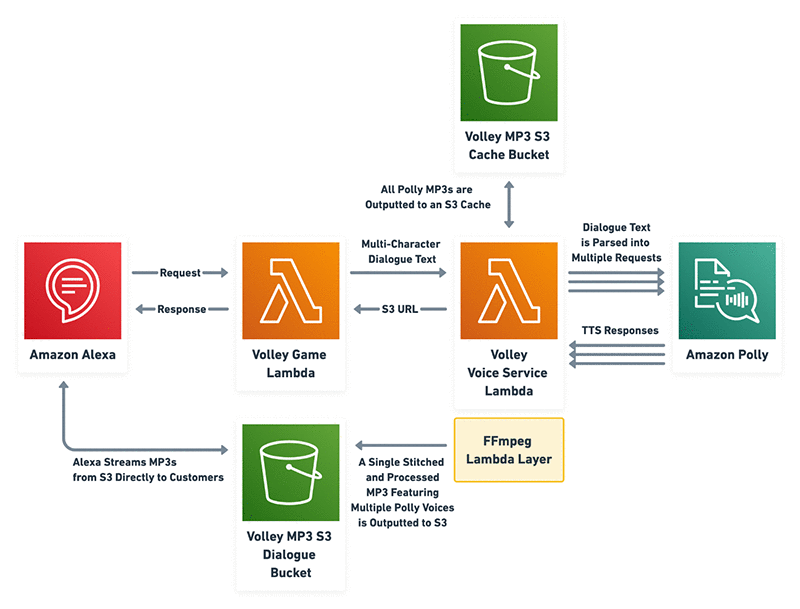
“We realized quickly that AWS Lambda and Amazon DynamoDB would be ideal options,” said Wilsterman. He soon discovered that AWS also offered appealing scalability and affordability. The Volley team now uses Lambda not only to host the backend logic for their games but also to host a variety of internal tools and microservices deployed through Lambda functions.

DynamoDB supports Volley’s games by storing persistent data like users’ scores and levels, so they can return to the games and pick up right where they left off. And many of the in-game assets are stored in Amazon S3, which makes them instantly accessible to the backend Lambda functions. All those pieces are visualized together in the following workflow diagram.

Volley recently added a layer of sophistication to its machine learning work with Amazon SageMaker. They’re using Amazon SageMaker to strengthen their business by understanding user behavior and promoting their games accordingly. Specifically, the Volley team faces a bit of challenge because users don’t carry persistent tags. So, if someone finishes playing “World Detective” and immediately starts to play “Castle Master,” there is no way to identify that they’re the same user.

As a result, the Volley team must find creative ways to measure the impact of their cross-promotional efforts. With Amazon SageMaker, they can predictively generate the outcomes of their marketing based on the active users of each of the games and the timestamps. That helps them make sure that future marketing is better-targeted—and that future games meet the audience trends that Volley is seeing.

As Volley continues to expand its repertoire, the team is also considering new directions beyond sheer entertainment. “Self-improvement is an interesting space, like meditation, fitness, and other coaches,” said Wilsterman. “Also, learning and teaching. We are constantly asking, ‘What new experiences can be possible with voice as an input?’”

No matter what Volley chooses to pursue next, one thing is for sure: their cloud platform of choice. “The entire architecture runs on AWS; we use it for everything from storage to machine learning,” said Wilsterman.


About the Author

Marisa Messina is on the AWS ML marketing team, where her job includes identifying the most innovative AWS-using customers and showcasing their inspiring stories. Prior to AWS, she worked on consumer-facing hardware and then university-facing cloud offerings at Microsoft. Outside of work, she enjoys exploring the Pacific Northwest hiking trails, cooking without recipes, and dancing in the rain.


Optimizing costs in Amazon Elastic Inference with Amazon TensorFlow

Amazon Elastic Inference allows you to attach low-cost GPU-powered acceleration to Amazon EC2 and Amazon SageMaker instances, and reduce the cost of running deep learning inference by up to 75 percent. The EIPredictorAPI makes it easy to use Elastic Inference.

In this post, we use the EIPredictor and describe a step-by-step example for using TensorFlow with Elastic Inference. Additionally, we explore the cost and performance benefits of using Elastic Inference with TensorFlow. We walk you through how we improved total inference time for FasterRCNN-ResNet50 over 40 video frames from ~113.699 seconds to ~8.883 seconds, and how we improved cost efficiency by 78.5 percent.

The EIPredictor is based on the TensorFlow Predictor API. The EIPredictor is designed to be consistent with the TensorFlow Predictor API to make code portable between the two data structures. The EIPredictor is meant to be an easy way to use Elastic Inference within a single Python script or notebook. A flow that’s already using the TensorFlow Predictor only needs one code change: importing and specifying theEIPredictor. This procedure is shown later.

Benefits of Elastic Inference

Look at how Elastic Inference compares to other EC2 options in terms of performance and cost.

Instance Type vCPUs CPU Memory (GB) GPU Memory (GB) FP32 TFLOPS $/hour TFLOPS/$/hr
1 m5.large 2 8 0.07 $0.10 0.73
2 m5.xlarge 4 16 0.14 $0.19 0.73
3 m5.2xlarge 8 32 0.28 $0.38 0.73
4 m5.4xlarge 16 64 0.56 $0.77 0.73
5 c5.4xlarge 16 32 0.67 $0.68 0.99
6 p2.xlarge (K80) 4 61 12 4.30 $0.90 4.78
7 p3.2xlarge (V100) 8 61 16 15.70 $3.06 5.13
8 eia.medium 1 1.00 $0.13 7.69
9 eia.large 2 2.00 $0.26 7.69
10 eia.xlarge 4 4.00 $0.52 7.69
11 m5.xlarge + eia.xlarge 4 16 4 4.14 $0.71 5.83

If you look at compute capability (teraFLOPS or floating point operations per second), m5.4xlarge provides 0.56 TFLOPS for $0.77/hour, whereas an eia.medium with 1.00 TFLOPS costs just $0.13/hour. If pure performance (ignoring costs) is the goal, it’s clear that a p3.2xlarge instance provides the most compute at 15.7 TFLOPS.

However, in the last column for TFLOPS per dollar, you can see that Elastic Inference provides the most value. Elastic Inference accelerators (EIA) must be attached to an EC2 instance. The last row shows one possible combination. The m5.xlarge + eia.xlarge has a similar amount of vCPUs and TFLOPS as a p2.xlarge, but at a $0.19/hour discount. With Elastic Inference, you can right-size your compute needs by choosing your compute instance, memory and GPU compute. With this approach, you can realize the maximum value per $ spent. The GPU attachments to your CPU are abstracted by framework libraries, which makes it easy to make inference calls without worrying about the underlying GPU hardware.

Video object detection example using the EIPredictor

Here is a step-by-step example of using Elastic Inference with the EIPredictor. For this example, we use a FasterRCNN-ResNet50 model, an m5.large CPU instance, and an eia.large accelerator.

Prerequisites

  • Launch Elastic Inference with a setup script.
  • An m5.large instance and attached eia.large accelerator.
  • An AMI with Docker installed. In this post, we use DLAMI. You may choose an AMI without Docker, but install Docker first before proceeding.
  • Your IAM role has ECRFullAccess.
  • Your VPC security group has ports 80 and 443 open for both inbound and outbound traffic and port 22 open for inbound traffic.

Using Elastic Inference with TensorFlow

  1. SSH to your instance with port forwarding for the Jupyter notebook. For Ubuntu AMIs:
    ssh -i {/path/to/keypair} -L 8888:localhost:8888 ubuntu@{ec2 instance public DNS name}

    For Amazon Linux AMIs:

    ssh -i {/path/to/keypair} -L 8888:localhost:8888 ec2-user@{ec2 instance public DNS name} 

  2. Copy the code locally.
    git clone https://github.com/aws-samples/aws-elastic-inference-tensorflow-examples   

  3. Run and connect to your Jupyter notebook.
    cd aws-elastic-inference-tensorflow-examples; ./build_run_ei_container.sh

    Wait until the Jupyter notebook starts up. Go to localhost:8888 and supply the token that is given in the terminal.

  4. Run benchmarked versions of Object Detection examples.
    1. Open elastic_inference_video_object_detection_tutorial.ipynb and run the notebook.
    2. Take note of the session runtimes produced. The following two examples show without Elastic Inference, then with Elastic Inference.
      1. The first is TensorFlow running your model on your instance’s CPU, without Elastic Inference:
        Model load time (seconds): 8.36566710472
        Number of video frames: 40
        Average inference time (seconds): 2.86271090508
        Total inference time (seconds): 114.508436203

      2. The second reporting is using an Elastic Inference accelerator:
        Model load time (seconds): 21.4445838928
        Number of video frames: 40
        Average inference time (seconds): 0.23773444891
        Total inference time (seconds): 9.50937795639

    3. Compare the results, performance, and cost between the two runs.
      • In the screenshots posted above, Elastic Inference gives an average inference speedup of ~12x.
      • With this video of 340 frames of shape (1, 1080, 1920, 3) simulating streaming frames, about 44 of these full videos can be inferred in one hour using the m5.large+eia.large, considering one loading of the model.
      • With the same environment excluding the eia.large Elastic Inference accelerator, only three or four of these videos can be inferred in one hour. Thus, it would take 12–15 hours to complete the same task.
      • An m5.large costs $0.096/hour, and an eia.large slot type costs $0.26/hour. Comparing costs for inferring 44 replicas of this video, you would spend $0.356 to run inference on 44 videos in an hour using the Elastic Inference set up in this example. You’d spend between $1.152 and $1.44 to run the same inference job in 12–15 hours without the eia.large accelerator.
      • Using the numbers above, if you use an eia.large accelerator, you would run the same task in between a 1/12th and a 1/15th of the time and at ~27.5% of the cost. The eia.large accelerator allows for about 4.2 frames per second.
      • The complete video is 340 frames. To run object detection on the complete video, remove  and count < 40 from the def extract_video_frames function.
    4. Finally, you should produce a video like this one: annotated_dog_park.mp4.
    5. Also note the usage of the EIPredictor for using an accelerator (use_ei=True) and running the same task locally (use_ei=False).
      ei_predictor = EIPredictor(
                      model_dir=PATH_TO_FROZEN_GRAPH,
                      input_names={"inputs":"image_tensor:0"},
                      output_names={"detections_scores":"detection_scores:0",
                                    "detection_classes":"detection_classes:0",
                                    "detection_boxes":"detection_boxes:0",
                                    "num_detections":"num_detections:0"},
                      use_ei=True)
      

Exploring all possibilities

Now, we’ve done more investigation and tried out a few more instance combinations for Elastic Inference. We experimented with FasterRCNN-ResNet50, batch size of 1, and input image dimensions of (1080, 1920, 3).

The model is loaded into memory with an initial inference using a random input of shape (1, 100, 100, 3). After rerunning the initial notebook, we started with combinations of m5.large, m5.xlarge, m5.2xlarge, and m5.4xlarge with Elastic Inference accelerators eia.medium, eia.large, and eia.xlarge. We produced the following table:

A B C D E
1 Client instance type Elastic Inference accelerator type Cost per hour Infer latency [ms] Cost per 100k inferences
2 m5.large eia.medium $0.23 353.53 $2.22
3 eia.large $0.36 222.78 $2.20
4 eia.xlarge $0.62 140.96 $2.41
5 m5.xlarge eia.medium $0.32 357.70 $3.20
6 eia.large $0.45 224.81 $2.82
7 eia.xlarge $0.71 150.29 $2.97
8 m5.2xlarge eia.medium $0.51 350.38 $5.00
9 eia.large $0.64 229.65 $4.11
10 eia.xlarge $0.90 142.55 $3.58
11 m5.4xlarge eia.medium $0.90 355.53 $8.87
12 eia.large $1.03 222.53 6.35
13 eia.xlarge $1.29 149.17 $5.34

Looking at the client instance types with the eia.medium (highlighted in yellow in the table above), you see similar results. This means that there isn’t much client-side processing, so going to a larger client instance does not improve performance. You can save on cost by choosing a smaller instance.

Similarly, looking at client instances using the largest eia.xlarge accelerator (highlighted in blue), there isn’t a noticeable performance difference. This means that you can stick with the m5.large client instance type, achieve similar performance, and pay less. For information about setting up different client instance types, see Launch accelerators in minutes with the Amazon Elastic Inference setup tool for Amazon EC2.

Comparing M5, P2, P3, and EIA instances

Plotting the data that you’ve collected from runs on different instance types, you can see that GPU performed better than CPU (as expected). EC2 P3 instances are 3.34x faster than EC2 P2 instances. Before this, you had to choose between P2 and P3. Now, Elastic Inference gives you another choice, with more granularity at a lower cost.

Based on instance cost per hour (us-west-2 for EIA and EC2), the m5.2xlarge + eia.medium costs in between the P2 and P3 instance costs (see the following table) for the TensorFlow EIPredictor example. When factoring the cost to perform 100,000 inferences, you can see that the P2 and P3 have a similar cost, while with m5.large+eia.large, you achieve nearly P2 performance at less than half the price!

A B C D
1 Instance Type Cost per hour Infer latency [ms] Cost per 100k inferences
2 m5.4xlarge $0.77 415.87 $8.87
3 c5.4xlarge $0.68 363.45 $6.87
4 p2.xlarge $0.90 197.68 $4.94
5 p3.2xlarge $3.06 61.04 $5.19
6 m5.large+eia.large $0.36 222.78 $2.20
7 m5.large+eia.xlarge $0.62 140.96 $2.41

Comparing inference latency

Now that you’ve decided on an m5.large client instance type, you can look at the accelerator types (the orange bars). There is a progression from 222.78 ms and 140.96 ms in terms of inference latency. This shows that the Elastic Inference accelerators provide options between P2 and P3 in terms of latency, at a lower cost.

Comparing inference cost efficiency

The last column in the preceding table, Cost per 100k inferences, shows the cost efficiency of the combination. m5.large and eia.large have the best cost efficiency. The m5.large + eia.large combo provides the best cost efficiency compared to the m5.4xlarge and P2/P3 instances with 55% to 75% savings.

The m5.large and eia.xlarge provides a 2.95x speed increase over m5.4xlarge (CPU only) with 73% savings and a 1.4x speedup over p2.xlarge with 51% savings.

Results

Here’s what we’ve found so far:

  • Combining Elastic Inference accelerators with any client EC2 instance type enables users to choose the amount of client compute, memory, etc. with a configurable amount of GPU memory and compute.
  • Elastic Inference accelerators provide a range of memory and GPU acceleration options at a lower cost.
  • Elastic Inference accelerators can achieve a better cost efficiency than M5, C5, and P2/P3 instances.

In our analysis, we found that increasing ease of use within TensorFlow is as simple as creating and calling an EIPredictor object. This allowed you to use largely the same test notebook on CPU, GPU, and CPU+EIA environments with TensorFlow, and ease testing and performance analysis.

We started with a FasterRCNN-ResNet50 model running on an m5.4xlarge instance with a 415.87 ms inference latency. We were able to reduce it to 140.96 ms by migrating to an m5.large and eia.xlarge, resulting in a 2.95x increase in speed with a $0.15 hourly cost savings to top it off. We also found that we could achieve a $0.41 hourly cost savings with an m5.large and eia.large and still get better performance (416 ms vs. 223 ms).

Conclusion

Try out TensorFlow on Elastic Inference and see how much you can save while still improving performance for inference on your model. Here are the steps we went through to analyze the design space for deep learning inference, and you too can follow for your model:

  1. Write a test script or notebook to analyze inference performance for CPU context.
  2. Create copies of the script with tweaks for GPU and EIA.
  3. Run scripts on M5, P2, and P3 instance types and get a baseline for performance.
  4. Analyze the performance.
    1. Start with the largest Elastic Inference accelerator type and large client instance type.
    2. Work backwards until you find a combo that is too small.
  5. Introduce cost efficiency to the analysis by computing cost to perform 100k inferences. 

About the author

Cory Pruce is a Software Development Engineer with AWS AI TensorFlow. He works on building AWS services in AI space, specifically using TensorFlow. In his free time, he likes participating in Data Science/Machine Learning competitions, learning about state-of-the-art techniques, and working on projects.


Srinivas Hanabe is a Principal Product Manager with AWS AI for Elastic Inference. Prior to this role, he was the PM lead for Amazon VPC. Srinivas loves running long distance, reading books on a variety of topics, spending time with his family, and is a career mentor.