Blog

Learn About Our Meetup

5000+ Members

MEETUPS

LEARN, CONNECT, SHARE

Join our meetup, learn, connect, share, and get to know your Toronto AI community. 

JOB POSTINGS

INDEED POSTINGS

Browse through the latest deep learning, ai, machine learning postings from Indeed for the GTA.

CONTACT

CONNECT WITH US

Are you looking to sponsor space, be a speaker, or volunteer, feel free to give us a shout.

Category: Amazon

Speed up training on Amazon SageMaker using Amazon FSx for Lustre and Amazon EFS file systems

Amazon SageMaker provides a fully-managed service for data science and machine learning workflows. One of the most important capabilities of Amazon SageMaker is its ability to run fully-managed training jobs to train machine learning models. Visit the service console to train machine learning models yourself on Amazon SageMaker.

Now you can speed up your training job runs by training machine learning models from data stored in Amazon FSx for Lustre or Amazon Elastic File System (EFS). Amazon FSx for Lustre provides a high performance file system optimized for workloads, such as machine learning, analytics and high performance computing. Amazon EFS provides a simple, scalable, elastic file system for Linux-based workloads for use with AWS Cloud services and on-premises resources.

Training machine learning models requires providing the training datasets to the training job. Until now, when using Amazon S3 as the training data source in File input mode, all training data had to be downloaded from Amazon S3 to the EBS volumes attached to the training instances at the start of the training job. A distributed file system such as Amazon FSx for Lustre or EFS can speed up machine learning training by eliminating the need for this download step.

In this blog, we will go over the benefits of training your models using a file system, provide information to help you choose a file system, and show you how to get started.

Choosing a file system for training models on SageMaker

When considering whether you should train your machine learning models from a file system the first thing to consider is: where does your training data reside now?

If your training data is already in Amazon S3 and your needs do not dictate a faster training time for your training jobs, you can get started with Amazon SageMaker with no need for data movement. However, if you need faster startup and training times we recommend that you take advantage of Amazon SageMaker’s integration with Amazon FSx for Lustre file system, which can speed up your training jobs by serving as a high-speed cache.

The first time you run a training job, if Amazon FSx for Lustre is linked to Amazon S3, it automatically loads data from Amazon S3 and makes it available to Amazon SageMaker at hundreds of gigabytes per second and submillisecond latencies. Additionally, subsequent iterations of your training job will have instant access to the data in Amazon FSx. Because of this, Amazon FSx has the most benefit to training jobs that have several iterations requiring multiple downloads from Amazon S3, or in workflows where training jobs must be run several times using different training algorithms or parameters to see which gives the best result.

If your training data is already in an Amazon EFS file system, we recommend choosing Amazon EFS as the file system data source. This choice has the benefit of directly launching your training jobs from the data in Amazon EFS with no data movement required, resulting in faster training start times. This is often the case in environments where data scientists have home directories in Amazon EFS, and are quickly iterating on their models by bringing in new data, sharing data with colleagues, and experimenting with which fields or labels to include. For example, a data scientist can use a Jupyter notebook to do initial cleansing on a training set, launch a training job from Amazon SageMaker, then use their notebook to drop a column and re-launch the training job, comparing the resulting models to see which works better.

Getting started with Amazon FSx for training on Amazon SageMaker

  1. Note your training data Amazon S3 bucket and path.
  2. Launch an Amazon FSx file system with the desired size and throughput, and reference the training data Amazon S3 bucket and path. Once created, note your file system id.
  3. Now, go to the Amazon SageMaker console and open the Training jobs page to create the training job, associate VPC subnets, security groups, and provide the file system as the data source for training.
  4. Create your training job:
    1. Provide the ARN for the IAM role with the required access control and permissions policy. Refer to AmazonSageMakerFullAccess for details.
    2. Specify a VPC that your training jobs and file system have access to. Also, verify that your security groups allow Lustre traffic over port 988 to control access to the training dataset stored in the file system. For more details, refer to Getting started with Amazon FSx.
    3. Choose file system as the data source and properly reference your file system id, path, and format.
  5. Launch your training job.

Getting started with Amazon EFS for training on Amazon SageMaker

  1. Put your training data in its own directory in Amazon EFS.
  2. Now go to the Amazon SageMaker console and open the Training jobs page to create the training job, associate VPC subnets, security groups, and provide the file system as the data source for training.
  3. Create your training job:
    1. Provide the IAM role ARN for the IAM role with the required access control and permissions policy
    2. Specify a VPC that your training jobs and file system have access to. Also, verify that your security groups allow NFS traffic over port 2049 to control access to the training dataset stored in the file system.
    3. Choose file system as the data source and properly reference your file system id, path, and format.
  4. Launch your training job.

After your training job completes, you can view the status history of the training job to observe the faster download time when using a file system data source.

Summary

With the addition of Amazon EFS and Amazon FSx for Lustre as data sources for training machine learning models in Amazon SageMaker, you now have greater flexibility to choose a data source that is suited to your use case. In this blog post, we used a file system data source to train machine learning models, resulting in faster training start times by eliminating the data download step.

Go here to start training machine learning models yourself on Amazon SageMaker or refer to our sample notebook to train a liner learner model using a file system data source to learn more.


About the Authors

Vidhi Kastuar is a Sr. Product Manager for Amazon SageMaker, focusing on making machine learning and artificial intelligence simple, easy to use and scalable for all users and businesses. Prior to AWS, Vidhi was Director of Product Management at Veritas Technologies. For fun outside work, Vidhi loves to sketch and paint, work as a career coach, and spend time with his family and friends.


Will Ochandarena is a Principal Product Manager on the Amazon Elastic File System team, focusing on helping customers use EFS to modernize their application architectures. Prior to AWS, Will was Senior Director of Product Management at MapR.


Serving deep learning at Curalate with Apache MXNet, AWS Lambda, and Amazon Elastic Inference

This is a guest blog post by Jesse Brizzi, a computer vision research engineer at Curalate.

At Curalate, we’re always coming up with new ways to use deep learning and computer vision to find and leverage user-generated content (UGC) and activate influencers. Some of these applications, like Intelligent Product Tagging, require deep learning models to process images as quickly as possible. Other deep learning models must ingest hundreds of millions of images per month to generate useful signals and serve content to clients.

As a startup, Curalate had to find a way to do all of this at scale in a high-performance, cost-effective manner. Over the years, we’ve used every type of cloud infrastructure that AWS has to offer in order to host our deep learning models. In the process, we learned a lot about serving deep learning models in production and at scale.

In this post, I discuss the important factors that Curalate considered when designing our deep learning infrastructure, how API/service types prioritize these factors, and, most importantly, how various AWS products meet these requirements in the end.

Problem overview

Let’s say you have a trained MXNet model that you want to serve in your AWS Cloud infrastructure. How do you build it, and what solutions and architecture do you choose?

At Curalate, we’ve been working on an answer to this question for years. As a startup, we’ve always had to adapt quickly and try new options as they become available. We also roll our own code when building our deep learning services. Doing so allows for greater control and lets us work in our programming language of choice. 

In this post, I focus purely on the hardware options for deep learning services. If you’re also looking for model-serving solutions, there are options available from Amazon SageMaker.

The following are some questions we ask ourselves:

  • What type of service/API are we designing?
    • Is it user-facing and real-time, or is it an offline data pipeline processing service?
  • How does each AWS hardware serving option differ?
    • Performance characteristics
      • How fast can you run inputs through the model?
    • Ease of development
      • How difficult is it to engineer and code the service logic?
    • Stability
      • How is the hardware going to affect service stability?
    • Cost
      • How cost effective is one hardware option over the others?

GPU solutions

GPUs probably seem like the obvious solution. Developments in the field of machine learning are closely intertwined with GPU processing power. GPUs are the reason that true “deep” learning is possible in the first place.

GPUs have played a role in every one of our deep learning services. They are fast enough to power our user-facing apps and keep up with our image data pipeline.

AWS offers many GPU solutions in Amazon EC2, ranging from cost-effective g3s.xlarge instances to powerful (and expensive) p3dn.24xlarge instances.

Instance type CPU memory CPU cores GPUs GPU type GPU memory On-Demand cost
g3s.xlarge 30.5 GiB 4 vCPUs 1 Tesla M60 8 GiB $0.750 hourly
p2.xlarge 61.0 GiB 4 vCPUs 1 Tesla K80 12 GiB $0.900 hourly
g3.4xlarge 122.0 GiB 16 vCPUs 1 Tesla M60 8 GiB $1.140 hourly
g3.8xlarge 244.0 GiB 32 vCPUs 2 Tesla M60 16 GiB $2.280 hourly
p3.2xlarge 61.0 GiB 8 vCPUs 1 Tesla V100 16 GiB $3.060 hourly
g3.16xlarge 488.0 GiB 64 vCPUs 4 Tesla M60 32 GiB $4.560 hourly
p2.8xlarge 488.0 GiB 32 vCPUs 8 Tesla K80 96 GiB $7.200 hourly
p3.8xlarge 244.0 GiB 32 vCPUs 4 Tesla V100 64 GiB $12.240 hourly
p2.16xlarge 768.0 GiB 64 vCPUs 16 Tesla K80 192 GiB $14.400 hourly
p3.16xlarge 488.0 GiB 64 vCPUs 8 Tesla V100 128 GiB $24.480 hourly
p3dn.24xlarge 768.0 GiB 96 vCPUs 8 Tesla V100 256 GiB $31.212 hourly

As of August 2019*

There are plenty of GPU, CPU, and memory resource options from which to choose. Out of all of the AWS hardware options, GPUs offer the fastest model runtimes per input and provide memory options sizeable enough to support your large models and batch sizes. For instance, memory can be as large as 32 GB for the instances that use Nvidia V100 GPUs.

However, GPUs are also the most expensive option. Even the cheapest GPU could cost you $547 per month in On-Demand Instance costs. When you start scaling up your service, these costs add up. Even the smallest GPU instances pack a lot of compute resources into a single unit, and they are more expensive as a result. There are no micro, medium, or even large EC2 GPU options.

Consequently, it can be inefficient to scale your resources. Adding another GPU instance can cause you to go from being under-provisioned and falling slightly behind to massively over-provisioned, which is a waste of resources. It’s also an inefficient way to provide redundancy for your services. Running a minimum of two instances brings your base costs to over $1,000. For most service loads, you likely will not even come close to fully using those two instances.

In addition to runtime costs, the development costs and challenges are what you would expect from creating a deep learning–based service. If you are rolling your own code and not using a model server like MMS, you have to manage access to your GPU from all the incoming parallel requests. This can be a bit challenging, as you can only fit a few models on your GPU at one time.

Even then, running inputs simultaneously through multiple models can lead to suboptimal performance and cause stability issues. In fact, at Curalate, we only send one request at a time to any of the models on the GPU.

In addition, we use computer vision models. Consequently, we have to handle the downloading and preprocessing of input images. When you have hundreds of images coming in per second, it’s important to build memory and resource management considerations into your code to prevent your services from being overwhelmed.

Setting up AWS with GPUs is fairly trivial if you have previous experience setting up Elastic Load Balancing, Auto Scaling groups, or EC2 instances for other applications. The only difference is that you must ensure that your AMIs have the necessary Nvidia CUDA and cuDNN libraries installed for the code and MXNet to use. Beyond that consideration, you implement it on AWS just like any other cloud service or API.

Amazon Elastic Inference accelerator solution

What are these new Elastic Inference accelerators? They’re low-cost, GPU-powered accelerators that you can attach to an EC2 or Amazon SageMaker instance. AWS offers Elastic Inference accelerators from 4 GB all the way down to 1 GB of GPU memory. This is a fantastic development, as it solves the inefficiencies and scaling problems associated with using dedicated GPU instances.

Accelerator type FP32 throughput (TFLOPS) FP16 throughput (TFLOPS) Memory (GB)
eia1.medium 1 8 1
eia1.large 2 16 2
eia1.xlarge 4 32 4

You can precisely pair the optimal Elastic Inference accelerator for your application with the optimal EC2 instance for the compute resources that it needs. Such pairing allows you to, for example, use 16 CPU cores to host a large service that uses a small model in a 1 GB GPU. This also means that you can scale with finer granularity and avoid drastically over-provisioning your services. For scaling to your needs, a cluster of c5.large + eia.medium instances is much more efficient than a cluster of g3s.xlarge instances.

Using the Elastic Inference accelerators with MXNet currently requires the use of a closed fork of the Python API or Scala API published by AWS and MXNet. These forks and other API languages will eventually merge with the open-source master branch of MXNet. You can load your MXNet model into the context of Elastic Inference accelerators, as with the GPU or CPU contexts. Consequently, the development experience is similar to developing deep learning services on a GPU-equipped EC2 instance. The same engineering challenges are there, and the overall code base and infrastructure should be nearly identical to the GPU-equipped options.

Thanks to the new Elastic Inference accelerators and access to an MXNet EIA fork in our API language of choice, Curalate has been able to bring our GPU usage down to zero. We moved all of our services that previously used EC2 GPU instances to various combinations of eia.medium/large accelerators and c5.large/xlarge EC2 instances. We made this change based on specific service needs, requiring few to no code changes.

Setting up the infrastructure was a little more difficult, given that the Elastic Inference accelerators are fairly new and did not interact well with some of our cloud management tooling. However, if you know your way around the AWS Management Console, the cost savings are worth dealing with any challenges you may encounter during setup. After switching over, we’re saving between 35% and 65% on hosting costs, depending on the service.

The overall model and service processing latency has been just as fast as, or faster than, the previous EC2 GPU instances that we were using. Having access to the newer-generation C5 EC2 instances have made for significant improvements in network and CPU performance. The Elastic Inference accelerators themselves are just like any other AWS service that you can connect to over the network.

Compared to local GPU hardware, using Elastic Inference accelerators can lead to possible issues and potentially introduce more overhead. That said, the increased stability has proven highly beneficial and has been equal to what we would expect out of any other AWS service.

AWS Lambda solution

You might think that because a single AWS Lambda function lacks a GPU and has tiny compute resources, it would be a poor choice for deep learning. While it’s true that Lambda functions are the slowest option available for running deep learning models on AWS, they offer many other advantages when working with serverless infrastructure.

When you break down the logic of your deep learning service into a single Lambda function for a single request, things become much simpler—even performant. You can forget all about the resource handling needed for the parallel requests coming into your model. Instead, a single Lambda function loads its own instance of your deep learning models, prepares the single input that comes in, then computes the output of the model and returns the result.

As long as traffic is high enough, the Lambda instance is kept alive to reuse for the next request. Keeping the instance alive stores the model in memory, meaning that the next request only has to prep and compute the new input. Doing so greatly simplifies the procedure and makes it much easier to deploy a deep learning service on Lambda.

In terms of performance, each Lambda function is only working with up to 3 GB of memory and one or two vCPUs. Per-input latency is slower than a GPU but is largely acceptable for most applications.

However, the performance advantage that Lambda offers lies in its ability to automatically scale widely with the number of concurrent calls you can make to your Lambda functions. Each request always takes roughly the same amount of time. If you can make 50, 100, or even 500 parallel requests (all returning in the same amount of time), your overall throughput can easily surpass GPU instances with even the largest input batches.

These scaling characteristics also come with efficient cost-saving characteristics and stability. Lambda is serverless, so you only pay for the compute time and resources that you actually use. You’re never forced to waste money on unused resources, and you can accurately estimate your data pipeline processing costs based on the number of expected service requests.

In terms of stability, the parallel instances that run your functions are cycled often as they scale up and down. This means that there’s less of a chance that your service could be taken down by something like native library instability or a memory leak. If one of your Lambda function instances does go down, you have plenty of others still running that can handle the load.

Because of all of these advantages, we’ve been using Lambda to host a number of our deep learning models. It’s a great fit for some of our lower volume, data-pipeline services, and it’s perfect for trying out new beta applications with new models. The cost of developing a new service is low, and the cost of hosting a model is next to nothing because of the lower service traffic requirements present in beta.

Cost threshold

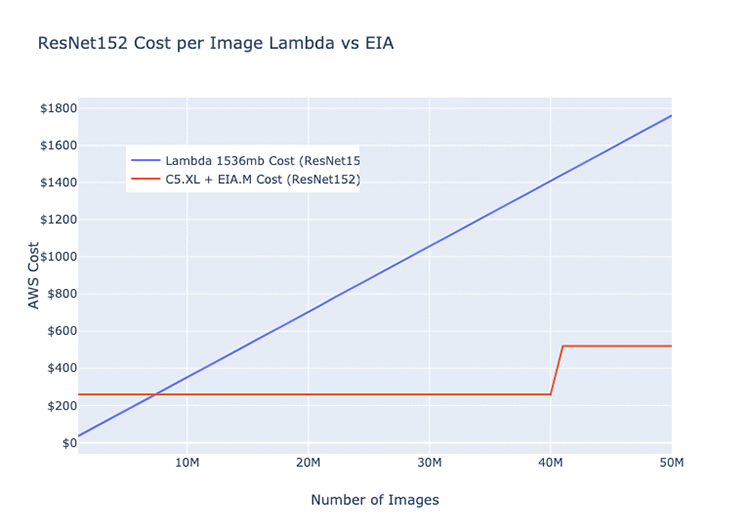
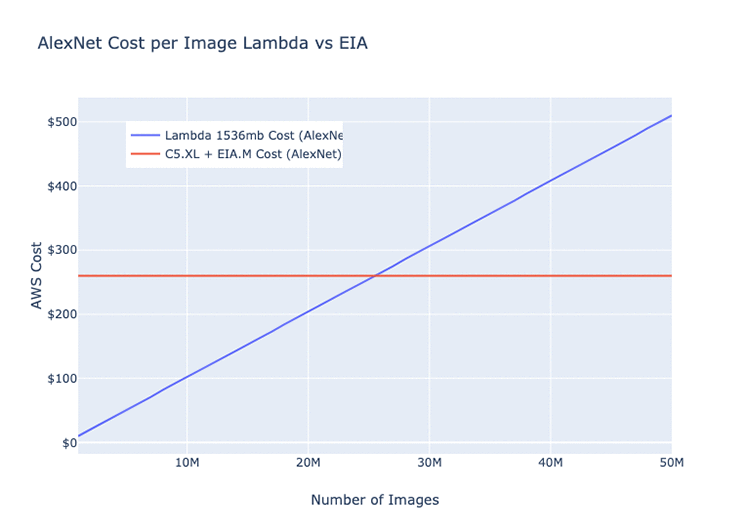
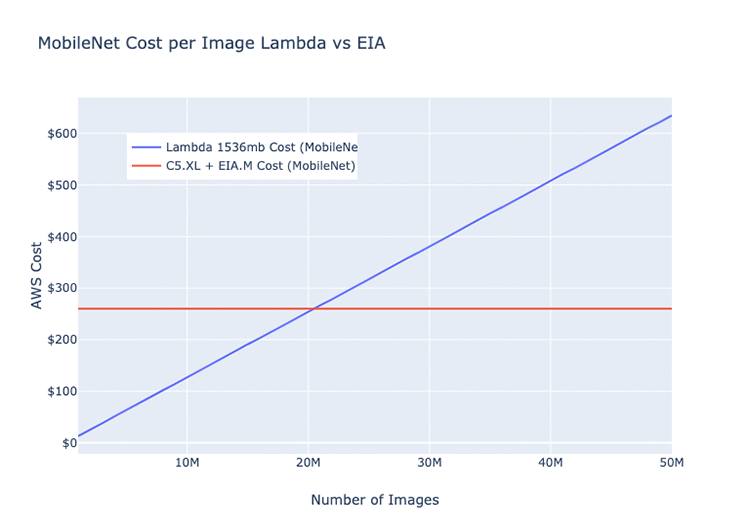
The following graphs display our nominal performance of images through a single Elastic Inference accelerator-hosted model per month. They include the average runtime and cost of the same model on Lambda (ResNet 152, AlexNet, and MobileNet architectures).

The graphs should give you a rough idea of the circumstances during which it’s more efficient to run on Lambda than the Elastic Inference accelerators, and vice versa. These values are all dependent on your network architecture.

Given the differences in model depth and the overall number of parameters, certain model architectures can run more efficiently on GPUs or Lambda than others. The following three examples are all basic image classification models. The monthly cost estimate for the EC2 instance is for a c5.xlarge + eia.medium = $220.82.

As an example, for the ResNet152 model, the crossover point is around 7,500,000 images per month, after which the C5 + EIA option becomes more cost-effective. We estimate that after you pass the bump at 40,000,000, you would require a second instance to meet demand and handle traffic spikes. If the load was perfectly distributed across the month, that rate would come out to about 15 images per second.  Assuming you are trying to run as cheaply as possible, one instance could easily handle this with plenty of headroom, but real-world service traffic is rarely uniform.

Realistically, for this type of load, our C5 + Elastic Inference accelerator clusters automatically scale anywhere from 2 to 6 instances. That’s dependent on the current load on our processing streams for any single model—the largest of which processes ~250,000,000 images per month.

Conclusion

To power all of our deep learning applications and services on AWS, Curalate uses a combination of AWS Lambda and Elastic Inference accelerators.

In our production environment, if the app or service is user-facing and requires low latency, we power it with an Elastic Inference accelerator-equipped EC2 instance. We have seen hosting cost savings of 35-65% compared to GPU instances, depending on the service using the accelerators.

If we’re looking to do offline data-pipeline processing, we first deploy our models to Lambda functions. It’s best to do so while traffic is below a certain threshold or while we’re trying something new. After that specific data pipeline reaches a certain level, we find that it’s more cost-effective to move the model back onto a cluster of Elastic Inference accelerator-equipped EC2 instances. These clusters smoothly and efficiently handle streams of hundreds of millions of deep learning model requests per month.


About the author

Jesse Brizzi is a Computer Vision Research Engineer at Curalate where he focuses on solving problems with machine learning and serving them at scale. In his spare time, he likes powerlifting, gaming, transportation memes, and eating at international McDonald’s. Follow his work at www.jessebrizzi.com.


Making daily dinner easy with Deliveroo meals and Amazon Rekognition

When Software Engineer Florian Thomas describes Deliveroo, he is talking about a rapidly growing, highly in-demand company. Everyone must eat, after all, and Deliveroo is, in his words, “on a mission to transform the way you order food.”  Specifically, Deliveroo’s business is partnering with restaurants to bring customers their favorite eats, right to their doorsteps.

Deliveroo started in 2013 when Will Shu, the company’s founder and CEO, moved to London. He discovered a city full of great restaurants, but to his dismay, few of them delivered food. He made it his personal mission to bring the best local restaurants directly to people’s doors. Now, Deliveroo’s team is 2,000 strong and operates across not only the UK but also in 14 other global markets, including Australia, the United Arab Emirates, Hong Kong, and most of Europe.

As they’ve grown, Deliveroo has always kept customers at the center. Delivering their chosen meals in a convenient and timely way is not all that Deliveroo has to offer, though. They’re equally timely, responsive, and creative if something has gone awry with a customer’s order (such as a spilled item). Their service portal allows customers to share an image-based report of the issue.

“We’ve learned that, when things go wrong, customers don’t just want to tell us, they want to show us,” remarked Thomas. In addition to enabling the customer care team to provide a solution for each customer, these images are shared with Deliveroo’s restaurant partners to help them continue to improve customers’ experiences.

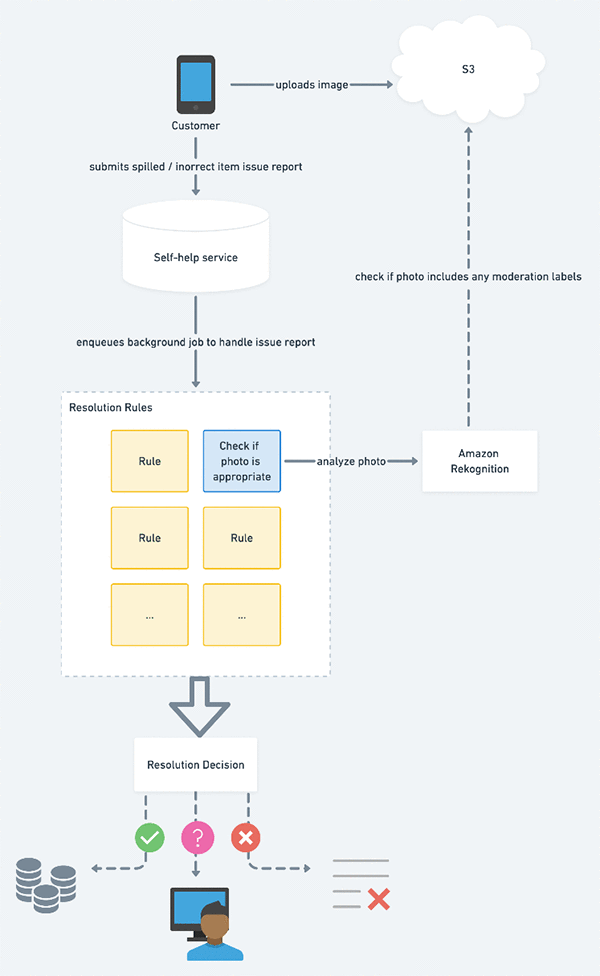
What Thomas and his team soon realized, though, was that not all of the images that customers uploaded were appropriate. To protect the customer care team from having to sift through any inappropriate images, Deliveroo uses Amazon Rekognition. This easy-to-use content moderation solution has become integral to Deliveroo’s customer care flow, as hundreds of photos per week (about 1.7% of all images submitted) are rejected.

“With Amazon Rekognition, we’re able to quickly and accurately process all those photos in real time, which helps us serve our customers promptly when real issues have arisen. That also lets us free our agents’ time so they can focus on the customer problems that matter,” Thomas explained. “Amazon Rekognition allows our agents to safely respond to important customer issues in a timely manner and ensures that legitimate customer claims are handled automatically.”

The choice to use Amazon Rekognition was a natural one for Deliveroo, as the company has been using AWS for a long time. The team originally selected AWS because of their trust in the service. Now, they use Amazon Simple Storage Service (Amazon S3) to store the photos that go into the customer service queue, which streamlines their flow into analysis with Amazon Rekognition. This flow is pictured in the diagram. In addition, the Deliveroo customer care team is using Amazon DynamoDB and AWS Lambda to achieve resolutions faster, as well as Amazon Aurora to manage customer issues.

Going forward, Deliveroo’s customer care team plans to use additional AWS machine learning services, such as Amazon Comprehend, to personalize the post-order care experience for each Deliveroo customer. “We’re hungry for what’s next,” Thomas said laughingly.


About the Author

Marisa Messina is on the AWS ML marketing team, where her job includes identifying the most innovative AWS-using customers and showcasing their inspiring stories. Prior to AWS, she worked on consumer-facing hardware and then university-facing cloud offerings at Microsoft. Outside of work, she enjoys exploring the Pacific Northwest hiking trails, cooking without recipes, and dancing in the rain.


Parallelizing across multiple CPU/GPUs to speed up deep learning inference at the edge

AWS customers often choose to run machine learning (ML) inferences at the edge to minimize latency. In many of these situations, ML predictions must be run on a large number of inputs independently.  For example, running an object detection model on each frame of a video. In these cases, parallelizing ML inferences across all available CPU/GPUs on the edge device offers the potential to reduce the overall inference time.

Recently, my team recognized a need for this optimization while helping a customer to build an industrial anomaly detection system. In this use case, a set of cameras took and uploaded images of passing machines (about 3,000 images per machine). The customer needed each image fed into a deep learning-based object detection model they had deployed to an edge device at their site. The edge hardware at each site had two GPUs and several CPUs. Initially, we implemented a long-running Lambda function (more on this later in the post) deployed to an AWS IoT Greengrass core. This configuration would process each image sequentially on the edge device.

However, this configuration runs deep learning inference on a single CPU and a single GPU core of the edge device. To reduce inference time, we considered how to take advantage of the available hardware’s full capacity. After some research, I found documentation (for various deep learning frameworks) on many ways to distribute training among multiple CPU/GPUs (such as TensorFlow, MXNet, and PyTorch). However, I did not find material on how to parallelize inference on a given host.

In this post, I will show you several ways to parallelize inference, providing example code snippets and performance benchmark results.

This post focuses exclusively on data parallelism. This means dividing the list of input data into equal parts and having each CPU/GPU core process one such part. This approach differs from model parallelism, which entails splitting an ML model into different parts and loading each part into a different processor. Data parallelism is much more common and practical due to its simplicity.

What’s hard about parallelizing ML inference on a single machine?

If you are a software engineer familiar with writing multi-threaded code, you might read the preceding and wonder: What’s challenging about parallelizing ML inferences on a single machine? To better understand this, let’s quickly review the process of doing a single ML inference end-to-end, assuming that your device has at least one GPU:

Here are some considerations when you think about optimizing inference performance on a machine with multiple CPU/GPUs:

  • Heavy initialization: In the diagrammed process, Step 1 (loading the neural net), often takes a significant amount of time—loading times of a few hundred milliseconds or multiple seconds are typical. Given the timing, I recommend that you perform initialization once per process/thread and reuse the process/thread for running inference.
  • Either CPU or GPU can be the bottleneck: Step 2 (data transformation), and Step 4 (forward pass on the neural net) are the two most computationally intensive steps. Depending on the complexity of the code and the available hardware, you might find that one use case utilizes 100% of your CPU core while underutilizing your GPU, while another use case does the opposite.
  • Explicitly assigning GPUs to process/threads: When using deep learning frameworks for inference on a GPU, your code must specify the GPU ID onto which you want the model to load. For example, if you have two GPUs on a machine and two processes to run inferences in parallel, your code should explicitly assign one process GPU-0 and the other GPU-1.
  • Ordering outputs: Do you need the output ordered before being consumed by downstream processing? When you parallelize different inputs for simultaneous processing by different threads, First-In-First-Out guarantees no longer apply. For example, in a real-time object tracking system, the tracking algorithm must process the prediction of the previous video frame before processing the prediction of the next frame. In such cases, you must implement additional indexing and reordering after the parallelized inference takes place. In other use cases, out-of-order results might not be an issue.

Summary of parallelization approaches

In this post, I show you three options for parallelizing inference on a single machine. Here’s a quick glimpse of their pros and cons.

Option  Pros Cons Recommended?
1A: Using multiple long-lived AWS Lambda functions in AWS IoT Greengrass
  • Simple. No change required to inference code
  • Can rely on AWS IoT Greengrass to maintain the desired concurrency and decouple component
  • Load balancing inputs between multiple Lambda functions adds complexity
  • Requires running AWS IoT Greengrass
  • Has potential to exceed the concurrent container limit of Greengrass
  • Requires hardcoding configuration
Yes
1B: Using on-demand Lambda functions in AWS IoT Greengrass
  • The level of concurrency dynamically scales based on requests
  • “Cold Start” latency
  • Lack of control on level of concurrency
  • Difficult to assign different GPUs to each Lambda container
No
2: Using Python multiprocessing
  • Doesn’t require AWS IoT Greengrass (but can also run inside a Greengrass Lambda function)
  • Most flexible. You can determine the level of concurrency at runtime based on available hardware
  • Code complexity rises if you want to decouple the CPU and GPU processing components
Yes

Parallelization option 1: Using multiple Lambda containers in AWS IoT Greengrass

AWS IoT Greengrass is a great option for running ML inference at the edge. It enables devices to run Lambda functions locally on the edge device and respond to events, even during disrupted cloud connectivity. When the device reconnects to the internet, the AWS IoT Greengrass software can seamlessly synchronize any data you want to upload to the cloud for further analytics and durable storage. As a result, you enjoy the benefits of both running ML inferences locally at the edge (that is, lower latency, network bandwidth savings, and potentially lower cost) and scalable analytics and storage capabilities of the cloud for the data that must persist.

AWS IoT Greengrass also includes a feature to help you manage machine learning resources while deploying ML inference at the edge. Use this feature to specify where on Amazon S3 you want the ML model parameter files stored. AWS IoT Greengrass downloads and extracts the files to a designated location on the edge device during deployment. This feature simplifies ML model updates. When you have a new ML model, point the ML resource to the new artifact’s S3 location and trigger a new deployment of the Greengrass group. Any changes to the source ML artifact on S3 automatically redeploy to the edge device.

If you run your inference code with AWS IoT Greengrass, you can also parallelize inferences by running multiple inference Lambda function instances in parallel. You can do this in two ways in AWS IoT Greengrass: Using multiple, long-lived Lambda functions or on-demand Lambda.

Option 1A: Using multiple long-lived Greengrass Lambda functions (recommended)

long-lived (or pinned) Greengrass Lambda function resembles a daemon process. Unlike AWS Lambda functions in the cloud, the long-lived Greengrass Lambda function creates a single container for each function. The same container queues and processes requests to that Lambda function, one by one.

Using a long-lived Greengrass Lambda function for ML minimizes the impact of the initialization latency. Within a long-lived Greengrass Lambda function, you load the ML model once during initialization. Any subsequent request reuses the same container without having to load the ML model again.

In this paradigm, you can parallelize inferences by defining multiple, long-lived Greengrass Lambda functions running the same source code. Configuring two long-lived Greengrass Lambda functions on one AWS IoT Greengrass core results in two long-running containers, each with the ML model initialized and ready to run inferences concurrently. Some pros and cons of this approach:

Pros of using long-lived Greengrass Lambda functions

  • Keep the inference code simple. You don’t need to change your single-threaded inference code.
  • You can assign different GPUs to each of the Greengrass Lambda functions by specifying different environment variables for them.
  • You can rely on AWS IoT Greengrass to maintain the desired number of concurrent inference containers. Even if one container crashes due to some unhandled exception, the AWS IoT Greengrass core software launches a new, replacement container.
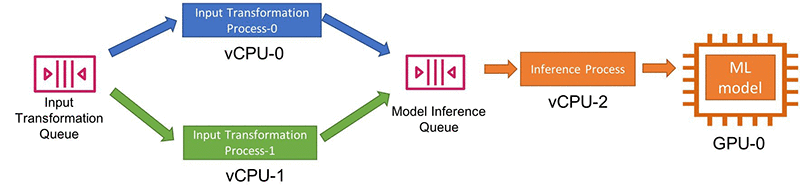
  • You can also rely on Greengrass constructs to decouple the CPU-intensive input transformation computation and the GPU-intensive forward-pass portion into separate Lambda functions, further optimizing resource use. For example, assume that the data transformation code is the bottleneck in the inference, and there are four CPU cores and two GPU cores on the machine. In that case, you can have four long-running Lambda functions for data transformation (one for each CPU core) and pass the results into two long-running Lambda functions (one for each GPU core).

Cons of using long-lived Greengrass Lambda functions

  • Each long-lived Lambda function processes inputs one-by-one. As a result, you should implement load balancing logic to split the inputs into distinct topics to which separate Lambda functions subscribe.For example, if you have two concurrent inference Lambda functions, you can write a preprocessing Lambda function splitting the inputs in half and assigning each half on a separate IoT topic in AWS IoT Greengrass. The following diagram illustrates this workflow:
  • As of May 2019, AWS IoT Greengrass limits the number of Lambda containers that can run concurrently to 20. All Lambda functions on the AWS IoT Greengrass core device share this hard limit, including on-demand containers. If you have other Lambda functions performing processing tasks on the same device, this limit might prevent you from running multiple Lambda instances for each inference task.
  • This approach requires hardcoding configurations for an AWS IoT Greengrass deployment, such as the number of long-running inference Lambda functions, the GPU IDs to which they are assigned, and the corresponding input subscriptions. You must know the hardware specs of each device that you plan to use before deployment. If you operate a heterogeneous fleet of devices with different numbers of cores, you must provide specific AWS IoT Greengrass configurations mapping to the CPU/GPU resources of each device model.

Option 1B: Using on-demand Greengrass Lambda functions (not recommended)

On-demand Greengrass Lambda functions work similarly to AWS Lambda functions in the cloud. When multiple requests come in, AWS IoT Greengrass can dynamically spin up multiple containers (or sandboxes). Any container can process any invocation, and they can run in parallel.

When no tasks are left to execute, the containers (or sandboxes) can persist, and future invocations can reuse them. Alternatively, they can be terminated to make room for other Lambda function executions. You cannot control the number of containers that get spun up nor how many of them persist. A heuristic internal to AWS IoT Greengrass determines the number of containers based on the queue size. In short, using the on-demand Lambda configuration, AWS IoT Greengrass dynamically scales the number of containers that execute your code, based on traffic.

This configuration fits data processing use cases with low initialization overhead. However, there are several disadvantages when using the on-demand configuration for deep learning inference code:

  • “Cold Start” latency: As mentioned previously, deep learning models take a while to load into memory. While AWS IoT Greengrass dynamically spins up and destroys containers, incoming requests might require new container creation and incur initialization latency. Such delays could negate the performance gains from parallelization.
  • Lack of control on the number of concurrent containers: Controlling the number of concurrent inference Lambda function executions helps optimize resource use. For example, imagine you have two GPUs, and each forward pass process of the ML model uses 100% of the GPU. In that scenario, two concurrent Greengrass Lambda containers would represent the ideal use of your resources. Creating more than two containers would only result in more context-switching and queueing for CPU/GPU resources. The on-demand Lambda configuration doesn’t permit you to control the number of concurrent executions.
  • Difficulty in coordination between concurrent Lambda containers: Usually, the on-demand model assumes that each concurrent Lambda container instance is independent and configured in the same way. However, when you use multiple GPUs, you must explicitly assign each Lambda container to use a different GPU. These GPU assignments require some coordination among containers, as AWS IoT Greengrass dynamically spins them up and destroys them.

Parallelization option 2: Using Python multiprocessing (recommended)

The previously discussed option 1A might not be appropriate for those who:

  • Prefer not to use AWS IoT Greengrass
  • Need to run many Lambda functions, and having multiple instances of each would exceed the concurrent container limit of Greengrass
  • Want to flexibly determine the level of parallelization at runtime, based on available hardware resources

An alternative for those users would be to change your inference code to take advantage of multiple cores. I discuss this option in the following section, focusing on Python, given the language’s unmatched popularity in the ML and data science space.

Python multiprocessing

Programming languages like Java or C++ let you use multiple threads to take advantage of multiple CPU cores. Unfortunately, Python’s global interpreter lock (GIL) prevents you from parallelizing inference in this way. However, you can use Python’s multiprocessing module to achieve parallelism by running ML inference concurrently on multiple CPU and GPUs. Supported in both Python 2 and Python 3, the Python multiprocessing module lets you spawn multiple processes that run concurrently on multiple processor cores.

Using process pools to parallelize inference

The Python multiprocessing module offers process pools. Using process pools, you can spawn multiple long-lived processes and load a copy of the ML model in each process during initialization. You can then use the pool.Map () function to submit a list of inputs to be processed by the pool. See the following code snippet example:

# This model object contains the loaded ML model.
# Each Python child process will have its independent copy of the Model object
model = None

def init_worker(GPUs, model_param_path):
    """ This gets called when the worker process is created
    Here we initialize the worker process by loading the ML model into GPU memory.
    Each worker process will pull a GPU ID from a queue of available IDs (e.g. [0, 1, 2, 3]) and load the ML model to that GPU
    This ensures that multiple GPUs are consumed evenly.""" 
    global model
    if not gpus.empty():
        gpu_id = gpus.get()
        logger.info("Using GPU {} on pid {}".format(gpu_id, os.getpid()))
        ctx = mx.gpu(gpu_id)
    else:
        logger.info("Using CPU only on pid {}".format(os.getpid()))
        ctx = mx.cpu()
    model = MXNetModel(param_path=model_param_path,
                       input_shapes=INPUT_SHAPE,
                       context=ctx)


def process_input_by_worker_process(input_file_path):
    """ The work to be done by one worker for one input.
    Performs input transformation then runs inference with the ML model local to the worker process. """    
    # input transformation (read from file, resize, swap axis, etc.) this happens on CPU 
    transformed_input = transform_input(input_file_path, reshape=(IMAGE_DIM, IMAGE_DIM))
    # run inference (forward pass on neural net) on the ML model loaded on GPU
    output = model.infer(transformed_input)
    return {"file": input_file_path,
            "result": output }


def run_inference_in_process_pool(model_param_path, input_paths, num_process, output_path):
    """ Create a process pool and submit inference tasks to be processed by the pool """
    # If GPUs are available, create a queue that loops through the GPU IDs.
    # For example, if there are four worker processes and 4 GPUs, the queue contains [0, 1, 2, 3]
    # If there are four worker processes and 2 GPUs the queue contains [0, 1, 0, 1]
    # This can be done when GPU is underutilized, and there's enough memory to hold multiple copies of the model. 
    gpus = detect_cores() # If there are n GPUs, this returns list [0,1,...,n-1].
    gpu_ids = multiprocessing.Queue()
    if len(gpus) > 0:
        gpu_id_cycle_iterator = cycle(gpus)
        for i in range(num_process):
            gpu_ids.put(next(gpu_id_cycle_iterator))

    # Initialize process pool
    process_pool = multiprocessing.Pool(processes=num_process, initializer=init_worker, initargs=(gpu_ids, model_param_path))

    # Feed inputs process pool to do transform and inference
    pool_output = process_pool.map(process_input_by_worker_process, input_paths)

You can read the rest of the inference script in the parallelize-ml-inference GitHub repo. This multiprocessing code can run inside a single Greengrass Lambda function as well.

An example benchmark using Python multiprocessing process pools

How much does this parallelization improve performance? Using the cited multiprocessing pool code, I ran an object detection MXNet model on a p3.8xlarge instance (which has four NVIDIA Tesla V100 GPUs) to see how different process pool sizes affect the total time needed to process 3000 images. The object detection model I used (a model trained with the Amazon SageMaker built-in SSD algorithm) produced the following results:

A few observations about this experiment:

  • For this combination of input transformation code, inference code, dataset, and hardware spec, total inference time improved from 153 seconds using a single process to about 40 seconds by parallelizing the task across CPU/GPUS in multiple processes (almost 1/4 of the time)
  • In this experiment, the bottleneck appears to be the CPU and input transformation. The GPU is under-utilized both from a memory and processing perspective. See the following snapshot of GPU utilization when the script run with two worker processes. (The p3.8xlarge instance has four GPUs. Therefore, you can see two of them idle when I ran the script with only two processes).
$ nvidia-smi
Thu May 30 23:35:05 2019
+-----------------------------------------------------------------------------+
| NVIDIA-SMI 418.40.04    Driver Version: 418.40.04    CUDA Version: 10.1     |
|-------------------------------+----------------------+----------------------+
| GPU  Name        Persistence-M| Bus-Id        Disp.A | Volatile Uncorr. ECC |
| Fan  Temp  Perf  Pwr:Usage/Cap|         Memory-Usage | GPU-Util  Compute M. |
|===============================+======================+======================|
|   0  Tesla V100-SXM2...  On   | 00000000:00:1B.0 Off |                    0 |
| N/A   50C    P0    56W / 300W |   1074MiB / 16130MiB |     24%      Default |
+-------------------------------+----------------------+----------------------+
|   1  Tesla V100-SXM2...  On   | 00000000:00:1C.0 Off |                    0 |
| N/A   52C    P0    75W / 300W |   1074MiB / 16130MiB |     18%      Default |
+-------------------------------+----------------------+----------------------+
|   2  Tesla V100-SXM2...  On   | 00000000:00:1D.0 Off |                    0 |
| N/A   49C    P0    42W / 300W |     11MiB / 16130MiB |      0%      Default |
+-------------------------------+----------------------+----------------------+
|   3  Tesla V100-SXM2...  On   | 00000000:00:1E.0 Off |                    0 |
| N/A   47C    P0    41W / 300W |     11MiB / 16130MiB |      0%      Default |
+-------------------------------+----------------------+----------------------+

+-----------------------------------------------------------------------------+
| Processes:                                                       GPU Memory |
|  GPU       PID   Type   Process name                             Usage      |
|=============================================================================|
|    0      3911      C   python                                      1063MiB |
|    1      3920      C   python                                      1063MiB |
+-----------------------------------------------------------------------------+

As the utilization metric above shows, one loaded ML model used about 1 GB of memory from the 16 GB available on each GPU. So in this case, you can actually load more than one model per GPU, with each performing inference independently on a separate set of inputs. The script above supports more processes than the number of GPUs by assigning each process a looping list of GPU IDs.

So, when I tested with eight processes, the script assigns one GPU ID from the list [0, 1, 2, 3, 0, 1, 2, 3] to load the ML model to each process. Keep in mind that the two ML models loaded on the same GPU are independent copies of the same model. Each model can perform inferences independently on separate inputs. If I try to load more model copies than the GPU memory can accommodate, an out-of-memory error occurs.

On the CPU side, because a p3.8xlarge instance included 32 vCPUs and I ran fewer than 32 processes, each process could run on a dedicated vCPU. You can confirm CPU utilization during the experiment by running htop. See the following illustration for how this worked on the processors:

Using outputs from htop and nvidia-smi commands, I could confirm that the bottleneck in this particular experiment was the input transformation step on the CPUs. (The CPUs in use were 100% utilized while the GPUs were not).

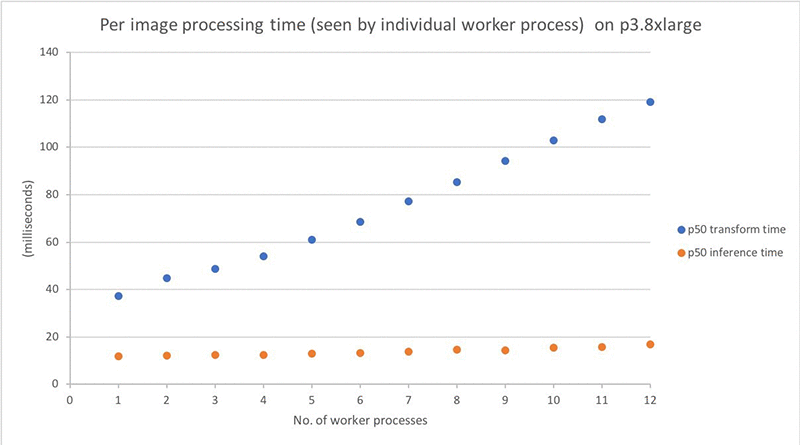
We can gain additional insight into the impact of parallelization by measuring the duration of processing a single input. The following graph compares the p50 (median) timings for the two processing steps, as recorded by the worker processes. As the graph shows, the GPU inference time increases only slightly as I packed multiple ML models onto each GPU. However, input transformation time per image continues to climb up as more worker processes were used (thus vCPUs), implying some contention that require further code optimization.

The processing time graph might make you wonder why the per-image processing time increases with the number of processes, while the total process time decreases. Remember: per-image timing graph above is measured from each worker process as they run in parallel. The total processing time roughly equals the following:

General learning and considerations

In addition to the described experiment, I also tried to run similar tests with different frameworks, models, and hardware. Here are some takeaways from those experiments:

Not all deep learning frameworks support multiprocessing inference equally. The process pool script runs smoothly with an MXNet model. By contrast, the Caffe2 framework crashes when I try to load a second model to a second process. Others have reported similar issues on GitHub for Caffe2. I found little or no documentation on multithreading/multiprocessing inference support from the major frameworks. So, you should test this yourself with your framework of choice.

Different hardware and inference code require different multiprocessing strategy. In my experiment, the model is relatively small compared to the GPU capacity. I could load multiple ML models to run inference simultaneously on a single GPU.

By contrast, less powerful devices and more heavyweight models might restrict you to one model per GPU, with a single inference task using 100% of the GPU. If the input transformation remains slow compared to the model inference, and if you have more CPUs than GPUs, you can also decouple them and use a different number of processes for each step using Python multiprocessing queues.

In the provided benchmarking code, I used process pools and pool.map() for code simplicity. In contrast, a publisher-consumer model with queues between processes offers a lot more flexibility (if some added code complexity):

There are other ways to improve inference performance. Many other available approaches also offer improved inference performance. For example, you can use Amazon SageMaker Neo to convert your trained model to an efficient format optimized for the underlying hardware, achieving faster performance while lowering memory footprint.

Another approach to explore is batching. In the cited test, I perform object detection inference for one image at a time. Batching multiple images for simultaneous processing offers to speed up total inference through matrix math efficiencies implemented by the underlying libraries and hardware optimizations. However, if you are trying to obtain results in real time, batching might not always be an option.

Try enabling NVIDIA Multi-Process Service (MPS). If you use an NVIDIA GPU device, you can enable Multi-Process Service (MPS) on each GPU. MPS offers an alternative GPU configuration to support running multiple ML models, submitted simultaneously from multiple CPU processes, on a single GPU. You can use either of the AWS IoT Greengrass or pure Python approach with MPS enabled or disabled.

I completed the example benchmark results described earlier on the p3.8xlarge instance without enabling MPS. I found the GPU on the p3.8xlarge supported running multiple independent ML models out of the box. When I tested the same setup with MPS turned on, the results showed an almost-negligible performance improvement (that is, by 0.2 milliseconds per image). However, I recommend that you try enabling MPS for your specific hardware and use case. You might find that it significantly improves performance.

Conclusion

In this post, I discussed two approaches for parallelizing inference on a single device at the edge across multiple CPU/GPUs:

  • Run multiple Lambda containers (long-lived or on-demand) inside the AWS IoT Greengrass core
  • Use Python multiprocessing

The former offers code simplicity, while the latter can run within or without Greengrass and provides the maximum flexibility. I also showed an example benchmark test highlighting the performance improvement you can obtain using multiple CPU/GPUs for inference. If your inference hardware is underutilized, give these options a try!

To start using AWS IoT Greengrass, click here. To start exporing SageMaker Neo, click here. You can find the code used in this post in the parallelize-ml-inference GitHub repo.


About the author

Angela Wang is an R&D Engineer on the AWS Solutions Architecture team based in New York city. She helps AWS customers build out innovative ideas by rapid prototyping using the AWS platform. Outside of work, she loves reading, climbing, backcountry skiing and traveling.


Modernizing wound care with Spectral MD, powered by Amazon SageMaker

Spectral MD, Inc. is a clinical research stage medical device company that describes itself as “breaking the barriers of light to see deep inside the body.” Recently designated by the FDA as a “Breakthrough Device,” Spectral MD provides an impressive solution to wound care using cutting edge multispectral imaging and deep learning technologies. This Dallas-based company relies on AWS services including Amazon SageMaker and Amazon Elastic Compute Cloud (Amazon EC2) to support their unprecedented wound care analysis efforts. With AWS as their cloud provider, the Spectral MD team can focus on healthcare breakthroughs, knowing their data is stored and processed swiftly and effectively.

“We chose AWS because it gives us access to the computational resources we need to rapidly train, optimize, and validate the state-of-the-art deep learning algorithms used in our medical device,” explained Kevin Plant, the software team lead at Spectral MD. “AWS also serves as a secure repository for our clinical dataset that is critical for the research, development and deployment of the algorithm.”

The algorithm is the 10-year-old company’s proprietary DeepView Wound Imaging System, which uses a non-invasive digital approach that allows clinical investigators to see hidden ailments without ever coming in contact with the patient. Specifically, the technology combines visual inputs with digital analyses to understand complex wound conditions and predict a wound’s healing potential. The portable imaging device in combination with computational power from AWS, allows clinicians to capture a precise snapshot of what is hidden to the human eye.

Spectral MD’s revolutionary solution is possible thanks to a number of AWS services for both core computational power and machine learning finesse. The company stores data captured by their device on Amazon Simple Storage Service (Amazon S3), with the metadata living in Amazon DynamoDB. From there, they back up all the data in Amazon S3 Glacier. This data fuels their innovation with AWS machine learning (ML).

To manage the training and deployment of their image classification algorithms, Spectral MD uses Amazon SageMaker and Amazon EC2. These services also help the team to achieve improved algorithm performance and to conduct deep learning algorithm research.

Spectral MD particularly appreciates that using AWS services saves the data science team a tremendous amount of time. Plant described, “The availability of AWS on-demand computational resources for deep learning algorithm training and validation has reduced the time it takes to iterate algorithm development by 80%. Instead of needing weeks for full validation, we’re now able to cut the time to 2 days. AWS has enabled us to maximize our algorithm performance by rapidly incorporating the latest developments in the state-of-the-art of deep learning into our algorithm.”

That faster timeline in turn benefits the end patients, for whom time is of the essence. Diagnosing burns quickly and accurately is critical for accelerating recovery and can have important long-term implications for the patient. Yet, current medical practice (without Spectral MD) suffers a 30% diagnostic error rate, meaning that some patients unnecessarily treated with surgery while others who would have benefited from surgery are not offered that option.

Spectral MD’s solution takes advantage of the natural patterns in the chemicals and tissues that compose human skin – and the natural pattern-matching abilities of ML. Their model has been trained on thousands of images of accurately diagnosed burns. Now, it is precise enough that the company can create datasets from scratch that differentiate pathologies from healthy skin, operating to a degree that is impossible for the human eye.

These datasets are labeled by expert clinicians using Amazon SageMaker Ground Truth. Spectral MD has extended Amazon SageMaker Ground Truth with the ability to review clinical reference data stored in Amazon S3. During the labeling process this provides clinicians with the ideal information set to maximize the accuracy of the diagnostic ground truth labels.

Going forward, Spectral MD plans to push the boundaries of ML and of healthcare. Their team has recently been investigating the use of Amazon SageMaker Neo for deploying deep learning algorithms to edge hardware. In Plant’s words, “There are many barriers to incorporating new technology into medical devices. But AWS continually improves how easy it is for us to take advantage of new and powerful features; no one else can keep pace with AWS.”


About the Author

Marisa Messina is on the AWS ML marketing team, where her job includes identifying the most innovative AWS-using customers and showcasing their inspiring stories. Prior to AWS, she worked on consumer-facing hardware and then university-facing cloud offerings at Microsoft. Outside of work, she enjoys exploring the Pacific Northwest hiking trails, cooking without recipes, and dancing in the rain.


Authenticate users with one-time passwords in Amazon Lex chatbots

Today, many companies use one-time passwords (OTP) to authenticate users. An application asks you for a password to proceed. This password is sent to you via text message to a registered phone number. You enter the password to authenticate. It is an easy and secure approach to verifying user identity. In this blog post, we’ll describe how to integrate the same OTP functionality in an Amazon Lex chatbot.

Amazon Lex lets you easily build life-like conversational interfaces into your existing applications using both voice and text.

Before we jump into the details, let’s take a closer look at OTPs. OTP is usually a sequence of numbers that is valid for only one login session or transaction. The OTP expires after a certain time period, and, after that, a new one has to be generated. It can be used on a variety of channels such as web, mobile, or other devices.

In this blog post, we’ll show how to authenticate your users using an example of a food-ordering chatbot on a mobile device. The Amazon Lex bot will place the order for users only after they have been authenticated by OTP.

Let’s consider the following conversation that uses OTP.

To achieve the interaction we just described, we build a food delivery bot first with the following intents: GetFoodMenu and OrderFood. The OTP password is used in intents that involve transactions, such as OrderFood.

We’ll show you two different implementations of capturing the OTP – one via voice and the other via text. In the first implementation, the OTP is captured directly by Amazon Lex as a voice or text modality. The OTP value is sent to directly to Amazon Lex as a slot value. In the second implementation, the OTP is captured by the client application (using text modality). The client application captures the OTP from the dialog box on the client and sends it to Amazon Lex as a session attribute. Session attributes can be encrypted.

It is important to note that all API calls made to the Amazon Lex runtime are encrypted using HTTPS. The encryption of the OTP when used via session attributes provides an extra level of security. Amazon Lex passes the OTP received via the session attribute or slot value to an AWS Lambda function that can verify the OTP.

Application architecture

The bot has an architecture that is based on the following AWS services:

  • Amazon Lex for building the conversational interface.
  • AWS Lambda to run data validation and fulfillment.
  • Amazon DynamoDB to store and retrieve data.
  • Amazon Simple Notification Service (SNS) to publish SMS messages.
  • AWS Key Management Service (KMS) to encrypt and decrypt the OTP.
  • Amazon Cognito identity pool to obtain temporary AWS credentials to use KMS.

The following diagram illustrates how the various services work together.

Capturing the OTP using voice modality

When the user first starts an interaction with the bot, the user’s email or other metadata are passed from the frontend to the Amazon Lex runtime.

An AWS Lambda validation code hook is used to perform the following tasks:

  1. AWS Lambda generates an OTP and stores it in the DynamoDB table.
  2. AWS Lambda sends the OTP to user’s mobile phone using SNS.
  3. The user inputs the OTP into the client application, which gets sent as a slot type to Amazon Lex.
  4. AWS Lambda verifies the OTP, and, if the authentication is successful, it signals Amazon Lex to proceed with the conversation.

After the user is authenticated the user is able to place an order with the Amazon Lex bot.

Capturing the OTP using text modality

Similar to the first implementation, the user’s email or other metadata are sent to the Amazon Lex runtime from the front end.

In the second implementation, an AWS Lambda validation code hook is used to perform the following tasks:

  1. AWS Lambda generates an OTP and stores it in the DynamoDB table.
  2. Lambda sends the OTP to user’s mobile phone using SNS.
  3. User enters the OTP into the dialog box of the client application.
  4. The client application encrypts the OTP entered by the user and sends it to the Amazon Lex runtime in the session attributes.

Note: Session attributes can be encrypted.

  1. AWS Lambda verifies the OTP, and, if the authentication is successful, it signals Amazon Lex to proceed with the conversation.

Note: if the OTP is encrypted, the Lambda function will need to decrypt it first.

After the user is authenticated, the user can place an order with the Amazon Lex bot.

Generating an OTP

There are many methods of generating an OTP. In our example, we generate a random six-digit number as an OTP that is valid for one minute and store it in a DynamoDB table. To verify the OTP, we compare the value entered by the user with the value in the DynamoDB table.

Deploying the OTP bot

Use this AWS CloudFormation button to launch the OTP bot in the AWS Region us-east-1:

The source code is available in our GitHub repository.

Open the AWS CloudFormation console, and on the Parameters page, enter a valid phone number. This is the phone number the OTP is sent to.

Choose Next twice to display the Review page.

Select the acknowledgement checkbox, and choose Create to deploy the ExampleBot.

The CloudFormation stack creates the following resources in your AWS account:

  • Amazon S3 buckets to host the ExampleBot web UIs.
  • Amazon Lex Bot to provide natural language processing.
  • AWS Lambda functions used to send and validate the OTP.
  • AWS IAM roles for the Lambda function.
  • Amazon DynamoDB tables to store session data.
  • AWS KMS key for encrypting and decrypting data.
  • Amazon Cognito identity pool configured to authenticate clients and provide temporary AWS credentials.

When the deployment is complete (after about 15 minutes), the stack Output tab shows the following:

  • ExampleBotURL: Click on this URL to interact with ExampleBot.

Let’s create the bot

This blog post builds upon the bot building basics covered in Building Better Bots Using Amazon Lex. Following the guidance from that blog post, we create an Amazon Lex bot with two intents: GetFoodMenu and OrderFood.

The GetFoodMenu intent does not require authentication. The user can ask the bot what food items are on the menu such as:

Please recommend something.

Show me your menu please.

What is on the menu?

What kind of food do you have?

The bot returns a list of food the user can order when the GetFoodMenu intent is elicited.

If the user already knows which food item they want to order, they can order the food item with the following input text to invoke the OrderFood intent:

I would like to order some pasta.

Can I order some food please?

Cheese burger!

Amazon Lex uses the Lambda code hook to check if the user is authenticated. If the user is authenticated, Amazon Lex adds the food item to the user’s current order.

If the user has not been authenticated yet, the interaction looks like this:

User: I would like to order some pasta.

Bot: It seems that you are not authenticated yet. We have sent an OTP to your registered phone number. Please enter the OTP.

User: 812734

Note: If the user is using the text modality, the user’s “to” input can be encrypted.

Bot: Thanks for entering the OTP. We’ve added pizza to your order. Would you like anything else?

If the user is not authenticated, Amazon Lex initiates the multifactor authentication (MFA) process. AWS Lambda queries the DynamoDB table for that user’s mobile phone number and delivery address. After DynamoDB returns the values, AWS Lambda generates an OTP based on the metadata of the user, saves it in a DynamoDB table with a UUID as a primary key, and stores it in the session attributes. Then AWS Lambda uses SNS to send an OTP to the user and elicit the pin using the pin slot in the OrderFood intent.

After the user inputs the OTP, Amazon Lex uses the Lambda code hook to validate the pin. AWS Lambda queries the DynamoDB table with the UUID in the session attributes to verify the OTP. If the pin is correct, the Lambda function queries DynamoDB for the secret data; if the pin is incorrect, Lambda performs the validation step again.

Implementation details

The following tables and screenshots show you the different slot types and intents, and how you can use the AWS Management Console to specify the ones you want.

Slots

Slot type: Slot Values
Food Amazon.Food
Pin Amazon.Number

Intents

Intent Name Sample Utterances
OrderFood

I would like to order some {Food}

{Food}

I would like {food}

order {food}

Can I order some food please

Can I order some {Food} please

GetFoodMenu

Please recommend something.

Show me your menu, please.

What is on the menu?

What kind of food do you have?

The GetFoodMenu intent uses the GetMenu Lambda function as the initialization and validation code hook to perform the logic, whereas the OrderFood intent uses the OrderFood Lambda function as the initialization and validation code hook to perform the logic.

These are the steps the Lambda function follows:

  1. The Lambda function first checks which intent the user has invoked.
  2. If the payload is for the GetFoodMenu intent:
    1. We’re assuming that the client will send the following items in the session attribute for the first Amazon Lex runtime API call. Since we cannot pass session attributes in the Lex console, for testing purposes, our Lambda function will create the following session attributes if the session attribute is empty.
      {’email’ : ‘user@domain.com’, ‘auth’ : ‘false’, ‘uuid’: None, ‘currentOrder’: None, ‘encryptedPin’: None}

      • ’email’ is the email address of the user.
      • ‘auth’ : ‘false’ implies the user is unauthenticated.
      • ‘uuid’ is a flag used later as the primary key to store the OTP into the DynamoDB.
      • ‘currentOrder’ will keep track of the food items ordered by the user.
      • ‘encryptedPin’ will be used by the frontend client to send encrypted OTP. If the implementation does not require OTP to be encrypted, then this attribute is optional.
    2. The Lambda function will return a list of food items and ask the user which food items they wish to order. In other words, the Lambda function will elicitSlot for the Food slot in the OrderFood
  3. If the payload is for the OrderFood intent:
    1. As we stated earlier, for testing purposes our Lambda function will create the following session attribute if the session attributes are empty.
      {’email’ : ‘user@domain.com’, ‘auth’ : ‘false’, ‘uuid’: None, ‘currentOrder’: None, ‘encryptedPin’: None}
    2. If the user is authenticated, the Lambda function will add the requested food item to currentOrder in the session attributes.
    3. The Lambda function will query the phoneNumbers DynamoDB table using the email for the phone number of the user.
      1. If DynamoDB is not able to return a phone number matching that email address, the Lambda function will tell the user it wasn’t able to find a phone number associated with that email and will ask the user to contact support.
    4. The Lambda function will generate an OTP and an uuid. The uuid is stored in the session attributes and the key value pair { uuid : OTP} will be stored as a record in the onetimepin DynamoDB table.
    5. The Lambda function will use SNS to send the OTP to the user’s phone number and ask the user to enter the one time pin they received by eliciting the pin slot in the OrderFood
    6. After the user enters the pin, the Lambda function will query the onetimepin DynamoDB table for the record with the uuid stored in the sessionAttributes.
      1. If the user enters an incorrect pin, the Lambda function will generate a new OTP, store it in DynamoDB, update the uuid in Session Attributes, send this new OTP to the user via SNS again, and ask the user to enter the pin again. The following screenshot illustrates this.
      2. If the pin is correct Lambda will validate the food item the user is requesting.
      3. If the “Food” slot type is null, Lambda will ask the user which data they are interested in by eliciting the “Food” slot in the “OrderFood” intent.
      4. Lambda will add the requested food item to ‘currentOrder’ in session attributes.
  4. After the user is authenticated, the subsequent items they want to add to the order will not require authentication as long as the session does not expire.

OTP encryption and decryption

In this section, we’ll show you how to encrypt the OTP from the client side before sending the OTP as a session attribute to Amazon Lex. We’ll also show you how to decrypt the session attribute in the Lambda function.

To encrypt the OTP, the frontend needs to use Amazon Cognito identity pool to assume an unauthenticated role that has the permissions to perform the encrypt action using KMS before sending the OTP through to Amazon Lex as a session attribute. For more information on Amazon Cognito identity pool, see the documentation.

After the Lambda function receives the OTP if it is encrypted Lambda uses KMS to decrypt the OTP and query a Dynamo DB table to confirm if the OTP is correct.

Please refer to the documentation linked here for the prerequisites:

  1. Create an Amazon Cognito identity pool.

Ensure that unauthenticated identities are enabled.

  1. Create a KMS key.
  2. Lock down access to the KMS key to the unauthenticated role created in step 1.
    1. Allow the unauthenticated Amazon Cognito role to use this KMS to perform the encrypt action.
    2. Allow the Lambda function’s IAM role the decrypt KMS action.
    3. Here is an example of the two key policy statements that illustrate this.
      {
            "Sid": "Allow use of the key to encrypt",
            "Effect": "Allow",
            "Principal": {
              "AWS": [
                "arn:aws:iam::<your account>:role/<unauthenticated_role>",
              ]
            },
            "Action": [
              "kms:Encrypt",
            ],
            "Resource": "arn:aws:kms:AWS_region:AWS_account_ID:key/key_ID"
          }
      
      {
            "Sid": "Allow use of the key to decrypt",
            "Effect": "Allow",
            "Principal": {
              "AWS": [
                "arn:aws:iam::<your account>:role/<Lambda_functions_IAM_role>",
              ]
            },
            "Action": [
              "kms:Decrypt",
            ],
            "Resource": "arn:aws:kms:AWS_region:AWS_account_ID:key/key_ID"
          }

Now we are ready to use the frontend to encrypt the OTP:

  1. In the frontend client, use the GetCredentialsForIdentity API to get the temporary AWS credentials for the unauthenticated Amazon Cognito role. These temporary credentials are used by the frontend to access the AWS KMS service.
  2. The frontend uses the KMS Encrypt API to encrypt the OTP.
  3. The encrypted OTP is sent to Amazon Lex in the session attributes.
  4. The Lambda function uses the KMS Decrypt API to decrypt the encrypted OTP.
  5. After the OTP is decrypted the Lambda function validates the OTP value.

Conclusion

In this post we showed how to use OTP functionality on an Amazon Lex bot using a simple example. In our design we used AWS Lambda to run data validation and fulfillment; DynamoDB to store and retrieve data; SNS to publish SMS messages; KMS to encrypt and decrypt the OTP; and Amazon Cognito identity pool to obtain temporary AWS credentials to use KMS.

It’s easy to incorporate the OTP functionality described here into any bot. You can pass the OTP pin from the frontend to Amazon Lex either as a slot value or session attribute value in your intent. Then, send and perform the validation using a Lambda function, and your bot is ready to accept OTP!


About the Author

Kun Qian is is a Cloud Support Engineer at AWS. He enjoys providing technical guidance to customers, and helping them troubleshoot and design solutions on AWS.

AWS DeepRacer League weekly challenges – compete in the AWS DeepRacer League virtual circuit to win cash prizes and a trip to re:Invent 2019!

The AWS DeepRacer League is the world’s first global autonomous racing league, open to anyone. Developers of all skill levels can get hands-on with machine learning in a fun and exciting way, racing for prizes and glory at 21 events globally and online using the AWS DeepRacer console. The Virtual Circuit launched at the end of April, allowing developers to compete from anywhere in the world via the console – no car or track required – for a chance to top the leaderboard and score points in one of the six monthly competitions. The top prize is an expenses paid trip to re:Invent to compete in the 2019 Championship Cup finals, but that is not the only prize.

More chances to win with weekly challenges

The 2019 virtual racing season ends in the last week of October. Between now and then, the AWS DeepRacer League will run weekly challenges, offering more opportunities to win prizes, and compete for a chance to advance to the Championship Cup on an expenses paid trip to re:Invent 2019. Multiple challenges will launch each week providing cash prizes in the form of AWS credits, that will help you to keep rolling your way up the leaderboard as you continue to tune and train your model.

More detail on each of the challenges

The Rookie – Even the best in the league had to start somewhere! To help those brand new to AWS DeepRacer and machine learning, there are going to be rewards for those who make their debut on the leaderboard. When you submit your first model of the week to the virtual leaderboard, you’re in the running for a chance to win prizes, even if the top spot seems out of reach. If you win, you will receive AWS credits to help you build on these new found skills and climb the leaderboard. Anything is possible once you know how, and this could be the boost you need to take that top prize of a trip to re:Invent 2019.

The Most Improved – Think the top spot is out of reach and the only way to win? Think again. A personal record is an individual achievement that should be rewarded. This challenge is designed to help developers, new and existing, reach new heights in their machine learning journey. The drivers who improve their lap time the most each week will receive AWS credits to help them continue to train, improve, and win!

The Quick Sprint challenge – In this challenge, you have the opportunity to put your machine learning skills to the test and see how quickly you can create your model for success. Those who train a model in the fastest time and complete a successful lap of the track have the chance to win cash prizes!

New challenges every week

The AWS DeepRacer League will be rolling out new challenges throughout the month of August, including rewards for hitting that next milestone. Time Target 50, is rewarding those who finish a lap closest to 50 seconds.

Current open challenges:

The August track, Shanghai Sudu, is open now, so what are you waiting for? Start training in the AWS DeepRacer console today, submit a model to the leaderboard, and you will automatically be entered to win! You can also learn more about the points and prizes up for grabs on the AWS DeepRacer League points and prizes page.


About the Author

Alexandra Bush is a Senior Product Marketing Manager for AWS AI. She is passionate about how technology impacts the world around us and enjoys being able to help make it accessible to all. Out of the office she loves to run, travel and stay active in the outdoors with family and friends.


De

Kinect Energy uses Amazon SageMaker to Forecast energy prices with Machine Learning

The Amazon ML Solutions Lab worked with Kinect Energy recently to build a pipeline to predict future energy prices based on machine learning (ML). We created an automated data ingestion and inference pipeline using Amazon SageMaker and AWS Step Functions to automate and schedule energy price prediction.

The process makes special use of the Amazon SageMaker DeepAR forecasting algorithm. By using a deep learning forecasting model to replace the current manual process, we saved Kinect Energy time and put a consistent, data-driven methodology into place.

The following diagram shows the end-to-end solution.
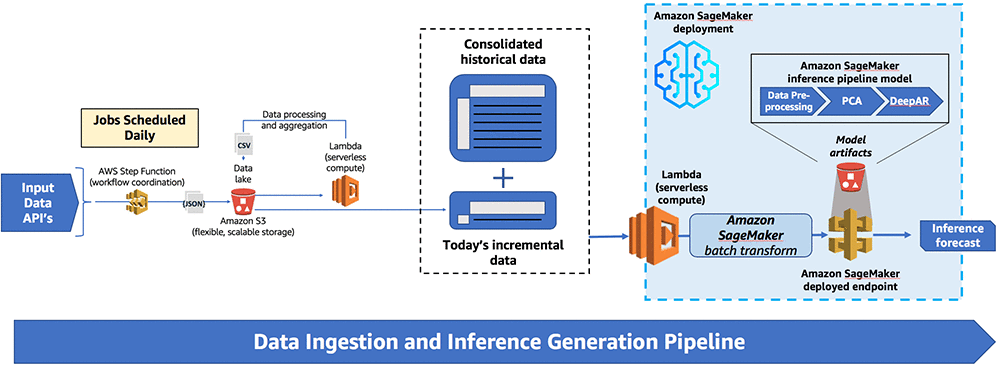
The data ingestion is orchestrated using a step function which loads and processes data daily and deposits it is into a data lake in Amazon S3. The data is then passed to Amazon SageMaker which handles inference generation via a batch transform call that triggers an inference pipeline model.

Project motivation

The natural power market depends on a range of sources for production—wind, hydro-reservoir generation, nuclear, coal, and oil & gas—to meet consumer demand. The actual mix of power sources used to satisfy that demand depends on the price of each energy component on a given day. That price depends on that day’s power demand. Investors then trade the price of electricity in an open market.

Kinect Energy buys and sells energy to clients, and an important piece of their business model involves trading financial contracts derived from energy prices. This requires an accurate forecast of the energy price.

Kinect Energy wanted to improve and automate the process of forecasting—historically done manually—by using ML. The spot price is the current commodity price, as opposed to the future or forward price—the price at which a commodity can be bought or sold for future delivery. Comparing predicted spot prices and forward prices provides opportunities for the Kinect Energy team to hedge against future price movements based on current predictions.

Data requirements

In this solution, we wanted to predict spot prices for a four-week outlook on an hourly interval. One of the major challenges for the project involved creating a system to gather and process the required data automatically. The pipeline required two main components of the data:

  • Historic spot prices
  • Energy production and consumption rates and other external factors that influence the spot price

(We denote the production and consumption rates as external data.)

To build a robust forecasting model, we had to gather enough historical data to train the model, preferably spanning multiple years. We also had to update the data daily as the market generates new information. The model also needed access to a forecast of the external data components for the entire period over which the model forecasts.

Vendors update hourly spot prices to an external data feed daily. Various other entities provide data components on production and consumption rates, publishing their data on different schedules.

The analysts of the Kinect Energy team require the spot price forecast at a specific time of the day to shape their trading strategy. So, we had to build a robust data pipeline that periodically calls multiple API actions. Those actions collect data, perform the necessary preprocessing, and then store it in an Amazon S3 data lake where the forecasting model accesses it.

The data ingestion and inference generation pipeline

The pipeline consists of three main steps orchestrated by an AWS Step Function state machine: data ingestion, data storage, and inference generation. An Amazon CloudWatch event triggers the state machine to run on a daily schedule to prepare the consumable data.
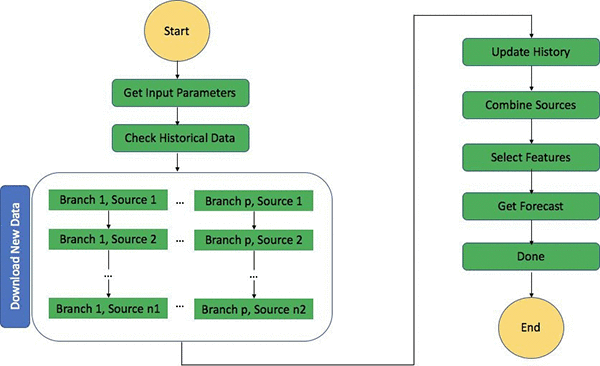
The flowchart above details the individual steps that consist of the entire step function. The step function coordinates downloading of new data, updating of the historical data, and generating new inferences so that the whole process can be carried out in a single continuous workflow.

Although we built the state machine around a daily schedule, it employs two modes of data retrieval. By default, the state machine downloads data daily. A user can manually trigger the process to download the full historical data on demand as well for setup or recovery. The step function calls multiple API actions to gather the data, each with different latencies. The data gathering processes run in parallel. This step also performs all the required preprocessing, and stores the data in S3 organized by time-stamped prefixes.

The next step updates the historical data for each component by appending the respective daily elements. Additional processing prepares it in the format that DeepAR requires and sends the data to another designated folder.

The model then triggers an Amazon SageMaker batch transform job that pulls the data from that location, generates the forecast, and finally stores the result in another time-stamped folder. An Amazon QuickSight dashboard picks up the forecast and displays it to the analysts.

Packaging required dependencies into AWS Lambda functions

We set up Python pandas and the scikit-learn (sklearn) library to handle most of the data preprocessing. These libraries aren’t available by default for import into a Lambda function that Step Function calls. To adapt, we packaged the Lambda function Python script and its necessary imports into a .zip file.

cd ../package
pip install requests --target .
pip install pandas --target .
pip install lxml --target .
pip install boto3 --target .
zip -r9 ../lambda_function_codes/lambda_all.zip .
cd -
zip -g lambda_all.zip util.py lambda_data_ingestion.py

This additional code uploads the .zip file to the target Lambda function:

aws lambda update-function-code 
  --function-name update_history 
  --zip-file fileb://lambda_all.zip

Exception handling

One of the common challenges of writing robust production code is anticipating possible failure mechanisms and mitigating them. Without instructions to handle unusual events, the pipeline can fall apart.

Our pipeline presents two major potentials for failure. First, our data ingestion relies on external API data feeds, which could experience downtime, leading our queries to fail. In this case, we set a fixed number of retry attempts before the process marks the data feed temporarily unavailable. Second, feeds may not provide updated data and instead return old information. In this case, the API actions do not return errors, so our process needs the ability to decide for itself if the information is new.

Step Functions provide a retry option to automate the process. Depending on the nature of the exception, we can set the interval between two successive attempts (IntervalSeconds) and the maximum number of times to try the action (MaxAttempts). The parameter BackoffRate=1 arranges the attempts at a regular interval, whereas BackoffRate=2 means every interval is twice the length of the previous one.

"Retry": [
    {
      "ErrorEquals": [ "DataNotAvailableException" ],
      "IntervalSeconds": 3600,
      "BackoffRate": 1.0,
      "MaxAttempts": 8
    },
    {
      "ErrorEquals": [ "WebsiteDownException" ],
      "IntervalSeconds": 3600,
      "BackoffRate": 2.0,
      "MaxAttempts": 5
    }
]

Flexibility in data retrieval modes

We built the Step Function state machine to provide functionality for two distinct data retrieval modes:

  • A historical data pull to grab the entire existing history of the data
  • A refreshed data pull to grab the incremental daily data

The Step Function normally only has to extract the historical data one time in the beginning and store it in the S3 data lake. The stored data grows as the state machine appends new daily data. The option to refresh the historical data exists by setting the parameter full_history_download to True in the Lambda function that the CheckHistoricalData step calls. Doing so refreshes the entire dataset.

import json
from datetime import datetime
import boto3
import os

def lambda_handler(payload, context):
    if os.environ['full_history_download'] == 'True':
        print("manual historical data download required")
        return { 'startdate': payload['firstday'], 'pull_type': 'historical' }

    s3_bucket_name = payload['s3_bucket_name']
    historical_data_path = payload['historical_data_path']

    s3 = boto3.resource('s3')
    bucket = s3.Bucket(s3_bucket_name)
    objs = list(bucket.objects.filter(Prefix=historical_data_path))
    print(objs)

    if (len(objs) > 0) and (objs[0].key == historical_data_path):
        print("historical data exists")
        return { 'startdate': payload['today'], 'pull_type': 'daily' }
    else:
        print("historical data does not exist")
        return { 'startdate': payload['firstday'], 'pull_type': 'historical' }

Building the forecasting model

We built the ML model in Amazon SageMaker. After putting together a collection of historical data on S3, we cleaned and prepared it using popular Python libraries such as pandas and sklearn.

A separate Amazon SageMaker ML algorithm called principal component analysis (PCA) was used to perform the feature engineering. To reduce the scope of our feature space while preserving information and creating desirable features, we applied PCA to our dataset before training our forecasting model.

We used a separate Amazon SageMaker ML algorithm called DeepAR as the forecasting model. DeepAR is a custom forecasting algorithm that specializes in processing time-series data. Amazon originally used the algorithm for product demand forecasting. Its ability to predict consumer demand based on temporal data and various external factors made the algorithm a strong choice to predict the fluctuations in energy price based on usage.

The following figure demonstrates some modelling results. We tested the model on available 2018 data after training it on historical data. A benefit of using the DeepAR model is that it returns a confidence interval from 10%-90%, providing a forecasted range. Zooming in to different time periods of the forecast, we can see that DeepAR excels at reproducing past periodic temporal patterns compared to the actual price records.
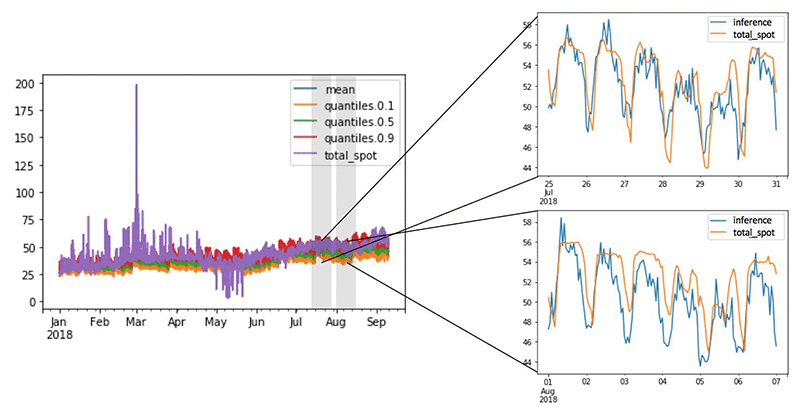
Above shows a comparison between values predicted by the DeepAR model versus the actual values over the test set of January to September 2018.

Amazon SageMaker also provides a straightforward way to perform hyperparameter optimization (HPO). After model training, we tuned the hyperparameters of the model to extract incrementally better model performance. Amazon SageMaker HPO uses Bayesian optimization to search the hyperparameter space and identify the ideal parameters for different models.

The Amazon SageMaker HPO API makes it simple to specify resource constraints such as the number of training jobs and computing power allocated to the process. We chose to test ranges for common parameters important to the DeepAR structure, such as the dropout rate, embedding dimension, and the number of layers in the neural network.

from sagemaker.tuner import IntegerParameter, CategoricalParameter, ContinuousParameter, HyperparameterTuner

objective_metric_name = 'test:RMSE'

hyperparameter_ranges = {'num_layers': IntegerParameter(1, 4),
                        'dropout_rate': ContinuousParameter(0.05, 0.2),
                        'embedding_dimension': IntegerParameter(5, 50)}
                       
tuner = HyperparameterTuner(estimator_DeepAR,
                    objective_metric_name,
                    hyperparameter_ranges,
                    objective_type = "Minimize",
                    max_jobs=30,
                    max_parallel_jobs=2)
                    
data_channels = {"train": "{}{}/train/".format(s3_data_path, model_name),
                "test": "{}{}/test/".format(s3_data_path, model_name)}
                
 
tuner.fit(inputs=data_channels, wait=False)

Packaging modeling steps into an Amazon SageMaker inference pipeline with sklearn containers

To implement and deploy an ML model effectively, we had to ensure that the data input format and processing from the inference matched up with the format and processing used for model training.

Our model pipeline uses sklearn functions for data processing and transformations, as well as a PCA feature engineering step before training using DeepAR. To preserve this process in an automated pipeline, we used prebuilt sklearn containers within Amazon SageMaker and the Amazon SageMaker inference pipelines model.

Within the Amazon SageMaker SDK, a set of sklearn classes handles end-to-end training and deployment of custom sklearn code. For example, the following code shows a sklearn Estimator executing an sklearn script in a managed environment. The managed sklearn environment is an Amazon Docker container that executes functions defined in the entry_point Python script. We supplied the preprocessing script as a .py file path. After fitting the Amazon SageMaker sklearn model on the training data, we can ensure that the same pre-fit model processes the data at inference time.

from sagemaker.sklearn.estimator import SKLearn

script_path = 'sklearn_preprocessing.py'

sklearn_preprocessing = SKLearn(
    entry_point=script_path,
    train_instance_type="ml.c4.xlarge",
    role=Sagemaker_role,
    sagemaker_session=sagemaker_session)
 
sklearn_preprocessing.fit({'train': train_input})

After this, we strung together the modeling sequence using Amazon SageMaker inference pipelines. The PipelineModel class within the Amazon SageMaker SDK creates an Amazon SageMaker model with a linear sequence of two to five containers to process requests for data inferences. With this, we can define and deploy any combination of trained Amazon SageMaker algorithms or custom algorithms packaged in Docker containers.

Like other Amazon SageMaker model endpoints, the process handles pipeline model invocations as a sequence of HTTP requests. The first container in the pipeline handles the initial request, and then the second container handles the intermediate response, and so on. The last container in the pipeline eventually returns the final response to the client.

A crucial consideration when constructing a PipelineModel is to note the data formatting for both the input and output for each container. For example, the DeepAR model requires a specific data structure for input data during training and a JSON Lines data format for inference. This format is different from supervised ML models because a forecasting model requires additional metadata, such as the starting date and the time interval of the time-series data.

from sagemaker.model import Model
from sagemaker.pipeline import PipelineModel

sklearn_inference_model = sklearn_preprocessing.create_model()

PCA_model_loc="s3://..."
PCA_inference_model = Model(model_data=PCA_model_loc,
                               image=PCA_training_image, 
                               name="PCA-inference-model", 
                               sagemaker_session=sagemaker_session)


DeepAR_model_loc="s3://..."
DeepAR_inference_model = Model(model_data=DeepAR_model_loc,
                               image=deepAR_training_image, 
                               name="DeepAR-inference-model", 
                               sagemaker_session=sagemaker_session)

DeepAR_pipeline_model_name = "Deep_AR_pipeline_inference_model"

DeepAR_pipeline_model = PipelineModel(
    name=DeepAR_pipeline_model_name, role=Sagemaker_role, 
    models=[sklearn_inference_model, PCA_inference_model, DeepAR_inference_model])

After creation, using a pipeline model provided the benefit of a single endpoint that could handle inference generation. Besides ensuring that preprocessing on training data matched that at inference time, we can deploy a single endpoint that runs the entire workflow from data input to inference generation.

Model deployment using batch transform

We used Amazon SageMaker batch transform to handle inference generation. You can deploy a model in Amazon SageMaker in one of two ways:

  • Create a persistent HTTPS endpoint where the model provides real-time inference.
  • Run an Amazon SageMaker batch transform job that starts an endpoint, generates inferences on the stored dataset, outputs the inference predictions, and then shuts down the endpoint.

Due to the specifications of this energy forecasting project, the batch transform technique proved the better choice. Instead of real-time predictions, Kinect Energy wanted to schedule daily data collection and forecasting, and use this output for their trading analysis. With this solution, Amazon SageMaker takes care of starting up, managing, and shutting down the required resources.

DeepAR best practices suggest that the entire historical time-series for the target and dynamic features should be provided to the model at both training and inference. This is because the model uses data points further back to generate lagged features and input datasets can grow very large.

To avoid the usual 5-MB request body limit, we created a batch transform using the inference pipeline model and set the limit for input data size using the max_payload argument. Then, we generated input data using the same function we used on the training data and added it to an S3 folder. We could then point the batch transform job to this location and generate an inference on that input data.

input_location = "s3://...input"
output_location = "s3://...output"

DeepAR_pipelinetransformer=sagemaker.transformer.Transformer(
    base_transform_job_name='Batch-Transform',
    model_name=DeepAR_pipeline_model_name,
    instance_count=1,
    instance_type='ml.c4.xlarge',
    output_path=output_location,
    max_payload=100)
    
DeepAR_pipelinetransformer.transform(input_location, content_type="text/csv")

Automating inference generation

Finally, we created a Lambda function that generates daily forecasts. To do this, we converted the code to the Boto3 API so Lambda can use it.

The Amazon SageMaker SDK library lets us access and invoke the trained ML models, but is far larger than the 50-MB limit for including in a Lambda function. Instead, we used the natively-available Boto3 library.

# Create the json request body
batch_params = {
    "MaxConcurrentTransforms": 1,
    "MaxPayloadInMB": 100,
    "ModelName": model_name,
    "TransformInput": {
        "ContentType": "text/csv",
        "DataSource": {
            "S3DataSource": {
                "S3DataType": "S3Prefix",
                "S3Uri": input_data_path
            }
        },
    },
    "TransformJobName": job_name,
    "TransformOutput": {
        "S3OutputPath": output_data_path
    },
    "TransformResources": {
        "InstanceCount": 1,
        "InstanceType": 'ml.c4.xlarge'
    }
}

# Create the SageMaker Boto3 client and send the payload
sagemaker = boto3.client('sagemaker')
ret = sagemaker.create_transform_job(**batch_params)

Conclusion

Along with the Kinect Energy team, we were able to create an automated data ingestion and inference generation pipeline. We used AWS Lambda and AWS Step Functions to automate and schedule the entire process.

In the Amazon SageMaker platform, we built, trained, and tested a DeepAR forecasting model to predict electricity spot prices. Amazon SageMaker inference pipelines combined preprocessing, feature engineering, and model output steps. A single Amazon SageMaker batch transform job could put the model into production and generate an inference. These inferences now help Kinect Energy make more accurate predictions of spot prices and improve their electricity price trading capabilities.

The Amazon ML Solutions Lab engagement model provided the opportunity to deliver a production-ready ML model. It also gave us the chance to train the Kinect Energy team on data science practices so that they can maintain, iterate, and improve upon their ML efforts. With the resources provided, they can expand to other possible future use cases.

Get started today! You can learn more about Amazon SageMaker and kickoff your own Machine Learning solution by visiting the Amazon SageMaker console.


About the Authors

Han Man is a Data Scientist with AWS Professional Services. He has a PhD in engineering from Northwestern University and has several years of experience as a management consultant advising clients across many industries. Today he is passionately working with customers to develop and implement machine learning, deep learning, & AI solutions on AWS. He enjoys playing basketball in his spare time and taking his bulldog, Truffle, to the beach.


Arkajyoti Misra is a Data Scientist working in AWS Professional Services. He loves to dig into Machine Learning algorithms and enjoys reading about new frontiers in Deep Learning.


Matt McKenna is a Data Scientist focused on machine learning in Amazon Alexa, and is passionate about applying statistics and machine learning methods to solve real world problems. In his spare time, Matt enjoys playing guitar, running, craft beer, and rooting for Boston sports teams.


Many thanks to Kinect Energy team who worked on the project. Special thanks to following leaders from Kinect Energy who encouraged and reviewed the blog post.

  • Tulasi Beesabathuni: Tulasi is the squad lead for both Artificial Intelligence / Machine Learning and Box / OCR (content management) at World Fuel Services. Tulasi oversaw the initiation, development and deployment of the Power Prediction Model and employed his technical and leadership skillsets to complete the team’s first use case using new technology.
  • Andrew Stypa: Andrew is the lead business analyst for the Artificial Intelligence / Machine learning squad at World Fuel Services. Andrew used his prior experiences in the business to initiate the use case and ensure that the trading team’s specifications were met by the development team.


Managing Amazon Lex session state using APIs on the client

Anyone who has tried building a bot to support interactions knows that managing the conversation flow can be tricky. Real users (people who obviously haven’t rehearsed your script) can digress in the middle of a conversation. They could ask a question related to the current topic or take the conversation in an entirely new direction. Natural conversations are dynamic and often cover multiple topics.

In this post, we review how APIs can be used to manage a conversation flow that contains switching to a new intent or returning to a prior intent. The following screenshot shows an example with a real user and a human customer service agent.

In the example above, the user query regarding the balance (“Wait – What’s the total balance on the card?”) is a digression from the main goal of making a payment. Changing topics comes easy to people. Bots have to store the state of the conversation when the digression occurs, answer the question, and then return to the original intent, reminding the user of what they’re waiting on.

For example, they have to remember that the user wants to make a payment on the card. After they store the data related to making a payment, they switch contexts to pull up the information on the total balance on the same card. After responding to the user, they continue with the payment. Here’s how the conversation can be broken down into two separate parts:

Figure 2: Digress and Resume

For a tastier example, consider how many times you’ve said, “Does that come with fries?” and think about the ensuing conversation.

Now, let’s be clear:  you could detect a digression with a well-constructed bot. You could switch intents on the server-side using Lambda functions, persist conversation state with Amazon ElastiCache or Amazon DynamoDB, or return to the previous intent with pre-filled slots and a new prompt. You could do all of this today. But you’d have to write and manage code for a real bot that does more than just check the weather, which is no easy task. (Not to pick on weather bots here, I find myself going on tangents just to find the right city!)

So, what are you saying?

Starting today, you can build your Amazon Lex bots to address these kinds of digressions and other interesting redirects using the new Session State API. With this API, you can now manage a session with your Amazon Lex bot directly from your client application for granular control over the conversation flow.

To implement the conversation in this post, you would issue a GetSession API call to Amazon Lex to retrieve the intent history for the previous turns in the conversation. Next, you would direct the Dialog Manager to use the correct intent to set the next dialog action using the PutSession operation. This would allow you to manage the dialog state, slot values, and attributes to return the conversation to a previous step.

In the earlier example, when the user queries about the total balance, the client can handle the digression by placing calls to GetSession followed by PutSession to continue the payment. The response from the GetSession operation includes a summary of the state of the last three intents that the user interacted with. This includes the intents MakePayment (accountType: credit, amount: $100), and AccountBalance. The following diagram shows the GetSession retrieval of the intent history.

A  GetSession request object in Python contains the following attributes:

response = client.get_session(
 botName='BankBot',
 botAlias='Prod',
 userId='ae2763c4'
)

A GetSession response object in Python contains the following attributes:

{
 'recentIntentSummaryView': [
  {
   'intentName': 'AccountBalance',
   'slots': {
    'accountType': 'credit'
   },
   'confirmationStatus': 'None',
   'dialogActionType': 'Close',
   'fulfillmentState': 'Fulfilled'
  },
  {
   'intentName': 'MakePayment',
   'slots': {
    'accountType': 'credit',
    'amount': '100'
   },
   'confirmationStatus': 'None',
   'dialogActionType': 'ConfirmIntent'
  },
  {
   'intentName': 'Welcome',
   'slots': {},
   'confirmationStatus': 'None',
   'dialogActionType': 'Close',
   'fulfillmentState': 'Fulfilled'
  }
 ],
 'sessionAttributes': {},
 'sessionId': 'XXX',
 'dialogAction': {
  'type': 'Close',
  'intentName': 'AccountBalance',
  'slots': {
   'accountType': 'credit'
   },
  'fulfillmentState': 'Fulfilled'
 }
}

Then, the application selects the previous intent and calls PutSession for MakePayment followed by Delegate. The following diagram shows that PutSession resumes the conversation.

A PutSession request object in Python for the MakePayment intent contains the following attributes:

response = client.put_session(
 botName='BankBot',
 botAlias='Prod',
 userId='ae2763c4',
 dialogAction={
  'type':'ElicitSlot',
  'intentName':'MakePayment',
  'slots': {
   'accountType': 'credit'
  },
  'message': 'Ok, so let’s continue with the payment. How much would you like to pay?',
  'slotToElicit': 'amount',
  'messageFormat': 'PlainText'
 },
 accept = 'text/plain; charset=utf-8'
)

 A PutSession response object in Python contains the following attributes:

{
 'contentType': 'text/plain;charset=utf-8',
 'intentName': 'MakePayment',
 'slots': {
  'amount': None,
  'accountType': 'credit'
 },
 'message': 'Ok, so let’s continue with the payment. How much would you like to pay?',
 'messageFormat': 'PlainText',
 'dialogState': 'ElicitSlot',
 'slotToElicit': 'amount',
 'sessionId': 'XXX'
}

You can also use the Session State API operations to start a conversation. You can have the bot start the conversation. Create a “Welcome” intent with no slots and a response message that greets the user with “Welcome. How may I help you?” Then call the PutSession operation, set the intent to “Welcome” and set the dialog action to Delegate.

A PutSession request object in Python for the “Welcome” intent contains the following attributes:


response = client.put_session(
  botName='BankBot',
  botAlias='Prod',
  userId='ae2763c4',
  dialogAction={
    'type':'Delegate',
    'intentName':'Welcome'
  },
  accept='text/plain; charset=utf-8'
)

A PutSession response object in Python contains the following attributes:

{
 'contentType': 'text/plain;charset=utf-8',
 'intentName': 'Welcome',
 'message': 'Welcome to the Banking bot. How may I help you?',
 'messageFormat': 'PlainText',
 'dialogState': 'Fulfilled',
 'sessionId': 'XXX'
}

Session State API operations are now available using the SDK.

For more information about incorporating these techniques into real bots, see the Amazon Lex documentation and FAQ page. Want to learn more about designing bots using Amazon Lex? See the two-part tutorial, Building Better Bots Using Amazon Lex! Check out the Alexa Design Guide for tips and tricks. Got .NET?  Fret not. We’ve got you covered with Bots Just Got Better with .NET and the AWS Toolkit for Visual Studio.


About the Authors

Minaxi Singla works as a Software Development Engineer in Amazon AI contributing to microservices that enable human-like experience through chatbots. When not working, she can be found reading about software design or poring over Harry Potter series one more time.


Pratik Raichura is a Software Development Engineer with Amazon Lex team. He works on building scalable distributed systems that enhance Lex customer experience. Outside work, he likes to spend time reading books on software architecture and making his home smarter with AI.
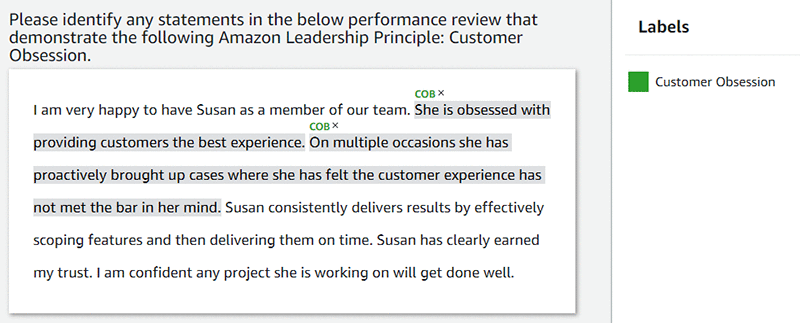



Adding a data labeling workflow for named entity recognition with Amazon SageMaker Ground Truth

Launched at AWS re:Invent 2018, Amazon SageMaker Ground Truth enables you to efficiently and accurately label the datasets required to train machine learning (ML) systems. Ground Truth provides built-in labeling workflows that take human labelers step-by-step through tasks and provide tools to help them produce good results. Built-in workflows are currently available for object detection, image classification, text classification, and semantic segmentation labeling jobs.

Today, AWS launched support for a new use case: named entity recognition (NER). NER involves sifting through text data to locate noun phrases called named entities, and categorizing each with a label, such as “person,” “organization,” or “brand.” So, in the statement “I recently subscribed to Amazon Prime,” “Amazon Prime” would be the named entity and could be categorized as a “brand.”

You can broaden this use case to label longer spans of text and categorize those sequences with any pre-specified labels. For example, the following screenshot identifies spans of text in a performance review that demonstrate the Amazon leadership principle “Customer Obsession.”

Overview

In this post, I walk you through the creation of a NER labeling job:

  1. Gather a dataset.
  2. Create the labeling job.
  3. Select a workforce.
  4. Create task instructions.

For this exercise, your NER labeling task is to identify brand names from a dataset. I have provided a sample dataset of ten tweets from the Amazon Twitter account. Alternatively, feel free to bring your own dataset, and define a specific NER labeling task that is relevant to your use case.

Prerequisites

To follow the steps outlined in this post, you need an AWS account and access to AWS services.

Step 1: Gather your dataset and store data in Amazon S3

Gather the dataset to label, save it to a text file, and upload the file to Amazon S3. For example, I gathered 10 tweets, saved them to a text file with one tweet per return-separated line, and uploaded the text file to an S3 bucket called “ner-blog.” For your reference, the following box contains the uploaded tweets from the text file.

Don’t miss the 200th episode of Today’s Deals Live TODAY! Tune in to watch our favorite moments and celebrate our 200th episode milestone! #AmazonLive (link: https://amzn.to/2JQ2vDm) amzn.to/2JQ2vDm
It's the thought that counts, but our Online Returns Center makes gift exchanges and returns simple (just in case!) https: (link: https://amzn.to/2l6qYKG) amzn.to/2l6qYKG
Did you know you can trade in select Apple, Samsung, and other tablets? With the Amazon Trade-in program, you can receive an Amazon Gift Card + 25% off toward a new Fire tablet when you trade in your used tablets. (link: https://amzn.to/2Ybdu1Y) amzn.to/2Ybdu1Y
Thank you, Prime members, for making this #PrimeDay the largest shopping event in our history! You purchased more than 175 million items, from devices to groceries!
Hip hip for our Belei charcoal mask! This staple in our skincare line is a @SELFMagazine 2019 Healthy Beauty Award winner.
Looking to take your photography skills to the next level? Check out (link: http://amazon.com/primeday) amazon.com/primeday for an amazing camera deal.
Is a TV on your #PrimeDay wish list? Keep your eyes on (link: http://amazon.com/primeday) amazon.com/primeday for a TV deal soon.
Improve your musical talents by staying in tune on (link: http://amazon.com/primeday) amazon.com/primeday for an acoustic guitar deal launching soon.
.@LadyGaga’s new makeup line, @HausLabs, is available now for pre-order! #PrimeDay (link: http://amazon.com/hauslabs) amazon.com/hauslabs
#PrimeDay ends tonight, but the parade of deals is still going strong. Get these deals while they’re still hot! (link: https://amzn.to/2lgqZM3) amzn.to/2lgqZM3

Step 2: Create a labeling job

  1. In the Amazon SageMaker console, choose Labeling jobs, Create labeling job.
  2. To set up the input dataset location, choose Create manifest file.
  3. Point to the S3 location of the text file that you uploaded in Step 1, and select Text, Create.
  4. After the creation process finishes, choose Use this manifest, and complete the following fields:
    • Job name—Custom value.
    • Input dataset location—S3 location of the text file to label. (The previous step should have populated this field.)
    • Output dataset location—S3 location to which Amazon SageMaker sends labels and job metadata.
    • IAM Role—A role that has read and write permissions for this task’s Input dataset and Output dataset locations in S3.
  5. Under Task type, for Task Category, choose Text.
  6. For Task selection, select Named entity recognition.

Step 3: Selecting a labeling workforce

The Workers interface offers three Worker types:

The console includes other Workers settings, including Price per task and the optional Number of workers per dataset.

For this demo, use Public. Set Price per task at $0.024. Mechanical Turk workers should complete the relatively straightforward task of identifying brands in a tweet in 5–7 seconds.

Use the default value for Number of workers per dataset object (in this case, a single tweet), which is 3. SageMaker Ground Truth asks three workers to label each tweet and then consolidates those three workers’ responses into one high-fidelity label. To learn more about consolidation approaches, see Annotation Consolidation.

Step 4: Creating the labeling task instructions

While critically important, effective labeling instructions often require significant iteration and experimentation. To learn about best practices for creating high-quality instructions, see Create high-quality instructions for Amazon SageMaker Ground Truth labeling jobs. Our exercise focuses on identifying brand names in tweets. If there are no brand names in a specific tweet, the labeler has the option of indicating there are no brands in the tweet.

An example of labeling instructions is shown on the following screenshot.

Conclusion

In this post, I introduced Amazon SageMaker Ground Truth data labeling. I showed you how to gather a dataset, create a NER labeling job, select a workforce, create instructions, and launch the job. This is a small labeling job with only 10 tweets and should be completed within one hour by Mechanical Turk workers. Visit the AWS Management Console to get started.

As always, AWS welcomes feedback. Please submit comments or questions below.


About the Author

Vikram Madan is the Product Manager for Amazon SageMaker Ground Truth. He focusing on delivering products that make it easier to build machine learning solutions. In his spare time, he enjoys running long distances and watching documentaries.