Blog

Learn About Our Meetup

5000+ Members

MEETUPS

LEARN, CONNECT, SHARE

Join our meetup, learn, connect, share, and get to know your Toronto AI community. 

JOB POSTINGS

INDEED POSTINGS

Browse through the latest deep learning, ai, machine learning postings from Indeed for the GTA.

CONTACT

CONNECT WITH US

Are you looking to sponsor space, be a speaker, or volunteer, feel free to give us a shout.

Category: Amazon

Amazon Comprehend now support KMS encryption

Amazon Comprehend is a fully managed natural language processing (NLP) service that enables text analytics for important workloads. For example, analyzing market research reports for key market indicators or data that contains PII information. Customers that work with highly sensitive, encrypted data can now easily enable Comprehend to work with this encrypted data via an integration with the AWS Key Management Service.

AWS KMS makes it easy for you to create and manage keys and control the use of encryption across a wide range of AWS services and in your applications. AWS KMS is a secure and resilient service that uses FIPS 140-2 validated hardware security modules to protect your keys. AWS KMS is integrated with AWS CloudTrail to provide you with logs of all key usage to help meet your regulatory and compliance needs.

To enable Comprehend to use KMS keys to access data, the feature can be configured via the AWS Management console or the SDK and supports Amazon Comprehend asynchronous training and inference jobs. To get started you first need to create a key in the AWS KMS service.  To learn more about how to create KMS keys, please visit: https://docs.aws.amazon.com/kms/latest/developerguide/create-keys.html

When you are configuring an asynchronous job, you can specify the KMS encryption key the Comprehend should use to access your data in S3. Below is an example of selecting a key with the alias “Comprehend” as part of configuring job details, in the Amazon Comprehend console:

To manage your AWS KMS keys, please visit the AWS KMS management portal or use the KMS SDK.  For more information, please visit: AWS Key Management Service. To learn more about how to configure Comprehend jobs to work with KMS keys, please visit our documentation:


About the author

Nino Bice is a Sr. Product Manager leading product for Amazon Comprehend, AWS’s natural language processing service.


AWS DeepRacer League hits the road for more fun and excitement for developers!

From developer to machine learning developer

The AWS DeepRacer League is the world’s first autonomous racing league open to developers of all skill levels and it kicked off last week in Santa Clara, California. Chris Miller was crowned our first champion of the 2019 season. Chris is the founder of Cloud Brigade, based in Santa Cruz, California, and he came to the AWS Summit specifically to learn more about machine learning.

At AWS, we are committed to putting machine learning in the hands of all developers of all skill levels, making their experiences with machine learning fun and easy. At Santa Clara, our top three finishers all built a model in one of the onsite workshops and had a lot of fun doing it.

Chris Miller achieved a winning lap time of 10.43 seconds, and will now be advancing the finals at re:Invent 2019 where he will race to win the AWS DeepRacer Championship Cup. Before he arrived at the AWS Summit, he had no experience with machine learning.

Chris says, “When I got here today, I had no experience with machine learning, but that’s exactly what I came here to learn and what a great way to learn machine learning.”

Rahul Shah from Fremont, California came in second place. He was pleasantly surprised by how successful his model was and had a lot of fun with AWS DeepRacer. Rahul has been working with machine learning for the past few years, but this was his first time working with reinforcement learning.

“Working on this was easy, and any developer would be able to have success. The DeepRacer event is a really fun and exciting thing to do at the AWS Summit,” Rahul said.

The third-place finisher was Adrian Sarno from San Mateo, California. Adrian is a data scientist and has been actively involved with machine learning for most of his career. Attending the workshop and participating in the league was his first experience with reinforcement learning and he was curious to learn this advanced ML technique. Adrian’s first attempt at building his model was not as successful as he wanted it to be. When he realized what was at stake, he took to his keyboard and retrained his model for 2 hours. Then he returned with a model that scored him a podium finish.

Adrian says, “It’s straightforward to work with the applications that have been put together.”

All of our participants are excited to experiment more and use the coming months to get more advanced models ready to compete at re:Invent 2019. There, they can use their new found skills to help them win the AWS DeepRacer Championship Cup. 

Heading to Paris to reach developers globally

And it doesn’t end there. The AWS DeepRacer League made its first international stop at the AWS Summit in Paris, France yesterday. Paris is fast becoming a hub for learning and research on artificial intelligence. The French government has plans to invest in Paris to help enable the AI ecosystem in France and the rest of Europe. Such an investment can encourage a large community of developers to learn with easy access to the tools they need to become machine learning developers just like Chris, Rahul, and Adrian.

Today, at the AWS Summit in Paris, the AWS DeepRacer League welcomed more developers to learn, build, and train models to compete. The podium was filled with developers who came to the Summit to participate in the league and each of them had spent time on their models at home before arriving. Positions changed throughout the afternoon as they learned more. In a tense final 60 minutes of racing, Arthur Pace from Paris, took home the Paris Summit Champion cup with a lap time of 13.87 seconds. Second place went to “JO” (Wajdi Fathallah), who attended a DeepRacer meet up before the AWS Summit and secured a 15.5 second lap. The third place finisher was Matthieu Rousseau (16.00 seconds). Matthieu worked on his model with fellow engineering student (and Paris Champion) Arthur Pace for the last 2 weeks in order to land on the podium!

The 2019 developer journey continues

On April 10, the AWS DeepRacer League will be at the AWS Summit in Singapore. The Summit there offers an opportunity to get hands-on with AWS DeepRacer. There will be multiple workshops and hours of live racing. You can follow the action live on at www.deepracerleague.com. Coming soon is the AWS DeepRacer Virtual League. Get ready today by taking the digital training course for reinforcement learning and AWS DeepRacer.

Developers, start your engines! Your journey to becoming a machine learning developer begins with the AWS DeepRacer League.


About the Author

Alexandra Bush is a Senior Product Marketing Manager for AWS AI. She is passionate about how technology impacts the world around us and enjoys being able to help make it accessible to all. Out of the office she loves to run, travel and stay active in the outdoors with family and friends.


Create high-quality instructions for Amazon SageMaker Ground Truth labeling jobs

Amazon SageMaker Ground Truth helps you quickly build highly accurate training datasets for machine learning (ML). You can use your own workers, a choice of vendor-managed workforces that specialize in data labeling, or a public workforce powered by Amazon Mechanical Turk to provide the human-generated labels. To get high-quality labels, you must provide simple, concise, and clear instructions, especially when using a public workforce. Writing good instructions is the single most important action you can take to improve annotation quality. It’s worth investing the time to do it right.

This blog post shares best practices for creating highly effective instructions for a public workforce. There are two key points: reduce the cognitive load for the workers as much as possible, and experiment early in the process to fine-tune your instructions and save yourself trouble later on. You can experiment by labeling some of your data yourself and by submitting small jobs to the public workforce throughout the process.

The following screenshot shows an example of a Ground Truth bounding box labeling task with good instructions from the worker’s perspective. In this example task, we ask workers to draw boxes around flowers in images taken from the Google Open Images Dataset. The left side of image shows the short instructions that are constantly visible in a sidebar while the worker is annotating. They are clear, to the point, specialized to the task, and focused on example images.

The following figure shows an example of the full instructions that a worker can see by choosing View full instructions in the sidebar. They clarify ambiguities that could confuse the worker. By the end of this post, you’ll be able to create high-quality instructions for your own labeling job.

Our recommended workflow

The quickest way to create good instructions is use the tools provided by Ground Truth to annotate some of your own data. You can then use the results as examples in your instructions. To do this, you should take the following steps:

  1. Select a small number of examples from your data.
  2. Run a private job on Ground Truth to label your chosen examples.
  3. Create the short instructions using your results. Focus on example images and small amounts of text.
  4. Create the full instructions to clarify ambiguities in the task.
  5. Run a small public job to test the instructions. Iterate on the results until you are satisfied.
  6. Consider simplifying your task, and set a reasonable price.

Note: Running the private labeling jobs will cost $0.08 per example. For pricing details, see the Amazon SageMaker Ground Truth pricing page.

After you have produced high-quality instructions, you can send your full labeling job out to the public workforce. Let’s go over each step in the checklist.

Select a small number of examples from your data

Browse your dataset and select examples that capture the variety in your data. Choosing examples from the items you want to label (as opposed to generic examples) ensures the instructions will help annotators understand your specific task.

Here, we select images with different numbers of flowers of various shapes and sizes. The flowers in some of these images are hidden behind others or touch the edge of the frame. Choosing a variety of cases makes it easier to find good examples for creating the instructions. It also gives you insight into the difficulty of the task from the worker’s point of view.

Run a private job on Ground Truth to label your chosen examples

A previous blog post described how to run a labeling job using the AWS Management Console. You should follow the method described there to label the examples you chose from the previous section. You need to add the images you have selected to a manifest file, create a private work team with your own email address, and select one annotator per example. There’s no reason for you to label the same example multiple times.

Running this private job gives you perspective on what you want to accomplish with your labeling job, the difficulty of the task, and the tools the annotators will be using. Make a record of the examples that were difficult or ambiguous as you work. You will need these later to write the full instructions. In addition, you should consider timing yourself to gauge how much to pay the workers for your task.

The left figure shows a preview of the bounding box tool at work. Notice that the instructions on the left side of the image have not yet been created. The right figure demonstrates the results from the private labeling job.

Create the short instructions using your results

After you finish the private labeling job, you can find the results in the Amazon SageMaker console by going to Labeling jobs and selecting the name you gave the job. The annotated examples are at the bottom of the page. For image labeling tasks, the simplest way to extract the results is to zoom in on these annotated images and take screenshots.

Ideally, narrow your results to one or two exemplary “good” instances, then create one or two images with various bad annotations illustrating what you expect to be the most common sources of failure. You can do this by re-running the private labeling job and skipping all the other examples. Alternatively, you can combine examples of good and bad annotations in a single example image to help the workers quickly understand the task. One particularly inventive strategy is to use an animated GIF that alternates between good and bad examples. For the flower labeling instructions, we use the following images for the good and bad examples, respectively:

After you have selected the example instances and extracted the results, use your favorite image editing software (such as Google Drawings, GIMP, Keynote, or PowerPoint) to put the finishing touches on the figures for your instructions. For example, you might consider placing Xs over images representing incorrect annotations.

Upload your images to an Amazon S3 bucket

Upload the images to an Amazon S3 bucket and set the object permissions so that the images are publicly available. If your S3 bucket has the default permissions, you’ll have to first change the public access settings for the bucket to allow the images to be publicly available. We strongly recommend against making the entire bucket publicly accessible. To make it possible for the images to be public, go to the Amazon S3 console, select your bucket, and choose the Permissions tab. You should see something similar to the following image:

Choose Edit, then uncheck the first two boxes. Choose Save.

A confirmation dialog box appears. Type “confirm” in the appropriate field and choose Confirm to update the public access settings.

To finish uploading the image, return to your S3 bucket overview by choosing Overview. Then choose Upload, drag and drop the file into the dialog box, and then choose Upload in the dialog box. Finally, select the image name from the S3 bucket overview and choose Make public to make the image publically accessible from the internet.

If your bucket permissions have been set correctly, a message saying Success appears.

Finally, we recommend returning to the bucket permissons tab and re-checking the first box, Block new public ACLs and uploading public objects. This prevents you from accidentally making a different object public in the future.

Use the instruction-making tool to finish creating the instructions

Finally, go to the instruction-making tool in the job creation section of the Amazon SageMaker console, create your instructions, and link to the images you gathered in your S3 bucket. You can place your images in the short instructions by choosing the image icon in the instructions tool and entering the object URL, which you can find in the S3 bucket overview by selecting the image name.

After you have added the image, you’ll see a thumbnail in the instruction-making tool.

If you instead see a broken image link icon like the one on the right in the preceding figure, double-check that you have correctly set the bucket and object permissions by following the steps in the previous section.

Many workers will only read the short instructions, so make them count. Focus on your example images, with a small amount of explanatory text in simple English. Use short sentences. Remember, the annotators are not always fluent in English, and ambiguous instructions lead to ambiguous results. Your goal is to be as explicit as possible while keeping things simple.

Create the full instructions to clarify ambiguities in the task

After you have finished writing the short instructions, choose Additional instructions in the instruction-making tool to begin working on the full instructions. Here are some points to keep in mind:

  • The full instructions should clarify ambiguities in your task. Often, annotators will only consult these if they are confused. Use your experience from the private job to anticipate sources of confusion.
  • Try not to repeat the short instructions.
  • Catching every edge case at the expense of having pages and pages of instructions is usually a mistake. In our experience, two or three additional good/bad example pairs should suffice, and further instructions yield diminishing returns.

The following figure shows the final instructions for the flower example.

Run a small public labeling job to test the instructions

After you complete the first draft of the instructions, you can create and submit a small public labeling job. Inspect the results, and look for common mistakes that aren’t addressed in the current version of the instructions. Workers often make mistakes that are different from the ones that you anticipate. It’s better to catch these early in the process than to run a large and expensive labeling job twice. You can continue to repeat this process until the results are satisfactory.

Consider simplifying your task and set a reasonable price

If your instructions are still too long, too complex, or are missing difficult examples from your data, think about how to split your task into several simpler ones. You might have noticed this image in our selection of examples:

Asking workers to label images like this for the same price as the other examples is a recipe for failure. In this case, you might first perform an image classification job to estimate the number of flowers in each image. Then, you can go back and subdivide the images with many flowers so no single image is too challenging.

As another example, consider a job that asks workers to label flowers, people, and dogs in each image. In this case you might get better results by launching three jobs, each focused on a single category. You can run these jobs in parallel or one after another and then combine the results.

As the final step in the process of creating the instructions, use your newly gained experience labeling the examples yourself to set a reasonable price for your tasks. The job creation section of the Amazon SageMaker console allows you to choose a payment for each labeled example using a drop-down menu:

You can use your records of the amount of time it took to complete the labeling jobs for the instructions together with the suggestions in the menu to select an appropriate reward.

Conclusion

Instructions specific to your data will always be superior to generic ones. Creating them might be time-consuming, but the workers will appreciate your effort. They want to complete your task as quickly as possible, and making their lives easier will improve your results.

Here are some resources if you would like to learn more about Ground Truth and making instructions for a public workforce:

Disclosure regarding the Open Images Dataset V4

Open Images Dataset V4 is created by Google Inc. In some cases we have modified the images or the accompanying annotations. You can obtain the original images and annotations here. The annotations are licensed by Google Inc. under CC BY 4.0 license. The images are listed as having a CC BY 2.0 license. The following paper describes Open Images V4 in depth: from the data collection and annotation to detailed statistics about the data and evaluation of models trained on it.

A. Kuznetsova, H. Rom, N. Alldrin, J. Uijlings, I. Krasin, J. Pont-Tuset, S. Kamali, S. Popov, M. Malloci, T. Duerig, and V. Ferrari. The Open Images Dataset V4: Unified image classification, object detection, and visual relationship detection at scale. arXiv:1811.00982, 2018. (link to PDF)


About the Authors

Tristan McKinney is an applied scientist in the Amazon ML Solutions Lab. He recently completed his PhD in theoretical physics at Caltech where he studied effective field theory and its application to high-T_c superconductors. As his father was in the US Army, he lived all over the place when growing up, including Germany and Albania. In his spare time, Tristan loves to ski and play soccer.


Krzysztof Chalupka is an applied scientist in the Amazon ML Solutions Lab. He has a PhD in causal inference and computer vision from Caltech. At Amazon, he figures out ways in which computer vision and deep learning can augment human intelligence. His free time is filled with family. He also loves forests, woodworking, and books (trees in all forms).


 Fedor Zhdanov is a Machine Learning Scientist at Amazon. He works on developing Machine Learning algorithms and tools for our internal and external customers.

Build a serverless anomaly detection tool using Java and the Amazon SageMaker Random Cut Forest algorithm

One of the problems that business owners commonly face is detecting when something unusual is happening in their business. Detecting unusual user activity or changes in daily traffic patterns are just some of the challenges. With an ever-increasing amount of data and metrics, detecting anomalies with the help of machine learning is a great way to proactively identify problems.

In this blog post we’ll explain how to build a serverless anomaly detection tool using Amazon SageMaker with Java. Amazon SageMaker makes it easy to train and host machine learning models, and the available built-in algorithms solve common business problems. To solve this particular business problem, we’ll use the Random Cut Forest (RCF) anomaly detection algorithm. Amazon Web Services offers a broad set of global cloud-based products to help organizations move faster, lower IT costs, and scale. We’ll demonstrate how these can be used to build a serverless anomaly detection tool. While Python is one of the most popular programming languages for tackling machine learning problems, many users build micro-services and serverless applications using Java and other JVM-based languages. By the end of this blog post you’ll be able to enable machine learning in your Java applications using Amazon SageMaker.

Throughout the blog post we will use Java code snippets to focus on particular aspects of the tool. You can find the code used to build and deploy this solution into your own AWS account here.

Problem overview

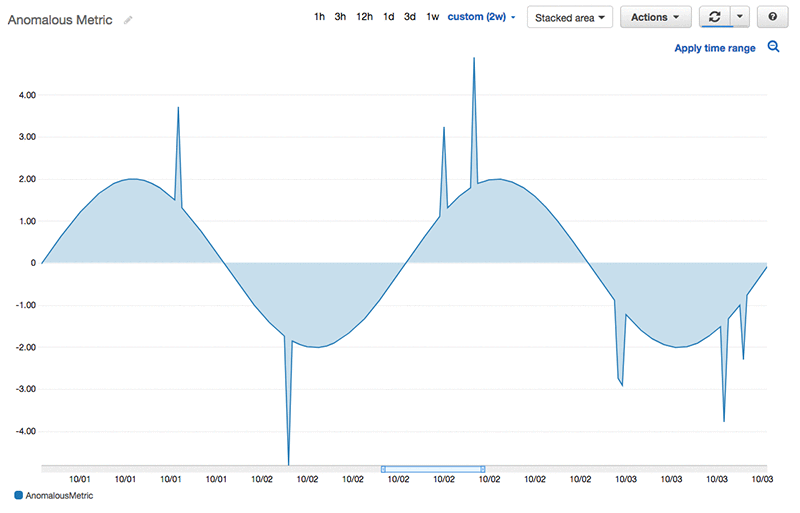
In our example, Alice is a Java developer who owns a video streaming platform that runs on top of multiple AWS services and serves thousands of customers. Alice sets up dashboards to track metrics that show how well her platform is performing. One of the most important metrics she looks at is the total number of active users of the platform, as shown in the following diagram.

This metric shows a general daily pattern of usage, but it also changes seasonally. A low number of active users, a high number of active users, and breaks of daily pattern are all considered anomalies. Alice is mostly interested in understanding the root cause for those anomalous datapoints. Currently, she doesn’t rely on automated tools for finding anomalies in the data. Instead, she goes through a manual process and spend a lot of time identifying spikes, dips, and breaks in periodicity. Fixed thresholds or threshold windows don’t work for her due to changing patterns and seasonality. She needs a better solution!

What can we do to make Alice’s life easier?

Solution architecture

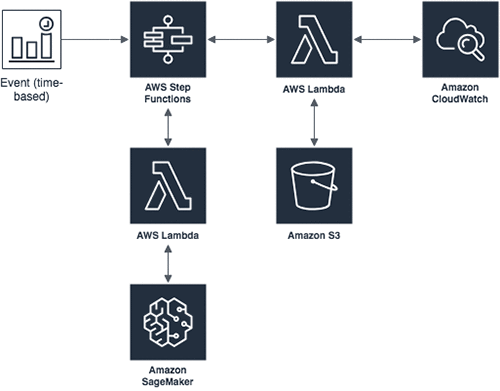
To help Alice solve her anomaly detection problem we first need to identify all the building blocks for an anomaly detection tool:

  • Amazon SageMaker– We’ll need Amazon SageMaker to easily build a model based on the historical metric data. Then, we’ll use it to find anomalous data points in current data (from the previous week). The Amazon SageMaker Random Cut Forest algorithm learns the trends in your data and after training can identify anomalies. For using your trained model to find anomalies, we can choose between two options: (1) We can host a model on an endpoint and run inference requests against that endpoint using HTTP requests. (2) We can use a batch transform job to bulk transform new metric data. We need to get results once a week, so the batch transform job seems like a better option. Hosting a model and then hitting an endpoint once a week would be a waste of resources.
  • Amazon CloudWatch Events – We’ll use Amazon CloudWatch Events to schedule a recurring weekly event that triggers our weekly transformation job. The patterns in the underlying data will change over time, so it’s important to occasionally refresh the model we’re using. We will use another CloudWatch Events rule to run a training job once per month.
  • Amazon CloudWatch Metrics– Alice stores all of her metrics in CloudWatch, which we’ll use as our data source. We’ll also publish our anomalous metric scores to CloudWatch from the batch transform job so Alice can easily view when anomalies occur.
  • Amazon S3 Amazon SageMaker uses Amazon S3 as an input data source for training and batch transform jobs. After we retrieve and preprocess CloudWatch data we will store it in S3 for our Amazon SageMaker jobs.
  • AWS Step Functions– Getting data from CloudWatch, uploading it to S3, starting the training and batch transform jobs, and publishing the results back to CloudWatch are all steps that we need so that our anomaly detection tool works as expected. Instead of writing a new service to orchestrate this workflow, we’ll use serverless technologies to simplify the process, and we’ll automate the process using AWS Step Functions. We’ll use two state machines, one for training and one for batch inference, which will ensure that all of the described steps are being executed in the correct order and that any failures are handled gracefully.
  • AWS Lambda– All the previously described actions will be executed as AWS Lambda functions, which will be triggered by the AWS Step Functions state machine. All of our Lambda functions use Java 8 and the AWS SDK. Note:  Some of the Lambda functions could potentially be replaced following recent release of Amazon SageMaker support for Amazon States Language. However, in this blog post we want to focus on the perspective of Java development to provide unified view on the subject.

The following diagram illustrates our architecture:

Training job state machine

The following diagram illustrates the training state machine:

  1. The first Lambda function (“Store CloudWatch Metric Data in S3”) gets one-month worth of metric data from CloudWatch with a resolution of 5 minutes. The Lambda function creates a CSV file containing the timestamp and a value for each of the 5-minute data points, and uploads the file to the S3 bucket.
  2. The second Lambda function (“Start SageMaker Training Job”) uses the S3 dataset created in the previous step to start an Amazon SageMaker training job. The creation of the job is executed in asynchronous fashion and the execution of the state machine continues.
    public class StartTrainingJobHandler {
    
        private static final String TRAINING_JOB_STATUS = "InProgress";
    
        private final AmazonSageMaker sagemaker;
    
        public StartTrainingJobHandler() {
            sagemaker = AmazonSageMakerClientBuilder.standard().build();
        }
    
        public StartTrainingJobOutput handleRequest(StartTrainingJobInput input, Context context) {
            StartTrainingJobConfig config = new StartTrainingJobConfig(
                input.getTimestamp(), input.getBucket(), input.getValuesKey());
            
            CreateTrainingJobRequest request = config.getTrainingJobRequest();
            sagemaker.createTrainingJob(request);
            
            return new StartTrainingJobOutput(
                input.getTimestamp(), request.getTrainingJobName(),
                TRAINING_JOB_STATUS, config.getModelOutputPath());
        }
    }

  3. Wait until the Amazon SageMaker training job is finished. If the job failed, we report the job failure and finish the execution. If the job has completed successfully we move to the next state.
    public class CheckTrainingJobStatusHandler {
    
        private final AmazonSageMaker sagemaker;
    
        public CheckTrainingJobStatusHandler() {
            sagemaker = AmazonSageMakerClientBuilder.standard().build();
        }
    
        public StartTrainingJobOutput handleRequest(StartTrainingJobOutput input, Context context) {
            DescribeTrainingJobRequest request = new DescribeTrainingJobRequest()
                .withTrainingJobName(input.getTrainingJobName());
    
            DescribeTrainingJobResult result =        sagemaker.describeTrainingJob(request);
    
            input.setTrainingJobStatus(result.getTrainingJobStatus());
            return input;
        }
    }

  4. The final Lambda function (“Create SageMaker Model”) creates an Amazon SageMaker model based on model output created in training job.
    public class CreateModelHandler {
    
        private final AmazonSageMaker sagemaker;
    
        public CreateModelHandler() {
            sagemaker = AmazonSageMakerClientBuilder.standard().build();
        }
    
        public CreateModelOutput handleRequest(CreateModelInput input, Context context) {
            ContainerDefinition containerDefinition = new ContainerDefinition()
                .withImage(RandomCutForestConfig.getAlgorithmImage())
                .withModelDataUrl(input.getModelOutputPath());
    
            CreateModelRequest request = new CreateModelRequest()
                .withExecutionRoleArn(Env.getSagemakerRoleArn())
                .withModelName(RandomCutForestConfig.ALGORITHM_NAME + "-" + input.getTimestamp())
                .withPrimaryContainer(containerDefinition);
    
            sagemaker.createModel(request);
    
            return new CreateModelOutput(request.getModelName());
        }
    }

Transform job state machine

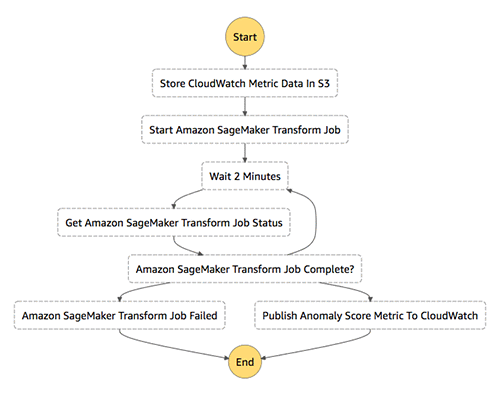
The following diagram illustrates the transform job state machine:

The following steps are executed as part of transform job state machine:

  1. We reuse same Lambda function as in the training step (“Store CloudWatch Metric Data in S3”), but we configure it to get only one week of data from CloudWatch.
  2. The second Lambda function (“Start SageMaker Transform Job”) finds the models we have trained (created by training state machine), picks the latest one, and asynchronously starts the Amazon SageMaker batch transform job.
    public class StartTransformJobHandler {
    
        private static final String TRANSFORM_JOB_STATUS = "InProgress";
    
        private static final int LIST_MODELS_MAX_RESULTS = 1;
        private static final int LATEST_MODEL_INDEX = 0;
    
        private final AmazonSageMaker sagemaker;
    
        public StartTransformJobHandler() {
            sagemaker = AmazonSageMakerClientBuilder.standard().build();
        }
    
        public StartTransformJobOutput handleRequest(StartTransformJobInput input, Context context) {
            String modelName = getLatestModelName();
            return createSageMakerTransformJob(input, modelName);
        }
    
    
        private String getLatestModelName() {
            ListModelsRequest request = new ListModelsRequest()
                    .withNameContains(ALGORITHM_NAME)
                    .withMaxResults(LIST_MODELS_MAX_RESULTS)
                    .withSortBy(ModelSortKey.CreationTime)
                    .withSortOrder(OrderKey.Descending);
    
            ListModelsResult result = sagemaker.listModels(request);
            ModelSummary modelSummary = result.getModels().get(LATEST_MODEL_INDEX);
    
            return modelSummary.getModelName();
        }
    
            private StartTransformJobOutput createSageMakerTransformJob(StartTransformJobInput input, String modelName) {
            StartTransformJobConfig config = new StartTransformJobConfig(
                input.getTimestamp(), input.getBucket(), input.getValuesKey(), input.getValuesFile(), modelName);
            CreateTransformJobRequest request = config.getTransformJobRequest();
            
            sagemaker.createTransformJob(request);
            return new StartTransformJobOutput(input.getBucket(), input.getTimestamp(),
                input.getTimestampsKey(), config.getAnomalyScoresKey(),
                request.getTransformJobName(), TRANSFORM_JOB_STATUS);
        }
    }

  3. Wait until the batch transform job finishes successfully.
    public class CheckTransformJobStatusHandler {
    
        private final AmazonSageMaker sagemaker;
    
        public CheckTransformJobStatusHandler() {
            sagemaker = AmazonSageMakerClientBuilder.standard().build();
        }
    
        public StartTransformJobOutput handleRequest(StartTransformJobOutput input, Context context) {
            DescribeTransformJobRequest request = new DescribeTransformJobRequest()
                .withTransformJobName(input.getTransformJobName());
    
            DescribeTransformJobResult result = sagemaker.describeTransformJob(request);
    
            input.setTransformJobStatus(result.getTransformJobStatus());
            return input;
        }
    }

  4. The final Lambda function (“Publish Anomaly Score Metric to CloudWatch”) gets output scores from the batch transform job. It uses a simple, standard technique for classifying anomalies in which all anomaly scores outside three standard deviations from the mean score are considered anomalous. Finally, all the data points that have been labeled as anomalous are published to CloudWatch with a value of 1, and all the data points that haven’t been marked as anomalous are published with a value of 0. To know for which timestamp to publish the anomalous score metric, we use the input dataset.
    public class AnomalousDataUploadHandler {
    
        private final AmazonCloudWatch cloudWatch;
        private final S3FileManager s3FileManager;
    
        public AnomalousDataUploadHandler() {
            cloudWatch = AmazonCloudWatchClientBuilder.standard().build();
            s3FileManager = new S3FileManager();
        }
    
        public AnomalousDataUploadOutput handleRequest(AnomalousDataUploadInput input, Context context) throws IOException {
            List<Double> anomalyScores = getAnomalyScores(input.getBucket(), input.getAnomalyScoresKey());
    
            List<Integer> anomalyIndices = findAnomalousIndices(anomalyScores);
    
            List<Long> timestamps = getTimestamps(input.getBucket(), input.getTimestampsKey());
    
            return uploadAnomalousDataToCloudWatch(timestamps, anomalyIndices, anomalyScores.size());
        }
    
        private List<Integer> findAnomalousIndices(List<Double> anomalyScores) {
            double mean = getMean(anomalyScores);
            
            double std = getStd(anomalyScores, mean);
                    double scoreCutoff = mean + 2 * std;
            
            List<Integer> anomalousIndices = getAnomalousIndices(anomalyScores, scoreCutoff);
            
            return anomalousIndices;
        }
    
    	private List<Integer> getAnomalousIndices(List<Double> anomalyScores, double scoreCutoff) {
        	  return IntStream.range(0, anomalyScores.size())
            	      .filter(i -> anomalyScores.get(i) > scoreCutoff)
            	      .boxed().collect(Collectors.toList());
        }
    
    }

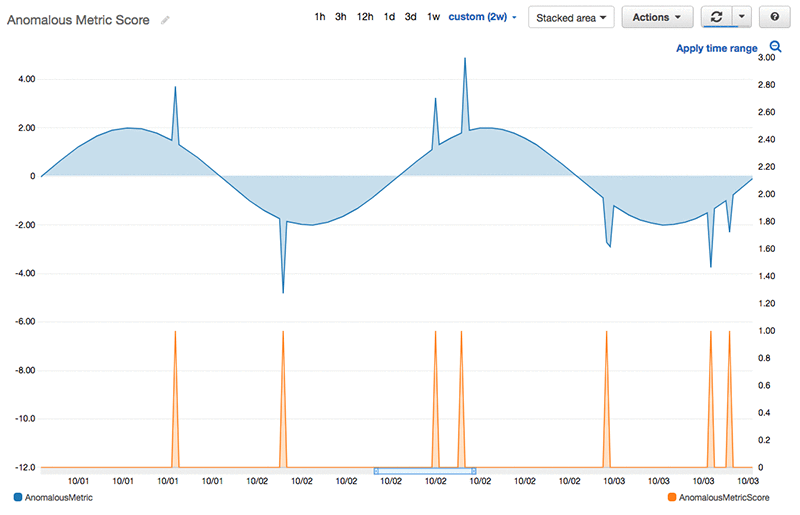
After both state machines have run, a new metric is available in the Amazon CloudWatch console. We can graph this new metric over the original metric to understand when anomalies happen. Now Alice can use the new metric to zoom in on specific points of interest in her original metric, and navigate to the Amazon CloudWatch Logs console for those data points.

Since Alice is storing anomalies in CloudWatch, she can use all of the rich alerting and monitoring functionality that is available so she can be notified automatically when something strange happens. Similarly, because she is using Amazon SageMaker s she can take the model and use it for online inference in the future if she wants to (for example, she can evaluate anomalies in near real time by making HTTP calls to a hosted endpoint).

Conclusion

In this blog post we showed you how to build an automated anomaly detection tool using Amazon SageMaker. We explained what services help us remove the undifferentiated heavy lifting to build the tool and how they all fit together to form a meaningful workflow. We also showcased one of the latest Amazon SageMaker releases, batch transform jobs, which is ideal for use cases that don’t require hosting a model for near real-time inference. All the Lambda functions were written using Java 8. It is our hope that this blog post, in combination with code examples, will help Java developers integrate Amazon SageMaker into their services and applications.


About the authors

Luka Krajcar is a Software Development Engineer on the AWS AI Labs team. He received his M.S. in Computer Science at the Faculty of Electrical Engineering and Computing at the University of Zagreb. Outside of work, Luka enjoys reading fiction, running, and video gaming.


Julio Delgado Mangas is a Software Development Engineer on the AWS AI Labs team. He has contributed to AWS services like Amazon CloudWatch and the Amazon QuickSight SPICE engine. Before joining Amazon, he was a research engineer on the Human Brain Project.


Laurence Rouesnel is the Algorithms & Platforms Group Manager in Amazon AI Labs. He leads a team of engineers and scientists working on deep learning and machine learning research and products. In his spare time, he is an avid traveler, and loves the outdoors whether it’s hiking, skiing, or windsurfing.


Chris Swierczewski is an Applied Scientist on the AWS AI Labs team, where he has contributed to the Amazon SageMaker Latent Dirichlet Allocation and the Amazon SageMaker Random Cut Forest algorithms. Before Amazon, Chris was a Ph.D. student in Applied Mathematics at the University of Washington. He likes to go hiking, backpacking, and camping with his wife and their dog, River.


Madhav Jha is an Applied Scientist on the AWS AI Labs team where he uses his background in sublinear algorithms to develop scalable machine learning algorithms. He is a theoretical computer scientist who enjoys coding. He is always up for coffee conversations on startups and technology.


Launch EI accelerators in minutes with the Amazon Elastic Inference setup tool for EC2

The Amazon Elastic Inference (EI) setup tool is a Python script that enables you to quickly get started with EI.

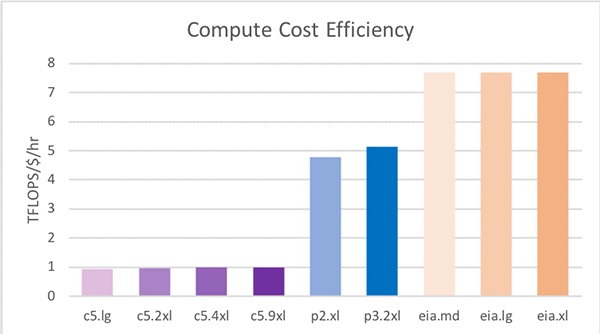
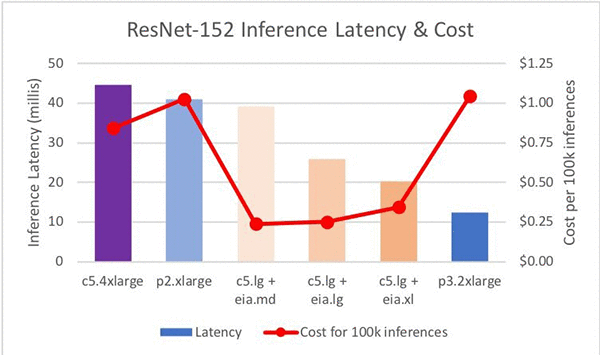
Elastic Inference allows you to attach low-cost GPU-powered acceleration to Amazon EC2 and Amazon SageMaker instances to reduce the cost of running deep learning inference by up to 75 percent. If you are using EI for the first time, there are a number of dependencies that must be set up: Amazon Web Services (AWS) PrivateLink VPC Endpoints, IAM policies, and security group rules. To accelerate this, The EI setup script makes it easy for you to get started by creating the necessary resources to help you launch EI accelerators in minutes. In this blog post I describe how to use the script, functionalities of the script, and what to expect when you run it.

At a high level, the script does the following:

  1. Creates an IAM role for the instance with an IAM policy that lets you connect to the AWS Elastic Inference service.
  2. Creates a security group with the necessary ingress and egress rules to allow the instance to communicate with the accelerator.
  3. Creates an AWS PrivateLink VPC Endpoint within your desired subnet.
  4. Launches the desired EC2 instance with an EI accelerator using the latest AWS Deep Learning AMI (DLAMI) for the chosen operating system

Prerequisites

To set up EI, run the script linked below. It depends on the following entities:

  1. Python 3 installed on your local machine where you expect to run the tool.
  2. The AWS SDK for Python (Boto3).
  3. An Amazon VPC in the Region where you are launching the instance (could be your default VPC).
  4. Subnet where you’d like to launch the instance.
  5. EC2 Key Pair.
  6. AWS credentials.

With these in place, download the amazonei_setup.py script from GitHub to your local machine and run it from your terminal using following command:

$ python amazonei_setup.py

What the tool creates on your behalf

The script creates following AWS resources:

  • Instance role with an Amazon EI Policy. This role is created the first time the script is run. In all subsequent runs, script reuses this IAM role. If this role is deleted, script recreates the role next time it is run. The IAM role has following properties:
    • Role name: Amazon-Elastic-Inference-Connect-Role
    • Policy name: Amazon-Elastic-Inference-Connect-Policy
    • Instance profile name: Amazon-Elastic-Inference-Instance-Profile

    The policy description is as follows:

    { "Version": "2012-10-17", 
      "Statement": [
           {
                "Effect": "Allow", 
                "Action": [ 
                "elastic-inference:Connect", 
                "iam:List*",
                "iam:Get*",
                "ec2:Describe*",
                "ec2:Get*" 
                ],
                "Resource": "*"
            } 
        ] 
    }
    

  • Security Group (SG). The security group associated with the EC2 instance should allow inbound traffic to port 443 as required by Amazon EI service. You also need inbound rules that allow traffic to port 22 for SSH. If a security group matching these rules is found, it is used. However, if no matching SG is found, a new SG with required rules is created. The outbound rules are set to allow traffic to all ports. The new SG name is amazon_ei_security_group, with the description Security Group for accessing Amazon EI service.
  • Interface VPC endpoint (AWS PrivateLink). The script scans for existing endpoint associated with Amazon EI service for the Region and VPC that you chose. For example, for the us-west-2 Region, the script looks for the endpoint with name amazonaws.us-west-2.elastic-inference.runtime in the given VPC ID.  If the endpoint is not found, the script creates one. Also, the script sets following attributes of the VPC endpoint to true, as required by Amazon EI:
    • EnableDnsSupport
    • EnableDnsHostNames
    • The script modifies the endpoint and add SG and chosen subnet if they are missing from the discovered endpoint
  • The script discovers latest AWS DLAMI based on the operating system chosen by the user.
  • If all steps succeed, the script launches an instance and reports the instance ID.
  • The script tries to obtain public DNS name after the instance is launched and is in running state.
  • Even if the instance is running, it may not be ready for accepting SSH connection and users may want to wait until the instance is fully initialized. EC2 console or AWS CLI can be used to query the initialization state, using the instance ID that is reported by the script for the newly launched instance.

What to expect when you run the tool

The example here illustrates what to expect when you run the script.

  • Launch the script. The script can be launched from the command prompt as:
  • $ python amazonei_setup.py –region us-west-2 –instance-type m5.xlargeAWS credentials are required to create or modify AWS resources. It uses Boto3, AWS SDK for Python. In order to be able to configure and manage AWS resources, the script needs user credentials. If the script is run without appropriate credentials, it reports the error below:
    $ python amazonei_setup.py --region us-west-2 --instance-type m5.xlarge
    Error setting up Amazon EI configuration - 
     Failed to retrieve VPC endpoints for us-west-2 : An error occurred (RequestExpired)
     when calling the DescribeVpcEndpointServices operation: Request has expired.

    The solution is to configure AWS credentials using one of the methods described in the Amazon Boto3 documentation. After the credentials are in place, the script is able to proceed.

  • Choose Operating System. The script prints informative message and prompts for choosing the OS. It also informs that entering ‘q’ causes the script to exit. Choose ‘1’ for the next step.
    $ python amazonei_setup.py --region us-west-2 --instance-type m5.xlarge
    
    This script launches Amazon EC2 instances with Amazon Elastic Inference accelerators.
    Performs the following functions:
     1. It uses the Deep Learning AMIs preconfigured with EI-enabled deep learning 
     frameworks to launch the instances.
     2. It creates security groups for the instance and VPC endpoint.
     3. It creates the VPC endpoint needed for your instances to communicate with EI 
     accelerators.
     4. It creates an IAM Instance Role and Policy with the permissions needed to 
     connect to accelerators.
    
     To begin, please choose the Operating System for your instance by typing its index :
    
     0: Amazon Linux
     1: Ubuntu
    
    Type 'q' to quit.
    amazonei-wizard>
    

  • Choose Accelerator size. The script discovered latest DL AMI for Ubuntu, it also discovered one key pair. If it discovers multiple key pairs, it lists those and ask the user to choose desired key pair by typing its index.  In general if there are multiple eligible inputs, the script shows them as indexed list and let the user choose an item by typing its index. Thus, script lists supported accelerator sizes and lets user choose.
    amazonei-wizard>1 
     Using Image ID: ami-0027dfad6168539c7,Image Name: Deep Learning AMI (Ubuntu) Version 21.2
     Using instance type: m5.xlarge
     Using Key Pair: Efti-Default-KeyPair
    
    Please type index of the accelerator type to use:
    
     0: eia1.medium (1 GB of accelerator memory)
     1: eia1.large (2 GB of accelerator memory)
     2: eia1.xlarge (4 GB of accelerator memory)
    
    Type 'q' to quit.
    amazonei-wizard>

  • Choose VPC. As illustrated, user chose option ‘1’ for Accelerator size and the script confirmed the Accelerator size chosen and proceeded to discover IAM role. Subsequently, it presents list of available VPCs.
    amazonei-wizard> 1 
     Using Amazon EI accelerator type: eia1.large
    
     Found an IAM role configured for connecting to Amazon EI service. Name - Amazon-Elastic-Inference-Connect-Role, ARN - arn:aws:iam::326228132093:role/Amazon-Elastic-Inference-Connect-Role
    
    Please select the VPC to use by typing the desired VPC index. Type 0 for default VPC.
    
     0: VPC Id 'vpc-d7d218af'
     1: VPC Id 'vpc-0c2496c51925ff1be'
    
    Type 'q' to quit.
    amazonei-wizard>

  • Launch an instance. Once user chooses the VPC ID, the script found a security group with matching inbound rules associated with chosen VPC, it also found one subnet associated with the chosen VPC ID. Additionally it found VPC endpoint for Amazon EI service. As the script has all the details to launch an EC2 instance, the script summarizes all the parameters it uses to launch the instance.
    amazonei-wizard>1 
     Using VPC ID: vpc-0c2496c51925ff1be
     Using Security Group: sg-00aec97685affb306
     Using Subnet: subnet-04881d24764d6e73f
    
     Discovered VPC endpoint for Amazon EI service, ID: vpce-0d2942a8147305240
    
     The script will now launch new instance with following configuration. Type 'y' to continue. 
    
     Accelerator Type: eia1.large
     Region: us-west-2
     Image-ID: ami-0027dfad6168539c7 - (Deep Learning AMI (Ubuntu) Version 21.2)
     Instance Type: m5.xlarge
     Key Pair: Efti-Default-KeyPair
     Security Group ID: sg-00aec97685affb306
     Subnet ID: subnet-04881d24764d6e73f
     Instance Profile: Amazon-Elastic-Inference-Instance-Profile
    
    Type 'y' to continue. Type 'q' to quit.
    amazonei-wizard>

  • Launch and wait for the instance to reach running state. As the user typed ‘y’, the script proceeded to launch the instance. The script also printed probable SSH command. The script infers the SSH command based on the OS type, key pair chosen, and the public DNS name. Actual command differs based on location of pem file. The script also warns that the instance may not be immediately accessible via SSH, even though it is in running state. The instance needs to be initialized fully, specifically  the SSH daemon needs to be started before it can accept SSH connections. If the pem file is correctly located the user should be able to access the instance and proceed with using Amazon Elastic Inference.
    amazonei-wizard>y
    
     Launching Instance ..
    
     Launched instance successfully. The instance ID is 'i-0969820364c038cca'.
    
     Waiting for instance to reach running state ...
    
     You can use the following sample SSH command to connect to your instance: ssh -i "Efti-Default-KeyPair.pem" ubuntu@ec2-52-13-194-188.us-west-2.compute.amazonaws.com
    
    
     Note: Please wait until instance is fully initialized and ready to accept SSH connections. You may check instance status at EC2 console.
     Also please locate your private key file 'Efti-Default-KeyPair.pem'.
    
    amazon-elastic-inference-tools $ 

Summary

The setup script simplifies your launch of an EC2 instance with EI. It ensures that all settings are correctly configured and instance is launched with requisite permissions to use EI. If you have any feedback about this blog post, feel free to use the comment section on this page.


About the Authors

Eftiquar Shaikh is Senior Software engineer with AWS AI. He works on building AWS services in AI space. When he is not programming, he likes to read, run and travel.


Satadal Bhattacharjee is Principal Product Manager with AWS AI. He leads the Machine Learning Engine PM team working on projects such as SageMaker Neo, AWS Deep Learning AMIs, and AWS Elastic Inference. For fun outside work, Satadal loves to hike, coach robotics teams, and spend time with his family and friends.


Announcing the first winner of the AWS DeepRacer League Summit circuit!

Today, at the AWS Summit in Santa Clara, California, we kicked off the 2019 season of the world’s first global autonomous racing league. The AWS DeepRacer League allows developers of all skill levels to get hands on with machine learning through a series of live racing events at AWS Global Summits around the world. The AWS DeepRacer League includes virtual events and tournaments throughout the year.

It was an exciting day as developers put their machine learning skills to the test! After 9 hours, 400 autonomously driven laps, and over 5 miles of racing, the Santa Clara winner was declared. Chris Miller, founder of Cloud Brigade, based in Santa Cruz California, topped the leaderboard and will be the first victor to advance on an expenses-paid trip to the AWS DeepRacer Championship Cup at re:Invent 2019 in Las Vegas, Nevada. With a winning time of 10.43 seconds, Chris and his team came to the Santa Clara Summit with the intent to learn more about AI and ML “I’m excited about machine learning and the technology that is being made available for modern applications”. Chris trained his winning model in one of the AWS DeepRacer workshops at the summit. Next on the agenda for Chris –  he is now preparing for re:Invent by learning more about machine learning and how he can customize his model further.

The top three developers on the leaderboard: Chris Miller (Center) Santa Clara Summit Champion, Rahul Shah (left) First Runner Up, Adrian Sarno (Right) Second Runner Up

Machine Learning available for all

The league is only just beginning and you don’t have to be at an AWS Summit to start learning about machine learning with AWS DeepRacer. Today we are launching a new online digital training course called AWS DeepRacer: Driven by Reinforcement Learning. The course is available at no cost as part of AWS Training and Certification, within the AWS Machine Learning Developer Learning Path. The course has 6 self-guided chapters and in 90 minutes will help you prepare to compete in the AWS DeepRacer League. You will learn how to build a reinforcement learning model and find tips and tricks about how to tune those models to climb the leaderboard.

Up next!

The journey to crown the 2019 AWS DeepRacer Champion continues on April 2nd at the AWS Summit in Paris. Follow the live results on the AWS DeepRacer League webpage. While you’re there, plan your next race. And don’t forget, this competition is open to all. If you don’t have an AWS DeepRacer car or your own model, our Summit pit crew is there to help you select a pre-trained model and race it straight-away. Also, if you can’t make it to any of the in-person events, our virtual circuit is coming soon and will allow anyone, anywhere to compete.

See you on the tracks!


About the Author

Alexandra Bush is a Senior Product Marketing Manager for AWS AI. She is passionate about how technology impacts the world around us and enjoys being able to help make it accessible to all. Out of the office she loves to run, travel and stay active in the outdoors with family and friends.


Train Deep Learning Models on GPUs using Amazon EC2 Spot Instances

You’ve collected your datasets, designed your deep neural network architecture, and coded your training routines. You are now ready to run training on a large dataset for multiple epochs on a powerful GPU instance. You learn that the Amazon EC2 P3 instances with NVIDIA Tesla V100 GPUs are ideal for compute-intensive deep learning training jobs, but you have a tight budget and want to lower your cost-to-train.

Spot-instance pricing makes high-performance GPUs much more affordable for deep learning researchers and developers who run training jobs that span several hours or days. Spot instances allow you to access spare Amazon EC2 compute capacity at a steep discount compared to on-demand rates. For an up-to-date list of prices by instance and Region, visit the Spot Instance Advisor. To learn more about the key differences between spot instances and on-demand instances, I recommend going through this Amazon EC2 user-guide.

Spot instances are great for deep learning workflows, but there are a few challenges associated using spot instances versus on-demand instances. First, spot instances can be preempted and can be terminated with just 2 minutes notice. This means you can’t count on your instance to run a training job to completion. Therefore, it’s not recommended for time-sensitive workloads. Second, instance termination can cause data loss if the training progress is not saved properly. Third, if you decide your application should not be interrupted after launching the spot instance, your only option is to stop the spot instance and re-launch as an on-demand or reserved instance.

To address these challenges, here is a step-by-step tutorial on how to set up spot instances for deep learning training workflows while minimizing training progress loss if a spot interruption occurs. My goal is to implement a setup with the following characteristics:

  • Decouple compute, storage and code artifacts, and keep the compute instance stateless. This enables easy recovery and training state restore when an instance is terminated and replaced
  • Use a dedicated volume for datasets, training progress (checkpoints) and logs. This volume should be persistent and not be affected by instance termination
  • Use a version control system (e.g. Git) for training code. This repo should be cloned to commence/resume training. this enables traceability and prevents loss of code changes when instance is terminated
  • Minimize code changes to the training script. This ensures that the training script can be developed independently and backup and snapshot operations are performed outside of the training code
  • Automate, automate, automate. Automate replacement instance creation after termination, attaching of dataset and checkpoints EBS volume at launch, moving volumes across Availability Zones, performing instance state restore, resuming training, and terminating instance once training is finished

Deep learning with Spot Instances using TensorFlow and the AWS Deep Learning AMI

In this example, I use spot instances and the AWS Deep Learning AMI to train a ResNet50 model on the CIFAR10 dataset. I use TensorFlow 1.12 configured with CUDA 9 available on the AWS Deep Learning AMI version 21. AWS Deep Learning AMIs are updated frequently, check the AWS Marketplace first to make sure you’re using the latest version compatible with your training code. For TensorFlow 1.13 and CUDA 10 use this AWS Deep Learning AMI instead.

I show you how to set up a spot fleet request for deep learning training jobs, which and you use as a starting point for your specific dataset and models.

To follow along, I assume you’ve met the following pre-requisites:

  1. You have an AWS account, and AWS CLI tool installed on your host
  2. You are familiar with Python and at least one deep learning framework

As you go through the implementation details, you learn everything else required. All the code, configuration files and AWS CLI commands are available on GitHub.

I use the following AWS and open-source services and concepts. Figure 1 shows how all of these fit together in our example.

  • AWS CLI: I use the CLI to interact with AWS services. Everything you can do with the CLI can also be done through the AWS console. The CLI will let you automate, which is one of my goals for this example.
  • Amazon EC2 spot instance and spot instance requests: Spot requests ensure that the specified number of spot instances are running. Spot fleet places spot requests to meet the target capacity and automatically replenish any interrupted instances.
  • AWS Deep Learning AMI: An Amazon machine image with pre-installed deep learning frameworks. In this example, I use the GPU-accelerated TensorFlow framework for training
  • Amazon Elastic Block Storage (EBS): A persistent volume to store datasets, checkpoints and logs, that can be attached to a currently running instance
  • Amazon EBS snapshots: Snapshots let you back up data on your Amazon EBS volumes to Amazon S3. A snapshot contains all of the information needed to restore your data to a new EBS volume and can be used to migrate volumes to a new Availability Zone.
  • Amazon EC2 user data and instance metadata: At instance launch, user data shell script can be executed to perform actions such as attaching volumes, initiating training and clean up. Instance metadata allows an instance to query information about itself such as instance-id for use with use data shell scripts
  • Amazon IAM role and policy: Grants EC2 instance permissions to use AWS services on your behalf. Essential to automate everything.
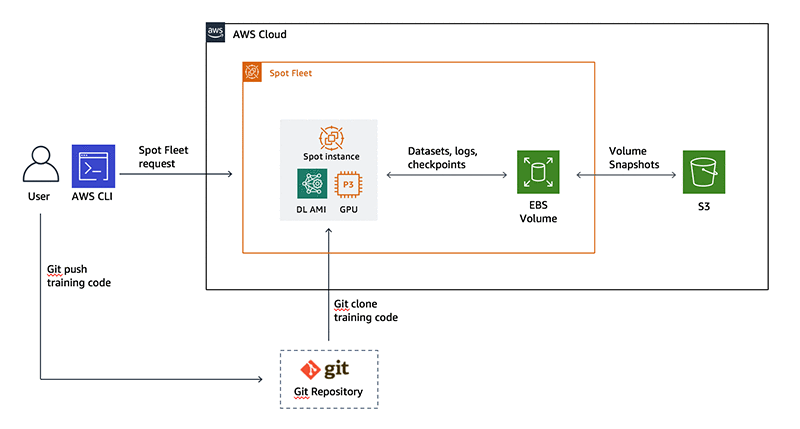
Figure 1: Reference architecture for using spot instances in deep learning workflows

Step 1: Set up a dedicated EBS volume for datasets and checkpoints using a general-purpose instance

The first step is to set up our dedicated EBS volume for storing datasets, checkpoints and other information that needs to persist such as logs and other metadata. This step is only done once so I start by launching an on-demand m4.xlarge instance. If your dataset is small and you’re not going to be performing any pre-processing steps during preparation, then you could launch an instance with lesser memory and processing power that may cost less. If you’re going to be transcoding images or running other multi-threaded pre-processing routines then pick a GPU-backed or compute-optimized CPU instance.

Run the following command on your terminal using the AWS CLI. All the commands listed here were tested on a MacOS.

aws ec2 run-instances 
    --image-id ami-0027dfad6168539c7 
    --security-group-ids <SECURITY_GROUP_ID> 
    --count 1 
    --instance-type m4.xlarge 
    --key-name <KEYPAIR_NAME> 
    --subnet-id <SUBNET_ID> 
    --query "Instances[0].InstanceId"

image-id refers to the Deep Learning AMI Ubuntu instance. Be sure to update the security group, key ID and subnet ID to allow SSH connections into the instance. See this documentation page for more details.

Important: Create a subnet in a specific Availability Zone and remember your choice. EBS volumes can only be attached to instances in the same subnet. See Figure 1 for illustration. In this example I use us-west-2b as my Availability Zone for setup. In step 3 I show you how to automate migration of EBS volumes between Availability Zones using EBS snapshots.

Throughout this example, everything in italics needs to be replaced with values specific to your setup, the rest can just be copied.

Next, create an EBS volume for your datasets and checkpoints. Here I request 100 GiB. You should choose a value that suits your dataset needs. The EBS volume should be in the same Availability Zone as your instance. After you create the volume, attach it to your instance. Specify the ID details from the output of the run-instances and create-volume commands.

aws ec2 create-volume 
    --size 100 
    --region <AWS_REGION> 
    --availability-zone <INSTANCE_AZ> 
    --volume-type gp2 
    --tag-specifications 'ResourceType=volume,Tags=[{Key=Name,Value=DL-datasets-checkpoints}]' 

aws ec2 attach-volume 
    --volume-id vol-<your_volume_id> 
    --instance-id i-<your_instance_id> 
    --device /dev/sdf

Follow the steps in the documentation to connect by using SSH into your instance and then format and mount the attached volume. In this example, I use a mount point directory at root named /dltraining

Do this step only once. Later in step 3 you can see how each new spot instance will automatically self-mount the volume at launch so the datasets and checkpoints are available for training.

In this example I use the following paths:

  • Datasets: /dltraining/datasets
  • Training progress checkpoints: /dltraining/checkpoints
sudo mkdir /dltraining
sudo mkfs -t xfs /dev/xvdf
sudo mount /dev/xvdf /dltraining
sudo chown -R ubuntu: /dltraining/
cd /dltraining
mkdir datasets
mkdir checkpoints
#
# Optional: Run commands to move your custom datasets into the Datasets directory.
#

To follow along with this example, you can create and then leave these directories empty. The training script ec2_spot_keras_training.py will download the CIFAR10 dataset using Keras, the first-time training is initiated.

You can terminate this instance using the command below. Volume setup is now complete and will persist in the Availability Zone it was created in.

aws ec2 terminate-instances 
    --instance-ids i-<your_instance_id> 
    --output text

Step 2: Create IAM role and policy to grant instance permissions

If you’re new to the cloud, AWS Identity and Access Management (IAM) concepts may be new to you. IAM roles and policies are used to grant instances specific permissions that allow access other AWS services on your behalf.

During training, I want the spot instance to have access to my datasets and checkpoints in the EBS volume I created in step 1. However, only volumes in the same Availability Zone as the instances can be attached to it. If the volume and the instance are in different Availability Zones, a new volume needs to be created using a snapshot of the volume stored in Amazon S3.

All these steps can be performed at instance launch using the AWS CLI and user data bash script, and you can see how in step 3. Here are all the AWS CLI commands you need to run at instance launch:

  • Query for volumes with the name tag: DL-datasets-checkpoints (there should be only one)
  • Create a snapshot of this volume with tag: DL-datasets-checkpoints-snapshot
  • If the instance and volume are in the same Availability Zone, attach volume to the instance
  • If the instance and volume are in different Availability Zones, create a new volume from the snapshot in the instance’s Availability Zone with name: DL-datasets-checkpoints, and attach it to the instance. Delete the volume in the different Availability Zone to ensure there is only one copy.
  • Once training is complete, cancel the spot fleet request and terminate all training instances

In order for the instance to be able to perform these actions, I will need to grant the instance the permissions to do so on my behalf. This way I don’t grant the instance all the same permissions that I as a user have and risk potential abuse.

I start by first creating a role for my Amazon EC2 instance, called the IAM role. After that I grant specific permissions to this role by creating what is called a policy.  Execute the following command to create a new IAM role. I’ve named my role DL-Training feel free to choose another name.

aws iam create-role 
    --role-name DL-Training 
    --assume-role-policy-document '{"Version":"2012-10-17","Statement":[{"Sid":"","Effect":"Allow","Principal":{"Service":"ec2.amazonaws.com"},"Action":"sts:AssumeRole"}]}'

Next, I will create and attach a policy that grants the instance the following permissions:

  1. Describe, create, attach and delete volumes
  2. Create snapshots from volumes
  3. Describe spot instances
  4. Cancel spot fleet requests and terminate instances

You can grant permissions to access other AWS services if you’re going to be using them in your application. In general, the more specific you are about the actions the instance takes the better. The permissions are in a file called ec2-permissions-dl-training.json on the example GitHub repository.

{
    "Version": "2012-10-17",
    "Statement": [
        {
            "Effect": "Allow",
            "Action": [
                "ec2:AttachVolume",
                "ec2:DeleteVolume",
                "ec2:DescribeVolumeStatus",
                "ec2:CancelSpotFleetRequests",
                "ec2:CreateTags",
                "ec2:DescribeVolumes",
                "ec2:CreateSnapshot",
                "ec2:DescribeSpotInstanceRequests",
                "ec2:DescribeSnapshots",
                "ec2:CreateVolume"
            ],
            "Resource": "*"
        }
    ]
}

And run the following to create a policy and attach it to our IAM role:

aws iam create-policy 
    --policy-name ec2-permissions-dl-training  
    --policy-document file://ec2-permissions-dl-training.json
 
aws iam attach-role-policy 
    --policy-arn arn:aws:iam::<account_id>:policy/ec2-permissions-dl-training 
    --role-name DL-Training

Be sure to substitute <account_id> with your AWS account ID in the attach-role-policy command.

Step 3: Create EC2 user data bash script

Next, I create a launch specification file with details about the instance you want to run your training on. In this example I’m going to be using a p3.2xlarge. If you’re running a multi-GPU training job then you can request for an instance with more GPUs. Note, by multi-GPU jobs, I’m referring to multiple GPUs on the same instance. Currently, the maximum number of GPUs you can get on a single instance are 8 GPUs with a p3.16xlarge or p3dn.24xlarge. I cover distributed/multi-node training use-cases in a future blog post.

As discussed in step 2, Amazon EC2 allows you to pass user data shell scripts to an instance that gets executed at launch. Let’s take a look at our user data shell script. The full script (user_data_script.sh) is available on GitHub.

There are 4 key sections in the file:

 Get instance ID and query volume

In this section the script queries the instance metadata API to access to the ID instance on which this script is running. It then uses this information to search for the datasets and checkpoints volume with the tag: DL-datasets-checkpoints

#!/bin/bash

# Get instance ID 
INSTANCE_ID=$(curl -s http://169.254.169.254/latest/meta-data/instance-id)
INSTANCE_AZ=$(curl -s http://169.254.169.254/latest/meta-data/placement/availability-zone)
AWS_REGION=us-west-2

# Get Volume Id and availability zone
VOLUME_ID=$(aws ec2 describe-volumes --region $AWS_REGION --filter "Name=tag:Name,Values=DL-datasets-checkpoints" --query "Volumes[].VolumeId" --output text)
VOLUME_AZ=$(aws ec2 describe-volumes --region $AWS_REGION --filter "Name=tag:Name,Values=DL-datasets-checkpoints" --query "Volumes[].AvailabilityZone" --output text)

Check if the volume and instance are in the same availability zone

In this section the script checks with the volume and the instance are in the same Availability Zone. If they are in different Availability Zones, it first creates a point-in-time snapshot of the volume in Amazon S3. Once the snapshot is created, it deletes the volume and creates a new volume from the snapshot in the instance’s Availability Zone. Figure 2 illustrates the two patterns.

The aws ec2 wait command ensures that snapshot and volume creation are complete before proceeding to the next command.
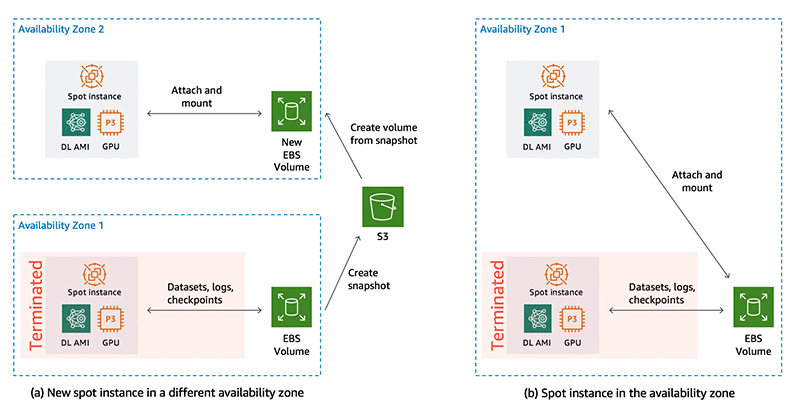
Figure 2: On spot instance termination, if a new spot instance is launched in a different availability zone (a), EBS volume snapshots are saved to S3 and a new volume is created from the snapshot in the instance’s availability zone. If the new spot instance is launched in the same availability zone as the volume (b), the same EBS volume is attached to the new instance

if [ $VOLUME_AZ != $INSTANCE_AZ ]; then
		SNAPSHOT_ID=$(aws ec2 create-snapshot 
				--region $AWS_REGION 
				--volume-id $VOLUME_ID 
				--description "`date +"%D %T"`" 
				--tag-specifications 'ResourceType=snapshot,Tags=[{Key=Name,Value=DL-datasets-checkpoints-snapshot}]' 
				--query SnapshotId --output text)
		aws ec2 wait --region $AWS_REGION snapshot-completed --snapshot-ids $SNAPSHOT_ID
		aws ec2 --region $AWS_REGION  delete-volume --volume-id $VOLUME_ID
		VOLUME_ID=$(aws ec2 create-volume 
				--region $AWS_REGION 
				--availability-zone $INSTANCE_AZ 
				--snapshot-id $SNAPSHOT_ID 
				--volume-type gp2 
				--tag-specifications 'ResourceType=volume,Tags=[{Key=Name,Value=DL-datasets-checkpoints}]' 
				--query VolumeId --output text)
		aws ec2 wait volume-available --region $AWS_REGION --volume-id $VOLUME_ID
fi

Attach and mount volume: In this section the script first attaches the volume that is in the same Availability Zone as the instance. It then mounts the attached volume to the mount point directory at /dltraining. And then updates the ownership to the Ubuntu user since the user data script is run as root.

aws ec2 attach-volume 
    --region $AWS_REGION --volume-id $VOLUME_ID 
    --instance-id $INSTANCE_ID --device /dev/sdf
sleep 10

# Mount volume and change ownership, since this script is run as root
mkdir /dltraining
mount /dev/xvdf /dltraining
chown -R ubuntu: /dltraining/
cd /home/ubuntu/

Get training scripts: In this section, the script clones the training code git repository

# Get training code
git clone https://github.com/awslabs/ec2-spot-labs.git
chown -R ubuntu: ec2-spot-labs
cd ec2-spot-labs/ec2-spot-deep-learning-training/

Initiate/resume training: The script activates the tensorflow_p36 Conda environment and runs the training script as the Ubuntu user. The training script takes care of loading the dataset from the Amazon EBS volume and resuming training from checkpoints. Step 4 will go into the modification needed for your training script.

# Initiate training using the tensorflow_36 conda environment
sudo -H -u ubuntu bash -c "source /home/ubuntu/anaconda3/bin/activate tensorflow_p36; python ec2_spot_keras_training.py "

Clean up: Once training is complete, the script cleans up by canceling spot fleet requests associated with the current instance. cancel-spot-fleet-requests can also terminate instances managed by the fleet.

# After training, clean up by cancelling spot fleet requests
SPOT_FLEET_REQUEST_ID=$(aws ec2 describe-spot-instance-requests --region $AWS_REGION --filter "Name=instance-id,Values='$INSTANCE_ID'" --query "SpotInstanceRequests[].Tags[?Key=='aws:ec2spot:fleet-request-id'].Value[]" --output text)

aws ec2 cancel-spot-fleet-requests --region $AWS_REGION --spot-fleet-request-ids $SPOT_FLEET_REQUEST_ID --terminate-instances

Step 4: Create a spot fleet request configuration file

Next, I will create a spot fleet configuration file that includes target capacity (1 instance in our example), launch specifications for the instance, and the maximum price that you are willing to pay.  Spot fleet places requests to meet the target capacity and automatically replenish any interrupted instances.

Under LaunchSpecifications section, I have two different specifications.

  1. A p3.2xlarge instance type that may be placed in any Availability Zone within the us-west-2 Region
  2. A p2.xlarge instance type that may be placed in any Availability Zone within the us-west-2 Region

The spot fleet configuration is in a file called spot_fleet_config.json in the example GitHub repository. Spot fleet configuration file gives you the flexibility to mix and match instance types and Availability Zones. If your training script takes advantage of NVIDIA Tesla V100’s mixed-precision Tensor Cores, you may want to restrict instance types to only p3.2xlarge. The p2.xlarge with NVIDIA Tesla K80 only supports single (FP32) and double precision (FP64), and are cheaper but slower than V100 for deep learning training. Choose a combination that suits your needs.

{
  "TargetCapacity": 1,
  "AllocationStrategy": "lowestPrice",
  "IamFleetRole": "arn:aws:iam::<ACCOUNT_NUMBER>:role/DL-Training-Spot-Fleet-Role",
  "LaunchSpecifications": [
      {
          "ImageId": "ami-0027dfad6168539c7",
          "KeyName": "<KEYPAIR_NAME>",
          "SecurityGroups": [
              {
                  "GroupId": <SECURITY_GROUP_ID>
              }
          ],
          "InstanceType": "p3.2xlarge",
          "Placement": {
              "AvailabilityZone": "us-west-2a, us-west-2b, us-west-2c, us-west-2d"
          },
                  "UserData": "base64_encoded_bash_script",
          "IamInstanceProfile": {
              "Arn": "arn:aws:iam::<ACCOUNT_NUMBER>:instance-profile/DL-Training"
          }
      },
        {
          "ImageId": "ami-0027dfad6168539c7",
          "KeyName": "<KEYPAIR_NAME>",
          "SecurityGroups": [
              {
                  "GroupId": <SECURITY_GROUP_ID>
              }
          ],
          "InstanceType": "p2.xlarge",
          "Placement": {
              "AvailabilityZone": "us-west-2a, us-west-2b, us-west-2c, us-west-2d"
          },
                  "UserData": "base64_encoded_bash_script",
          "IamInstanceProfile": {
              "Arn": "arn:aws:iam::<ACCOUNT_NUMBER>:instance-profile/DL-Training"
          }
      }

Be sure to use a security group that allows you to SSH into the instance for debugging and checking progress manually and use your Key pair name for authentication. Under IAM instance profile, update the IAM role you created in step 2, that grants the instance necessary permissions.

To use the spot fleet Request, create an IAM fleet role by running the following commands:

aws iam create-role 
     --role-name DL-Training-Spot-Fleet-Role 
     --assume-role-policy-document '{"Version":"2012-10-17","Statement":[{"Sid":"","Effect":"Allow","Principal":{"Service":"spotfleet.amazonaws.com"},"Action":"sts:AssumeRole"}]}'

aws iam attach-role-policy 
     --policy-arn arn:aws:iam::aws:policy/service-role/AmazonEC2SpotFleetTaggingRole --role-name DL-Training-Spot-Fleet-Role

In the configuration snippet above, under user data you have to replace the text base64_encoded_bash_script with base64-encoded user data shell script. To do this you can use the base64 utility available on Mac and linux based OS. The following works on a Mac; for Linux flavors, replace -b with -w to remove line breaks. The sed command replaces all occurrences of the string base64_encoded_bash_script with the base64-encoded bash script.

USER_DATA=`base64 user_data_script.sh -b0`
sed -i '' "s|base64_encoded_bash_script|$USER_DATA|g" spot_fleet_config.json 

Step 5: Update deep learning training script

The final step is to update your deep learning training script to ensure datasets are loaded from and checkpoints are saved to the attached Amazon EBS volume. In this example I’m training a ResNet50 model on the CIFAR10 dataset. A typical deep learning training script may have the following steps. In pseudo-code below, are changes you’ll need to make to your training script to use with our setup.

# Prepare datasets / setup dataset loaders
dataset = load_data(ebs_mount_point_dataset)

# Define model
if exists(ebs_mount_point_checkpoints)
    checkpoint, checkpoint_epoch = get_latest_checkpoint(ebs_mount_point_checkpoints)
    model = load_model(checkpoint)
else
    model = define_model()
    checkpoint_epoch = 0
    
# Define training parameters

# Execute training loop
for i = checkpoint_epoch to max_epoch
    ...
    ...
    ...
    # Avoid corrupted checkpoints due to termination
    status = get_spot_termination_status()
    if status == “Terminating”
        pause_training()
    # Save checkpoints and progress
    save_model_checkpoint(model, ebs_mount_point_checkpoints)
    save_progress_logs(ebs_mount_point)
end

To summarize,

  • Load data from the mounted Amazon EBS volume, in our example that would be /dltraining
  • Check if a checkpoint exists, then load the checkpoint and update epoch number to resume training. If not, define the model architecture and start training from scratch.
  • In the training loop, check if termination notice has been issued. If yes, then pause training to avoid termination during checkpointing to avoid corrupt or incomplete checkpoints.
  • If termination notice hasn’t been issued, save the model checkpoints to /dltraining/checkpoints/

The training script for this example is called ec2_spot_keras_training.py and is available in the example repository. Below is a code snippet from our training script. The function load_checkpoint_model() loads the latest checkpoint to resume training.

def load_checkpoint_model(checkpoint_path, checkpoint_names):
    list_of_checkpoint_files = glob.glob(os.path.join(checkpoint_path, '*'))
    checkpoint_epoch_number = max([int(file.split(".")[1]) for file in list_of_checkpoint_files])
    checkpoint_epoch_path = os.path.join(checkpoint_path,
                                         checkpoint_names.format(epoch=checkpoint_epoch_number))
    resume_model = load_model(checkpoint_epoch_path)
    return resume_model, checkpoint_epoch_number

Since I’m using Keras with a TensorFlow backend, I didn’t have to explicitly write the training loop. Keras provides convenient callback functions for saving checkpoints and logging progress after each epoch.

Note: if you’re implementing your own training loop with TensorFlow’s low-level API, PyTorch or other framework, you are responsible for checkpointing progress. This can be very tricky if you don’t know what you’re doing. To resume training properly, you’ll need to make sure that you’re saving (1) model architecture to re-define the model (2) completed epoch number and weights of the model at the end of the current epoch (3) training hyper-parameters such as loss function, optimizer, learning rate schedule etc. (4) optimizer state at the end of the epoch

Keras callbacks I’m using to checkpoint progress and check for termination status are below:

def define_callbacks(volume_mount_dir, checkpoint_path, checkpoint_names, today_date):

    # Model checkpoint callback
    if not os.path.isdir(checkpoint_path):
        os.makedirs(checkpoint_path)
    filepath = os.path.join(checkpoint_path, checkpoint_names)
    checkpoint_callback = ModelCheckpoint(filepath=filepath,
                                          save_weights_only=False,
                                          monitor='val_loss')

    # Loss history callback
    epoch_results_callback = CSVLogger(os.path.join(volume_mount_dir, 
                           'training_log_{}.csv'.format(today_date)),
                           append=True)

    class SpotTermination(keras.callbacks.Callback):
        def on_batch_begin(self, batch, logs={}):
            status_code = requests.get("http://169.254.169.254/latest/meta-data/spot/instance-action").status_code
            if status_code != 404:
                time.sleep(150)
spot_termination_callback = SpotTermination()
    callbacks = [checkpoint_callback, epoch_results_callback]
    return callbacks

Step 6: Initiate spot request to start the training

I’m now ready to submit our spot fleet request using the spot_fleet_config.json configuration file I created in Step 4.

aws ec2 request-spot-fleet --spot-fleet-request-config file://spot_fleet_config.json

How it all comes together

So far I’ve introduced lot of code, configuration files and AWS CLI commands. Figure 3 shows how all these code and configuration artifacts fit together. Let’s walk through the process so you can get a better sense of how they are all connected.
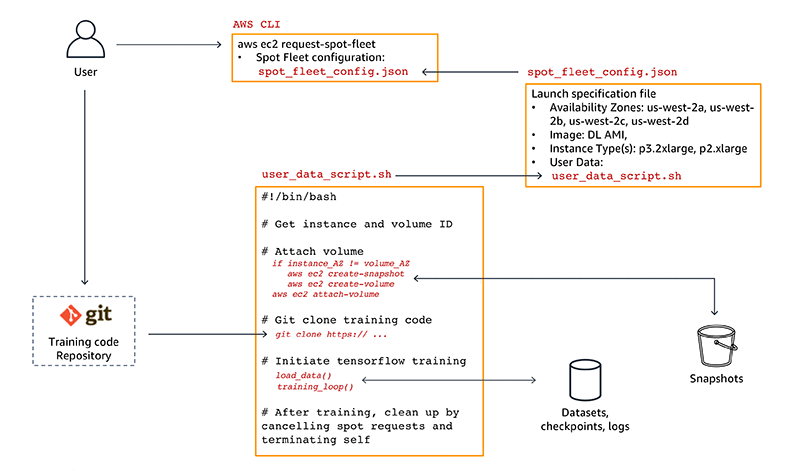
Figure 3: Data, code and configuration artifacts dependency chart

Let’s start with you, the user.

As a deep learning researcher or developer, first prototype and develop your models locally or on an inexpensive CPU-only Amazon EC2 on-demand instance with the AWS Deep Learning AMI. When you’re ready to run a training job on GPUs, you then push your training scripts to a Git repository.

Next, submit a spot request using the aws ec2 request-spot-fleet command shown in step 6. This sets everything into motion.

The spot request uses the spot fleet configuration file spot_fleet_config.json to launch the desired spot instance type. In this example, you run a training job on a p3.2xlarge instance in any of the us-west-2 Region’s Availability Zones. The training script will run on an instance imaged using the AWS Deep Learning AMI, which includes GPU optimized TensorFlow framework.

The spot fleet configuration file also includes the user_data_script.sh bash script file. The user data bash script is executed on the spot instance at launch. This script is responsible for mounting the dataset and checkpoint volume, cloning the training scripts, and initiating the training as we saw in step 3.

In the event of a spot interruption due to higher spot instance price or lack of capacity, the instance will be terminated and the dataset and checkpoints Amazon EBS volume will be detached. Spot fleet then places another request to automatically replenish the interrupted instance.

When the request is fulfilled again, a new spot instance will be launched and it will execute the user_data_script.sh at launch. The script queries for the dataset and checkpoint volume. If the volume and the instance are in different Availability Zones, it first creates a snapshot of the volume and then creates a new volume based on the snapshot in the current instance’s Availability Zone. The volume in the previous Availability Zone is deleted to ensure there is only one source of truth.

The script then attaches the volume to the instance and resumes training from the most recent checkpoint. Once training is complete the spot fleet request is cancelled and the current running instance is terminated.

If you want to specify a higher maximum spot instance price, or change instance types or Availability Zones, simply cancel the running spot fleet request by issuing aws ec2 cancel-spot-fleet-requests and initiating a new request with an updated spot fleet configuration file spot_fleet_config.json

Summary

That’s your overview about how spot instances can be used to run deep learning training experiments on GPU instances at a much lower cost than on-demand instances.

The setup in this blog post can be extended to cover more advanced deep learning workflows, and here are some ideas:

  • Multi-GPU training. Update the training script to enable multi-GPU training
  • Sub-epoch granularity checkpointing and resuming. In this example, checkpoints are saved only at the end of each epoch. For large datasets and complex models that take long time to finish an epoch, frequent checkpointing minimizes progress loss during interruption.
  • Multiple parallel experiments. Increase spot fleet target capacity to run multiple independent training jobs with different hyperparameters.

I hope you enjoyed reading this post. If you have questions, comments or feedback please use the comments section below. Happy spot training!


About the Author

Shashank Prasanna is an AI & Machine Learning Technical Evangelist at Amazon Web Services (AWS) where he focuses on helping engineers, developers and data scientists solve challenging problems with machine learning. Prior to joining AWS, he worked at NVIDIA, MathWorks (makers of MATLAB & Simulink) and Oracle in product marketing, product management, and software development roles.




Reducing deep learning inference cost with MXNet and Amazon Elastic Inference

Amazon Elastic Inference (Amazon EI) is a service that allows you to attach low-cost GPU-powered acceleration to Amazon EC2 and Amazon SageMaker instances. MXNet has supported Amazon EI since its initial release at AWS re:Invent 2018.

In this blog post, we’ll explore the cost and performance benefits of using Amazon EI with MXNet. We’ll walk you through an example that shows you how we improved our initial inference latency of 43ms by 1.69x, and how we improved cost efficiency by 75 percent.

The benefits of Amazon Elastic Inference

Amazon Elastic Inference can reduce the cost of running deep learning inference by up to 75 percent. First let’s take a look at how Elastic Inference compares to other Amazon EC2 options in terms of performance and cost.

The table below lists the specific details for each EC2 option, in terms of resources, capacity and cost. Note that the c5.xlarge plus eia1.xlarge has a similar amount of compute capacity as a p2.xlarge (see the two highlighted rows in the table below).

Instance Type vCPUs CPU Memory (GB) GPU Memory (GB) FP32 TFLOPS $/hour TFLOPS/$/hr
C5.Large 2 4 0.08 $0.09 0.94
C5.XLarge 4 8 0.17 $0.17 1.00
C5.2XLarge 8 16 0.33 $0.34 0.97
C5.4XLarge 16 32 0.67 $0.68 0.99
C5.9XLarge 32 64 1.34 $1.36 0.99
P2.XLarge (K80) 4 61 12 4.30 $0.90 4.78
P3.2XLarge (V100) 8 61 16 15.70 $3.06 5.13
EIA1.Medium 1 1.00 $0.13 7.69
EIA1.Large 2 2.00 $0.26 7.69
EIA1.Xlarge 4 4.00 $0.52 7.69
C5.XL + EIA.XL 4 8 4 4.17 $0.69 6.04

If we look at the compute capability (Tera-Floating-point-Operations-Per-Second, or TFLOPS) a C5.4XLarge provides 0.67 TFLOPS of performance for $0.68 an hour, whereas an EIA1.Medium with 1.00 TFLOPS costs just $0.13 per hour. If pure performance (ignoring costs) is the goal, clearly leveraging a P3.2XLarge instance will provide the most compute at 15.7 TFLOPS. But in the last column showing TFLOPS per dollar we see that the EI accelerators (EIA) provide the most value. Since EI accelerators (EIA) must be attached to an EC2 instance, the last row shows one possible combination. The C5.XLarge plus the EIA1.XLarge has a similar amount of vCPUs and TFLOPS as a P2.XLarge, but the cost per hour of the C5XLarge plus the EIA1.XLarge is $0.69 per hour compared with $0.90 per hour for the P2.XLarge. That’s a $0.21 per hour discount. This highlights the other benefit of using Amazon EI which is being able to configure the amount of vCPUs, memory, and GPU compute to match your needs.

Using Apache MXNet with Amazon EI

Apache MXNet is an open source deep learning framework used to build, train, and deploy deep neural networks. MXNet abstracts much of the complexity involved in implementing neural networks, is highly performant and scalable, and offers APIs across popular programming languages such as Python, C++, Java, R, Scala, and more. Amazon EI enabled Apache MXNet is available in the AWS Deep Learning AMI. A ‘pip’ package is also available on Amazon S3 so you can build it in to your own Amazon Linux or Ubuntu AMIs, or Docker containers.

Now we’ll analyze the performance (latency) and cost efficiency trade-offs for a ResNet-152 model for various instances. We’ll start with this example code from AWS and modify it for this blog post. The changes required to measure inference performance are in blue below:

import time
import mxnet as mx
import numpy as np
from collections import namedtuple
Batch = namedtuple('Batch', ['data'])

#download model files and labels
path='http://data.mxnet.io/models/imagenet/'
[mx.test_utils.download(path+'resnet/152-layers/resnet-152-0000.params'),
mx.test_utils.download(path+'resnet/152-layers/resnet-152-symbol.json'),
mx.test_utils.download(path+'synset.txt')]

#set the context to run inference with
ctx = mx.eia()

#load the model from file and configure
sym, arg_params, aux_params = mx.model.load_checkpoint('resnet-152', 0)
mod = mx.mod.Module(symbol=sym, context=ctx, label_names=None)
mod.bind(for_training=False, data_shapes=[('data', (1,3,224,224))],
     label_shapes=mod._label_shapes)
mod.set_params(arg_params, aux_params, allow_missing=True)
with open('synset.txt', 'r') as f:
  labels = [l.rstrip() for l in f]

#download the image from file and convert into format (batch, RGB, width, height)
fname = mx.test_utils.download('https://github.com/dmlc/web-data/blob/master/mxnet/doc/tutorials/python/predict_image/cat.jpg?raw=true')
img = mx.image.imread(fname)
img = mx.image.imresize(img, 224, 224) # resize
img = img.transpose((2, 0, 1)) # Channel first
img = img.expand_dims(axis=0) # batchify

first = -1
sum = 0
runs = 100
for iter in range(runs):
    start = time.time()
    #run inference
    mod.forward(Batch([img]))
    prob = mod.get_outputs()[0].asnumpy()
    #time inference latency
    elapsed = (time.time() - start) * 1000
    if iter == 0:
        first = elapsed
    else:
        sum += elapsed
avg = sum / (runs-1)
print('First inference: %4.2f ms' % first)
print('Average inference: %4.2f ms' % avg)

You can see we added a loop around the inference call and timed the forward() and get_outputs() functions. MXNet uses lazy evaluation, so to force it to execute the forward call we need to use the outputs (by converting them to a numpy array). The first inference is abnormally slow due to initialization with the remote GPU on the EIA, so we stored the first inference time and summed the remaining inference latencies to compute an average.

Setting up an instance with an EI accelerator

We’ll launch an instance using the AWS Deep Learning AMI (DLAMI), which already provides support for Apache MXNet with Amazon EI. You can review Elastic Inference Prerequisites for the instructions related to Elastic Inference. You can review how to launch a DLAMI with an Elastic Inference Accelerator in the Elastic Inference documentation.

Testing on an instance with an EI accelerator

We launched a C5.4XLarge instance with the largest EI accelerator: EIA1.XLarge. This is probably more compute than we need but it will give us a good starting point from which to work backward from the best performance we can get with EI. Next, we activated the conda environment that was pre-installed for MXNet on EI with the following command:

source activate amazonei_mxnet_p36

Running our code on an instance with an EI accelerator produces this output:

[15:34:09] src/nnvm/legacy_json_util.cc:209: Loading symbol saved by previous version v0.8.0. Attempting to upgrade...
[15:34:09] src/nnvm/legacy_json_util.cc:217: Symbol successfully upgraded!
Using Amazon Elastic Inference Client Library Version: 1.2.12
Number of Elastic Inference Accelerators Available: 1
Elastic Inference Accelerator ID: eia-b774f0694b614549944c13dc0aa3ddc0
Elastic Inference Accelerator Type: eia1.xlarge

First inference: 2763.00 ms
Average inference: 20.34 ms

Notice that the larger first inference time is 2763.00 ms. After the first inference, the average for the other 99 iterations is 20.34 ms.

Testing on a C5 instance

We can use the same script with just one change to run inference using only the CPU on the same instance. Here MXNet won’t use the EI accelerator when we set the context to CPU:

# We’re commenting out EIA context, and instead use a CPU context
# ctx = mx.eia()
ctx = mx.cpu()

Running this code now produces this output:

[14:33:41] src/nnvm/legacy_json_util.cc:209: Loading symbol saved by previous version v0.8.0. Attempting to upgrade...
[14:33:41] src/nnvm/legacy_json_util.cc:217: Symbol successfully upgraded!
[14:33:42] src/operator/nn/mkldnn/mkldnn_base.cc:74: Allocate 147456 bytes with malloc directly
[14:33:42] src/operator/nn/mkldnn/mkldnn_base.cc:74: Allocate 589824 bytes with malloc directly
[14:33:42] src/operator/nn/mkldnn/mkldnn_base.cc:74: Allocate 2359296 bytes with malloc directly
[14:33:42] src/operator/nn/mkldnn/mkldnn_base.cc:74: Allocate 9437184 bytes with malloc directly
First inference: 1659.79 ms
Average inference: 44.61 ms

Notice that the average inference is 44.61 ms. Compared to our initial run using the EI accelerator, the CPU takes 2.19x longer for each inference call on average when using a standard C5 instance.

Testing on GPU instances

Next, we launched a separate P2.XLarge instance to compare the performance to. We used the same DLAMI version. After the instance was launched we activated the regular MXNet conda environment:

source activate mxnet_p36

Now we need to make two more tweaks to our script:

# We’re commenting out the CPU context as well, and instead use a GPU context
# ctx = mx.eia()
# ctx = mx.cpu()
ctx = mx.gpu()

...

img = img.transpose((2, 0, 1)) # Channel first
img = img.expand_dims(axis=0) # batchify
img = img.as_in_context(mx.gpu())

The first context that we change is the one used for binding, and the second context we change is the one that defines where our input data resides. For CPU and EIA instances, data must be allocated on a CPU context. It’s important to point out that typically you create your ndarrays on the same context that you bind the model to (CPU for CPU, and GPU for GPU). But for EIA you bind your model to the EIA context. You create your data with the CPU context. MXNet automatically copies the data over as needed for EIA.

Running this code on the P2.XLarge instance now produces this output:

[14:42:07] src/nnvm/legacy_json_util.cc:209: Loading symbol saved by previous version v0.8.0. Attempting to upgrade...
[14:42:07] src/nnvm/legacy_json_util.cc:217: Symbol successfully upgraded!
[14:42:09] src/operator/nn/./cudnn/./cudnn_algoreg-inl.h:97: Running performance tests to find the best convolution algorithm, this can take a while... (setting env variable MXNET_CUDNN_AUTOTUNE_DEFAULT to 0 to disable)
First inference: 7916.36 ms
Average inference: 41.10 ms

Before we draw any conclusions, let’s launch a separate P3.2XLarge instance to compare the performance to. We can reuse the same script, DLAMI, and conda environment that we used earlier for the P2.XLarge instance. Running the code now produces this output on the P3.2XLarge instance:

[14:59:33] src/nnvm/legacy_json_util.cc:209: Loading symbol saved by previous version v0.8.0. Attempting to upgrade...
[14:59:33] src/nnvm/legacy_json_util.cc:217: Symbol successfully upgraded!
[14:59:35] src/operator/nn/./cudnn/./cudnn_algoreg-inl.h:97: Running performance tests to find the best convolution algorithm, this can take a while... (setting env variable MXNET_CUDNN_AUTOTUNE_DEFAULT to 0 to disable)
First inference: 1911.22 ms
Average inference: 12.31 ms

Comparing C5, P2, P3, and EIA instances

Plotting the data we’ve collected thus far we can see that GPU performed better than CPU (as expected) and the V100 GPU in P3 instances is 3.34x faster than the K80 GPU in P2 instances. Where before you had to choose between P2 and P3, now EI gives you another choice in between with a 2.02x increase in speed over P2.

Based purely on instance cost per hour (in us-east-1 for EIA and EC2) we can see that the cost for the C5.4XL + EIA.XL is in between the costs for the P2 and P3 instances (see the following table). However, when factoring the cost to perform 100,000 inferences we can see that the P2 and P3 instances have similar costs, and the C5.4XL and the C5.4XL +EI instances are also within a penny of each other ($0.84 and $0.83). The big picture here is that by using EIA we get better than P2 performance at the cost of a C5 instance. What a deal!

Instance Type Cost per hour Infer latency [ms] Cost per 100k inferences
C5.4XLarge $0.68 44.61 $0.84
C5.4XL + EIA.XL $1.20 24.89 $0.83
P2.Xlarge $0.90 41.10 $1.03
P3.2XLarge $3.06 12.31 $1.05

Exploring all possibilities

Now, let’s do more investigation and try out additional instance combinations for EI. After rerunning the initial script we started with on combinations of C5.Large, C5.XLarge, C5.2XLarge, and C5.4XLarge with EI accelerators EIA1.Medium, EIA1.Large, and EIA1.XLarge we produced the latest table:

Host instance type EI Accelerator type Cost per hour Infer latency [ms] Cost per 100k inferences
C5.Large EIA1.Medium $0.22 39.00 $0.23
EIA1.Large $0.35 25.68 $0.25
EIA1.XLarge $0.61 20.29 $0.34
C5.XLarge EIA1.Medium $0.30 38.55 $0.32
EIA1.Large $0.43 25.99 $0.31
EIA1.XLarge $0.69 21.12 $0.40
C5.2XLarge EIA1.Medium $0.47 38.56 $0.50
EIA1.Large $0.60 26.45 $0.44
EIA1.XLarge $0.86 20.76 $0.50
C5.4XLarge EIA1.Medium $0.81 39.18 $0.88
EIA1.Large $0.94 25.90 $0.68
EIA1.XLarge $1.20 20.34 $0.68

In this table, when we look at the host instance types with the EIA1.Medium (yellow highlight) we see similar results. This means that there isn’t a lot of host-side processing, so going to a larger host instance doesn’t improve performance. This indicates to us that we can save on cost by choosing a smaller instance. Similarly, looking at host instances with all using the largest EIA1.XLarge accelerator (blue highlight) there isn’t a noticeable performance difference either. This confirms that EIA performance isn’t limited by the size of the host either. It also means that we can continue to use the C5.Large host instance type, achieve the same performance, and pay less.

Comparing inference latency

Now that we’ve decided on a C5.Large host instance type, we can look at the accelerator types. There is a progression from 39.18ms to 25.90ms and finally to 20.34ms in terms of inference latency. The following chart shows what we get if we add our new data points for the various accelerator sizes to our previous chart:

This chart shows that the EI accelerators provide a set of steps between P2 and P3 in terms of raw performance.

Comparing inference cost efficiency

The last column in the table shows the cost efficiency of the combination. Reviewing this column we see that the C5.Large + EIA1.Medium has the best cost efficiency. In a pure least-cost comparison, the C5.Large + EIA1.Medium combination provides the best cost efficiency when compared to the C5.4XL and the P2/P3 instances. Savings are  71 percent to 77 percent. And the C5.Large + EIA1.XLarge provides a 2.02x increase in speed over a P2 and a 2.19x speedup over the C5.4XL (CPU only). The savings are 66 percent and 59 percent, respectively.

Conclusions

Here’s what we’ve found so far:

  • Combining EI accelerators with any host instance type enables users to choose the amount of host compute, memory, etc. with a configurable amount of GPU memory and compute.
  • EI accelerators provide a range of memory and compute that is similar to P2 instances, but with a lower cost
  • EI accelerators can bridge the gap in terms of raw performance (inference latency) between P2 and P3 instance types.
  • EI accelerators can achieve a better cost efficiency than C5 and P2/P3 instances.

In our analysis we found that the ease of use in MXNet is as simple as changing the context for binding a model and ndarray creation. This allowed us to use largely the same test script on CPU, GPU, and EIA contexts in MXNet, and ease our testing and performance analysis.

We started with a Resnet-152 model running on a C5.4XLarge instance with a 44ms inference latency. We reduced it to 20ms by migrating to a C5.Large + EIA.XLarge.  This resulted in a 2.19x increase in speed with a $0.07 hourly cost savings to top it off. We also found that we could achieve a 71 percent cost savings ($0.84versus $0.24 per 100k inferences) with a C5.Large + EIA.Medium and still get better performance (44ms versus 39ms).

Call to Action

Try out MXNet on EI and see how much you can save while still improving performance for inference on your model. Here are the steps we went through to analyze the design space for deep learning inference, and you can follow these steps for your model:

  1. Write a test script to analyze inference performance for CPU context.
  2. Create copies of the script with tweaks for GPU and EIA contexts.
  3. Run scripts on C5, P2, and P3 instance types to get a baseline for performance.
  4. Analyze the performance of EIA.
    1. Start with largest EI accelerator type and a large host instance type.
    2. Work backward until you find a combo that is too small.
  5. Introduce cost efficiency to the analysis by computing the cost to perform 100k inferences.

How much can you save while still improving the performance of inference for your model? How fast can you improve the inference latency of your model without spending a single cent more? Share your results in the comments section.


About the Authors

Sam Skalicky is a Software Engineer with AWS Deep Learning and enjoys building heterogeneous high performance computing systems. He is an avid coffee enthusiast and avoids hiking at all costs.



Hagay Lupesko is an Engineering Manager for AWS Deep Learning. He focuses on building Deep Learning tools that enable developers and scientists to build intelligent applications. In his spare time he enjoys reading, hiking and spending time with his family.
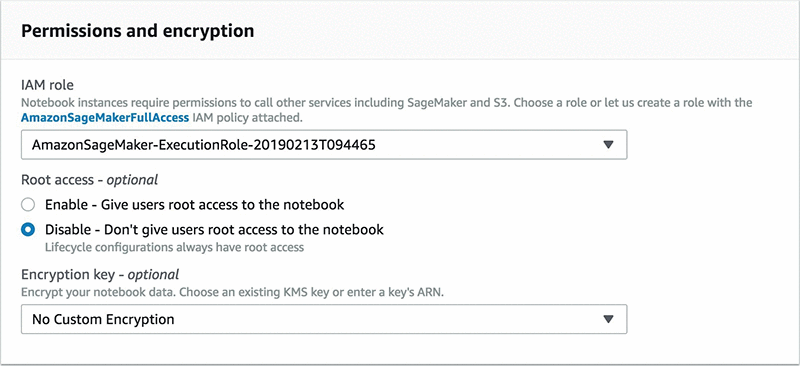



Control root access to Amazon SageMaker notebook instances

Amazon SageMaker recently introduced the ability to enable and disable root access for notebook users. Before I give you a preview of how you can implement this new feature using the AWS Management Console and Amazon SageMaker API actions, I’ll explain why controlling root access for users is helpful.

Amazon SageMaker provides fully managed notebook instances that run industry-standard open-source interactive computing software, Jupyter Notebooks. You can use Jupyter Notebooks to clean and transform data, visualize data, run numerical simulations, build statistical and machine learning (ML) models, and much more.

Data science is an iterative process, which might require data scientists and developers to test and use different software and packages. During the planning and experimentation stages of projects having root access gives you the flexibility to modify Jupyter Notebook environments as needed.

However, for our customers who need to comply with specific security policies, it’s important to ensure a segregation between the notebook user and the root of the hosting computer. Since root access means having administrator privileges, users with root access can access and edit all files on the compute instance, including system-critical files. Removing root access prevents notebook users from deleting system-level software, installing new software, and modifying essential environment components.

With the new option, Amazon SageMaker customers can now use the AWS Management Console and Amazon SageMaker API actions to enable or disable root access for their notebook instances.

Note: Lifecycle configurations, which are shell scripts you can use to set up and customize notebook instances, give administrators the ability to employ custom configurations even when the notebook instance is set up to have no root access for the user. That’s why lifecycle configurations always run as the root user for the associated notebook instances regardless of however root access permission is defined.

Control root access using the AWS Management Console

When creating new notebook instances or updating existing ones with the AWS Management Console, you can choose to enable or disable root access on the Permissions and encryption menu. For detailed instructions on how to create notebook instances with Amazon SageMaker, follow the steps provided in the Amazon SageMaker Developer Guide.

Control root access with Amazon SageMaker API actions

When you’re calling the CreateNotebookInstance and UpdateNotebookInstance API actions, you can use Enabled or Disabled as parameters to define the string value for ”RootAccess”. Here is an example JSON template to be passed with API actions:

{
   "AcceleratorTypes": [ "string" ],
   "AdditionalCodeRepositories": [ "string" ],
   "DefaultCodeRepository": "string",
   "DirectInternetAccess": "string",
   "InstanceType": "string",
   "KmsKeyId": "string",
   "LifecycleConfigName": "string",
   "NotebookInstanceName": "string",
   "RoleArn": "string",
   "RootAccess": "Disabled",
   "SecurityGroupIds": [ "string" ],
   "SubnetId": "string",
   "Tags": [ 
      { 
         "Key": "string",
         "Value": "string"
      }
   ],
   "VolumeSizeInGB": number
}

Conclusion

The ability to control root access for notebook instances adds flexibility and security to the administration of Jupyter Notebook environments. To learn more about Amazon SageMaker and start with Jupyter Notebooks, visit the Amazon SageMaker webpage. For more information about managing root access for notebook instances, see the Amazon SageMaker Developer Guide.


About the Author

Erkan Tas is a Sr. Product Manager for Amazon SageMaker. He is on a mission to make Artificial Intelligence easy, accessible, and scalable through cloud platforms. He is also a sailor, science and nature admirer, Go and Stratocaster player.

AWS Deep Learning AMIs now come with TensorFlow 1.13, MXNet 1.4, and support Amazon Linux 2

The AWS Deep Learning AMIs now come with MXNet 1.4.0, Chainer 5.3.0, and TensorFlow 1.13.1, which is custom-built directly from source and tuned for high-performance training across Amazon EC2 instances.

AWS Deep Learning AMIs are now available on Amazon Linux 2

Developers can now use the AWS Deep Learning AMIs and Deep Learning Base AMI on Amazon Linux 2, the next generation of Amazon Linux. This version brings long term support (LTS) until June 30, 2023 and access to the latest innovations from the Linux ecosystem. The Deep Learning AMIs on Amazon Linux 2 have prebuilt and optimized virtual environments for TensorFlow (with Keras), MXNet, PyTorch, and Chainer on Python 3.6 and Python 2.7. Developers can continue using the AWS Deep Learning AMI and Deep Learning Base AMI on Ubuntu and Amazon Linux.

Amazon Linux 2 offers extended availability for software updates. The core operating system has 5 years of long-term support and provides access to the latest software packages through the Amazon Linux Extras repository. Amazon Linux 2 provides a modern execution environment with LTS Kernel (4.14) tuned for optimal performance on AWS, systemd support, and newer tooling (gcc 7.3.1, glibc 2.26, Binutils 2.29.1). Customers can also use Amazon Linux 2 virtual machine images for on-premises development and testing.

Faster training with TensorFlow 1.13

The Deep Learning AMI on Ubuntu, Amazon Linux, and Amazon Linux 2 now come with an optimized build of TensorFlow 1.13.1 and CUDA 10. On CPU instances, TensorFlow 1.13 is custom-built directly from source to accelerate performance on Intel Xeon Platinum processors that power EC2 C5 instances. Training a ResNet-50 model with synthetic ImageNet data using the Deep Learning AMI results in 9.4X faster throughput than stock TensorFlow 1.13 binaries. GPU instances come with an optimized build of TensorFlow 1.13 that is configured with NVIDIA CUDA 10 and cuDNN 7.4 to take advantage of mixed precision training on Volta V100 GPUs powering EC2 P3 instances. The Deep Learning AMI automatically deploys the most performant build of TensorFlow optimized for the EC2 instance of your choice when you activate the TensorFlow virtual environment for the first time.

For developers looking to scale their TensorFlow training to multiple GPUs, the Deep Learning AMIs come with the Horovod distributed training framework. The framework is fully optimized to efficiently use distributed training cluster topologies composed of Amazon EC2 P3 instances. Horovod is an open source distributed training framework based on the Message Passing Interface (MPI) model. This is a popular standard for passing messages and managing communication between nodes in a high-performance distributed computing environment. Training a ResNet-50 model using TensorFlow 1.13 and Horovod in the Deep Learning AMI results in 27% faster throughput than stock TensorFlow 1.13 on 8 nodes.

Better performance and ease-of-use with MXNet 1.4

AWS Deep Learning AMIs now come with the latest release of Apache MXNet 1.4 that bring improvements to performance and ease-of-use. MXNet 1.4 adds Java bindings for inference, Julia bindings, experimental control flow operators, JVM memory management, and many more under-the-hood enhancements. This release also improves MXNet support for Intel MKL-DNN with improved graph optimization and quantization. This feature reduces memory usage and improves inference time without a significant loss in accuracy.

Chainer 5.3

AWS Deep Learning AMIs now support Chainer 5.3.0. The Chainer define-by-run approach allows developers to modify computational graphs on the fly during training. This provides greater flexibility in implementing dynamic neural networks like recurrent neural networks (RNNs) used for natural language processing (NLP) tasks such as sequence-to-sequence translation and question answering systems. Chainer comes fully-configured to take advantage of CuPy with NVIDIA CUDA 9 and cuDNN 7 drivers for accelerating computations on NVIDIA Volta GPUs powering Amazon EC2 P3 instances. You can quickly get started with Chainer using our step-by-step tutorial.

Getting started with AWS Deep Learning AMIs

You can quickly get started with the AWS Deep Learning AMIs by using our getting started tutorial. For more tutorials, go to our developer guide for more resources and release notes. The latest AMIs are now available on the AWS Marketplace. You can also subscribe to our discussion forum to get new launch announcements and post your questions.


About the Authors

Aditya Bindal is a Senior Product Manager for AWS Deep Learning. He works on products that make it easier for customers to use deep learning engines. In his spare time, he enjoys playing tennis, reading historical fiction, and traveling.


Bhavin Thaker is a Software Development Manager in the AWS Deep Learning group, working on products that helps customers use deep learning tools efficiently, with a specific focus on the AWS Deep Learning AMI. He enjoys working with people and computers to make this happen. In his spare time, he enjoys reading and spending time with his family and friends.


Kalyanee Chendke is a Software Engineer for AWS Deep Learning. She works on products that make it easier for customers to get started with deep learning. Outside of work, she enjoys playing badminton, painting and spending time with friends and family.