When it comes to running distributed machine learning (ML) workloads, AWS offers you both managed and self-service offerings. Amazon SageMaker is a managed service that can help engineering, data science, and research teams save time and reduce operational overhead. AWS ParallelCluster is an open-source, self-service cluster management tool for customers who wish to maintain more direct control over their computing infrastructure. This post addresses how to perform distributed ML on AWS. For more information about distributed training using Amazon SageMaker, see the following posts on launching TensorFlow distributed training with Horovod and multi-region serverless distributed training.
AWS ParallelCluster is an AWS-supported open-source cluster management tool that helps users deploy and manage high performance computing (HPC) clusters in the AWS Cloud. AWS ParallelCluster allows data scientists and researchers to reproduce a familiar working environment on elastically scaled AWS resources by automatically setting up the required compute resources and shared file system. Broadly supported data science and ML tools such as Jupyter, Conda, MXNet, PyTorch, and TensorFlow allow flexible, interactive development with low-overhead scaling. These features make AWS ParallelCluster environments ideally suited for ML research environments that support distributed model development and training.
AWS ParallelCluster enables a scalable research workflow built around on-demand allocation of compute resources. Rather than working with, and potentially underutilizing, a single high-power GPU-enabled workstation, AWS ParallelCluster manages an on-demand fleet of GPU-enabled compute workers. This allows trivial scale-up for parallel training experiments and automatic scale-down when resources aren’t required, minimizing cost and (most importantly) saving researcher time. An attached Amazon FSx file system takes advantage of a traditional high-performance Lustre file system during development, but archives models and data into the low-cost Amazon S3.
The following graphic shows an AWS ParallelCluster-based research environment. Autoscaled Amazon EC2 resources access remote storage, with models and data archived to S3.
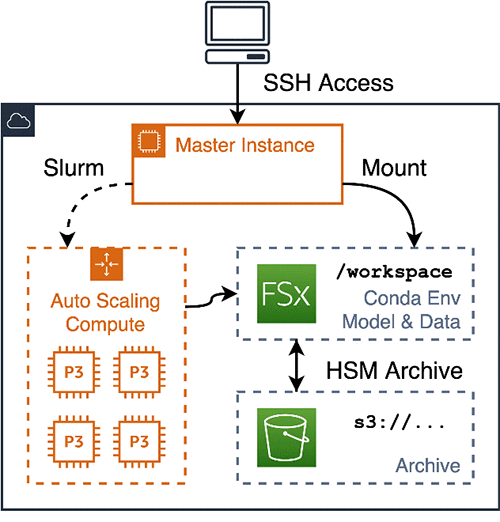
This post shows you how to set up, run, and tear down a complete AWS ParallelCluster environment implementing this architecture. The post runs two NLP tutorials, fine-tuning a BERT model on a paraphrasing task and training an English-German machine translation model. This includes the following steps:
- AWS ParallelCluster configuration and setup
- Conda-based installation of your ML and NLP packages
- Initial interactive model training
- Parallel model training and evaluation
- Data archiving and cluster teardown
The tutorial lays out a workflow using standard tools, and you can adapt it to your research requirements.
Prerequisites
This post uses a combination of m5 and p3 EC2 instances and Amazon FSx and Amazon S3 storage. Furthermore, because you are using GPU-enabled instances for training, this tutorial takes your account out of the free AWS tier. Before you begin, complete the following prerequisites:
- Set up an AWS account and create an access token with administrator permissions.
- Request quota increases in your target AWS Region for at least one
m5.xlarge, three p3.2xlarge, and three p3.8xlarge On-Demand Instances.
Setting up your client and cluster
Start with a one-time setup and configuration of your workstation with the aws-parallelcluster client in a dedicated Conda environment. You reuse this pattern again later when setting up isolated environments for each subproject that contains a precise set of dependencies required to reproduce your work.
Installing Conda
Perform a one-time installation of a base Miniconda environment and initialize your shell to enable Conda. This post works from a macOS workstation; use the download URL for your preferred platform. This configuration sets up a base environment and activates it in your interactive shell. See the following code:
@work:~$ wget -O miniconda.sh
    "https://repo.anaconda.com/miniconda/Miniconda3-latest-MacOSX-x86_64.sh"
    && bash miniconda.sh -p ~/.conda
    && ~/.conda/bin/conda init
Setting up your client environment
Install AWS ParallelCluster and the AWS CLI tools using a Conda environment called pcluster_client. This environment provides separation between the client and your system environment. First, write an environment.yml file specifying the environment name and dependency versions. Call conda env update to download and install the libraries. See the following code:
(base) @work:~$ cat > pcluster_client.environment.yml <<EOF
name: pcluster_client
dependencies:
  - python=3.7
  - pip
  - conda-forge::jq
  - conda-forge::awscli
  - pip:
    - aws-parallelcluster >= 2.4
EOF

(base) @work:~$ conda env update -f pcluster_client.environment.yml
Configuring pcluster and creating storage
To configure AWS ParallelCluster, conda activate your pcluster_client environment and configure aws and pcluster via the default configuration flow. For more information, see Configuring AWS ParallelCluster.
During configuration, upload your id_rsa public key to AWS and store your private key locally, which you use to access your pcluster instances. See the following code:
(base) @work:~$ conda activate pcluster_client
(pcluster_client) @work:~$ aws configure
  [...]
(pcluster_client) @work:~$ aws ec2 import-key-pair
    --key-name $USER --public-key-material file://~/.ssh/id_rsa.pub
{
    "KeyFingerprint": [...]
    [...]
}
(pcluster_client) @work:~$ pcluster configure
  [...]
After configuring AWS ParallelCluster, create an S3 bucket for persistent storage of your data and models with the following code:
(pcluster_client) @work:~$ export AWS_ACCOUNT=$(aws sts get-caller-identity | jq -r ".Account")
(pcluster_client) @work:~$ export S3_BUCKET=pcluster-training-workspace-$AWS_ACCOUNT
(pcluster_client) @work:~$ aws s3 mb s3://$S3_BUCKET
  make_bucket: pcluster-training-workspace-[...account id...]
Add config entries for a GPU-enabled cluster and Amazon FSx file system with the following code:
(pcluster_client) @work:~$ cat >> ~/.parallelcluster/config <<EOF

[cluster p3.2xlarge]
key_name                 = $USER
vpc_settings             = public

scheduler                = slurm
base_os                  = centos7
fsx_settings             = workspace

initial_queue_size       = 1
max_queue_size           = 3

master_instance_type     = m5.xlarge
compute_instance_type    = p3.2xlarge

[fsx workspace]
shared_dir = /workspace
storage_capacity = 3600
import_path = s3://$S3_BUCKET
export_path = s3://$S3_BUCKET
imported_file_chunk_size = 1024

EOF
Creating and bootstrapping your cluster
After configuration, bring your cluster online. This command creates a persistent master instance, attaches an Amazon FSx file system, and sets up a p3 class Auto Scaling group. After cluster creation is complete, set up Miniconda again, this time installing it onto the /workspace file system accessible on all master and compute nodes. See the following code:
(pcluster_client) @work:~$ pcluster create -t p3.2xlarge training
Beginning cluster creation for cluster: training
Creating stack named: parallelcluster-training
Status: [...]

(pcluster_client) @work:~$ pcluster ssh training

[centos@ip-172-31-48-17 ~]$ wget -O miniconda.sh
    "https://repo.anaconda.com/miniconda/Miniconda3-latest-Linux-x86_64.sh"
    && bash miniconda.sh -p /workspace/.conda
    && /workspace/.conda/bin/conda init
[centos@ip-172-31-48-17 ~]$ exit
Your compute cluster now contains a single m5 class instance, with p3.2xlarge instances available via the slurm job manager. You can use an interactive salloc session to access your p3 resources via srun commands. An important implication of your autoscaled cluster strategy is that while all code and data are available across the cluster, access to attached GPUs is limited to compute nodes accessed via srun. You can demonstrate this via calls to nvidia-smi, which reports the status of attached resources. See the following code:
(pcluster_client) @work:~$ pcluster ssh training

# Execution on the master node can not access gpu resources.
(base) [centos@ip-172-31-48-17 ~]$ hostname
ip-172-31-48-17
(base) [centos@ip-172-31-48-17 ~]$ nvidia-smi
NVIDIA-SMI has failed [...]

# Use salloc to bring a compute node online, then use calls to srun to
# execute commands on the GPU-enabled compute node.
(base) [centos@ip-172-31-48-17 ~]$ salloc
salloc: Required node not available (down, drained or reserved)
salloc: Pending job allocation 2
salloc: job 2 queued and waiting for resources
salloc: job 2 has been allocated resources
salloc: Granted job allocation 2

(base) [centos@ip-172-31-48-17 ~]$ srun hostname
ip-172-31-48-226

(base) [centos@ip-172-31-48-17 ~]$ srun nvidia-smi
+-----------------------------------------------------------------------------+
| NVIDIA-SMI 418.56       Driver Version: 418.56       CUDA Version: 10.1     |
|-------------------------------+----------------------+----------------------+
| GPU  Name        Persistence-M| Bus-Id        Disp.A | Volatile Uncorr. ECC |
| Fan  Temp  Perf  Pwr:Usage/Cap|         Memory-Usage | GPU-Util  Compute M. |
|===============================+======================+======================|
|   0  Tesla V100-SXM2...  Off  | 00000000:00:1E.0 Off |                    0 |
| N/A   34C    P0    39W / 300W |      0MiB / 16130MiB |      0%      Default |
+-------------------------------+----------------------+----------------------+

+-----------------------------------------------------------------------------+
| Processes:                                                       GPU Memory |
|  GPU       PID   Type   Process name                             Usage      |
|=============================================================================|
|  No running processes found                                                 |
+-----------------------------------------------------------------------------+
(base) [centos@ip-172-31-48-17 ~]$ exit
exit
salloc: Relinquishing job allocation 2
AWS ParallelCluster performs automatic management of your compute Auto Scaling group. This keeps a compute node running and available for the lifetime of your salloc and terminates the idle compute node several minutes after the job ends.
Model training
Initial GPU-enabled interactive training
For an initial research task, run a standard natural language process workflow, fine-tuning a pre-trained BERT model onto a specific subtask. Establish a working environment with your model dependencies, download the pre-trained model and training data, and run fine-tuning training on a GPU. For more information about PyTorch pre-trained BERT examples, see the GitHub repo.
First, run a one-time setup of your project: a Conda environment with library dependencies and a workspace with training data. Write an environment.yml specifying the dependencies for your project, call conda env update to create and install the environment, and call conda env activate. Fetch your training data into /workspace/bert_tuning. See the following code:
(base) [centos@ip-172-31-48-17 ]$ mkdir /workspace/bert_tuning
 (base) [centos@ip-172-31-48-17 ]$ cd /workspace/bert_tuning

(base) [centos@ip-172-31-48-17 bert_tuning]$ cat > environment.yml <<EOF
name: bert_tuning
dependencies:
  - python=3.7
  - pytorch::pytorch=1.1
  - scipy=1.2
  - scikit-learn=0.21
  - pip
  - requests
  - tqdm
  - boto3
  - pip:
    - pytorch_pretrained_bert==0.6.2
EOF

(base) [centos@ip-172-31-48-17 bert_tuning]$ conda env update
[...]
# To activate this environment, use
#
#     $ conda activate bert_tuning

(base) [centos@ip-172-31-48-17 bert_tuning]$ conda activate bert_tuning

(bert_tuning) [centos@ip-172-31-48-17 bert_tuning]$ wget
   https://gist.githubusercontent.com/W4ngatang/60c2bdb54d156a41194446737ce03e2e/raw/17b8dd0d724281ed7c3b2aeeda662b92809aadd5/download_glue_data.py
(bert_tuning) [centos@ip-172-31-48-17 bert_tuning]$ python download_glue_data.py --data_dir glue
Downloading and extracting Cola...
[...]
        Completed!
After downloading your dependencies, fetch the training script and run fine-tuning in an interactive session. The only difference from the documented non-cluster example is that you run your training via salloc --exclusive srun rather than directly invoking the training script. The /workspace Amazon FSx file system allows the compute node to access your Conda environment’s installed libraries and your model definition, training data, and model checkpoints. As before, allocate a GPU-enabled node for the training run, which terminates after your run is complete. See the following code:
(bert_tuning) [centos@ip-172-31-48-17 bert_tuning]$ wget
  https://raw.githubusercontent.com/huggingface/pytorch-pretrained-BERT/v0.6.2/examples/run_classifier.py
(bert_tuning) [centos@ip-172-31-48-17 bert_tuning]$ salloc --exclusive srun
python run_classifier.py
  --task_name MRPC
  --do_train
  --do_eval
  --do_lower_case
  --data_dir glue/MRPC/
  --bert_model bert-base-uncased
  --max_seq_length 128
  --train_batch_size 32
  --learning_rate 2e-5
  --num_train_epochs 3.0
  --output_dir mrpc_output
salloc: Required node not available (down, drained or reserved)
salloc: Pending job allocation 3
salloc: job 3 queued and waiting for resources
salloc: job 3 has been allocated resources
salloc: Granted job allocation 3
06/12/2019 02:15:36 - INFO - __main__ -   device: cuda n_gpu: 1, distributed training: False, 16-bits training: False
[...]
Epoch:  100%|██████████| 3/3 [01:11<00:35, 35.90s/it]
[...]
Evaluating: 100%|██████████| 51/51 [00:01<00:00, 41.42it/s]
06/12/2019 02:17:48 - INFO - __main__ -   ***** Eval results *****
06/12/2019 02:17:48 - INFO - __main__ -     acc = 0.8455882352941176
06/12/2019 02:17:48 - INFO - __main__ -     acc_and_f1 = 0.867627742865973
06/12/2019 02:17:48 - INFO - __main__ -     eval_loss = 0.42869279022310297
06/12/2019 02:17:48 - INFO - __main__ -     f1 = 0.8896672504378283
06/12/2019 02:17:48 - INFO - __main__ -     global_step = 345
06/12/2019 02:17:48 - INFO - __main__ -     loss = 0.15244172460035138
salloc: Relinquishing job allocation 3

(bert_tuning) [centos@ip-172-31-48-17 bert_tuning]$ exit
Multi-GPU training
Using salloc is useful for interactive model development, short training jobs, and testing. However, the majority of modern research requires multiple long-running training jobs for model development and tuning. To support more compute-intensive experimentation, update your cluster to multi-GPU compute instances and use sbatch for non-interactive training. Enqueue multiple training jobs for an experiment and let AWS ParallelCluster scale up your compute group for the run and scale down after the experiment is complete.
From your workstation, add configuration for a multi-GPU cluster, shut down any remaining single-GPU nodes, and update your cluster configuration to multi-GPU p3.8xlarge compute instances. See the following code:
(pcluster_client) @work:~$ cat >> ~/.parallelcluster/config <<EOF

[cluster p3.8xlarge]
key_name                 = $USER
vpc_settings             = public

scheduler                = slurm
base_os                  = centos7
fsx_settings             = workspace

initial_queue_size       = 1
max_queue_size           = 3

master_instance_type     = m5.xlarge
compute_instance_type    = p3.8xlarge

EOF

(pcluster_client) @work:~$ (
       pcluster stop training
       pcluster update training -t p3.8xlarge
       pcluster start training
   )

Stopping compute fleet : training
Updating: training
Calling update_stack
Status: parallelcluster-training - UPDATE_COMPLETE
Starting compute fleet : training

(pcluster_client) @work:~$ pcluster ssh training

(base) [centos@ip-172-31-48-17 ~]$ salloc srun nvidia-smi
salloc: Granted job allocation 4
Wed Jun 12 06:02:25 2019
+-----------------------------------------------------------------------------+
| NVIDIA-SMI 418.56       Driver Version: 418.56       CUDA Version: 10.1     |
|-------------------------------+----------------------+----------------------+
| GPU  Name        Persistence-M| Bus-Id        Disp.A | Volatile Uncorr. ECC |
| Fan  Temp  Perf  Pwr:Usage/Cap|         Memory-Usage | GPU-Util  Compute M. |
|===============================+======================+======================|
|   0  Tesla V100-SXM2...  Off  | 00000000:00:1B.0 Off |                    0 |
| N/A   47C    P0    52W / 300W |      0MiB / 16130MiB |      0%      Default |
+-------------------------------+----------------------+----------------------+
|   1  Tesla V100-SXM2...  Off  | 00000000:00:1C.0 Off |                    0 |
| N/A   46C    P0    52W / 300W |      0MiB / 16130MiB |      0%      Default |
+-------------------------------+----------------------+----------------------+
|   2  Tesla V100-SXM2...  Off  | 00000000:00:1D.0 Off |                    0 |
| N/A   49C    P0    58W / 300W |      0MiB / 16130MiB |      0%      Default |
+-------------------------------+----------------------+----------------------+
|   3  Tesla V100-SXM2...  Off  | 00000000:00:1E.0 Off |                    0 |
| N/A   47C    P0    57W / 300W |      0MiB / 16130MiB |      0%      Default |
+-------------------------------+----------------------+----------------------+

+-----------------------------------------------------------------------------+
| Processes:                                                       GPU Memory |
|  GPU       PID   Type   Process name                             Usage      |
|=============================================================================|
|  No running processes found                                                 |
+-----------------------------------------------------------------------------+
salloc: Relinquishing job allocation 4
This post retrains a transformer-based English-to-German translation model using the FairSeq NLP framework. As before, set up a new workspace and environment and download training data. See the following code:
(base) [centos@ip-172-31-48-17 ~]$ mkdir /workspace/translation
(base) [centos@ip-172-31-48-17 ~]$ cd /workspace/translation

(base) [centos@ip-172-31-48-17 translation]$ cat > environment.yml <<EOF
name: translation
dependencies:
  - python=3.7
  - pytorch::pytorch=1.1
  - pip
  - tqdm
  - pip:
    - fairseq==0.6.2
EOF

(translation) [centos@ip-172-31-48-17 translation]$ conda env update && conda activate translation

(translation) [centos@ip-172-31-48-17 translation]$ wget
  https://raw.githubusercontent.com/pytorch/fairseq/v0.6.2/examples/translation/prepare-iwslt14.sh
  && bash prepare-iwslt14.sh

[...]

(translation) [centos@ip-172-31-48-17 translation]$ fairseq-preprocess
  --source-lang de --target-lang en
  --trainpref iwslt14.tokenized.de-en/train
  --validpref iwslt14.tokenized.de-en/valid
  --testpref  iwslt14.tokenized.de-en/test
  --destdir data-bin/iwslt14.tokenized.de-en

[...]
| Wrote preprocessed data to data-bin/iwslt14.tokenized.de-en
After downloading and preprocessing your training data, write your training script and launch a quick interactive training run to confirm that your script launches and successfully trains for several epochs. Your first job is limited to a single GPU via CUDA_VISIBLE_DEVICES and should train in approximately 60 seconds/epoch; after an epoch or so, interrupt with ctrl-C. Because your underlying model supports distributed data-parallel training, you can expect nearly linear performance scaling with additional GPUs on a single worker. Training in a second job with all four devices should train in approximately 15–20 seconds/epoch, confirming effective multi-GPU scaling, which you again interrupt. See the following code:
(translation) [centos@ip-172-31-48-17 translation]$ mkdir -p checkpoints/transformer
(translation) [centos@ip-172-31-48-17 translation]$ (cat > train_transformer && chmod +x train_transformer) <<EOF
#!/bin/bash
fairseq-train data-bin/iwslt14.tokenized.de-en
  -a transformer_iwslt_de_en --optimizer adam --lr 0.0005 -s de -t en
  --label-smoothing 0.1 --dropout 0.3 --max-tokens 4000
  --min-lr '1e-09' --lr-scheduler inverse_sqrt --weight-decay 0.0001
  --criterion label_smoothed_cross_entropy --max-update 50000
  --warmup-updates 4000 --warmup-init-lr '1e-07'
  --adam-betas '(0.9, 0.98)' --fp16
  --save-dir checkpoints/transformer
EOF

(translation) [centos@ip-172-31-48-17 translation]$ CUDA_VISIBLE_DEVICES=0 salloc --exclusive
  srun -X --pty ./train_transformer

  [...]
| training on 1 GPUs
  [...]
  ^C
  [...]
  KeyboardInterrupt

(translation) [centos@ip-172-31-48-17 translation]$ salloc --exclusive
  srun -X --pty ./train_transformer

  [...]
| training on 4 GPUs
  [...]
  ^C
  [...]
  KeyboardInterrupt
After your initial validation, run sbatch to schedule your full training run. The sinfo command provides information about your running cluster, and squeue shows the status of your batch job. tail on the job log allows you to monitor training progress, and ssh access to the compute node address reported by squeue allows you to check resource utilization. As before, AWS ParallelCluster scales up your compute cluster for the batch training job and releases the GPU-enabled instances after batch training is complete. See the following code:
(translation) [centos@ip-172-31-48-17 translation]$ sbatch --exclusive
  --output=train_transformer.log
  ./train_transformer

Submitted batch job 9.

(translation) [centos@ip-172-31-21-188 translation]$ sinfo
PARTITION AVAIL  TIMELIMIT  NODES  STATE NODELIST
compute*     up   infinite      1  alloc ip-172-31-20-225

(translation) [centos@ip-172-31-21-188 translation]$ squeue
             JOBID PARTITION     NAME     USER ST       TIME  NODES NODELIST(REASON)
                 9   compute   sbatch   centos  R       0:22      1 ip-172-31-20-225

(translation) [centos@ip-172-31-21-188 translation]$ tail train_transformer.log
[...]
| loaded checkpoint checkpoints/transformer/checkpoint_last.pt (epoch 5 @ 1413 updates)
| epoch 006 | loss 7.268 | [...]
| epoch 006 | valid on 'valid' subset | loss 6.806 | [...]

(translation) [centos@ip-172-31-21-188 translation]$ ssh -t ip-172-31-20-225 watch nvidia-smi

+-----------------------------------------------------------------------------+
| NVIDIA-SMI 418.56       Driver Version: 418.56       CUDA Version: 10.1     |
|-------------------------------+----------------------+----------------------+
| GPU  Name        Persistence-M| Bus-Id        Disp.A | Volatile Uncorr. ECC |
| Fan  Temp  Perf  Pwr:Usage/Cap|         Memory-Usage | GPU-Util  Compute M. |
|===============================+======================+======================|
|   0  Tesla V100-SXM2...  Off  | 00000000:00:1B.0 Off |                    0 |
| N/A   63C    P0   214W / 300W |   3900MiB / 16130MiB |     83%      Default |
+-------------------------------+----------------------+----------------------+
|   1  Tesla V100-SXM2...  Off  | 00000000:00:1C.0 Off |                    0 |
| N/A   64C    P0   175W / 300W |   4110MiB / 16130MiB |     82%      Default |
+-------------------------------+----------------------+----------------------+
|   2  Tesla V100-SXM2...  Off  | 00000000:00:1D.0 Off |                    0 |
| N/A   60C    P0   164W / 300W |   4026MiB / 16130MiB |     65%      Default |
+-------------------------------+----------------------+----------------------+
|   3  Tesla V100-SXM2...  Off  | 00000000:00:1E.0 Off |                    0 |
| N/A   62C    P0   115W / 300W |   3994MiB / 16130MiB |     74%      Default |
+-------------------------------+----------------------+----------------------+

+-----------------------------------------------------------------------------+
| Processes:                                                       GPU Memory |
|  GPU       PID   Type   Process name                             Usage      |
|=============================================================================|
|    0     41837      C   ...ntos/.conda/envs/translation/bin/python  3889MiB |
|    1     41838      C   ...ntos/.conda/envs/translation/bin/python  4099MiB |
|    2     41839      C   ...ntos/.conda/envs/translation/bin/python  4015MiB |
|    3     41840      C   ...ntos/.conda/envs/translation/bin/python  3983MiB |
+-----------------------------------------------------------------------------+
The job takes approximately 80–90 minutes to complete. You can now evaluate your model via interactive translation. See the following code:
(translation) [centos@ip-172-31-21-188 translation]$ squeue
             JOBID PARTITION     NAME     USER ST       TIME  NODES NODELIST(REASON)
(translation) [centos@ip-172-31-21-188 translation]$ fairseq-interactive
  data-bin/iwslt14.tokenized.de-en
  --path checkpoints/transformer/checkpoint_best.pt --beam 5 --remove-bpe <<EOF
hallo welt
EOF

Namespace([...])
| [de] dictionary: 8848 types
| [en] dictionary: 6632 types
| loading model(s) from checkpoints/transformer/checkpoint_best.pt
| Type the input sentence and press return:
S-0    hallo welt
H-0    -0.32129842042922974    hello world .
P-0    -0.8112 -0.0095 -0.4157 -0.2850 -0.0851
Jupyter and other HTTP services
Interactive notebook-based development is frequently used for data exploration, model analysis, and prototyping. You can launch and access a notebook server running on your AWS ParallelCluster workers. Add jupyterlab to the project’s workspace environment and srun the notebook. See the following code:
(translation) [centos@ip-172-31-48-17 translation]$ conda install jupyterlab

[...]

# unset XDG_RUNTIME_DIR and listen on node name to allow ssh tunnel.
(translation) [centos@ip-172-31-48-17 translation]$
  XDG_RUNTIME_DIR=
  salloc --exclusive srun -X --pty bash -c
  'jupyter lab --ip=$SLURMD_NODENAME'

[...]
The Jupyter Notebook is running at:
http://ip-172-31-21-236:8888/?token=[...token...]
In a separate terminal, set up a pcluster ssh tunnel to the notebook worker using the node address and access token reported by Jupyter and open a local browser. See the following code:
(pcluster_client) @work:~$ pcluster ssh training -L 8888:ip-172-31-21-236:8888 -N&
(pcluster_client) @work:~$ jobs
[1]+  Running.  pcluster ssh training -L 8888:ip-172-31-21-236:8888 -N &

(pcluster_client) @work:~$ open http://localhost:8888/?token=[...token...]
You can use a similar approach to run tools such as tensorboard in your cluster environment.
Storage and cluster teardown
After completing model training and evaluation, you can archive your /workspace file system to Amazon S3 via Amazon FSx’s hierarchical storage support. For more information, see Using Data Repositories. After the hsm_archive actions complete in approximately 60–90 minutes, verify the contents of your s3 export bucket via the AWS CLI with the following code:
(pcluster_client) @work:~$ pcluster ssh training

# Find and archive all files in the /workspace
(base) [centos@ip-172-31-48-17 translation]$
  find /workspace -type f -print0
  | xargs -0 -n 16 sudo lfs hsm_archive

# Returns 0 when all archive operations are complete
(base) [centos@ip-172-31-48-17 translation]$
  find /workspace -type f -print0
  | xargs -0 -n 16 -P 8 sudo lfs hsm_action | grep "ARCHIVE" | wc -l

0

(base) [centos@ip-172-31-48-17 translation]$ exit

(pcluster_client) @work:~$ aws s3 ls
    s3://pcluster-training-workspace-$(aws sts get-caller-identity | jq -r ".Account")

    PRE bert_tuning/
    PRE translation/

(pcluster_client) @work:~$ pcluster delete training
Deleting: training
[...]
A later call to pcluster create with the same configuration restores your cluster, pre-populating /workspace from your S3 archive.
Multiple clusters
You can use AWS ParallelCluster to manage multiple concurrent compute clusters. For instance, you can use a mix of CPU and GPU clusters to support preprocessing or analysis tasks that involve significant CPU-bound processing. Additionally, this can provide independent clusters for multiple researchers in a single shared AWS workspace.
Adapting this workflow to a multi-cluster configuration is relatively simple. Set up a standalone Amazon FSx file system and manage its lifecycle via existing CloudFormation templates in the amazon-fsx-workshop/lustre GitHub repo. Specify an export prefix and update ~/.parallelcluster/config with the following code:
[fsx workspace]
       shared_dir = /workspace
       fsx_fs_id = <filesystem id>
Multiple clusters now share a /workspace file system, decoupled from the lifetime of any individual cluster. You can use calls to lfs hsm_archive from any cluster to back up file system contents to S3, potentially via a nightly cron.
Capacity management
AWS ParallelCluster manages a compute cluster of EC2 instances via a standard Auto Scaling group, allowing you to use existing AWS-native tools for capacity management as you scale clusters. AWS ParallelCluster has built-in support for using Spot Instances within compute fleets via cluster_type configuration, and uses Reserved Instance capacity if available. You can use On-Demand Capacity Reservations so AWS ParallelCluster can rapidly scale to match your target compute fleet size.
Conclusion
If you wish to maintain more direct control over your computing infrastructure, an AWS ParallelCluster-based workflow provides an ideal working environment for applied machine learning research. Rapid cluster setup, scaling, and updates allow interactive exploration of a modeling task, including identification of a proper instance type and multi-instance scaling for parallel training runs. Conda environments and a high-performance Amazon FSx file system provide a familiar file interface and handle the critical, but undifferentiated, heavy lifting of reproducibly archiving model artifacts to S3 transparently.
For more information about configuring AWS ParallelCluster and building an interactive and scalable ML or HPC research environment, see the AWS ParallelCluster User Guide or the aws-parallelcluster GitHub repo.
About the author
 Alex Ford is an Applied Scientist with AWS. He is passionate about emerging applications at the intersection of machine learning and the natural sciences. In his spare time, he explores the geography and geology of the Cascadia subduction zone, with deep affection for the Index batholith.
![[N] Python Creator Guido van Rossum Quits Dropbox, And Announced His Retirement](https://b.thumbs.redditmedia.com/AfVjqz0EuvUt5tLe_VPeQNhzHwzRTD6ftVPThBPuW-Y.jpg "[N] Python Creator Guido van Rossum Quits Dropbox, And Announced His Retirement")